
by Contributed | May 19, 2021 | Technology
This article is contributed. See the original author and article here.
Your tenant just got the new SharePoint app bar, and you are probably wondering how it should fit in with the rest of your intranet architecture. You may be asking yourself, what should be in the global navigation and what should be home site navigation? What if my home site is also a hub site? In this blog, we’ll share best practices on how to think about global navigation, how to align with existing home site and hub navigation, and how to prepare for the app bar.
What’s the SharePoint app bar?
First, let’s review the SharePoint app bar. The SharePoint app bar is a fixed navigation experience across all modern SharePoint sites that provides quick access to the most important sites, news, and files as well as the organization’s global navigation.
The SharePoint app bar can be broken down into two main parts:
- Global navigation – Enable and customize the global navigation tab to display universally relevant links and use audience targeting to surface important content to specific audiences.
- Personalized content – The remaining tabs in the SharePoint app bar consist of My sites, My news, and My files and dynamically displays personalized content based on insights from Microsoft Graph.
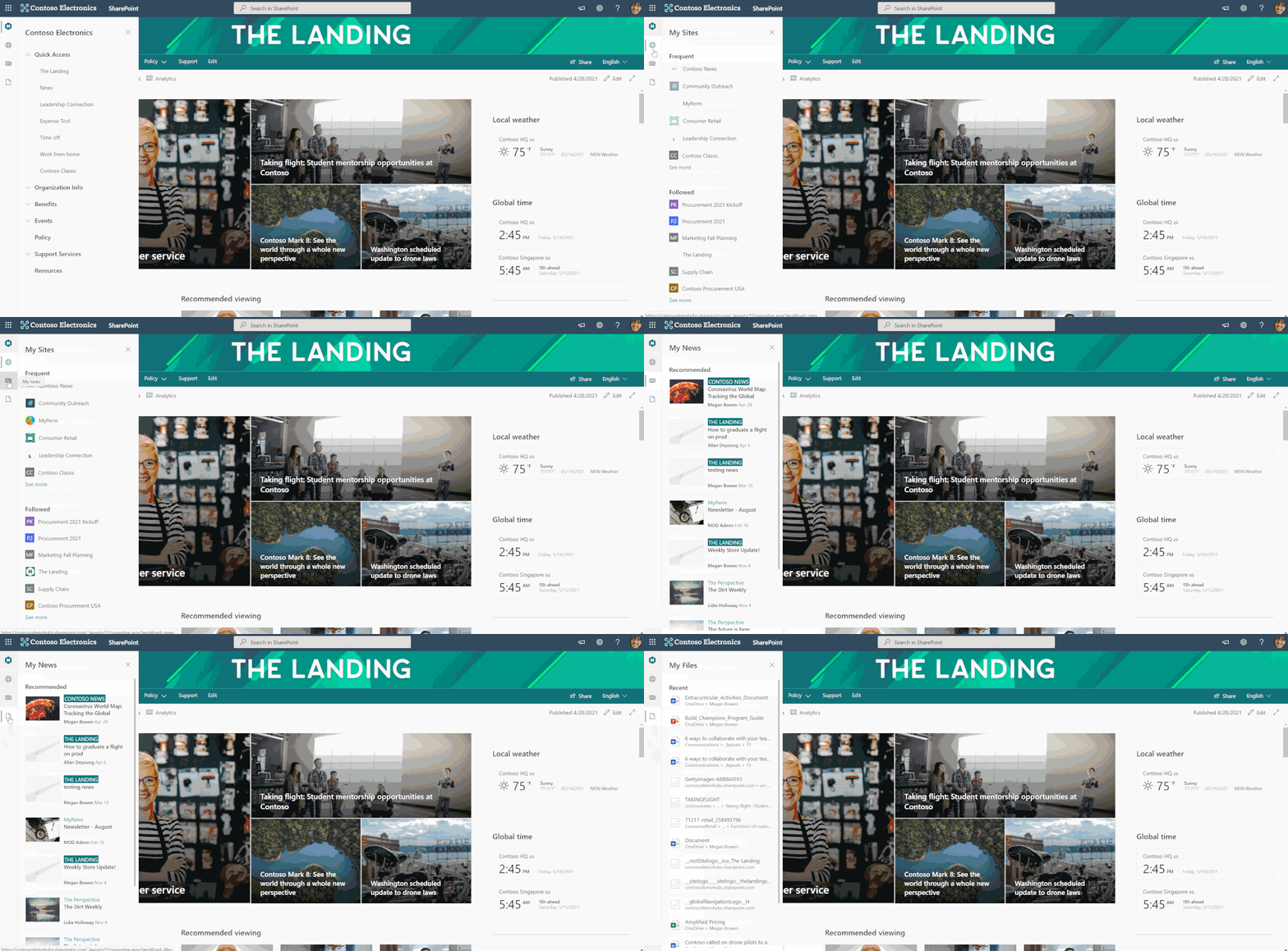 SharePoint App Bar
SharePoint global navigation and Viva Connections
Earlier this year, Microsoft announced a new product offering called Microsoft Viva, an employee experience platform that brings together communications, knowledge, learning, resources, and insights.
One of the four pillars of Microsoft Viva is Viva Connections which uses SharePoint and Microsoft Teams to engage and connect your organization on a whole new level. To take full advantage of Viva Connections for desktop, make sure your organization has a home site and enable global navigation in the SharePoint app bar. When global navigation is enabled, your organization’s most important intranet resources will display in Microsoft Teams.
Re-thinking intranet wayfinding
Now that we’ve reviewed the basic concept behind the SharePoint app bar and global navigation, let’s explore how to re-think your organization’s intranet architecture to accommodate this new wayfinding resource.
Most intranet experiences begin “at the top” with a landing destination. This is the place where users go to catch up on the latest organizational news, find out about upcoming events, and access important resources. In SharePoint this top-level landing experience is called the home site. The home site is unlike all other SharePoint sites in the sense that it has many superpowers. The home site is a vital piece of a great intranet, but users need a more efficient option to navigate between intranet resources without having to go back to the home site first. That’s where global navigation comes in because it allows you to provide a consistent set of navigational links regardless of where the user is in the intranet. For example, let’s say the user is viewing the human resources site to confirm how many hours of vacation are available and also needs to view the current time-off request policy in the policies center. Instead of having to switch back and forth between sites, global navigation enables users to navigate to universally relevant resources (like HR policy) no matter their location in SharePoint.
Previously customers could achieve this using a SharePoint hub site and associating all other intranet sites to it. This approach is great too but it’s just starting point! As your organization grows, your intranet will need to scale too. Soon, you’ll realize that you need more and more hubs (families of related sites) and you’ll need to make decisions on what resources to prioritize.
Global navigation solves this issue by providing navigation across all sites. You can then choose to use SharePoint hub sites to group and sync branding, permissions and navigation of related sites based on your departments, divisions, regions, or portfolio.
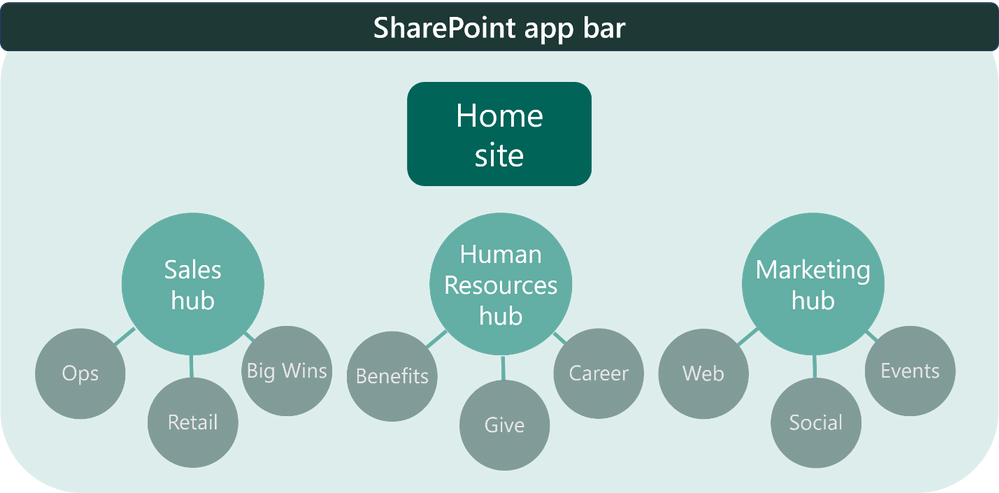
How to think about global navigation
So, what should you use global navigation for? From talking to many customers across the years, we’ve learned successful global navigation designs focus on the most important resources like:
- The home site itself and other top hubs and departmental sites (for example, HR)
- Popular destinations for resources like benefits, company policies, and how to get support
- Links to line of business apps and custom applications
- Content relevant to the daily job functions of people in your organization
What does this mean for the home site navigation? The home site navigation transitions to focus more on wayfinding inside the home site as well and other relevant (but not critical) resources.
- Wayfinding inside the home site
- Links to news from inside the organization
- Link to news from outside the organization
- Organizational profiles and stories
- Leadership teams, divisions, and stakeholders
- Topics of interest
- Public social feeds
Now, hub navigation can focus on resources related to the hub topic. For example, a human resources hub can have associated sites for all the different sites like benefits, payroll, time-off requests, and more. If the hub is for a division or department, it will have associated sites linked as topic sites that talk about business strategy, planning, metrics, leadership, and all the related teams within that division or topic. Learn more about how to think about home site, hub, and global navigation from the product team.
Next, decide the source for global navigation
Now that you know which resources are ideal for global navigation, it’s time to enable this feature and pick the source. We’ve given you multiple options so you can determine what best fits your needs.
First, to enable and customize global navigation, your organization must have a home site. From the home site’s home page, select Settings and then Global navigation.
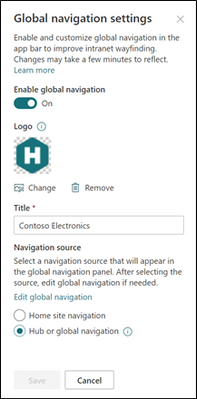
Then you can decide which source the global navigation should pull from, either the home site navigation or the hub navigation (whether it’s officially a hub or not). Now for some organizations, this decision depends on how you want your home site navigation experience to look like, so here are some tips:
- If you want global navigation to match the home site navigation, select the Home site navigation as the source. Then, decide to display or hide the site navigation on the home site
- If you want global navigation to be different from the home site navigation, select Hub or global navigation (even if your home site is not a hub).
- If the home site is already a hub, you can select either navigation source, but we recommend using hub navigation and hiding the site navigation to simplify the navigation experience.
- Finally, if the home site is a hub and you’re using the extended header style, note that the site navigation automatically becomes hidden.
Example of global navigation at Microsoft
At Microsoft, our home site is also a hub site because there are multiple sites that power the Microsoft Web intranet experience from various news resources to a leadership connection site and more. For Microsoft’s global navigation, the home site navigation is the source and is hidden from the user interface on the home site.
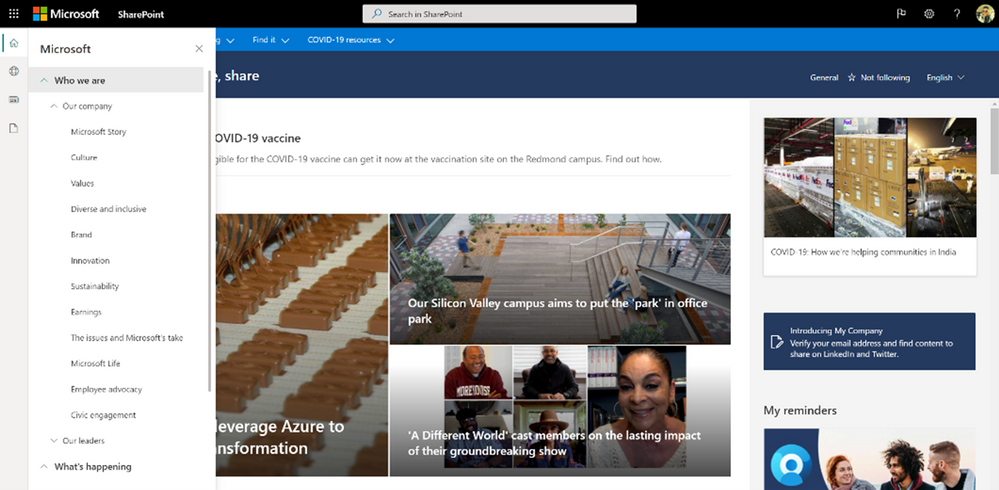 The SP App bar used on Microsoft’s intranet
Enable and customize global navigation today
The SharePoint app bar is now available to most SharePoint customers. If you already have a SharePoint home site, you are ready to enable and set up global navigation. Next, integrate your SharePoint intranet with Microsoft Teams by using Viva Connections for desktop.
If you do not already have the SharePoint home site, now is a great time to plan and create a home site for your organization. Consider getting a head start on your home site by using a template named The Landing from the SharePoint look book. Learn more from the Microsoft product team on how to think about and plan home sites.
We hope you find this information useful and that it provides further clarity on you should think about leveraging global navigation for both SharePoint and Viva Connections.
More resources
Learn more about information architecture in SharePoint
Onboard end-users to the SharePoint app bar
Check out the Viva Connections desktop experience
Watch: Architecting your intelligent intranet
by Contributed | May 19, 2021 | Technology
This article is contributed. See the original author and article here.
The future of Internet Explorer (“IE”) on Windows 10 is in Microsoft Edge. What does this mean for commercial organizations, IT admins, developers, and end users? Microsoft Edge brings you a faster, more secure, and more modern web experience than Internet Explorer. Also, Microsoft Edge with Internet Explorer mode (“IE mode”), is the only browser with built-in compatibility for legacy IE-based sites and apps.
As announced today, Microsoft Edge with IE mode is officially replacing the Internet Explorer 11 desktop application on Windows 10. As a result, the Internet Explorer 11 desktop application will go out of support and be retired on June 15, 2022 for certain versions of Windows 10.
Which platforms will be affected when the IE11 desktop application is retired and goes out of support on June 15, 2022?
In scope at the time of this announcement (will be retired):
- Internet Explorer 11 desktop application delivered via the Semi-Annual Channel (SAC):
- Windows 10 client SKUs (version 20H2 and later)
- Windows 10 IoT (version 20H2 and later)
Out of scope at the time of this announcement (unaffected):
- Internet Explorer mode in Microsoft Edge
- Internet Explorer platform (MSHTML/Trident), including WebOC
- Internet Explorer 11 desktop application on:
- Windows 8.1
- Windows 7 Extended Security Updates (ESU)
- Windows 10 Server SAC (all versions)
- Windows 10 IoT Long-Term Servicing Channel (LTSC) (all versions)
- Windows 10 Server LTSC (all versions)
- Windows 10 client LTSC (all versions)
What about Windows 10 LTSC and Windows Server?
In-market Windows 10 LTSC and Windows Server are out of scope (unaffected) for this change.
What if Microsoft Edge is already installed?
Great! You already have a faster, more secure, and more modern browser than Internet Explorer and have completed some of the steps to help with your migration. If you’re an organization, the next steps will be to determine if your organization has legacy browser dependencies. To enable legacy browser support in Microsoft Edge, you’ll need to set up Internet Explorer mode. Learn more on our Internet Explorer mode webpage and read the Getting Started guide.
What does this announcement mean for my organization?
If your organization has legacy apps and sites dependent on IE11, you can follow the Getting Started Guide to start configuring IE mode. You may be concerned about change management, so please check out the Internet Explorer Retirement Adoption Kit for ready-made content to help you notify users and leaders in your organization about the upcoming changes and help move them to Microsoft Edge.
What does this announcement mean for developers?
Apps developed for IE should work in Microsoft Edge through IE mode. If you encounter an issue, contact App Assure for remediation assistance (ACHELP@microsoft.com).
For developers working on modern websites or applications, we understand that it has been increasingly difficult to support Internet Explorer side-by-side with modern browsers. While this announcement will start the transition of moving users from Internet Explorer to the more modern Microsoft Edge browser, it will take time and we recommend that you develop a plan to end support for Internet Explorer. Read this Moving users to Microsoft Edge from Internet Explorer article to learn how we can help.
What does this announcement mean for end users?
Microsoft Edge offers a faster, more secure, and modern browsing experience than Internet Explorer, and a growing number of websites no longer support Internet Explorer. After the Internet Explorer desktop application is retired on June 15, 2022, it will be out of support. After this date, the IE11 desktop application will be disabled and will redirect to Microsoft Edge if a user tries to access it.
If a user encounters a broken website that requires IE11, they should open it in IE mode. They can open websites that require Internet Explorer without leaving Microsoft Edge. Learn more about Internet Explorer mode in Microsoft Edge.
What is the MSHTML (Trident) engine? How does that relate to IE mode?
The MSHTML (Trident) engine is the underlying platform for Internet Explorer 11. This is the same engine used by IE mode and it will continue to be supported (in other words, unaffected by this announcement). WebOC will also continue to be supported. If you have a custom or third-party app that relies on the MSHTML platform, you can expect it to continue to work. For future app development, we recommend using WebView2.
How long will IE mode be supported?
IE mode support follows the lifecycle of Windows client, Server, and IoT releases at least through 2029. Additionally, Microsoft will give one year of notice before retiring the IE mode experience when the time comes. Windows support dates are documented on the Product Lifecycle page. Some editions of Windows may require an ESU license, if available, to receive operating system security updates beyond end of support dates. End of service dates for currently supported versions of Windows are as follows:
Platform
|
Windows release
|
End of service
|
Windows client
|
Windows 10 Enterprise, version 20H2
|
5/9/2023
|
Windows 10 Enterprise, version 2004
|
12/14/2021
|
Windows 10 2019 LTSC
|
1/9/2029
|
Windows 8.1
|
1/10/2023
|
Windows 7 (ESU required)
|
1/10/2023
|
Windows Server
|
Windows Server, version 20H2 (SAC)
|
5/10/2022
|
Windows Server, version 2004 (SAC)
|
12/14/2021
|
Windows Server 2019 (LTSC)
|
1/9/2029
|
Windows IoT
|
Windows 10 IoT Enterprise, version 20H2
|
5/9/2023
|
Windows 10 IoT Enterprise, version 2004
|
12/14/2021
|
Windows 10 IoT 2019 LTSC
|
1/9/2029
|
Windows Server IoT 2019
|
1/9/2029
|
If I reach out to Microsoft for an exception to this timeline, can I continue to use the Internet Explorer 11 desktop application after June 15, 2022?
Microsoft Edge provides a dual engine advantage of Internet Explorer mode for compatibility with legacy websites and the Chromium project–the technology that powers many of today’s browsers–for world-class compatibility and performance with modern websites.
As such, we’re not allowing exceptions or providing extended support to continue using the IE11 desktop application on the in-scope platforms after June 15, 2022.
For those using IE11 at home, you can run IE mode in Microsoft Edge by following the steps outlined on this support page: Internet Explorer mode in Microsoft Edge.
Commercial IT pros will need to set up IE mode in Microsoft Edge to enable access to legacy IE-based sites and apps for their commercial users. To set up IE mode, use the resources in the Getting Started guide.
Supporting IE mode through at least 2029 is not long enough. Can I get an extension?
IE mode will continue to be supported through at least 2029 and Microsoft will give one year notice before deprecating the IE mode experience in-market when the time comes.
What IE functionality is available in IE mode?
IE mode supports all document and enterprise modes, Active X controls (such as Java or Silverlight), and more. For a list of what is supported and what is not supported, see the What is Internet Explorer (IE) mode Docs page.
Are there any changes to the Microsoft Edge lifecycle?
There are no changes to the Microsoft Edge lifecycle. Microsoft Edge continues to be supported. For more details, please visit the Microsoft Edge Lifecycle page.
How do I set up Internet Explorer mode in my organization?
You can get detailed guidance on how to set up Internet Explorer mode through our Getting Started guide or by visiting our IE mode documentation.
Will the Internet Explorer 11 desktop application be removed from devices?
No. The IE11 desktop application will not be removed from devices, as the IE11 engine is required for IE mode to function. However, after the IE11 desktop application is retired on June 15, 2022, it will be disabled permanently.
Will iexplore.exe be removed from devices?
No, but if a user tries to access it, they will be unable to open IE11 and will be redirected to Microsoft Edge.
If my browser default isn’t Internet Explorer 11, will the retirement affect my browser default?
No, this retirement will only change your browser default if your default had been set to Internet Explorer 11. If IE11 is set as your browser default, you will now have Microsoft Edge.
Will Internet Explorer-based sites and apps open automatically in Microsoft Edge after the Internet Explorer 11 desktop application is retired on June 15, 2022?
After the IE11 desktop application is retired, IE11 will redirect to Microsoft Edge. To open Internet Explorer-based websites and apps, you will need to either set up Internet Explorer mode (as an organization) or enable Internet Explorer mode (as a consumer at home).
If you’re an organization, you can set up IE mode using the Getting Started guide.
If you are an end user, you can enable IE mode by following the steps in this Internet Explorer mode in Microsoft Edge support article.
What if some of my sites don’t work in Microsoft Edge using Internet Explorer mode? How do I get help for website compatibility issues?
If you’re an organization and experience compatibility issues such as an error loading a site, please connect with the App Assure team for remediation assistance. You can submit a request for assistance through their website or reach out via email (ACHELP@microsoft.com).
If you’re a consumer at home and encounter an error loading a page, try loading it in IE mode by following the instructions in this Internet Explorer mode in Microsoft Edge support article. If the issue persists, please notify us by sending feedback through the in-product feedback tool found in the three-dot settings menu under ‘Help and feedback’ or by using the shortcut Alt + Shift + I. When submitting feedback, please check the box to ‘Send diagnostic data’.
Will the IE Group Policies work in IE mode?
We are committed to have IE Group Policies work in IE mode. If for any reason you encounter an issue, please connect with us at AppAssure for assistance. You can submit a request for assistance through their website or reach out via email (ACHELP@microsoft.com).
Continue the conversation. Find best practices. Visit the Windows Tech Community.
Stay informed. For the latest updates on new releases, tools, and resources, stay tuned to this blog and follow us @MSWindowsITPro on Twitter.

by Contributed | May 19, 2021 | Technology
This article is contributed. See the original author and article here.
Welcome back to Reconnect, the biweekly series that catches up with former MVPs and their current activities.
This week we are thrilled to be joined by none other than four-time titleholder Praveen Nair! Hailing from Kochi, India, Praveen is a passionate technology enthusiast who believes in giving back to the community in the form of knowledge.
Praveen currently works as the Program Director for Adfolks LLC, a full-service catalyst for transformation in the cloud. Most recently, Praveen has been working on architect business applications and data management projects, as well as working with pre-sales and marketing teams to provide business and technology solutions, largely in Azure and .NET.
When he’s not working, Praveen remains active with his regional tech community. The tech professional volunteers with the Kerala Microsoft Users Group (K-MUG) as a regular speaker and event organizer. Praveen says his ethos is to “help and get help,” and that he enjoys inspiring and working alongside fellow members of the community.
For newcomers to the MVP program, Praveen advises: “Not to worry or desire for the result but perform one’s karma. Recognitions will flow automatically when you concentrate on the objectives.” Looking forward, Praveen hopes to conduct more technology events, write more articles and help online communities.
For more information on Praveen, check out his Twitter @ninethsense and blog.

by Contributed | May 19, 2021 | Dynamics 365, Microsoft 365, Technology
This article is contributed. See the original author and article here.
Did you know that mixed reality business applications like Microsoft Dynamics 365 Remote Assist on HoloLens 2 can help reduce waste from a lean management perspective? We invited Six Sigma Black Belt and Kaizen expert Laura Riley, Senior Business Program Manager from the Microsoft Cloud Operations and Innovations team to share her perspective on how using Dynamics 365 Remote Assist on HoloLens 2 in Microsoft’s datacenters has helped staff avoid unnecessary travel, boost uptime, and save costs all while reducing waste.
Q: Tell us a bit about how Microsoft first started using mixed reality for datacenter management and operations.
Laura Riley: The opportunity to tap into the power of mixed reality solutions in our datacenters really came about because of a combination of factors. These included:
- The ongoing COVID-19 pandemic, shift to employees working from home, global lockdowns, and travel restrictions with countries shutting borders. The lockdown essentially forced a turbocharge of plans for the way we work.
- Phenomenal demand for Microsoft cloud offerings as people relied on cloud computing to support remote work, school, and play.
- Landlords, smart hands, and vendor travel restrictions
- Complex New Edge Technologies being deployed to the field at a faster pace
- Engineering teams could not travel onsite to do their routine inspections and checklists of our Critical Environment systems due to the travel lockdowns
- Current methods of developing and delivering does not scale at the pace that we need them to in order to provide the user with a fully immersive learning experience
- Limited human resources for travel, site Selection, commissioning, and final turn over to Operations
- Audits within Microsoft (PCI, SOC, FedRamp, HKMA) required to progress during the COVID-19 pandemic. Auditors were required to perform audits remotely during the COVID-19 pandemic lockdown and required technology that would allow them to perform their activities to support not only our internal evidence but evidence for our customers to ensure we are operating within the secure guidelines for our datacenters.
Q: What did your team use Dynamics 365 Remote Assist on HoloLens 2 for?
Laura: We had several Dynamics 365 Remote Assist use cases within our organization. For starters, our team required an immediate shift as part of our COVID-19 pandemic response to meet the demand of our customers. The COVID-19 pandemic escalated the need to have hands on the ground to meet this demand. We first launched Dynamics 365 Remote Assist on HoloLens 2 in our Cloud Operations Supply Chain within the Global Regional areas to assist with performing critical activities that were either halted, stalled, or delayed due to restrictions with travel and having SMEs available to perform the work. Dynamics 365 Remote Assist and HoloLens 2 using Augmented Reality allowed for immediate ROI while improving the outcome.
From then on, we expanded our use case to include zero-waste inspections, and as well as a plethora of other activities including:
- Remote Audits (PCI, FedRamp, SOC, HKMA, others)
- Critical Environment Quality Inspections
- Construction and Turn-Over to Operations Inspections
- NPI New Product Introduction
- Break-Fix
- Deployments
- EHS
- GOLD and Learning & Development
- Edge Sites
- Factory Witness Testing
- IT/CE Smart Hands
Q: So how did Dynamics 365 Remote Assist on HoloLens 2 help your team reduce waste from a lean management perspective?
Laura: The mixed reality solution enabled us to achieve a number of quantified benefits, including:
- Increased efficiency, including improved first-time fix rates
- Increased safety for employees
- Reduce machine downtime
- Minimize risk of downtime with proactive remote audits and inspections
- Enhanced training and improved knowledge transfer between employees
- Enable hands-free work especially for employees that need both hands free to work
- Enable real-time, 3D annotation-supported collaboration among team members
- Improve client-facing interactions
- Drive better remote access processes
- Minimize or in some cases even eliminate travel costs
- Offer design-focused employees more tools to boost productivity
- Boost knowledge transfer between seasoned and new employees
- Providing interactive, 3D digital service instructions
- Ability to display critical information, including service details, associated with a machine right in the context of our real-world environment
- “I see what you see” live video-conferencing for effective communication
- Ability to display interface options that are not accessible on the physical machine.
- Faster Learning curve for trainees, again reducing time spent to onboard new employees
That said, the biggest waste reduction probably stems from time saved on non-value-adding activities via travel avoidance where possible. Using Dynamics 365 Remote Assist and HoloLens effectively reduced travel for our IT Program Managers performing Construction Inspections by 90 percent. Our team of Construction PMs now uses Dynamics 365 Remote Assist and HoloLens 2 instead of traveling to the sites, effectively performing remote inspections through the field technicians on the ground.
Below are the key benefits we were able to achieve with mixed reality:
- Improved Collaboration: Field Technicians can now be instructed by Subject Matter Experts with visibility into their work via “see what I can see” and 3D annotation capabilities at the physical location without having to travel. Escalations and support calls become more effective and efficient as Engineering teams can now see what the field technicians are doing in real time, while instructing work activities.
- Improved Work/Life Balance: Dynamics 365 Remote Assist gave the Auditors time back in their day to perform other critical activities time which would otherwise have had to be spent traveling around the globe. Performing compliance audits using Dynamics 365 Remote Assist was a game changer, per Lee Moscal, a Microsoft Auditor. It demonstrates our ability to save costs associated with travel and improve the auditor’s work/life balance. We perform approximately 75 audits per fiscal year with six auditors traveling to various locations across the Regions. The impact helped reduced travel nine times around the globe for six auditors traveling to those locations.
- Sustainability and Carbon Negative Goals: Using Dynamics 365 Remote Assist for our Zero Waste Program helped improve sustainability due to reduced travel thus our carbon footprint. It also helped save time associated with performing those inspections. We were also able to improve the quality and reduce the time it took to obtain evidence reviews all while effectively cutting down on training required to perform these inspections.
- Critical Environments Reduced Costs: There are many exciting opportunities to gain efficiencies in Commissioning using Dynamics 365 Remote Assist.
- Improved Learning: Dynamics 365 Remote Assist enables trainers to provide visual and verbal step-by-step instructions remotely. Trainees can now carry out required tasks hands-free and independently with the support of mixed reality.
Learn more about Dynamics 365 Remote Assist on HoloLens 2
Read the full Microsoft Datacenter story, “Microsoft enhances datacenter audits, management with mixed reality using Dynamics 365 Remote Assist on HoloLens 2”.
Learn more about Dynamics 365 Remote Assist.
Learn more about the overview, features, and specs of Microsoft HoloLens 2.
The post Mixed reality meets lean management: how Dynamics 365 Remote Assist streamlines Microsoft datacenter operations appeared first on Microsoft Dynamics 365 Blog.
Brought to you by Dr. Ware, Microsoft Office 365 Silver Partner, Charleston SC.
by Contributed | May 19, 2021 | Technology
This article is contributed. See the original author and article here.
Customers rely on the Microsoft Information Governance and Records Management solutions to help govern the lifecycle of content and manage content to meet compliance regulations. Our goals are to make it easy for customers to address compliance in Microsoft 365 and tailor our solutions to meet unique business needs. We are committed to helping organizations manage risk through appropriate governance and today we are accelerating our investments in these areas.
Today, we are excited to announce the following items:
Announcing multi-stage disposition approval
Many compliance requirements or organizational policies require approval before the deletion of records. Often this review process has multiple phases and involves numerous groups of people. Previously, Microsoft Records Management allowed only one stage of review.
Today, we are announcing the public preview of multi-stage disposition approval. Multi-stage disposition approval is available today worldwide in all commercial tenants. Please try these features and give us your feedback. This release includes several groups of new features, including:
- The ability to specify a multi-stage approval process in retention label settings
- Improvements to the reviewer experience
- Additional features for records management admins
We will cover each of these areas in-depth in the following sections.
Configure a multi-stage approval process
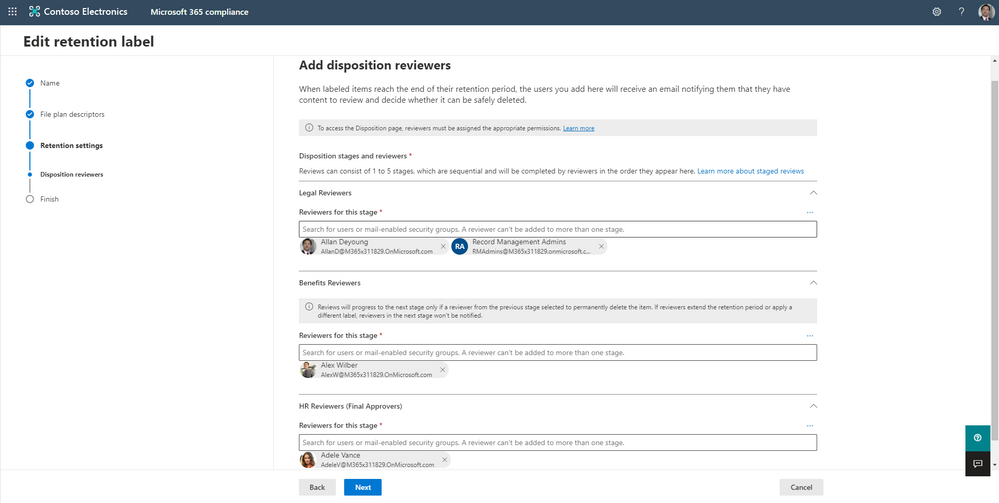
Records management administrators can now configure up to five stages of disposition approval in a retention label’s settings. This ability allows you to customize the disposition process to meet the needs of your organization. For each stage, you can specify users or mail-enabled security groups that should be solicited for their approval.
Figure 1: The multi-stage disposition settings screen, showing three stages and configuration options
If you already have retention labels configured for disposition review, then you can edit it to use multi-stage disposition.
You can learn how to configure a retention label to use multi-stage disposition in our documentation.
Disposition review experience improvements
Firstly, we overhauled the disposition experience for approvers to make it faster and easier to use. When reviewers visit the disposition review area, we trim the file list to show them only the items they need to approve, rather than all files awaiting approval. Reviewers can also sort the list of available files by location, such as a specific SharePoint site or mailbox.
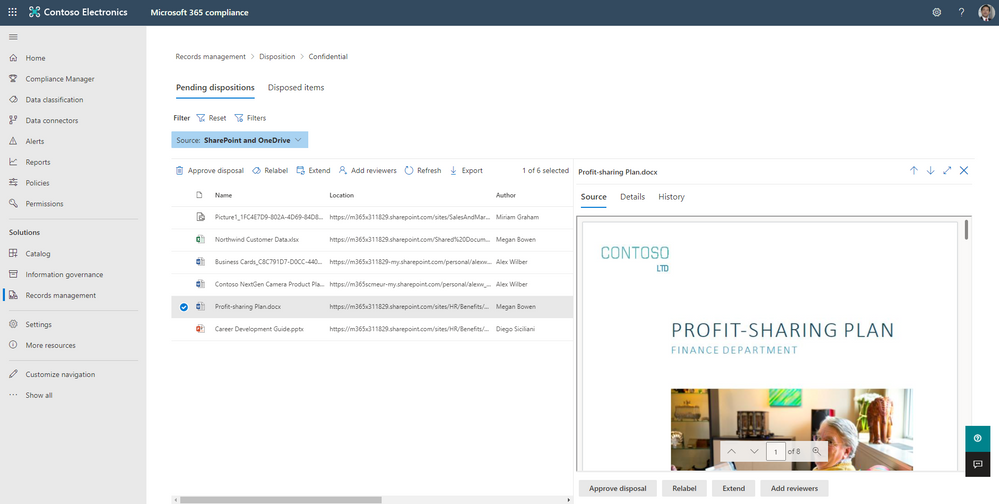 Figure 2: The review disposition screen, showing the list of items requiring approval and a document preview
Next, we improved the view of files for reviewers. Users can click on a file to view its contents in a mini-preview pane directly in the review experience. We also added the ability for reviewers to add other reviewers to approve certain items in addition to the existing actions of approving disposition, retention extension, or relabeling the item.
Lastly, reviewers now have more context to help with their review decision. The new history and details tabs enable reviewers to see an item’s review history, including who has approved the item before and their comments.
To learn more about the disposition reviewer experience, please see our documentation.
Enhancements for records managers
We enhanced the records manager experience with the multi-stage disposition release. Records managers can now customize the email sent to reviewers letting them know that there are items pending review. Records managers can append text to the standard system message. This feature allows the records manager to highlight specific processes and documentation within their organization. The customization of the message will apply to all labels. Learn more about customizing the disposition reviewer email here.
Next, while reviewers only see items that require their approval, records managers will be able to see all items pending disposition. To configure this view, the records manager will need to complete a one-time setup. Please see our documentation for the setup instructions.
Lastly, the new multi-stage disposition review process fully supports multi-geo environments. If needed, reviewers can review content not located in their geographical location.
Expansion of Microsoft Teams message retention and deletion
With the rise in remote work, organizations want to govern Teams messages using retention and deletion policies. Today we are excited to announce that Teams retention policies are available to all paid Office 365 licenses, including F1, F3, E1, G1, business basic, and business standard. Organizations can use retention policies to keep or delete Teams messages according to their policies.
This update includes managing messages in Teams chats, conversations, private channels (currently in private preview) and connect channels when they launch. It consists of both commercial and government cloud environments. Please note that for users with one of the above licenses, the supported minimum retention or deletion period is 30 days. For more information about the timings for Teams retention policies, see How retention works with Microsoft Teams.
For instructions to set up a retention policy, see Create and configure retention policies.
Sign up for the private preview of adaptive policy scopes
Today, we are also announcing the private preview for adaptive policy scopes. This new functionality allows admins to create attribute-based retention or label policies that can be scoped to geography, department, other user, group, or site attribute. For example, admins can create a policy specifically for users in the UK’s human resources team using an adaptive policy scope.
Adaptive policy scopes are especially useful for retention policies where you want to exclude or include specific users, sites, or groups. Currently, when manually including or excluding locations there are limits per policy. However, adaptive policy scopes are not subject to these per-policy limits and will automatically and dynamically manage policy membership as users change roles without any manual intervention.
This private preview program is open to all qualified organizations who are interested in early access to this feature and help shape the future of it. Completing the form does not guarantee access to the private preview. If you would like to participate in this preview, please complete this form: https://aka.ms/MIPC/AdaptiveScopes-Preview
Our latest SharePoint governance performance improvements
Some solution releases are not evident in the user interface of a product but have an enormous impact on our customers. Throughout the last year, we invested heavily in performance improvements for the service powering Microsoft Information Governance and Records Management for SharePoint and OneDrive.
The specific performance improvements are related to increasing the number of items we can label and delete per tenant in one week. Initial telemetry in SharePoint and OneDrive from this update has shown an increase of approximately 700 times more deletions per week and 10 times more items labeled per week compared to a year ago. For some large organizations this means over 75 million items deleted and well over 200 million files labeled per week.
The improvements released are aimed at exponentially increasing the scalability of the service within each tenant. This helps large organizations when they first begin to use Microsoft Information Governance and Records Management. It is also useful when configuring a new action with a large scope and there is a lot of content to initially label and delete.
Other recent Microsoft Information Governance feature releases
Since September 2020, we have also released several other Microsoft Information Governance and Records Management features, including:
- Yammer retention. Admins can now create retention policies to manage Yammer messages when the Yammer network is in native mode. Yammer retention is rolling out worldwide now
- Ability to delete an unused record label. Previously, admins could not delete retention labels marked as a record. Now, you can delete these labels if they are not applied to content or used in a policy. This feature is now available worldwide
- Target a Microsoft 365 group policy to only SharePoint or Exchange. Previously, when you had a retention or labeling policy targeting Microsoft 365 groups, the policy would always apply to both the SharePoint site and the Exchange group mailbox associated with the group. Now you can target the retention policy to both or just one location through PowerShell. This feature is rolling out worldwide now
- A modernized accessible user experience. As we continue delivering on our promise of accessibility across all Microsoft’s products, the user interfaces for Microsoft Information Governance and Records Management are now WCAG 2.1 compliant
- SharePoint Syntex content processing integration. Continuing our investments integrating compliance scenarios with SharePoint Syntex intelligence, users can now automatically apply a retention label to content that matches a forms processing model. SharePoint Syntex content processing helps you to automate capture, ingestion, and categorization of content and streamline content-centric processes using Power Automate. A common example is using SharePoint Syntex to process invoices
We hope these announcements make it easier for you to govern your content and use the Microsoft Information Governance and Records Management solutions. We cannot wait for you to try these features! Please let us know in the comments if you have any questions. We would also love to hear how you plan to use these features!


Recent Comments