by Contributed | Mar 19, 2021 | Technology
This article is contributed. See the original author and article here.
Another exciting week is in the books. News our team is covering this week includes Microsoft’s commitment to expand Azure Availability Zones to more regions, Monitor your spending through forecasted cost alerts with Azure Cost Management and Billing, Make workloads on AMD-backed virtual machines confidential without recompiling code, Long-term backup retention (LTR) for Azure SQL Managed Instance in public preview, Machine Learning Services on Azure SQL Managed Instance now generally available and an enterprise-scale Microsoft Learn module of the week.
Microsoft’s commitment to expand Azure Availability Zones to more regions
Microsoft continues to build Azure to support customer needs for low-latency, high-availability cloud services and with the ability to both store and process data within a country or geography. In 2021, Microsoft continued thier plans to expand datacenter regions to new markets like Indonesia and grow in existing markets in the United States and China. As the continued effort to bring local cloud services to more countries moves along, resiliency and high availability has become top of mind.
Microsoft has announced that by end of 2021, every country in which they operate a datacenter region will deliver Azure Availability Zones. More information surrounding new Availability Zone capabilities coming to your region can be found here: Microsoft’s commitment to expand Azure Availability Zones
Forecasted cost alerts with Azure Cost Management and Billing now Generally Available
Manage cloud spending with confidence by using the newly generally available forecasted cost alerts. Azure Cost Management and Billing can prevent cost overruns with Azure budget alerts on forecasted costs.
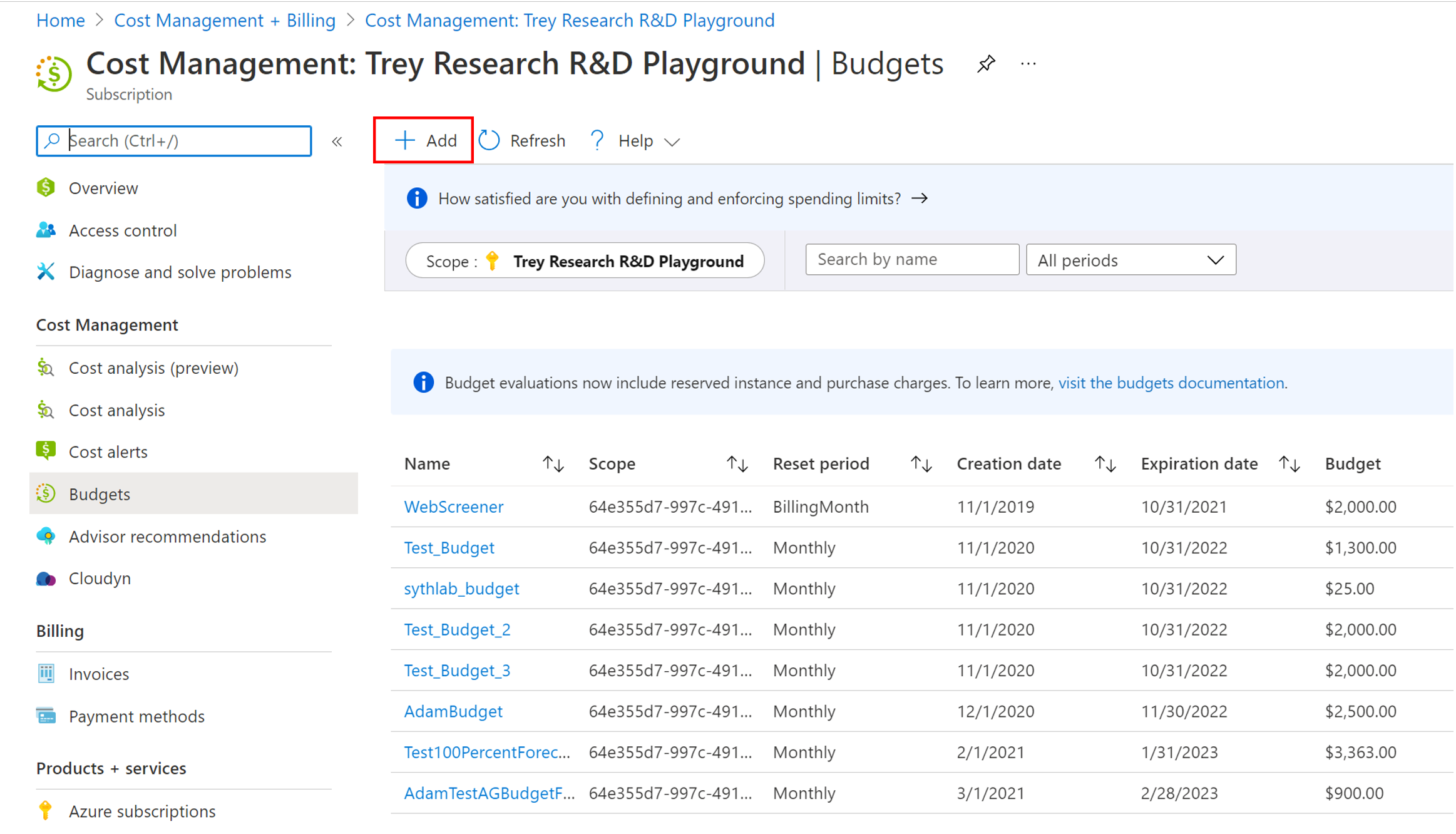
Learn more here: Prevent exceeding Azure budget with forecasted cost alerts
Make workloads on AMD-backed virtual machines confidential without recompiling code
Microsoft announced the limited preview of AMD-backed Azure confidential computing virtual machines. Microsoft is further broadening the confidential computing options available to Azure customers through our technology partnership with AMD, specifically by being the first major cloud provider to offer confidential virtual machines on the new AMD EPYC™ 7003 series processors. This new approach complements existing Azure confidential computing solutions such as confidential containers for Azure Kubernetes Service and opens the possibility to create new confidential applications without requiring code modifications which in turn substantially simplifies the process of creating confidential applications.
Sign up for the preview here
Long-term backup retention for Azure SQL Managed Instance in public preview
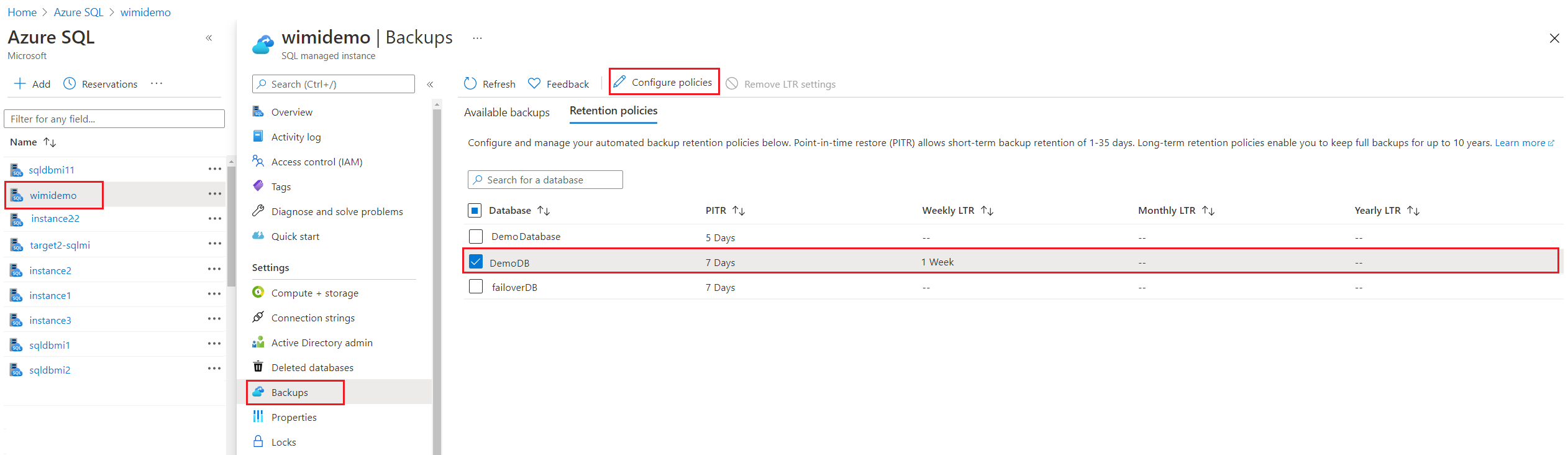
Many applications have regulatory, compliance, or other business purposes that require you to retain database backups beyond the 35 days provided by Azure SQL Managed Instance automatic backups. When using the LTR feature, you can automatically retain specified SQL Managed Instance full backups in separate Azure Blob storage with configured redundancy for up to 10 years. You can then restore any backups as a new database. LTR may be configured on both single and pooled instances.
Machine Learning Services on Azure SQL Managed Instance now generally available
Microsoft’s goal is to continue making investments in Machine Learning Services across all SQL Server products in such platforms as Windows, Linux, Virtual Machines, Edge, Synapse, and Managed Instance, with feature parity and consistent user experience. To start this endeavour, Microsoft has enabled machine learning capabilities to operate R or Python runtime with increased performance on a preconfigured SQL Managed Instance.
The Machine Learning Services with R or Python support in Azure SQL Managed Instance can now be used to:
- Data preparation and general purpose data processing
- Deploy models and scripts into production in stored procedures.
- Train machine learning models in database.
Community Events
- Hello World – Special guests, content challenges, upcoming events, and daily updates
- Patch and Switch – Patch and Switch are back to share thier “from the trenches” stories
- Extend to the cloud with Azure VMware solution – Delivered in partnership with Intel and VMware— learn how to easily shift your VMware workloads to the cloud on your own terms and modernize your investments
MS Learn Module of the Week

Creating enterprise-scale architecture in Azure
Learn how Microsoft Cloud Adoption Framework for Azure enterprise-scale landing zones can help organizations accelerate cloud adoption from months to weeks. This learning path will explore how to create Azure landing zone architecture at enterprise-scale. Learn about landing zone critical design areas to build and operationalize your Azure environment.
Learn more here: Create an enterprise-scale architecture in Azure

Let us know in the comments below if there are any news items you would like to see covered in the next show. Be sure to catch the next AzUpdate episode and join us in the live chat.
by Contributed | Mar 18, 2021 | Technology
This article is contributed. See the original author and article here.
As we talk with our customers that are using Microsoft Endpoint Manager to deploy, manage, and secure their client devices, we often get questions regarding co-managing devices and hybrid Azure Active Directory (AD) joined devices. Many customers confuse these two topics – the first is a management option, while the second is an identity option. In this blog, I hope to clear up any confusion and give guidance and scenarios on how to use both to manage and protect your devices.
Let’s start with the basics: management
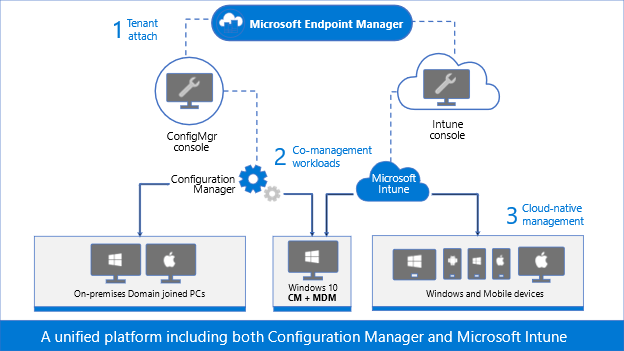
Microsoft Endpoint Manager is the combination of Configuration Manager – the on-premises management tool that you’ve been using for decades – and Microsoft Intune – the cloud-based management solution used for modern device security and management. Endpoint Manager’s goal is unifying both of your management solutions and bringing the power of the cloud to your entire endpoint estate.
To accomplish this goal, we first launched tenant attach to provide an easy and low-risk path to cloud attach your Configuration Manager infrastructure to your Intune tenant. This is an on-premises to cloud attachment like you’ve seen before when connecting your Exchange Server on-premises infrastructure to Exchange online and sync’d those mailboxes, and when you connected Active Directory to Azure Active Directory and sync’d those user accounts and other objects. Tenant attach is the same idea: attach the Configuration Manager infrastructure to Intune and sync the Windows 10 Configuration Manager managed devices to the cloud-based Intune tenant. Creating this connection brings the value of remote actions and analytics, immediately.
During or after the initial attachment, you can start moving certain workloads from Configuration Manager to Intune, either one at a time or en masse. You choose the path that’s right for you. Co-management is the act of moving workloads from Configuration Manager to Intune and telling the Windows 10 client who the management authority is for that particular workload. For example, you might move Compliance Policies and Device Configuration workloads to Intune while leaving all other workloads set to Configuration Manager. This tells the Windows 10 client to listen to Configuration Manager for app deployment and security policies, for example, while listening to Intune for compliance policies and device configuration policies.
Figure 1: Graphic representation of Microsoft Endpoint Manager, Configuration Manager, and Microsoft Intune.
As you continue to modernize, continue moving workloads to Intune until you are managing everything in the cloud, or keep all of the workloads directed to Configuration Manager and stay on the tenant attach step. Or you can even start in Intune as cloud-native. With tenant attach and co-management, you choose the path and the end state.
Let’s start with the basics: identity
Active Directory Domain Services (AD DS) has been around since 2000, with the release of Windows 2000 Server. Traditionally, we join our Windows devices to Active Directory to take advantage of Group Policies, security settings, and even to give permissions to resources that are stored in a different Active Directory environment – either in the same Active Directory forest or a different forest. Devices can be joined to only one AD DS environment.
Like we said earlier, though, it’s possible to connect the on-premises AD DS environment to Azure Active Directory (Azure AD). When this connection is made, the devices that are joined to AD DS may then be registered in Azure AD. This connection and registration is known as hybrid Azure AD joined.
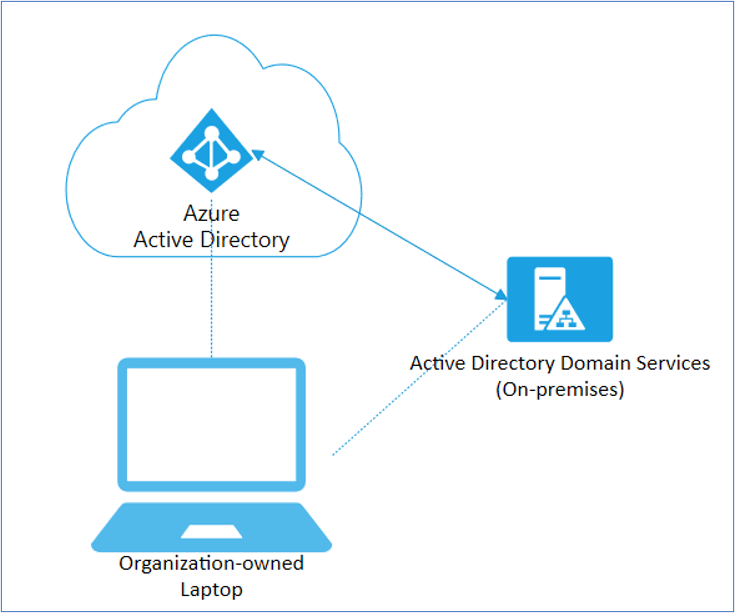 Figure 2: Diagram depicting a Hybrid Azure AD joined corporate laptop.
Devices that are co-managed, or devices that are enrolled in in Intune, may be joined directly to Azure AD, or they may be hybrid Azure AD joined but they must have a cloud identity.
Our guidance
Not all devices in your organization need to be managed the same. Each device serves a different purpose, as such has different management and identity requirements. For example, new devices may not need to be joined to AD DS, and instead can be initially provisioned as Azure AD joined, being managed either by Intune natively or by co-management. Starting this device as hybrid Azure AD joined will introduce challenges later as you adopt more modern solutions, such as migrating user data, user profiles, and determining which group policies are assigned to the device. So before joining any new devices to AD DS and deciding on that hybrid approach, ask yourself, “Does this device need to be hybrid Azure AD joined? What are the benefits of joining this device to my AD DS environment?”
Hybrid Azure AD joining a device is great for uplifting your existing AD DS joined devices, but Azure AD is the Microsoft recommended path for most new or repurposed devices, especially when using modern deployment tools like Windows Autopilot.
Scenarios
Many of our customers have been using AD DS for 20 years, joining client (and server) operating systems from Windows 2000, Windows XP, Windows 7, Windows 8/8.1, Windows 10, and everything in between (I’m looking at you Windows Vista!). Because of how long AD DS has been around, you may have Group Policy Objects (GPOs) that you need to leverage, or Win32 authentication, or other scenarios that will make moving to a pure Azure AD environment challenging. Let’s look at some of these scenarios and our guidance with each one.
Scenario #1: User profile migration
Scenario
When a device is joined to Azure AD, it creates a new profile for the logged-on user, and does not reference any existing profiles. In a new device scenario, this won’t be an issue as there are no profiles yet on the endpoint. User profiles typically include the following local directories:
- Local files in the Desktop, Documents, Pictures folders
- Start menu and Taskbar customizations
- Favorites
- Browser settings
- Cached credentials
- Outlook cache and settings
- Third-party app settings
But if the devices were previously AD DS joined or joined to its own workgroup, you may need a profile migration, as seen in the table below:
Original device state
|
Once joined to Azure AD
|
New or re-imaged/repurposed device
|
No profile migration needed
|
Local workgroup
|
User profiles need to be migrated
|
AD DS joined
|
User profiles need to be migrated
|
Table 1. User profile migration needs when joining a device to Azure AD.
Guidance
Our guidance in the case where a user profile migration is needed is to:
- Manually copy/paste to migrate profiles, or use a third-party profile migration tool
- Re-map existing files and settings to the new profile
- Preserve all cache settings
- Use Enterprise State Roaming
- Force synchronization of browser data
- Moving your on-premises file shares to SharePoint Online
- Use OneDrive for Business Known Folder Move
Scenario #2: Group Policy Objects
Scenario
Though we are constantly adding configuration service providers (CSPs) settings that Windows supports into Intune and making configuration of settings easier for you, some of the GPOs that are configured on-premises may not have equivalent CSPs in Intune. These GPOs typically revolve around very specific user-based configurations, such as:
- Start menu and Taskbar customizations
- Desktop wallpaper and screensaver settings
- Some registry settings
- Other Group Policy Preferences
Guidance
- Run Group Policy Analytics to analyze these GPOs and determine your level of modern management support.
- Do a thorough assessment of supported settings in MDM – do you still need them? Are there alternative technologies with higher security? Are the registry changes covered by a KB article? Is the policy still required? Do a hard rationalization with your team!
- If you are setting Registry to configure apps, re-evaluate if the configuration is supported via ADMX (Administrative Templates).
- Migrate those GPO settings that have equivalent CSPs to an Intune policy. For devices born in the cloud, use Security baselines to configure Windows 10 devices in Intune as these have recommended MDM configurations.
- Re-evaluate the necessity of those GPO settings that do not have an equivalent CSP and report to us.
Scenario #3: Win32 apps and legacy authentication
Scenario
Some Win32 apps have a need for some legacy form of authentication. Any apps that require AD DS machine authentication will not work.
The apps that work are the apps that support NT LAN Manager (NTLM), Modern Auth, and Kerberos TGT.
Guidance
- Once you have a better idea of who is using legacy authentication in your directory and which applications depend on it, the next step is upgrading your users to use modern authentication.
- Migrate these apps to apps that support modern types of authentication.
- Re-evaluate the necessity of AD DS machine authentication.
- Get application compatibility assistance at no additional cost.
Scenario #4: Printing
Scenario
Your users are using printers that are directly connected to their devices or that have a direct path in the Printer settings. And some may be using AD Printer Discovery to find the printer closest to them. Because there are many printer-type scenarios, consider the following in the table below:
Printer scenario
|
Result
|
User has a printer directly connected
|
This will continue to work
|
User has a direct path to a printer
|
This will continue to work
|
User uses AD Printer Discovery
|
This will not work
|
Table 2. Printer scenarios when migrating a device to Azure AD.
Guidance
- Notify users of a direct printer path, when possible
- Deploy a PowerShell script from Intune to map the printers
- Best: Use Universal Print, our driverless cloud-based, print service
Conclusion
Hybrid Azure AD joining a device is a device identity scenario, which has your device joined to the on-premises AD DS domain, and registered in Azure AD. This is a good scenario when starting your identity and security migration from on-premises to the cloud.
Co-management is a device management scenario, which has your device being managed by both Configuration Manager and Microsoft Intune, with each being the management authority of specific workloads.
Consider the points in this table as our recommendations to realize the benefits of cloud management.
Identity
|
Management
|
Provisioning
|
Cloud modernization
|
AD DS only
|
Configuration Manager + Tenant Attach
|
Operating System Deployment
|
Low
|
Hybrid Azure AD joined
|
Tenant Attach + Co-management
|
Operating System Deployment
|
Medium
|
Azure AD only
|
Co-management
Or
Microsoft Intune
|
Windows Autopilot
|
High
|
Table 3. Recommended Windows client management strategy based on device Identity
As you start to move from your legacy AD DS and Configuration Manager environments, we’re here to help! Reach out to our FastTrack team and follow us on Twitter @IntuneSuppTeam! And bookmark the Microsoft Endpoint Manager community for more blogs and information on managing all of your devices, including iOS, iPad OS, macOS, Android, and Windows!

by Contributed | Mar 18, 2021 | Technology
This article is contributed. See the original author and article here.

The two half-day event will feature speakers from all over the country sharing their knowledge and insight around XR.
The Extended Reality (XR) at Michigan 2021 Summit
This virtual event will span two half-days on April 6 and April 7 and will feature speakers from all over the country sharing their knowledge and insight around XR, including:
• ALAN SMITHSON, Event Emcee, Co-Founder of MetaVRse, and Host of the XR for Business Podcast
• NICK KLINGENSMITH, Mixed Reality Academy Lead Engineer, Microsoft
• MARK MINE, Director, Technology Innovation group, The Walt Disney Studios
• JOANNA POPPER, Global Health of Virtual Reality for Location-Based Entertainment, Hewlett Packard
• JEREMY BAILENSON, Founding Director, Stanford University’s Virtual Human Interaction Lab
• 13 faculty, students, and staff from the University of Michigan
Please visit our registration page for a full list of speakers and sessions.
The XR at Michigan Summit will utilize virtual event platforms, Hopin, for the majority of the speaker sessions, and AltspaceVR, for a networking reception.
REGISTER HERE
Proudly Supported By
Platinum

Additional Resources
For an Introducing MRTK for Unity – Mixed Reality | Microsoft Docs.
by Contributed | Mar 18, 2021 | Technology
This article is contributed. See the original author and article here.
Call Summary:
This month’s community call featured latest look at the Teams Community Sample Repository (consolidated sample code Repo for Teams platform), then two Community Sample Showcase entries: Business to Citizen Consumer Communication Bot (allows citizen end-users with no Teams license to engage a business licensed user in a real-time Teams chat), and Bot Composer (create a simple bot, install it in Teams and have it calling the Graph in 15 minutes!), followed by a presentation on Utilizing Mobile First Device Capabilities for Teams Apps (how developers are able to extend hardware capabilities in mobile devices to build richer mobile apps), and a 10-minute Q&A. The call was hosted by Jun Pak (Microsoft). Microsoft presenters included Wajeed Shaikh, Sathya Raveendran, Arun Kumar Anaparthi, Bob German, Anuj Bahl and Shubham Chauhan. Recorded on February 16, 2021. Thank for attending the call or viewing on demand.

Demos:
Business to Citizen Consumer Communication Bot – sample allows citizen end-users with no Teams license to engage a business licensed user in a real-time Teams chat and vice versa, using a consumer chat channel. Chat conversations may be escalated into a call/meetings with anonymous (guest) users. Allows quick and easy file/image transfers and handling of multiple chat sessions in parallel with clear user attribution in each chat thread. Uses Graph APIs for chat and file transfers.
Bot Composer – create a simple bot, install it in Teams and have it calling the Graph in 15 minutes! Step-by-step – Name your bot, add a trigger, use ngrok to make bot work in Teams, register bot, create an app (in App Studio), install bot locally, connect it to the Graph, create trigger to respond with person’s title from profile, ask question in Teams!
Utilizing Mobile First Device Capabilities for Teams Apps – four device capabilities (Image, Location, Mic, and Scanner APIs) now in Teams Client JS SDK that developers can utilize for extending bots, tabs, messaging extensions and personal apps, in mobile apps. Reviewed mobile device capabilities Roadmap, 3 UI demos, and scenarios with API configurations. Have a look at the mobile People Picker Control in development. API documentation with code snippets is current.
Resources:
Actions:
General Resources:
Stay connected:


Recent Comments