by Contributed | Mar 23, 2021 | Technology
This article is contributed. See the original author and article here.
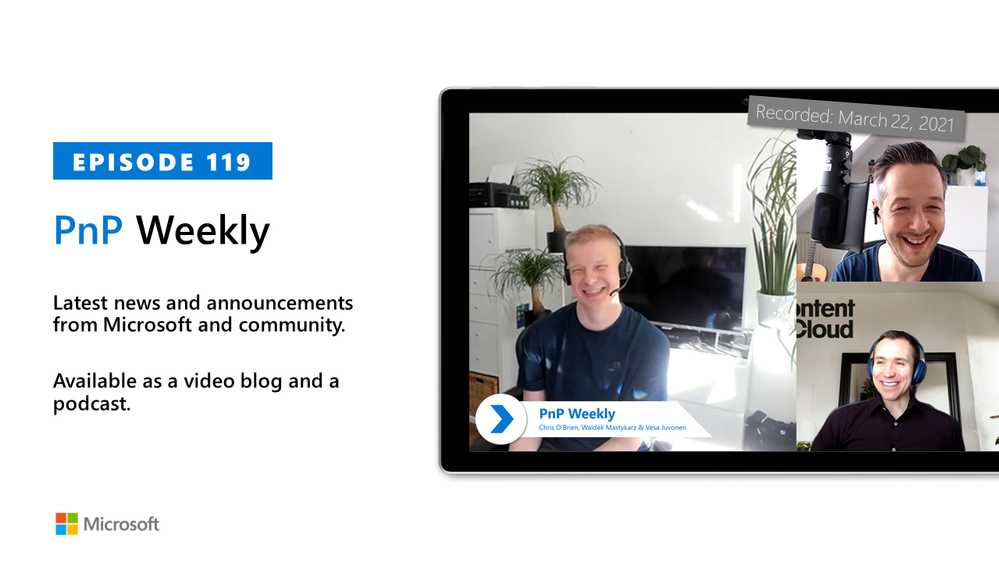
In this installment of the weekly discussion revolving around the latest news and topics on Microsoft 365, hosts – Vesa Juvonen (Microsoft) | @vesajuvonen, Waldek Mastykarz (Microsoft) | @waldekm are joined by London-based Products and Services Director at Content+Cloud and Microsoft MVP Chris O’Brien | @ChrisO_Brien. Topics discussed in this session include: Organizational coder vs influencer, work-life balance and prioritization, the importance of sustained focus, Partner opportunity in the cloud and success tied to being agile and innovating rapidly – attributes in a successful organization’s DNA! Finally, AI and Automation – options and Synapse. Microsoft and the Community delivered 18 articles and videos this last week. This session was recorded on Monday, March 22, 2021.
This episode was recorded on Monday, March 22, 2021.
These videos and podcasts are published each week and are intended to be roughly 45 – 60 minutes in length. Please do give us feedback on this video and podcast series and also do let us know if you have done something cool/useful so that we can cover that in the next weekly summary! The easiest way to let us know is to share your work on Twitter and add the hashtag #PnPWeekly. We are always on the lookout for refreshingly new content. “Sharing is caring!”
Here are all the links and people mentioned in this recording. Thanks, everyone for your contributions to the community!
Microsoft articles:
Community articles:
Additional resources:
If you’d like to hear from a specific community member in an upcoming recording and/or have specific questions for Microsoft 365 engineering or visitors – please let us know. We will do our best to address your requests or questions.
“Sharing is caring!”
by Contributed | Mar 23, 2021 | Technology
This article is contributed. See the original author and article here.
During Microsoft Ignite March 2021 four new security focussed exams were announced.
Each of the exams are currently in Beta format, meaning when you sit them you won’t get your result straight away, but don’t let that put you off sitting them! ;)
The four exams that were released focus across Microsoft Azure and Microsoft 365, around security, identity and compliance. Each of the exam is aimed at different roles within the organisation. From the fundamentals aspect to folks who implement technical solutions. Let’s take a look at each exam and point you in the direction of some study material.
Exam SC-900: Microsoft Security, Compliance, and Identity Fundamentals
This is the fundamentals exam aimed at anyone who is familiar with the fundamentals of security, compliance and identity. Much like the other fundamental exams this isn’t aimed at technical roles, it is aimed at anyone that is familiar with the theme.
There are several learning paths within Microsoft Learn that can help guide you towards sitting this exam.
Exam SC-200: Microsoft Security Operations Analyst
Understanding the risks towards your organisation, reducing them and introducing improvements is a Security Analysts’ job and this exam is aimed at people who are performing that role within their organisation. Anyone working with Microsoft Azure Sentinel, Azure Defender, Microsoft 365 Defender, and third-party security products should be looking at this exam.
There are eight learning paths at Microsoft Learn that can assist you in your preparations for this exam.
Exam SC-300: Microsoft Identity and Access Administrator
This exam is aimed at those that take care of their organisation’s identity and access management systems, primarily Azure Active Directory (Azure AD). This involves a full range of tasks, from creating users and group to planning an identity governance strategy.
To help you prepare for this exam there are several learning paths that can help prepare you for the exam at Microsoft Learn.
Exam SC-400: Microsoft Information Protection Administrator
This exams is focussed towards those that are responsible for translating requirements and compliance controls within their organisation into the technical implementation. Specifically those topics around information protection, data loss prevention and information governance within Microsoft 365.
There are several detailed Learning Paths within Microsoft Learn that can help guide you through the areas that will be tested within this exam.
Preparing for the exams
I think regardless of the exam you are sitting and the experience you have with the topic you should be looking at doing some study towards it, even if it’s just a refresher and looking through notes very quickly. You never know when you might find something you didn’t know that is being asked within the exam. ;) I covered off more about the exam preparation process and some tips in my
All you need to know about Microsoft Exams.
Good luck with what ever exam is on your radar, and do let us know in the comments which ones you are working towards!

by Contributed | Mar 22, 2021 | Technology
This article is contributed. See the original author and article here.
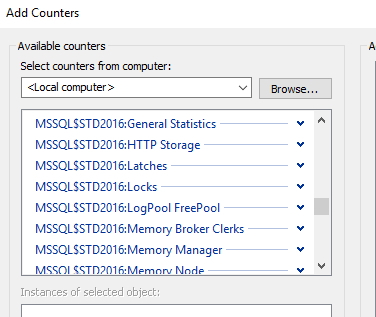
If you find the SQL Server related performance counter objects are missing, you can try below steps to get it back
For example, my instance name is STD2016, and now open the command window with Administrator
1. unload the counter. cd to the Binn folder of your instance, by default, the folder path should be
C:Program FilesMicrosoft SQL ServerMSSQLXX.INSTANCENAMEMSSQLBinn
And then run unlodctr command, if you are using the default instance, just use
unlodctr MSSQLSERVER
For me, it is unlodctr MSSQL$STD2016, the format is MSSQL$INSTANCENAME
2. Load the counter. Under the Binn folder you will see a file begins with “perf-MSSQL$”, the name format is
perf-MSSQL$INSTANCENAMEsqlctr.ini.
For default instance, use
lodctr perf-MSSQLSERVERsqlctr.ini
For mine, it is
lodctr perf-MSSQL$STD2016sqlctr.ini

3. Restart the remote registry key service
NET STOP “Remote Registry” & NET START “Remote Registry”

4. Close the performance counter and open it again, you will be able to see it
by Contributed | Mar 22, 2021 | Technology
This article is contributed. See the original author and article here.
Written in collaboration with @Yuri Diogenes (Principal PM CxE Azure Security Center Team)
Introduction
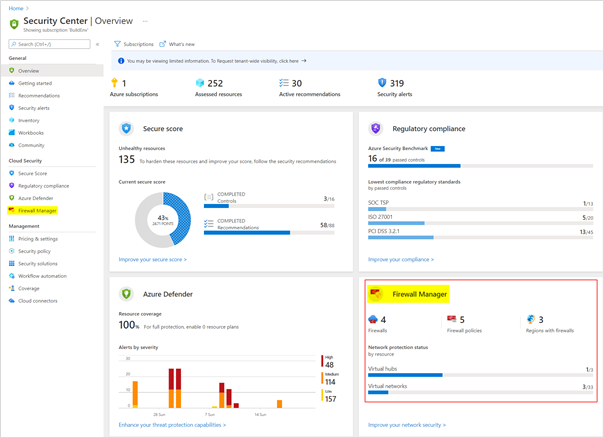
Azure Security Center is a unified infrastructure security management system that strengthens the security posture of your data centers, and provides advanced threat protection across your hybrid workloads in the cloud – whether they’re in Azure or not – as well as on premises. Azure Firewall Manager is a security management service that provides central security policy and route management for cloud-based security perimeters. To provide unified infrastructure and network security management to you, we have now integrated Azure Firewall Manager with the Azure Security Center.
Key Benefit
With the integration of Azure Firewall Manager with Azure Security Center, customers will now have a single pane of glass view of their infrastructure and network security. Customers will be able to see the status of Network Security from the Azure Security Center directly. Customers will no longer have to go into 2 different blades: in ASC for infrastructure security and in Firewall Manager for Network Security.
To learn more about this integration, visit the Azure Security Center blog – Azure Network Security Visibility and Control using ASC integration with Azure Firewall Manager
Additional Resources
by Contributed | Mar 22, 2021 | Technology
This article is contributed. See the original author and article here.
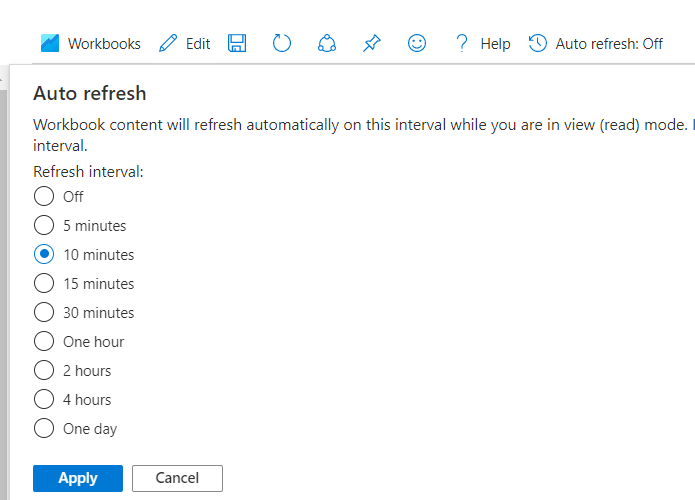
If you use workbooks or templates and do not want to keep clicking refresh, you can now set it to auto-refresh. Refresh frequency (interval) ranges from 5 mins to a day, just like Azure dashboard.
Here are three simple steps:
1. Open workbook and Auto refresh is available in toolbar (default set to off) 
2. Click on Auto refresh, Choose the refresh frequency (interval) and click Apply. These intervals are same as Azure dashboard.
3. Views will be updated at this interval

Things to remember:
- Auto refresh is off by default. You need to explicitly set it
- Auto refresh works in ‘view’ mode and stops in ‘edit’ mode
- Auto refresh settings are not persisted (each time you open workbook you have to set it) #designedforoptimalperformance
Learn more here


Recent Comments