
by Contributed | Mar 1, 2021 | Technology
This article is contributed. See the original author and article here.
Scenario:
You want to connect to Blob Storage having Private Endpoint via Azure Storage Explorer. This blog talks about some of steps to verify the setup and troubleshooting that can be followed depending upon the error message you are encountering.
Actions:
Creating/Verifying the Setup Configuration
There is certain list of steps that you need to follow in case you are creating a fresh setup. The documentation will be very helpful in the setup process.
In case you already have setup, below are the pointers to verify:
- The VM from where you are trying to connect to, and your storage account need to be part of same Virtual Network and Subnet. You can verify them by navigating via respective resources through Azure Portal.
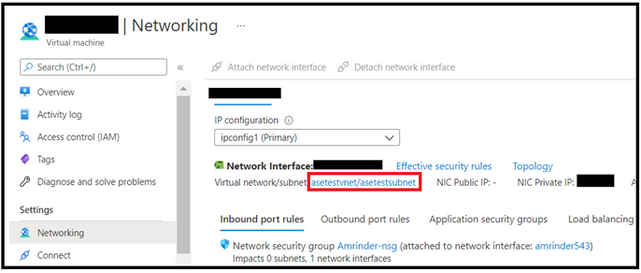
- Another mechanism you can try is to do the nslookup over the storage account. It should resolve in a private IP and you can verify this from the IP assigned to FQDN under private endpoint configuration.
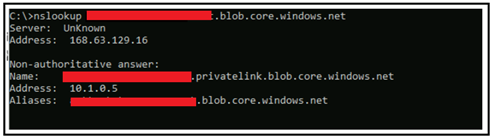
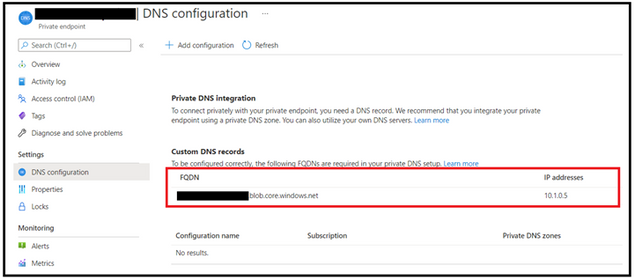
- Lastly, you can verify if the machine IP from where connection is being made is part of same subnet
Troubleshooting Scenarios
Troubleshooting depends upon the operations you are trying to perform on the storage. The connection might get established however the actual error might appear when you try to perform listing or other operation.
A common error you might get will be unable to retrieve child resources however the important point here is check on the error in the details and to what error it points too.
- If that points to some kind of “403 – Authorization Error”, you need to isolate based on what kind of error it is and why it is coming. Some common scenarios here could be in-sufficient roles, Firewall and VNET configurations etc. Ensure that you have right access already in place.
- In case, if points to error such as “Account Does Not Exsist”, first verify the account exists and hasn’t been deleted. In case you have a setup, where in you are making use of Hosts File by specifying IP of the storage account, kindly ensure that you are having updated public IP mentioned in the host file entry. The file can be found at the path C:WindowsSystem32driversetc. Although, the public IP does not get changed that often however still verify it again too. If the IP has got updated then also this message may appear as explorer won’t be find out the account with the one mentioned in file. In that scenario, kindly update the entry in the Hosts file with the current public IP Address for the storage account.
- If there are any other error observed specific to storage explorer, you can review this link as well.
Hope this helps!
by Contributed | Mar 1, 2021 | Technology
This article is contributed. See the original author and article here.
Thank you all for an overwhelming response to our Flexible Server release. Your continued feedback is critical for us to ensure we invest in the features which are important for you. Today, I am excited to share some of the exciting new features which we released last week driven by your feedback.
MySQL 8.0.21 now available in Flexible Server
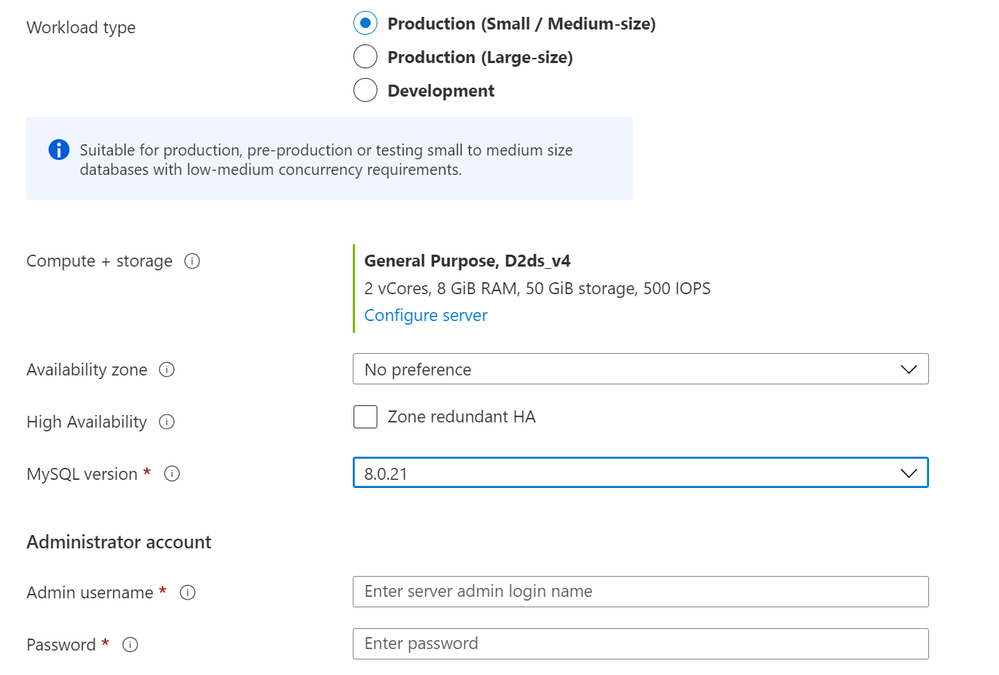
With MySQL v8.0, the mysqlserverteam is continuing to add exciting new features in every minor version release and it is sometimes difficult to catch-up (which is a good problem to have :smiling_face_with_smiling_eyes:). Immediately after flexible server release, many of you requested us to prioritize MySQL 8.0 ASAP to unblock you to move flexible server and some of you were looking for MySQL 8.0.20 or above to leverage some exciting improvements from the community. Today, we are happy to share MySQL 8.0.21 is now available in Flexible Server in all major Azure regions. You can use Azure portal, Azure CLI or Azure Resource Manager templates to provision MySQL 8.0.21 release as shown below:
Using Azure portal:
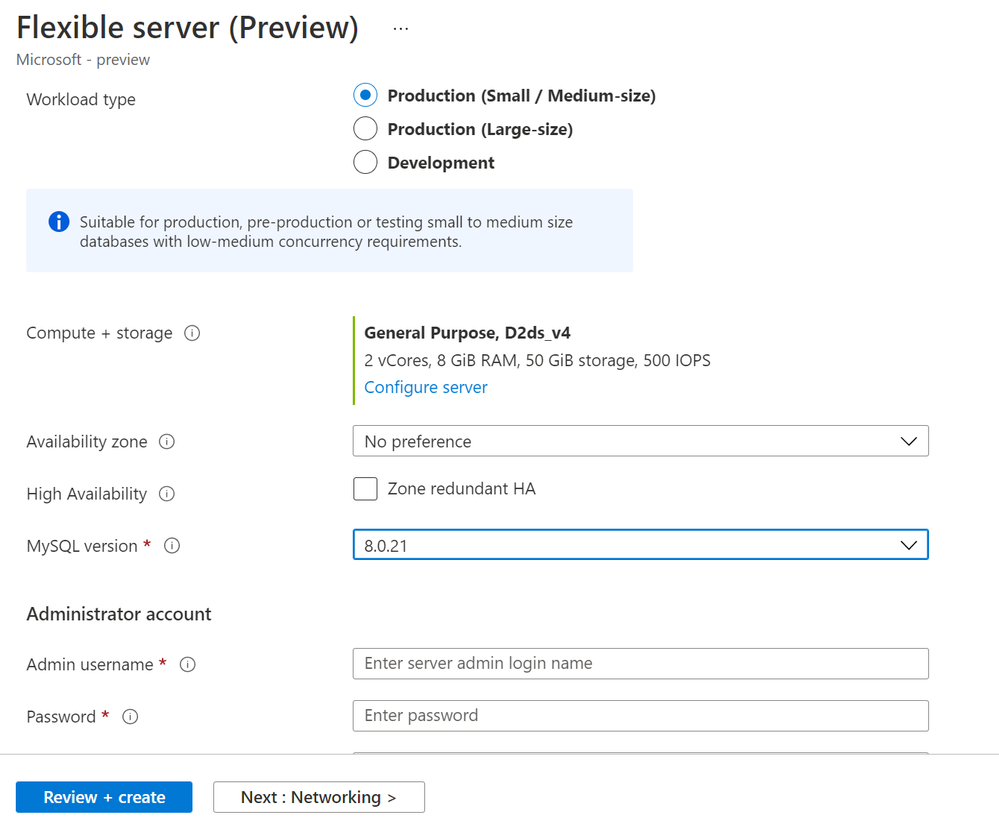 Create a MySQL 8.0 Flexible Server
Using Azure CLI:
az mysql flexible-server create --resource-group pariks-pass-demo --name <servername> --location japaneast --admin-user myadmin --admin-password <password> --sku-name Standard_B1ms --version 8.0.21 --public-access <your Client IP address>
Zone Placement – Specify your preferred Availability zone during server creation
One of the highlights of Flexible Server architecture is zone awareness and ability for you to configure zone redundant high availability. But many of you asked for the flexibility for you to chose availability zones at the server creation time similar to Azure VMs, VM Scale Sets or Azure Kubernetes Services so you can collocate your application and database in the same Availability zones to minimize database latency and improve performance. Well, flexible server is all about the flexibility and controls which you are looking for. You can now specify your preferred Availability zone at the time of server creation as shown below.
Note: Not all Azure regions support availability zones today so if you select a region which do not support multiple availability zones yet, you might see no preference. You can find Azure regions that support availability zone here and the regions which support Flexible servers here.
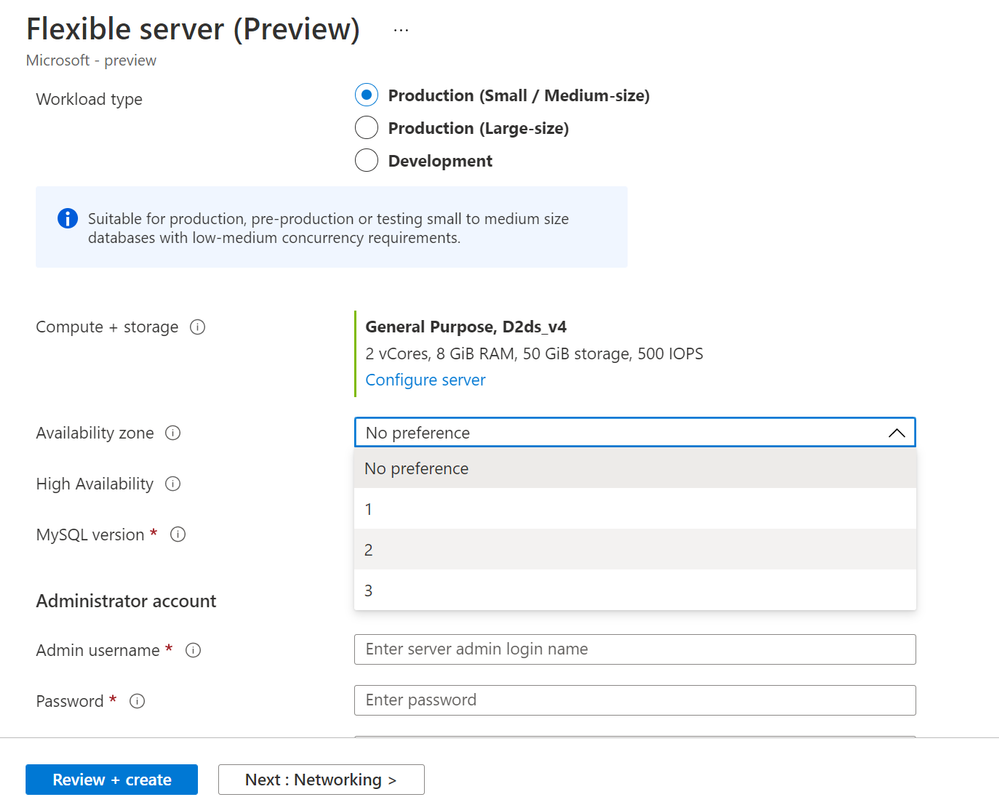 Specify your preferred Availability Zone during server creation
Scale IOPs independent of the storage provisioned !!!
When you provision an Azure Database for MySQL server (single server or flexible server), you get 3 IOPs free per GB for you to consume. When you want to perform migrations or data load operations, the complimentary IOPs can be too small which can result in significant performance slowness and you don’t want to increase storage size as your IOPs scaling requirements is transient. One of the strong feedbacks you gave us is to provide flexibility to scale up or down IOPs provisioned for the server independent of the storage so you can scale up IOPs to perform transient operations like migrations or data loads faster. We have now decoupled storage and IOPs, and you can provision additional IOPs beyond the complimentary IOPs (3 IOPs per GB) for operations like migrations, data loads and scale it back down when not required to save cost. Further IOPs scaling is a fully online operation which doesn’t need any downtime or restarts. The maximum IOPs you can provision is limited by the Compute VM size you choose. For more details, you can refer to the documentation.
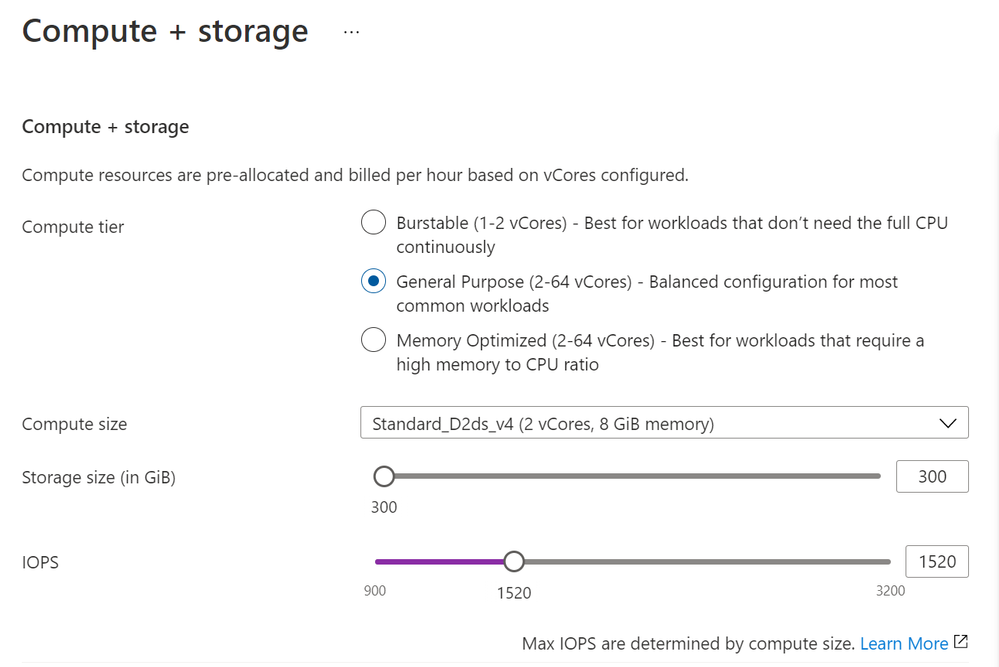 Scale the server IOPs independent of storage provisioned
Known Issues & What’s Next
As you get ready to test flexible server, I would also like to call out some of the known issues which we are working on as I write this blog:
- SSLTLS 1.2 cannot be disabled – As I mentioned in my release blog post, SSL is enabled with TLS 1.2 encryption enforced with Flexible server and you cannot disable it yourself from Azure portal. It was an intentional decision which we took as your preferred cloud service provider, to keep the security bar high and enforce the right behavior. While we and you, our end user, have the right intent but at times, we are all slaves of our legacy and complexity. We learned after talking to many of you, some of your legacy applications do not support SSL and it turns out as an adoption blocker for you to leverage all the goodness of flexible server has to offer. We are mindful of this and we will be allowing you to change require_secure_transport server parameter by yourself from Azure portal, Azure CLI or ARM in the upcoming release. Until then, if you would like to disable SSL for your flexible server, please file a ticket from the Azure portal and our awesome support team will assist you go past it.
- Provisioning failures in some regions and intermittently – Some of you experienced provisioning failures past couple of weeks while provisioning servers in East US, West Europe, and South east Asia regions. It turns out we ran out of capacity. As a product manager, I feel thankful for such problems, but I admit, our experience was poor, and we can do better there. As it stands now, the problem is fixed and you should easily be able to provision servers in all the supported Azure regions. However, we still have a known issue, where provisioning of a server with private access (virtual network) gets stuck intermittently and deployment runs forever. We are working on a fix and the fix is expected to rollout in March. The provisioning stuck with private access (VNet) is not encountered by all the end users and sometimes can be fixed by retry attempts. In either case, you should expect this to be fixed after our next rollout by around end of March. If you are deploying the server for testing, the recommendation would be to use public access until the fix is rolled out.
- Ability to force failover – Many of you have asked for the ability to do a force manual failover for you to test failovers, and measure application availability and tolerance to failovers. We are mindful of this ask and we are working on this feature in high availability area which gives you the ability to force a manual failover at your will for testing and later to use it in production as well if required.
Hope you are enjoying the new flexible server experience with Azure Database for MySQL service. If you have any issues, feedback or request, please use the following channels to reach out to use
- If something is not working as expected or advertised, please file a ticket from the Azure portal.
- To provide feedback or to request new features where you don’t want to be engaged, search for or create a new entry via UserVoice.
- To provide feedback, request new features where you are willing to be engaged by our product team, please send an email to the Azure Database for MySQL Team (@Ask Azure DB for MySQL)
- If you want to stay up-to-date with the latest releases and news, we recommend to follow us at (@AzureDBMySQL) on twitter and subscribe to this blog.
by Contributed | Mar 1, 2021 | Technology
This article is contributed. See the original author and article here.
Scenario:
You want to know who accessed/accessing your storage account. There can be a scenario someone created, deleted, or modified some blobs/containers within your storage account. The blog talks about how you can leverage storage logs, that will help you troubleshoot such scenarios.
Actions:
An important source of information for troubleshooting such scenarios are the Storage Analytics logs as it keep tracks of data plane operations happening over the storage account. There is a billing associated to this logging a well.
In case storage analytics is enabled, you can leverage below options based on the logging format:
- If the logging format is 2.0 and you are using OAuth mechanism for authentication & authorization, there is a field UserObjectId. It denotes the object ID used for authentication. It may be any security principal, including a user, managed identity, or service principal.
- If the logging format is 2.0 however you are not using OAuth and rather getting authenticated via SAS token or access keys, you can rely on the field requester-ip-address and the user-agent-header
- If the logging format is 1.0 then you can only rely on the field requester-ip-address and the user-agent-header
- The requester-ip-address fields provides information about the IP address of the requester, including the port number.
- The user-agent-header fields provide the user agent details such as browser details, SDK details etc.
Let us take a look at some more details and the steps you can follow ahead:
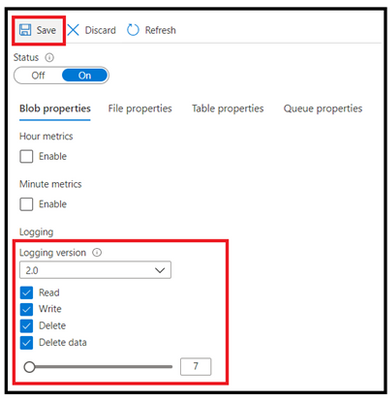
- Enable the storage analytics Logging, if not enabled already.
- You first need to enable the storage analytical logging. You can either enable the classic one or work with storage resource logs. The current blog is more inclined towards the classic one however the other logs can be leverage in similar way.
- You can set what type of operation you want to log such as Read, Write etc. Also, take a note at the logging version of the logs as well. Based on available fields, it will help tracking operations based on available fields. If you opt for version 2.0, it has extra fields for a authentication with Azure AD for blob services UserObjectId field will store the Object ID of the user/group/service principal, that made call to storage.
- Once you save the settings, there will be a folder $logs that will get created inside the same storage account. it might take some time for logs to appear post the operations are made and these are stored in UTC format.

NOTE : If the logging isn’t enabled then you won’t be able to backtrack much. You can also consider the above step as a prerequisite for analysis too.
- Parsing the logs generated
- The logs will get created in .log format.
- You can view the log data using Azure Portal, or using a storage explorer like the Microsoft Storage Explorer, or programmatically using the storage client library or PowerShell.
- Once these have been downloaded, you can make use of below 2 links to parse them for further analysis. The first one converts the log file into CSV format while the second one is a standalone utility. You can leverage them as per your convenience.
https://gist.github.com/ajith-k/aa69feb862a4816d0b4df09fae8aad11
https://github.com/nunomo/AzureStorageLogReader
- Analyzing the logs
- We are taking a common scenario of someone deleting the blob and you want to track it back.
- We will first download the logs and then parse it for further analysis.
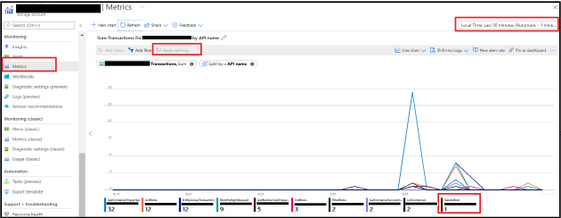
- Herein, a question arises as to get information regarding the time when the operation was performed and you can leverage Metrics option under the Monitoring pane.
- You can select the metrics as “Transactions” and thereafter make use of ‘Apply Splitting’ option to split the result ahead based on available parameters. You will get to see count of the various operations happening over the storage account. We can hover on the API we are interested and it will highlight the timings over the graph when the particular operation was called.
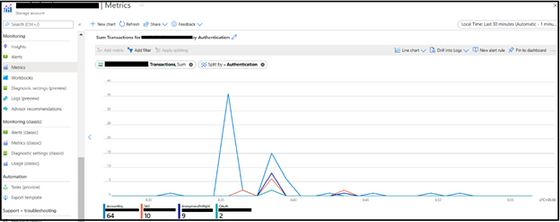
- There is another level of splitting that you can apply based on the Authentication type. This will help segregating calls based on their Authentication types as keys, SAS, Oauth etc.
- For this example, we have parsed it into CSV format, and we get various type of information regarding the call that was made to storage. Let’s take a look at 2 different Delete Blob requests and check on some of the fields of interest.
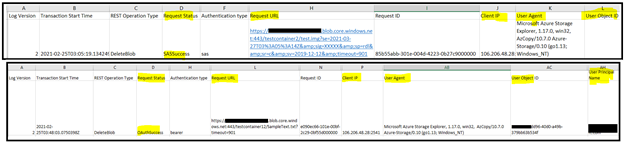
Log Version – It provides the log level version i.e. either 1.0 or 2.0.
Transaction Start Time : Time when the transaction was initiated.
REST Operation Type : Type of operation that was performed such Read, List, Delete etc.
Authentication Type : This tells us about the authentication mechanism such as SAS, OAuth etc.
Request URL : The request URL for the operation and can provide idea regarding the filename.
Request ID : This is the Storage Request ID.
Client IP: This provide information regarding the IP that was hitting the storage.
User Agent : This provide us user agent details of the client application e.g. Storage explorer in above example.
User Object ID: This field is empty in the first snippet because the authentication happed via SAS whereas in the second one you get to the the User Object ID and principal name as well. You can track the User Object ID in Azure AD via portal ahead as well whether it’s belongs to single user, group or Service Principal

- Similarly, based on the available formats and operations, you can track further activities happening on your Storage Account ahead.
- In case you are observing heavy transactions happening over your storage account then also this document and the procedure shall help in an analyzing the trend too.
More Information, please follow below link
Storage Analytics Logging Format, available fields and description
Storage Analytics Logged Operations
Hope this helps!
by Contributed | Mar 1, 2021 | Technology
This article is contributed. See the original author and article here.
1-Compare the number of rows for each table on the source and destination database using the following T-SQL to identify which tables that don’t contain data :
SELECT
    t.NAME AS TableName,
    s.Name AS SchemaName,
    p.rows AS RowCounts,
    SUM(a.total_pages) * 8 AS TotalSpaceKB,
    SUM(a.used_pages) * 8 AS UsedSpaceKB,
    (SUM(a.total_pages) - SUM(a.used_pages)) * 8 AS UnusedSpaceKB
FROM
    sys.tables t
INNER JOIN
    sys.indexes i ON t.OBJECT_ID = i.object_id
INNER JOIN
    sys.partitions p ON i.object_id = p.OBJECT_ID AND i.index_id = p.index_id
INNER JOIN
    sys.allocation_units a ON p.partition_id = a.container_id
LEFT OUTER JOIN
    sys.schemas s ON t.schema_id = s.schema_id
WHERE t.is_ms_shipped = 0
    AND i.OBJECT_ID > 255
GROUP BY
    t.Name, s.Name, p.Rows
ORDER BY
    t.Name
2-After confirming that the tables don’t have data ,we need to check if the exported BACPAC file have data on those tables and this done using the following steps:
- Change the extension for the backup file from BACPAC to .zip .
- Open the zip file and you should have a data folder that contains a folder for each tables exported with data.
- if you find a folder for the tables that means that the BACPAC file contains the data for the tables
3-Connect with the same user that has exported the database and select the data from the tables that have the issue to be sure that the user has permission to view the data on those tables.
As a result, when you are using Row level security and want to export the database please be sure that the user who export the database has permission to view the data on the database tables otherwise this will only export the tables with the data that the user has permission to view .
by Contributed | Mar 1, 2021 | Technology
This article is contributed. See the original author and article here.
We’re one day away from the kick off of Microsoft Ignite digital experience taking place March 2nd-4th starting at 8am PST. I thought it would be a good idea to share some special insights on how to get the most from the experience, some behind the scenes info as well as how you can connect with each other and the team over the course of the event.
First off – GO REGISTER (https://myiginte.microsoft.com). You need to register for the full experience and access to all the content while the event is taking place. It allows you to build your schedule, respond to RSVP only activities and even engage in attendee networking / hallway conversations with like minded individuals.
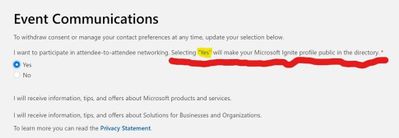
Once registered – make sure to click the checkbox for “Make My Profile Public” in order to participate in that attendee networking. Don’t worry – your contact details will not be shared – we’ll facilitate the connections in a safe and secure way, IF (and only if) you opt in.
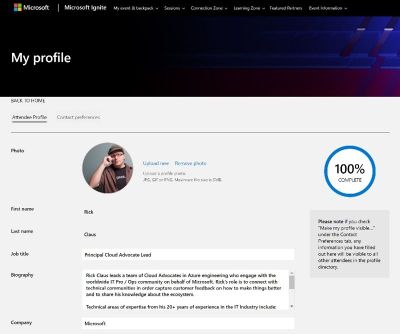
Speaking of profiles – once registered, go and fill yours out with a photo, bio, social links to linked in and twitter as well as indicating your areas of interest. This information will help recommend session content and resources while you are building your schedule as well as helping other like-minded folks connect with you and grow your professional network.
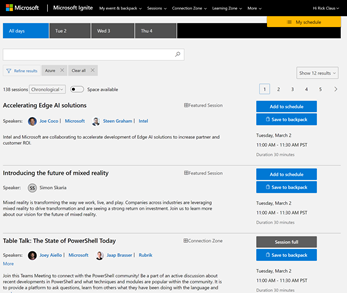
You add sessions to your schedule and if you haven’t noticed – all times are in your local timezone. If a session does not repeat in a convenient time for you – you have the ability to add it to your digital backpack for on-demand consumption after the event. You will be able to download your backpack (a hyperlinked word doc) post event and have an easy summary of your topics of interest as well as links to all the associated resources.
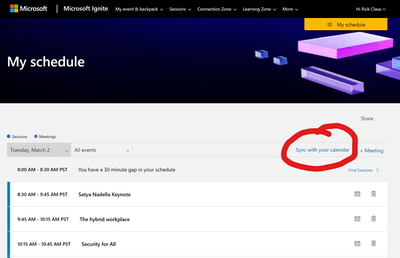
Oh Yeah – one request we got loud and clear last fall was the ability to Syncronize your schedule with your calendar. You can do that now my reviewing your schedule and choosing the synchronize option to download your personalized ICS calendar file.
Lastly – your one stop shop for all things ignite while it’s going on is the main page with the main player at https://myignite.microsoft.com. Let this serve as your home base throughout the event. You go off to a Learning Zone activity or partake in a partner session – remember to come back here after your session wraps up to stay in the know.
I’ll be hosting the start of the event along with Karuana Gatimu until we hand off later in the afternoon to Seth Juares and Dona Sarkar. Christina Warren and Joey Snow will we wrapping up the late shift before we shuffle up and start over for day 2. I grabbed a quick behind the scenes shot of what it looks like from the studio desk during rehearsals today.

The folks here at the IT Ops Talk blog are taking part in a number of activities throughout the event – do yourself a favour and add these sessions to your schedule to engage with us as we go.
Anthony Bartolo is participating in a Featured Session called: What’s new in Azure Machine Learning –
Azure Machine Learning accelerates the end-to-end ML lifecycle. However, what is IT’s role in that cycle? Join this demo-led session, with Cloud Advocates Seth Juarez, Cassie Breviu and Anthony Bartolo learn about building and deploying across cloud and edge using collaborative experiences with in Azure Machine Learning. And all along, use interpretability, fairness, and built-in security to develop responsible solutions.
Sonia Cuff and Orin Thomas are delivering a session called Intro to App and Infrastructure Migration and Modernization through Azure. They are talking about how you decide which apps and infrastructure to migrate to the cloud, because it’s complicated. Learn about some of the factors you need to consider for your organization.
Sonia is also participating as a Subject Matter Expert / Moderator along with Phoummala Schmitt in an Ask the Experts: Microsoft 365 & Azure Data Protection Strategies, when to use Microsoft vs 3rd party options. They join the conversation with Cohesity to explore how Microsoft and Partners together support the complex needs of our customers. This is a live Q&A session so come and engage with us!
Sarah Lean has crafted a session in the Intro to Tech Skills track around how to get started using Azure in your environment. Her session called Where does an organization begin using Azure? As part of the session, Sarah will be talking about the journey organizations are on introducing Azure into their business and how the Cloud Adoption Framework can help with that journey.
Pierre is moderating a session on Manage complex cloud deployments by using advanced ARM template features – Moving to the cloud, many teams have adopted agile development methods. These teams iterate quickly. They need to repeatedly deploy their solutions to the cloud, and know their infrastructure is in a reliable state. To meet these challenges, you can automate deployments and use the practice of infrastructure as code. Azure Resource Manager (ARM) templates have numerous constructs and are able to handle both simple and complex setups.
As a team – we’re excited to participate in this spring edition of Microsoft Ignite and we’re here to connect with you during the event. If you’re into the socials – catch us interacting with folks on the #msIgnite hashtag on twitter or in some of the table talks, moderation roles for chat or even popping in as a Subject Matter Expert in a few sessions here and there besides the ones mentioned above.
See you at Microsoft Ignite!


Recent Comments