
by Contributed | Feb 18, 2021 | Business, Microsoft 365, Office 365, Technology
This article is contributed. See the original author and article here.
At Microsoft, we believe that the cloud will power the work of the future. Overwhelmingly, our customers are choosing the cloud to empower their people—from frontline workers on the shop floor, to on-the-go sales teams, to remote employees connecting from home. We’ve seen incredible cloud adoption across every industry, and we will continue to invest…
The post Upcoming commercial preview of Microsoft Office LTSC appeared first on Microsoft 365 Blog.
Brought to you by Dr. Ware, Microsoft Office 365 Silver Partner, Charleston SC.
by Contributed | Feb 18, 2021 | Technology
This article is contributed. See the original author and article here.
Today we are announcing that the next version of Windows 10 Enterprise LTSC and Windows 10 IoT Enterprise LTSC will be released in the second half (H2) of calendar year 2021. Windows 10 Client LTSC will change from a 10-year to a 5-year lifecycle, aligning with the changes to the next perpetual version of Office. You can read more about their announcements here.
While Windows 10 Client is changing, the needs of the IoT industry remain very different and for that reason Microsoft developed Windows 10 IoT Enterprise LTSC and the Long Term Servicing Channel of Windows Server, which today is Windows Server 2019. Each of these products will continue to have a 10-year support lifecycle, as documented on our Lifecycle datasheet.
We remain committed to the ongoing success of Windows 10 IoT, which is deployed in millions of intelligent edge solutions around the world. Industries including manufacturing, retail, medical equipment and public safety choose Windows IoT to power their edge devices because it a rich platform to create locked-down, interactive user experiences with natural input, provides world class security and enterprise grade device management allowing you to build a solution that is designed to last.
We are planning to talk more about the exciting future of Windows 10 IoT at Embedded World 2021 and as well at Microsoft Ignite both of which will be held the week of March 1, 2021.
Continue the conversation. Find best practices. Visit the IoT Tech Community
Stay informed. For the latest updates on new releases, tools, and resources, stay tuned to this blog and follow us @MicrosoftIoT on Twitter.
by Contributed | Feb 18, 2021 | Technology
This article is contributed. See the original author and article here.
With the new ability to deploy Windows SSUs and LCUs together with one cumulative update, I wanted to offer some background on how cumulative updates grow and the best practices you can employ to improve the update experience.
Why and how do cumulative updates grow?
The longer an operating system (OS) is in service, the larger the update and associated metadata grow, impacting installation time, disk space usage, and memory usage. Windows quality updates use Component-Based Servicing (CBS) to install updates. A cumulative update contains all components that have been serviced since release to manufacturing (RTM) for a given version of Windows. As new components are serviced, the size of the latest cumulative update (LCU) grows. However, servicing the same component again does not significantly increase the size of the LCU.
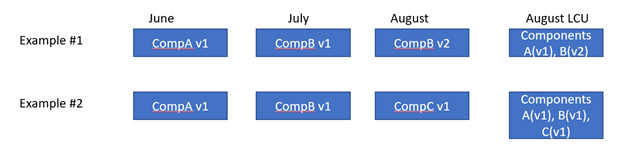
In the image below, you can see two examples, each with three changes. The resulting LCU in example #2 will be larger than the LCU in example #1 because it contains components A, B, and C.
During an OS release, the size of the update grows quickly and then slowly levels out as fewer and fewer un-serviced components get added to the LCU.
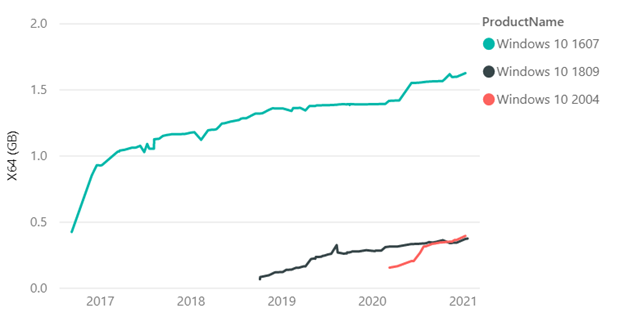
With regard to the graph above, you’ll see that there are points where the size goes down briefly due to a specific edition of Windows going out of service. For example, the Windows 10 Enterprise Long Term Servicing Channel (LTSC) has a longer servicing lifecycle than Windows 10 Home edition. When the Home edition reaches end of service, we stop servicing any components in the Home edition, which reduces the size. Shared components still get serviced.
Starting with Windows 10, version 1809, Microsoft implemented new technology to reduce the size of the LCU and growth rate, and improve installation efficiency. Maliha Qureshi’s blog post What’s next for Windows 10 and Windows Server quality updates coupled with the Windows updates using forward and reverse differentials document, aim to help you understand more about this change to support forward and reverse deltas and the benefits of reducing the size of the LCU.
Starting in Windows 10, version 1903, more improvements came along in the update package. For example, if individual binary files in a component are unchanged, they are replaced with their hash value in the update package. In the example above, if Component A had five binary files and four changed, we would only send the payload for the four that changed. Overall, this results in the LCU growing about 10-20% more slowly and is useful when the image or video files are part of the component and rarely change.
What happens when an update is installed?
The Windows quality update installation process has three major phases:
- Online: The update is uncompressed, impacted components are identified, and the changes are staged.
- Shut down: The update plan is created and validated, and the system is shut down.
- Reboot: The system is rebooted, components are installed, and the changes are committed.
The shut down and reboot phases affect users the most since their systems can’t be accessed while the process takes place.
Best practices to improve installation time
Now let’s get to best practices that can improve your update experience:
- If possible, upgrade to Windows 10, version 1809 or newer. Version 1809 offers technology improvements that reduce the size of the updates and more efficient to install. For example, the LCU of Windows 10, version 1607 was 1.2GB in size on year after RTM while the LCU in version 1809 was 310MB (0.3GB) one year after RTM.
- Hardware optimizations:
- Run Windows and the update process on fast SSD drives (ensure the Windows partition is on the SSD) instead of HDD by placing the Windows drive in the SSD. During internal testing, we’ve seen up to a 6x install time reduction from SSD vs HDD.
- For systems with SSD (faster than 3k IOPS), CPU clock speed is the bottleneck and CPU upgrades can make a difference.
- Antivirus (or any file system filter driver): Ensure you are only running a single antivirus or file system filter driver. Running both a 3rd party antivirus and Microsoft Defender can slow down the update process. Server 2016 enables Defender by default, so if you install another antivirus program, remember to disable Defender. The fltmc.exe command is a useful defrag tool to see the running set of filter drivers. You can also check out virus scanning recommendations for Enterprise computers that are running currently supported versions of Windows to learn which files to exclude in virus scanning tools.
- Validate that your environment is ready to apply updates by checking out the Cluster-Aware Updating requirements and best practices.
Best practices to improve performance of Windows Update offline scan
Using Windows Update Agent (WUA) to scan for updates offline is a great way to confirm whether your devices are secure without connecting to Windows Update or to a Windows Server Update Services (WSUS) server. WUA parses all cumulative update metadata during a scan so larger cumulative updates require additional system memory. Cumulative metadata can become quite large and must be parsed in memory for WUA offline scans so machines with less memory may fail the WUA offline scan. If you encounter out of memory issues while running WUA scans we recommend the following mitigations:
- Identify whether online or WSUS update scans are options in your environment.
- If you are using a third-party offline scan tool that internally calls WUA, consider reconfiguring it to either scan WSUS or WU.
- Run Windows Update offline scan during a maintenance Window where no other applications are using memory.
- Increase system memory to 8GB or higher, this will ensure that the metadata can be parsed without memory issues.
Microsoft continues to investigate and improve the Windows 10 update experience as it is a critical component to stay productive and secure. Use the Feedback Hub or contact your support representative if you face any challenges when updating.
by Contributed | Feb 18, 2021 | Technology
This article is contributed. See the original author and article here.
Final Update: Thursday, 18 February 2021 18:55 UTC
We’ve confirmed that all systems are back to normal with no customer impact as of 2/18, 16:50 UTC. Our logs show the incident started on 2/18, 13:10 UTC and that during the 3 hours 40 min that it took to resolve the issue, customers in West Europe and West Central US using Log Analytics may have not seen heartbeat events through the Log Analytics workspace and also would have experienced incorrect alerting on heartbeat events. Additionally, between 19:35 UTC on 17 Feb 2021 to 16:50 UTC on 18 Feb 2021, a subset of customers were not able to see the following columns: SubscriptionId, Resource, ResourceId, ResourceType through the Azure Portal, Azure CLI or Power Shell.
- Root Cause: The failure was due to implementation of a new transform as part of a recent deployment. As the current deployment started, backend workflows were mistakenly deleted and that the deletion caused the alert objects to not be processed through Log Analytics.
- Incident Timeline: 3 Hours & 40 minutes – 2/18, 13:10 UTC through 2/18, 16:50 UTC
We understand that customers rely on Azure Log Analytics as a critical service and apologize for any impact this incident caused.
-Anupama
by Contributed | Feb 18, 2021 | Technology
This article is contributed. See the original author and article here.
In January 2021, the Microsoft CSM (Customer Success Manager) team representing State & Local Government customers came together in a two-day event to deliver 11 live sessions on the topic of Meetings in Microsoft Teams. Topics included the Before-During-After lifecycle of a meeting, breakout rooms, accessibility and more.
The playlist of the session recordings can be found here on YouTube, along with social media callouts on Twitter via the #TeamsMtgs4Govt hashtag.
For a sneak peek of what you can expect from this series, check out the teaser trailer below:
For more info from me on Microsoft Teams and teamwork, follow me at TeamworkCowbell (blog | Twitter | YouTube) or at ricardo303, SharePointCowbell, and LinkedIn.
Related Teams for Government articles: Notifs in GCC | Custom Apps in GCC | Gamification of Teams


Recent Comments