by Contributed | Jan 26, 2021 | Technology
This article is contributed. See the original author and article here.
Sync Up is your monthly podcast hosted by the OneDrive team taking you behind the scenes of OneDrive, shedding light on how OneDrive connects you to all your files in Microsoft 365 so you can share and work together from anywhere. You will hear from experts behind the design and development of OneDrive, as well as customers and Microsoft MVPs. Each episode will also give you news and announcements, special topics of discussion, and best practices for your OneDrive experience.
So, get your ears ready and Subscribe to Sync up podcast!
In this year’s first episode
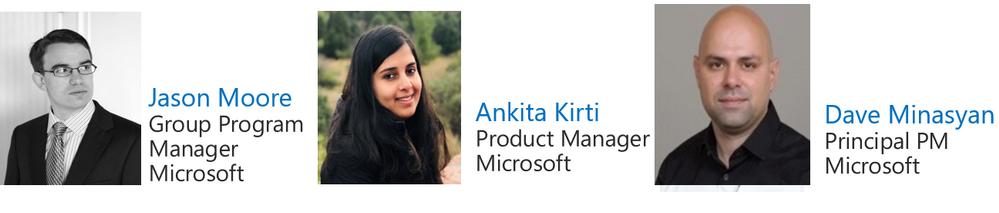
, cohosts Ankita Kirti and Jason Moore talk with Dave Minasyan, Principal Program Manager, to discuss the increased need for collaboration, which has been driving Microsoft to invest heavily into interconnectivity of tools across the Microsoft 365 suite, and how his team’s focus is to evolve the admin experiences to gradually address the increasing management complexity that comes with this interconnectivity ecosystem we are building. He shares some of the changes admins can expect with new rollouts in the OneDrive and SPO admin centers in 2021. To learn more about these updates check out our recent blog.
Also in this episode, new OneDrive feature releases, the team’s 2021 resolutions, and the importance of focusing on wellbeing both at home and at work.
Tune in!
Meet your show hosts and guests for the episode:
Jason Moore is the Principal Group Program Manager for OneDrive and the Microsoft 365 files experience. He loves files, folders, and metadata. Twitter: @jasmo
Ankita Kirti is a Product Manager on the Microsoft 365 product marketing team responsible for OneDrive for Business. Twitter: @Ankita_Kirti21
Dave Minasyan, Principal Program Manager in the OneDrive and SharePoint team working towards unifying admin experiences across Microsoft 365.
Quick links to the podcast
Links to resources mentioned in the show:
Be sure to visit our show page to hear all the episodes, access the show notes, and get bonus content. And stay connected to the OneDrive community blog where we’ll share more information per episode, guest insights, and take any questions from our listeners and OneDrive users. We, too, welcome your ideas for future episodes topics and segments. Keep the discussion going in comments below.
As you can see, we continue to evolve OneDrive as a place to access, share, and collaborate on all your files in Office 365, keeping them protected and readily accessible on all your devices, anywhere. We, at OneDrive, will shine a recurring light on the importance of you, the user. We will continue working to make OneDrive and related apps more approachable. The OneDrive team wants you to unleash your creativity. And we will do this, together, one episode at a time.
Thanks for your time reading and listening to all things OneDrive,
Ankita Kirti – OneDrive | Microsoft
by Contributed | Jan 26, 2021 | Technology
This article is contributed. See the original author and article here.
Overview:
Azure Database for PostgreSQL recently announced Flexible Server, Flexible Server is a new deployment option for Azure Database for PostgreSQL that gives you the control you need with multiple configuration parameters for fine-grained database tuning along with a simpler developer experience to accelerate end-to-end deployment. With Flexible Server, you will also have a new way to optimize cost with stop/start capabilities.
In this article, we will provide a guideline on how to migrate your database from PostgreSQL Single Server to PostgreSQL Flexible Server using Azure DMS.
Important – Azure Database for PostgreSQL – Flexible Server is still in preview as of Jan 2021.
1 – Prepare the Source – Azure PostgreSQL – Single Server
You will need to set some Postgresql Parameters on the source as follows:
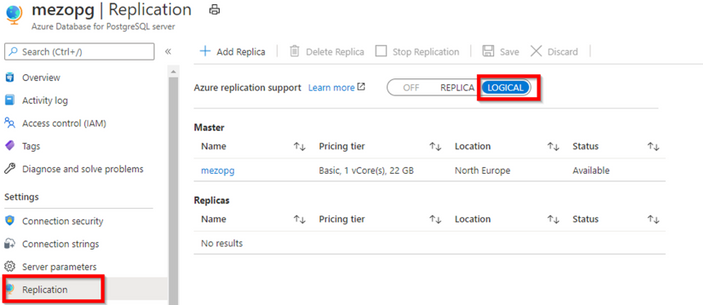
— parameter wal_level should be logical, on Azure PgSQL this can be done from Azure Portal as shown blow:
— max_replication_slots = [number of slots], recommend setting to 5 slots
— max_wal_senders =[number of concurrent tasks] – The max_wal_senders parameter sets the number of concurrent tasks that can run, recommend setting to 10 tasks
2- Prepare the target for the migration – Flexible Server
You will need to migrate database schema from source to target using commands:
— on the source, create a schema dump file for a database
pg_dump -o -h hostname -U db_username -d db_name -s > your_schema.sql
— Import the schema into the target database
psql -h hostname -U db_username -d db_name < your_schema.sql
— Remove foreign keys in schema at target Azure Database for PostgreSQL
SELECT Q.table_name
    ,CONCAT('ALTER TABLE ', table_schema, '.', table_name, STRING_AGG(DISTINCT CONCAT(' DROP CONSTRAINT ', foreignkey), ','), ';') as DropQuery
        ,CONCAT('ALTER TABLE ', table_schema, '.', table_name, STRING_AGG(DISTINCT CONCAT(' ADD CONSTRAINT ', foreignkey, ' FOREIGN KEY (', column_name, ')', ' REFERENCES ', foreign_table_schema, '.', foreign_table_name, '(', foreign_column_name, ')' ), ','), ';') as AddQuery
FROM
    (SELECT
    S.table_schema,
    S.foreignkey,
    S.table_name,
    STRING_AGG(DISTINCT S.column_name, ',') AS column_name,
    S.foreign_table_schema,
    S.foreign_table_name,
    STRING_AGG(DISTINCT S.foreign_column_name, ',') AS foreign_column_name
FROM
    (SELECT DISTINCT
    tc.table_schema,
    tc.constraint_name AS foreignkey,
    tc.table_name,
    kcu.column_name,
    ccu.table_schema AS foreign_table_schema,
    ccu.table_name AS foreign_table_name,
    ccu.column_name AS foreign_column_name
    FROM information_schema.table_constraints AS tc
    JOIN information_schema.key_column_usage AS kcu ON tc.constraint_name = kcu.constraint_name AND tc.table_schema = kcu.table_schema
    JOIN information_schema.constraint_column_usage AS ccu ON ccu.constraint_name = tc.constraint_name AND ccu.table_schema = tc.table_schema
WHERE constraint_type = 'FOREIGN KEY'
    ) S
    GROUP BY S.table_schema, S.foreignkey, S.table_name, S.foreign_table_schema, S.foreign_table_name
    ) Q
    GROUP BY Q.table_schema, Q.table_name;
— Disable triggers at target Azure Database for PostgreSQL
SELECT DISTINCT CONCAT('ALTER TABLE ', event_object_schema, '.', event_object_table, ' DISABLE TRIGGER ', trigger_name, ';')
FROM information_schema.triggers
— Provision Database Migration Service and create a migration task
More details in Tutorial: Migrate PostgreSQL to Azure Database for PostgreSQL online via the Azure CLI – Azure Database Migration Service | Microsoft Docs
3 – Create Migration Project
You will need to use your Postgresql as source and provide the single server endpoint and credentials
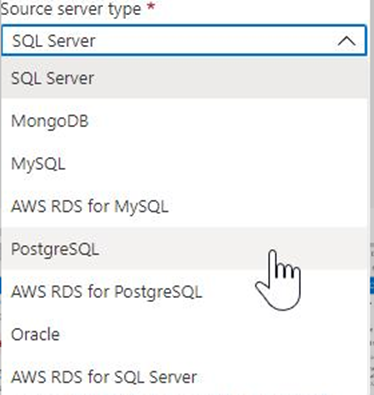
Note:- You will need to make sure the connectivity between the source single server and DMS service on side and the DMS service and the target flexible server another side.
Details steps: Tutorial: Migrate PostgreSQL to Azure DB for PostgreSQL online via the Azure portal – Azure Database Migration Service | Microsoft Docs
4- Monitoring the migration project progress and you can perform the migration once it’s ready for cutover

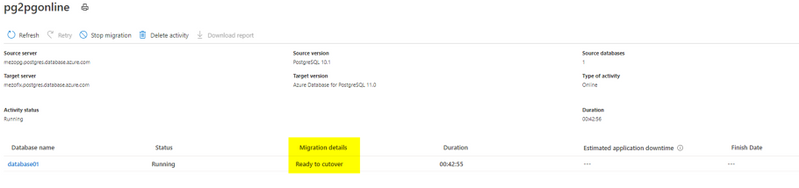
Note:- After migration is complete, you might need to re-enable the triggers and create foreign keys.
I hope you find this article helpful. If you have any feedback please do not hesitate to provide it in the comment section below.
Ahmed S. Mazrouh
by Contributed | Jan 26, 2021 | Technology
This article is contributed. See the original author and article here.
We are excited to announce the Update Baseline is now a part of the Security Compliance Toolkit! The Update Baseline is a new security baseline to ensure devices on your network get the latest Windows security updates on time while also providing a great end user experience through the update process.
The Update Baseline covers Windows Update policies as well as some additional Power and Delivery Optimization policies to improve the update process and ensure devices stay secure.
Why do I need the Update Baseline?
We recommend using the Update Baseline to improve your patch compliance and keep devices on your network up to date and secure. The Update Baseline is Microsoft’s set of recommended policy configurations for Windows Updates to ensure devices on your network receive the monthly security update in a timely manner. Devices that are configured for the Update Baseline reach on average a compliance rate between 80-90% within 28 days.
What is included in the Update Baseline?
For Windows Update policies, the Update Baseline ensures:
- Setting deadlines. Deadlines are the most powerful tool in the IT administrator’s arsenal for ensuring devices get updated on time.
- Downloading and installing updates in the background without disturbing end users. This also removes bottlenecks from the update process.
- A great end user experience. Users don’t have to approve updates, but they get notified when an update requires a restart.
- Accommodating low activity devices (which tend to be some of the hardest to update) to ensure the best-possible user experience while respecting compliance goals.

Learn more about common policy configuration mistakes for managing Windows updates and what you can do to avoid them to improve update adoption and provide a great user experience.
How do I apply the Update Baseline?
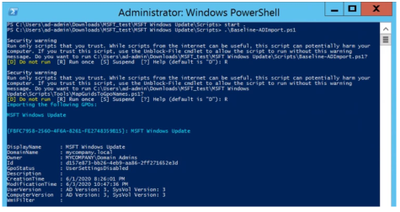
If you manage your devices via Group Policy, you can apply the Update Baseline using the familiar Security Compliance Toolkit framework. With a single PowerShell command, the Update Baseline Group Policy Object (GPO) can be loaded into Group Policy Management Center (GPMC).
The MSFT Windows Update GPO that implements the Update Baseline is added to GPMC with a single command.
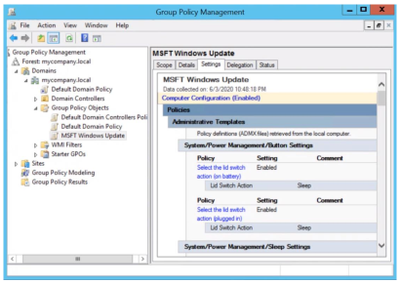
You will then be able to view the Update Baseline GPO (MSFT Windows Update) in GPMC.
That’s it! It’s that simple.
Other cool tidbits? The Update Baseline will continue to be updated and improved as needed, and a Microsoft Endpoint Manager solution to apply the Update Baseline is coming soon! Let us know your thoughts and leave a comment below.
by Contributed | Jan 26, 2021 | Technology
This article is contributed. See the original author and article here.
What’s more fun than adopting Microsoft Lists at your organization? Leveraging prepared resources from Microsoft to help scale your Lists adoption – of course!
Lists is available 100% worldwide across all commercial, government, and education plans. Within Microsoft 365, Lists enables intelligent information tracking, with features to make organizing simple, smart, and flexible. And now that it’s here, it’s time to adopt it – at scale – across your entire organization. And we’re here to help.
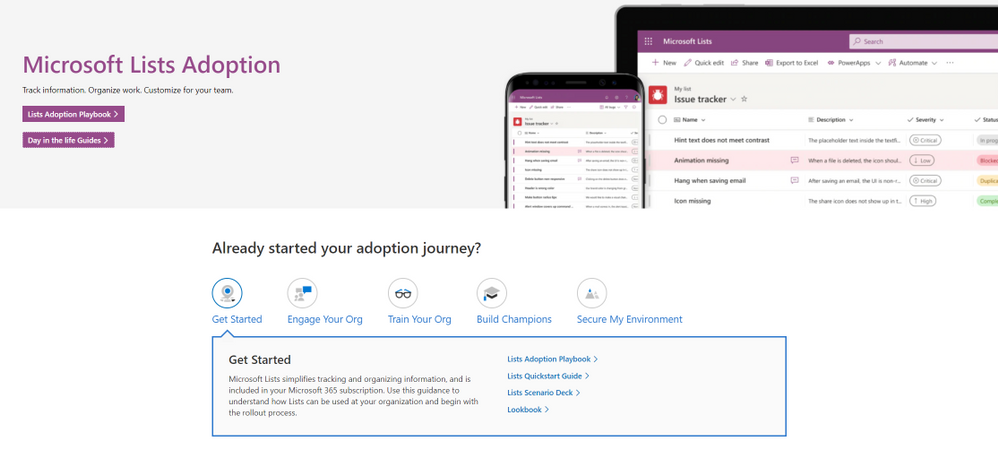
Screenshot of the new Microsoft Lists adoption center within adoption.microsoft.com.
Visit the new Microsoft Lists adoption page – your hub of resources to help increase Lists awareness and usage in your organization, including:
- Adoption playbook: Review best practices for the entire adoption process, from recruiting champions and building out scenarios to growing awareness and running training.
- Day-in-the-life guides: Want to know how Lists is being used by Product Managers, Human Resources, Marketing, and Educators alike? The Lists Day in the Life Guides bring different use cases to life through a diversity of roles, scenarios, and industries to show how your organization can fully take advantage of Lists.
- Quickstart guide: If you’re ready to start playing around with Lists, the Quickstart Guide is your map for navigating the basic interface and features of the app, both standalone and integrated in Microsoft Teams.
- Adoption Templates: Begin your Lists rollout already equipped with a folder of email, flyer, and announcement templates, all written and designed to show off the main features of Microsoft Lists.
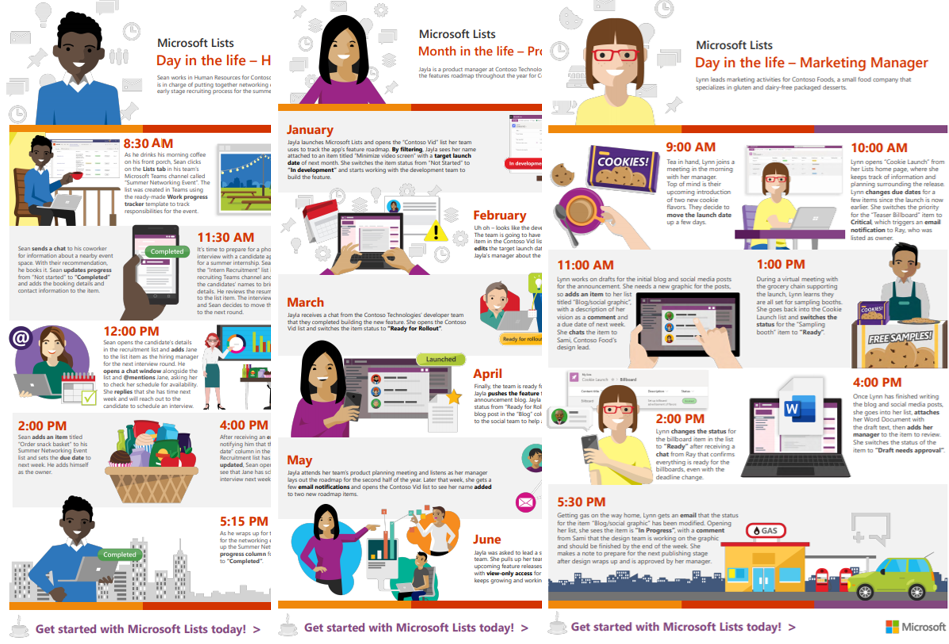
Screenshot of the Lists Day in the Life flyers within adoption.microsoft.com.
Additional resources
In addition to adoption guidance, you can learn more about Microsoft Lists and the rest of the Microsoft 365 collaborative portfolio:
- Microsoft Lists help and ‘how to’: Step-by-step guidance on how to use Lists – support articles and video tutorials.
- Lists resource center: Customer stories, blogs, podcasts, demos, and videos.
- Collaborative Work Management Demo: Guided Microsoft 365 walk through showcasing solutions across Planner, Tasks, Lists, OneDrive, and Sharepoint – to help you organize, share, and track business.
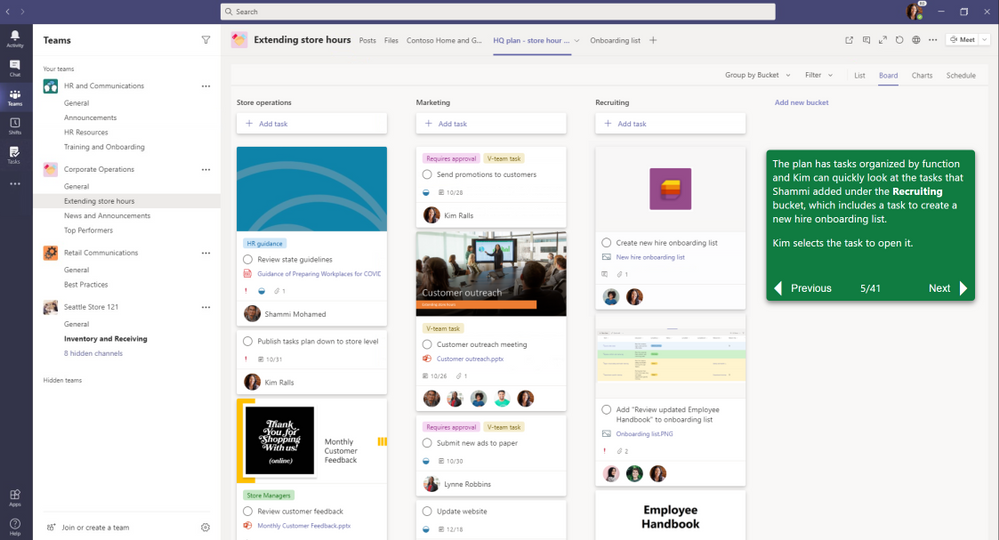
Screenshot of the Collaborative Work Management Guided Simulation.
Start today. Implement a few key scenarios – like an issue tracker, an internal event schedule, or a new hires dashboard. The above will help accelerate the ‘what’ and ‘how’ so you can get more done with Microsoft Lists.
Happy tracking!
Andrea Lum, product manager – Microsoft


Recent Comments