by Contributed | Dec 2, 2020 | Technology
This article is contributed. See the original author and article here.
In this installment of the weekly discussion revolving around the latest news and topics on Microsoft 365, hosts – Vesa Juvonen (Microsoft) | @vesajuvonen, Waldek Mastykarz (Microsoft) | @waldekm, are joined by Independent Consultant, Office Developer and Business Apps (Power Platform) MVP Fabio Franzini | @franzinifabio.
Topics discussed in this session include:
- Becoming and prospering as an independent consultant – drive exposure by delivering training, watch parties, and speaking at conferences.
- When to go with Power Platform vs traditional coding – the key is architecting the complete solution and including change management.
- Thoughts on extending SPFx beyond SharePoint and Teams to create add-ins for all office clients.
- And finally, a few words from Fabio around styling with Tailwind CSS.
This episode was recorded on Monday, November 30, 2020.
Did we miss your article? Please use #PnPWeekly hashtag in the Twitter for letting us know the content which you have created.
As always, if you need help on an issue, want to share a discovery, or just want to say: “Job well done”, please reach out to Vesa, to Waldek or to your Microsoft 365 PnP Community.
Sharing is caring!
by Contributed | Dec 2, 2020 | Technology
This article is contributed. See the original author and article here.
Hi IT Pros,
There is a need to run the Windows 10 kiosk mode with its beautiful, illuminative screen in the reception area of your Corporate Office or in the conference room, also there are the needs to run Windows 10 kiosk mode with specialized tool in Hospital operation room, Manufacturer plant, …
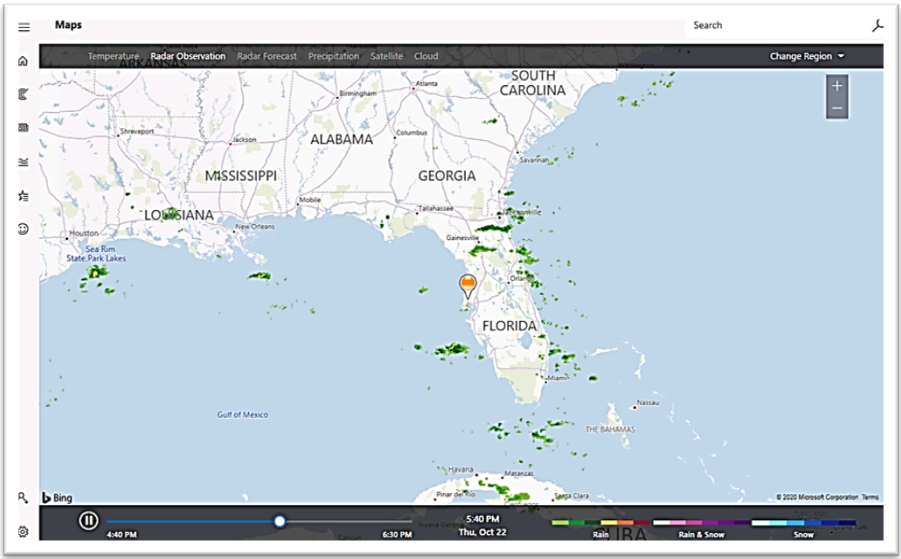
Beautiful screen of Windows 10 Kiosk mode:
Setup Windows 10 kiosk device by Endpoint Manager
You will need to follow the steps in Microsoft document about “Deploy Microsoft Edge Legacy kiosk mode” (1-17-2020). In short, you would need to create the following:
- a device restriction profile with Edge browser settings
- a Windows 10 platform, kiosk configuration profile with the applications to be run by Windows Kiosk Device.
Examples of Kiosk Configuration Profile:
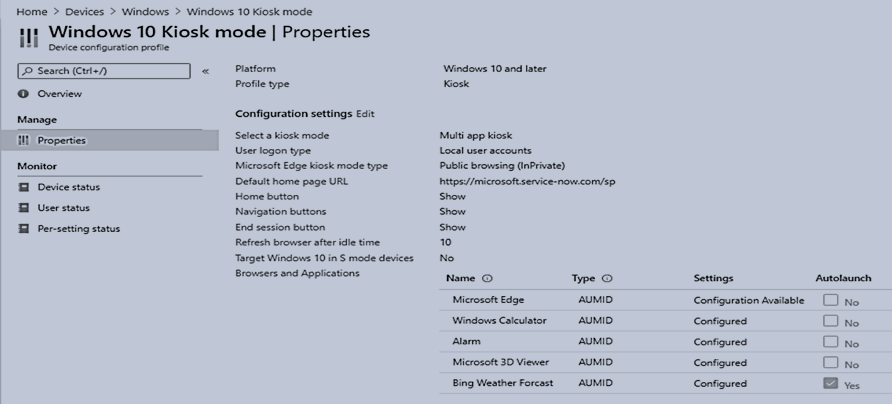
The easiest way to configure the application launched in Kiosk mode is using AUMID application as shown:
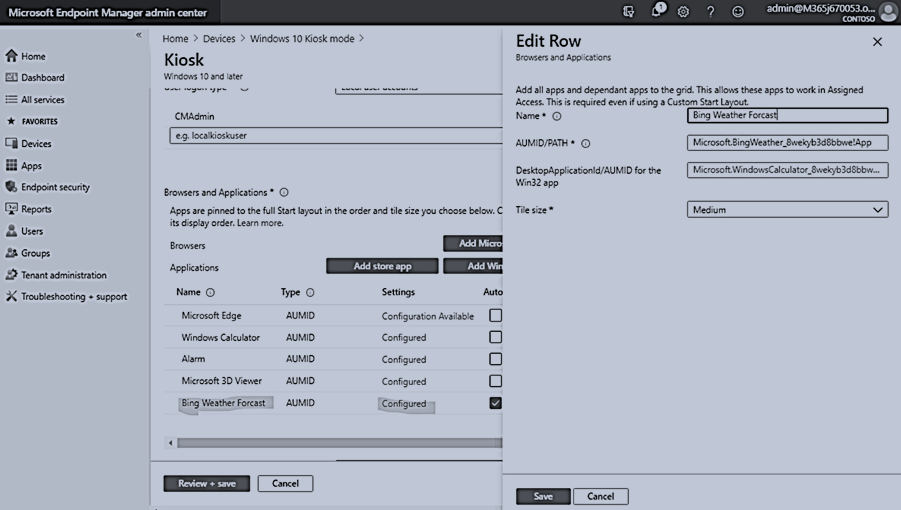
You may want to check one application as the default app and it will be automatically launched at sign-in time.
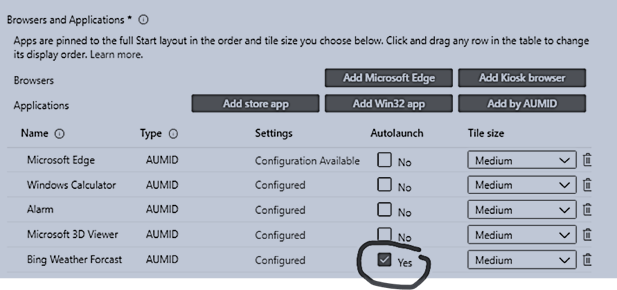
Besides the Troubleshooting guide from Microsoft document, Troubleshoot kiosk mode issues .
I have observed the other common setup problems, which prevent Windows 10 Kiosk mode to work properly.
WINDOWS 10 KIOSK SETUP COMMON PROBLEMS
- Incorrect Local Sign in Account Name.
- Whatever sign-in account we configured in Kiosk Profile, that account has to be accessible at targeted kiosk device.
- If we set up the Kiosk Profile with local sign in account, it has to be existed as local account in targeted windows 10 device,
In the following example, the “LocalKioskUser” account in profile matching to the Computer Management – User account named LocalKioskUser on target kiosk device:
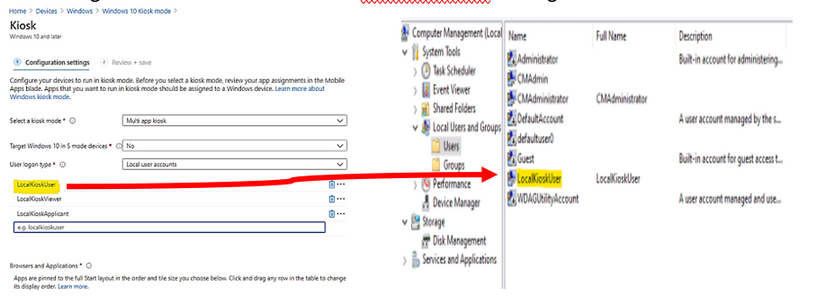
- Local Kiosk Account is member of Administrators group
The sign-in local account must not be a member of the Administrator group.
If it is, windows will operate in normal mode.
- Edge Chromium is installed instead of Edge Legacy
Uninstall Edge Chromium because the engine which runs the Windows Kiosk Configuration Profile is originally designed for Edge legacy. It may change in the short future but up to this point of time, you have to use Edge legacy for Windows 10 Kiosk mode.
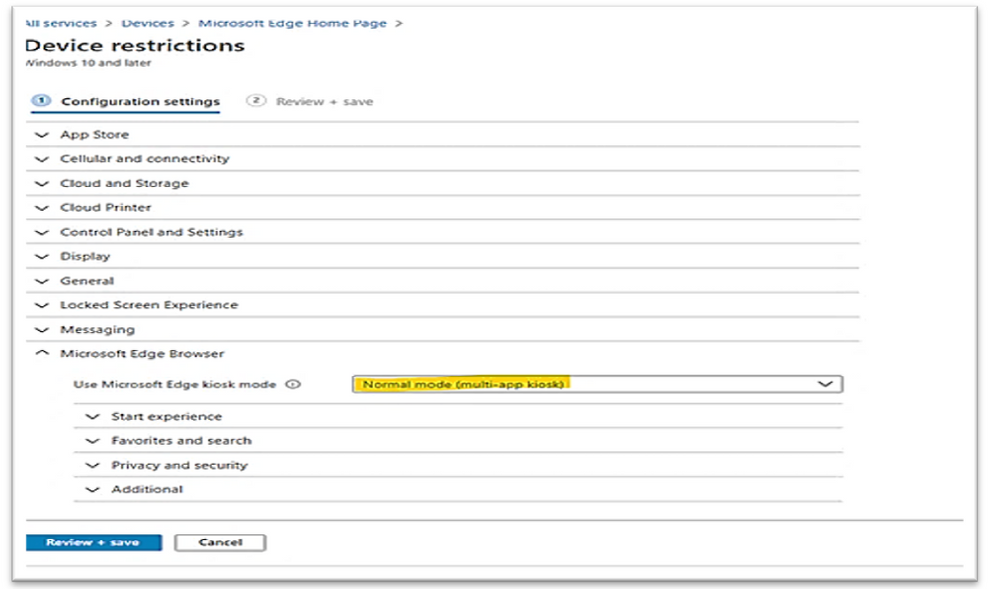
- There is mismatch between kiosk setting of Device Restriction Configuration Profile for Edge Browser and Kiosk Configuration Profile
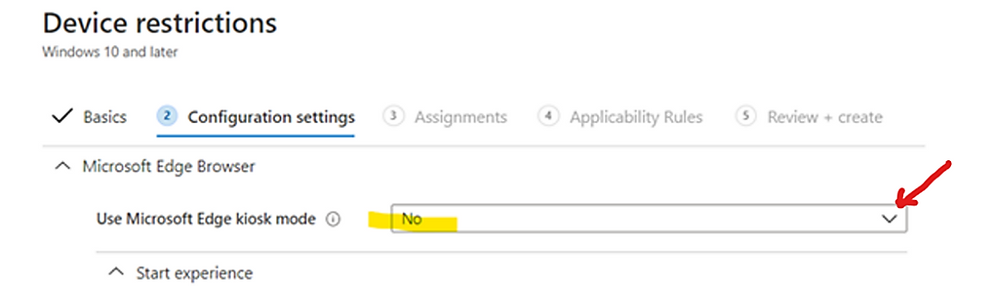
Changing the “Use Microsoft Edge kiosk mode” to the appropriate kiosk option as shown in the following example image:
- Autopilot Profile is missing If you deploy image by Autopilot.
It is used for initial kiosk setup, no specific setting is required but the profile itself.
- Reboot is not applied on kiosk device after an kiosk profile setting change
If all the above configurations are setup correctly and kiosk mode is still not working as expected, the device may need to be synchronized with Endpoint Manager and rebooted to have kiosk profile updated with new change.
Result example, Windows 10 Kiosk with Bing Weather autolaunch.
- Sign-in as localkioskuser
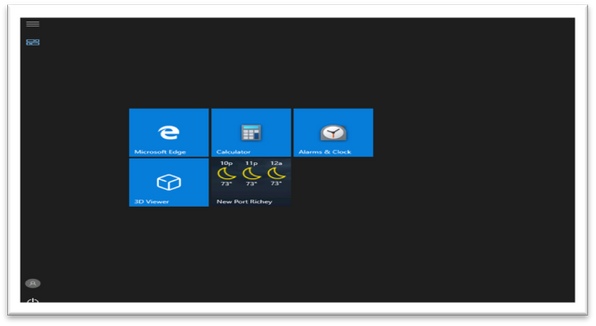
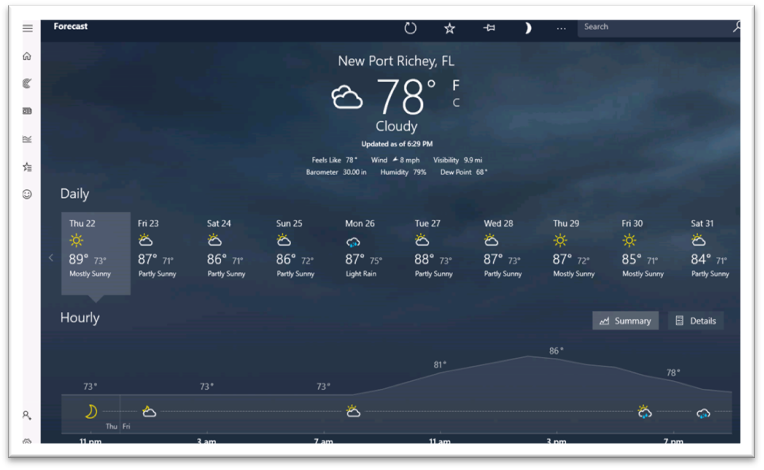
- After about 2 seconds, the Bing Weather will be automatically launched as shown:

- After 3-10 seconds, Bing Weather detail screen is impressively shown.
- To get other apps, you could move mouse to top right corner to close the current app, and open another one.
To Repurpose kiosk devices:
Once the assigned access feature, (kiosk mode) with multi-app configuration is applied on the device, certain policies are enforced system-wide, and will impact other users on the device. You will need to reset to factory default or reimage devices to clear all the policies.
Running Windows 10 Kiosk by Edge Chromium
An initial set of kiosk mode features are now available to test with Microsoft Edge Canary Channel, version 87. You can download Microsoft Edge Canary from the Microsoft Edge Insider Channels page.
I hope the information is useful,
Until next time.
Reference
https://www.inthecloud247.com/setup-edge-chromium-based-kiosk-device-with-microsoft-intune/
by Contributed | Dec 2, 2020 | Technology
This article is contributed. See the original author and article here.
When you move data from source to destination store, Azure Data Factory copy activity provides an option for you to do additional data consistency verification to ensure the data is not only successfully copied from source to destination store, but also verified to be consistent between source and destination store. Once inconsistent files have been found during the data movement, you can either abort the copy activity or continue to copy the rest by enabling fault tolerance setting to skip inconsistent files. You can get the copied and skipped file names by enabling session log setting in copy activity.
How data consistency verification works:
With data consistency verification enabled, when copying binary files, ADF copy activity will verify file size, lastModifiedDate, and MD5 checksum for each binary file copied from source to destination store to ensure the data consistency between source and destination store. When copying tabular data, copy activity will verify the row count after job completes. Be aware the copy performance will be affected by enabling this option.
Get started:
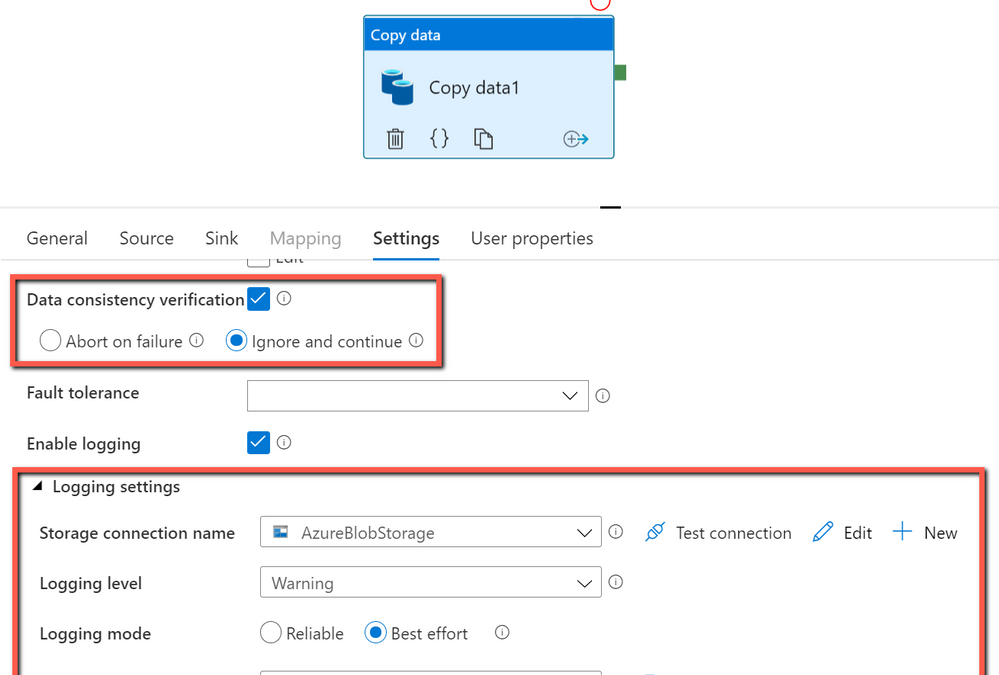
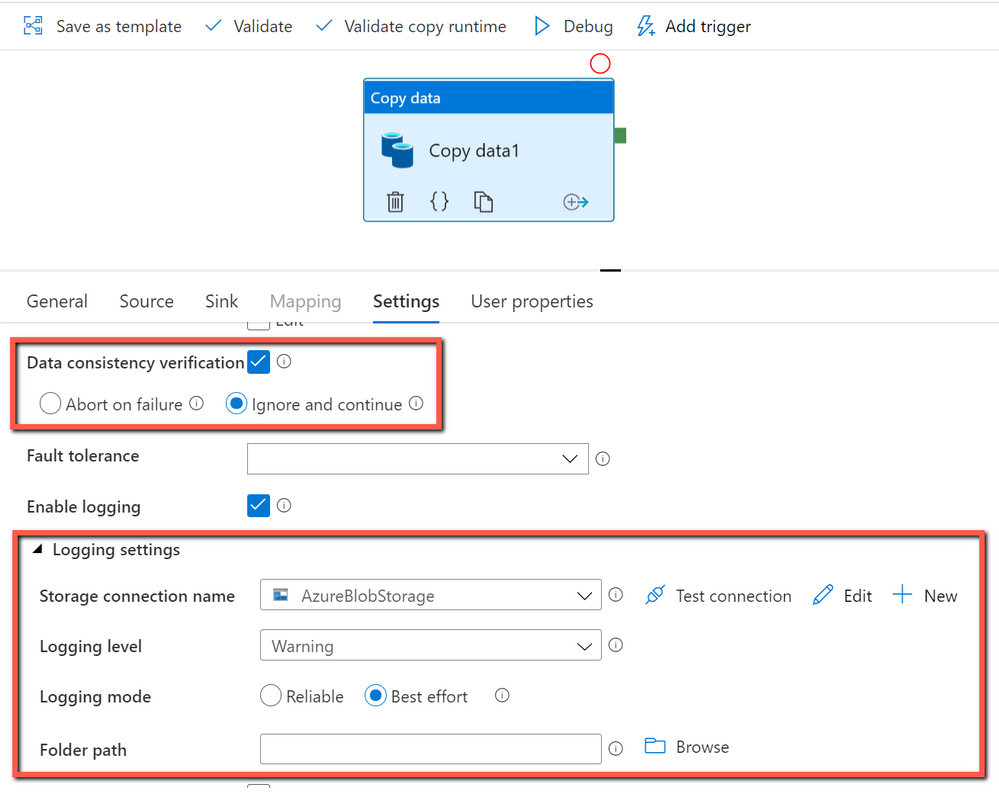
In ADF copy activity, you can choose to enable “Data consistency verification” setting, and then decide if you want to abort the copy activity job or continue to copy the rest once inconsistent files found as below:
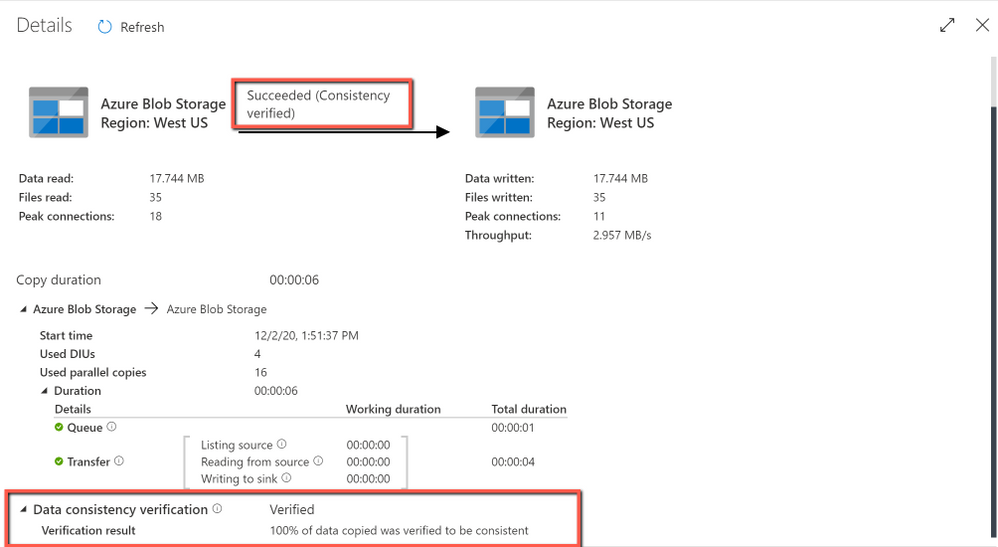
Get the verification result after copy job completes:
by Contributed | Dec 2, 2020 | Technology
This article is contributed. See the original author and article here.
For those of you using Microsoft Defender for Office 365 automated investigations, we have several new investigation improvements rolling out this month to improve your experience in the security center. These new features improve the clarity of Office 365 investigations, as well as improve Defender for Office 365 integration with SecOps tools in the security center.
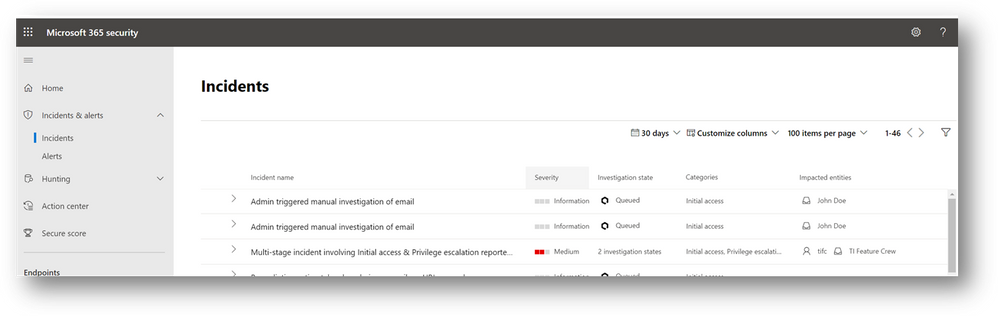
- Manually triggered investigations – Office 365 has supported investigations triggered manually by security administrators from Explorer since the Office 365 automated investigation features were released. This capability allows security teams to trigger ‘email investigations’ to see if anything in an email is bad, identify any unusual Office 365 behaviors for the recipient, and queue remediation actions for anything malicious or suspicious. With the addition of a new alert for admin-triggered email investigations from explorer, SecOps teams can now see alert notifications for these investigations in their alert queues – as well as view these investigations in the Microsoft 365 security center. The alert and investigations from these admin-triggered email investigations will be correlated in incidents, which further expands the signal provided by the admin action to show the full relevant scope of the suspected attack or malicious activity. In addition, this enables use of other Microsoft 365 Defender capabilities for these investigations, including the unified investigation page, the display of investigation actions in action center, and the alerts/entities within advanced hunting.
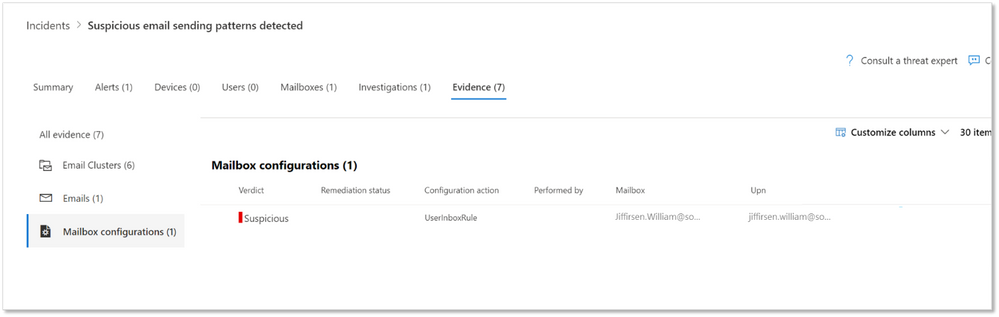
- Mailbox configuration entities – Defender for Office 365 identifies suspicious configurations like external forwarding rules and suspicious delegation rules – which are key methods that attackers can setup malicious persistence in their attack on businesses. Microsoft 365 Defender incident view has shown such findings under the mailbox tab. Since these configuration findings will have actions to disable them, we have added a new entity type called ‘Mailbox configuration’. These new entities help you will clearly see these suspicious mailbox configuration findings in the incident and investigation evidence tabs, so that you can more easily review these suspicious mailbox configurations associated with the pending actions.
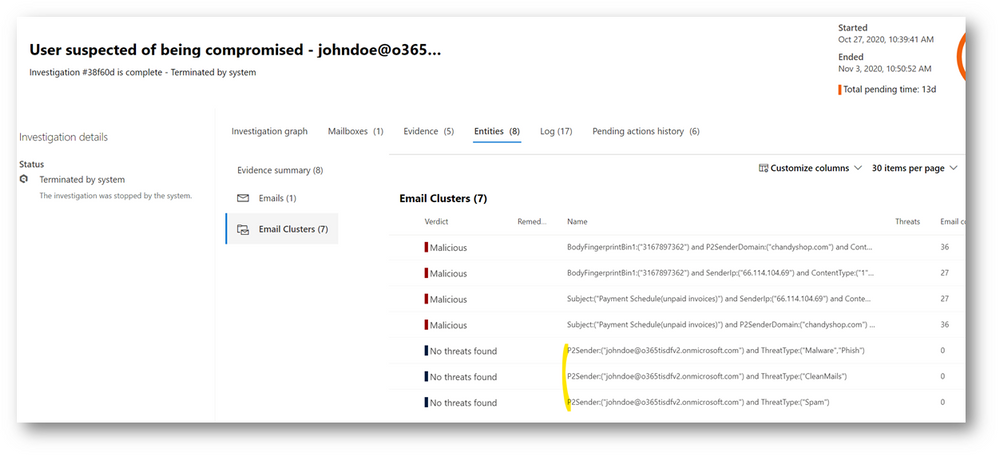
- Outbound email clusters for user compromise investigations— Microsoft Defender for Office 365’s user compromise investigations analyze users in scenarios where the user has been blocked for sending out too many suspicious or malicious emails. To extend these investigations and provide better understanding of the potential impact of compromised mailboxes, we have added new email clusters to show recent email being sent from the mailbox. The three new email clusters show the ‘suspicious’ spam email, the ‘malicious’ malware/phish email, and the ‘clean’ email sent from the account in the last week. This information aids security operations teams in assessing:
- Whether the mailbox account was compromised
- What problems may have been created through malicious/suspicious use of the account
- Whether there was any potential data exfiltration through email
- Which outbound emails are legitimate (differentiate good email use from abuse/misuse)
These new email clusters will augment the existing email clusters in the user compromise investigation, which find emails similar to the malicious/suspicious messages that triggered the compromise-related mailbox alerts.
- Deprecation of block URL investigation action – We are removing the redundant ‘block URL’ action from our current investigations. In these current investigations, this action appears when the investigation finds a malicious URL. Since the Office 365 protection stack will be blocking the URL at the time of delivery and from Safe Links protected clicks, the investigation action is no longer needed. There will be future action uses from advanced hunting and explorer for false positive and false negative related admin remediation actions.
There is no impact to your current incident and automated investigation use. These new features add new fields you can use to find items easier. The main thing to note is that the new manually triggered email investigation alert will be seen in the security center, will generate alert email notifications, and will be available alongside other alerts in the Office 365 Management Activity API.
by Contributed | Dec 1, 2020 | Technology
This article is contributed. See the original author and article here.
Benefit of using session log in copy activity:
With session log enabled in copy activity, you can log your copied file names, which can help you to further ensure the data is not only successfully copied from source to destination store, but also consistent between source and destination store by verifying the copied file names with their metadata in the log files. When you enable fault tolerance setting in copy activity to skip faulty data, the skipped files and skipped rows can also be logged. For more information, you can get details from here.
How to get started:
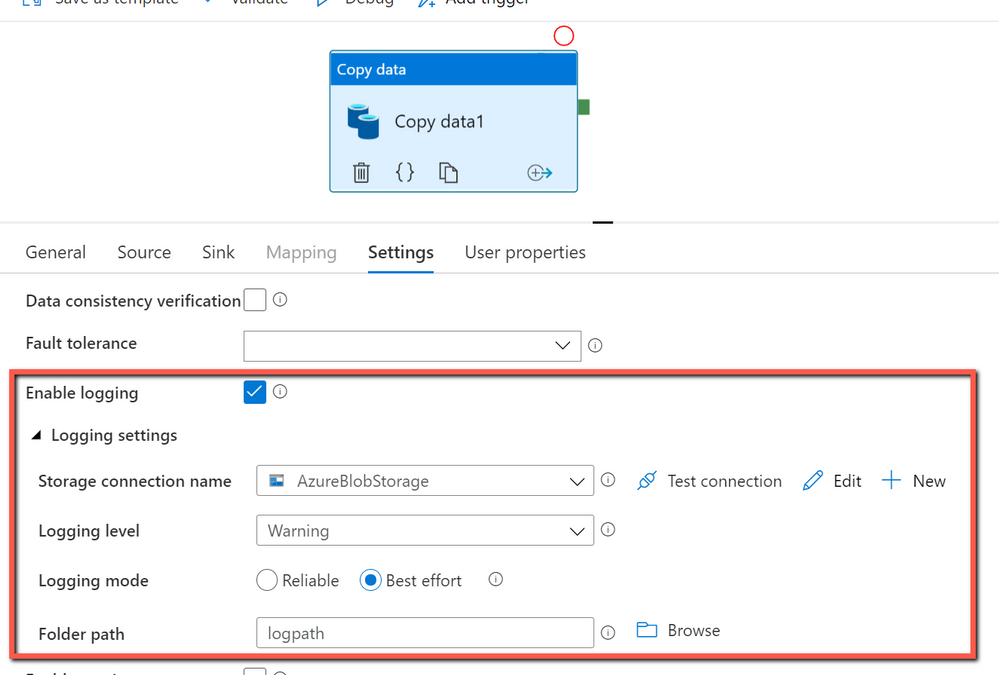
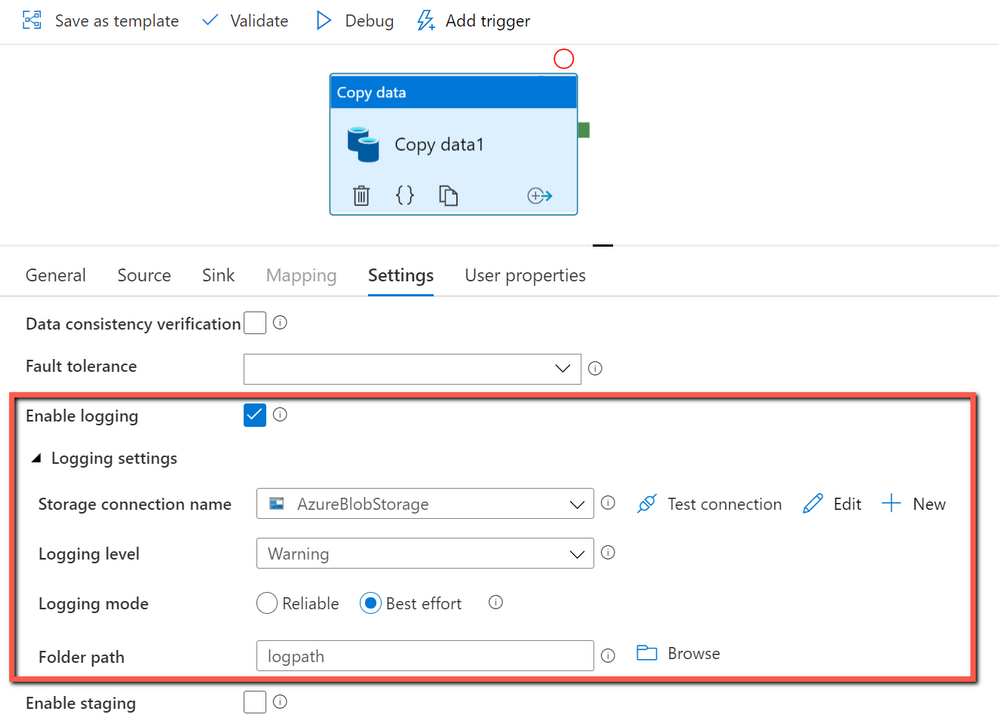
You can create a pipeline with a copy activity, and then configure the copy activity to enable session log as below:
The sample log file is as below:

From the log file above, you can see sample1.csv has been skipped because it failed to be verified to be consistent between source and destination store. You can get more details about why sample1.csv becomes inconsistent is because it was being changed by other applications when ADF copy activity is copying at the same time. You can also see sample2.csv has been successfully copied from source to destination store.


Recent Comments