by Contributed | Dec 2, 2020 | Technology
This article is contributed. See the original author and article here.
I wanted to take a moment to let you all know that Microsoft Tech Community has regular maintenance windows on Wednesdays and Fridays between midnight and 4am Pacific.
While we always try to ensure that our maintenance periods do not affect your ability to use the community, occasionally we must display our maintenance page. When this is necessary it may not always be possible to let you know in advance, but we will work to restore service as quickly as we can.
On December 4th, between midnight and 4am PT (7am – 11am UTC), we will be making some changes to the Microsoft Tech Community which will require a period of complete downtime. This should not last longer than 2 hours and anyone visiting the site during this time will get our usual Maintenance page.
On behalf of the Microsoft Tech Community, I would like to apologise for any inconvenience this may cause and do check back on Friday for an update on this maintenance period.
Allen Smith
Technical Lead
Microsoft Tech Community
by Contributed | Dec 2, 2020 | Technology
This article is contributed. See the original author and article here.
We are getting ready to update SQL Server Analysis Services Management Pack. Please install this public preview version (7.0.27.0) and provide us feedback. We appreciate the time and effort you spend on these previews which make the final product so much better.
Please download at:
Microsoft System Center Management Packs (Community Technology Preview) for SQL Server Analysis Services
This update improves performance of partition discovery for multidimensional databases (AS MP).
We are looking forward to your feedback.
by Contributed | Dec 2, 2020 | Technology
This article is contributed. See the original author and article here.
I think we can all agree that this has been an unusual and expectation-defying school year in each and every way. First and foremost, we want to pause for a moment to say THANK YOU. We know that this school year hasn’t been easy and we just want you to know that we have seen you as you created new online curricula on the fly, troubleshooted technology, and navigated the challenges of engaging with your students in new ways. Thank you (yes, you!) for being the Teacher of the Year this year and every year! We know the difference you have made in your students’ lives and we are humbled to be on this journey with you.
We so appreciate you sharing your feedback along the way–both the triumphs and frustrations. We’re continuing to improve the Teams experience and make it even better. Here are the latest updates available now to help you make the most of distance and hybrid learning with Teams:
- Use data insights to improve teaching and learning
- Encourage class participation with online meetings
- Maintain student safety with meeting controls
- Keep students engaged with course content
- Do more with Assignments in Teams
- Build an interactive classroom
- Train yourself and learn more about Teams with additional resources
Let’s dive in! (If you’re just looking for a list without extra description, click here to jump.)
1) Use data insights to improve teaching and learning
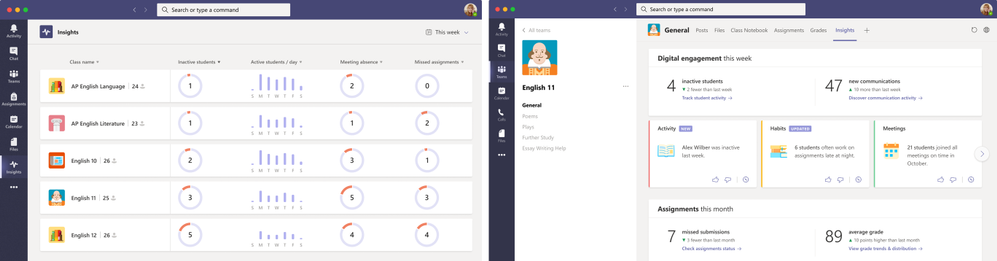
New Insights app and cards to spotlight student behavior
New updates to Education Insights allow educators to closely track the engagement and progress of students over time and across their classes with the Insights app. This includes seeing the number of inactive and active students per day, missed online classes, and missed assignments. Within a specific class, educators can see spotlight cards to show trending student behaviors they may want to act on. These spotlight cards are rolling out now and will be fully available by mid-December. With access to data that visualizes how students are engaging—like meeting participation, communication, and assignment activities—educators can monitor progress and make faster, more informed decisions on which students need immediate learning support.
To get started, check out these resources:
Educators can view insights into student engagement across classes and drill down to better understand habits and behaviors.
2) Encourage class participation with online meetings
New Together mode scene selection
Educators can choose from new Together mode scenes on desktop and mobile to transport students to a variety of digital places. Together mode reimagines the online class experience to help educators and students feel closer together even when teaching and learning apart. Choose a scene to set the tone and create a unique experience, whether it be a cozy room, outdoor amphitheater, or classroom. Watch the quick tip video to learn how.
 New Together mode scenes let you choose different ways for the whole class to learn together.
Live captions with speaker attribution
See who is speaking while you watch live captions, creating a meeting experience that’s more inclusive and easy-to-follow. Watch the quick tip video to learn how.
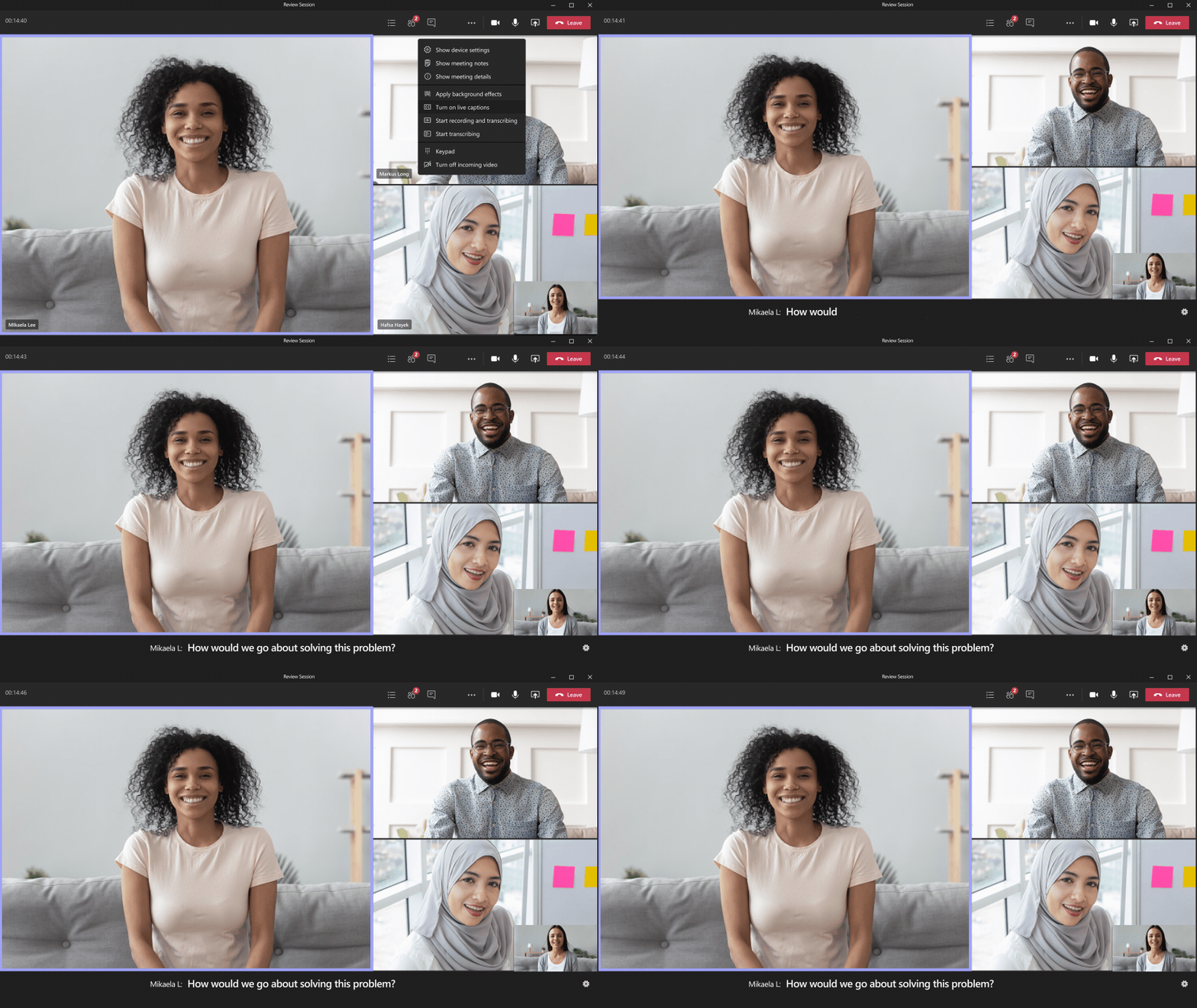
Live captions with speaker attribution to support learners during online classes.
Spotlight the educator’s video for all students in a Teams online class
Educators and other meeting presenters can now choose an individual video feed for all attendees to see during a Teams online class. Once selected, the individual identified as the spotlight will be the main video shown to the class. Spotlight is available on PC, Mac, mobile (view-only), web (view-only) and Microsoft Teams Rooms on Windows. Watch the quick tip video to learn how.
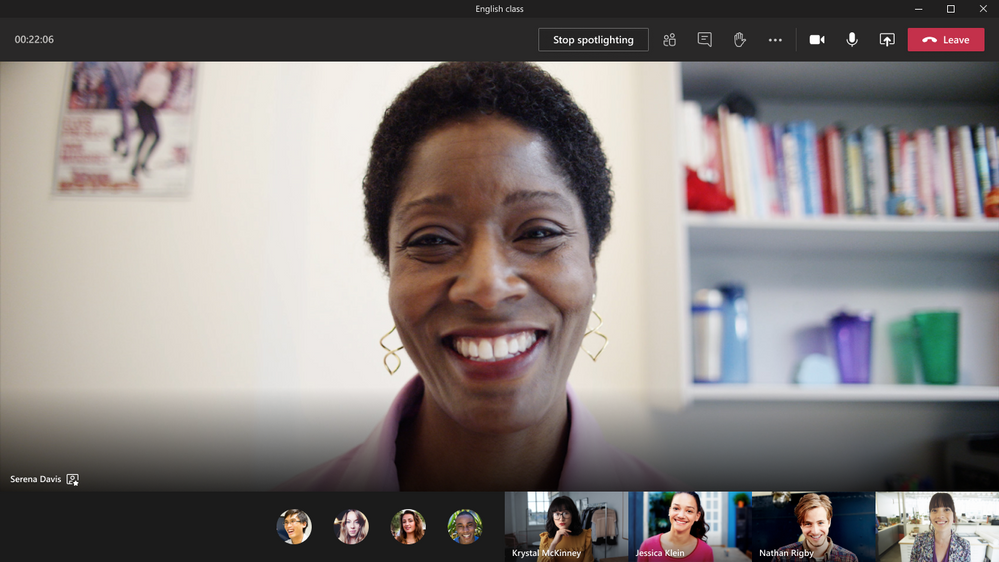 Educators can now select their video for the entire class using Spotlight.
Use Polls in classes and lectures to keep your pulse on student ideas and feelings
Polls in Teams meetings using Forms help educators create engaging virtual classrooms. Whether you’re checking in on your students, surveying opinions on the latest assignment, or asking a fun trivia question, polls help keep classes interactive. For online classes in Teams, the meeting presenter or organizer can prepare, launch, and evaluate polls before, during, and after meetings. Students can easily view and respond to polls in the pop-up bubble or chat pane. Polls in Teams meetings are available in desktop and web for non-channel meetings. Learn more and watch the quick tip video.
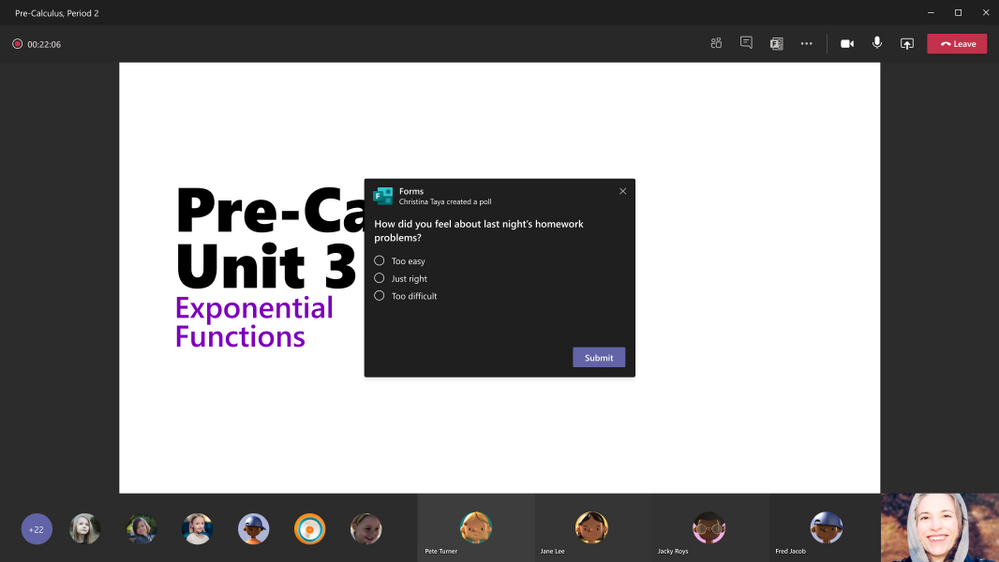 Forms for quick polls are now available during online classes.
AI based noise suppression
Our real-time AI noise suppression feature automatically removes unwelcome background noise during your live class or course. The AI-based noise suppression analyzes your audio feed filtering out the noise and retaining only the speech signal. You can also control how much noise suppression you want, including a high setting to suppress more background noise.
Full screen support in new meetings experience
We heard your feedback and are excited to announce that full screen mode is back! With full screen mode on Windows, the meeting window fills up the whole screen, removing all other screen elements, including the title bar on the top and task bar on the bottom. On Mac OS, full screen mode maximizes the meeting window and the title bar is hidden. This helps to reduce distractions and focus attention on learning.
Updated layout for meetings on iOS
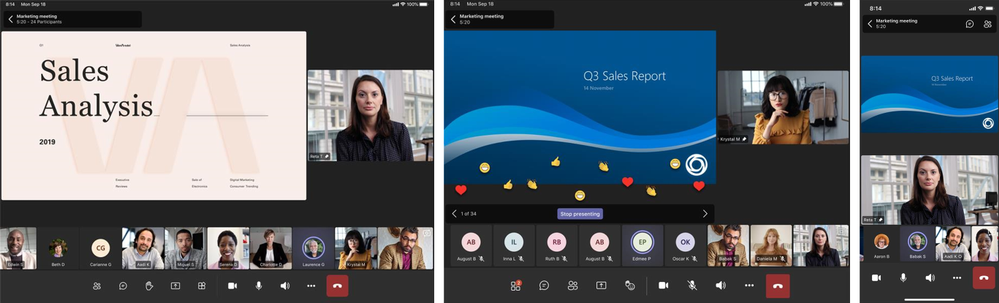
Students attending classes from their iOS device can now enjoy an improved Teams experience with a new presentation mode, the ability to view more participants at a time, and the ability to view shared content and a spotlighted meeting participant at the same time.
3) Maintain student safety with meeting controls
Prevent students from unmuting during class
Meeting organizers and presenters can now prevent attendees from unmuting during their online class and enable specific attendees to unmute when they raise their hands. This can be helpful in class where you want to be in control of who’s speaking when. Learn more.
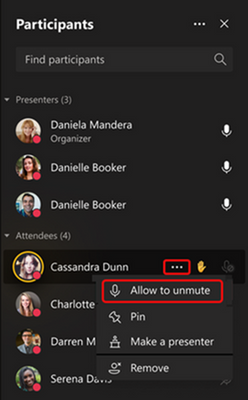 Educators can choose to mute all students during class and then allow specific students to unmute when they raise their hand.
Delete meeting recordings in Teams
Need to delete that recording of class? Now the recording owner (either the person who started the recording or any additional owners named) can delete the recorded class or lecture. Learn more.
4) Keep students engaged with course content
Pinned posts in the Info pane
Keep important information easily accessible and top-of-mind. You can pin any message in a channel so it appears in the channel information pane for all members of that channel to see. Watch the quick tip video to learn how.
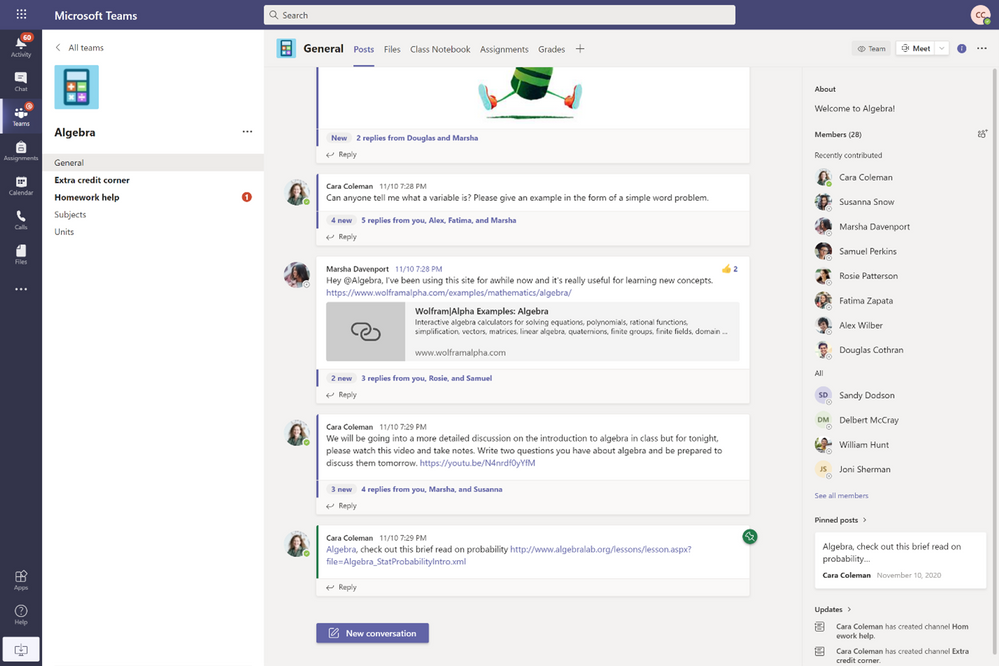 Pin a post to the Info pane to keep key class or course information top-of-mind.
More options to use polls, surveys & checklists in Teams
Easily gather information or keep track of things in chat and channels with new app templates for polls, surveys, and checklists in Teams. Once installed and configured by the Teams administrators, these messaging extensions provide a simple and intuitive experience across all platforms without the need to use 3rd party apps. Quickly create and send polls to gather student input, easily create surveys to gather feedback, and work together to keep the class or course on track by creating a shared checklist.
Android on-demand chat translation
Inline message translation ensures that all your team members have a voice, helping to facilitate global collaboration. With a simple click, people who speak different languages can fluidly communicate with one another by translating posts in channels and chat.
5) Do more with Assignments in Teams
Updated Assignment Settings
Instead of setting things up on an assignment-by-by-assignment basis, educators can now manage a suite of Assignments Settings in the Assignments tab. Assignment Settings allow educators to set default due times, set preferences on what happens when a new student is added to the class, change the default location where notifications for an assignment will be posted (like an Assignments specific channel), and turn off turn-in celebrations if they’re not age-appropriate for older students. The Parent /Guardian Weekly Email setting has also moved from the Teams Settings to Assignment Settings. (Settings changes will apply to new assignments created after the updated setting selection has been saved.) Watch this quick tip video to learn more.
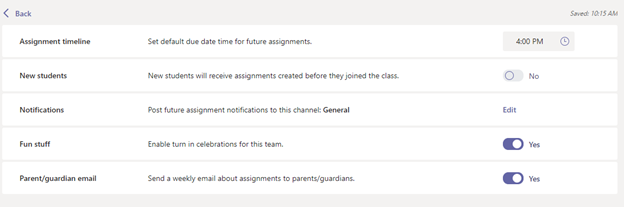 New Assignment Settings give educators more control.
View assignments across all classes and get to them quickly (again)
Being able to see what’s coming up at a glance is super important to getting a handle on your week…month…or year. Both educators and students can once again view upcoming and turned in assignments by class or view them across all classes. Just visit Assignments in your app bar on the left-hand side of Teams to view assignments across all classes. Watch this quick tip video to learn more.
6) Make synchronous classes and courses interactive with your favorite apps
Add your favorite apps to virtual classes and courses
Now you can use some of your favorite apps before, during and after your virtual classes. Educators can incorporate Buncee and Wakelet and have students work together on content, share and discuss topics, and ask questions during class. Learn more about these new meeting capabilities and watch the Buncee video to learn how.
7) Train yourself in Teams and support students with additional resources
For educators
- Find what you need to get started on Teams all in one place at aka.ms/TeamsPP.
- Check out this quick article about how to have secure online meetings
- Quickly get up-to-speed on Teams Meetings and Accessibility with one-page guides
https://aka.ms/TeamsEduGetStartedTeachers
https://aka.ms/TeamsEduMeetingsTeachers
https://aka.ms/TeamsEduAccessibilityTeachers
For parents
- Learn about Teams and common classroom scenarios with clickable interactive demos (in English).
2. Quickly get up-to-speed on Teams Meetings and Accessibility with one-page guides.
https://aka.ms/TeamsEduGetStartedParents
https://aka.ms/TeamsEduMeetingsParents
https://aka.ms/TeamsEduAccessibilityParents
Find resources to keep kids engaged and learning new skills with family-led learning experiences (for children 3-12),
For IT
- Check out the Quick Start Guide.
- Watch the recordings from the Microsoft Teams for Edu digital readiness event which dive into common scenarios and use cases to support you this school year at https://aka.ms/TeamsEduEvent.
- Learn which policies to enable to keep students safe when using Teams for remote and hybrid learning with this Policy quick guide.
For all -> Check the Teams help homepage. You can also click Help in your Teams app at any time for extra how-to’s and support!
And for those that love lists, here’s a quick review of all the features we shared:
Use data insights to improve teaching and learning
Insights app
Insights spotlight cards (rolling out now, available by mid-December)
Encourage class participation with online meetings
New Together mode scene selection
Live captions with speaker attribution
Spotlight or pin the educator’s video for the whole class
Use Polls in classes and lectures to keep your pulse on student ideas and feelings AI based noise suppression
Full screen support in new meetings experience
Updated layout for meetings on iOS
Maintain student safety with meeting controls
Prevent attendees from unmuting during class
Teams owners can delete meeting recordings in Teams
Keep students engaged with course content
Pinned Posts
More options to use polls, surveys & checklists in Teams
Android on-demand chat translation
Do more with Assignments in Teams
Updated Assignment Settings
View assignments across all classes and get to them quickly
Make synchronous classes and courses interactive with your favorite apps
Add your favorite apps to virtual classes and courses
You’ve got this. And we’re right here if you need us.

by Contributed | Dec 2, 2020 | Technology
This article is contributed. See the original author and article here.
Everybody loves Microsoft Teams, right? Even before the world of Covid-19, Teams was Microsoft’s fastest adopted product in their history. Teams brings us so much, all in one place. We have chat, files, audio and video calls, apps, and so much more. When you open up Teams at the start of your day, there is little that you cannot do without having to change to another app. So much goodness is baked right into Teams!
What I love just as much though, is that there are so many hidden gems in Teams. Cool features that will help you to be productive, access the information that you need to get to quickly and easily, and help you to manage your work/life balance.
In this blog, I will take a look at some of the lesser known hidden gems that are available to you within Microsoft Teams right now. So, without further ado, here are 5 of the most underrated Teams features that you need to know about, and you will wonder how you ever did without them!
1. The Search Bar
When you open up Microsoft Teams, the search bar is right at the top of your screen. If you are new to Teams, and need a bit of help, this is a great tool to help you find your way around.
Figure 1 – The search bar in Microsoft Teams
By placing your cursor in the search bar, and pressing the / key, you are presented with a list of useful commands that you can use. This is shown in Figure 2 below.
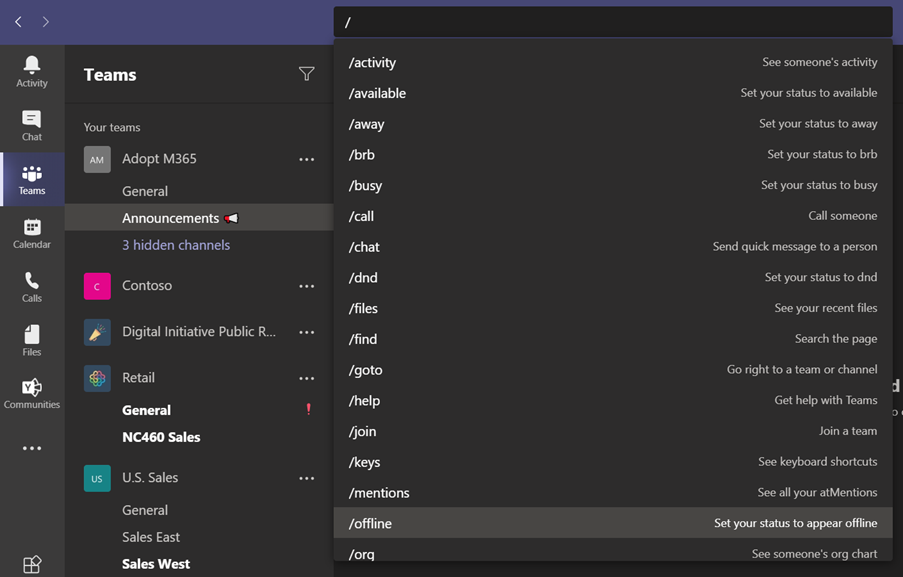 Figure 2 – Commands available from the search bar
An example of one of the available commands is /find.
 Figure 3 – The Find command
When you choose the /find command and hit enter, you will first see the option to search within a Channel or Chat as shown in Figure 4.
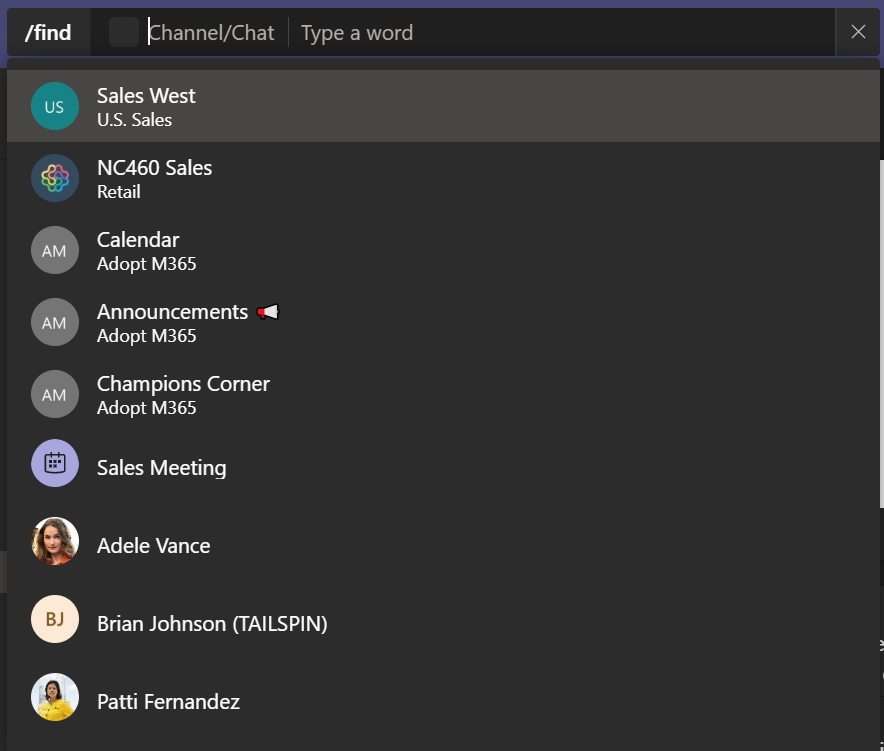 Figure 4 – Use /find in Channel/Chat
In the example in Figure 5, I have chosen my chat with Adele, and searched the chat for the word Anaheim. Any search matches are displayed in the Results pane on the left of the page and selecting one of the results takes you directly to it.
 Figure 5 – Chat /find results
Some additional quick and easy ways to use the search bar in Teams are to pressing Control + F (Command + F on Mac OS) to quickly carry out a search as shown in Figure 6.
 Figure 6 – Use Control + F to search
You may also press Control + . (Command + . on Mac OS), to quickly view a list of useful keyboard shortcuts.
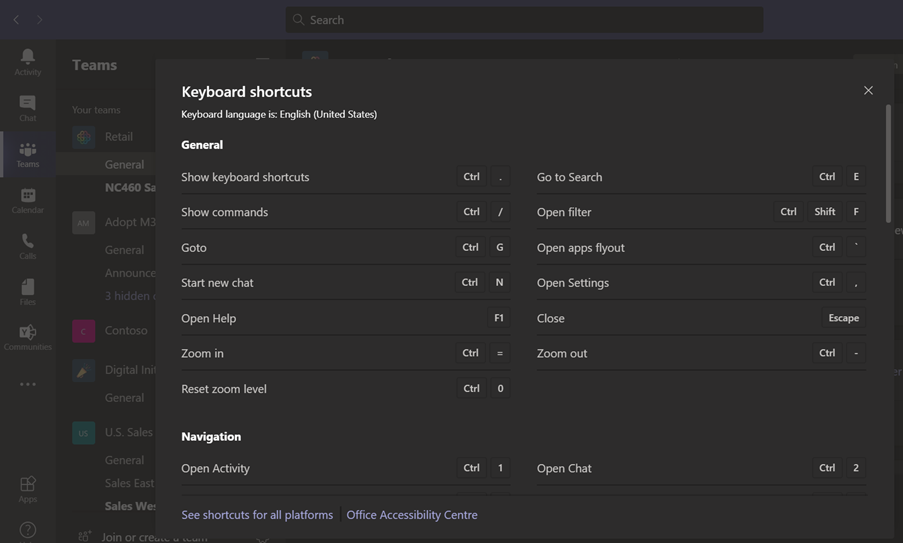 Figure 7 – Use Control + . to view keyboard shortcuts
Go and try these out, and you will see how useful the search bar is and what a powerful tool it can be.
2. Switch easily between devices during meetings
Teams meetings have become a way of life for many of us, but they can consume a lot of your time. What if the meeting you are attending overruns and you need to **bleep** out in the car to run an errand or do the school run? Well, Teams has you covered again!
In the following example, I have joined a meeting on Teams from my laptop as shown in Figure 8.
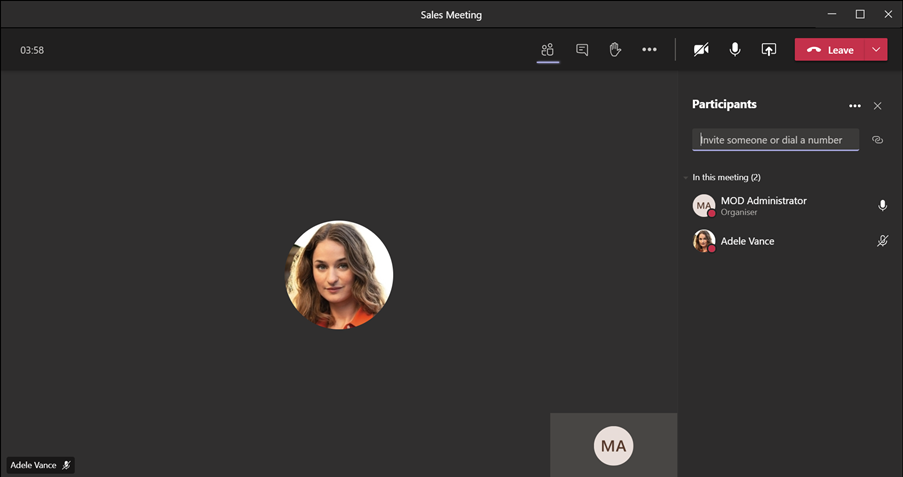 Figure 8 – Teams meeting in progress
The meeting is overrunning, and I need to get in my car to run some errands. No problem, I grab my iPhone (you can use Android devices too) and I open the Teams App. In Figure 9 we can immediately see at the top of the screen that we have an option to join the meeting from here.
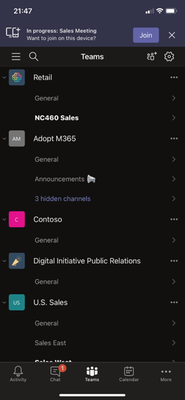 Figure 9 – Join the meeting on your mobile device
We have two choices on joining the meeting on our mobile device as shown in Figure 10. These are:
- Add this device – Join without audio on this device and keep your other device in the meeting
- Transfer to this device – Join with audio on this device and leave the meeting on your other device automatically
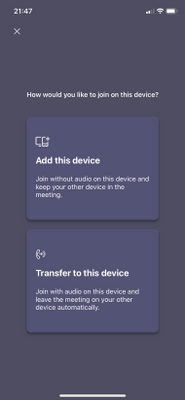 Figure 10 – Add this device, or transfer to this device
In this example, I will choose the second option to transfer to this device.
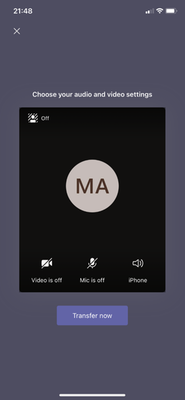 Figure 11 – Transfer to this device
When I select Transfer now, I am placed into the meeting on my iPhone as shown in Figure 12.
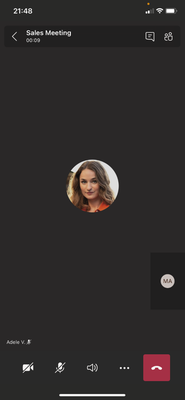 Figure 12 – Meeting now transferred to mobile device
So now I can stay in the meeting whilst getting on with some other tasks on the go.
3. Channel Announcements
Announcements in channels is another feature that many people do not seem to know about. Let’s see how it works.
From any channel within Teams, click on the New conversation button shown in Figure 13.
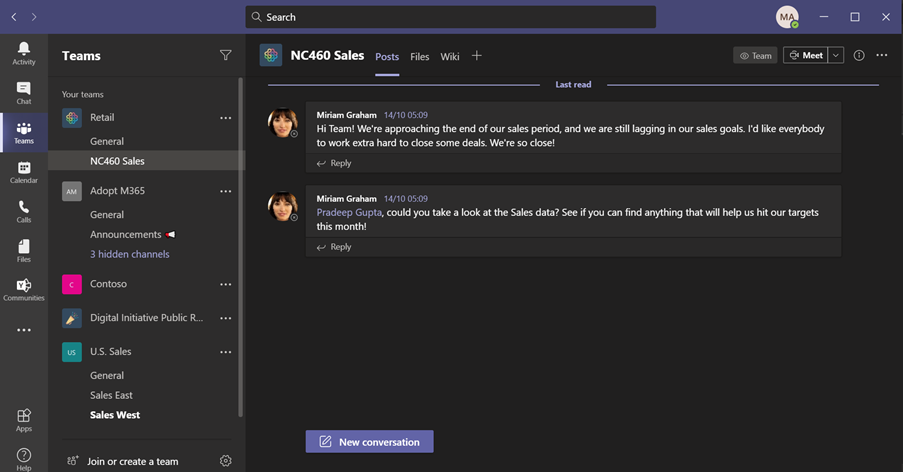 Figure 13 – New conversation in a channel
Click on the format icon (which is the first icon on the left shown in Figure 14.
 Figure 14 – Choose the format icon
The New conversation options will expand as shown in Figure 15.
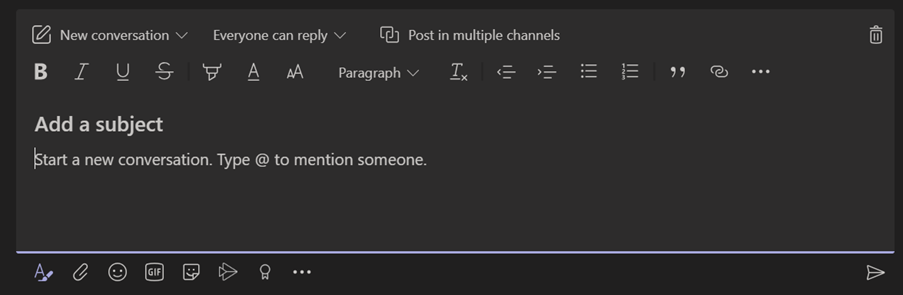 Figure 15 – New conversation options
Click the dropdown next to New conversation and you have the option to choose Announcement.
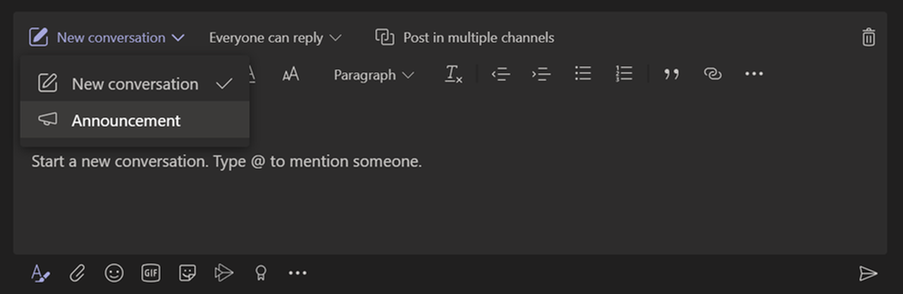 Figure 16 – Choose Announcement
The announcement format is shown in Figure 17.
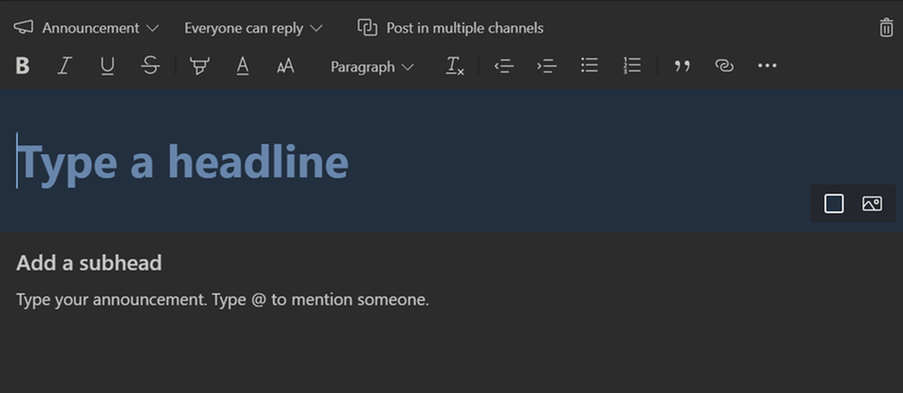 Figure 17 – The announcement options
I can now type in my announcement headline, sub-heading, and the announcement itself. If I choose the ellipsis, I can choose some further options for my announcement such as Mark as important. This is shown in Figure 18.
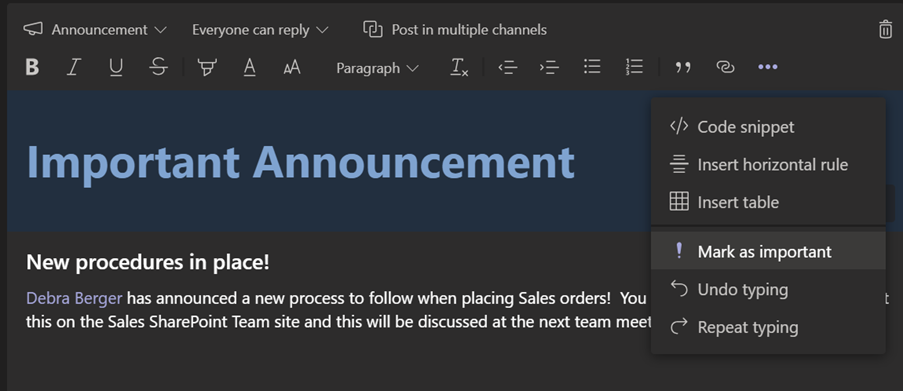 Figure 18 – preparing your announcement
You may also choose some color and image settings if you wish, and when you are ready to post your announcement, click Send. Your announcement will now be visible to all in the channel as shown in Figure 19.
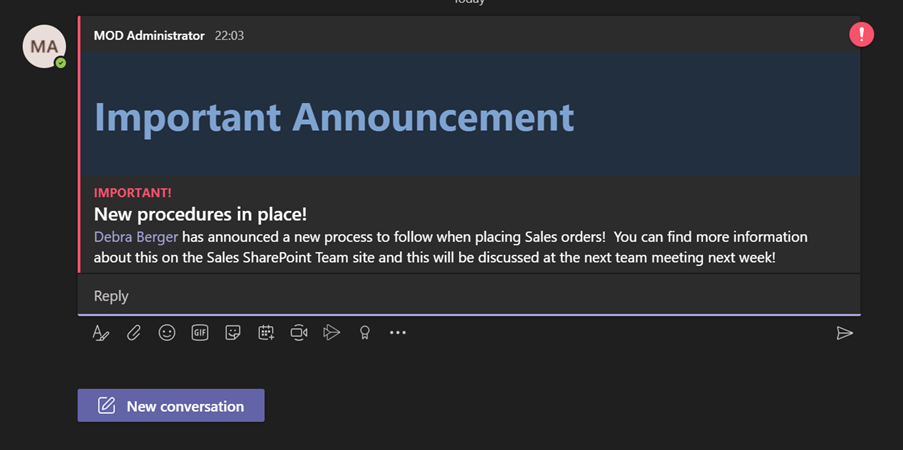 Figure 19 – New announcement posted to channel
Announcements are a really great way to grab your colleague’s attention with important information that you post to a channel. Go and give them a try!
4. Share to Teams
Whilst Teams is very much the product of the moment, email is still very much alive and kicking and Outlook is one of the most important tools we have available to communicate efficiently. What if you receive an email though, and you immediately think that email contains some great information that you would like to share with your colleagues in Teams?
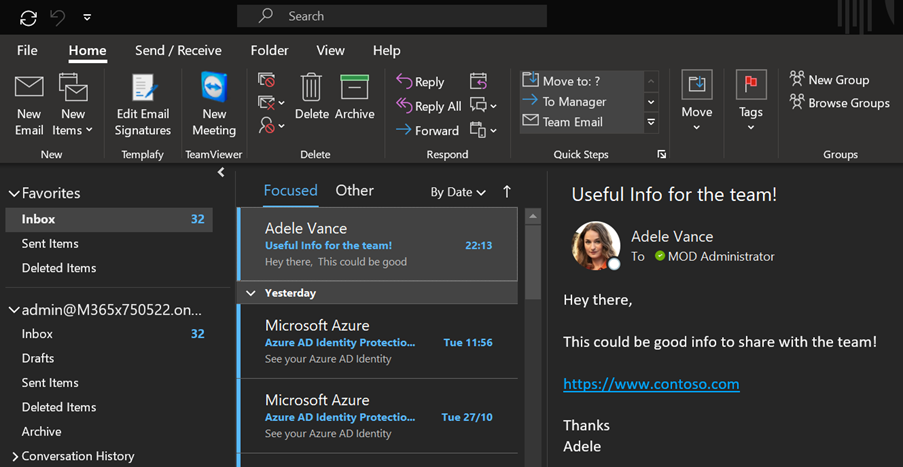 Figure 20 – Microsoft Outlook
This is where Teams channel email addresses come in. By clicking the ellipsis on your Teams channel, you will see the option to Get email address. This is shown in Figure 21.
Note: The Email integration features must be enabled from the Teams admin center in order for this feature to work.
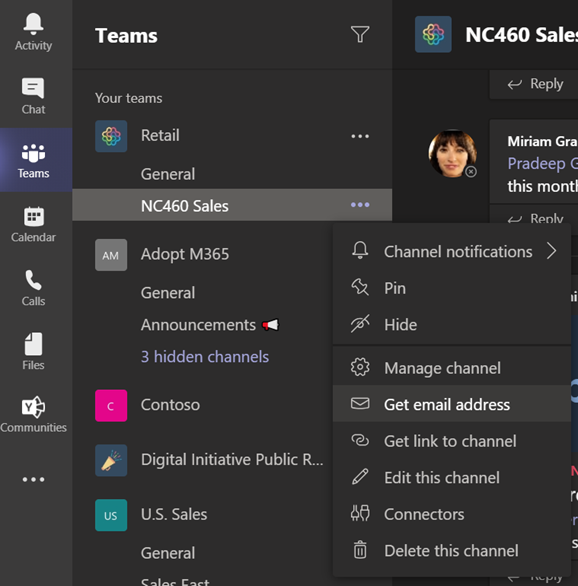 Figure 21 – Get the channel email address
Click Copy to get the email address for your channel.
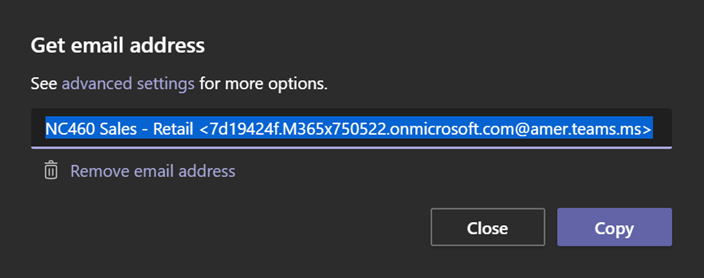 Figure 22 – Copy the channel email address
Now we can return to Outlook and open the email that we wish to share with the Teams channel. Click to forward the email and paste the channel email address into the To field.
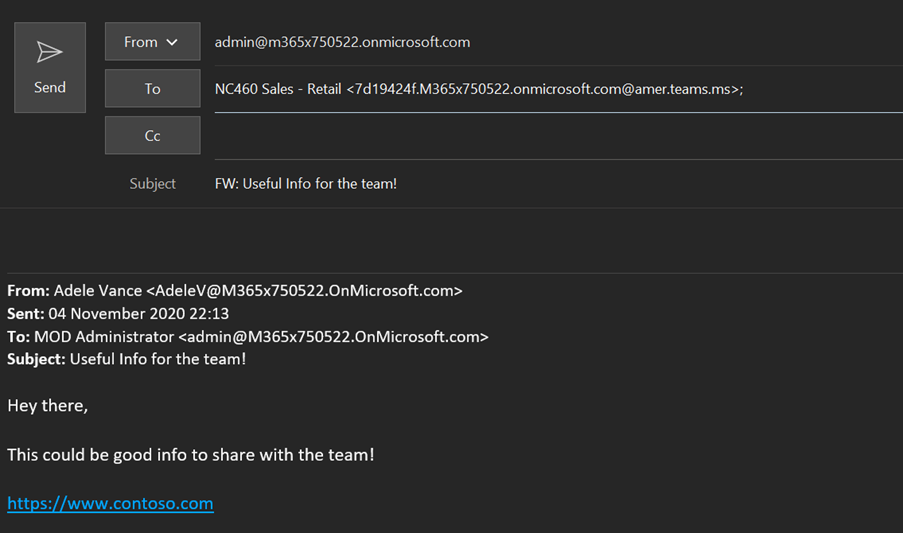 Figure 23 – forwarding an email to the Teams channel
After you send the email, it will appear in the Teams channel immediately as shown in Figure 24.
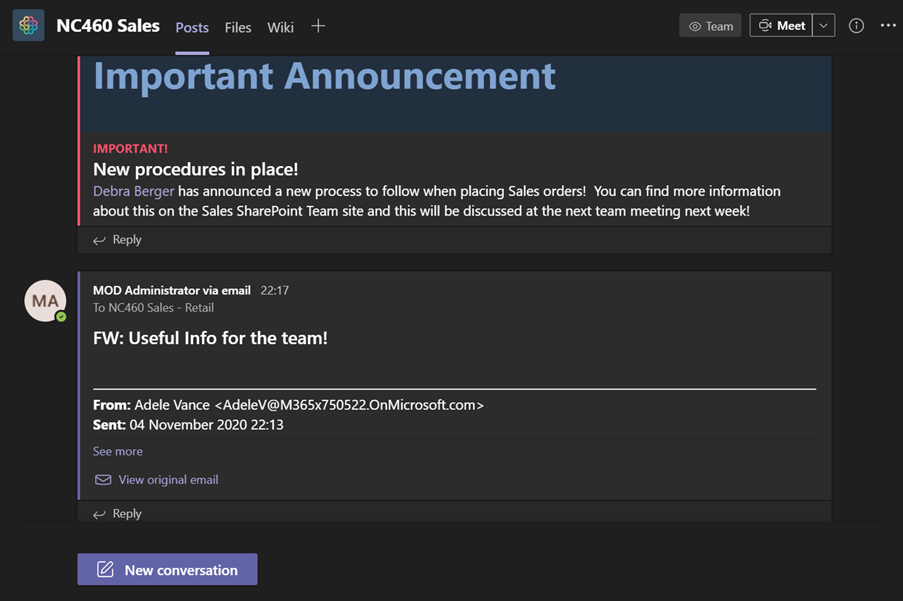 Figure 24 – The email is now posted to the Teams channel
You can also reverse this process and share content from the Teams channel back to Outlook as shown in Figure 25.
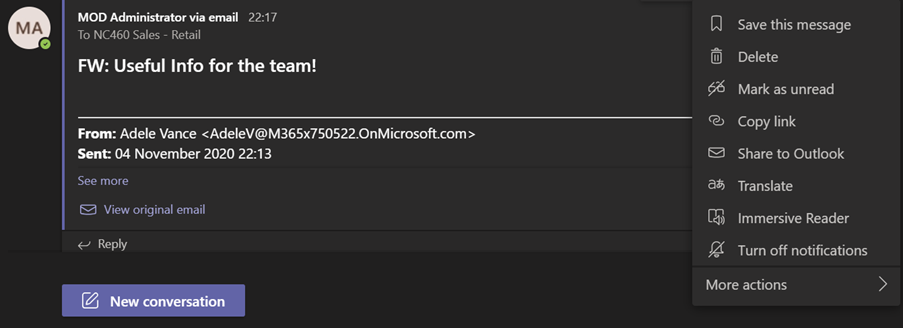 Figure 25 – Share to Outlook
A very useful way to share information between Teams and Outlook quickly and easily!
5. Pin favorite channels
Last, but not least, we have the ability to pin your favorite channels. As Teams users, we can very quickly find ourselves as members of a number of different Teams and channels. The list can grow very quickly. What if you want quick and immediate access to the channels that you work with the most on a daily basis? No problem, channel pinning has you covered!
Let’s say we want to pin the Sales West channel shown in Figure 26. All we need to do is highlight the channel, click the ellipsis, and choose Pin.
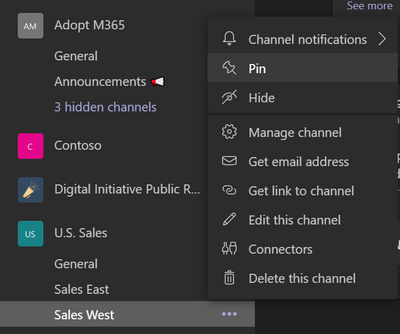 Figure 26 – Pinning a channel
Now the channel is shown right at the top of the Teams window in the Pinned section as shown in Figure 27.
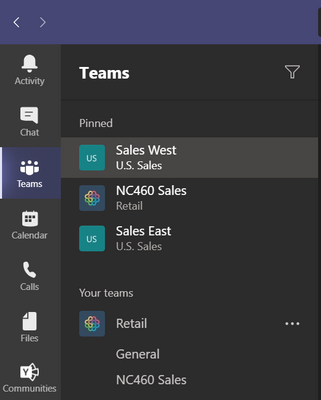 Figure 27 – Pinned section
Pinning is so quick and easy and helps you to get to content in your favorite channels in Teams!
Summary
So, these are 5 of my favorite lesser known features within Microsoft Teams that you need to know about! In truth, it was hard to pick just 5, so maybe we can do a follow up post sometime and show you some more amazing features!
I hope you enjoy these features and find them as useful as I do! Please do feel free to reach out and let me know about any of your own favorite Teams features that you would like to share with the community!
Thanks for reading!
Take care
Peter

by Contributed | Dec 2, 2020 | Technology
This article is contributed. See the original author and article here.
Welcome to December! I know you have been waiting for this post as November has been another month with a lot of great features that will help you get the most out of Microsoft Teams. Let’s jump right in!
What’s New: Meetings
AI-based noise suppression
Our real-time AI noise suppression feature automatically removes unwelcome background noise during your meetings. The AI-based noise suppression analyzes your audio feed filtering out the noise and retaining only the speech signal. You can also control how much noise suppression you want, including a high setting to suppress more background noise. Learn More
https://www.microsoft.com/en-us/videoplayer/embed/RE4ISH0
New Together mode scene selection
Together mode reimagines meeting experiences to help participants feel closer together even when you are apart. We are excited to introduce new Together mode scene selections to transport your team to a variety of settings. Choose a scene to set the tone and create a unique experience for your meeting, whether it be a smaller conference room meeting, or an all-hands meeting held in an outdoor amphitheater.
Polls in Teams Meetings
Polls in Teams meetings is a seamless experience powered by Forms that helps you conduct more engaging and productive meetings. As a meeting organizer or presenter, you can prepare, launch, and evaluate polls before, during, and after meetings, respectively. Your attendees can easily view and respond to the polls in the pop-up bubble or chat pane. To enable this feature as the meeting organizer or presenter, simply add the Forms app as a tab in your Teams meeting. Learn more.

Full screen support in new meetings experience
We heard you, full screen mode is back! With full screen mode on Windows the meeting window fills up the whole screen, removing all other screen elements, including the title bar on the top and task bar on the bottom. On Mac OS, full screen mode maximizes the meeting window and the title bar is hidden. This helps you to reduce distractions and focus your attention.
IMAGES
Start an instant meeting from your mobile device
You’ll now find the familiar Meet Now icon on the calendar tab and in the Teams channel helping you connect with your team instantly. Once you start your meeting, you can use any messaging app on your mobile device to share the invite or add participants directly to the meeting, and anyone in the Teams channel can join without an invite.
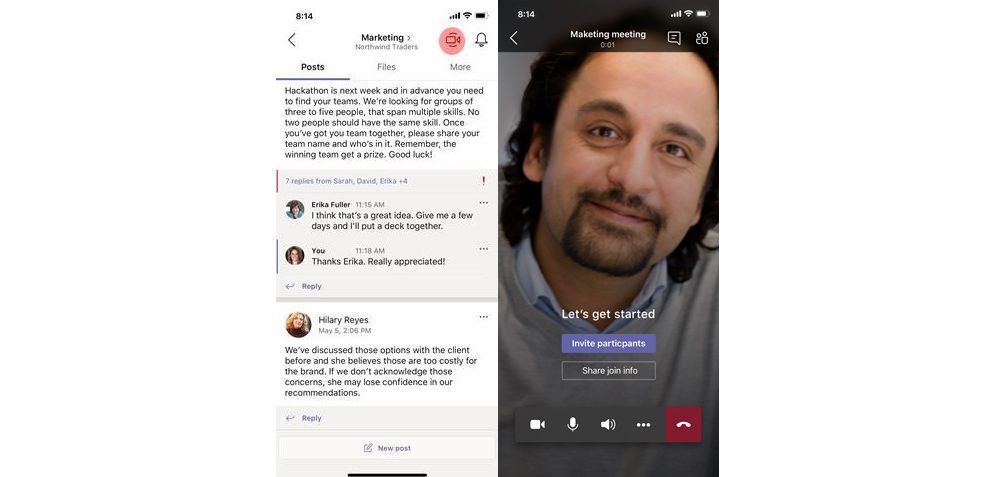
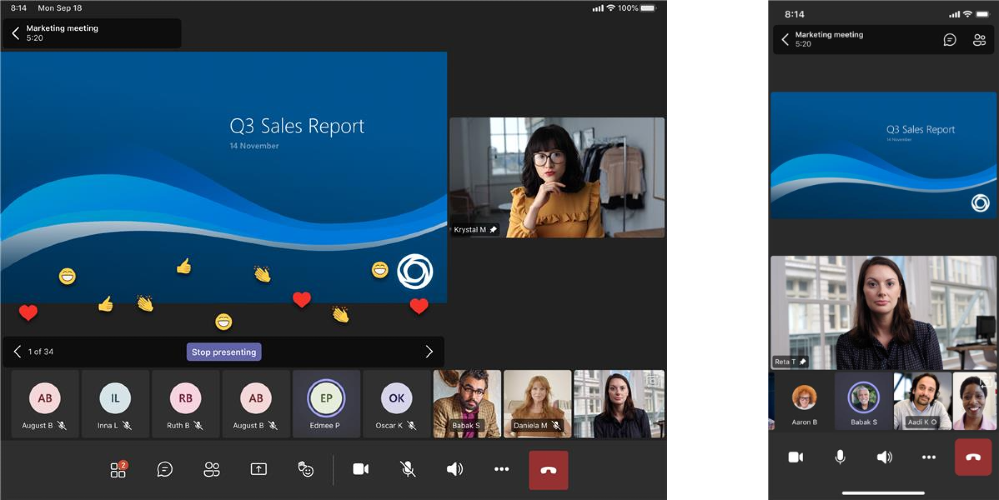
Updated layout for meetings on iOS
We have improved the Teams experience on iOS devices with a new presentation mode, the ability to see more participants, and the ability to see shared content and a spotlighted participant concurrently.
What’s new: Calling
Call Merge
While you’re on a call with another person (or a group), you might want to add another expert to participate in the call. Similarly, you may receive an incoming call that makes sense to connect with one you’re already on. Call Merge gives end users the capability to merge their Teams VoIP and PSTN active 1-1 calls into another 1-1 call or another group call. You can merge your calls, simply by choosing the “…” (more actions) button from the call controls and select “merge calls”. Learn more.
Survivable Branch Appliance
To support the most critical conversations in the event of an outage, the new Survivable Branch Appliance (SBA) allows you to place and receive PSTN calls even in the event of a WAN outage. This SBA is now available to certified Session Border Controllers (SBC) vendors, allowing SBCs to link with the Teams client in the event the client cannot reach the Microsoft Calling network.
Ericsson Session Border Controller certification
Ericsson has completed the Session Border Controller (SBC) certification process, which ensures that their SBC supports Direct Routing for Microsoft Teams, joining the list of certified SBCs. This rigorous certification process [insert link here] includes intense 3rd party testing and validation in production and pre-production Direct Routing environments. Direct Routing permits customers to connect their own carriers and infrastructure with Phone System to enable Teams Calling. Learn more.
What’s New: Devices
Microsoft Teams displays
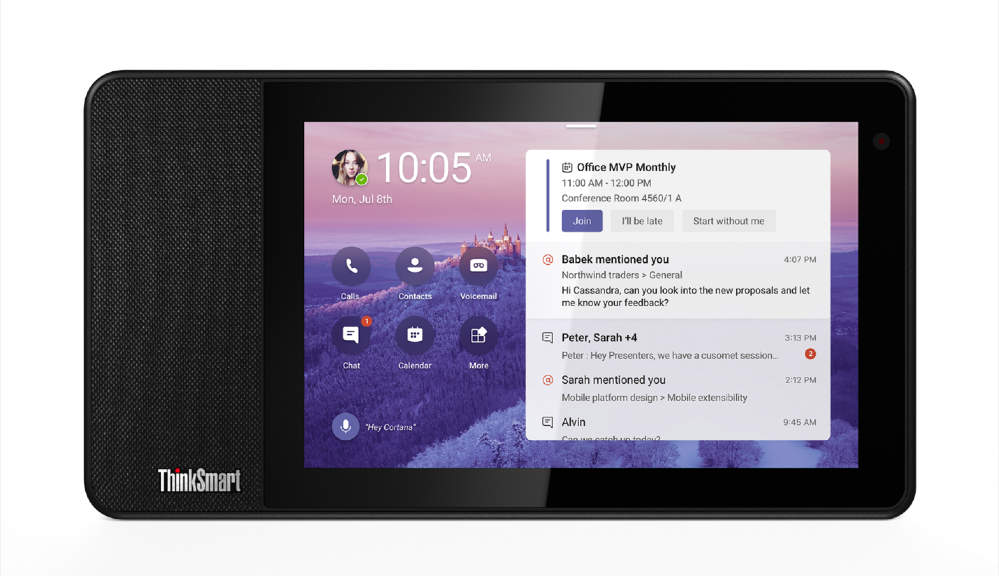
Microsoft Teams displays is a new category of all-in-one dedicated Teams devices that features an ambient touchscreen and a hands-free experience powered by Cortana. These devices seamlessly integrate with your PC, providing easy access to Teams chat, meetings, calling, calendar, and files. With natural language, users can ask Cortana to join and present in meetings, dictate replies to a Teams chat, and more. Learn more.
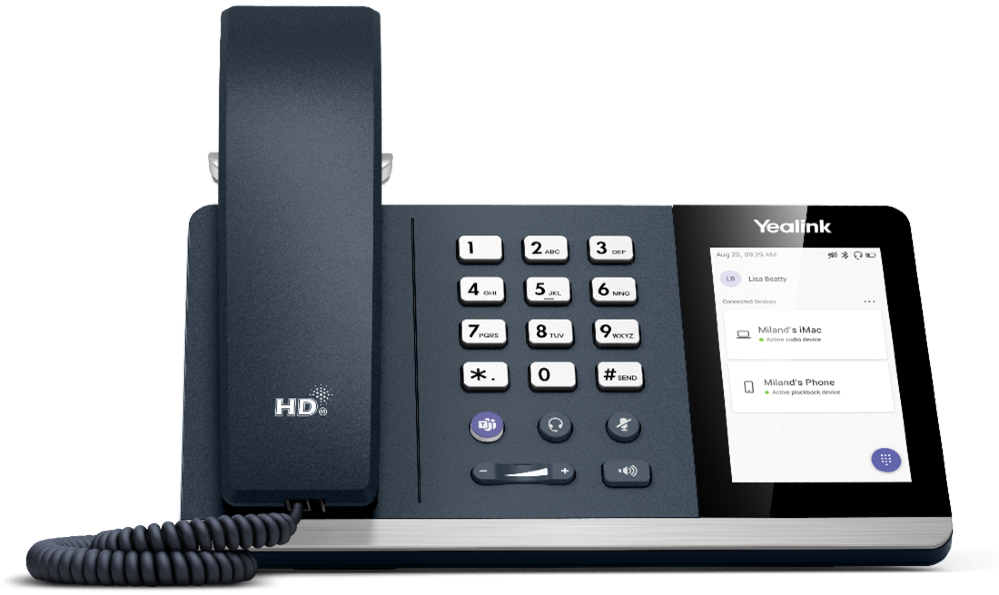
USB phone by Yealink: MP50
The plug and play format of the newly available MP50 by Yealink offers a new way to experience calling features in Teams, allowing you to connect a phone to your PC and start engaging in full phone functionality instantly. The MP50 provides a cost-effective option, giving you a traditional handset experience with a dedicated Teams button, for quick meeting and calling join, as well as USB and Bluetooth connection for both mobile and PC.
Yealink A20
Yealink A20 is an integrated, Android-based Microsoft Teams Room designed for small meeting rooms and huddle spaces. The A20 delivers premium audio and video experiences through a 20-megapixel 133-degree horizontal field of view lens, 8 MEMS microphone array and built-in speaker. The A20 is easy to deploy and brings Teams Rooms features like wireless content sharing and whiteboarding, to small meeting spaces.

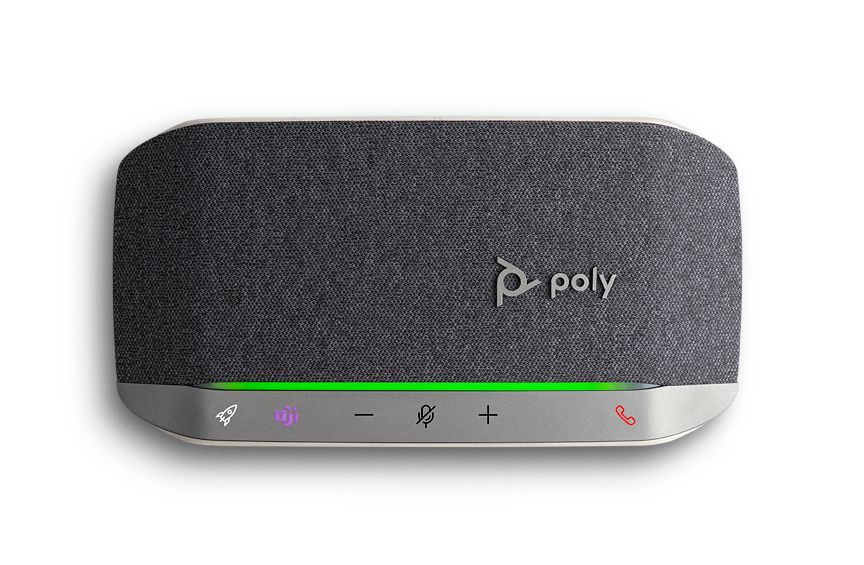
Poly Sync 20 USB/Bluetooth® smart speakerphone now certified for Microsoft Teams
Poly Sync 20 is a portable personal speakerphone certified for Microsoft Teams that delivers great audio for your meetings as well as music. Combined with up to 20 hours of talk time, the ability to charge your smartphone and IP64 dust and water resistance, it’s a great companion for hybrid workers. Learn more.
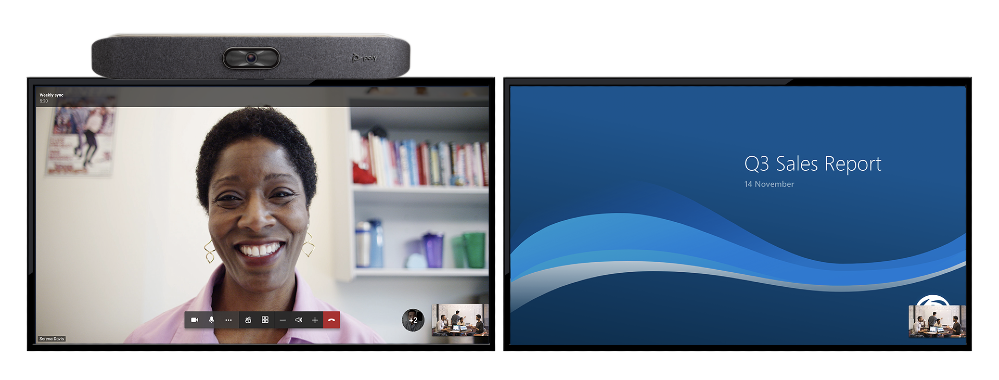
New features rolling out to Microsoft Teams Rooms and Surface Hub
The latest app for Microsoft Teams Rooms on Android, version 1.0.94.2020102101, is now available through the Teams Admin Center. New features have also begun rolling out to Surface Hub! Features enabled through this update include:
Microsoft Teams Rooms on Android
- Support for dual screens: Now you can use Teams Rooms on Android in spaces with a dual screen configuration, allowing one screen to be focused on meeting participants in the gallery view, while the second screen can be used to show content or whiteboard.
- New gallery views: Teams Rooms on Android now supports the 3×3, large gallery, and Together Mode gallery views.
- Auto-answer for meetings: In some meeting scenarios where Teams Rooms devices are deployed, like a healthcare patient room, meeting participants want to be able to connect to an incoming call without taking an action to accept it. Now, we’re providing a setting that allows calls to be answered automatically. This new feature can be enabled through the Admin settings.
Surface Hub
- Together mode: view meeting participants in the new Together mode, which brings everyone into a shared virtual space.
- Large gallery: view up to 49 meeting participants simultaneously in full screen mode,
in the new 7×7 video grid.

What’s New: Chat & Collaboration
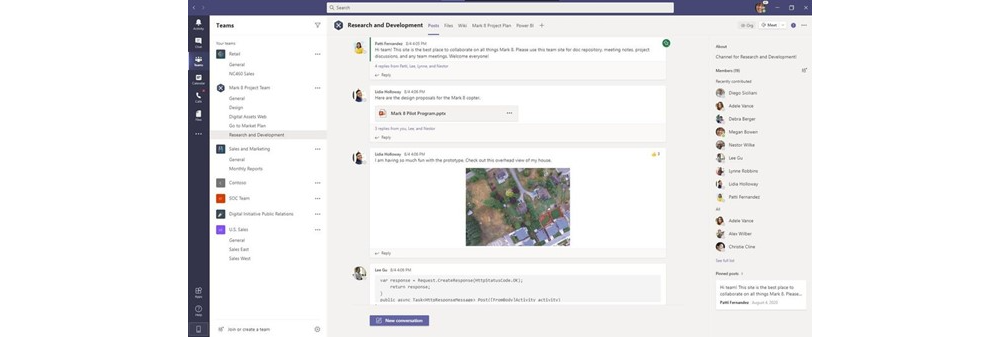
Pinned Posts
Keep important information easily accessible and top of mind with Microsoft Teams. You can pin any message in a channel, and it appears in the channel information pane for all members of the channel to see.
More options to use polls, surveys & checklists in Teams
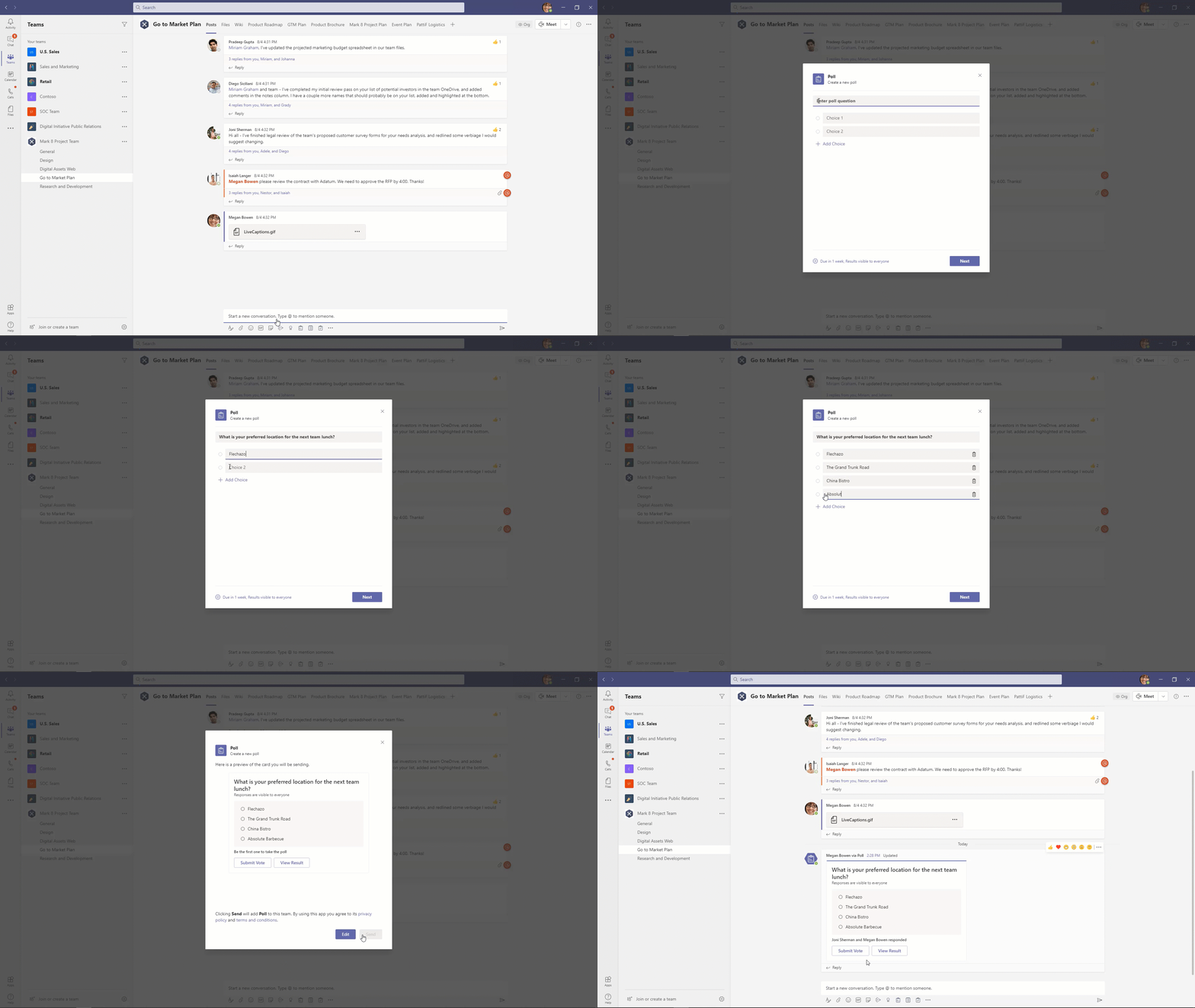
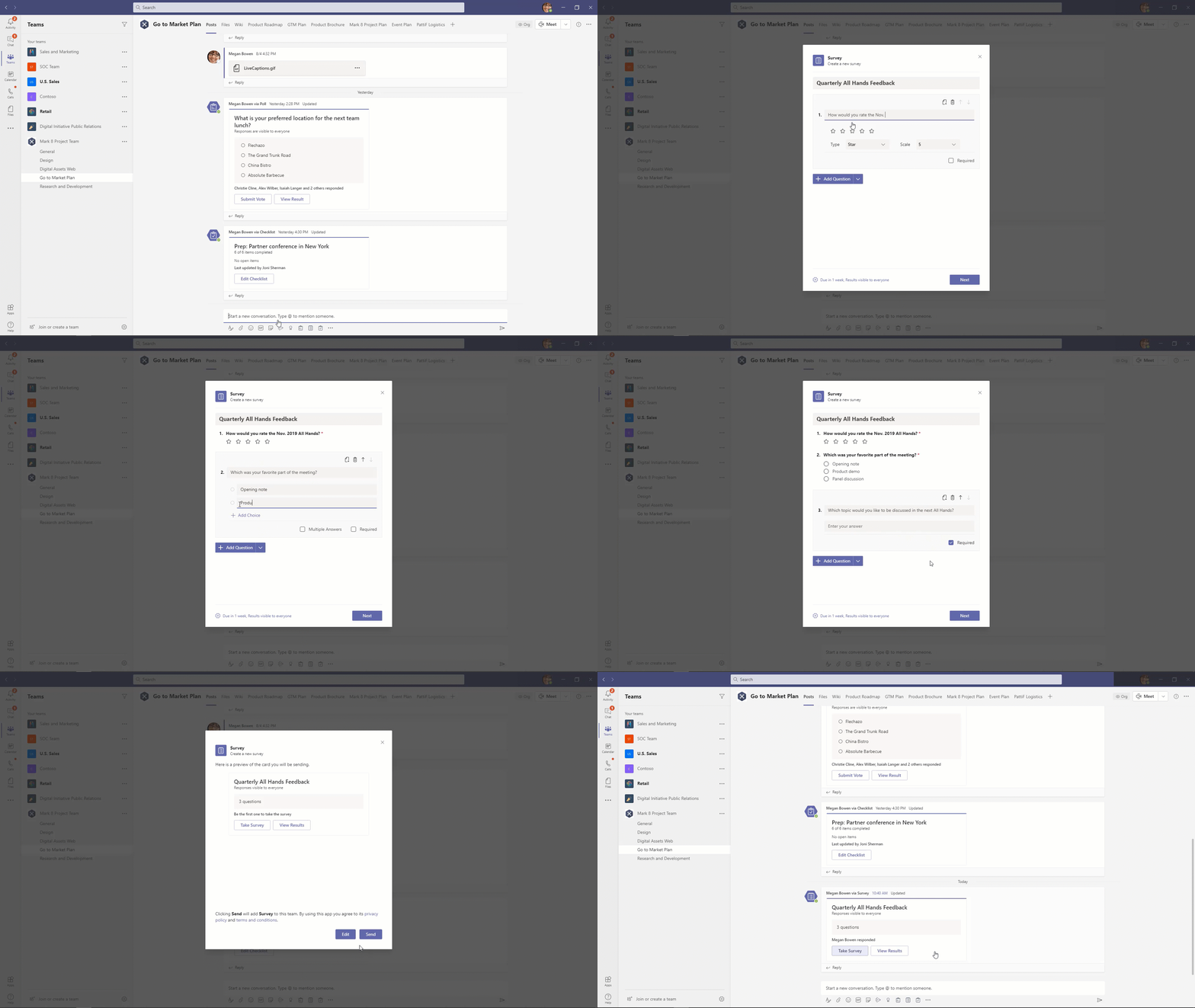
Easily gather information or keep track of things in chat and channels with new app templates for polls, surveys, and checklists in Teams. Once installed and configured by the Teams administrators, these messaging extensions provide a simple and intuitive experience for users across all platforms without the need to use 3rd party apps.
Quickly create and send polls to gather input to make decisions.
Easily create surveys to gather feedback to improve your processes.
Collaborate with your team and keep things on track by creating a shared checklist. 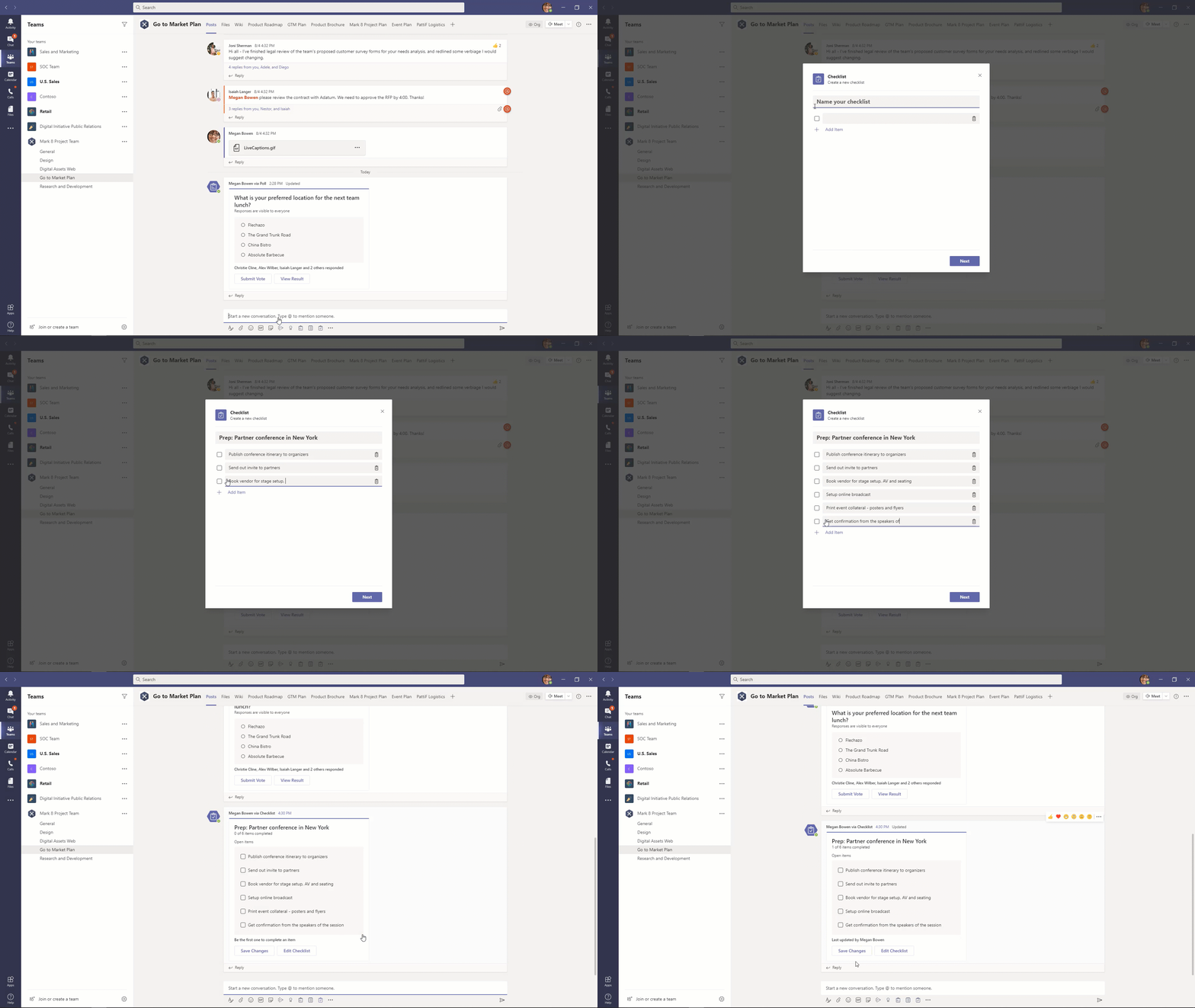
Set presence status duration
Let others know when you are available in Teams by managing your presence status. Users can now change their presence status for a specific period. Learn more.
Android On-Demand Chat Translation
Inline message translation gives all your team members a voice and facilitates global collaboration. With a simple click, people who speak different languages can fluidly communicate with one another by translating posts in channels and chat.
What’s New: Power Platform and custom development
Build solutions with Power Apps in Teams
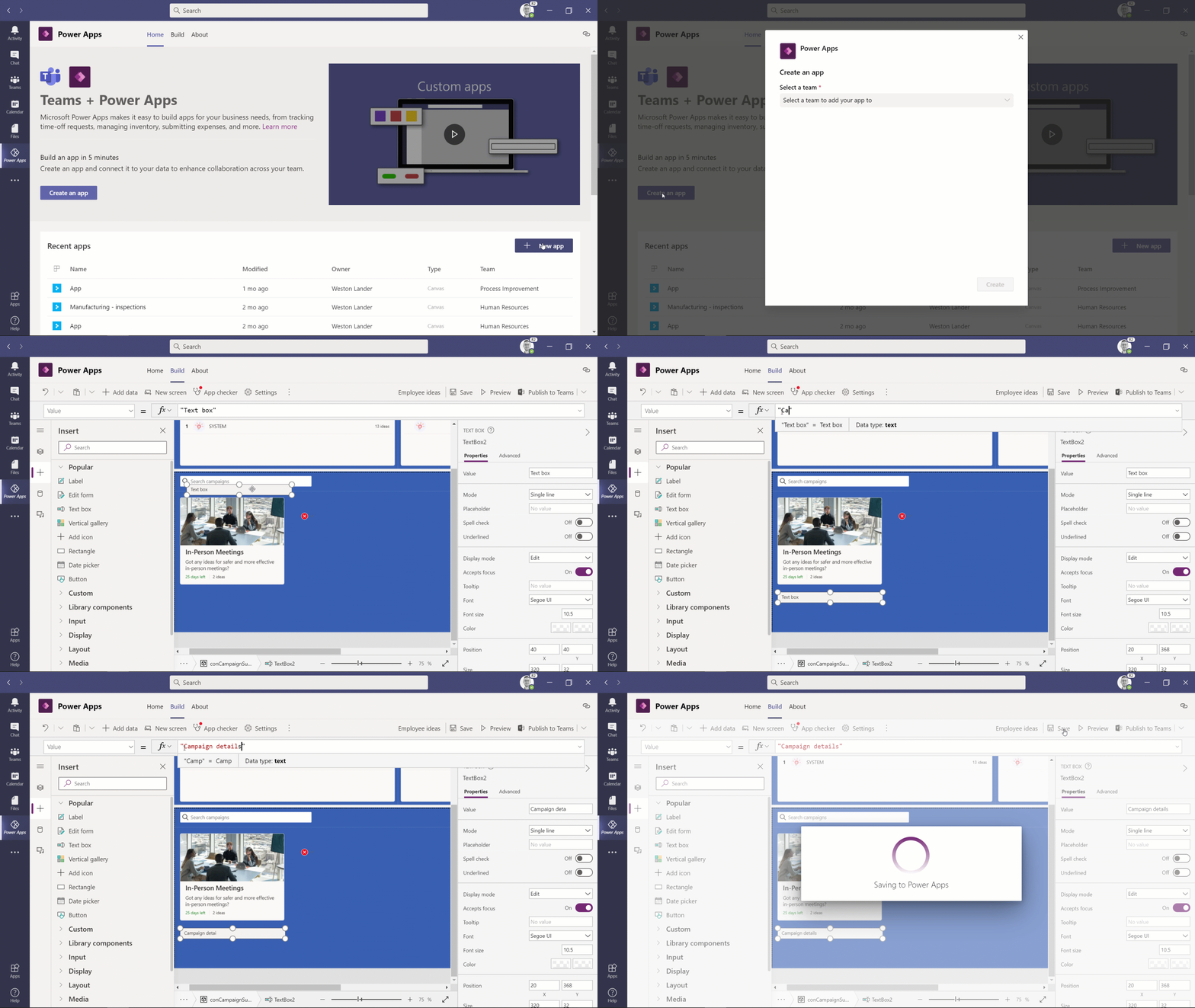
The new Power Apps app for Teams is now generally available. It allows you to build and deploy custom apps without leaving Teams. With the simple, embedded graphical app studio, it has never been easier to build low code apps for Teams. You can also harness immediate value from built in templates like the Great Ideas or Inspections apps, which can be deployed in one click and customized easily. The new Power Apps app for Teams can be backed by a new relational datastore – Dataverse for Teams. Learn more.
New Power Automate App for Teams
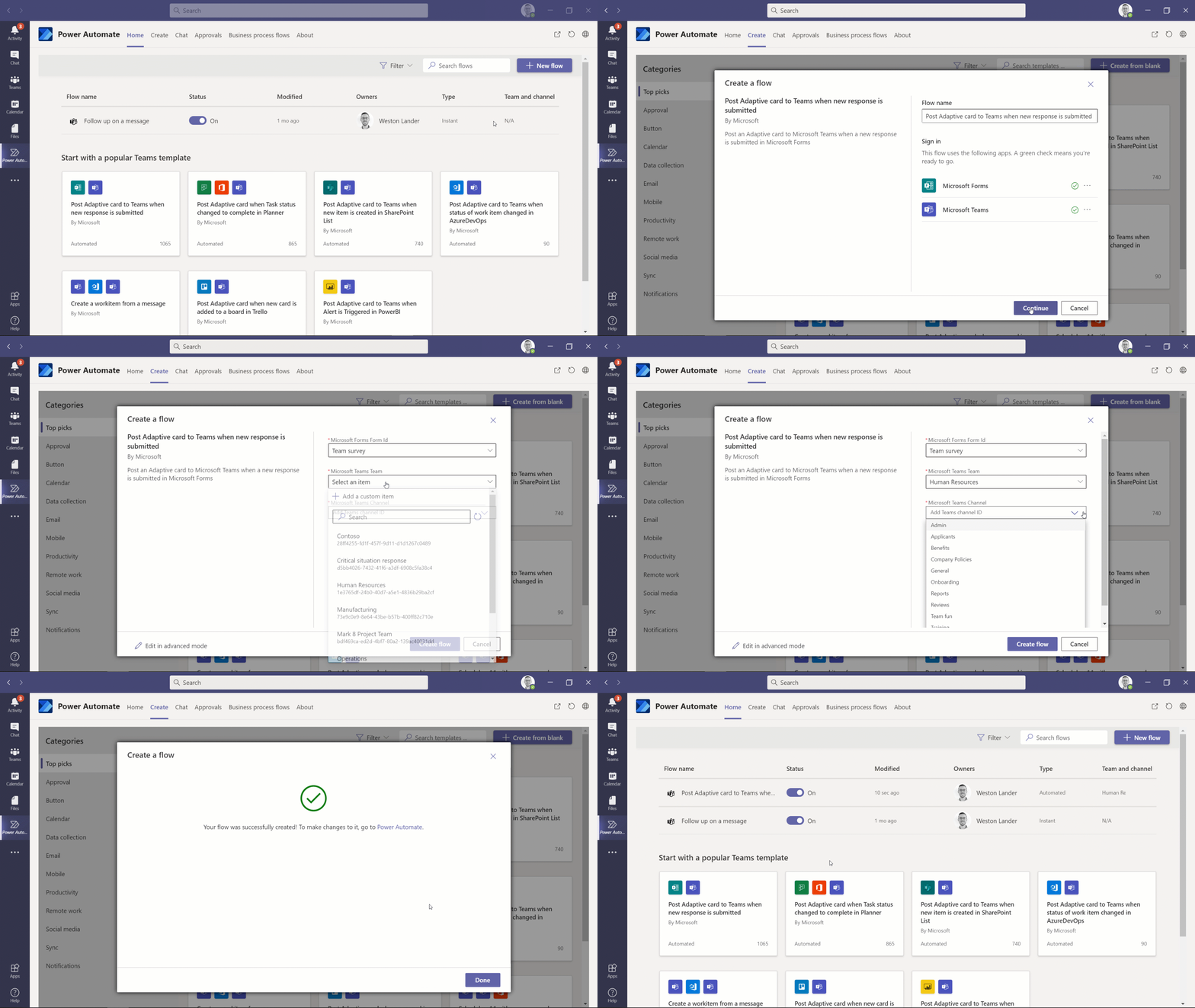
The new Power Automate app for Teams is now generally available. The new app makes it easier than ever to automate workflows within teams. With the simplified flow designer, you can easily build flows by selecting from a number of templates and simply selecting your options from drop down menus. Also, the home screen of the new app improves your visibility into your flows and let’s manage your flows for Teams from there. Learn more.
Power Virtual Agents (PVA) for Teams
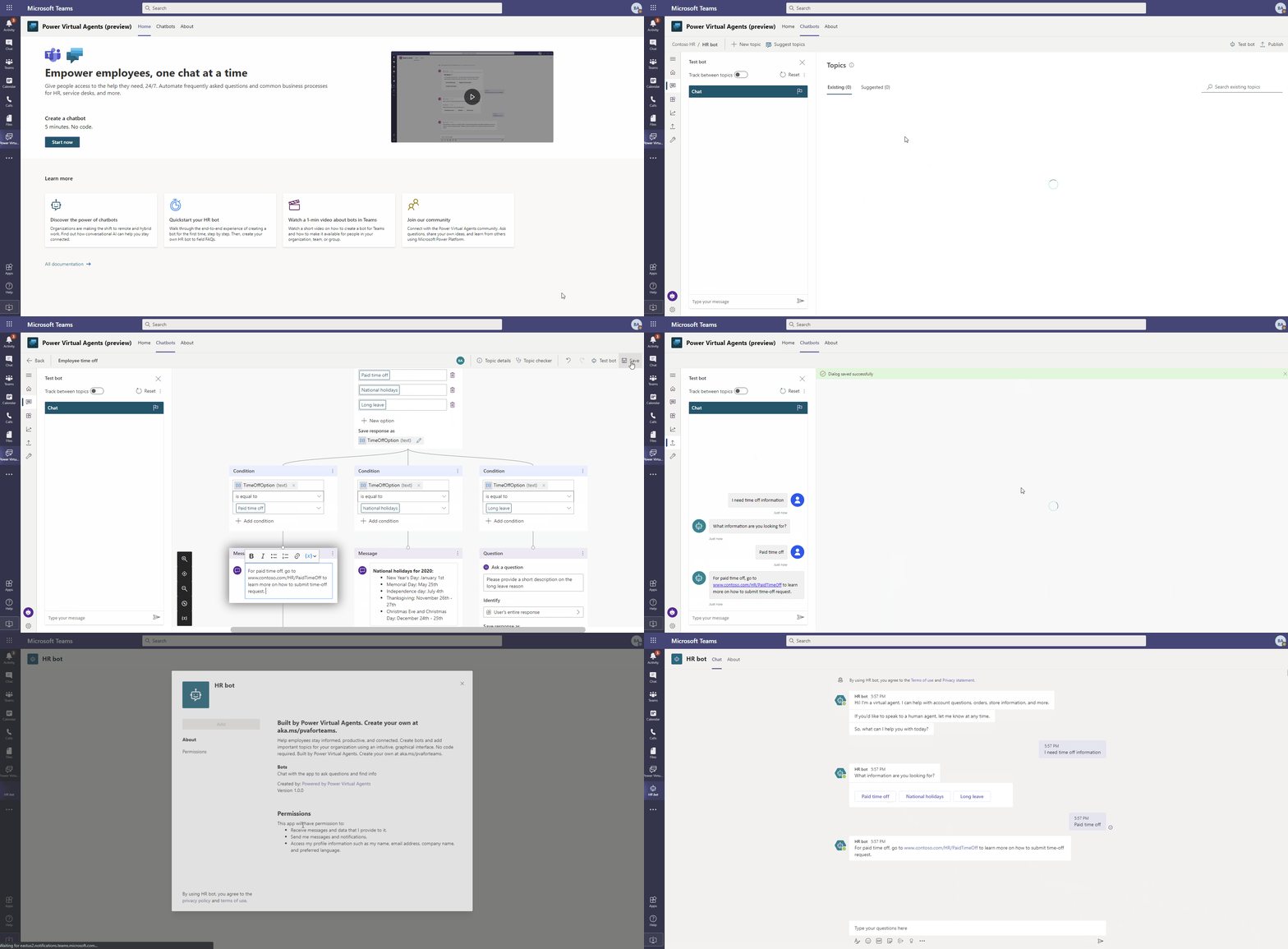
Power Virtual Agents (PVA) for Teams is now generally available. Since announcing the PVA preview at Ignite 2020 users have found chat bots useful well as easy to create and we have seen thousands of bots created in the past few weeks. We are now also providing additional features including native authentication, where bots can be designed to provide information to users based upon their identity. You can now also easily make your bot available to your teammates and have admin approval to make it available for the whole organization.
Teams apps for meetings now generally available
Teams apps for meetings are now generally available with nearly 20 new apps in the Teams app store, such as Asana, HireVue, Monday.com, Slido, and Teamflect, as well as familiar Microsoft apps such as Forms. Learn more. If you’re a developer, learn more about creating Teams apps for meetings.

Support for Single Sign-On (SSO) for Bots
We are thrilled that Single Sign-on (SSO) support for bots is now available. SSO authentication in Azure Active Directory (Azure AD) minimizes the number of times users need to enter their login credentials by silently refreshing the authentication token. If users agree to use your app, they will not have to consent again on another device and will be signed in automatically. Learn more.
Microsoft Teams App Development Challenge
We’re continuously planning new events and ways to connect with the developer community. For example, Microsoft is launching the Microsoft Teams App Development Challenge. Starting November 16, 2020 through February 8, 2021, developers, partners, and organizations can participate in a challenge to develop a new and innovative Teams App for publishing to AppSource, to be eligible to win a share of $45,000 in cash and prizes. For full challenge details visit http://microsoftteams.devpost.com
App Spotlight

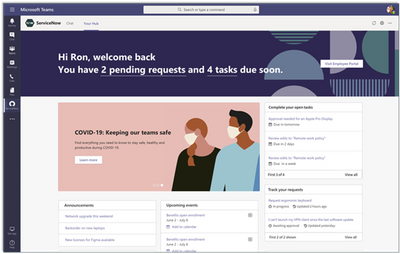
This month the Now Virtual Agent app by ServiceNow features new capabilities that help improve employee productivity with seamless self-service and faster case resolution – allowing you as a user to submit support requests, view open ticket approvals, act on notifications, chat with virtual agents for automated assistance, or streamline communication between agents and employees – all while staying in the flow of work in Teams.
What’s New: Management
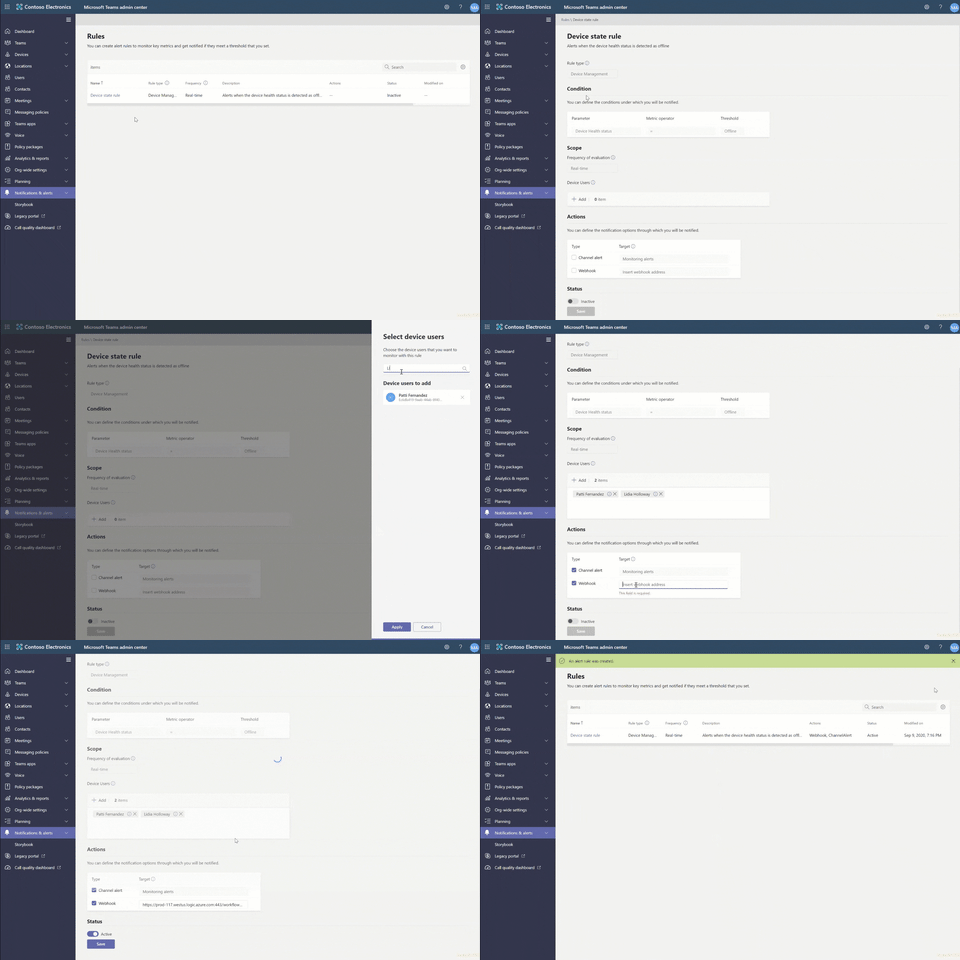
Device management automatic alerting in Teams Admin Center
Device management automatic alerting provides more efficiency in identifying devices issues by triggering notifications that can be turned into an immediate correction action.
What’s New: Teams for Education
Insights across classes and spotlight student activity
New capabilities in Insights helps you as an educator to understand engagement and progress of students over time and across your classes. Now, educators can see high-level trends across classes, like inactive students, active students per day, missed online classes and missed assignments. And within a class, new spotlight cards show trending student behaviors an educator may want to take action on. Learn more.
What’s New: Firstline Workers
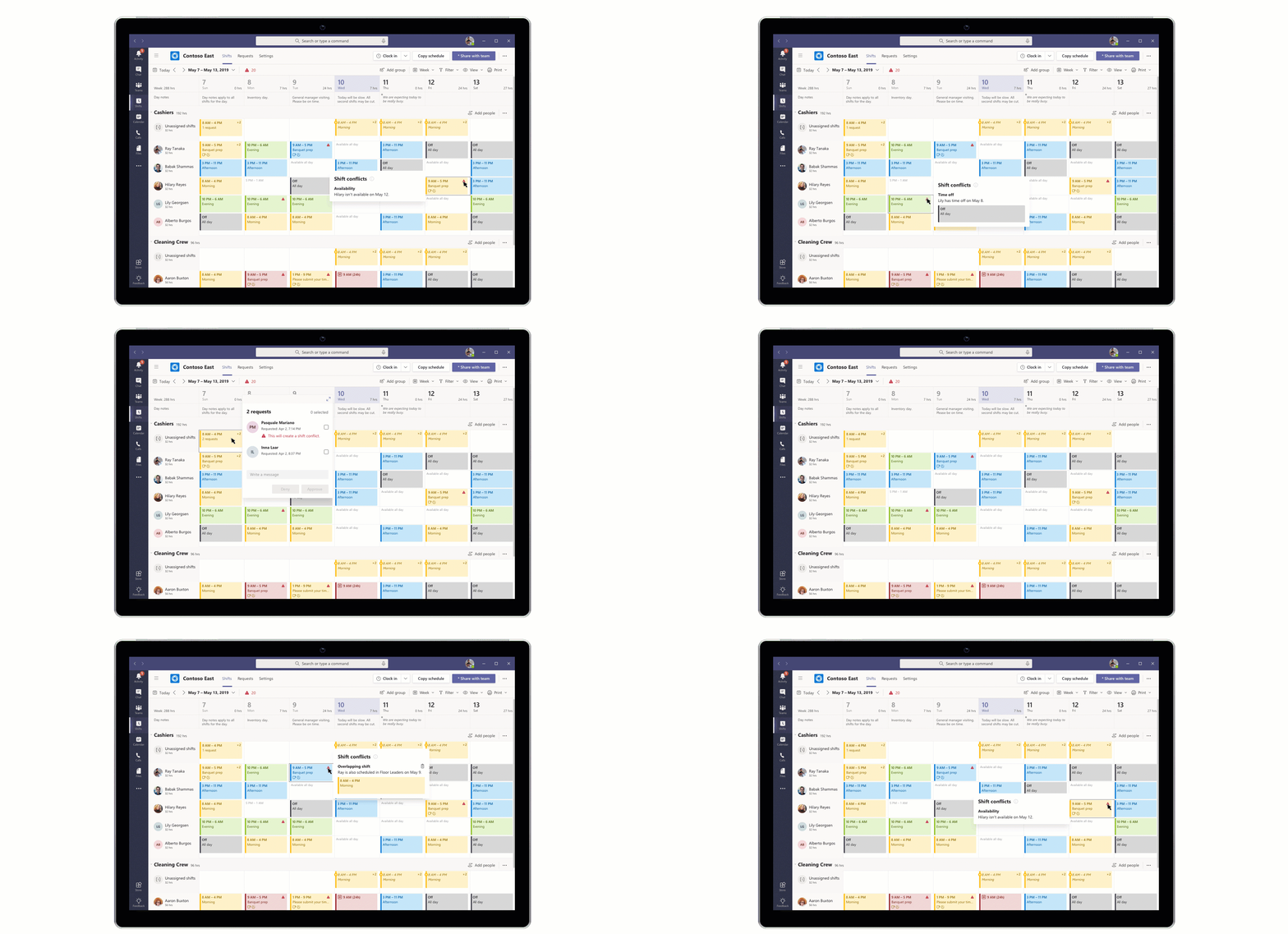
Shift schedule assistance
Shifts schedule assistance will alert managers if conflicts occur anywhere in the schedule and they will receive conflict warnings when approving schedule change requests. This alerting saves managers time, makes shift scheduling more efficient and reduces inaccuracies that lead to employees not turning up for their shift. Learn more.
What’s New: Government
These features currently available to Microsoft’s commercial customers in multi-tenant cloud environments are now rolling out to our customers in US Government Community Cloud (GCC), US Government Community Cloud High (GCC-High), and/or United States Department of Defense (DoD).
Full screen support in new meetings experience
We heard you, full screen mode is back! With full screen mode on Windows the meeting window fills up the whole screen, removing all other screen elements, including the title bar on the top and task bar on the bottom. On Mac OS, full screen mode maximizes the meeting window, and the title bar is hidden. This helps you to reduce distractions and focus your attention. GCC only in November.
OneNote in Teams DoD
You can now add new or existing OneNote Notebooks tab to your Teams channels if you’re a DoD customer. You can also go to Files or add OneNote Personal App to open your OneNote notebooks directly. Learn more.
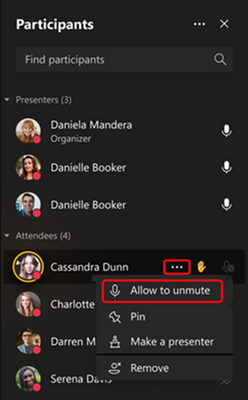
Prevent attendees from unmuting in Teams Meetings
Meeting organizers and presenters in the US Government Community Cloud can now prevent attendees from unmuting during the meeting and enable specific attendees to unmute when they raise their hands. This can be helpful for press conferences and classrooms scenarios where you want to be in control of who’s speaking. Learn more.


Recent Comments