
Released: Update to Microsoft OLE DB Driver 18 for SQL Server

This article is contributed. See the original author and article here.

OLE DB Driver 18.5 for SQL Server is released, bringing support for SQL Data Discovery and Classification and Azure Active Directory Service Principal authentication to the driver along with a number of fixes. The driver can be downloaded directly from Microsoft.


Changes:

Fixed:

IssueDetails
Fixed an issue with embedded NUL characters.Fixed a bug, which resulted in the driver returning an incorrect length of strings with embedded NUL characters.
Fixed a memory leak in the IBCPSession interface.Fixed a memory leak in the IBCPSession interface involving bulk copy operations of sql_variant data type.
Fixed bugs, which resulted in incorrect values being returned for SSPROP_INTEGRATEDAUTHENTICATIONMETHOD and SSPROP_MUTUALLYAUTHENTICATED properties.Previous versions of the driver returned truncated values of the SSPROP_INTEGRATEDAUTHENTICATIONMETHOD property. Also, in the ActiveDirectoryIntegrated authentication case, the returned value of the SSPROP_MUTUALLYAUTHENTICATED property was VARIANT_FALSE even when both sides were mutually authenticated.
Fixed a linked server remote table insert bug.Fixed a bug which caused a linked server remote table insert to fail if the NOCOUNT server configuration option has been enabled.
Fixed the SSPROP_INIT_PACKETSIZE property default value handlingFixed an unexpected error when the SSPROP_INIT_PACKETSIZE property was set to its default value of 0. For details about this property, see Initialization and Authorization Properties.
Fixed buffer overflow issues in IBCPSessionFixed buffer overflow issues when using malformed data files.
Fixed accessibility issuesFixed accessibility issues in the installer UI and the SQL Server Login dialog (reading content, tab stops).
 
The updated driver can be downloaded directly from Microsoft.

David Engel

Deploying a LoRaWAN network server on Azure

Deploying a LoRaWAN network server on Azure

This article is contributed. See the original author and article here.


There is something oddly fascinating about radio waves, radio communications, and the sheer amount of innovations they’ve enabled since the end of the 19th century.


What I find even more fascinating is that it is now very easy for anyone to get hands-on experience with radio technologies such as LPWAN (Low-Power Wide Area Network, a technology that allows connecting pieces of equipment over a low-power, long-range, secure radio network) in the context of building connected products.


It’s of no use whatsoever […] this is just an experiment that proves Maestro Maxwell was right—we just have these mysterious electromagnetic waves that we cannot see with the naked eye. But they are there.


— Heinrich Hertz, about the practical importance of his radio wave experiments

Nowadays, not only is there a wide variety of hardware developer kits, gateways, and radio modules to help you with the hardware/radio aspect of LPWAN radio communications, but there is also open-source software that allows you to build and operate your very own network. Read on as I will be giving you some insights into what it takes to set up a full-blown LoRaWAN network server in the cloud!


A quick refresher on LoRaWAN


LoRaWAN is a low-power wide-area network (LPWAN) technology that uses the LoRa radio protocol to allow long-range transmissions between IoT devices and the Internet. LoRa itself uses a form of chirp spread spectrum modulation which, combined with error correction techniques, allows for very high link budgets—in other terms: the ability to cover very long ranges!


Data sent by LoRaWAN end devices gets picked up by gateways nearby and is then routed to a so-called network server. The network server de-duplicates packets (several gateways may have “seen” and forwarded the same radio packet), performs security checks, and eventually routes the information to its actual destination, i.e. the application the devices are sending data to.


LoRaWAN end nodes are usually pretty “dumb”, battery-powered, devices (ex. soil moisture sensor, parking occupancy, …), that have very limited knowledge of their radio environment. For example, a node may be in close proximity to a gateway, and yet transmit radio packets with much more transmission power than necessary, wasting precious battery energy in the process. Therefore, one of the duties of a LoRaWAN network server is to consolidate various metrics collected from the field gateways to optimize the network. If a gateway is telling the network server it is getting a really strong signal from a sensor, it might make sense to send a downlink packet to that device so that it can try using slightly less power for future transmissions.


As LoRa uses an unlicensed spectrum and granted one follows their local radio regulations, anyone can freely connect LoRa devices, or even operate their own network.


My private LoRaWAN server, why?


The LoRaWAN specification puts a really strong focus on security, and by no means do I want to make you think that rolling out your own networking infrastructure is mandatory to make your LoRaWAN solution secure. In fact, LoRaWAN has a pretty elegant way of securing communications, while keeping the protocol lightweight. There is a lot of literature on the topic that I encourage you to read but, in a nutshell, the protocol makes it almost impossible for malicious actors to impersonate your devices (messages are signed and protected against replay attacks) or access your data (your application data is seen by the network server as an opaque, ciphered, payload).


So why should you bother about rolling your ow LoRaWAN network server anyway?


Coverage where you need it


In most cases, relying on a public network operator means being dependant on their coverage. While some operators might allow a hybrid model where you can attach your own gateways to their network, and hence extend the coverage right where you need it, oftentimes you don’t get to decide how well a particular geographical area will be covered by a given operator.


When rolling out your own network server, you end up managing your own fleet of gateways, bringing you more flexibility in terms of coverage, network redundancy, etc.


Data ownership


While operating your own server will not necessarily add a lot in terms of pure security (after all, your LoRaWAN packets are hanging in the open air a good chunk of their lifetime anyway!), being your own operator definitely brings you more flexibility to know and control what happens to your data once it’s reached the Internet.


What about the downsides?


It goes without saying that operating your network is no small feat, and you should obviously do your due diligence with regards to the potential challenges, risks, and costs associated with keeping your network up and running.


Anyway, it is now high time I tell you how you’d go about rolling out your own LoRaWAN network, right?


The Things Stack on Azure


The Things Stack is an open-source LoRaWAN network server that supports all versions of the LoRaWAN specification and operation modes. It is actively being maintained by The Things Industries and is the underlying core of their commercial offerings.


A typical/minimal deployment of The Things Stack network server relies on roughly three pillars:


  • A Redis in-memory data store for supporting the operation of the network ;

  • An SQL database (PostgreSQL or CockroachDB are supported) for storing information regarding the gateways, devices, and users of thje network ;

  • The actual stack, running the different services that power the web console, the network server itself, etc.


The deployment model recommended for someone interested in quickly testing out The Things Stack is to use their Docker Compose configuration. It fires up all the services mentioned above as Docker containers on the same machine. Pretty cool for testing, but not so much for a production environment: who is going to keep those Redis and PostgreSQL services available 24/7, properly backed up, etc.?


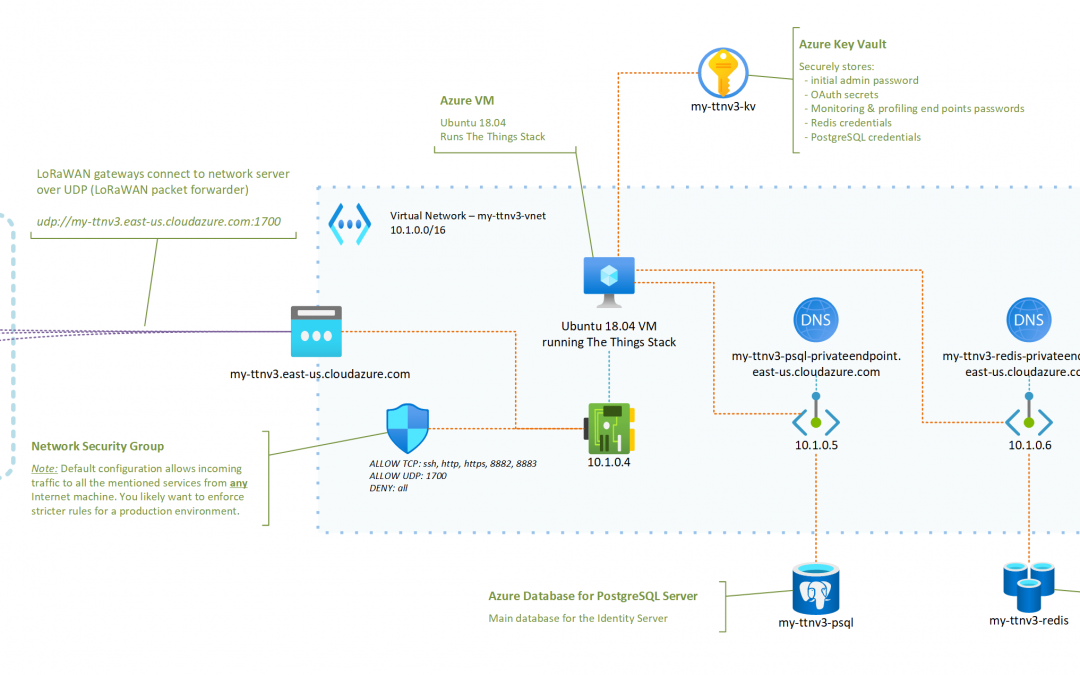
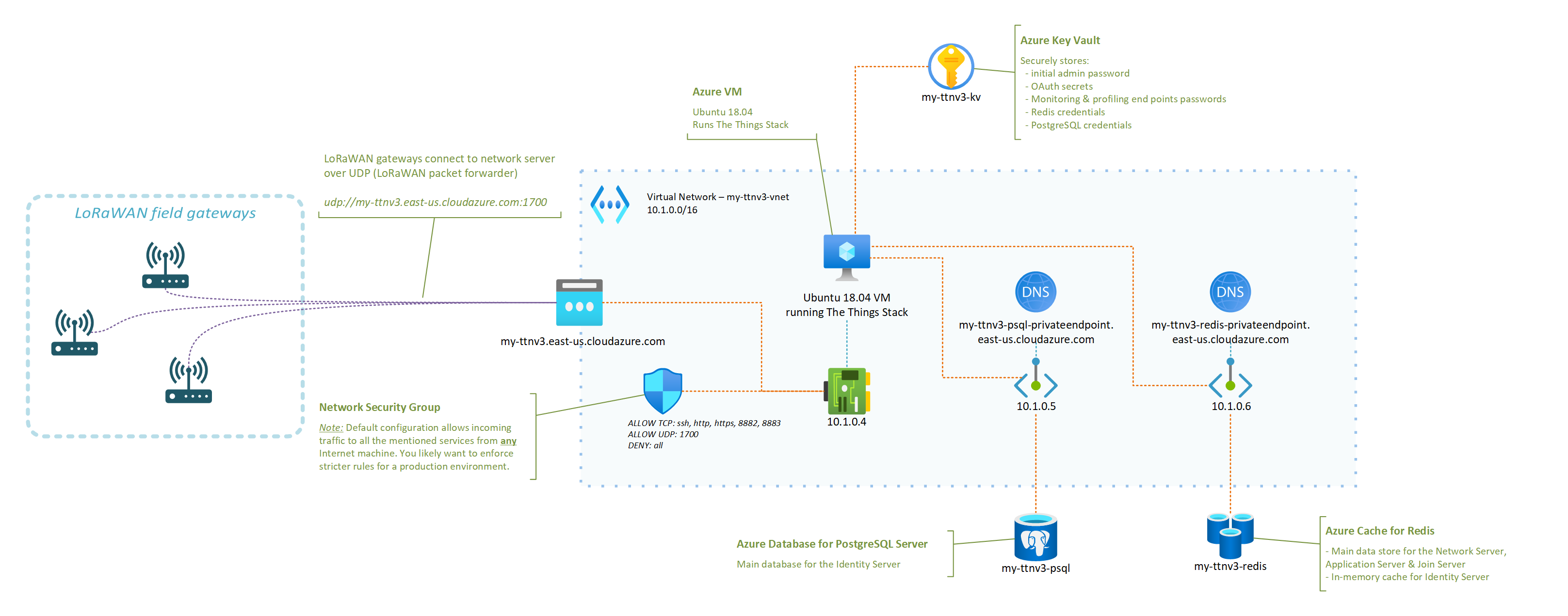
I have put together a set of instructions and a deployment template that aim at showing how a LoRaWAN server based on The Things Stack and running in Azure could look like.


The instructions in the GitHub repository linked below should be all you need to get your very own server up and running!


In fact, you only have a handful of parameters to tweak (what fancy nickname to give your server, credentials for the admin user, …) and the deployment template will do the rest!


OK, I deployed my network server in Azure, now what?


Just to enumerate a few, here are some of the things that having your own network server, running in your own Azure subscription, will enable. Some will sound oddly specific if you don’t have a lot of experience with LoRaWAN yet, but they are important nevertheless. You can:


  • benefit from managed Redis and PostgreSQL services, and not have to worry about potential security fixes that would need to be rolled out, or about performing regular backups, etc. ;

  • control what LoRaWAN gateways can connect to your network server, as you can tweak your Network Security Group to only allow specific IPs to connect to the UDP packet forwarder endpoint of your network server ;

  • completely isolate the internals of your network server from the public Internet (including the Application Server if you which so), putting you in a better position to control and secure your business data ;

  • scale your infrastructure up or down as the size and complexity of the fleet that you are managing evolves ;

  • … and there is probably so much more. I’m actually curious to hear in the comments below about other benefits (or downsides, for that matter) you’d see.


I started to put together an FAQ in the GitHub repository so, hopefully, your most obvious questions are already answered there. However, there is one that I thought was worth calling out in this post, which is: How big of a fleet can I connect?.


It turns out that even a reasonably small VM like the one used in the deployment template—2 vCPUs, 4GB of RAM—can already handle thousands of nodes, and hundreds of gateways. You may find this LoRaWAN traffic simulation tool that I wrote helpful in case you’d want to conduct your own stress testing experiments.


What’s next?


You should definitely expect more from me when it comes to other LoRaWAN related articles in the future. From leveraging DTDL for simplifying end application development and interoperability with other solutions, to integrating with Azure IoT services, there’s definitely a lot more to cover. Stay tuned, and please let me know in the comments of other related topics you’d like to see covered!


Automate user provisioning for more applications with our new partnership with Aquera

Automate user provisioning for more applications with our new partnership with Aquera

This article is contributed. See the original author and article here.

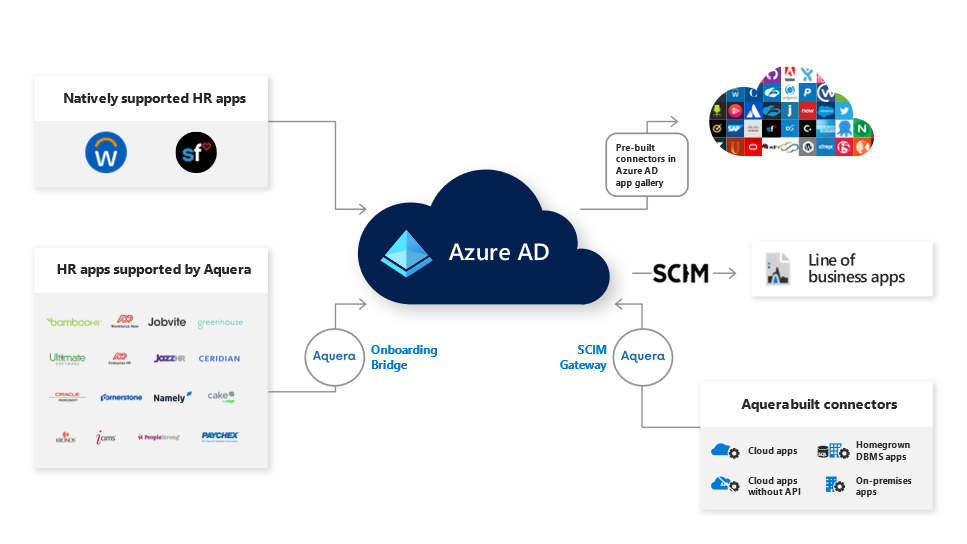
Today we’re announcing a partnership with Aquera to support more of your user provisioning needs. Through our partnership with Aquera, Azure AD or on-premises AD users can be mastered and continually synchronized from over 25 HR applications, and users can be provisioned to over 300 applications, broadening the number of applications you can use for both inbound and outbound user provisioning.


darlenebada_0-1606775645423.png


Automated user provisioning from HR apps with the Aquera HR Onboarding Bridge


We’ve heard from our customers that they want their cloud and on-premises HR applications integrated with Azure AD to simplify new employee onboarding and managing the identity lifecycle. Aquera expands Azure AD’s HR provisioning capabilities from two native integrations with Workday and SAP SuccessFactors to a broad array of HR applications.


With the Aquera HR Onboarding Bridge you can now integrate with over 25 HR applications to onboard and synchronize users to Azure AD or on-premises AD. The Aquera HR Onboarding Bridge allows you to import users and attributes in near real-time from multiple HR applications to Azure AD or on-premises AD as well as writeback any attribute back to the HR application.


We will continue to integrate more HR applications directly with Azure AD but for HR applications not currently supported, you can use the Aquera HR Onboarding Bridge.  Applications supported with the Aquera HR Onboarding Bridge include ADP Enterprise HR, Bamboo HR, Ceridian Dayforce, Cornerstone OnDemand HR Suite, Namely, UltiPro and more. Here’s what Landmark Health had to say about their experience using the Aquera Onboarding Bridge with Azure AD: 


“The ADP to Active Directory / Azure AD Sync Bridge from Aquera enables us to integrate our HR and IT processes by automating user provisioning from ADP Workforce Now to Active Directory. This platform is helping us power the end-to-end identity lifecycle; saving our HR and IT teams time, improving security and positively impacting employee productivity.” –JT Hedges, Director of HR Technologies at Landmark Health


Use Azure AD to manage and secure more applications with the Aquera SCIM Gateway


The Aquera SCIM gateway can help you automatically provision user accounts to an additional 300 cloud and on-premises applications such as Epic, SAP ECC and more. The Aquera SCIM Gateway provides out-of-the-box and built on-demand connectors that you can use to automatically create, update, or deactivate user accounts in target applications that are not already integrated with Azure AD.


To automate user provisioning from Azure AD to a specific application, we first recommend you use the 150+ provisioning connectors available in our Azure AD app gallery. For applications not yet available in our Azure AD app gallery, you can use the Aquera SCIM Gateway. We’ll continue to add more provisioning connectors directly in our Azure AD app gallery and you can request new ones to be added by submitting a request in our Application Network Portal. 


Getting started:


To use Aquera’s HR Onboarding Bridge or the SCIM gateway with Azure AD, customers will need an Aquera subscription that can be obtained directly from Aquera. You can learn more about Aquera and these solutions through their Azure Marketplace listings:


As always, we’d love to hear from you. Please let us know what you think in the comments below or on the Azure AD feedback forum. 


Best regards,


Sue Bohn


Partner Director of Program Management


Microsoft Identity Division


Add to OneDrive is generally available

Add to OneDrive is generally available

This article is contributed. See the original author and article here.

Files are the building blocks of our work— helping us collaborate with others to construct the end results. Research documents, data spreadsheets, sales reports, presentations, product videos and other content-rich files are the components that hold up our final deliverable.


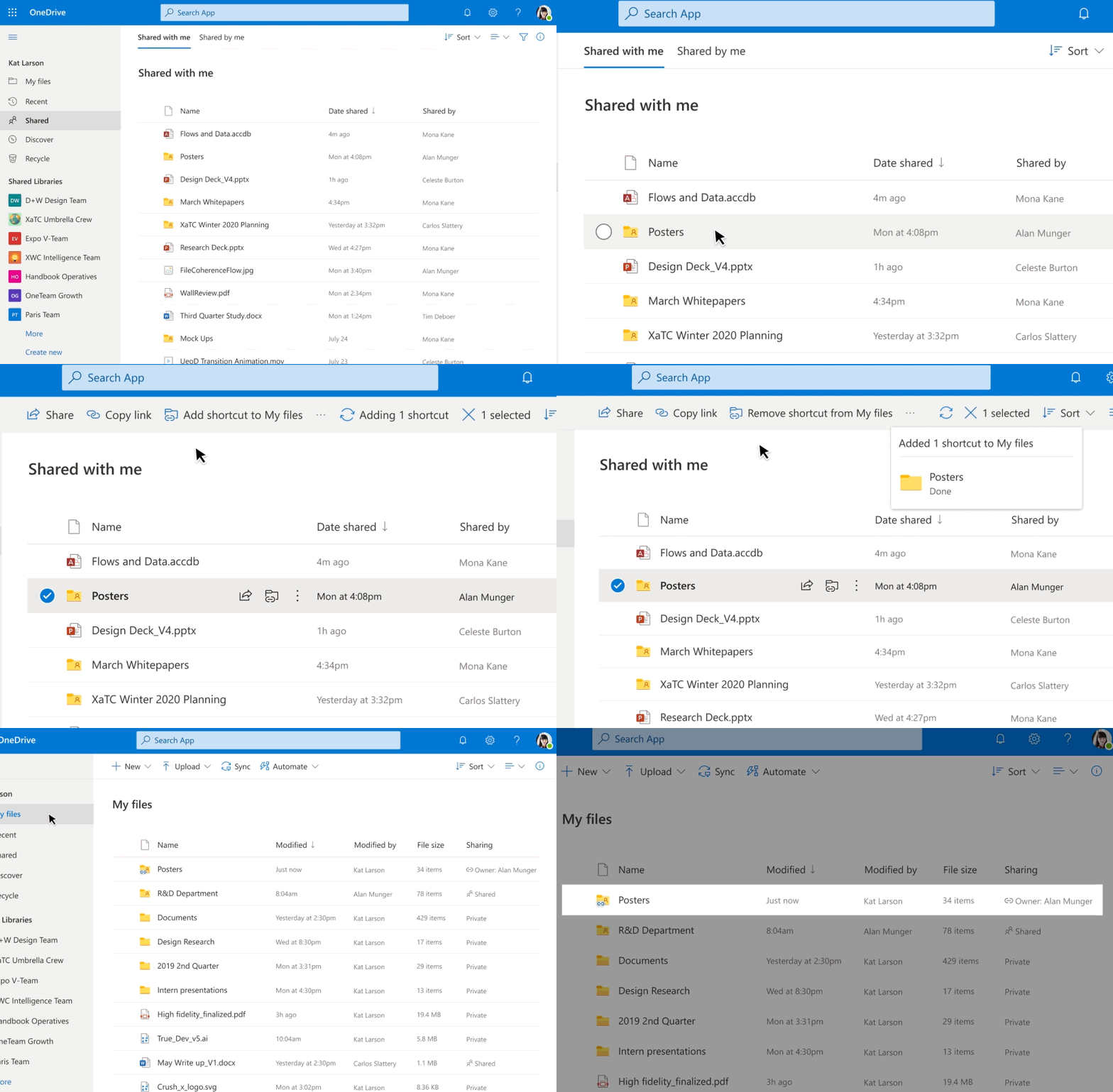
“Where can I find that file?” It’s a question we’ve all asked our colleagues, our teams, and, most often, ourselves countless times but not anymore. Today, we are happy to announce our previously disclosed feature Add to OneDrive is now generally available. Now, instead of figuring out the who sent us that file or remembering the original location of the shared content, we can swiftly get back to the files we need, directly within our OneDrive.


Add to OneDrive makes it easy to add a shortcut to the shared folders directly to our OneDrive. Shared folders include content that others have shared with us through their OneDrive, which surfaces in the “Shared with me“ view or content that is a part of a shared library in Microsoft Teams or SharePoint.


Add to OneDrive makes it easy to add a shortcut to the shared folders directly to our OneDriveAdd to OneDrive makes it easy to add a shortcut to the shared folders directly to our OneDrive


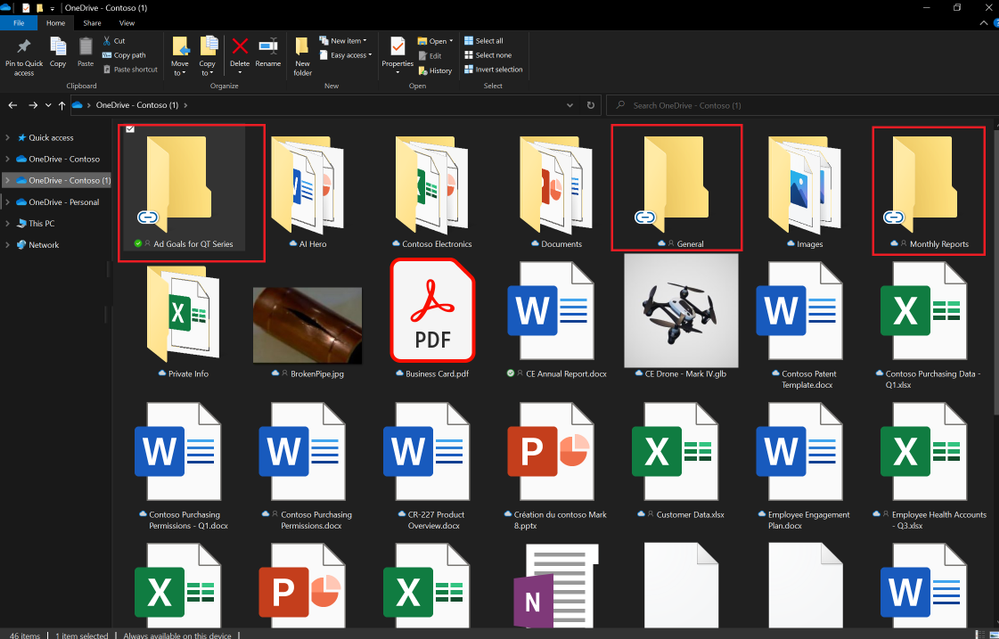
With Add to OneDrive, not only can we bring all our shared content into one place, but we can also work with the shared content with the same power and flexibility as if they are files we own. This means we can easily sync and access these folders from anywhere on any device; securely share and co-author files in the added folder; and stay up to date with @mentions, activity, and notifications. Added folders respect all existing policies, compliance, and security settings, too.


Added folders can be synced to your device for anytime anywhere access.Added folders can be synced to your device for anytime anywhere access.


Since we’ve started rolling out Add to OneDrive to production, we have been humbled by the overwhelming response to the feature in terms of feedback and usage. OneDrive is a foundational product in our effort to power a seamless, connected files experience in Microsoft 365 and features like Add to OneDrive help us in achieving not only easy access to our important content but also efficient organization of files that matter the most to us.


Note: For the next few months, the admins will be able to disable Add to OneDrive for their organizations. This temporary choice is available to help admins drive any required change management with ease. We will inform you before removing this option to opt-out of the feature.


To learn more about the feature do visit the support article here.


Thanks for your time reading about OneDrive,


Ankita Kirti – OneDrive | Microsoft

Planner integration with Message center available for GCC customers

Planner integration with Message center available for GCC customers

This article is contributed. See the original author and article here.


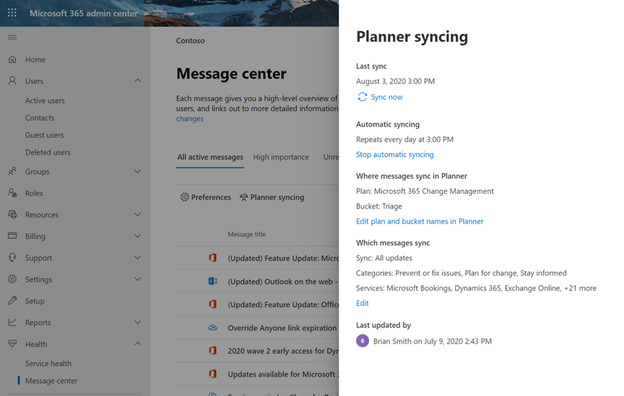
If you’re an IT admin, the Microsoft 365 Message center is your go-to place for news about upcoming feature releases, updates, and maintenance. But Message center posts can be hard to manage and easy to lose track of—and that’s where Microsoft Planner comes in. In September, we announced Planner integration with the Message center, which lets you sync updates from the Message center to a Planner plan. This means you can automatically create Planner tasks from Message center posts to help you manage upcoming changes and any related to-dos. 


We’re pleased to announce that this integration is also available for all Microsoft 365 and Office 365 GCC customers. Availability for GCC High and DoD customers is tentatively scheduled for the early part of 2021. 


message center planner.png


You can learn more about Planner integration with Message center on our dedicated support page. 


If you’d like to keep up with all things Planner, our Tech Community Blogs page is the perfect place for learning about the latest announcements. You can also leave us suggestions for improving your Planner experience on UserVoice. And if you’re new to Planner, our support page will help get you started.