
Releasing Now: Teams Breakout Rooms in GCC

Releasing Now: Teams Breakout Rooms in GCC

This article is contributed. See the original author and article here.

ca145028-b7ed-4924-bae5-b8c6cc604d60.png


Both Microsoft Teams Administrators AND all End Users should review this article in order to understand how to enable and use Virtual Breakout Rooms in your Microsoft Teams Desktop Client.


Note: Teams Virtual Breakout Rooms will begin rolling out to all GCC tenants starting in early December with completion happening by mid-December. 


Administrators – What to do to Prepare Your Organization:


  1. As an admin, ensure users can schedule private meetings with the following settings:

    1. Allow scheduling private meeting = on

    2. Allow Meet now in private meeting = on

    3. Allow channel meeting scheduling = on

    4. Allow meet now in channels = on


All Users in the Organization Should do the Following in their Teams Desktop Client:


  1. To see the breakout rooms option within your meetings, you must turn on the new Teams meeting experience by

    1. Clicking on your profile image within Teams

    2. Selecting Settings

    3. Checking the “Turn on new meeting experience” option within General settings.

    4. Restart your Teams client.

    5. You can double check that the setting is setup correctly by starting a meeting and verifying that the meeting opens in its own window.


  2. Make sure all participants, including the meeting organizer are using the latest version of Teams. If joining on Android or iOS mobile or tablet, make sure participants go to their App Store and download the latest update.

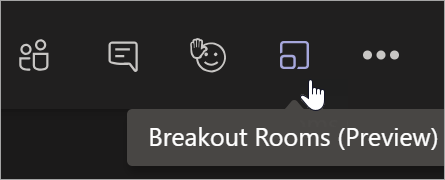
  3. As a meeting organizer, join a channel / private scheduled meeting, or channel / private meet now meeting. Once you are in the meeting you should see the breakout room option next to the raise hand control.


      • You must be a meeting organizer to see the option. Meeting attendees and presenters will not see the breakout rooms option.


Features available for Organizers:


  • Breakout room setup on Teams desktop client

  • Create breakout rooms in scheduled private meetings (including recurring) and private meet now meetings

  • Meeting organizers can manage rooms and hop between rooms freely

  • Setup breakout rooms during an active meeting

  • Create up to 50 breakout rooms in a single meeting

  • Add, remove, delete breakout rooms

  • Rename rooms to the title of your choice

  • Reassign room participants from one room to another before as well as while the rooms are open

  • Room transition: as an organizer, you can decide if participants get moved to the room automatically when you open the room, or, if they need to click to confirm the move. The “auto-accept” setting is available per meeting.

  • Send an announcement that will show up as a meeting chat message in each room.

  • Chats, files, and recordings: only the organizer will always have access to all rooms meeting artifacts


Features available for the participants::


  • Join breakout rooms from web, desktop, iOS, iPads, Android mobiles and tablets. Note that organizers cannot move participants who joined via Desk phones or Teams devices join to a breakout room, they can stay in main meeting as their breakout room.

  • Participants join the room as presenters, so they can present, share Whiteboard, etc. freely.

  • Participants cannot add others to meeting chat, copy meeting details, nudge others to the meeting, or use “call me back”

  • Hoping between rooms: Meeting participants cannot hop back to main meeting or between rooms on their own. They must wait for the meeting organizer to pull them back to the main meeting.

  • Chat during the breakout session. Chat and artifacts shared during meeting are viewable for room participants.

  • Chats, files, and recordings: Participants have access to artifacts, but only organizer has access to the links – if link is shared by meeting organizer, then participants will have access

  • Multi-device join: breakout room is not supported when the participant joins the same meeting and same account from multiple devices


Where and when can I set up breakout rooms?


  • You can set up breakout rooms after you join the meeting as the organizer. You can bulk create rooms at the start, or manually add or remove rooms.

  • You can set up breakout rooms from desktop client, but not in mobile and web.

  • We plan to enable the ability for you to set up breakout rooms before the meeting very soon.


When can I assign participants to breakout room?


  • You can assign participant when you are setting up the rooms. You can do so manually before the rooms open or reassign participants to a different room while the room is open.

  • You can also auto-assign the participants to rooms when you first set up the rooms in the meeting.

Fake calls from Apple and Amazon support: What you need to know

Fake calls from Apple and Amazon support: What you need to know

This article was originally posted by the FTC. See the original article here.

Scammers are calling people and using the names of two companies everyone knows, Apple and Amazon, to rip people off. Here’s what you need to know about these calls.

In one version of the scam, you get a call and a recorded message that says it’s Amazon. The message says there’s something wrong with your account. It could be a suspicious purchase, a lost package, or an order they can’t fulfill.

In another twist on the scam, you get a recorded message that says there’s been suspicious activity in your Apple iCloud account. In fact, they say your account may have been breached.

In both scenarios, the scammers say you can conveniently press 1 to speak with someone (how nice of them!). Or they give you a phone number to call. Don’t do either. It’s a scam. They’re trying to steal your personal information, like your account password or your credit card number.

If you get an unexpected call or message about a problem with any of your accounts, hang up.

  • Do not press 1 to speak with customer support
  • Do not call a phone number they gave you
  • Do not give out your personal information

If you think there may actually be a problem with one of your accounts, contact the company using a phone number or website you know is real.

Read our article to learn how to block unwanted calls on a mobile phone or on your home phone. And if you do get a call you think is a scam, report it at ReportFraud.ftc.gov.

Brought to you by Dr. Ware, Microsoft Office 365 Silver Partner, Charleston SC.

Apple and Amazon support scam calls: What you need to know

This article was originally posted by the FTC. See the original article here.

Scammers are calling people and using the names of two companies everyone knows, Apple and Amazon, to rip people off. Here’s what you need to know about these calls.

Brought to you by Dr. Ware, Microsoft Office 365 Silver Partner, Charleston SC.

Lesson Learned #152: When the transaction context matters in a blocking issue!

This article is contributed. See the original author and article here.

Today, we got a service request that our customer reported that the using the following article the blocker and blocked queries haven’t relation between them.


In this post we are going to explain why?. Normally, when you need to identify blocking issues we’re used to run the following query explained on this URL.


select conn.session_id as blockerSession,conn2.session_id as BlockedSession,req.wait_time as Waiting_Time_ms,cast((req.wait_time/1000.) as decimal(18,2)) as Waiting_Time_secs,
cast((req.wait_time/1000./60.) as decimal(18,2)) as Waiting_Time_mins,t.text as BlockerQuery,t2.text as BlockedQuery, req.wait_type from sys.dm_exec_requests as req
inner join sys.dm_exec_connections as conn on req.blocking_session_id=conn.session_id
inner join sys.dm_exec_connections as conn2 on req.session_id=conn2.session_id
cross apply sys.dm_exec_sql_text(conn.most_recent_sql_handle) as t
cross apply sys.dm_exec_sql_text(conn2.most_recent_sql_handle) as t2


We found a situation that the query reported could not be the query that is blocking the another one. In this specify situation is when our customer is running multiple queries in the same transaction:


  • If our customer is running a bunch of query in the same execution, you could see all the details, for example, this way.


BEGIN TRANSACTION
  UPDATE
  INSERT
COMMIT TRANSACTION


  • However, if the customer application opens a new transaction and runs a single query per execution as  a single unit within this transaction, you mightn’t see the exact query that is blocking other query. In this specific situation and depending on when you run the DMV to obtain the queries/transaction blocked you may see either of these queries INSERT TABLE1 or UPDATE TABLE2 (below).


Time   Operation


11:00 AM Customer open a transaction – BEGIN TRANSACTION


              11:01 AM Customer runs INSERT Table1


              11:02 AM Customer runs UPDATE Table 2


              11:03 AM Customer commit the transaction.


Enjoy!

Early technical preview of JDBC Driver 9.1.1 for SQL Server released

This article is contributed. See the original author and article here.

We have released a new early technical preview of the JDBC Driver for SQL Server which contains a few additions and changes.


Precompiled binaries are available on GitHub and also on Maven Central.

Below is a summary of the new additions and changes.


Added

  • Added maxResultBuffer connection property 1431
  • Added support for Azure Active Diretory Service Principal authentication 1456
  • Added support for Azure Active Directory Interactive authentication 1464

Changed

  • Enabled useBulkCopyForBatchInsert against non Azure Synapse Analytics servers #1465

Getting the latest release

The latest bits are available on our GitHub repository, and Maven Central.

Add the JDBC preview driver to your Maven project by adding the following code to your POM file to include it as a dependency in your project (choose .jre8, .jre11, or .jre15 for your required Java version).


<dependency> 
  <groupId>com.microsoft.sqlserver</groupId> 
  <artifactId>mssql-jdbc</artifactId> 
  <version>9.1.1.jre11</version> 
</dependency> 


Help us improve the JDBC Driver by taking our survey, filing issues on GitHub or contributing to the project.


Please also check out our tutorials to get started with developing apps in your programming language of choice and SQL Server.


David Engel
