
by Contributed | Dec 4, 2020 | Technology
This article is contributed. See the original author and article here.
Learn Together: Dev Apps for Teams is happening on Dec 16 and it will be more of a conversation-style event. Make sure to set your reminders to attend!
These conversations are specially curated for developers (by developers) around the opportunities and reasons to build apps for Teams.
So what are we most excited to learn in the two hours?
- Understand Teams Apps Learn the key concepts and terms necessary to build apps for Teams. Expand on the messaging, Tab app, extensions, Bots, and more. Learn to speak the language!
- “Hello, world! for Teams Getting started with Teams app development is as easy as click, click, hello world! Learn to build apps for Teams in minutes with the Teams Toolkit Visual Studio Code extension.
- Make your app part of your user’s day. Enhance the usability of your application by integrating messaging and meeting extensions, adaptive cards, and more.
The event is closely tied around the Teams App Dev Learning Path and there will even be a Teams Dev Challenge for those that want to win prizes and put their skills to the test.
Join us live or stream on-demand and we are excited to #learntogether! See you there!

by Contributed | Dec 4, 2020 | Azure, Microsoft, Technology
This article is contributed. See the original author and article here.
Big announcement surrounding the general availability of Azure Synapse Analytics and the public preview release of Azure Purview data catalog is covered this week on AzUpdate. Other news items covered include: Azure AD Application Proxy now natively supports apps that use header-based authentication, and the Microsoft Learn Module of the week.
Azure Synapse now Generally Available
Solutions like data lakes and data warehouses have helped organizations collect and analyze several types of data. The process however, created niches of expertise and specialized technology. Azure Synapse rearchitects operational and analytics data stores to take full advantage of a new, cloud-native architecture. The solution enables organizations to query data using either serverless or dedicated resources at scale while maintaining consistent tools and languages. Think of it as your organization’s one pane of glass to analyze all its captured data. Azure Synapse combines capabilities spanning the needs of data engineering, machine learning, and BI without creating silos in processes and tools.
Further details can be found here: Harnessing the power of Azure Synapse for improved data and analytics
Details have also been shared on how Microsoft’s Modern Workplace team in partnership with CMS Medicare developed an end-to-end Azure Synapse and Power BI tutorial including over 120 million rows of real CMS Medicare Part D Data to help other organizations learn how to harness it.
The entire step-by-step tutorial including the demo public domain Part D data can be viewed here: How to Deploy an End-to-End Azure Synapse Analytics and Power BI Solution
Public Preview of Azure Purview data catalog
Announced alongside Azure Synapse, Azure Purview enters public preview and provides a comprehensive data governance solution enabling organizations to know where all thier data resides. The solution can easily create an up-to-date map of an organization’s data landscape with automated data discovery, sensitive data classification, and end-to-end data lineage wherever it is stored including on-premises, across multi-clouds and multi-edge, in SaaS apps, and in Microsoft Power BI. Azure Purview is integrated with Microsoft Information Protection thus enabling the ability to apply the same sensitivity labels defined in Microsoft 365 Compliance Center.
Further details can be found here: Azure Purview
Azure AD Application Proxy now natively supports apps that use header-based authentication
Public preview of Application Proxy support for applications that use header-based authentication on standard claims that are issued by Azure AD is now available. Some examples of said applications include NetWeaver Portal, Peoplesoft, and WebCenter of which can benefit from all the capabilities of Application Proxy, including single sign-on as well as enforcing pre-authentication and Conditional Access policies like requiring Multi-Factor Authentication (MFA) or using a compliant device before users can access these apps. What’s more, no added software is required as existing Application Proxy connectors can be used.
Steps on how to harness this can be found here: How to enable Azure AD Application Proxy to support apps using header-based authentication
Community Events
- Create: Data – A half day of conversations with experts and community to learn and discuss everything data – from the upcoming trends, to best practices and data for good.
- All Around Azure – A Beginners Guide to IoT – Focus on topics ranging from IoT device connectivity, IoT data communication strategies, use of artificial intelligence at the edge, data processing considerations for IoT data, and IoT solutioning based on the Azure IoT reference architecture
- Festive Tech Calendar – Continuing this month’s content from different Azure communities and people around the globe for the month of December
- Introduction to Cloud Adoption Framework – Sarah Lean investigates Microsoft’s Cloud Adoption Framework offering and what is available for organizations to take advantage of
MS Learn Module of the Week
Realize Integrated Analytical Solutions with Azure Synapse Analytics
This learning path provides details on how Azure Synapse Analytics enables you to perform different types of analytics through its’ components that can be used to build Modern Data Warehouses through to Advanced Analytical solutions.
This learning path can be completed here: Integrated Analytical Solutions via Azure Synapse Analytics
Let us know in the comments below if there are any news items you would like to see covered in next week show. Az Update streams live every Friday so be sure to catch the next episode and join us in the live chat.

by Contributed | Dec 3, 2020 | Technology
This article is contributed. See the original author and article here.
In 2020, developers (along with the rest of the world) were challenged like never before, but the traits of determination and persistence describe practically every dev. I mean, honestly, you can’t code without them – like when you get an error and realize you forgot a “;” somewhere and are scrolling through your IDE for dayyyssss – sigh.
So, to get our first week of #DevDecember off to a running start, we highlighted how resourceful developers proved to be in overcoming unexpected circumstances. Throughout the week we’ve shared various pieces of content that highlight this growth and determination.
But, before we get to recapping those, we wanted to highlight a few fun things that we are doing in #DevDecember this year:
Reflect with our fun fill-in-the-blank
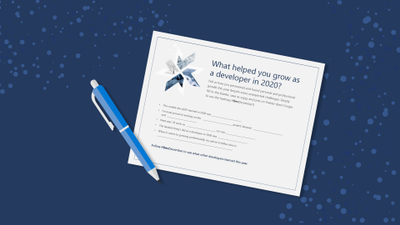
So much of getting through the year was about bridging gaps, so we thought a fill-in-the-blank would be the best way to review some of the ways you became more skilled and resilient as a dev. Check out the template, fill it in, tag it as #DevDecember, and share what you got done and how.
#DevWithABev fun on social
 Before we recap, we should also mention #DevWithABev, a growing collection of developer-with-a-beverage selfies. Check out everyone’s favorite winter beverage, and add your own personal flavor by taking a snapshot of yourself with yours and tagging it #DevWithABev. It’s 2020 and we could all use some friendly faces.
Now, let’s recap what we highlighted this week:
Beginner’s series to JavaScript
Taking your first steps toward mastering a new programming language is exciting, but it can also feel overwhelming. To help you get started with JavaScript, we’ve created short and easy-to-consume videos that break down the key concepts you need to know.
Start watching the series
Agrotech IoT workshop
Want to grow your professional IoT skills? Your first stop may be the garden. Get your hands dirty with a workshop on how to build an internet-connected device to gather soil moisture data that will tell you (by lighting up an LED) if a plant needs watering.
Start digging in
Bringing browser developer tools to Visual Studio Code
One of our favorite releases in 2020 was the Microsoft Edge Tools for VS Code extension, designed to simplify workflows. Connect to an existing browser instance, start a new one, or use a “headless” browser.
Explore the extension
Building a first “Power Apps” app
@JoeCamp13 built an app to track inventory entirely with Power Apps. His explanation of how he did it, is illustrated with screenshots so you can follow along.
Start the walkthrough
Next week, we’ll talk about some of the ways the dev community came together in 2020. Keep following #DevDecember for daily updates and affirmations of awesomeness.
Not sure what #DevDecember is all about? Check out our homepage for more info!

by Contributed | Dec 3, 2020 | Technology
This article is contributed. See the original author and article here.
We recently had a case escalation and wanted to provide a few more details on a Windows 10 certificate issue. Windows has documented the behavior and resolution. There’s been additional blog posts describing this scenario by several of our MVP’s. In this post, we’ll add on a script we developed to detect whether or not the Intune Mobile Device Management (MDM) enrollment certificate is on a co-managed Windows device and provide a few recommendations for how to resolve.
Let’s start with what devices could be affected:
From the Windows KB article – “System and user certificates might be lost when updating a device from Windows 10, version 1809 or later to a later version of Windows 10. Devices will only be impacted if they have already installed any Latest cumulative update (LCU) released September 16, 2020 or later and then proceed to update to a later version of Windows 10 from media or an installation source which does not have an LCU released October 13, 2020 or later integrated.”
We see impact when managed devices are upgraded using outdated bundles or media through an update management tool such as Windows Server Update Services (WSUS) or Configuration Manager. This might also happen when using outdated physical media or ISO images that do not have the latest updates integrated.
From a device perspective, here’s what you’ll see:
- The MDM enrollment certificate is no longer on the Windows device. Once this certificate is not on the device, it can’t establish the trust needed to get policy from Intune.
- The Windows 10 device may no longer have corporate Wi-Fi, VPN, or other certificate-based authentication policies.
- End users may report they are unable to access sites that they typically had access to (and there’s no other compliance policy or issue affecting their access).
- You may notice a high volume of traffic in the Intune Management Extension logs.
What you can do to determine impact:
The sample script linked below is specifically developed for Intune co-managed devices and can be deployed to find those Windows 10 devices that don’t have the MDM enrollment certificate. We’ve tested this script in our internal environment and also worked with a customer to run the detection portion of the script. Please keep in mind the script is unsupported. If we make any changes to it, we’ll update this post.
You can download the script here – https://aka.ms/mdm_enrollment_cert_script
Again, as shared above this script will only work on Intune co-managed devices – those that have the ConfigMgr client installed and are enrolled into Intune. As described in what devices could be affected, there are a number of other scenarios that could be affected depending on your update path.
How you can mitigate impact:
You have a few different options, depending on your preferred approach:
- If you have already encountered this issue on your device, you can mitigate it within the uninstall window by going back to your previous version of Windows using the instructions here. Windows has documented this as the preferred approach in their KB article.
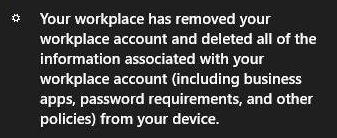
- The sample script we shared above includes optional remediation logic for co-managed devices. One important end-user caveat though, if you use this remediation logic, the following message will appear in the Windows 10 notification center when the device is unenrolled before it is re-enrolled:
This is a standard your device is being unenrolled message which is what the script automates. Once re-enrolled, though, policy will return apps and settings.
Other information:
- The detection logic in the script only returns the devices missing the MDM enrollment certificate.
- You can run the script in detection only mode vs. remediation:
- Running mdmcertcheckandremediate.ps1 without any parameters is detection mode only.
- Running mdmcertcheckandremediate.ps1 -Remediate 1 is detect and remediate.
- If you are a co-managed customer, the remediation process of re-enrolling the device to Intune is done by the Configuration Manager client (ccmexec) based on the co-management policy targeted. The ConfigMgr client uses existing co-management enrollment process if the domain joined device remains in Azure AD-joined state or enrollment is retried as soon as the device re-joins to Azure AD. Co-management enrollment is retried when ccmexec starts up and also during scheduled co-management enrollment process scheduled every day.
Again, keep us posted if you have any feedback by responding on this post or tagging @Intunesuppteam out on Twitter!
by Contributed | Dec 3, 2020 | Technology
This article is contributed. See the original author and article here.
While volume activation is a process that many have utilized over the years, today’s post offers guidance to help you ensure that all your devices have been properly activated regardless of their connection to your organization’s network.
First, a refresher. Volume activation enables a wide range of Windows devices to receive a volume license and be activated automatically and en masse versus tediously entering an activation key on each Windows device manually.
The most common methods of volume activation require that devices to be connected to an organization’s network or connected via virtual private network (VPN) to “check in” from time to time with the organization’s activation service to maintain their licenses. When people work from home and off the corporate or school network; however, their devices’ ability to receive or maintain activation is limited.
Volume activation methods
There are several methods to activate devices via volume licensing. For detailed information, see Plan for volume activation. Here, however, is a summary for easy reference.
Key Management Service
Key Management Service (KMS) activation requires TCP/IP connectivity to, and accessibility from, an organization’s private network so that licenses are not accessible to anyone outside of the organization. By default, KMS hosts and clients use DNS to publish and find the KMS key. Default settings can be used, which require little or no administrative action, or KMS hosts and client computers can be manually configured based on network configuration and security requirements.
KMS activations are valid for 180 days (the activation validity interval). KMS client computers must renew their activation by connecting to the KMS host at least once every 180 days. By default, KMS client computers attempt to renew their activation every 7 days. If KMS activation fails, the client computer retries to reach the host every two hours. After a client computer’s activation is renewed, the activation validity interval begins again.
Multiple Activation Key
A Multiple Activation Key (MAK) is used for one-time activation with Microsoft’s hosted activation services. Each MAK has a predetermined number of activations allowed. This number is based on volume licensing agreements, and it might not match the organization’s exact license count. Each activation that uses a MAK with the Microsoft-hosted activation service counts toward the activation limit.
You can use a MAK for individual computers or with an image that can be duplicated or installed using Microsoft deployment solutions. You can also use a MAK on a computer that was originally configured to use KMS activation, which is useful for moving a computer off the core network to a disconnected environment.
Active Directory-based activation
Active Directory-based activation is similar to KMS activation but uses Active Directory instead of a separate service. Active Directory-based activation is implemented as a role service that relies on Active Directory Domain Services to store activation objects. Active Directory-based activation requires that the forest schema be updated using adprep.exe on a supported server operating system, but after the schema is updated, older domain controllers can still activate clients.
Devices activated via Active Directory maintain their activated state for up to 180 days after the last contact with the domain. Devices periodically attempt to reactivate (every seven days by default) before the end of that period and, again, at the end of the 180 days.
Windows 10 Subscription Activation
Starting with Windows 10, version 1703 Windows 10 Pro supports the Subscription Activation feature, enabling users to “step-up” from Windows 10 Pro to Windows 10 Enterprise automatically if they are subscribed to Windows 10 Enterprise E3 or E5.
With Windows 10, version 1903 the Subscription Activation feature also supports the ability to step-up from Windows 10 Pro Education to the Enterprise grade edition for educational institutions – Windows 10 Education.
The Subscription Activation feature eliminates the need to manually deploy Windows 10 Enterprise or Education images on each target device, then later standing up on-prem key management services such as KMS or MAK based activation, entering GVLKs, and subsequently rebooting client devices.
To step a device up to Windows 10 Education via Subscription Activation the device must meet the following requirements:
- Windows 10 Pro Education, version 1903 or later installed on the devices to be upgraded.
- A device with a Windows 10 Pro Education digital license. You can confirm this information in Settings > Update & Security > Activation.
- The Education tenant must have an active subscription to Microsoft 365 with a Windows 10 Enterprise license or a Windows 10 Enterprise or Education subscription.
- Devices must be Azure AD-joined or Hybrid Azure AD joined. Workgroup-joined or Azure AD registered devices are not supported.
Volume activation while working from home
If you activate devices in your organization using MAK, the activation process is straightforward and the devices are permanently activated. If you are using KMS or Active Directory-based Activation, each device must connect to the organization’s local network at least once every 180 days to “check in” with either the KMS host or the Active Directory domain controller. Otherwise, the user will be warned to activate Windows again.
With many users working or taking classes from home, a connection to the organization’s network may not exist, which would ultimately leave their devices in a deactivated state. There are a few options to avoid this:
- Use a VPN. By having the device connect to your organization’s network via a VPN, it will be able to contact a KMS host or Active Directory domain controller and will be able to maintain its activation status. If you manage your devices through a wholly on-premises solution to deploy policies, collect inventory, and deploy updates and other software, there is a good chance you are already using a VPN. Depending on the VPN configuration, some manual configuration of the client device may be required to ensure the KMS service is accessible through the VPN. For more details on these settings, which can be implemented via script, see Slmgr.vbs options for obtaining volume activation information.
- Convert the devices from KMS to MAK activation. By converting from KMS to MAK activation, you replace the license that requires reactivation every 180 days with a permanent one, which requires no additional check-in process. There are some cases—in educational organizations, for example—where each device is re-imaged at the end of the school year to get ready for the next class. In this case, the license must be “reclaimed” by contacting your Microsoft licensing rep or a Microsoft Licensing Activation Center.
One way of converting a device from KMS to MAK activation is to use the Windows Configuration Designer app (available from the Microsoft Store) to create a provisioning package, which includes the MAK, and deploy the package through email or a management solution such as Microsoft Intune.
You can also deploy a MAK directly within Intune without creating a provisioning package by creating a simple PowerShell script with the following commands and deploying the script to a user group:
slmgr.vbs /ipk XXXXX-XXXXX-XXXXX-XXXXX-XXXXX
slmgr.vbs /ato
(In the example above, XXXXX-XXXXX-XXXXX-XXXXX-XXXXX is your MAK key.)
It is important to monitor the success of these activations and remove users from the target group once their devices have been activated so that their other devices do not receive a new license.
- Use Subscription Activation. This requires the devices to be joined to your Azure AD domain, enabling activation in the cloud. This is possible if you have one of the following subscriptions:
- Windows 10 Enterprise E3/E5
- Windows 10 Education A3/A5
- Windows 10 Enterprise with Software Assurance
- Microsoft 365 E3/E5
- Microsoft 365 E3/A5
- Microsoft 365 F1/F3
- Microsoft 365 Business Premium
If you need assistance and have one of the preceding subscriptions with at least 150 licenses, you may be eligible for assistance through FastTrack. Contact your Microsoft representative or request assistance from FastTrack and a Microsoft FastTrack representative will contact you directly.
Conclusion
Windows volume activation has been around for a long time, but the increased number of users working from home may require your organization to re-evaluate how to best keep your devices activated if they cannot reach your on-premises activation service if you are using KMS or Active Directory-based Activation. It is important to consider the options available to you to ensure your devices stay activated. As always, there is no “one-size-fits-all” approach, so consider the pros and cons of each option as you plan on how to best support your remote workers and students.
To learn more about activation, see Activate clients running Windows 10.


Recent Comments