by Contributed | Dec 4, 2020 | Technology
This article is contributed. See the original author and article here.
I was working in a few SQL On-demand or SQL Serverless cases and based on an ex-PFE colleague Fabricio Catae script I created this one to help me with some troubleshooting scenarios. Feel free to adapt the script yourself for your scenario.
Basically, I want to take a snapshot of my DMVs while I am troubleshooting a scenario on SQLOD. So I asked the customer to repro the scenario while running my script and once is done. I work on the data collected and issue timestamps.
SET NOCOUNT ON
SET LOCK_TIMEOUT 30000

DECLARE @startDate DATETIME


SET NOCOUNT ON
SET LOCK_TIMEOUT 30000


WHILE 1=1
BEGIN


SET @startDate = GETDATE()


   print 'Begin Requests filtered ' + CONVERT(VARCHAR(24), GETDATE(), 121) + ' ' + convert(VARCHAR(12), datediff(ms,@startDate,getdate()))

   select * from sys.dm_exec_requests where session_id >77

   print 'End Requests filtered ' + CONVERT(VARCHAR(24), GETDATE(), 121) + ' ' + convert(VARCHAR(12), datediff(ms,@startDate,getdate()))

   print '================================================= '

   print 'Begin Requests  ' + CONVERT(VARCHAR(24), GETDATE(), 121) + ' ' + convert(VARCHAR(12), datediff(ms,@startDate,getdate()))

   select * from sys.dm_exec_requests

   print 'End Requests  ' + CONVERT(VARCHAR(24), GETDATE(), 121) + ' ' + convert(VARCHAR(12), datediff(ms,@startDate,getdate()))
   print '================================================= '

   print 'Begin Sessions ' + CONVERT(VARCHAR(24), GETDATE(), 121) + ' ' + convert(VARCHAR(12), datediff(ms,@startDate,getdate()))

   select * from sys.dm_exec_sessions

   print 'End Sessions ' + CONVERT(VARCHAR(24), GETDATE(), 121) + ' ' + convert(VARCHAR(12), datediff(ms,@startDate,getdate()))

   print '================================================= '

   print 'Begin Queries running ' + CONVERT(VARCHAR(24), GETDATE(), 121) + ' ' + convert(VARCHAR(12), datediff(ms,@startDate,getdate()))

	   SELECT
		'Running' as [Status],
		Transaction_id as [Request ID],
		'SQL On-demand' as [SQL Resource],
		s.login_name as [Submitter],
		s.Session_Id as [Session ID],
		req.start_time as [Submit time],
		req.start_time as [Start time],
		'N/A' as [End time],
		req.command as [Request Type],
		SUBSTRING(
			sqltext.text,
			(req.statement_start_offset/2)+1,
			(
				(
					CASE req.statement_end_offset
						WHEN -1 THEN DATALENGTH(sqltext.text)
						ELSE req.statement_end_offset
					END - req.statement_start_offset
				)/2
			) + 1
		) as [Query Text],
		req.total_elapsed_time as [Duration],
		'N/A' as [Queued Duration],
		req.total_elapsed_time as [Running Duration],
		'N/A' as [Data processed in bytes],
		'N/A' as [Workload group],
		'N/A' as [Source],
		'N/A' as [Pipeline],
		'N/A' as [Importance],
		'N/A' as [Classifier]
	FROM
    sys.dm_exec_requests req
    CROSS APPLY sys.dm_exec_sql_text(sql_handle) sqltext
    JOIN sys.dm_exec_sessions s ON req.session_id = s.session_id

    print 'End Queries running ' + CONVERT(VARCHAR(24), GETDATE(), 121) + ' ' + convert(VARCHAR(12), datediff(ms,@startDate,getdate()))
    print '================================================= '

    print 'Begin Query requests greater than 50 ' + CONVERT(VARCHAR(24), GETDATE(), 121) + ' ' + convert(VARCHAR(12), datediff(ms,@startDate,getdate()))

	SELECT
		req.session_id, req.blocking_session_id AS 'blocked',
		req.database_id AS db_id, req.command,
		req.total_elapsed_time AS 'elapsed_time', req.cpu_time, req.granted_query_memory AS 'granted_memory', req.logical_reads,
		req.wait_time, CAST(req.wait_type AS VARCHAR(16)) AS 'wait_type',
		req.open_transaction_count AS 'tran_count',
		req.reads, req.writes,
		req.start_time, req.status, req.connection_id, req.user_id,
		req.group_id, -- KATMAI (SQL2008)
		req.transaction_id, req.request_id,
		CAST(req.plan_handle AS VARBINARY(26)) AS 'plan_handle',
		CAST(req.sql_handle AS VARBINARY(26)) AS 'sql_handle',
		req.nest_level,
		req.statement_start_offset AS 'stmt_start', req.statement_end_offset AS 'stmt_end',
		req.query_hash, req.query_plan_hash
	FROM sys.dm_exec_requests req
	WHERE group_id > 1 AND session_id<>@@SPID
	and req.session_id > 50


	print 'End Query requests greater than 50 ' + CONVERT(VARCHAR(24), GETDATE(), 121) + ' ' + convert(VARCHAR(12), datediff(ms,@startDate,getdate()))
	print '================================================= '

	waitfor delay '00:00:03'

END
This is as you probably noticed a script with an infinite loop : WHILE 1=1
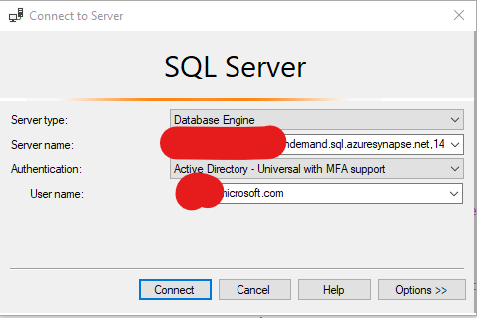
Basically, you would need to connect to SQL On Demand: Server-ondemand.sql.azuresynapse.net
Once connected. Run the script using the result as text option on SSMS. The grid would be nearly impossible to read properly:
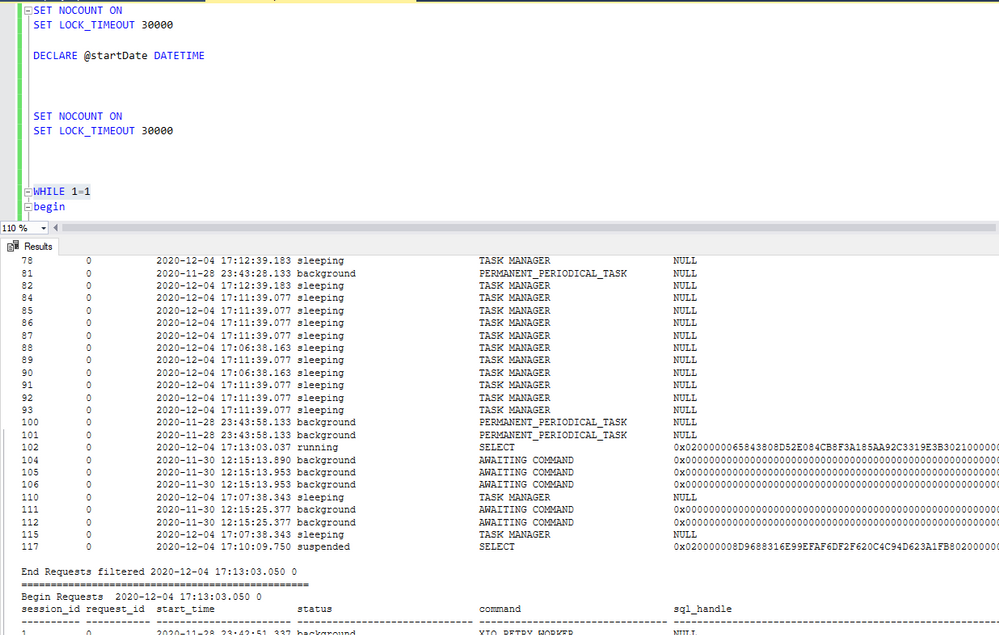
Recreate the situation that you want to monitor. Once done, stop the script as it is an infinite loop and look for the information that you want to find over the script results.
That is it!
Liliam Uk Engineer
by Contributed | Dec 4, 2020 | Technology
This article is contributed. See the original author and article here.
Hello Developers & Microsoft Teams Fans!
The Learn Together: Developing Apps on Microsoft Teams event is happening on Dec 16.
Currently, there are 115+ million Teams daily active users. That is millions of new users that developers can reach when they develop apps for Teams.
Join us! We will be hosting LIVE discussions and learning opportunities that are specially curated for developers (by developers) around the possibilities and reasons to build apps for Teams.
Expect to see appearances from your favorite Microsoft personalities, surprise guests, trivia, digital swag, and a Teams Learn Challenge to win prizes.
Did we mention it is all FREE?
This digital experience is going to be a bit different. Rather than being talked TO, we will be talking WITH you. Whether you can join us live, or you want to have the content to watch on-demand, make sure to sign up today so you can have all the links and information!
Visit http://aka.ms/learntogether to join the conversation!
Please invite your community to join the event with you! You can also create a watch party to stream the event on Learn TV while watching together in a Teams Meeting with together-mode on.
See you there!
– The #LearnTogether Team

by Contributed | Dec 4, 2020 | Technology
This article is contributed. See the original author and article here.
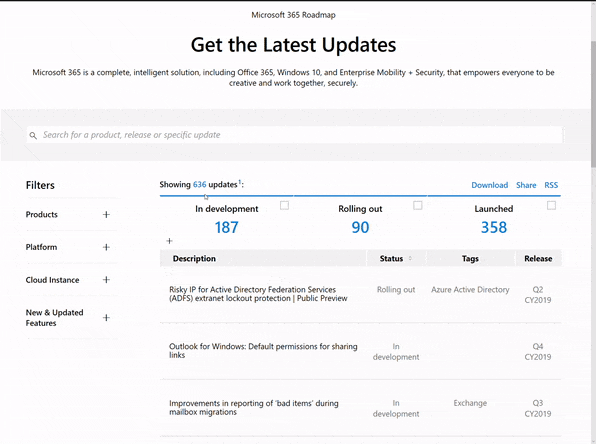
Microsoft 365 Public Roadmap
This link is filtered to show GCC, GCC High and DOD specific items. For more general information uncheck these boxes under “Cloud Instance”.
New to filtering the roadmap for GCC specific changes? Try this:
Stay on top of Office 365 changes
Here are a few ways that you can stay on top of the Office 365 updates in your organization.
Microsoft Tech Community for Public Sector
Your community for discussion surrounding the public sector, local and state governments.
Microsoft 365 for US Government Service Descriptions
|
|
- Office ProPlus (GCC, GCCH, DoD)
- PowerApps (GCC, GCCH, DoD)
- Flow (GCC, GCCH, DoD)
- Power BI (GCC, GCCH)
- Planner (GCC, GCCH, DoD)
- Outlook Mobile (GCC, GCCH, DoD)
- My Analytics (GCCH, DoD)
- Dynamics 365 US Government
|
November Webinars & Remote Work Resources
- Microsoft Teams – IT Admins & Planning
- Microsoft Teams – End Users & Champions
- Security & Azure AD
- Blogs & Articles of Interest
Office 365 Government GCC is now FedRAMP High – Microsoft Tech Community
We’re excited to announce that our Office 365 Government GCC environment now has a FedRAMP High SAR
Using SharePoint Look Book in your GCC High Tenant
Getting errors when you try to use Look Book templates in your GCC High tenant? Read on!
Top 5 Security Questions Asked by our US Government Customers for Microsoft Teams – Microsoft Tech Community
Teams engineering Senior Technical PM Nolene LaNeve breaks down what the top 5 security questions asked by our US Government customers.
Guidance for delivering Virtual Events | Microsoft Adoption
This guidance has been created to assist event organizer, technical producers, IT professionals and content creators deliver virtual events.
Teams features by platform
If you need to know which Teams capabilities are available on which platforms, here’s the detail for you.
Release News
Seamlessly Share Personal Lists in Microsoft To Do
Planner Integration into Message Center – Updated to include GCC
Tenant admins will be able to create a policy that automatically revokes access for SharePoint Online and OneDrive documents for external guests
The Site performance page will equip site owners and editors with more tools and information to make page performance improvements
Groove.exe sync with SPO will no longer allow users to sync their OneDrive and Shared Libraries using Groove
SharePoint page authors will soon need to supply required information before a page or news post can be published
Known Folder Move status script – A new PowerShell script to check Known Folder Move status and know more about your deployment in your organization has been created
Tenant admins will be able to create a policy that automatically revokes access for SharePoint Online and OneDrive documents for external guests
Users will be able to schedule a page or news post to be published at a specific date and time in the future
The migration manager helps orchestrate and simplify management of large-scale migrations. Admins can add and manage multiple migration machines to centrally orchestrate all migration activities
Teams noise cancellation
Teams meeting recordings can now be saved to OneDrive and SharePoint instead of Stream. Administrators can opt-in to the new experience ahead of the broader rollout in 2021
Forced tunnel (split tunnel) exception for Teams Live Events CDN endpoints updates
Tenant upgrade to TeamsOnly mode is now blocked if an on-prem Skype for Business deployment is detected in one or more SIP domains
Teams templates enables administrators to use pre-defined or custom team structures to create templates that can be used by end-users to quickly create new teams with pre-configured settings, channels, and apps
Microsoft Teams will soon require users to use a recent version of Teams to sign-in. Users on older versions will see an in-product banner advising them to update to the latest version
Message Center Highlights
|
MC223128 – PowerPoint: Live captions and subtitles in PowerPoint for GCC and GCC-High
This message is associated with Microsoft 365 Roadmap ID 66205
Live Captions and Subtitles enables presenters to turn captions or subtitles on in 60+ languages, while presenting in 10+ spoken languages with PowerPoint for Windows 10, macOS, and Web. Note this release is for our GCC and GCC-High tenants, and does not yet include DoD environments.
MC224734 – Security Defaults – MFA update to four administrator roles
If you have Security Defaults enabled in your tenant, all Application Administrators, Cloud Application Administrators, Password Administrators, and Privileged Authentication Administrators will soon be required to perform multi-factor authentication (MFA) each time they sign-in.
MC224081 – Upcoming updates to Office 365 threat hunting experiences through Threat Explorer/Real-Time Detections
This message is associated with Microsoft 365 Roadmap ID 66467
As part of this work, we will be introducing additional enhancements when it comes to identifying threats within your organization
MC224173 – Required properties improvements for SharePoint pages
Microsoft 365 Roadmap ID 63257
A pre-publish panel enforces that authors supply missing required properties before they can publish a page or a news post. Additional improvements related to required properties in the pages library take effect.
MC223174 – Redirecting eDiscovery tool usage from the Office 365 Security and Compliance Center to the Microsoft Compliance Center
Starting Oct 30th, users will be redirected to the Microsoft 365 Compliance Center to access content search, eDiscovery, and Advanced eDiscovery.
MC223176 – Upgrade macOS to access new Microsoft 365 for Mac updates
MC223189 – Announcing the general availability of Double Key Encryption for Microsoft 365 for government clouds
This message is associated with Microsoft 365 Roadmap ID 67105
Coming soon to government clouds, Double Key Encryption from Microsoft allows you to protect your highly sensitive data while maintaining full control of your key. You can protect your data with two keys – your Azure key and your key in the Double Key Encryption service.
MC223198 – Announcing general availability of Records Management for Microsoft 365
This message is associated with Microsoft 365 Roadmap ID 63063
Records Management in Microsoft 365 enables government customers to manage recordkeeping obligations intelligently. This update restructures capabilities that were previously part of the Advanced Data Governance solution and provides you with a dedicated and specialized solution for records management, with new features including proof of disposal, record versioning, and enhanced record immutability.
MC223358 – Microsoft Threat Protection and Advanced Threat Protection product name change. These changes will start rolling out in mid/late October and will continue through February 2021.
We are making the following product name changes to bring Microsoft Threat Protection and the products formerly known as Advanced Threat Protection together under the Microsoft Defender brand:
- Microsoft 365 Defender (previously Microsoft Threat Protection)
- Microsoft Defender for Endpoint (previously Microsoft Defender Advanced Threat Protection)
- Microsoft Defender for Office 365 (previously Office 365 Advanced Threat Protection)
- Microsoft Defender for Identity (previously Azure Advanced Threat Protection)
MC223029 – Prevent attendees from unmuting in Teams Meetings
This message is associated with Microsoft 365 Roadmap ID 66575
Gives meeting organizers the ability to mute one to many meeting participants while removing the muted participants’ ability to unmute themselves.
MC222157 – Microsoft Teams: Windows 10 native notifications in Teams
This message is associated with Microsoft 365 Roadmap IDs 66742
With this update, your users will be able to choose their preferred means of Teams notifications delivery, either via the Teams built-in notification system or via their native OS notification system.
MC224054 – Firmware Update for Teams Phones
A new update will be made available to Microsoft Teams phones deployed in your tenant. The following models will receive an update:
- Audiocodes C450HD/C448HD
- Lenovo ThinkSmart View
- Poly Trio C60
- Poly CCX series
- Yealink T5x series
- Yealink MP56
- YealinkVP59
- Yealink CP960.
MC224343 – Microsoft Teams – Virtual Breakout Rooms
Microsoft 365 Roadmap ID: 65332
Meeting hosts can create breakout rooms to be used by meeting participants for smaller group discussion. They can assign participants to a room and call them back to the larger group when the breakout is complete.
MC224359 – Meeting chat moderation settings
Microsoft 365 Roadmap ID: 67175
Meeting organizers can now turn off the chat functionality during a meeting, which is turned on by default.
MC224238 – Transfer Teams meeting between devices or add another device
This message is associated with Microsoft 365 Roadmap ID 67176.
End users can transfer meetings between mobile, desktop, and web, and add another device as a companion to their meeting.
MC224751 – Reducing background noise in Microsoft Teams meetings
This message is associated with Microsoft 365 Roadmap ID 68694.
AI-based, real-time noise suppression, will be added to Microsoft Teams. This feature will automatically remove unwelcome background noise during your meetings.
MC224842 – Outgoing screen-sharing support in Safari for Microsoft Teams
This message is associated with Microsoft 365 Roadmap ID 67174
Teams meetings in Safari 13 and later will now support outgoing screen sharing. A participant can share their screen. No configuration is needed.
MC224937 – Organizers can manage meeting options in the meeting experience for GCC
This message is associated with Microsoft 365 Roadmap ID 73388.
Meetings organizers can now view and update meeting options within the in-meeting making it easier and faster to manage your meeting options during a meeting.
MC225004 – iOS Teams app updates enhances mobile meetings
This feature is associated with Roadmap ID 68834
We’re improving the Teams experience on iOS devices with a new presentation mode, the ability to see more participants, and the ability to see shared content and a spotlighted participant concurrently.
Microsoft 365 IP and URL Endpoint Updates
|
Documentation – Office 365 IP Address and URL web service
28 October 2020 – GCC
28 October 2020 – GCC High
28 October 2020 – DOD
by Contributed | Dec 4, 2020 | Technology
This article is contributed. See the original author and article here.
Contributors:
Rob Garrett – Sr. Customer Engineer, Microsoft Federal
John Unterseher – Sr. Customer Engineer, Microsoft Federal
Martin Ballard – Sr. Customer Engineer, Microsoft Federal
What are Learning Pathways?
Microsoft 365 learning pathways is a customizable, on-demand learning solution designed to increase usage and adoption of Microsoft 365 services in your organization. |
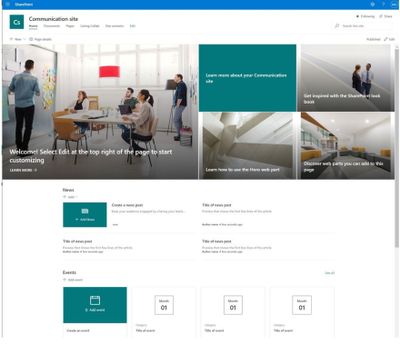
Microsoft 365 learning pathways is a customizable, on-demand learning solution designed to increase usage and adoption of Microsoft 365 services in your organization. Learning Pathways consists of a fully customizable SharePoint Online Communication site collection, with content populated from the Microsoft online catalog; so, your content is always up to date. Learning Pathways provide integrated playlists to meet the unique needs of your organization.
M365 Learning Pathways build atop of the Look Book Provisioning Service and templates (https://lookbook.microsoft.com). In a previous blog post, we detailed the nuances of the Look Book Provisioning Service and additional steps required to deploy templates to GCC High tenants. Since Learning Pathways depend on the provisioning service to create a Communication site with customizations, via a Look Book template, this post details the additional steps to follow those from the earlier blog post.
Challenge – Using Learning Pathways in GCC High
Because of provisioning limitations in the GCC High sovereign cloud, documented installation instructions result in errors. |
Microsoft strives to implement functionality parity between all sovereign clouds. However, since each Office 365 cloud type serves a different customer audience and requirements, functionality will differ between these cloud types. Of the M365 clouds – Commercial, Government Community Cloud, Government Community Cloud High, and DOD Cloud, the last two offer the least functionality to observe US federal mandates and compliance.
As Microsoft develops new functionality for Microsoft 365 and Azure clouds, we typically release new functionality to commercial customers first, and then to the other GCC, GCC High, and DOD tenants later as we comply with FedRAMP and other US Government mandates. Open-source offerings add another layer of complexity since open-source code contains community contribution and is seldom developed with government clouds in mind.
Apply Learning Pathways to GCC High
Manual configuration steps detailed below make Learning Pathways in GCC High possible.
|
Microsoft 365 Learning Pathways offers manual steps to support deployment to an existing SharePoint Online Communication site. Recall from the earlier blog post that the Look Book Provisioning Service is unable to establish a new site collection in GCC High, because of necessary restrictions. We, therefore, deploy Learning Pathways using the manual steps with a pre-provisioned Communication site collection.
Manual setup of Learning Pathways requires experience working with Windows PowerShell and the SharePoint Online Management Shell.
Prerequisites
Before getting into the manual steps, we must meet prerequisites for manual install of Learning Pathways, the following is a summary:
- Create and designate a new Communication in SharePoint Online for Learning Pathways.
- Create a tenant-wide application catalog (steps below).
- Install the latest SharePoint PnP.
- Perform all steps as a SharePoint Tenant Administrator.
We begin by creating a new Communication site via the SharePoint Administration site:
https://mytenant-admin.sharepoint.us/_layouts/15/online/AdminHome.aspx#/siteManagement/view/ALL%20SITES
Note: Ensure you review the default language for the new site.
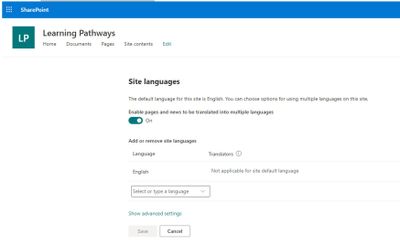
Next, check your language settings – choose one of the following three options:
- Option 1 – You do not want multilingual support:
- From the SharePoint communication site, select Settings > Site information > View all site settings > Language settings.
- Set the Enable pages and news to be translated into multiple languages switch to Off.
- Option 2 – You want multilingual support with the default language:
- From the SharePoint communication site, select Settings > Site information > View all site settings > Language settings.
- Set the Enable pages and news to be translated into multiple languages switch to On.
- Add additional languages, and then click Save.
- Option 3 – You want multilingual support with a different default language:
- Create a new Communication site and select the desired default language.
- From the SharePoint communication site, select Settings > Site information > View all site settings > Language settings.
- Set the Enable pages and news to be translated into multiple languages switch to On.
- Add additional languages, and then click Save
Ensure the appropriate permissions for users of the Learning Pathways site:
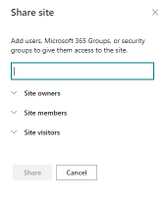
- Open the Learning Pathways site collection in your web browser.
- From the home page, click the Share link.
- Add students to the Site Visitors group.
- Add playlist editors of the pathways site to the Site Members group.
- Add site administrators of the pathways site to the Site Owners group.
We shall now create the tenant app catalog (if it does not already exist):
- Open the SharePoint Admin center in your browser.
https://mytenant-admin.sharepoint.us
- Select More Features in the left sidebar.
- Locate the Apps section and click Open.
https://mytenant-admin.sharepoint.us/_layouts/15/online/TenantAdminApps.aspx
- Select the App Catalog.
- If you do not already have an app catalog, provide the following details:
- Title: App Catalog
- Web Site Address Suffix: preferred suffix for the app catalog, e.g. apps.
- Administrator: SharePoint Administrator.
Ensure that the latest version of SharePoint PnP is installed – run the following commands within an elevated PowerShell window:
- Install the SharePoint PnP module with the following (requires an Internet connection):
Install-Module SharePointPnPPowerShellOnline
- If the module is already installed, you should update it to the latest version with:
Update-Module SharePointPnPPowerShellOnline
- Ensure the module is loaded with the following:
Import-Module SharePointPnPPowerShellOnline
Download Learning Pathways Files
With the prerequisites completed, we shall now download the required files for Learning Pathways.
- Visit the following location, on GitHub, via your web browser:
https://github.com/pnp/custom-learning-office-365/tree/master/webpart
- Download the following files to your workstation:
customlearning.sppkg
M365lpConfiguration.ps1
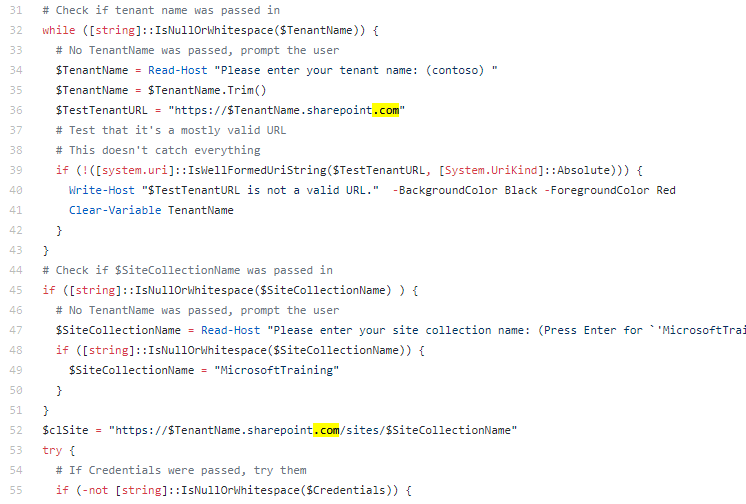
- Edit the PowerShell script and replace the sharepoint.com references to sharepoint.us.
The following image is the code locations at the time this post was published.
Uploading the package to the App Catalog
Having downloaded the customlearning.sppkg file, upload it to the app catalog site (which you created/validated in the prerequisites):
- Open the app catalog site in your web browser, e.g.:
https://mytenant.sharepoint.us/sites/appcat/SitePages/Home.aspx
- Click Apps for SharePoint in the left sidebar.
- Click the Upload button.
- Select the customlearning.sppkg file.
- Click the OK button to upload the package.
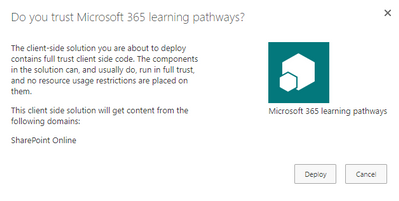
- If asked, trust the application by clicking the Deploy button:
Run the PowerShell Script
Now, we run the downloaded PowerShell script: M365lpConfiguration.ps1
Note: The script will prompt for credentials – authenticate with the credentials of a Tenant SharePoint Administrator.
Using the script looks like this:
M365lpConfiguration.ps1 -TenantName contoso -SiteCollectionName MicrosoftTraining
For example, if your site is…
https://mytenant.sharepoint.us/sites/LearningSite/
you run:
M365lpConfiguration.ps1 -TenantName mytenant -SiteCollectionName LearningSite
Note: Sites may take a few minutes to be fully available.
Validate Deployment of Learning Pathways
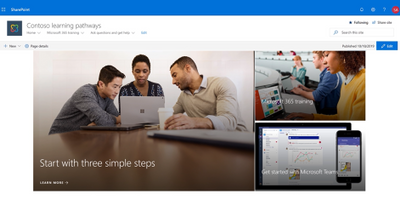
Having completed the earlier steps in this post, including running the PowerShell script without error, you should now see both user and admin pages in your learning site collection:
https://mytenant.sharepoint.us/sites/my-site-name/SitePages/CustomLearningViewer.aspx
https://mytenant.sharepoint.us/sites/my-site-name/SitePages/CustomLearningAdmin.aspx

by Contributed | Dec 4, 2020 | Technology
This article is contributed. See the original author and article here.
The Microsoft Health Bot is a cloud platform service “that empowers developers in Healthcare organizations to build and deploy their compliant, AI-powered virtual health assistants and health bots, that help them improve processes and reduce costs. It allows you to offer your users intelligent and personalized access to health-related information and interactions through a natural conversation experience.” – What is the Microsoft Health Bot Service?
Today I received a query from a customer looking to extend their Health Bot and they wanted to know if it was possible and if so how to go about doing it. Thankfully, the Health Bot is extensively documented with all the information needed for implementation, compliance, configuration and extending the QnA Maker. Rather than just send over the information as a one-off email I have pulled it all together and am posting here for others who may want to look at the Health Bot or who would also like to further configure/customize it.
- Quickstarts
- Concepts
- How-to guides
- Resources
- APIs
Thanks for visiting – Michael Gannotti LinkedIn | Twitter
 Michael Gannotti


Recent Comments