by Contributed | Dec 6, 2020 | Technology
This article is contributed. See the original author and article here.
Today, we wanted to share some important information on the progress of the Windows 10 Team 2020 Update which started to roll out on October 27, 2020.
First, we would like to thank all the customers who have taken advantage of the opportunity to update their Surface Hub 2S devices using either Windows Update or Windows Update for Business, and more importantly, we would like to thank them for the valuable feedback they have provided on the update process.
To date, we have 70% of all eligible devices in the Phase 1 and 2 regions updated. While the majority of these devices were updated successfully, we have received feedback from a small number of customers who have encountered post-install issues. To ensure that we deliver an update experience of the highest quality, we have taken two important actions:
- We have created a summary of the current list of known issues, solutions and remediations for transparency and to assist your team in diagnosing and resolving issues.
- We have paused the Windows Update phased releases. Phase 1 and 2 were released per the schedule below and Phase 3 and 4 will be paused for the remainder of 2020.
Customers in all regions can continue to update their Surface Hub 2S devices using Windows Update for Business or using the Bare Metal Recovery image. For specific instructions on using Windows Update for Business to manage updating your devices, please refer to the Surface Hub Admin Guide. We recommend reviewing the known issues list as part of building your update plan.
We know that most of our customers require the Windows 10 Team 2020 Update for their 1st-generation Surface Hubs (55” and 84”) to fully update their entire fleet of devices. We continue to make progress on finalizing this release and will share more details as they become available.
Keeping customers secure is our priority. Surface Hub was built with security at the forefront and we will be actively monitoring new threats for applicability on Surface Hub. For customers who are in a state of transition between Windows 10 Team Edition version 1703 and 20H2, we will ensure those customers remain secure by extending support for Windows 10 Team Edition version 1703 through March 16, 2021.
We are committed to delivering the best quality update experience across all Surface Hub devices and to provide transparency on changes to our currently published plan as required. To that end, we will provide another update on December 18, 2020.
by Contributed | Dec 6, 2020 | Azure, Microsoft, Technology
This article is contributed. See the original author and article here.
Symptoms:
Creating or importing database failed due to violation of policy “Azure SQL DB should avoid using GRS backup”
When creating database, you should specify the backup storage to be used, while the default is GRS (Globally redundant storage) and it violates the policy.
While importing database either using Azure Portal, RestAPI, SSMS or SQLPackage you cannot specify the backup storage as it’s not implemented yet.
This cause the import operation to fail with the following exception:
Configuring backup storage account type to ‘Standard_RAGRS’ failed during Database create or update.
Solution:
You can either
- create the database with local backup storage and then import to existing database.
- Use ARM Template to do both create the database with local backup storage and import the bacpac file.
Examples:
Option (A)
- Create the database with Azure Portal or by using T-SQL
CREATE DATABASE ImportedDB WITH BACKUP_STORAGE_REDUNDANCY = ‘ZONE’;
- Import the database using SSMS or SQLPackage
Option (B)
You may use ARM template to create database with specific backup storage and import the database at the same time.
This can be done with ARM template by using the extension named “import”
Add the following Json to your ARM template to your database resource section and make sure you provide the values for the parameters or set the values hardcoded in the template
The needed information is:
Storage Account key to access the bacpac file
Bacpac file URL
Azure SQL Server Admin Username
Azure SQL Server Admin Password
"resources": [
                {
                    "type": "extensions",
                    "apiVersion": "2014-04-01",
                    "name": "Import",
                    "dependsOn": [
                        "[resourceId('Microsoft.Sql/servers/databases', parameters('ServerName'), parameters('databaseName'))]"
                    ],
                    "properties": {
                        "storageKeyType": "StorageAccessKey",
                        "storageKey": "[parameters('storageAccountKey')]",
                        "storageUri": "[parameters('bacpacUrl')]",
                        "administratorLogin": "[parameters('adminUser')]",
                        "administratorLoginPassword": "[parameters('adminPassword')]",
                        "operationMode": "Import"
                    }
                }
            ]
by Contributed | Dec 6, 2020 | Technology
This article is contributed. See the original author and article here.
I want to share the following example in how you can use the “computed column” in some cases, to enhance your queries performance.
On AdventureWorks 2019 sample database, there are two tables TransactionHistory and TransactionHistoryArchive (I changed the type of productID on TransactionHistoryArchive from int to varchar), the tables definitions are :
CREATE TABLE [Production].[TransactionHistory](
	[TransactionID] [int] IDENTITY(100000,1) NOT NULL,
	[ProductID] [int] NOT NULL,
	[ReferenceOrderID] [int] NOT NULL,
	[ReferenceOrderLineID] [int] NOT NULL,
	[TransactionDate] [datetime] NOT NULL,
	[TransactionType] [nchar](1) NOT NULL,
	[Quantity] [int] NOT NULL,
	[ActualCost] [money] NOT NULL,
	[ModifiedDate] [datetime] NOT NULL,
CONSTRAINT [PK_TransactionHistory_TransactionID] PRIMARY KEY CLUSTERED
(
	[TransactionID] ASC
)


CREATE TABLE [Production].[TransactionHistoryArchive](
	[TransactionID] [int] NOT NULL,
	[ProductID] [varchar](10) NOT NULL,
	[ReferenceOrderID] [int] NOT NULL,
	[ReferenceOrderLineID] [int] NOT NULL,
	[TransactionDate] [datetime] NOT NULL,
	[TransactionType] [nchar](1) NOT NULL,
	[Quantity] [int] NOT NULL,
	[ActualCost] [money] NOT NULL,
	[ModifiedDate] [datetime] NOT NULL,
CONSTRAINT [PK_TransactionHistoryArchive_TransactionID] PRIMARY KEY CLUSTERED
(
	[TransactionID] ASC
)
Like in some situation in real environments, the ProductID column type in one of the tables is different than the other, usually due to a bad design.
I changed the ProductID from int to varchar to simulate the issue, and on both tables I created the index that covers the ProductID column:
create index ix_transaction_history_productid on [Production].[transactionhistory] (productid)

create index ix_transaction_historyArchive_productid on [Production].[transactionhistoryarchive] (productid) include (transactiondate)
Even though, if you are running an inner join query like the one below:
SELECT H.ProductID, a.TransactionDate
  FROM  [Production].[TransactionHistory] H  inner join [Production].[TransactionHistoryArchive] A
 on H.productid= A.productid where h.productid = 2
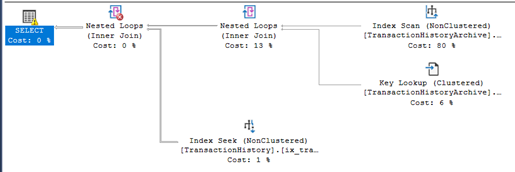
The execution plan is using index scan and not index seek.
SQL Server parse and compile time:
CPU time = 0 ms, elapsed time = 0 ms.
(450 rows affected)
Table ‘TransactionHistory’. Scan count 10, logical reads 20, physical reads 0, page server reads 0, read-ahead reads 0, page server read-ahead reads 0, lob logical reads 0, lob physical reads 0, lob page server reads 0, lob read-ahead reads 0, lob page server read-ahead reads 0.
Table ‘TransactionHistoryArchive’. Scan count 1, logical reads 641, physical reads 0, page server reads 0, read-ahead reads 0, page server read-ahead reads 0, lob logical reads 0, lob physical reads 0, lob page server reads 0, lob read-ahead reads 0, lob page server read-ahead reads 0.
SQL Server Execution Times:
CPU time = 31 ms, elapsed time = 30 ms.
Another example, if you run an inner join without the where clause:
SELECT H.ProductID, a.TransactionDate
  FROM  [Production].[TransactionHistory] H  inner join [Production].[TransactionHistoryArchive] A
 on H.productid= A.productid
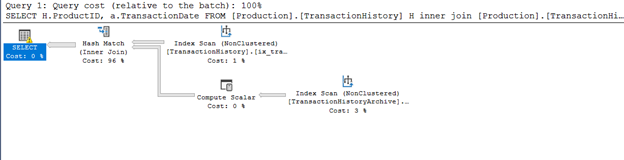
there will be index scans for both tables (Index Scan and Hash Join, hash is used usually when the two tables are Huge and unsorted.):
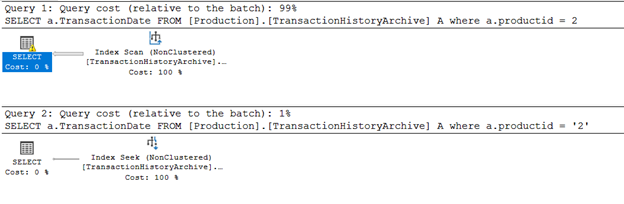
If you select the table by two different values (different types) , numeric and text values, the query optimizer will choose a scan operation if the parameter type of the predicate is different than the column:
SELECT A.TransactionDate
  FROM   [Production].[TransactionHistoryArchive] A
where A.productid = 2

SELECT A.TransactionDate
  FROM   [Production].[TransactionHistoryArchive] A
where A.productid = '2'
Obviously, the solution is to change the data type of column ProductID in one of the tables to avoid table scans and type conversion.
But you must put in consideration the following:
- The impact of the change on application and ETL packages. Some will fail and some will need to be updated or become having a slower performance.
A small change on database side may cause a lot of code modifications and updates on Applications.
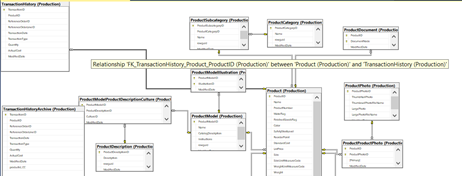
- The database design, like table relations and foreign keys..etc.:
- The bad design and overall performance issues will appear more when the applicationdatabase is live and tables are growing and become huge in size, in testing phases it may not appear.
But you may consider another solution, it will require a small update on database side and mostly requires no code update on TSQL scripts or on application:
- Create a new persisted computed column on the table:
alter table [Production].[transactionhistoryarchive] add productid_CC as convert(int, productid) persisted
- Create an index on the new computed column:
create index ix_transaction_historyArchive_productid_CC on [Production].[transactionhistoryarchive] (productid_CC) include (transactiondate)
with the help of the computed column and it is index, lets try the same queries without doing any changes on them:
SELECT H.ProductID, a.TransactionDate
  FROM  [Production].[TransactionHistory] H  inner join [Production].[TransactionHistoryArchive] A
 on H.productid= A.productid where h.productid = 2
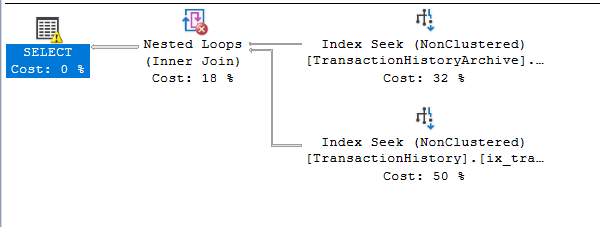
the execution plan, the query optimized is using index seek for both tables, and number of logical reads decreased:
SQL Server parse and compile time:
CPU time = 0 ms, elapsed time = 0 ms.
(450 rows affected)
Table ‘TransactionHistory’. Scan count 10, logical reads 20, physical reads 0, page server reads 0, read-ahead reads 0, page server read-ahead reads 0, lob logical reads 0, lob physical reads 0, lob page server reads 0, lob read-ahead reads 0, lob page server read-ahead reads 0.
Table ‘TransactionHistoryArchive’. Scan count 1, logical reads 3, physical reads 0, page server reads 0, read-ahead reads 0, page server read-ahead reads 0, lob logical reads 0, lob physical reads 0, lob page server reads 0, lob read-ahead reads 0, lob page server read-ahead reads 0.
SQL Server Execution Times:
CPU time = 0 ms, elapsed time = 0 ms.
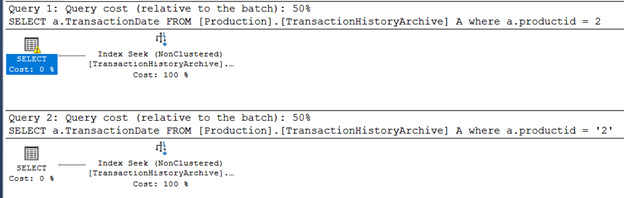
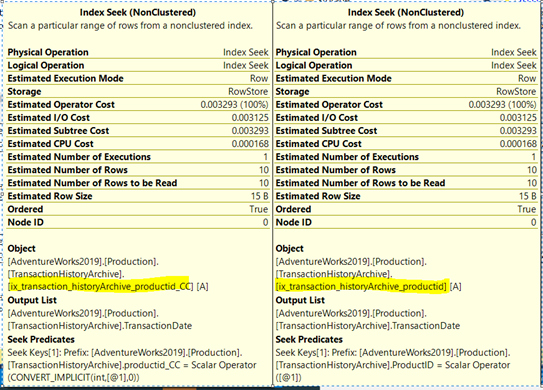
Now the query optimizer is using index seeks; it is smart enough to implicitly use the index created on the computed column even if the computed column ProductID_CC is not explicitly mentioned.
It will be used for queries that have productID in the where clause or use it in physical operations like joins.
And again If you select the table by two different values (different types) , numeric and text values, the query optimizer will choose the seek operation:
SELECT A.TransactionDate
  FROM   [Production].[TransactionHistoryArchive] A
where A.productid = 2

SELECT A.TransactionDate
  FROM   [Production].[TransactionHistoryArchive] A
where A.productid = '2'
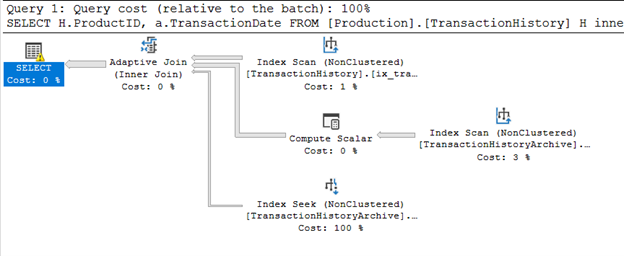
And the inner join query without where clause, now is using adaptive join instead of Hash:
SELECT H.ProductID, a.TransactionDate
  FROM  [Production].[TransactionHistory] H  inner join [Production].[TransactionHistoryArchive] A
 on H.productid= A.productid
Note that to create an index on computed column, the column must be deterministic:
https://docs.microsoft.com/en-us/sql/relational-databases/indexes/indexes-on-computed-columns?view=sql-server-ver15


Recent Comments