by Contributed | Dec 7, 2020 | Technology
This article is contributed. See the original author and article here.
In this blog we will look at some common issues that we face using storage accounts with Firewalls and Virtual Networks enabled. We have enabled storage diagnostics logs on the storage account, and we will use the same to troubleshoot some of the issues.
You have enabled Firewalls and Virtual networks on your storage account and allowed access to the storage account only from specific Virtual Network(s) (VNet).
Scenario 1:
You are not able to access your storage account using Portal from an on-premises network (not part of the Azure VNet) or over the internet.
Actions:
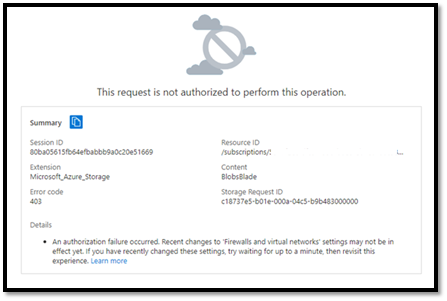
- The error message we are getting is Authorization Error when accessing the storage account from our on-premises system.
- We will download the storage diagnostics logs and look for additional information on this error.
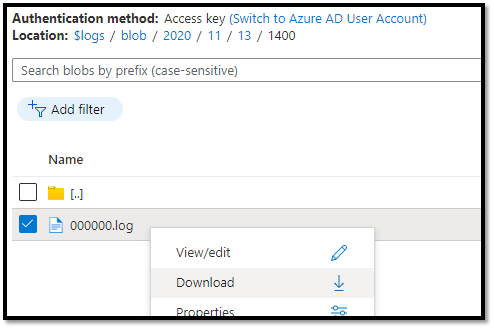
- In the log file we will look up the ‘Storage Request ID’ that we see in the error, which is ‘c18737e5-b01e-000a-04c5-b9b483000000’ in this case.
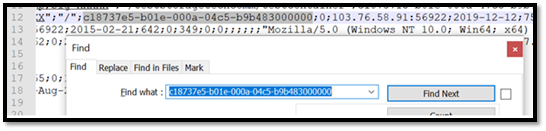
- From the logs we can see that the request failed due to ‘SASIpAuthorizationError’ and we can see the originating IP address as well.

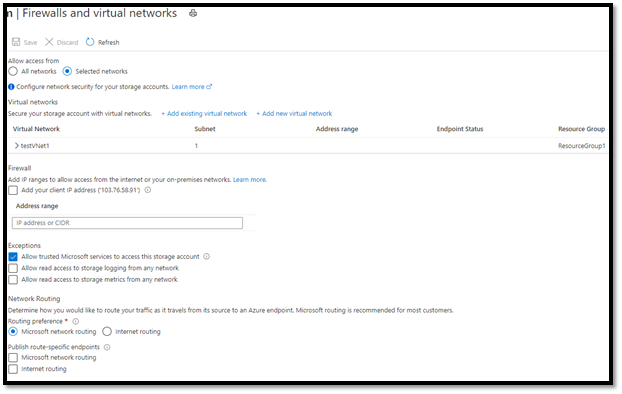
- As we have allowed access to our storage account only from specific VNet, we need further authorize our client IP Address as well.
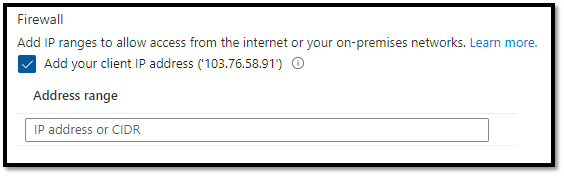
- For that we will navigate back to ‘Firewalls and virtual networks’ and under Firewall, we will add our client IP address and click Save.
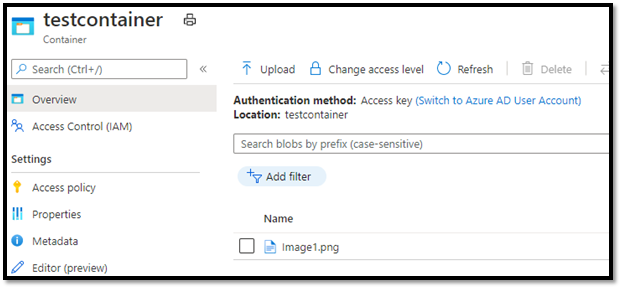
- Once done we are now able to access the storage account containers contents.
Scenario 2:
You are not able to access your storage account from a Virtual Machine, which is part of the VNet, already authorized in storage accounts Firewall and virtual networks.
When trying to download a file, we see the following error message.

Actions:
- For this issue we will use the storage diagnostics logs enabled on our storage account. We will navigate to the $logs container in our storage account and download log files.
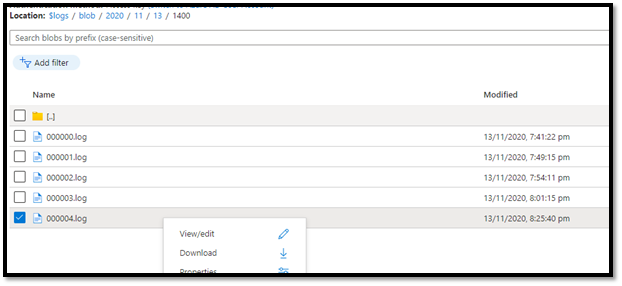
- We have converted the .log file to a CSV using this PowerShell script for easier analysis. https://gist.github.com/ajith-k/aa69feb862a4816d0b4df09fae8aad11
- As we were trying to download a blob, we will filter the logs and look for ‘GetBlob’ operations and look for failed requests.
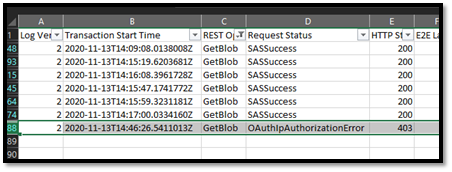
- Below are the details of the error message that I have extracted from logs.
Transaction Start Time
|
2020-11-13T14:46:26.5411013Z
|
REST Operation Type
|
GetBlob
|
Request Status
|
OAuthIpAuthorizationError
|
HTTP Status Code
|
403
|
Authentication type
|
bearer
|
Service Type
|
blob
|
Request URL
|
https://storageaccount.blob.core.windows.net:443/testcontainer/Image1.png
|
Request ID
|
6c736153-f01e-0024-16cb-b9e694000000
|
Client IP
|
10.1.3.4:50265
|
User Agent
|
Azure-Storage/2.0.0-2.0.1 (Python CPython 3.6.8; Windows 10) AZURECLI/2.11.1 (MSI)
|
User Object ID
|
9e1xxxxx-xxxx-xxxx-xxxx-xxxxxx786d11
|
- To confirm that this error indeed originated from our VM, we can verify the IP Address. For that we can simply run ipconfig command in our Virtual Machine, or on Azure Portal, we can go to the VNet this VM belongs to and check under Connected devices.
- The Request Status field denotes that this request was failed due to IP Authorization error. OAuth prefix denotes the authentication method used for this request. HTTP Status code denotes 403 which means unauthorized access.
- Next, we need to verify that the subnet in which this VM is assigned to is also allowed in the storage firewall.
- The VM belongs to testVNet1 and subnet is subnet3.
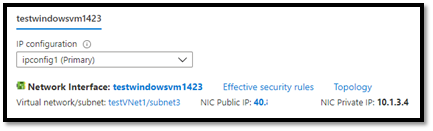
- Under storage accounts, Firewalls and virtual networks we can see that only subnet0 is allowed to access the storage account.
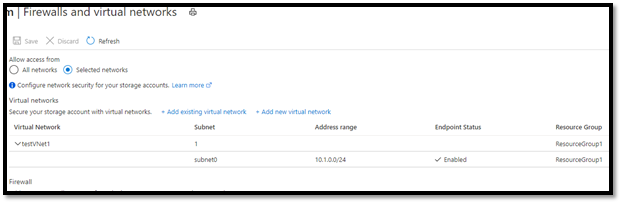
- We need to authorize subnet3 and enable Storage Endpoint on that subnet. If storage endpoint is not enabled, Portal will show a message and give the option to enable the storage endpoint.
- Once enabled, we can add subnet3 to the storage accounts firewall.</snap<
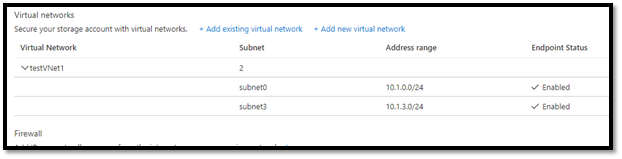
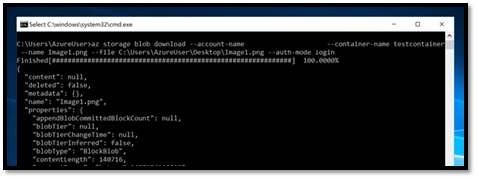
- Once the new firewall rules are propagated, we can go back to our VM and try to download the blob again and it runs successfully.
Scenario 3:
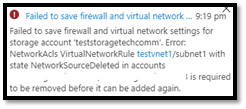
You are trying to add a VNet and its subnets to storage accounts firewall. However, you are getting NetworkSourceDeleted error.
Actions:
The error message in this case is very self-explanatory. The subnet ‘subnet1’ under testvnet1 is required to be removed from storage accounts named in the error message.
Let us understand why this error occurs. We have a Virtual Network setup as below and all these subnets are added to a storage accounts firewall:
VNet1 |
|
Storage1 Firewall |
⇒subnet0 |
|
VNet1subnet0 |
⇒subnet1 |
|
VNet1subnet1 |
⇒subnet2 |
|
VNet1subnet2 |
Now, if you delete a subnet from the virtual network, that subnet gets marked as NetworkSourceDeleted in the storage account.
VNet1 |
|
Storage1 Firewall |
⇒subnet0 |
|
VNet1subnet0 |
⇒subnet1 -deleted |
|
VNet1subnet1 -NetworkSourceDeleted |
⇒subnet2 |
|
VNet1subnet2 |
We create another subnet having the same name as the one which was deleted earlier. The previously deleted subnet1 is still marked as ‘NetworkSourceDeleted’ under Storage1 firewall.
VNet1 |
|
Storage1 Firewall |
⇒subnet0 |
|
VNet1subnet0 |
⇒subnet1 -new |
|
VNet1subnet1 -NetworkSourceDeleted |
⇒subnet2 |
|
VNet1subnet2 |
If we try to add the new ‘subnet1’ to any other storage accounts firewall, we get ‘NetworkSourceDeleted’ error. To resolve this:
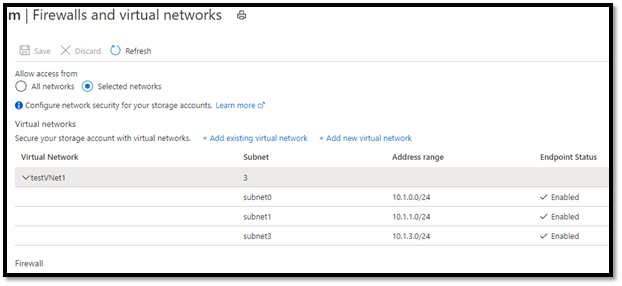
- We go to Firewalls and virtual networks under storage accounts mentioned in the error and remove subnet1 from the Virtual networks allowed.
- Then if we try to add the subnet1 in any other storage account, it will not throw the error and complete the operation successfully.

by Contributed | Dec 7, 2020 | Azure, Microsoft, Technology
This article is contributed. See the original author and article here.
If you’ve created a Windows Server virtual machine in Azure and are joining it to an Azure AD Domain Services managed domain or logging onto it via RDP, there are a couple of errors you can hit. Let’s look at the error messages and possible causes.
Problem: You’re trying to add your Windows Server VM to your Azure AD DS domain (by changing it from the current Workgroup). This prompts you for user credentials for the domain, requiring a user account that exists in Azure AD (which syncs to your AADDS domain). When you provide the credentials of a new “native” Azure AD user (not synced from an existing Active Directory environment), you get the error “The referenced account is currently locked and may not be logged on to.”
You’ve checked the user account in Azure Active Directory and it is not locked out.
Possible causes: Azure Active Directory doesn’t generate the required password hashes needed by AAD DS for Kerberos and NTLM authentication until AAD DS has been enabled in your tenant. Up until that point, those hash types aren’t ever needed. Once AAD DS has been enabled, the password hashes are created the next time your AAD native users change their password. This then needs approximately 20 minutes to sync from AAD to AAD DS.
Note: This doesn’t impact users synced from existing on-premises Active Directory domains, as they already use those authentication methods and Azure AD Connect synchronizes those hashes from the on-prem domain into AAD DS.
The solution is to get the user to log in to their Azure AD account, change their password, and wait for the sync to complete. The “account lock out” error can make you scratch your head, but give it a password reset and a little time, then try again later.
For more information, see Enable user accounts for Azure AD DS
Problem: A user that exists in Azure AD is trying to log on to an Azure AD DS domain joined Windows Server VM in Azure via a Remote Desktop Session, and they’re getting the error “the connection was denied because the user account is not authorized for remote login.”
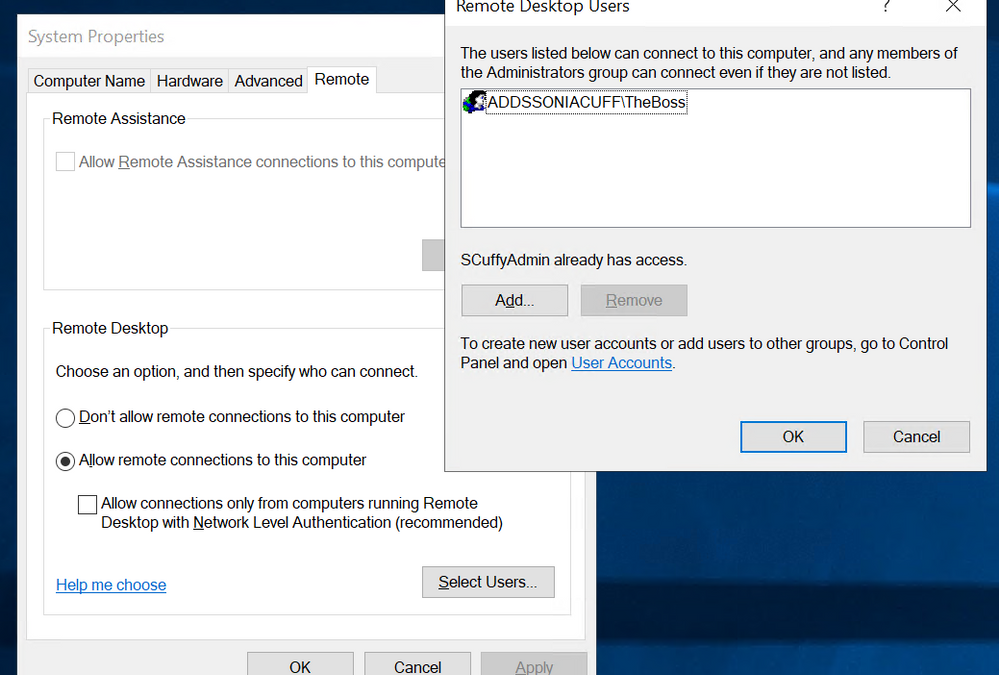
Cause: A Windows Server VM on Azure is still a Windows Server, and it can be easy to get tied up among all the different places that you manage security and permissions. If you’ve checked the Azure VM’s Identity and Access Management pane for a relevant virtual machine login role assignment (administrator or user) and you are still getting this error, the words “remote login” are your hint here. Inside the server operating system, the local server system properties has a section called Remote, which controls if connections via RDP are allowed and who is allowed to initiate them. If ‘Allow remote connections to this computer’ is selected, by default members of the Administrators group can connect, but nobody else.
This screenshot shows I’ve added an individual user from my AAD DS domain, and they can now log in, but a better solution is to add an AAD DS Group, and manage the membership of that group in Azure Active Directory.
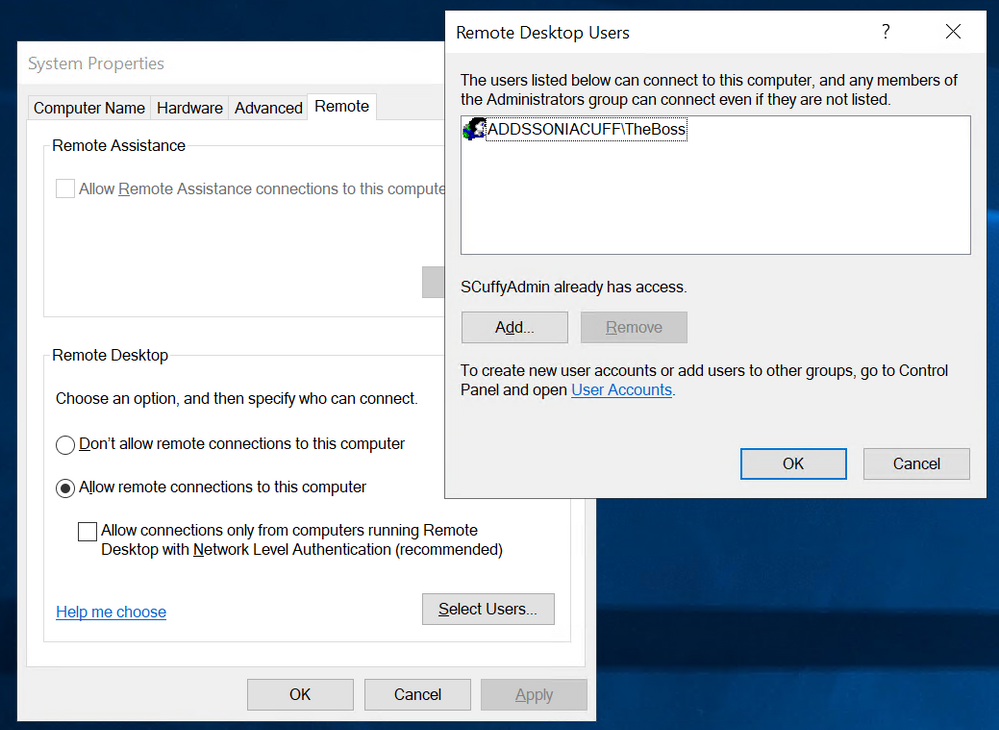 The Remote Desktop Users control on Windows Server 2019
Note: When you join an Azure Windows Server VM to an AAD DS domain, two domain groups are automatically added to the local Administrators group on the server – AAD DC Administrators and Domain Admins. The AAD DC Administrators group is visible to you inside Azure Active Directory. People that you add to this group will have access to both administer the server and to log on to it via Remote Desktop. Also, these RDP login rights are separate from any network level configuration that may restrict access between the user’s device and the server’s RDP port, including their local network and the server’s Azure network security group.
Learn more about Azure AD Domain Services:
Management concepts for user accounts, passwords, and administration in Azure Active Directory Domain Services
Frequently asked questions about Azure Active Directory Domain Services

by Contributed | Dec 7, 2020 | Technology
This article is contributed. See the original author and article here.
v:* {behavior:url(#default#VML);}
o:* {behavior:url(#default#VML);}
w:* {behavior:url(#default#VML);}
.shape {behavior:url(#default#VML);}
user
John Clyburn
2
989
2020-11-14T20:05:00Z
2020-11-14T20:05:00Z
2
681
3886
32
9
4558
16.00
Clean
Clean
false
false
false
false
EN-US
X-NONE
<w:LidThemeComplexscript>X-NONE</w:LidThemeComplexscript>
Hello everyone, my name is John Clyburn, and I am a Sr. consultant in MCS. I recently ran into a problem changing a Software Defined Networks (SDN) self-sign cert to enterprise CA cert. My environment is configured with a single node SDN Network Controller for testing purposes. I have been primarily working with Windows Server 2019 and VMM 2019, deploying the solution using VMM SDN Express from the GitHub site. To learn more about this solution see the following link: SDNExpress.
I ran into a problem that I would like to share with everyone in hopes that this will save you some time if you ever run into it.
PROBLEM:
Although the problem below has to do with the state of the network controller (NC), it was discovered while attempting to change a SDN self-sign certificate to an enterprise Certificate Authority certificate.
I will not cover all the steps required to switch a SDN self-sign certificate to one published by an Enterprise Certificate Authority. See the following link for details on changing a SDN self-sign cert to enterprise CA cert Update the network controller server certificate. I will use this link to reference steps below to explain where I encountered the errors.
When you attempt to run Step 3. Update the server certificate by executing the following PowerShell command on one of the NC nodes:
$certificate = Get-ChildItem -Path Cert:LocalMachineMy | Where {$_.Thumbprint -eq “ac45ff3a3b1c86daf9cc108708fc81597b154653”}
Set-NetworkController –ServerCertificate $certificate
It fails with the following:
Set-NetworkController : Network Controller update is pending, please run Update-NetworkController. All operations are blocked
till update …
Note this message could mean, there are network controller updates that have not been applied.
I noticed there were Operating System updates available on the Network Controller, so I installed them and rebooted the server. The Update-NetworkController cmdlet updates the Network Controller binaries after a software update is installed or after the operating system is upgraded. Network Controller automatically updates binaries after no longer than one hour. If you want the binaries to be updated immediately, run this cmdlet.
I then ran Update-Networkcontroller and it gave the following message:
Update-NetworkController : Network Controller update is in progress. All operations are blocked at the moment
SOLUTION:
There are several reasons why you may get the “Network Controller is in progress” error. My issue had to do with a single node SDN NC configuration. It was resolved by a Microsoft senior SDN Software Engineer running several commands based on my Network Controller environment queries. There are too many variables at play to write one document that covers everyone’s specific case or environment.
Therefore, if you receive this error, contact the SDN_Feedback distribution list for help.
Once you have resolved the issue and can run the Update-Networkcontroller command without receiving the above error, you are ready to continue with the Update the Network Controller Server Certificate article:
Step 4. Update the certificate used for encrypting the credentials stored in the NC by executing the following command on one of the NC nodes.
$certificate = Get-ChildItem -Path Cert:LocalMachineMy | Where {$_.Thumbprint -eq “Thumbprint of new certificate”}
Set-NetworkControllerCluster –CredentialEncryptionCertificate $certificate
And that is it. The steps above were successful in resolving the issue I had with the Network Controller update is in progress. All operations are blocked at the moment error. I hope this post saves you time if you ever encounter these errors.
by Contributed | Dec 7, 2020 | Technology
This article is contributed. See the original author and article here.
We’re thrilled to announce that the new Community Insights and Questions & Answers (Q&A) Insights in Yammer will be generally available starting late December 2020!
The functionality has been in preview, and thanks to the invaluable feedback from our preview customers, it’s now ready for public release.
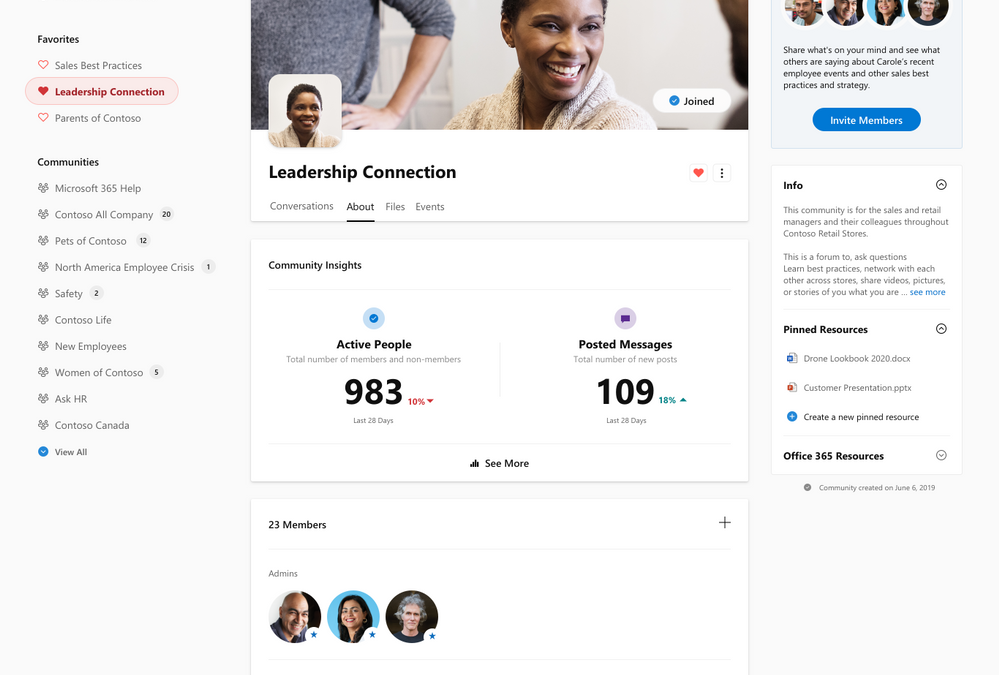
The new insights help community managers measure community reach and engagement, and understand the volume of knowledge created through Questions & Answers in Yammer. Community managers can find these insights through the About tab in each community.
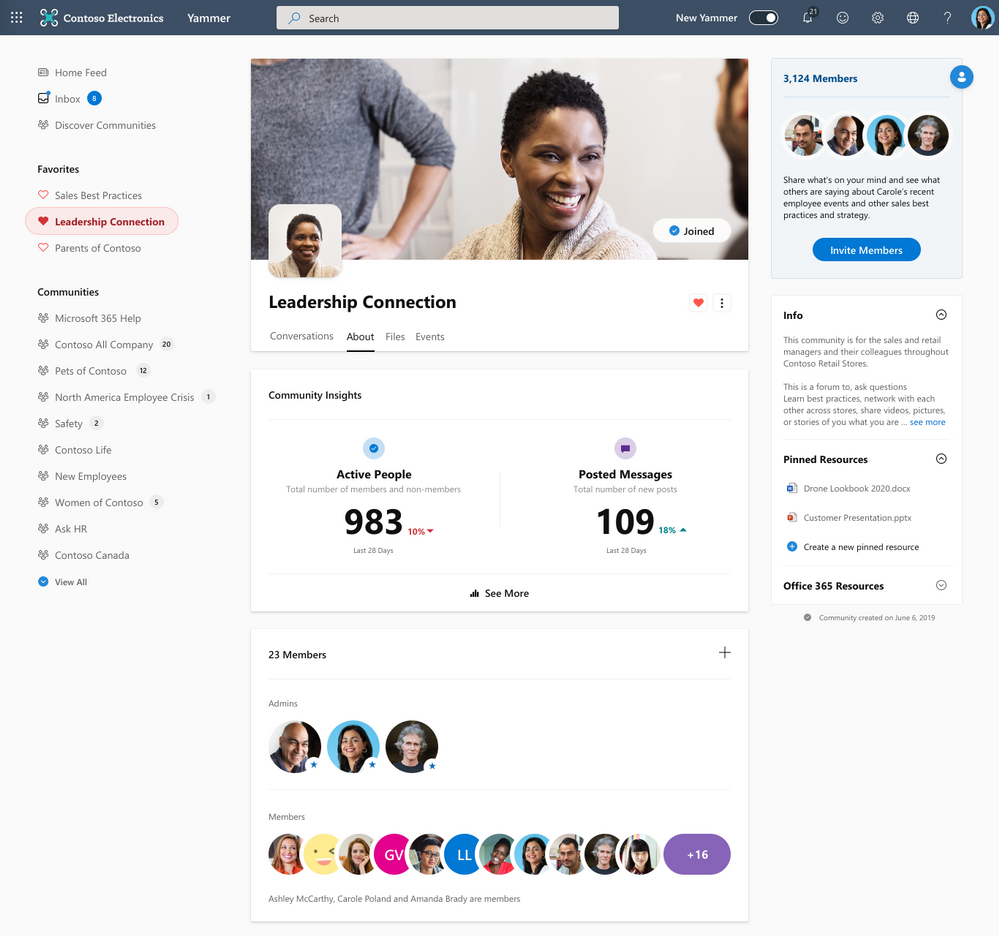 About page with entry to Community Insights
Measure community reach and engagement
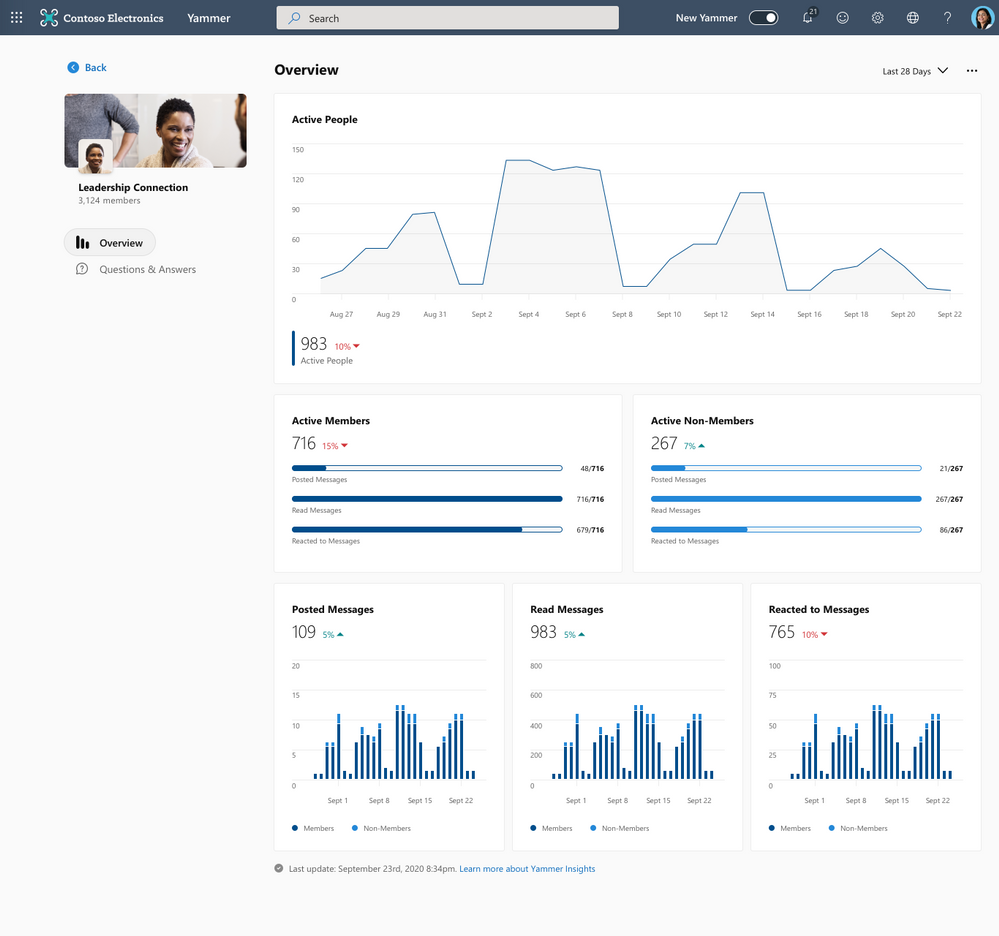 Community Insights Overivew
The overview section of Community insights lets you measure the reach and engagement activity in your community to help you tailor content that engages users and grows membership. The insights show both engagement and content activity, such as the number of active people in your community, and the volume of messages posted, read and reacted to by members and non-members. The data from Community Insights can be exported to CSV for the last 365 days to further analyze the data using tools such as Power BI.
Measure knowledge creation in your community
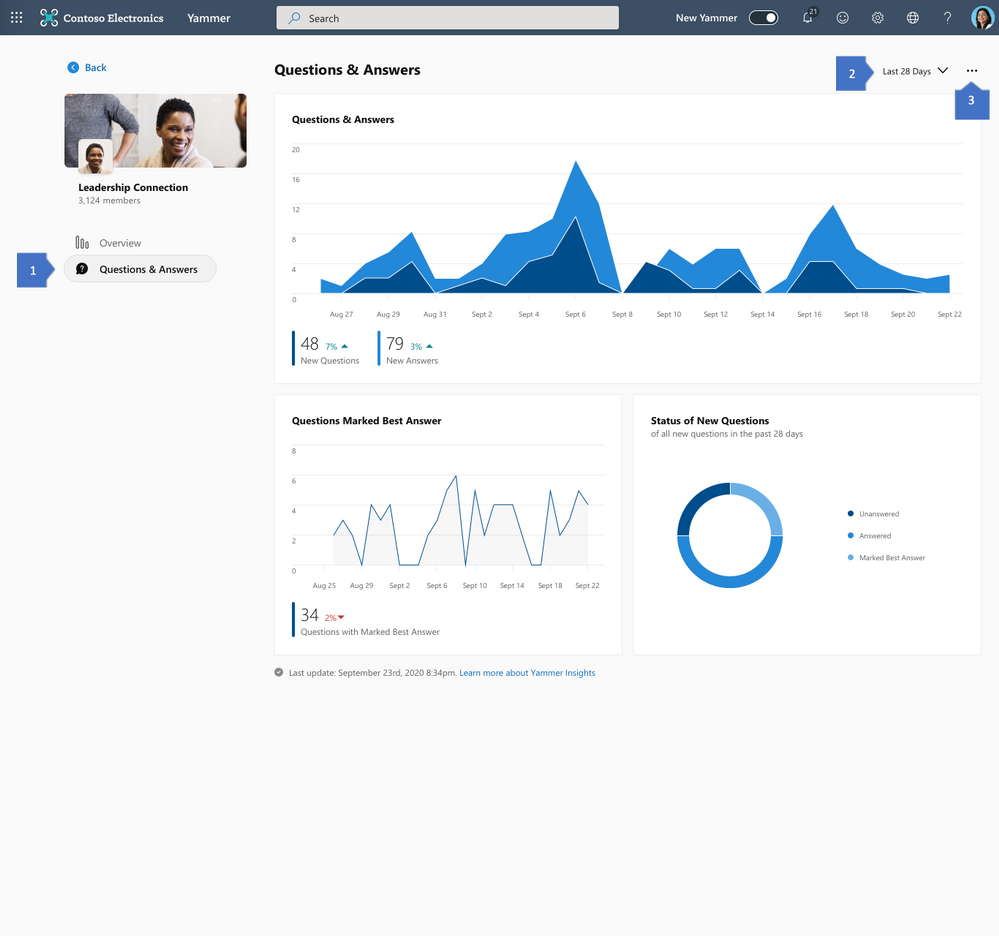 Q&A Insights for your Community
The new Community Insights also provides community managers with information about the volume of knowledge created in their community through Questions & Answers in Yammer. With this, community managers can easily measure how frequently users are asking questions, answering, and marking high quality answers as the Best Answer. Just like in the overview section, all the data from Q&A Insights can be exported to CSV.
The official documentation for Community and Q&A Insights will be updated here.
What’s ahead
But wait there’s more… we will be previewing more Yammer insights experiences in early 2021:
- Live Events Insights: These insights help you measure the reach and engagement in your Yammer Live Events, and help you build more powerful events.
- Conversation Insights: These insights help you measure and determine the efficacy of your conversations in Yammer, and create more engaging content for your audience.
- Insights raw data: The data for insights experiences will also be made available through the Yammer data export API to enable you to build custom dashboards and insights experiences.
To learn more about these new insights experiences, please see this video.
We welcome your feedback on Community and Questions & Answers insights, or any additional insights that you’d like us to showcase. Please provide feedback through this form.
Thank you!
Yammer Insights team
by Contributed | Dec 7, 2020 | Technology
This article is contributed. See the original author and article here.
Final Update: Monday, 07 December 2020 08:34 UTC
We’ve confirmed that all systems are back to normal with no customer impact as of 12/07, 07:40 UTC. Our logs show the incident started on 12/07, 03:46 UTC and that during the ~4 hours that it took to resolve the issue, some customers may have experienced difficulties accessing and querying resource data. Additionally, customers may have experienced false-positive and/or missed alerts in North Europe region.
Root Cause: The failure was due to an upgrade into one of our back end systems.
Incident Timeline: 4 Hours – 12/07, 03:46 UTC through 12/07, 07:40 UTC
We understand that customers rely on Application Insights, Log Analytics and Log Search Alerts as a critical service and apologize for any impact this incident caused.
-Sandeep
Update: Monday, 07 December 2020 04:57 UTC
We continue to investigate issues within Log Search Alerts. Some customers using Log Search Alerts in North Europe may have experienced difficulties accessing and querying resource data. Additionally, customers may experience false positive and/or missed alerts. Initial findings indicate that the problem began at 12/07 03:46 UTC. We currently have no estimate for resolution.
- Work Around: None
- Next Update: Before 12/07 09:00 UTC
-Sandeep


Recent Comments