by Contributed | Dec 8, 2020 | Technology
This article is contributed. See the original author and article here.
This is a look back at a blog post from Nonki…
Originally written on 08/28/2017.
BBC micro:bit is a small board computer for kids. Today I’d like to introduce two programs that communicate between a micro:bit and a PC.
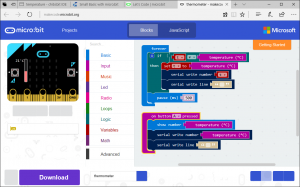
The micro:bit side program is thermometer which is programed with JavaScript Blocks Editor. This program shows temperature at A button clicked and sends temperature to serial port when the temperature changed.
The PC side program is Thermometer.sb which receives temperature from serial port and shows it graphically. The picture below shows Device Manager, Thermometer.sb and chibi:bit (a micro:bit compatible board).
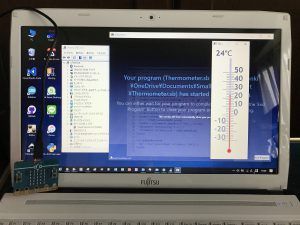
Before running Thermometer.sb, please check the port number in Ports (COM & LPT) such like COM3 with Device Manager. And modify line 88 of Thermometer.sb. Then push reset button and push A button of micro:bit.
Have fun with Small Basic and micro:bit!
See Also
by Contributed | Dec 8, 2020 | Technology
This article is contributed. See the original author and article here.
ADF Data Flow connectors for Common Data Model (CDM) and Delta Lake are both now generally available (GA).
This is the documentation link for CDM to learn more about how to read model.json and manifest style of CDM models into ADF. With data flows, you can build powerful ETL processes using CDM formats and then also generate updated manifest files that point to your new, transformed data using CDM as a sink.
Here is the documentation link for Delta Lake, which is a Spark-based data lake format that makes working with data in your lake for analytics solution super-easy. With ADF data flows, you can read from Delta Lake folders, transform data, and even update, upsert, insert, delete, and generate new Delta Lake folders using the Delta Lake sink format.
Both of these Data Lake formats are available now in GA under the data flow “Inline Dataset” feature.
by Scott Muniz | Dec 8, 2020 | Security, Technology
This article is contributed. See the original author and article here.
Original release date: December 8, 2020
FireEye has released a blog addressing unauthorized access to their Red Team’s tools by a highly sophisticated threat actor. Red Team tools are often used by cybersecurity organizations to evaluate the security posture of enterprise systems. Although the Cybersecurity and Infrastructure Security Agency (CISA) has not received reporting of these tools being maliciously used to date, unauthorized third-party users could abuse these tools to take control of targeted systems. The exposed tools do not contain zero-day exploits.
CISA recommends cybersecurity practitioners review FireEye’s two blog posts for more information and FireEye’s GitHub repository for detection countermeasures:
This product is provided subject to this Notification and this Privacy & Use policy.
by Contributed | Dec 8, 2020 | Technology
This article is contributed. See the original author and article here.
Today is a look back at a guest blog post from a teacher, Jez Dean…
Originally written on 09/13/2017.
In this blog post: Build a computer-to-micro:bit connection with Small Basic.
You can write a simple GUI to send commands to a micro:bit running Python:
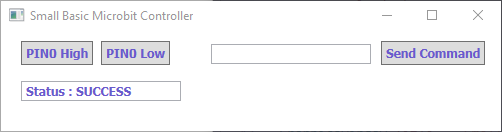
The program sends Python commands over a serial connection to the micro:bit. I’ve kept it as simple as possible so you can customize it further.
Clicking PIN0 High sends the command pin0.write_digital(1) to the micro:bit. You could type display.show(Image.HAPPY) and click Send Command would show a smiley on the micro:bit.
Instructions
- Flash a Python program to the micro:bit. You can just flash an empty program from within mu.
- Install the lit dev extensions for Small Basic. These are used to communicate over a serial connection.
- Find out the COM port of your micro:bit.
- Add your COM port at the top of the Small Basic code.
Code
 comPort = “COM4”
Initialise()
While (“True”)

  Program.Delay(10)

EndWhile
Sub Initialise

  ‘draw window’

  GraphicsWindow.Width = 500

  GraphicsWindow.Height = 100

  GraphicsWindow.Title = “Small Basic Microbit Controller”
  ‘draw pin control buttons’

  pin0high = Controls.AddButton(“PIN0 High”, 20, 10)

  pin0low = Controls.AddButton(“PIN0 Low”, 100, 10)
  ‘draw status and command buttons & boxes’

  statusbox = Controls.AddTextBox(20,50)

  value = Controls.AddTextBox(210,13)

  send = Controls.AddButton(“Send Command”, 380, 10)
  ‘Open connection to microbit’

  Controls.SetTextBoxText(statusbox,”Status : “+ LDCommPort.OpenPort(comPort, 9600))
  ‘Assign variables’

  Controls.ButtonClicked = OnButtonClicked

  nl = Text.GetCharacter(10) ‘new line character’

EndSub
Sub OnButtonClicked

  button = Controls.LastClickedButton

  val = Controls.GetTextBoxText(value)
  ‘if button pressed, send command and new line character’

  If (button = pin0high) Then

    LDCommPort.TXString(“pin0.write_digital(1)+nl”)

  ElseIf (button = pin0low) Then

    LDCommPort.TXString(“pin0.write_digital(0)+n1”)

  EndIf

  If (button = send) And (val <> “”) Then

    LDCommPort.TXString(val+nl)

  EndIf

EndSub
Adapted from litdev on the Small Basic blog.
Notes
- This is not interactive; it will not return any value the microbit sends.
- This will only work over USB. Python does not work over Bluetooth.
See Also
Other Resources from Jez Dean (website is down now)
![[New feature] Auto-sync roster to a lab through AAD groups](https://www.drware.com/wp-content/uploads/2020/12/636x279)
by Contributed | Dec 8, 2020 | Technology
This article is contributed. See the original author and article here.
Hi everyone,
You can now sync the user list of a lab to an existing Azure Active Directory (AAD) group in https://labs.azure.com! Users and VMs are automatically added/deleted based on the AAD group membership.
But first, what is an AAD group? To put it simply, it’s a group that can be created within your organization’s Azure Active Directory to manage access to organizational resources and cloud-based apps. To learn more, see the documentation on AAD groups. If your organization uses Microsoft Office 365 or Azure services, your organization will already have admins who manage your Azure Active Directory.
How to add a lab to an AAD group
- Go to the Users tab inside a lab, and make sure the user list is empty. If there are existing users inside a lab that you added manually or through importing a CSV file, the option to sync the lab to an existing group will not appear.
- Click on the “Sync from group” button.
- You will be prompted to pick an existing AAD group to sync your lab to.
NOTE: If you don’t see an Azure AD group in the list, it could be because of the following reasons:
- If you are a guest user for an Azure Active Directory (usually if you’re outside the organization that owns the Azure AD), and you are not able to to search for groups inside the Azure AD. In this case, you won’t be able to add an Azure AD group to the lab.
- Azure AD groups created through Teams do not show up in this list. You can add the Azure Lab Services app inside Teams to create and manage labs directly from within it. See more information about managing a lab’s user list from within Teams.
- Once you picked the AAD group to sync your lab to, click Add.
- Once a lab is synced, it will pull everyone inside the AAD group into the lab as users, and you will see the user list updated. Only the people in this AAD group will have access to your lab. The user list will refresh every 24 hours to match the latest membership of the AAD group. You can also click on the Sync button in the Users tab to manually sync to the latest changes in the AAD group.
- Invite the users to your lab by clicking on the Invite All button, which will send an email to all users with the registration link to the lab.
Automatic management of virtual machines based on changes to the AAD group
Once the lab is synced to an AAD group, the number of virtual machines in the lab will automatically match the number of users in the group. You will no longer be able to manually update the lab capacity. When a user is added to the AAD group, a lab will automatically add a virtual machine for that user. When a user is deleted from the AAD group, a lab will automatically delete the user’s virtual machine from the lab.
Please go try this out and let us know if you have any questions or feedback!
Link to the documentation
Thank you,
Azure Lab Services team


Recent Comments