by Contributed | Dec 9, 2020 | Technology
This article is contributed. See the original author and article here.
We’re very excited to announce today that endpoint detection and response (EDR) in block mode is generally available.
As we announced in our public preview blog, EDR in block mode is a feature in Microsoft Defender for Endpoint that turns EDR detections into blocking and containment of malicious behaviors. This capability uses Microsoft Defender for Endpoint’s industry-leading visibility and detection capabilities and Microsoft Defender Antivirus’s built-in blocking function to provide an additional layer of post-breach blocking of malicious behavior, malware, and other artifacts that your primary antivirus (AV) solution might miss.
This feature has already helped a number of organizations stop a variety of threats where Microsoft was not their primary AV and we’re thrilled to make it now generally available for all customers.
Recently, EDR in block mode was responsible for helping to thwart the IcedID campaign. EDR in block mode kicked in and was able to protect the device from several malicious activities including evasive attacker techniques like process hollowing and steganography that lead to the deployment of the info stealing IcedID malware. Read all about how this attack went down and was stopped “ice cold” in its tracks here: EDR in block mode stops IcedID cold.
To learn more about this capability and learn now it also stopped a NanoCore RAT attack, watch the video below and check out our documentation for guidance on how to enable the feature.
https://www.microsoft.com/en-us/videoplayer/embed/RE4HjW2
We’re excited to bring this new functionality to our customers and look forward to hearing your feedback!
If you’re not yet taking advantage of Microsoft’s industry leading optics and endpoint detection capabilities, sign up for a free trial of Microsoft Defender Endpoint today.
by Contributed | Dec 9, 2020 | Technology
This article is contributed. See the original author and article here.
Data analysts drive business insights and manage ever-growing volumes of data. With Microsoft Power BI, analysts can make the most of this data—from ingesting and storing it to reporting it in inspiring ways. In fact, these insights can help drive your business forward and even open career doors. If you’re a data analyst, you use Power BI to discover hidden insights in the data—and you empower your team to do the same. Plus, you know that better visualization leads to improved recall and communication—and that means powerful insights for your organization.
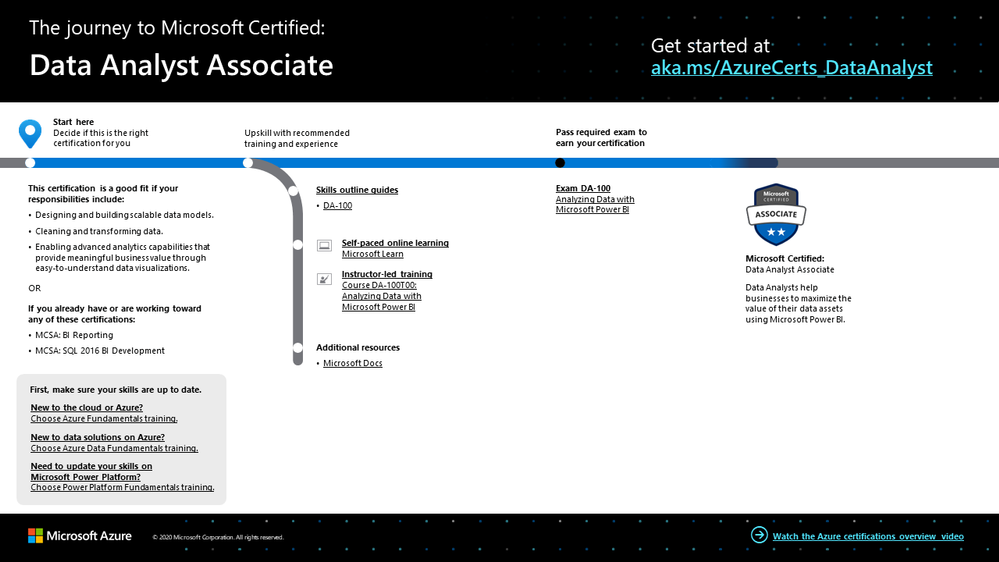
The Data Analyst Associate certification validates that you have subject matter expertise helping businesses to maximize the value of their data assets using Power BI. It also shows that you have what it takes to design and build scalable data models, clean and transform data, and enable advanced analytics capabilities that provide meaningful business value. You earn the certification by passing Exam DA-100: Analyzing Data with Microsoft Power BI.
What kind of knowledge and experience should you have?
As a candidate for this certification, you should have a fundamental understanding of data repositories and data processing in the cloud and in on-premises settings. In addition, you should have knowledge and experience with Power BI.
How can you get ready?
To help you plan your journey, check out our infographic, The journey to Microsoft Certified: Data Analyst Associate. You can also find it in the resources section on the certification and exam pages, which contains other valuable help for data analysts.
To map out your journey, follow the sequence in the infographic. First, decide whether this is the right certification for you.
Next, to understand what you’ll be measured on when taking Exam DA-100, review the skills outline guide on the exam page.
Sign up for training that fits your learning style and experience:
Then take a trial run with the Microsoft Official Practice Test for DA-100: Analyzing Data with Microsoft Power BI. All objectives of the exam are covered in depth, so you’ll find what you need to be ready for any question.
Complement your training with additional resources, like Microsoft Docs or the Power BI Learning catalog. And don’t miss the Power BI community webinars.
After you pass the exam and earn your certification, explore other opportunities with Azure and Power BI to make the most of your big data with Azure. Connect, combine, and analyze your entire data estate with Power BI and Azure analytics services—from Azure Synapse Analytics to Azure Data Lake Storage. Analyze petabytes of data, use advanced AI capabilities, apply additional data protection, share insights across your organization, and much more. For related training, check out Microsoft Learn.
Note: Remember that Microsoft Certifications assess how well you apply what you know to solve real business challenges. Our training resources are useful for reinforcing your knowledge, but you’ll always need experience in the role and with the platform.
It’s time to level up!
Your Microsoft Certification can help validate that you have the skills to stay ahead with today’s technology. It can also help empower you with a boost in confidence and job satisfaction—and maybe even a salary increase. Want to know more? In our blog post, Need another reason to earn a Microsoft Certification?, we offer 10 good reasons to earn your certification.
As a data analyst, you know that data tells a story—and your data’s story could be a potential path to more sales, greater efficiency, improved insights, and patterns that could lead to big wins for your organization. Grow beyond charts and graphs, enrich and expand your data visualizations, and prove your skills and experience. It’s time to level up with a Data Analyst Associate certification.
Related announcements
Understanding Microsoft Azure certifications
Finding the right Microsoft Azure certification for you
Master the basics of Microsoft Azure—cloud, data, and AI
by Scott Muniz | Dec 9, 2020 | Security, Technology
This article is contributed. See the original author and article here.
Original release date: December 9, 2020
The United Kingdom (UK) National Cyber Security Centre (NCSC) has launched a new cyber security campaign encouraging the public to adopt six behaviors to stay safe online.
The six Cyber Aware behaviors recommended by the NSCS are:
- Use a separate password for your email
- Create strong passwords using three random words
- Save your passwords in your browser
- Turn on multi-factor authentication
- Update your devices
- Back up your data
The Cybersecurity and Infrastructure Security Agency (CISA) encourages users and administrators to review the official NCSC website as well as CISA’s Tips page for more information and additional resources.
This product is provided subject to this Notification and this Privacy & Use policy.
by Scott Muniz | Dec 9, 2020 | Security, Technology
This article is contributed. See the original author and article here.
Original release date: December 9, 2020
The Australian Cyber Security Centre (ACSC) has launched a new cyber security campaign encouraging all Australians to protect themselves against online threats. The initial focus of the campaign is ransomware threats, and the ACSC provides easy-to-follow security advice at cyber.gov.au to help Australians act now and stay secure.
The Cybersecurity and Infrastructure Security Agency (CISA) encourages users and administrators to review the official ACSC campaign announcement for more information and to consult CISA’s ransomware page for additional guidance and resources.
This product is provided subject to this Notification and this Privacy & Use policy.
by Contributed | Dec 9, 2020 | Technology
This article is contributed. See the original author and article here.
Creating meaningful connection can be difficult in larger group settings. Breakout rooms allow organizers to divide the meeting into sub-groups to facilitate discussions and brainstorming sessions.
We are excited to announce that breakout rooms will be available today in Microsoft Teams (available in GCC this week).
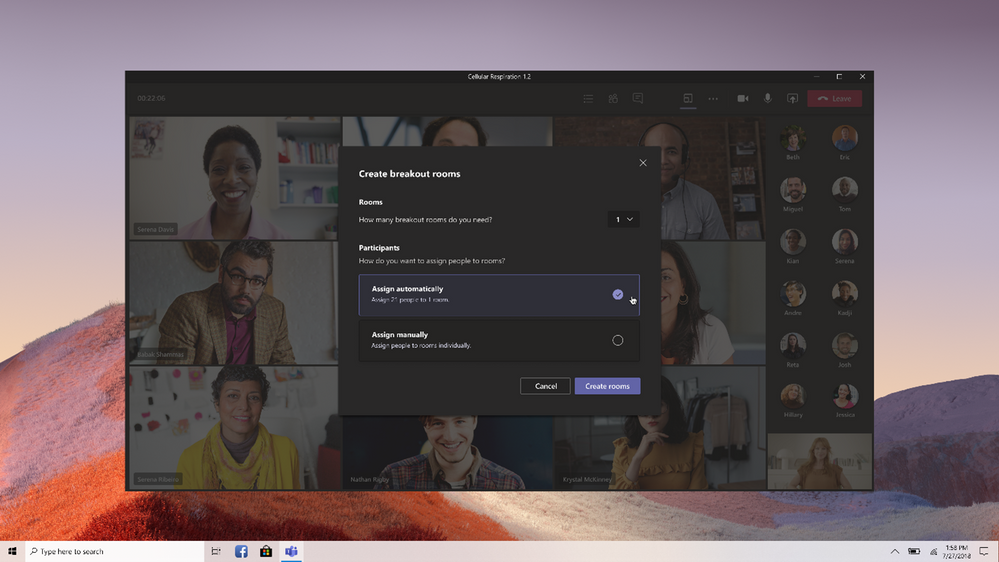
The meeting organizer can create up to 50 breakout rooms and choose to automatically or manually assign participants into rooms. The organizer can start a breakout room in a Teams meeting or a Teams channel meeting, allowing greater flexibility on how you want to meet.
Using the breakout room settings, the meeting organizer can choose to allow participants to come back to the main meeting at any time, then return to the assigned breakout room. This way participants can ask a clarifying question without disturbing the breakout room discussions.
Also, organizers can use the setting to re-create breakout rooms in the same meeting. This allows them to assign participants into new room setups.
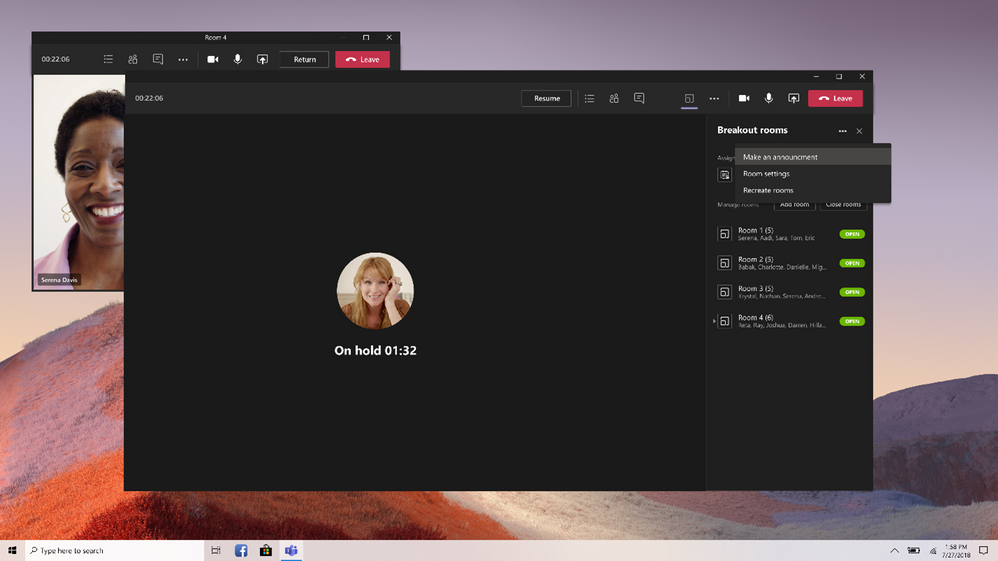
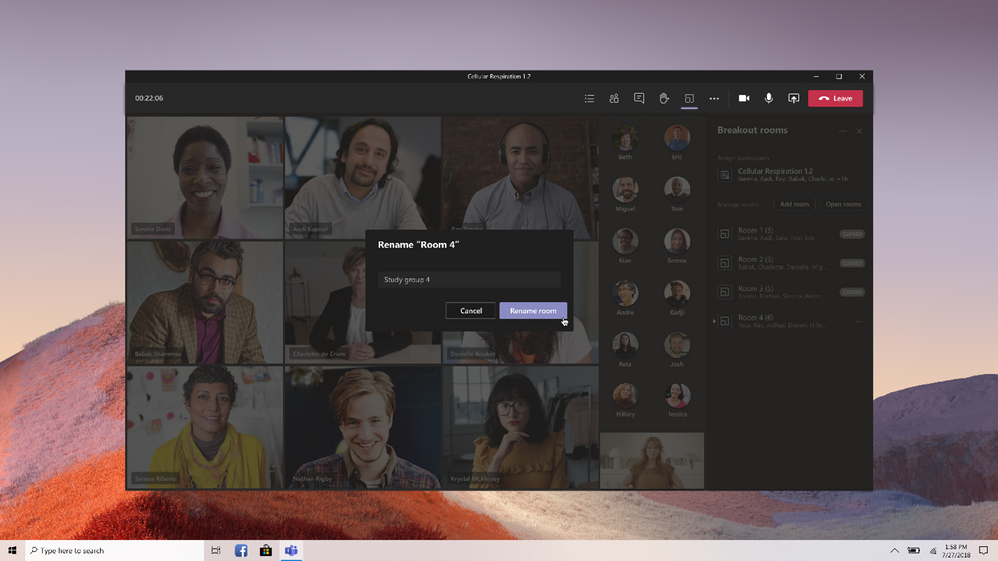
The meeting organizer can create, rename, and delete rooms as needed.
Once the breakout rooms are open, meeting organizers can join any of the breakout sessions. And should the need arise, you can quickly switch attendees in between breakout rooms.
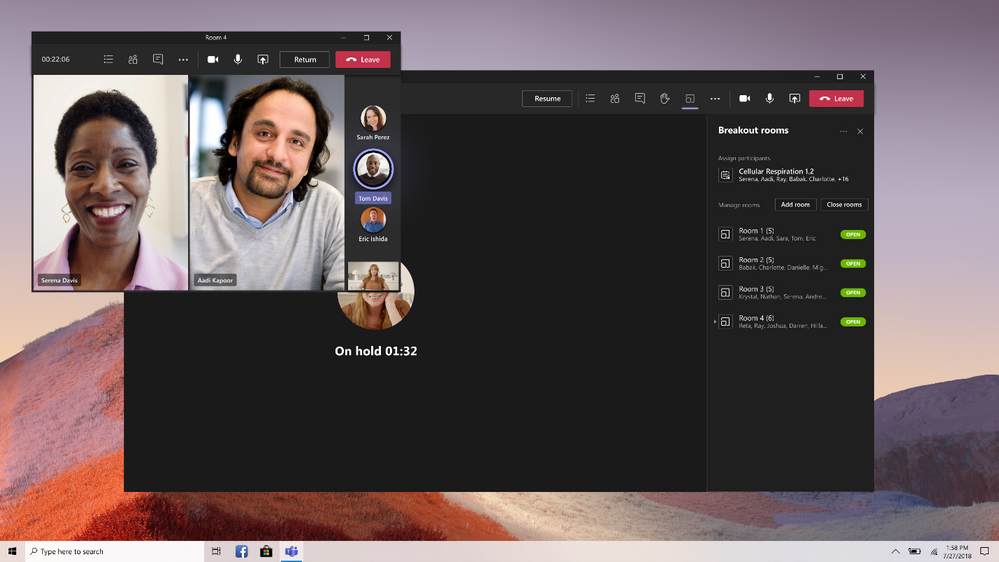
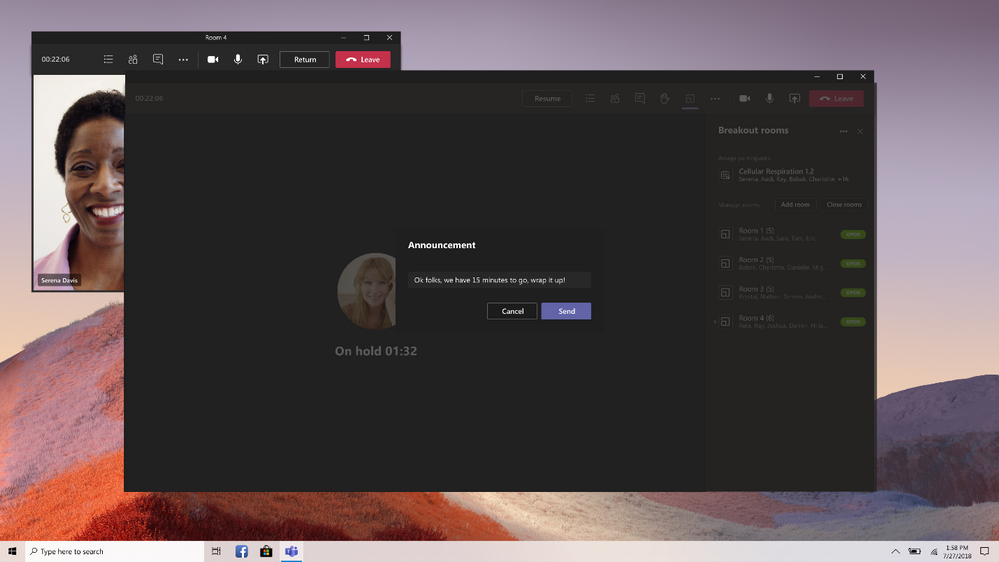
Organizers can send announcements to the breakout rooms, and recall all participants back to the main meeting at any time.
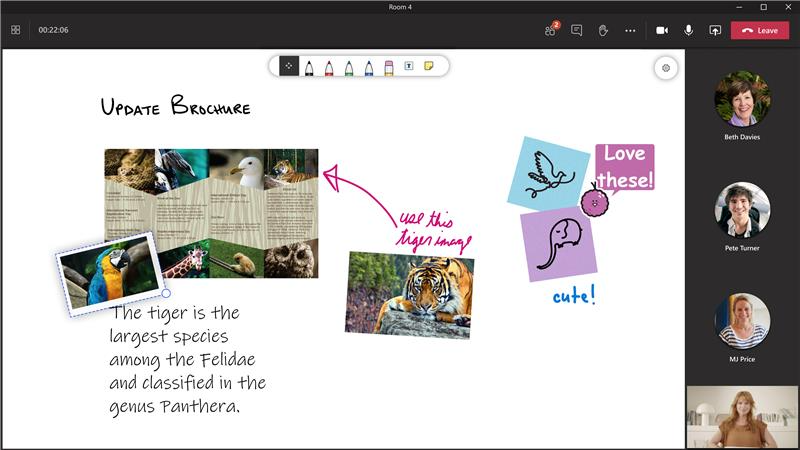
Since breakout rooms are Teams meetings, all the innovation that makes Teams meetings inclusive, interactive, and intelligent are available within. Attendees can discuss a topic in their breakout room while in a virtual coffee shop in Together mode. Or students can bring up the Microsoft Whiteboard and draw out their ideas. This is also true of our security features that help make your Teams meetings a safe and secure place to meet.
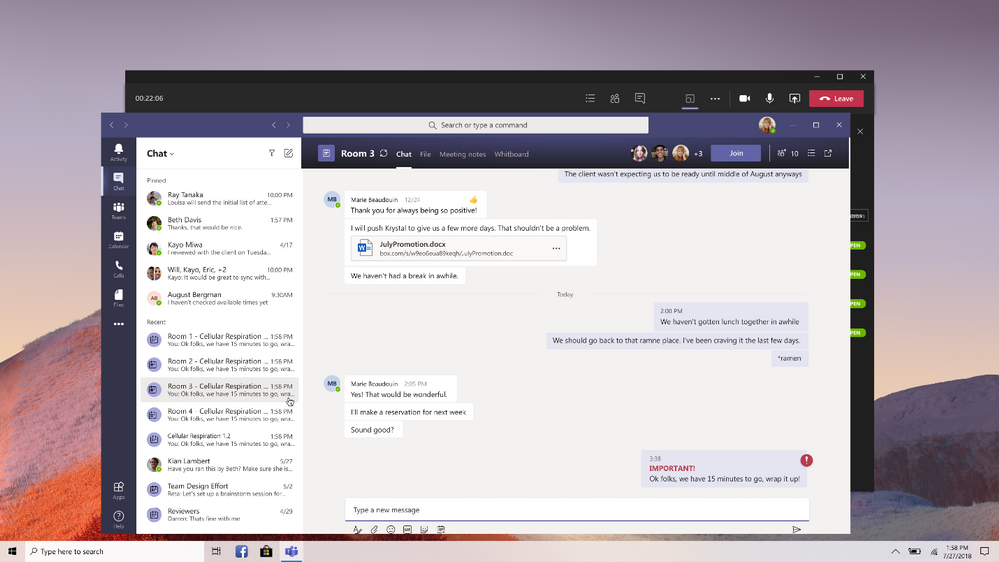
Any files from the breakout rooms can be shared in the main meeting once everyone is back together and will be available afterwards in the meeting chat.
FAQ
Who can start a breakout room?
- Only the meeting organizer can start breakout rooms.
How can I use breakout rooms?
- The meeting organizer can start a breakout room on the desktop client only.
- Participants can join a breakout room from desktop, web or mobile. Microsoft Teams Rooms do not have breakout room capabilities yet.
- Participants logged in from multiple devices will have all end points join the same breakout room.
How do I make sure I can start using breakout rooms?
I’m an educator, what will my students be able to do?
- Since breakout rooms are Teams meetings, the same security policies and options apply.
- Educators will have the option to push students into the breakout rooms and pull them back to the main meeting, without any additional action needed by the student.
- Students can be assigned to breakout rooms, join breakout rooms, use the whiteboard or screen share if allowed to in normal school meetings, re-join the main meeting, and see their breakout room chat.
- Students cannot add participants, will not see suggestions of students who should join, cannot get meeting details or dial out, will not see the files or chats from other breakout rooms, and cannot rejoin the original meeting themselves.
- Learn more about using breakout rooms at your school or university here.


Recent Comments