


Feature flags is a concept meaning that you switch features on and off via a flag. Why would you want to do that?
Here’s some good reasons:
- Early integration. Usually you work on a feature in a branch. The longer the feature takes to complete, the more trouble you will have with merging/rebasing, once you are done with the feature. Being able to integrate the feature into your main branch early means less of that kind of hassle. The effect of this is that you can ship a feature to production before it’s ready for public use. This type of deployment is also called dark deployment.
- A/B testing. A known pattern for trying out new, or changed features, is A/B testing. In A/B testing you want to answer a question, is A better than B. A represents one version of your app and B the other. To find this out, you create different versions of an app. Then you decide to filter your incoming user traffic so that different users ends up on different versions. You can then measure different things such as conversion rates, if you are an e-commerce, or maybe if more users click a certain button and more. One way you can use to create different versions of a site, is to ensure that different features are activated. On a website this can mean that different flags are set in localStorage, or you use parameters in the URL or it’s decided via data from the backend.
- Flighting. Flighting is a term that means that a certain percentage of users gets a new feature. It can be almost the same mechanisms at play as with A/B testing. Instead of trying to answer whether A is better than B, you try to deliver a new feature to a subset of users to see if they can use a feature without issue. If there’s an issue, you can always roll back.
References
- Why feature management
- Use an App Configuration store to add feature flags to ASP .NET Core
- Free Azure account
Using feature flags
Depending on if you are working on a mobile app, a webapp or some other type of software, how you implement feature flags might differ. The flow of how a feature flag is applied is roughly the same though:
- Create the flag. Create the flag with suitable name and namespace and give it a value.
- Evaluate the flags value. This means that somewhere there’s a line of code looking roughly like so:
   if (flag) {

      // render A, else B

   }
Code like that might be baked into a tag component, so you might not have to write it. (That’s just what it is in .NET Core)
- Render different experiences. As a result of the previous bullet you end up doing something differently, either you render/don’t render a certain portion of a page. Or, you redirect from one route to another route and so on. The exact details of this process is up to you, but the steps are the same.
No recompile, No redeploy

Above is Jean Claude Van Damme in the movie, No retreat, no surrender. The only way to beat the bad guy (Van Damme) was by a superior technique, taught to a young fighter by the ghost of Bruce Lee. You might not have a ghost handy, but you can make sure that the way you manage your feature flags is done with a minimum of interruption – No recompile, no redeploy.
You can have the flag as a variable within your code. Depending on what it’s set to, the feature is either on or off. This has a weakness though, it forces you to change the code, recompile and redeploy it. That can work for you but oftentimes you want a different behavior, you want to be able to enable/disable flags with no compilation or redeploy. So how do you do that? You move the mechanism for managing the flags outside of your source code. There’s a couple of ways to do that, and we will explore both ways:
Configuration file. By specifying the flags and their value in a configuration file and have your app read from said file, you accomplish a decoupling of flag management and app.
Configuration service. A configuration service is a service endpoint, reachable by for example an HTTP request. Such a service can be placed in your companies network or in the cloud.
Let’s look at how you can implement feature flags in .NET Core next, with both the mentioned approaches.
Example usage, .NET Core App
It’s possible to work with feature flags locally by using a built-in functionality in ASP .NET Core that uses a JSON file appsettings.json. Using said JSON files you can define what flags you have and their values. Then you can rely on decorators and built-in tags in Razor to display differently depending on the value of the flags.
You’ll start by trying out the configuration file scenario first and then move to use the App Config store in Azure.
Create flags and configure your project to use them
- Create an ASP .NET Core project with the following command:
dotnet new mvc –no-https –output TestFeatureFlags
The command will create an MVC project in a sub directory TestFeatureFlags.
- Navigate into your project:
cd TestFeatureFlags
- Add the following NuGet packages with the following command:
   dotnet add package Microsoft.Azure.AppConfiguration.AspNetCore

   dotnet add package Microsoft.FeatureManagement.AspNetCore
- Locate
Startup.csand add the following using statement at the top:
using Microsoft.FeatureManagement;
- In the same file, locate
ConfigureServices()method and add row:
services.AddFeatureManagement();
- By default .NET Core reads from a
FeatureManagementsection of the config file appsettings.jsoon. You can override that my specifying your own name like so inConfigureService()method:
   services.AddFeatureManagement(options =>

   {

      options.UseConfiguration(Configuration.GetSection(“MyFeatureFlags”));

   });
It’s up to you if you want to do this change or not, we will however continue with the default, so we need to specify a FeatureManagement section in appsetting.json.
- Open appsetting.json and add the following JSON configuration:
   “FeatureManagement”: {

     “FeatureA”: true,

     “Beta”: true,

     “FeatureB”: false,

     “FeatureC”: {

        “EnabledFor”: [

            {

                “Name”: “Percentage”,

                “Parameters”: {

                    “Value”: 50

                }

            }

        ]

     }

   }
Above, you introduce the features FeatureA, Beta, FeatureB and FeatureC. Note how FeatureC is nested.
Render the content
Next you will see how you can use the Razor tag feature and render a portion if the correct flag is enabled.
- Locate the Index.cshtml file under
Views/Home. At the top of the file add the following row:
@addTagHelper *, Microsoft.FeatureManagement.AspNetCore
This line will let you use the feature tag.
- In the same file, change the HTML content to this text:
   <div class=“text-center”>

    <h1 class=“display-4”>Welcome</h1>

    <p>Learn about <a href=“https://docs.microsoft.com/aspnet/core”>building Web apps with ASP.NET Core</a>.</p>

    <feature name=“Beta”>

      <div class=“nav-item”>

        <a class=“nav-link text-dark” asp-area=“” asp-controller=“Beta” asp-action=“Index”>Beta</a>

      </div>

    </feature>

   </div>
Note above the usage of the feature tag:
   <feature name=“Beta”>

      <div class=“nav-item”>

        <a class=“nav-link text-dark” asp-area=“” asp-controller=“Beta” asp-action=“Index”>Beta</a>

      </div>

    </feature>
What you are saying is, if the flag Beta is set to true, then render this portion. Consulting your appsettings.json you can see the flag Beta is true, so it should work. Let’s build and run our project next.
- Run the following command to build and run your project:
dotnet build && dotnet run
You see an output similar to the below:
   info: Microsoft.Hosting.Lifetime[0]

      Now listening on: http://localhost:5000

   info: Microsoft.Hosting.Lifetime[0]

      Application started. Press Ctrl+C to shut down.
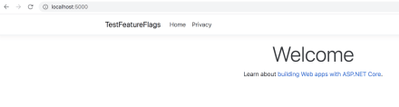
- Open a browser and navigate to
http://localhost:5000. You should see the following:

- Next, open up your appsetting.json and set the
Betaflag to false, like so:
“Beta”: true
Save the file and refresh the browser. You should now see the following:
Congrats, you’ve managed to set up feature flags locally and control its usage via appsetting.json file. However, if your app is deployed to a cloud service like Azure, it’s somewhat impractical to go into the deployment files, open up a file and save it. I mean you can, but it feels clumsy, or even worse, change the file locally and redeploy the whole thing, yikes !
A better approach is to rely on a configuration service. For Azure you can use something called Azure Config Store. Let’s leverage that service next.
Adding Azure Config Store
Before we add the cloud service the review the steps we are about to take:
Set up secrets storage. A good way of moving configuration and keys, during development, is to use the secrets storage. The secrets storage is tool that associates keys to a specific .NET Core project. Moving your app to the cloud though, you would need to use the App Configuration tab to place your secrets in or even better, Azure Key Vault.
Provision Azure Config Store. Provision the config store is straight forward. Here we will provision the store and add a feature flag that will mirror what we have in the appsettings.json.
Configure App to use Config Store. Finally we will configure our app to use the Config store. That’s done by pointing out the connection string of the config store and one code line of configuring.
Set up secrets storage
- To set up the secrets storage, run the command
dotnet user-secrets init:
dotnet user-secrets init
You now have a new entry in your project file ending with .csproj, something similar to this:
<UserSecretsId>9dcd0c7b-e32d-407d-aabd-d34c644ecaaf</UserSecretsId>
We will return to secrets management once we need to persist the connection string from our cloud resource.
Provision Azure Config Store
To provision an
Azure Config Store, head toportal.azure.com.
Select Create a resource, from the top left menu.
In the Search the Marketplace box, enter App Configuration and select
Enter.
Select App Configuration from the search results, and then select Create.
On the Create App Configuration pane, enter the following settings:
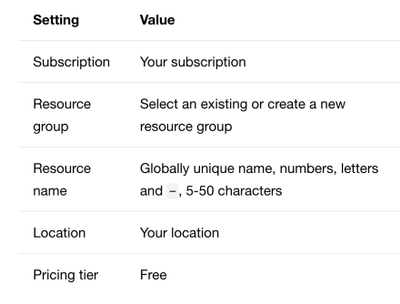
- Select Review + create to validate your settings.
- Select Create
Get connection string
Once the resource has finished provisioning, head to the resource page.
Select Settings > Access keys.
Make a note of the primary read-only key connection string.
Create a feature flag
Select Operations > Feature manager > Add.
In the Add pane:
- check Enable feature flag
- For Feature flag name, enter Beta
- Select Apply, to create the feature flag
Configure App to use Config Store
- In a terminal, in your project root, run
dotnet user-secrets set”:
Ensure you replace “<your connection string>” with the connection string you made a note of in the Azure Portal.
dotnet user-secrets set ConnectionStrings:AppConfig “<your_connection_string>”
This will set a secret in the secrets manager that you will be able to retrieve via code next.
- Open the file Program.cs, locate the method
CreateHostBuilder()and replace it with the following code:
   public static IHostBuilder CreateHostBuilder(string[] args) =>

    Host.CreateDefaultBuilder(args)

        .ConfigureWebHostDefaults(webBuilder =>

            webBuilder.ConfigureAppConfiguration(config =>

            {

                var settings = config.Build();

                var connection = settings.GetConnectionString(“AppConfig”);

                config.AddAzureAppConfiguration(options =>

                    options.Connect(connection).UseFeatureFlags());

            }).UseStartup<Startup>());
What you did was calling the ConfigureAppConfiguration() method on the webBuilder instance. It takes an Action delegate where you retrieve the AppConfig value from the section ConnectingStrings. Then you use the result string value and call AddAzureAppConfiguration() that connects to the Config store and instructs it to use feature flags. Next, let’s rebuild and run your app and see if it works :)
- Run the app with this terminal command:
dotnet build && dotnet run
You should now see your app rendered like this:
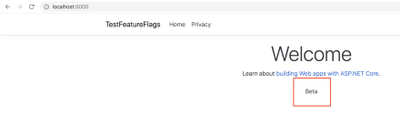
This time, the feature flag value is read from Azure instead of from appsettings.json
Let’s uncheck the flag:
- Return back to the Azure portal and the App Config resource page:
- Select Operations > Feature manager
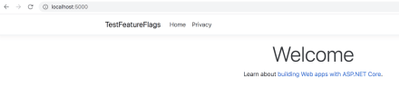
- Uncheck the checkbox for the Beta feature flag.
- Restart the app by running
Ctrl-Cfollowed bydotnet run.
This time, you should see the following image, with the Beta text gone.
Summary
First you learned about what feature flags are and in what scenarios they make sense to use. Then you learned some weird movie trivia about Van Damme, sorry ;) . After that you learned how to set up feature flag locally using the appsettings.json file. Finally, you learned how to use Azure App Config service and not only store your feature flags there but read their values from your app. Hopefully, this got you more interested in using the App Config service, cause there’s more to learn :)

Recent Comments