by Scott Muniz | Jul 14, 2020 | Uncategorized
This article is contributed. See the original author and article here.
In this weekly discussion of latest news and topics around Microsoft 365, hosts – Vesa Juvonen (Microsoft), Waldek Mastykarz (Rencore), are joined by D’arce Hess (CloudWay) – US based MVP and Information Architect to discuss the importance of information architecture and the human side of IT.
Success is defined by people, not by technology.
There is a need to manage the disconnects between decision makers, IT and information users. Tips for how include: Get end-users in room to define actual requirements, keep refining how to engage and support users, embrace Evergreen mode, manage IT’s fears, make decisions based on analytics and not on emotions. There are opportunities for surfacing actionable data more readily. Are customers transitioning to Teams as their intranet? Teams is the platform for collaboration pared with SharePoint for content discoverability.
Additionally, in this episode, 15 recently released articles from Microsoft and the PnP Community are highlighted.
This episode was recorded on Monday, July 13, 2020.
Did we miss your article? Please use #PnPWeekly hashtag in the Twitter for letting us know the content which you have created.
Notice. Next PnP Weekly will be released on 11th of August as the team will take some time off with families. We’ll be back soon. Have a great summer if you are on the Northern hemisphere!
Sharing is caring!
by Scott Muniz | Jul 14, 2020 | Uncategorized
This article is contributed. See the original author and article here.
This update to Sysmon fixes a bug that prevented USB media from being ejected, an issue that could stop network event logging and a resulting memory leak, and logs file delete events for delete-on-close files.
by Scott Muniz | Jul 14, 2020 | Uncategorized
This article is contributed. See the original author and article here.
PowerShell Direct lets you remotely connect to a Virtual Machine running on a Hyper-V host, without any network connection inside the Virtual Machine. PowerShell Direct uses the Hyper-V VMBus to connect inside the Virtual Machine. This feature is convenient if you need it for automation and configuration for Virtual Machines or if you, for example, messed up network configuration inside the virtual machine, and you don’t have console access.
Right now, there are two ways to use PowerShell Direct:
- Create and exit a PowerShell Direct session using PSSession cmdlets
- Run script or command with the Invoke-Command cmdlet
- Use the PowerShell Direct session to copy files using the copy-item cmdlet.
Requirements:
- The virtual machine must be running locally on the Hyper-V host and must be started.
- You must be logged into the host computer as a Hyper-V administrator.
- You must supply valid user credentials for the virtual machine.
- The host operating system must run Windows 10, Windows Server 2016, or a higher version.
- The virtual machine must run Windows 10, Windows Server 2016, or a higher version.
PowerShell Direct examples
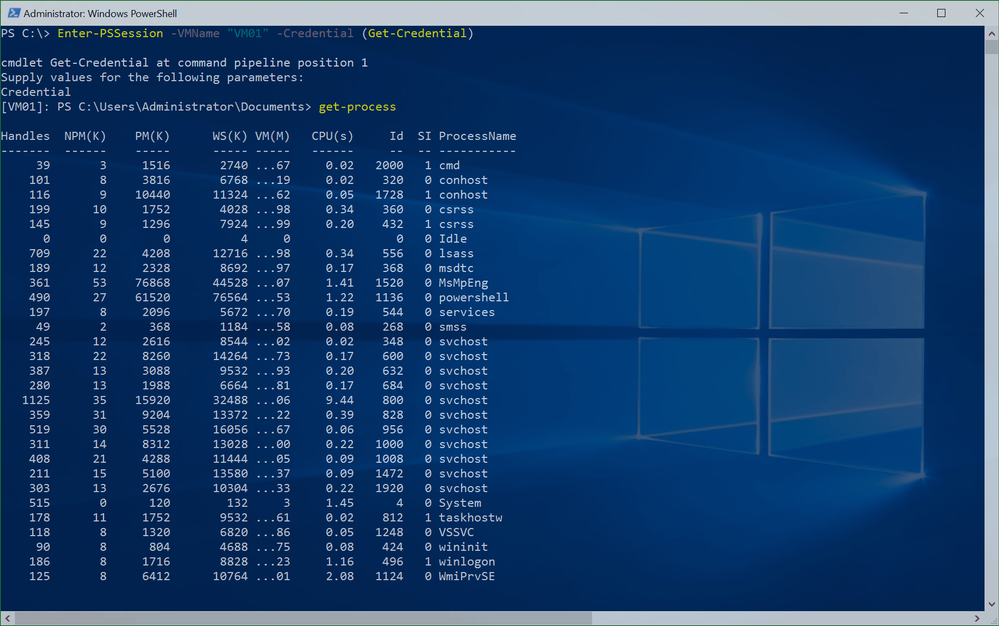
You can open a new interactive PowerShell Direct Session:
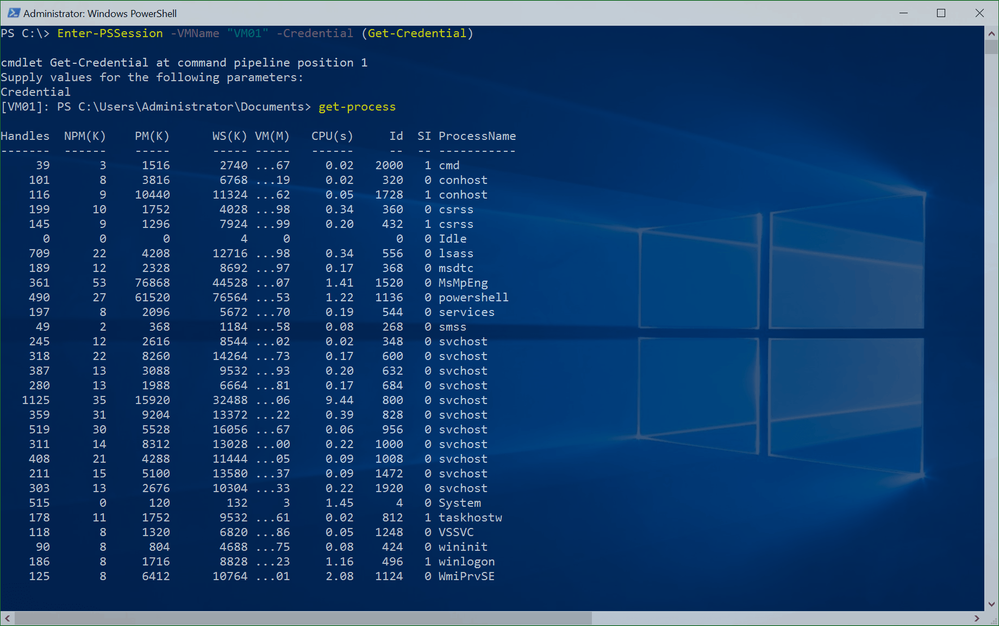 PowerShell Direct Session
Enter-PSSession -VMName "VM01" -Credential (Get-Credential)
 PowerShell Direct Invoke-Command
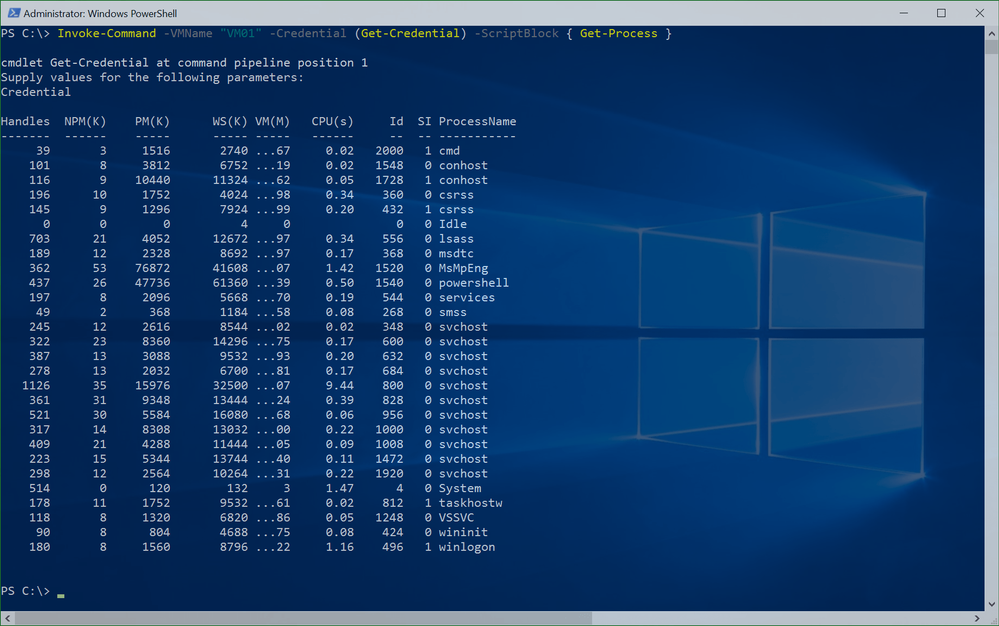
You can use Invoke-Command to send script blocks to your Hyper-V Virtual Machines.
Invoke-Command -VMName "VM01" -Credential (Get-Credential) -ScriptBlock { Get-Process }
You can also create a PowerShell Direct session and use the Copy-Item -ToSession cmdlet to copy files to or from the VM.
$s = New-PSSession -VMName "VM01" -Credential (Get-Credential)
Copy-Item C:Files C:Targetfiles -ToSession $s
Remember it, this is not the same as PowerShell Remoting, even if it uses the same cmdlets. With that, not everything is working using PowerShell Direct, for some scenarios, PowerShell Remoting works differently. If you want to do this with Linux virtual machines, there is a tool called hvc.exe, which allows you to do the same.
If you want to know more about PowerShell Direct, check out the Microsoft Docs pages.
by Scott Muniz | Jul 14, 2020 | Uncategorized
This article is contributed. See the original author and article here.
Many companies would like to implement Microsoft Teams or already use Microsoft Teams. The personal calendar is an integral and vital part when using Microsoft Teams. If you’re already using Microsoft 365 and all mailboxes are hosted in Exchange Online, the personal calendar is available in Microsoft Teams for your end-users. It simply works.
If your users’ mailboxes in an on-premises Exchange organization, Microsoft Teams cannot automatically access the personal calendar folder. The calendar is not available in the Teams client, and the calendar icon in the app bar is hidden. An Exchange Hybrid configuration is required to take advantage of this Microsoft Teams feature.
What is an Exchange Hybrid configuration?
An Exchange Hybrid configuration connects your on-premises Exchange organization with your Exchange Online tenant to enable secure communication between the two environments. Such a hybrid setting is not only crucial for Microsoft Teams but also provides additional benefits for migrating mailboxes to Exchange Online and for Exchange hybrid functionality for Exchange coexistence.
The hybrid coexistence of Exchange Server with Exchange Online affects two types of communication. First, there is the mail-flow between both Exchange environments. Both environments treat such mail messages as internal messages. The second type of connection is hybrid client access, which performs essential Exchange functions, such as querying free/busy information or moving mailboxes. And it is precisely this client access that is important for Microsoft Teams accessing on-premises user mailboxes.
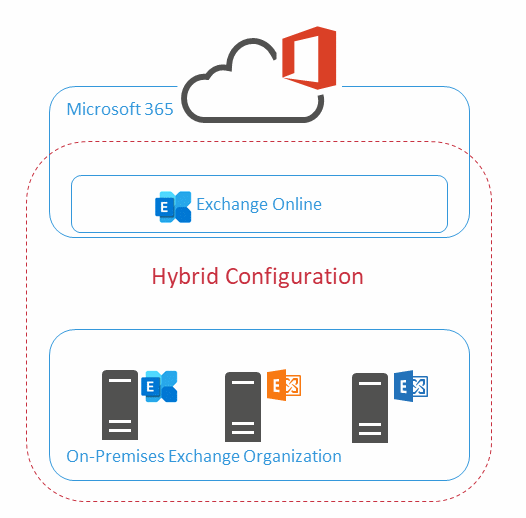
The following diagram illustrates how the Hybrid configuration bounds the on-premises Exchange organization and your Exchange Online tenant.
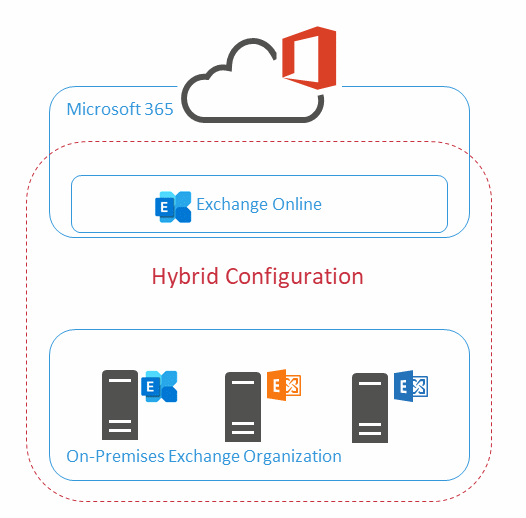 Diagram A: Hybrid Configuration
You use the Hybrid Configuration Wizard (HCW) to set up the Exchange Hybrid configuration. To use Microsoft Teams with on-premises Exchange mailboxes, you must choose the correct hybrid variant available. Currently, only Classic Full Hybrid is the supported variant for Microsoft Teams. While the other hybrid options allow a functional hybrid operation for your on-premises Exchange organization with Exchange Online, Microsoft Teams will not be able to access the on-premises mailboxes with those options.
The implementation of Classic Full Hybrid results in the following requirements for your on-premises IT infrastructure:
- The on-premises Exchange Server versions must be Exchange Server 2016 or Exchange Server 2019 with lastest cumulative updates applied
- The Exchange organization must be directly accessible from the Internet by HTTPS
- The public Exchange endpoint must be discoverable by AutoDiscover
- The on-premises Exchange Servers can communicate with Exchange Online Protection directly using SMTP
What is the meaning of “direct communication” in this context?
The Exchange Client Access endpoints are published to the Internet through a reverse proxy or similar solution and use an official TLS certificate to secure connections. The SMTP mail-flow connection is either through Exchange Edge Transport Server on the perimeter network (variant A, recommended) or directly between Exchange Online and your local Exchange servers (variant B). The following diagram illustrates the HTTPS and SMTP connections.
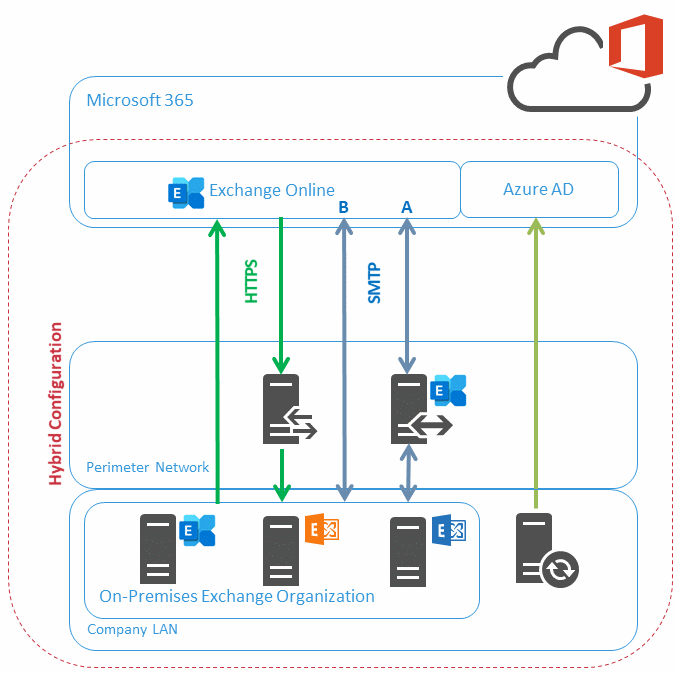 Diagram B: Hybrid Configuration
Microsoft Teams access essays to users’ mailboxes through Microsoft Teams Backend Services. These components use AutoDiscover V2 and Modern Authentication for the discovery of and authentication to your on-premises Exchange servers. This authentication method requires that you implement the configuration recommendations provided by the Exchange Product Group as described here. Implement this configuration after executing HCW.
The basis of an Exchange Hybrid configuration is the synchronization of your on-premises Active Directory with Azure AD with Azure AD Connect. Most likely, you’re already using Azure AD Connect. An Exchange hybrid operation requires that you enable the Exchange Hybrid option in the Azure AD Connect configuration. If you’re not already using Azure AD Connect, the HCW gives you the ability to install and configure Azure AD Connect in the Express version. I strongly recommend that you manually install and configure the latest version of Azure AD Connect. Always use the customized configuration when setting up Azure AD Connect.
For stable and secure operation of your Exchange Hybrid configuration, make sure that your on-premises Exchange Servers always run a supported version Exchange Server. This is the only way to ensure that the Exchange features used by Microsoft Teams, Exchange Online, and other Microsoft 365 services interact correctly with your on-premises environment.
With a properly configured Exchange hybrid configuration, you can use Microsoft Teams with on-premises Exchange mailboxes easily.
Enjoy Microsoft Teams with Exchange Server.
by Scott Muniz | Jul 14, 2020 | Azure, Microsoft, Technology, Uncategorized
This article is contributed. See the original author and article here.
In the past few months, the CLI team has been working diligently to improve the in-tool user experience (UX) for you. We listened to your feedback and designed the features so that they could be useful and applicable the moment you start interacting with the tool.
In the following article, we will share with you our latest updates on performance improvement on command execution and configurable output with the “only-show-errors” tag.
Significant performance improvements on client-side command execution
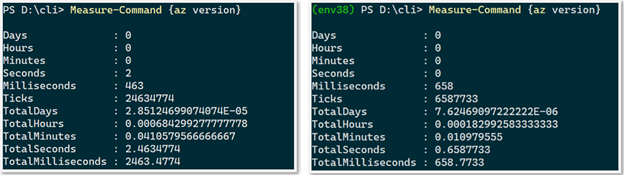
One top frustration we’ve been hearing from both our new and experienced CLI users is that the speed of command execution could use some improvement. Our team recognized this challenge and immediately followed up with optimizations. And the result was phenomenal! Every client-side command is now 74% faster.
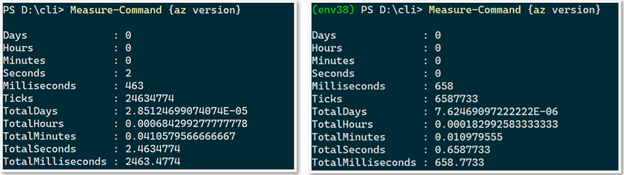
Figure 1: Comparison of the performance of client side command execution, before vs. after
Interruption free automation with “–only-show-errors” flag:
For those of you who’d been frustrated with Azure CLI’s warning messages endlessly interrupting your ongoing scripts, we’re delighted to share with you a simple resolution! Our team recently released the “–only-show-errors” flag which enables you to disable all non-error output (i.e warnings, info, debug messages) in the stderr stream. This has been highly requested by our DevOps and Architect fans and we hope you can take advantage of this as well. We support the feature on both the per command basis and also via direct updates in the global configuration file. This way you could easily leverage the feature either interactively, or for scripting/automation purposes
To enable it, simply append —only-show-errors to the end of any az command. For instance:
az timeseriesinsights environment list —only-show-errors
Below is an example of before vs. after of enabling the flag. We can see that the experimental message has been suppressed:

Fun fact: our team has actually considered the verbiage around “—no-warnings” and “—quiet” but eventually settled on “—only-show-errors” given its syntactical intuitiveness.
Call to action:
Similar to last time, some of these improvements are early in the preview or experimental stage but we certainly do look forward to improving them to serve you better. If you’re interested, here is where you can learn more.
We’d love for you to try out these new experiences and share us your feedback on their usability and applicability for your day-to-day use cases. Also please don’t hesitate to share us any ideas and feature requests on how to improve your overall in tool experience!
Stay tuned for our upcoming blogs and subscribe to it ! See you soon


Recent Comments