
by Scott Muniz | Jul 17, 2020 | Uncategorized
This article is contributed. See the original author and article here.
This blog post is a collaboration between @Cristhofer Munoz and @Juliango (Julian Gonzalez).
This installment is part of a broader series to keep you up to date with the latest features in Azure Sentinel. The installments will be bite-sized to enable you to easily digest the new content.
Azure Sentinel is built on top of a Log Analytics workspace. You’ll notice that the first step in onboarding Azure Sentinel is to select the Log Analytics workspace you wish to use for that purpose. You can get the full benefit of the Azure Sentinel experience when using a single workspace. Even so, there are some use cases that may require you to have multiple workspaces.
Back in May, we introduced the multiple workspace incident view facilitating central incident monitoring and management across multiple workspaces. The cross-workspace incident view alleviates the challenge of managing several workspaces and provides the ability to investigate them as if you were connected to the original environment.
To help alleviate the challenge and expand the support of managing multiple workspaces, we are delighted to announce that cross workspace Hunting is now available! Cross workspace hunting will empower your threat hunters to query, correlate, and ask the right questions to find issues in the data you already have on your network.
Getting Started with cross-workspace querying
Azure Sentinel supports querying multiple workspaces in a single query, allowing you to search and correlate data from multiple workspaces in a single query.
- Use the workspace() expression to refer to a table in a different workspace.
- Use the union operator alongside the workspace() expression to apply a query across tables in multiple workspaces.
Here’s an example:
SecurityEvent
| union workspace("WorkspaceName").SecurityEvent
| extend WorkspaceId = TenantId
| summarize by WorkspaceId
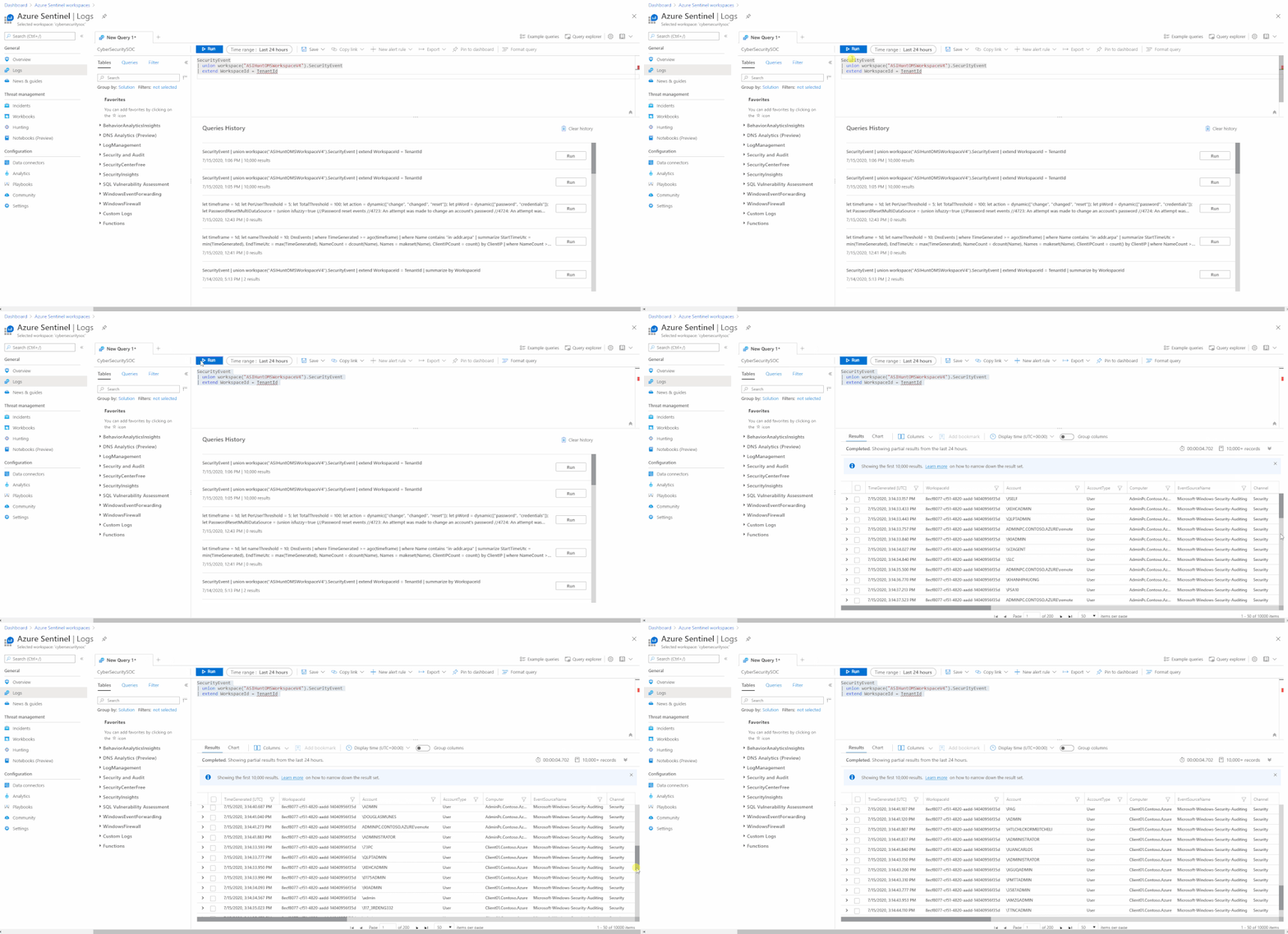
Cross Workspace Hunting
Azure Sentinel provides a starting page provides preloaded query examples designed to get you started and get you familiar with the tables and the query language. These built-in hunting queries are developed by Microsoft security researchers on a continuous basis, adding new queries, and fine-tuning existing queries to provide you with an entry point to look for new detections and identify signs of intrusion that may have gone undetected by your security tools.
Cross workspace hunting will enable your threat hunters to create new hunting queries overlooking multiple queries or modify existing queries as shown below:
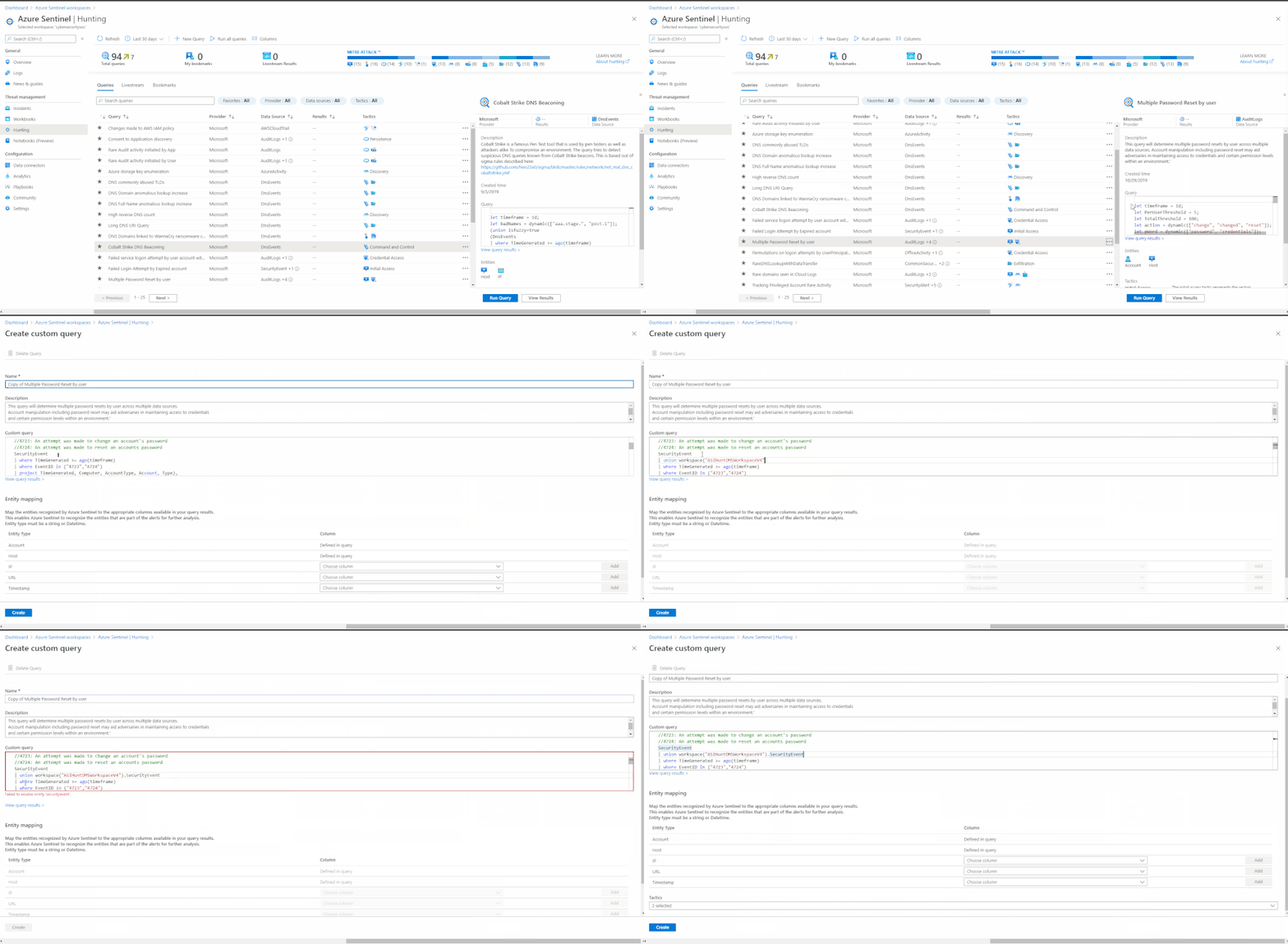
| Note: Make sure to review the entire query and add the union & workspace operators as appropriate |
Get started today!
We encourage you to leverage the cross workspace hunting capability to expand the support of multiple workspaces and initiate your proactive threat hunting journey.
Happy Hunting! 
Try it out, and let us know what you think!
by Scott Muniz | Jul 16, 2020 | Uncategorized
This article is contributed. See the original author and article here.
1st of July, a day that awaits everyone, mainly Microsoft community members, because on this day Microsoft publishes the name of its current MVP who is again given this award for his outstanding work. At the same time, MVP award is also awarded to those new people who have done good work for the community in the last years. Furthering this methodology forward, again this year Microsoft has presented this very special award to the great warriors of our community for their very specific contribution.
On behalf of entire community members, I heartily congratulate all of the great warriors who rewarded or received 1st time this award! Hope that all of you will continue to guide our community and share your knowledge and experience with us.

Microsoft Wiki Community Council
The Community Council is a small group of members from both Microsoft and the Community. The Community Council takes responsibility for the many tasks for community including a build best world for technical person around the globe. I would highly recommended to check below blog post written by Ed Price about our new Community Council members and history of that.
I am very proud and pleased to say that there are 7 members in the Microsoft Wiki Community Council members who have been awarded Microsoft MVP award again this time, and it shows how active and supportive our community leaders. For the community, all community leaders have special excellence in their work, and as a result, Microsoft has awarded them with a special award.
*Profiles (in alphabetical order)
Microsoft Wiki Community Ninjas
We have a proud moment where more than 50 Ninjas from our community have been awarded this MVP award. This shows the credibility and dedication of our community Ninjas. I just collected the names of all community Ninjas manually, if I missed any name please forgive me and contact me, I’ll add your name with profile link. So, we have below list of Community Ninjas MVP, Congratulations all!
*Profiles (in alphabetical order)
I want you all to come forward and congratulate these warriors and if you want any kind of guidance, then you can contact them or any council member directly. Most of the time our council members are available to guide you.
I know if you have been with the Microsoft community for a long time, then you must know what this Microsoft MVP is like, but if you are new to this community and you want this information then you are at right place. I will try to give you some information about this award, I hope you will like it and your thoughts will be welcome to us.
What is this Microsoft MVP award?
Microsoft explained this here, ‘https://mvp.microsoft.com/en-US/Overview‘, about MVP program, it says, “For more than two decades, the Microsoft MVP Award is our way of saying “Thanks!” to outstanding community leaders. The contributions MVPs make to the community, ranging from speaking engagements, to social media posts, to writing books, to helping others in online communities, have incredible impact. Key benefits to MVPs include early access to Microsoft products, direct communication channels with our product teams and an invitation to the Global MVP Summit, an exclusive annual event hosted in our global HQ in Redmond. They also have a very close relationship with the local Microsoft teams in their area, who are there to support and empower MVPs to address needs and opportunities in the local ecosystem. Other benefits include an executive recognition letter, an MSDN technical subscription, and an Office 365 subscription.”
Who gets this award, who are MVPs?
Are you a Microsoft technology expert and love to help others for any technical issue, if your answer is YES then start helping community. Surly someone from MVP program or MS-FTE or existing MVP will contact you for your exemplary work. And then will guide you on this. Microsoft says, “Microsoft Most Valuable Professionals, or MVPs, are technology experts who passionately share their knowledge with the community. They are always on the “bleeding edge” and have an unstoppable urge to get their hands on new, exciting technologies. They have very deep knowledge of Microsoft products and services, while also being able to bring together diverse platforms, products and solutions, to solve real world problems. MVPs make up a global community of over 4,000 technical experts and community leaders across 90 countries/regions and are driven by their passion, community spirit, and quest for knowledge. Above all and in addition to their amazing technical abilities, MVPs are always willing to help others – that’s what sets them apart.”
Can I get this award, what do I have to do to get it?
If you are going to start work because of this Award or Kudos then I would suggest don’t start, because first it should come from your heart to help community without thinking anything back in return. So, try to help community and you’ll get awarded this if community feels you should. But if you are helping community without any favor, then surly you’ll get this award. Microsoft says, “We want to award the best and brightest technical community leaders! To place yourself into consideration for the MVP Award, a nomination referral must be first submitted on your behalf by either a Microsoft Full Time Employee (FTE) or Microsoft MVP. Following this referral submission, a link to complete the award nomination will be sent to you. Once you have completed the nomination form, we will review your nomination. As you can imagine, sometimes we receive a lot of applications, this process can take up to 90 days.
There are 3 very simple steps: Be an expert, do lots of what you love, and let us know! Really, there isn’t a long checklist of things you need to do to become an MVP. The best MVPs really excel in step #2: they LOVE what they do. And we can tell! Whether you’re a great speaker, have a talent in blogging, lead a top technical community, are a social media superstar, a top GitHub or StackOverflow contributor or have a totally different and cool way to share your passion for our products and services, we’d love to know more!” Nominate an MVP
May I know how many MVP award winners are around me?
You can find this detail by clicking on below link, you can filter based on Name or Award Category or by Country/Region. Find an MVP
What is the benefit of becoming a Microsoft MVP?
Key benefits to MVPs include early access to Microsoft products, direct communication channels with our product teams and an invitation to the Global MVP Summit, an exclusive annual event hosted in our global HQ in Redmond.
Other benefits include an MSDN license (you can get this through the partner programs), office 365 licenses and some azure credits (not many, just enough for some demo services). Some third-party companies give free licenses, but these are nearly always non-production use licenses that you should use for demos only.
Congratulations to all Existing and new MVPs to gaining this award! 
Best Regards
Kamlesh Kumar
Join the Wiki Ninjas Group on Facebook

by Scott Muniz | Jul 16, 2020 | Azure, Microsoft, Technology, Uncategorized
This article is contributed. See the original author and article here.
Who says summertime marks a slowdown in new service announcements in tech? Lots to cover in this week’s Az Update including: Azure Site Recovery now supports replication with private links, Citrix and Microsoft partner to accelerate the future of work, allowing or disallowing blob public access on Azure Storage accounts, Azure Maps Power BI visual now in preview and more.
Azure Site Recovery now supports replication with private links
Azure Site Recovery, used to replicate Azure machines, VMware machines, physical machines, and Hyper-V machines, now supports Private Link use ensuring secured connectivity to Site Recovery service URLs. One private endpoint will be required in your private network for access to recovery services vault and a second endpoint for data replication to cache storage account.
Citrix and Microsoft partner to accelerate the future of work
Microsoft and Citrix agree to a multi-year agreement that will see Microsoft selecting Citrix Workspace as a preferred digital workspace solution, and Citrix will select Microsoft Azure as a preferred cloud platform, moving existing on-premises Citrix customers to Microsoft Azure to enable people to work anywhere across devices. Citrix and Microsoft will also provide joint tools and services to simplify and speed the transition of on-premises Citrix customers to Microsoft Azure.
Azure Files support and new updates in advanced threat protection for Azure Storage
Phoummala sits down with Yuri Diogenes from the Azure Security Center team to discuss the extension of advanced threat protection for Azure Storage to support Azure Files and Azure Data Lake Storage Gen2 API. Yuri details how Security alerts are triggered when anomalies in activity occur and how these security alerts are integrated with Azure Security Center and email subscription administrators with details of suspicious activity and recommendations on how to investigate and remediate threats.
Choose to allow or disallow blob public access on Azure Storage accounts
Azure Storage now supports anonymous public read access for containers and blobs. By default, all requests to a container and its blobs must be authorized by using either Azure Active Directory (Azure AD) or shared key authorization. When you configure a container’s public access level setting to permit anonymous access, clients can read data in that container without authorizing the request.
Azure Maps Power BI visual now in preview
This initial release includes the following visualization layers: Bubble layer, 3D bar chart layer, Reference layer, Custom tile layer and Real-time traffic overlay. In addition to these visualization layers, this visual also leverages built-in Power BI features, such as tooltips, color themes, as wells as filter and slicer support.
To get started you will need to enable it in the Power BI desktop app by open the options panel though File > Options and settings. Go to the Preview features options and select the Azure Maps visual. Once this is done you will also be able to use this visual in the Power BI website.
MS Learn Module of the Week
AZ-104: Manage identities and governance in Azure
A continuation from last week’s highlighted AZ-104: Prerequisites for Azure administrators learning path, this learning path shares how to manage Azure Active Directory objects, role-based access control (RBAC), subscriptions, and governance in Azure.
Let us know in the comments below if there are any news items you would like to see covered in next week show. Az Update streams live every Friday so be sure to catch the next episode and join in the live chat.
by Scott Muniz | Jul 16, 2020 | Uncategorized
This article is contributed. See the original author and article here.
Our ability to work deeply is diminishing. We face an increasing number of interruptions in a constantly connected world. Some interruptions are within our power to manage. Others are unavoidable due to our role and our environment. As the world grows to accept the need for more remote work, it becomes more important to manage our availability while we work.
Those of us who have the choice to work from home used to do so to create more focus time and reduce interruptions. Being out of the office means we aren’t available to visit at our desks, and be interrupted when we’ve just managed to get in a deep work flow-state. But now that more of us have to work remotely, we see two behaviours developing.
-
We get a lot of work done but we become isolated. When we need connection with our team members, we find it difficult to make connection. We have less indicators of when someone is available, or don’t trust those indicators whey they constantly show ‘Busy’. The time we spend connecting with people is more deliberate and needs to be scheduled. When squished between scheduled work, it can feel rushed and insufficient.
-
We are frequently interrupted because people want to connect but can’t or won’t respect our availability. We can’t trust availability indicators when they appear to constantly show as ‘Busy’. Whether due to urgency of a task, or a self-focused drive to complete a task, availability is ignored and we send a chat message or make a call. When this culture is prevalent, people become reactive in their work and planned work is laid aside.
Both isolation and interruption impact productivity. Isolation affects morale, feeling disconnected from the team and leads to disengaged team members. Interruption’s impact on morale is through feeling less productive, tasks take longer to complete or are left unfinished.
Managing our availability has positive impacts to our productivity, sense of connection and engagement with our team. We can achieve more through planned periods of deep work when concentration is required. We can plan time to be available to connect, when we need to collaborate or just be available in the moment, when someone wants to connect with us.
The principles I’ll outline in this post will be helpful in any modern workplace environment. While I’ll use Microsoft Teams and other Microsoft 365 services to discuss practical ways to manage availability, the principles can be applied to tools from other productivity platforms.
Define your availability
Set the expectation and let people know about your working style and how to determine your availability. If I can communicate how best to reach me, when it’s best to collaborate with me, the times of day that I work, I’m giving your a better chance at connecting with me, and I give myself a greater opportunity to work deeply on a task.
Write an overview of your availability and publish it where team members and people across your organisation can find it, and where you can reference it.
What do we have available in Microsoft 365 for doing this?
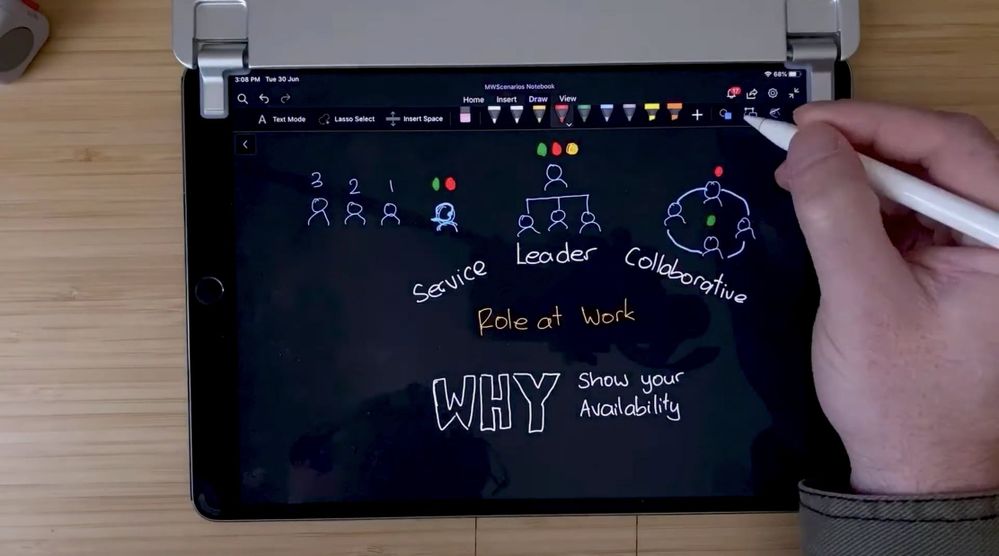
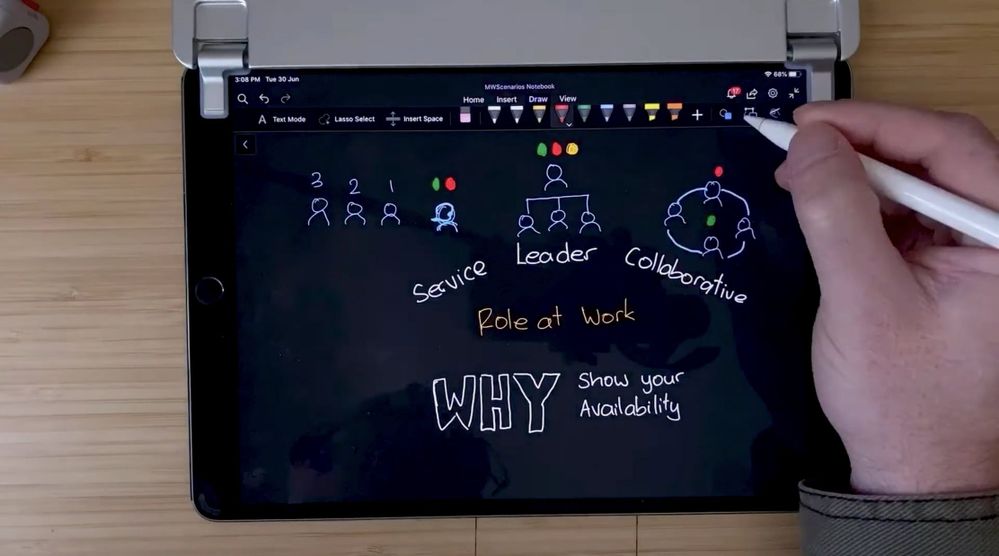
What is your role at work? Does it require you to be available to help and communicate with others for most of the day, such as a service desk role? Are you a people manager who needs to check-in with your team, guide and direct?
Your role will affect how much time you should be available. A manager who say’s “my door’s always open” also needs to consider how to leave room for those opportunities in a remote work setting.
What do the different online statuses mean for engaging with you?
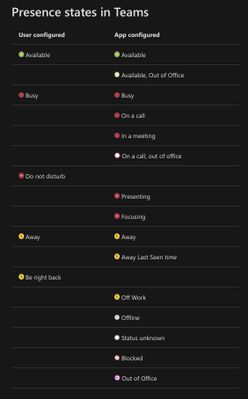 Your online status is the most effective way to show your availability right now. I’ll discuss future and planned availability later in this post. Microsoft Teams offers a few online statuses and by the name of their label, the meaning appears to be clear. But how many times is your status showing “Busy” or “In a Meeting”, and you’re actually available? You probably have your preferences for how you want to be contacted. Your definition of urgent and important are more specific to the way you work and your role.
State your communication preferences, so that when people need to contact you while you status is “Busy”, “Away”, or “Do Not Disturb”, they know how to reach you.
-
I’m available and you can talk to me now about anything
-
I’m busy, but available to talk about the project I’m working on. (However, I have my exceptions. Ask me.)
-
I’m away. Send me a message, include the level of importance and I’ll respond as soon as I can.
-
Please Do Not Disturb. I’m working on something and need complete focus to make progress. (I will be available later. Leave me a message.)
Define what urgency means to you, the factors that would allow someone to interrupt your focus.)
Is there anyone else in your team that can help if you’re unavailable right now? Share those details so your contacts can still get help and their queries answered when they’re urgent.
Plan your availability
Your availability is directly related to the tasks you’re working on and the activities you’re engaged in. We can plan our time out in detail to complete tasks, make a simple plan to get a few things done, or go through our day with no plan. Some where in that range is a balance that suits your role, your working style and aides your ability to focus. I encourage you to plan your availability and make time for those tasks that you need to complete, leaving room for meetings and “office hours” for opportunistic collaboration and for people to can connect.
But there’s another benefit to planning your availability and scheduling time for tasks in your calendar. Microsoft Teams will change your online availability automatically, letting others know if you can be contacted now and letting you focus on work. It sounds simple, but when you automate changes in your availability, you’re more likely to get quality focus time. However, it also relies on keeping your appointments with yourself – the scheduled time to complete tasks.
If you’re using a Microsoft 365 or Office 365 plan that includes MyAnalytics Insights, take a look at the Focus Plan. This simple service schedules 2 hours of “Do Not Disturb” time called “Focus Time” into your calendar for the day. During that time, your online status is changed to “Focusing” and behaves like “Do Not Disturb”, preventing messages, @mention notifications and calls from being received. If you have set exceptions to this and listed people who can interrupt DND, Focus Time will follow the same exceptions.
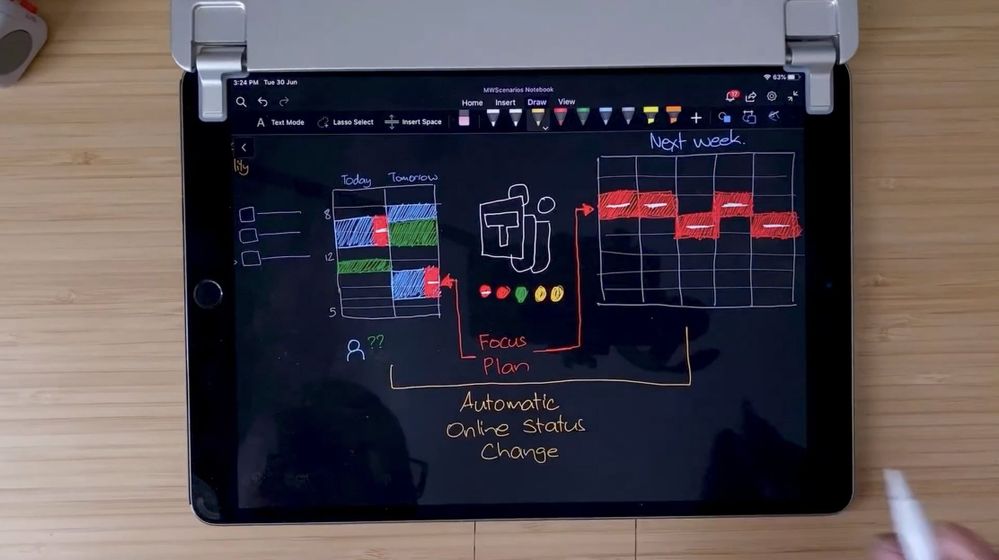
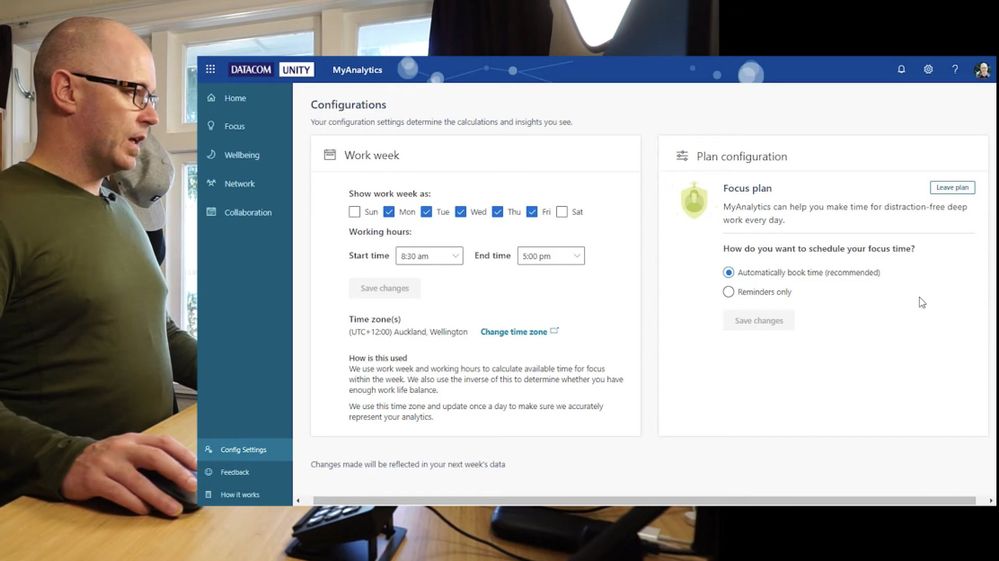
I use Focus Time to make sure I get 2 hours of uninterrupted time each day. I slide it to different positions in my day as I plan my tasks around meetings and other exceptions. Then I schedule time for tasks as a seperate appointment, alongside the Focus Time. This gives me a reminder of how I plan to use my Focus Time.
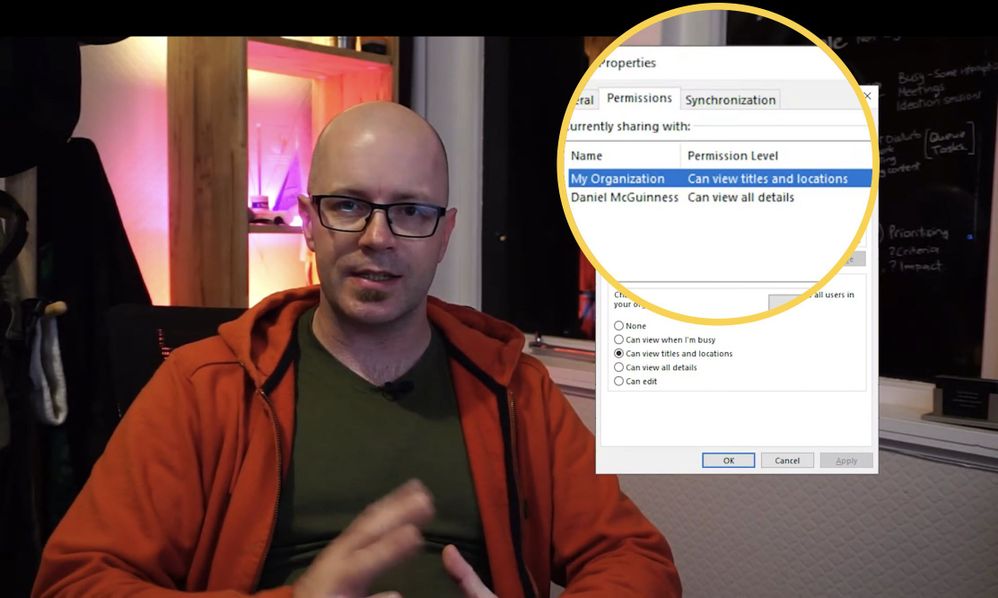
I choose to share more than just my free/busy information in my calendar with the whole organisation. I share the subject of my appointments and meetings. When someone in my org wants to schedule time with me and they use the Scheduling Assistant in Outlook or Microsoft Teams, they can see the subject of my scheduled time. It’s clear to them where I have scheduled Focus Time. It doesn’t prevent them from scheduling a meeting when I plan to focus, but it provides more information to negotiate my time with me.
Remember, someone can send you a meeting invite and ignore (or fail to check) scheduled time for tasks and focus. But it’s your calendar. Suggest another time if you need to. Keep the appointments you’ve made with yourself and make exceptions only when necessary.
Out of office: what does it really mean?
As I schedule time for activities out of the office, such as visiting a customer for half a day, I have another option while setting my meeting. Outlook defaults to show the time as “busy” and that will change my presence in Microsoft Teams at the time of the meeting. But I can also choose to show as “Out of office”, which will change my presence to show Out of office. This has the effect that in Microsoft Teams, my presence can appear to be “Available, Out of office” or “On a call, Out of office”. Team members can see that I’m available but only for a while. Once I go offline, my presence will show as “Out off office”, much like the auto-reply you set in Outlook when you take annual leave.
As more of us work remotely, the concept of “In office” changes to include our remote place of work. It might be quite acceptable to set customer visits to “Out of office”. Another option while creating the meeting or appointment is to show as “Working elsewhere”, but this doesn’t appear to have any effect on automatically changing your presence.
Change your availability
Plans change and so does your planned availability. Something happens and requires you to stop and change your priorities. So take a moment to change your availability in Microsoft Teams.

If you’ve finished a meeting early, change yourself to busy if you’re making time for follow-up tasks. Or change to available if you wan’t to let your team know they can contact you. Your contacts can tag you for status changes. They may be waiting for your meeting to finish before sending a chat or calling you. Changing your status manually from “In a meeting” to “Available” will send a pop-up notification letting your contact know you’re free to talk.
Conversely, you might be working in the office on some simple procedural tasks and have your presence set to “Available”. A team member walks over to talk with you about a problem they need help with. Take a moment to change your presence to “Do no disturb” to give your team member full attention. Though remember to change it back once your conversation has concluded, or you might have an unusually quite day receiving no notifications.
I’m in the habit of locking my computer every time I step away. A quick Windows key + L will lock and Microsoft Teams will set my status to away. However, when I’m stepping out for lunch, I’ll use “Be right back” and set a status message… which leads me to my last topic.
Tell me more about your availability
“Be right back” is a clear message. It suggests I’ll be back soon. But how long is soon? When I step out to lunch, I’ll take a moment to set a status message. “Grabbing some lunch”. Going one step further, I set the message to show for about an hour. Microsoft Teams removes my status message automatically.
When we leave a status message, even if it’s short message, we provide more information for a team member to decide how they will contact you when you are available. Or they may use another method, send the message and leave it up to you to reply.
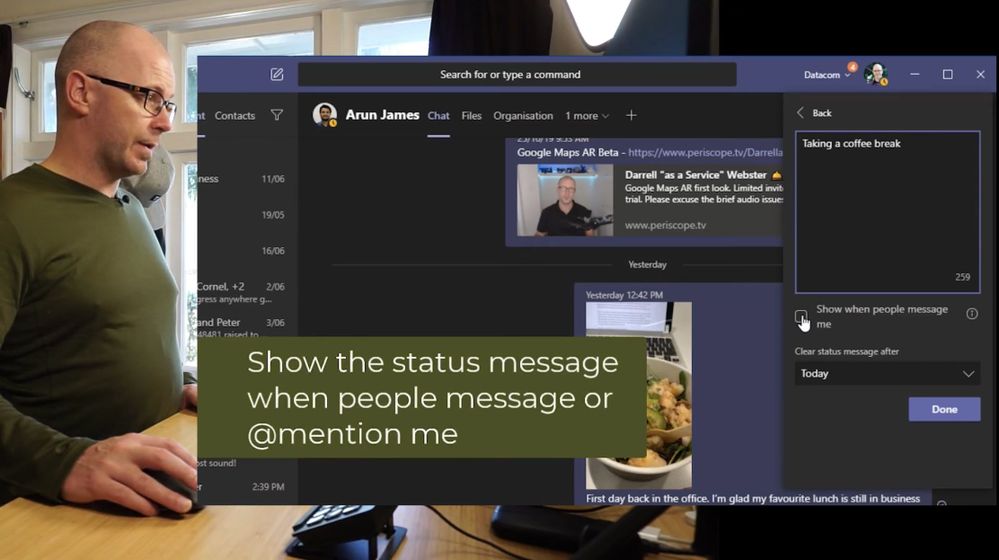
Other way’s to use the status message in Microsoft Teams
-
If you’re working in the office for the day, add it to a status message and set it to show for the full day.
-
If you need to work in a long period using “Do not disturb”, use a status message to tell people how you want to be contacted, how to reach you if the matter is urgent, and any team member that could help with the query while you’re unavailable.
-
When you’ve blocked half a day in your calendar to work on site with a customer, set a status message so your team and organisation know why you’re not as responsive as you might usually be. This will help you focus on your customer’s needs and help to reduce the interruptions
I mentioned early in “Plan your availability” that I set my calendar permissions to share the subject of my meetings. This information tells my team and organisation more about my availability.
Reading the signs
I’ll finish by changing perspective to our team members, our organisation and our contacts. Our availability and presence indicators are becoming more important as remote work increases. But their effectiveness relies almost entirely on us taking the time to read the indicators and making considerate decisions.
When I want to start a chat with a contact to ask a question, I glance at their presence. If it show’s a red light, that could mean a number of things. I discussed earlier that some of our contacts appear to be “Busy” all the time. So I could send my question in chat and leave it up to them to reply when they can. But if I look closer at the presence, or hover over their name to show the contact card, I might see they are “In a meeting” or “On a call”. Will it help my team member to receive a message during their meeting or call? It will distract the momentarily. Sure, my contact could just ignore the message and get back to me later. But I might not be the only person sending chat messages to them during their meeting or call. It’s a conscious decision to be considerate, consider the signs, the presence indicator and any additional info before interrupting a meeting or call.
On the other hand, a culture has developed in many organisations that Microsoft Teams Chat is like email. I send a private message just like I send an email. Whether you’re available at the time to answer is not my concern. You can ignore it and answer after your call or meeting. It’s up to them to manage their presence and if the meeting or call requires more focus, to change their status to “Do not disturb”. However, I’m sure you’ll have reservations sending a chat to your CEO when they are in a meeting, interrupting their focus.
I encourage you to read the signs before sending a chat message or calling. Use the information that’s available. Consider whether you will just send the message and leave it up to the receiver to manage the interruption, or tag them for a status change and get in touch when they are available. Or use another method to send a message they can deal with later.
I’ve heard email has a good track record for that sort of thing.
Originally published at https://modernworkplacescenarios.com on July 12, 2020.


Recent Comments