by Scott Muniz | Jul 20, 2020 | Alerts, Microsoft, Technology, Uncategorized
This article is contributed. See the original author and article here.
The Azure Service Fabric 7.1 second refresh release includes bug fixes, and performance enhancements for standalone, and Azure environments has started rolling out to the various Azure regions. The updates for .NET SDK, Java SDK and Service Fabric Runtime is available through Web Platform Installer, NuGet packages and Maven repositories in 7-10 days within all regions.
- Service Fabric Runtime
- Windows – 7.1.428.9590
- Ubuntu – 7.1.428.1
- Service Fabric for Windows Server Service Fabric Standalone Installer Package – 7.1.428.9590
- .NET SDK
- Windows .NET SDK – 4.1.428
- Microsoft.ServiceFabric – 7.1.428
- Reliable Services and Reliable Actors – 4.1.428
- ASP.NET Core Service Fabric integration – 4.1.428
- Java SDK – 1.0.6
Key Announcements
Potential 7.1 Deployment Failures:
- Cause: SF 7.1 introduced a more rigorous validation of security settings; in particular, requiring that settings ClusterCredentialType and ServerAuthCredentialType have matching values. However, existing clusters may have been created with ‘x509’ for the ServerAuthCredentialType and ‘none’ for the ClusterCredentialType.
- Impact: In the case mentioned above, attempting an upgrade to SF71CU1 will cause the upgrade to fail.
- Workaround: No workaround exists for this issue, as the ClusterCredentialType is immutable. If you are in this situation, please continue using SF70 until the SF71CU2 release becomes available.
For more details, please read the release notes.
by Scott Muniz | Jul 20, 2020 | Uncategorized
This article is contributed. See the original author and article here.
Creating and managing delegated access as a Managed Security Service Provider (MSSP) is an essential business requirement. But the overhead of granting, controlling, and auditing access into distributed customer environments reduces available resources from protection and response. As MSSPs grow their customer portfolios, time required to manage access expands.
Using the features of Azure Identity Governance: Entitlement Management, MSSPs are able to provision and establish secure connections into their end customer’s Microsoft Defender Advanced Threat Protection (ATP) environments. This approach enables automated access life cycle management, access review compliance, and least privilege security rights assignment. It empowers the customer to delegate new access approval, further streamlining the customer experience while maintaining a high security bar.
Most importantly, the delegated access model scales with the growth of MSSPs.
What is delegated access?
|
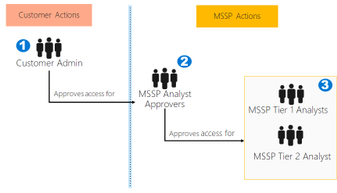
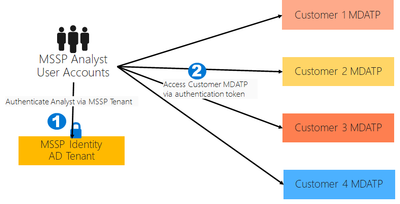
Delegated access gives the ability for a user or application to act on behalf of an organization. In MSSP terms, the end customer has delegated security monitoring and response to the MSSP Security Operations Center (SOC) analysts.
For more additional authentication details, please see “Delegation Flow” to the right.
|
|
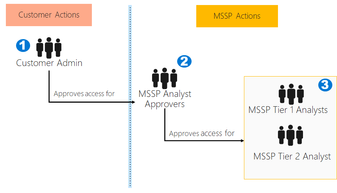 |
The following will take you through implementing your first solution and provide a baseline approach.Please review the best practices prior to deploying. Implementing as per the steps below results in users of the MSSP analyst tenant being enabled to access and work in a customer Microsoft Defender ATP tenant. Approval for access occurs in two areas:
1: MSSP Analyst Approver access package is provisioned, with approval to join confirmed by Customer Admin (or delegated contact)
2: Analyst access to the customer is managed by members of the “MSSP Analyst Approvers” access package.
The Approach
Implementing a multi tenant delegated access solution takes 3 concepts.
- Enable Role Based Access Control (RBAC) in Microsoft Defender ATP and connect with Active Directory (AD) groups
- Configure Governance Access Packages for access request and provisioning
- Manage access requests and audits in Microsoft M##yaccess
Enabling Role Based Access controls in Microsoft Defender ATP
- Create access groups for MSSP resources in Customer AAD: Groups
These groups will be linked to the Roles you create in Microsoft Defender ATP. To do so, in the customer AD tenant, create 3 groups:
Tier 1 Analyst
Tier 2 Analyst
MSSP Analyst Approvers
- Create Microsoft Defender ATP roles for appropriate access levels in Customer Microsoft Defender ATP
|
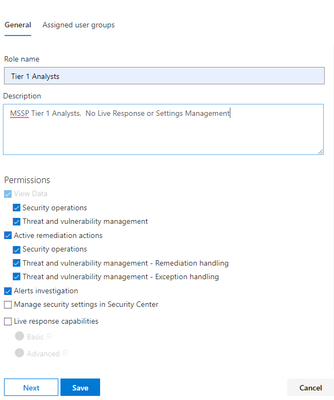 |
To enable RBAC in the customer Microsoft Defender Security Center, access Settings : Permissions : Roles and “Turn on roles”, from a user account with Global Administrator or Security Administrator rights.
Then, create RBAC roles to meet MSSP SOC Tier needs. Link these roles to the created user groups via “Assigned user groups”.
Two possible MDATP RBAC roles:
Tier 1 Analysts
Perform all actions except for “Live Response” and “Manage Security Settings”
Tier 2 Analysts
Tier 1 capabilities with the addition of “Live Response”
For more information see, Use role-based access control on Microsoft Defender ATP RBAC.
Configure Governance Access Packages
- Add MSSP as Connected Organization in Customer AAD: Identity Governance
Adding the MSSP as a connected organization will allow the MSSP to request and have accesses provisioned.
To do so, in the customer AD tenant, access Identity Governance: Connected organization. Add a new organization and search for your MSSP Analyst tenant via Tenant ID or Domain. It is recommended to create a separate AD tenant for your MSSP Analysts (See below)
- Create a resource catalog in Customer AAD: Identity Governance
Resource catalogs are a logical collection of access packages, created in the customer AD tenant.
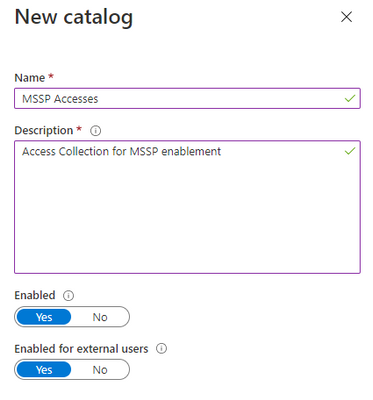
To do so, in the customer AD tenant, access Identity Governance: Catalogs, and add “New Catalog”. In our example, we will call it “MSSP Accesses”.
Further details on catalogs here
- Create access packages for MSSP resources Customer AAD: Identity Governance
Access packages are the collection of rights and accesses that a requester will be granted upon approval.
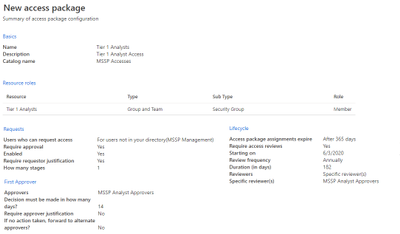
To do so, in the customer AD tenant, access Identity Governance: Access Packages, and add “New Access Package”. Create an access package for the MSSP approvers and each analyst tier. For example, the following Tier 1 Analyst configuration creates an access package that:
- Requires a member of the AD group “MSSP Analyst Approvers” to authorize new requests
- Has annual access reviews, where the SOC analysts can request an access extension
- Can only be requested by users in the MSSP SOC Tenant
- Access auto expires after 365 days
For more information, see Create a new access package.
|
4. Provide access request link to MSSP resources from Customer AAD: Identity Governance
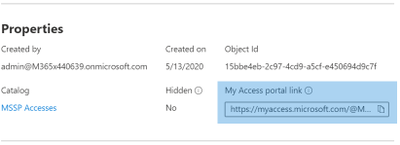
The My Access portal link is used by MSSP SOC analysts to request access via the access packages created. The link is durable, meaning the same link may be used over time for new analysts. The analyst request goes into a queue for approval by the “MSSP Analyst Approvers”
The link is located on the overview page of each access package.
|
 |
Manage Access
- Review and authorize access requests in Customer and/or MSSP myaccess
Access requests are managed in the customer My Access, by members of the MSSP Analyst Approvers group.
To do so, access the customer’s myaccess using:
https://myaccess.microsoft.com/@<Customer Domain >.
Example: https://myaccess.microsoft.com/@M365x440XXX.onmicrosoft.com#/
Then approve or deny requests in the “Approvals” section of the UI.
At this point, analyst access has been provisioned, and each analyst should be able to access the customer’s Microsoft Defender Security Center: https://securitycenter.Microsoft.com/?tid=<CustomerTenantId>
Recommended Best Practices
There are two implementation recommendations that I would like to mention, a dedicated MSSP AD tenant and restriction of guest powers in the customer tenant.
Dedicated MSSP AD tenant
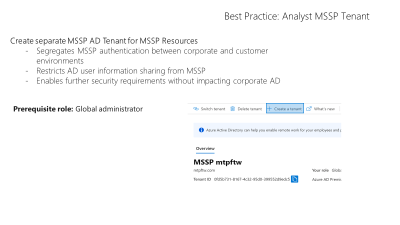
Separating corporate user accounts from MSSP accounts used customer environment access provides additional security from attack pivots. In a situation where a corporate account has been compromised, attackers do not gain immediate access into the customer portfolio.
The MSSP accounts also further limit the personally identifiable information being projected into customer AD tenants. Select a username format that is appropriate for your level of risk acceptance. For example, a username of a-JoshX (where x increments) allows user identification without projecting the entire analyst’s identifier into each customer tenant.
https://docs.microsoft.com/en-us/azure/active-directory/develop/quickstart-create-new-tenant
Guest powers
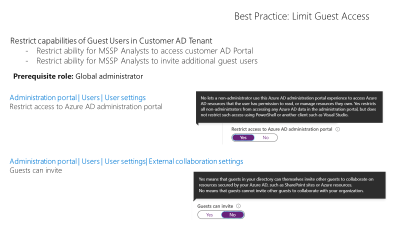
Ensure limiting of capabilities for the Guest account type in customer AD tenant. Doing so will remove the ability for MSSP analysts to invite other guest users and remove access to the customer Azure Administration portal.
Locate and disable the following settings in the customer Administration portal.
Users : User Setting : “Restrict Access to Azure Administration portal”
And
Users : User Setting : External Collaboration Settings : “Guests can Invite”
Things to consider prior to implementing
Admin Access Required
To implement this methodology, you must have an account with global administrator rights on the Customer Tenant. To minimize threat surface, consider using a temporary account created just for this activity. Remove the account once complete
Microsoft Defender ATP RBAC enablement caution
Initially, only those with Azure AD Global Administrator or Security Administrator rights will be able to create and assign roles in Microsoft Defender Security Center, therefore, having the right groups ready in Azure AD is important.
Turning on role-based access control will cause users with read-only permissions (for example, users assigned to Azure AD Security reader role) to lose access until they are assigned to a role.
Users with admin permissions are automatically assigned the default built-in Microsoft Defender ATP global administrator role with full permissions. After opting in to use RBAC, you can assign additional users that are not Azure AD Global or Security Administrators to the Microsoft Defender ATP global administrator role.
After opting in to use RBAC, you cannot revert to the initial roles as when you first logged into the portal.
Further information: RBAC access in Microsoft Defender ATP
Entitlement Management requires AAD P2
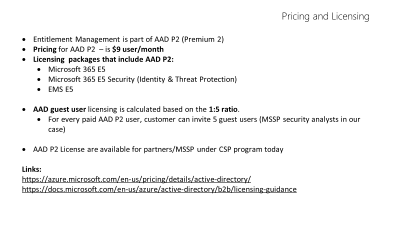
Entitlement Management is an Azure Active Directory (AAD P2) functionality. AAD P2 customers using Microsoft 365 E5, Microsoft E5 security, and Enterprise Mobility + Security (EMS) E5 have this included. If customers are not yet able to upgrade the E5 Suites, they need to purchase 1 AAD P2 license per every 5 MSSP soc analyst accounts.
A formula like this may help determine your P2 needs:
(analysts(current) + proj additional (12 month)) +[(analysts(current) + proj additional(12 month))) * .5 ]
5
For example, if your SOC has 20 analysts, and you project an analyst growth rate of 20 analysts every 12 months, then recommending a minimum of 12 P2 Licenses allows for 60 guest accounts in the customer AAD. This accounts for the 40 analysts projected per year + 50% scale capability.
Authentication Flow
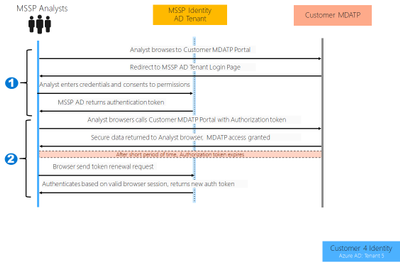
The analyst user accounts authenticate against the MSSP Active Directory tenant. The tenant responds with a bearer authentication token that the analyst browser then provides access to the customer’s Microsoft Defender Security Center. The customer validates the token and provides access as defined. This means the analyst credentials remain within the MSSP AD tenant.
Please see below for an authentication breakdown
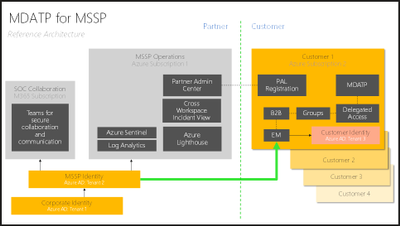
Microsoft Defender ATP MSSP reference architecture
Please see below for a reference architecture for Microsoft Defender ATP in MSSP environments. Extending additional services such as Teams channels, log analytics, and SharePoint collaboration all securely expand capabilities with customers.
Special Thanks
We want to acknowledge and thank Michael Shalev, Avi Sagiv, Efrat Kliger, Josh Michaels, and Richard Diver for their great work and contributions to the Managed Security Service Providers delegated access solution.

by Scott Muniz | Jul 20, 2020 | Uncategorized
This article is contributed. See the original author and article here.
Hi all – Jeremy here with an interesting case where Windows Server 2016 systems in one of my customer’s enterprise environments couldn’t complete installation of the Latest Cumulative Update (LCU). As a Premier Field Engineer, it’s my responsibility to troubleshoot/diagnose issues related to Microsoft Platform technologies and I’m often reminded to look at all factors in the environment that could influence the success or failure of ‘normal’ processes. When attempting to install the LCU, it didn’t matter what steps were taken to resolve the issue using known KB articles, Microsoft Docs, Tech Community suggestions, or Microsoft Forums…the updates would rollback at 99% completion upon system restart. So, when you’ve done everything Microsoft suggests to resolve a problem and the issue still occurs, Microsoft might not be the problem. Proving that theory can be difficult, and sometimes you need to eliminate all possibilities to discover a root cause. This article will take you through the troubleshooting steps performed that led me to the conclusion that third-party software was the culprit.
Environment Details:
- Windows Server 2016
- Operating system hardened with DoD-recommended and custom security baselines.
- Third-party AV/Firewall/Host Intrusion Prevention/DLP
- Patches deployed through System Center Configuration Manager (SCCM)
At first, I was like a “bull in a china shop” …haphazardly troubleshooting with some of the known ‘easy’ fixes when experiencing problems with updating Windows systems. Steps taken to fix:
- WSUS component reset – FAIL
- Sfc /scannow – FAIL
- Dism /online /cleanup-image /restorehealth – FAIL
- Attempt to apply the patch manually – FAIL
- Delete pending.xml and migration.xml (sure, deleting stuff always works) – FAIL
Hmmm…after each attempt I tried installing the LCU, but the rollbacks still occured at 99% after restart. I wonder if there is something in the Update package that’s not signed…or corrupt. Let’s try disabling some of the security controls:
- Disable Driver Signature Enforcement – FAIL
- Disable SmartScreen – FAIL
Then it hit me…of course!! It’s Group Policy…one of the System Admins made a change without telling anyone and it’s causing a problem with the Windows Server 2016 systems! I’ll just temporarily move the machine to an OU with no GPOs applied…aaannd FAIL.
You can begin to see a trend here with my troubleshooting attempts…
Okay, it was time for a sanity check, so I decided to “phone a friend” by reaching out to our internal community. What was the advice given? …The evidence is in the logs!! (oh, right…duh)
So, when I was done beating the system with a virtual hammer to get the installs working, I pulled out my ‘IT scalpel’, took the sound advice offered by my colleagues and began to analyze the logs (I know…should have started here first).
Logs analyzed:
- Setup Event Log
- *Windows Update log
- setupAPI.dev.log
- SCCM logs
- CBS logs
Indicators
Here’s what I found:
The Windows Setup Event Log confirmed that the patch was indeed staged with a target state of ‘installed’, but then rolling back upon restart and reverting to a ‘failed’ state (Figure 1.).
 Figure 1. Setup Event Log example.
The *Windows Update Log was no help because all entries were ‘unknown’ with a system date of 1600/12/31 (insert picture here). Because the system is disconnected from the Internet, running Get-WindowsUpdateLog in PowerShell requires Symbol files to merge and de-code the new ‘.ETL’ Windows Update log binary format couldn’t be downloaded. There are steps available to create an offline manifest referenced in this link, but I decided to press on.
SCCM logs were helpful because they showed that the system was targeted for the update, but after restart showed the update as failed/pending install.
The setupAPI.dev.log didn’t reveal any clues so I moved on to the CBS logs located under C:WindowsLogsCBS
The CBS.log (and CbsPersist_[timestamp].log) gave the most useful information.
- The Windows CBS (Component Based Servicing) log is a file that includes entries for components when they get installed or uninstalled during updates.
- Observed (Figure 2.) were ‘access denied’ errors in the log, created at the time of update rollback. The denied access errors indicated that a component of the update was attempting to update Windows boot files in the EFI System Partition (ESP).
- Because all Windows Server 2016 systems are formatted with a GUID partition table (GPT), there must be a system partition (the ESP), usually stored on the primary hard drive that is used for device boot. The minimum size of this partition is 100 MB and must be formatted using the FAT32 file format. This partition, referenced in this link, is managed by the operating system and should not contain any other files.
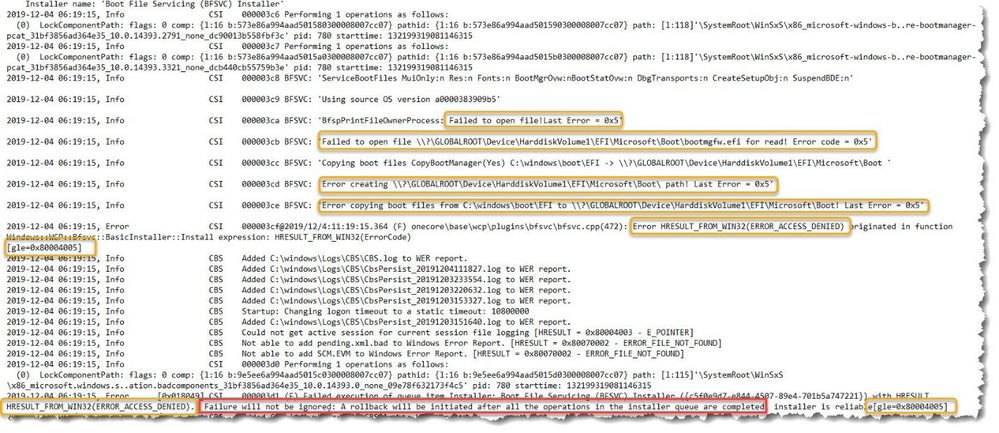 Figure 2: CBS Log example.
Something is blocking access to the ESP…what could it be? We’ve already checked the Windows logs and security controls with no indicators of anything blocking.
“The Lightbulb Moment”
I described the operational environment at the beginning of this article and mentioned a third-party AV/Firewall/Host Intrusion Prevention/DLP application. The application is managed by another group, so we initiated a ticket to investigate the issue. Without going too far into the details, research of the third-party logs confirmed that the DLP (Data Loss Prevention) application had a rule blocking Fat32 partitions because they were deemed to be a security risk. Once documentation regarding the ESP and an explanation for its purpose was delivered, an exception was created.
When the exception took effect on our server, we attempted once again to apply the LCU…SUCCESS!
Conclusion
In this case I could have saved a lot of time and headaches if I would have included the third-party application administrators, but sometimes exercising due diligence to eliminate all possible sources is necessary to prevent ‘finger-pointing’ and accusations. Fortunately, after providing evidence that Windows wasn’t the culprit the problem was resolved.
Happy troubleshooting! Out for now…
by Scott Muniz | Jul 20, 2020 | Alerts, Microsoft, Technology, Uncategorized
This article is contributed. See the original author and article here.
In this installment of Zero to Hero with App Service, learn how to migrate your existing applications to App Service. If you followed parts one, two, and three then you already have an application on App Service, and you can continue to the next article.
Overview
There are multiple ways to migrate a web application to Azure App Service:
- Redeploy code using CI/CD Pipelines, Web Deploy, or the REST APIs
- Containerize your web application and deploy from a container registry
- Use App Service Migration Assessment Tool to migrate your ASP.NET, PHP web applications and Linux containers
App Service Migration Assessment Tool assesses whether your web site can be moved to Azure App Service. If your web site is public, you can simply provide your URL on this website to run the assessment. You can also download and run the assistant if your web site is hosted in a private environment. Post assessment App service Migration Assessment tool allows quick and easy migration of ASP.Net & PHP web applications running on IIS, and containerized web applications running on Linux operating systems to Azure App Service.
Step by Step Guidance
Please refer to Test Deployment and Migration Instructions for step-by-step instructions on migrating a sample ASP.NET web application to Azure App Service.
You can also refer to the Microsoft learn module for more information on how to migrate an on-premises web application App Service.
How the Tool Works
Please read How the Assistant Works for detailed information.
Readiness Checks
The App Service Migration Assessment Tool runs multiple readiness checks. The results of the readiness checks are used to decide if your app can migrate to Azure App Service. A comprehensive list of the checks is shown below.
IIS Server Site Checks
- Port Bindings
- Protocol
- Certificates
- Location Tags
- ISAPI Filters
- Application Pools
- Application Pool Identity
- Authentication Type
- Application Settings
- Connection Strings
- Framework
- Virtual Directories
For detailed information on readiness checks and possible remediation steps, see this article.
Linux Container Checks
- Linux Platform
- Container Volume
- Exposed Ports
- HTTP Traffic
Please read Linux Container Checks for detailed information on readiness checks and possible remediation steps.
Database Migration and Hybrid Connections
App Service Migration Assistant migrates the web application and associated configurations only, it does not migrate databases. There are multiple ways to migrate databases to Azure. Some options are listed below.
Your web application on Azure App service can also connect to an existing, on-premises database using Hybrid Connections.
Hybrid Connections allow your web application to securely access resources in other networks – in this case, an on-premises database. The migration tool configures and sets up Hybrid Connections for you, allowing you to migrate your site while keeping your database on-premises. You can then migrate your database later.
Azure Migrate Hub Integration
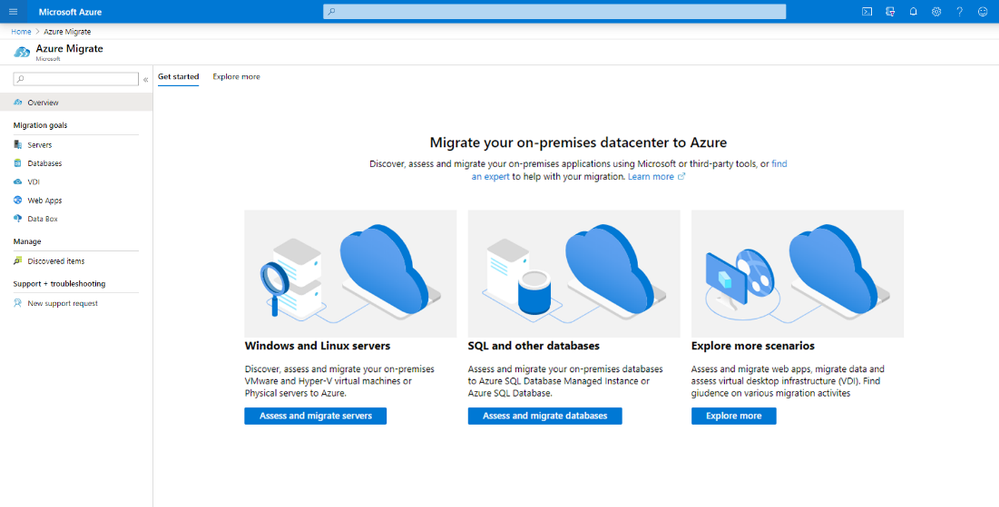
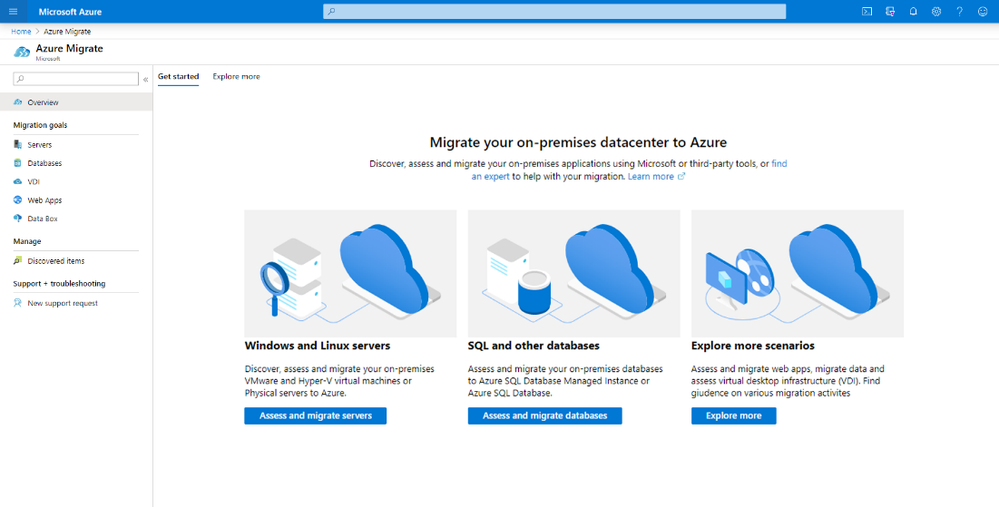
Azure Migrate provides a centralized hub to assess and migrate on-premises servers, infrastructure, applications, and data. The Migration assessment tool allows you to sync assessment data with Azure Migrate Hub for both successful migrations and migrations with blockers.
Summary
Using these resources, you can easily assess the migration feasibility of your .NET, PHP, and Linux containers. Once your migration assessment is complete, use the assistant’s step-by-step instructions to complete the migration to App Service. For more information, see the links below.
Helpful Resources
- App Service Migration Assistant Tool Website
- Migration checklist when moving to Azure App Service
- Linux Notes
- Release Notes
- Known Issues
- Azure CLI


Recent Comments