by Contributed | Feb 5, 2024 | Technology
This article is contributed. See the original author and article here.
We are thrilled to announce that this newsletter edition officially marks one full year of Logic Apps’ Ace Aviators! From our initial newsletter and livestream in February of last year, it’s been an incredible journey witnessing this community take flight. Of course, none of this smooth flying would have been possible without YOU! So, to all our aviators, thank you for reading, watching, and participating this past year. Make sure to keep sharing and posting to #LogicAppsAviators so we can continue to navigate the skies of innovation together.
In this issue:
Ace Aviator of the Month

What is your role and title? What are your responsibilities associated with your position?
Although my title is Solution Architect, my role is of Practice/Competency Lead, and I lead the Microsoft Integration practice (I’m responsible for leading and growing our expertise) within Birlasoft Limited. My role is multifaceted, encompassing strategic leadership, team development, client engagement, and operational excellence.
Below is a breakdown of my responsibilities:
Strategic Leadership:
- Defining the vision and direction for the practice, aligning it with the overall organizational strategy.
- Identifying and pursuing growth opportunities, including new markets, services, and partnerships.
- Staying abreast of industry trends and innovations to ensure our practice remains competitive (I’m not at my best now, but I’m taking steps to improve).
Team Development:
- Building and nurturing a high-performing team of experts in our practice area.
- Providing mentorship and coaching to help team members develop their skills and expertise.
- Fostering a collaborative and innovative work environment.
Client Engagement:
- Building strong relationships with clients and understanding their needs and challenges.
- Developing and delivering high-quality solutions that meet client requirements.
- Managing client expectations and ensuring their satisfaction.
Operational Excellence:
- Establishing and maintaining efficient processes and workflows within the practice.
- Managing budgets and resources effectively.
- Measuring and monitoring key performance indicators (KPIs) and driving continuous improvement.
Overall, my goal is to lead the Microsoft Integration Practice to success by delivering exceptional value to our clients, developing our team, and contributing to the growth of the organization.
Can you provide some insights into your day-to-day activities and what a typical day in your role looks like?
Typical days begin with a coffee-fueled review of emails, calendar, and upcoming meetings, deadlines, and calls. A substantial portion of the day is then dedicated to collaborative meetings with project teams and clients, focusing on progress updates, challenge resolution, and recommendation presentations. Drafting proposals for new RFPs/RFIs or executing ongoing project plans occupies another significant segment of the workday. As the practice lead, I am also prepared to address any ad-hoc requests or situations that may arise within the practice.
The positive response to our proposals, built on strong customer focus and industry best practices, has ignited growth in the Birlasoft Integration Practice. To capitalize on this momentum, I’m busy interviewing and assembling a team of exceptional individuals. It’s an honor to be part of this thriving practice (and I can’t wait to see what we achieve together)!
So, my day involves doing development work, working on POC/RFP/RFI, solution designing, Interviews, handling escalations, mentoring team, resources, and project planning etc.
What motivates and inspires you to be an active member of the Aviators/Microsoft community?
I am a very strong believer in The Value of Giving Back and by nature I like helping people (as much as I can).
What Inspired: When I had started learning BizTalk, I took lot of help from the community written articles and Microsoft documentation. I will be very honest, although Microsoft documentation is very apt but the articles written by community members were more easy to understand, had a different perspective, simple ways to explain etc.
And that’s how I started with an intention of helping people like me by sharing whatever limited knowledge I have in a simplified manner (at least I try to) by various means – answering on forums, writing articles etc. I maintain a blog Techfindings…by Maheshkumar Tiwari through which I share my findings/learnings and it’s been over a decade I am doing it, over LinkedIn/Facebook answering individuals to their questions, also sometimes on groups.
What Motivates: When you receive mail/message/thank you note from someone you don’t know, saying that the content really helped them – to solve the problem, to crack the interview, to clear the understanding etc. — It warms my heart more than any award. It’s the fuel that keeps me creating, knowing I’m truly touching lives.
Looking back, what advice do you wish you would have been told earlier on that you would give to individuals looking to become involved in STEM/technology?
While theoretical knowledge is important, prioritize developing practical skills like coding, data analysis, project management, and problem-solving. Don’t wait for the “perfect” moment or project to begin. Try mini-projects, tinker with code, participate in online challenges. While doing this embrace failures as learning opportunities and steppingstones to improvement.
No one knows everything, and reaching out for help is a sign of strength, not weakness. Seek guidance from seniors, peers, online communities, or any available resources.
Focus on the joy of learning, exploring, and problem-solving, not just achieving a specific degree or job title. Curiosity and a love for understanding how things work will fuel your passion and resilience through challenges.
What are some of the most important lessons you’ve learned throughout your career?
The only thing which is constant is Change – the sooner we accept it and develop/have a mindset to adapt, the better it is.
Survival of the fittest is applicable to every phase of personal/professional life. You really can’t blame others.
Maintaining a healthy balance between work and personal life (unfortunately I am failing in this), practicing self-care, and managing stress are crucial for long-term success.
Building a successful career takes time, dedication, and perseverance. Set realistic goals, celebrate milestones, and don’t get discouraged by setbacks.
Enjoy the process, keep learning, and adapt to the ever-changing field.
Imagine you had a magic wand that could create a feature in Logic Apps. What would this feature be and why?
Without a second thought, following is what I would have created – A wizard which asks me questions about my workflow requirement and once the questionnaire ends, complete workflow should be presented.
Well, that’s from magic wand perspective :smiling_face_with_smiling_eyes:, but above is very much doable.
But, as of now following are the things which we can do at present (few points are from my team – want to share maximum ideas to make Logic app more robust)
- Logic Apps should have a feature of disabling the actions from designer. This will help developers in unit testing the code efficiently. We can achieve this by commenting out Json in code view or by creating a backup workflow but that’s a tedious task.
- Versioning missing in Azure standard Logic Apps
- Breakpoint option should be enabled, so that it will help in debugging.
- Retry from the failed step should be extended to loops and parallel branches as well
- Need out of box support for Liquid Map debugging, Intellisense support would be also good to have
- For now only Json schema is supported in http trigger, if xml support can be added to it.
- CRON expression support in Logic app recurrence trigger
- Reference documentation as to which WS plan should one choose based on number of workflows, volume of messages processed etc.(will help to justify the cost to clients)
- Exact error capture for actions within loop/action within a scope inside a scope etc.
- Support for partial deployment of workflows in a single logic app (adding only the new workflows and not overwrite all)
Customer Corner:
Datex debuts flexible supply chain software based on the Azure Stack and Azure Integration Services

Check out this customer success story about Datex leveraging Microsoft Azure Integration Services to transform its infrastructure for a more modern solution. Azure Integration Services played a crucial role in enabling flexible integrations, data visualization through Power BI, and efficient electronic data integration (EDI) processes using Azure Logic Apps. Read more in this article about how AIS helped provide Datex with a low-code environment, faster time-to-market, cost savings, and enhanced capabilities.
News from our product group:
News from our community:
Azure Function | Application settings | User Secrets | Azure Key Vault | Options Pattern
Post by Sri Gunnala
Struggling to manage your application settings during development and testing, especially when switching between local and cloud environments? Watch Sri’s video to learn how to efficiently manage your app settings.
BizTalk Server to Azure Integration Services: Send zipped messages (or files)
Post by Sandro Pereira
Need to know how to send zipped messages (or files)? Read Sandro’s post about a solution for this in BizTalk and Azure Integration Services.
Friday Fact: Trigger Conditions Can Help You Optimize Workflows and Conserve Resources
Post by Luis Rigueira
Learn more in this post by Luis about improving your Logic App design with the ability to set trigger conditions.
Introduction to Azure Logic Apps
Post by Stephen W Thomas
If you’re new to Logic Apps, then Stephen’s newest video is perfect for you to get started.
Azure Integration Services – Faster Integration, Better Results to realize your AI Strategy
Post by Horton Cloud Solutions
Read more from Horton Cloud Solutions about how AIS not only improves developer productivity but is also key in executing an effective AI strategy.
Upgrade an Azure function from .NET 6 to .NET 8
Post by Mark Brimble
Need help upgrading an Azure function from .NET 6 to .NET 8? Mark has your back in this post.
by Contributed | Feb 3, 2024 | Technology
This article is contributed. See the original author and article here.
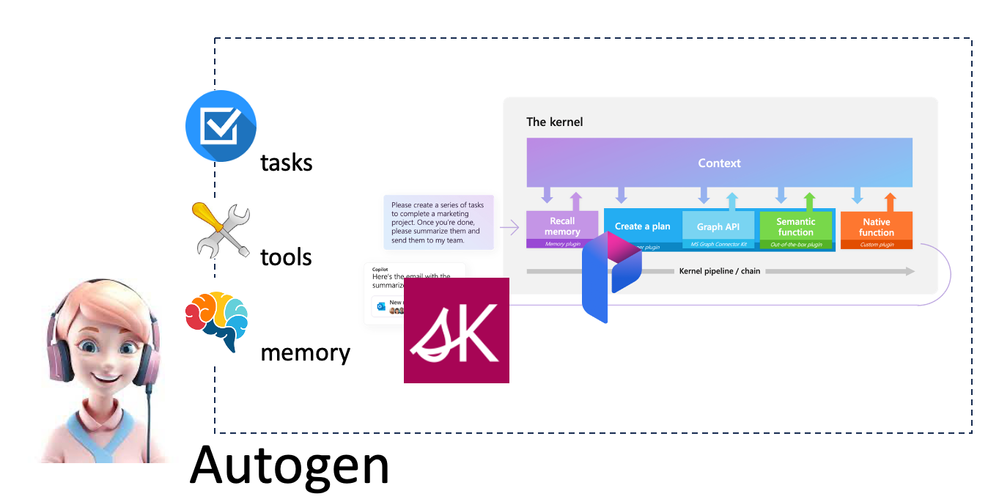
Do you know about AI Agents? How to apply AI Agents in different scenarios? For AI Agents, Microsoft released the open source framework Autogen. But what is its relationship with Semantic Kernel and Prompt flow? I hope this series can answer your questions. Let everyone have a clear understanding of AI Agents, how to combine Autogen, Semantic Kernel, and Prompt flow to build intelligent applications
Around artificial intelligence, humans have made many attempts in different industries and different application scenarios. With the emergence of LLMs, we have transitioned from traditional chatbots with process predefinition plus semantic matching to Copilot applications that interact with LLMs through natural language. In the past year or so, everyone has mainly focused on basic theories based on LLMs. In 2024 we should enter the application scenario of LLMs. We have a lot of papers, application frameworks, and practices from large companies to support the implementation of LLMs applications. So what is the final form of our so-called artificial intelligence applications? What you can think of is GitHub Copilot for programming assistance, Microsoft 365 Copilot for office scenarios, and Microsoft Copilot on Windows or Bing, etc. But think about the application of Copilot, which relies more on individuals to guide or correct through prompt words, and does not achieve fully intelligent applications. In the 1980s, we began to try to do fully intelligent work, and AI Agent is a fully intelligent best practice.
The agent interacts with the scene where it is located, receives instructions or data in the application scene, and decides different responses based on the instructions or data to achieve the final goal. Intelligent agents not only have human thinking capabilities, but can also simulate human behavior. They can be simple systems based on business processes, or they can be as complex as machine learning models. Agents use pre-established rules or models trained through machine learning/deep learning to make decisions, and sometimes require external control or supervision.
Characteristics of the AI agent:
Planning, divide steps based on tasks, and have a chain of though. With LLMs, it can be said that the planning ability of the agent is greatly enhanced, and the understanding of the task can be more accurate.
Memory the ability to remember behavior and part of logic, the ability to store experiences, and the ability to self-reflect.
Tool Chain, such as code execution capabilities, search capabilities, and computing capabilities. It can be said that he has strong mobility
perceive and obtain information such as pictures, sounds, temperatures, etc. based on the scene, thus providing better conditions for execution.
Technical support for realizing intelligent agents
There is considerable application practice in the application of LLMs.
There are many frameworks for implementing intelligent agents. The previously mentioned Semantic Kernel or Autogen can implement intelligent agents. The Assitants API has also been added under OpenAI to enhance the model’s capabilities in agents. Now OpenAI’s Assitants API opens up the capabilities of code interpretation, retrieval, and function calling. Assitants API of Azure OpenAI Service is also coming soon, which can be said to provide enough wisdom for the application capabilities of agents.
Many people pay more attention to the application layer framework. People often compare Semantic Kernel and Autogen. After all, both are from Microsoft and have good task or plan orchestration capabilities. However, some people always feel that the two have many similarities.
Semantic Kernel vs Autogen
Semantic Kernel focuses on effectively dividing individual tasks into steps in Copilot applications. This is also the charm of the Semantic Kernel Planner API. Autogen, on the other hand, focuses more on the construction of agents, dividing tasks to complete goals and assigning tasks to different agents. Each agent executes individually or interactively according to the assigned tasks. Behind each agent’s task can be a streaming task arrangement, or an extended method for solving problems, or skills triggered by corresponding prompts, which can be organized in conjunction with Semantic Kernel plugins. When we want to have a stable task output, we can also add prompt flow to evaluate the output.
Use Semantic Kernel to implement AI agents.
Semantic Kernel has added support for agents in the Experimental library, introduced AgentBuilder, and combined with the Assistant API to complete the brain configuration of the agent. The corresponding planning, memory and tools are defined using different plugins.
var yourAgent = await new AgentBuilder()
.WithOpenAIChatCompletion(“OpenAI Assitants API”, “OpenAI Key”)
.WithInstructions(“Your agent instruction”)
.WithName(“Your Agent Name”)
.WithDescription(“Your Agent Desctiption”)
.WithPlugin(“Your Agent Plugins”)
.BuildAsync();
Notice
- WithOpenAIChatCompletion requires OpenAI/Azure OpenAI Service models that support Assistants API (soon to be released). Currently supported OpenAI models are GPT-3.5 or GPT-4 models.
- WithInstructions We need to give clear task instructions and inform the agent how to execute it. This is equivalent to a process. You need to describe it clearly, otherwise the accuracy will be reduced.
- .FromTemplate can also use Template to describe task instructions
- .WithName The name is required to make the call more clear.
- .WithPlugin is based on different skills and tool chains for the agent to complete tasks. This corresponds to the content of Semantic Kernel.
Let’s take a simple scenario and hope to build a .NET console application through an agent, compile and run it, and require it to be completed through an agent. From this scenario, we need two agents – the agent that generates the .NET CLI script and the agent that runs the .NET CLI script. In Semantic Kernel, we use different plugins to define the required planning, memory and tools. The following is the relevant structure diagram.
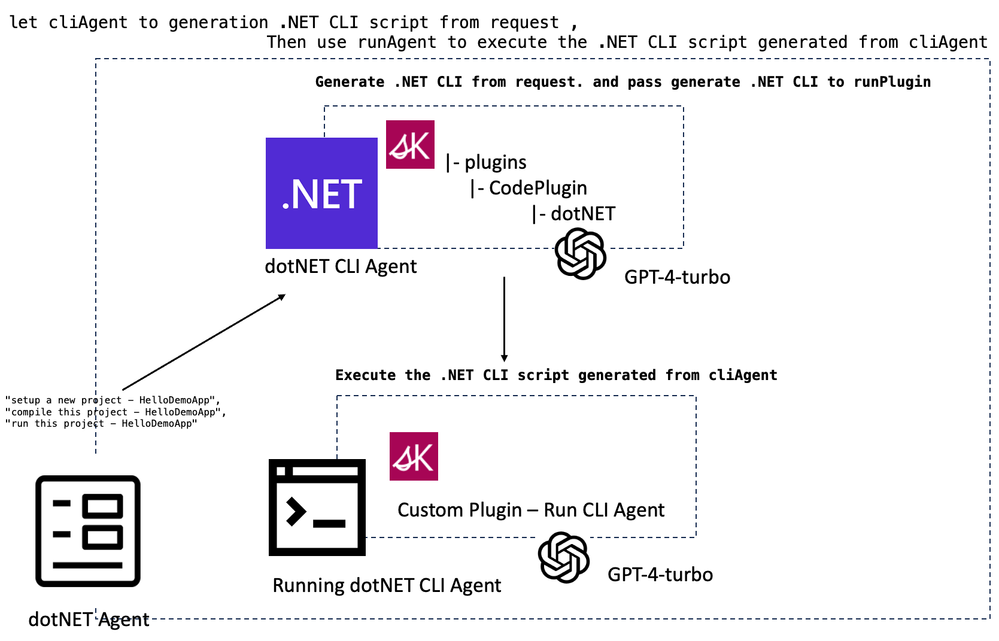
You can get sample code from Semantic Kernel CookBook
https://github.com/microsoft/SemanticKernelCookBook/tree/main/workshop/dotNET/workshop3/dotNETAgent
Application scenarios of AI agents
AI Agents are an important scenario for LLMs applications, and building agent applications will be an important technical field in 2024. We currently have three main forms of intelligence, such as single AI agent, multi- AI agents, and hybrid AI agent.
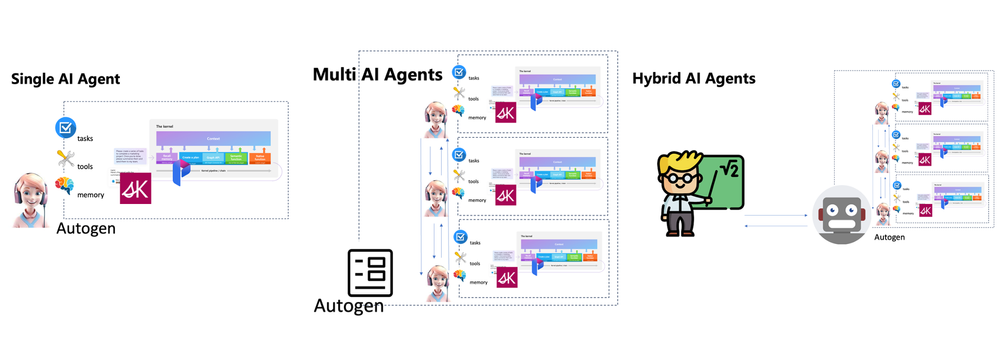
Single AI Agent
Work completed in specific task scenarios, such as the agent workspace under GitHub Copilot Chat, is an example of completing specific programming tasks based on user needs. Based on the capabilities of LLMs, a single agent can perform different actions based on tasks, such as requirements analysis, project reading, code generation, etc. It can also be used in smart homes and autonomous driving.
Multi-AI agents
This is the work of mutual interaction between AI agents. For example, the above-mentioned Semantic Kernel agent implementation is an example. The AI agent generated by the script interacts with your AI agent that executes the script. Multi-agent application scenarios are very helpful in highly collaborative work, such as software industry development, intelligent production, enterprise management, etc.
Hybrid AI Agent
This is human-computer interaction, making decisions in the same environment. For example, smart medical care, smart cities and other professional fields can use hybrid intelligence to complete complex professional work.
At present, the application of intelligent agents is still very preliminary. Many enterprises and individual developers are in the exploratory stage. Taking the first step is very critical. I hope you can try it more. I also hope that everyone can use Azure OpenAI Service to build more agent applications.
Resources
- Microsoft Semantic Kernel https://github.com/microsoft/semantic-kernel
- Microsoft Autogen https://github.com/microsoft/autogen
- Microsoft Semantic Kernel CookBook https://github.com/microsoft/SemanticKernelCookBook
- Pursuit of “wicked smartness” in VS Code https://code.visualstudio.com/blogs/2023/11/13/vscode-copilot-smarter
by Contributed | Feb 2, 2024 | Technology
This article is contributed. See the original author and article here.
We are happy to share that the new Microsoft Teams bulk installer is now available for Windows.
We shared the news of the general availability of new Microsoft Teams in this blog post, and we have also made available tools that help admins to install the new Teams app. More details can be found in Bulk deploy the new Microsoft Teams desktop client.
Online deployment: Download and install the latest new Teams app machine wide:
- Command (Run with admin privilege): teamsbootstrapper.exe -p
- During online deployment, the bootstrapper app detects the CPU architecture of the system and downloads the corresponding installer of most recently released new Teams client and installs the client machine wide.
Offline deployment: Install pre-downloaded new Teams client MSIX package machine wide: Download Microsoft Teams Desktop and Mobile Apps
- For admins concerned with network bandwidth usage of online deployment, offline deployment mode is a great alternative. Admins can download the client only once and use the bootstrapper to bulk deploy machines in their tenant.
- Command for local path (Run with admin privilege): teamsbootstrapper.exe -p -o “c:pathtoteams.msix”
- Command for UNC path (Run with admin privilege): teamsbootstrapper.exe -p -o “uncpathtoteams.msix”
- During offline deployment, the bootstrapper app installs the admin specified package from either local system or UNC path. Please make sure the correct version of new Teams client is downloaded.
Bulk remove new Teams:
- Command for deleting every occurrence of new Teams installation: teamsbootstrapper.exe -x
- If you choose the bulk removal option, it will uninstall both the machine level and the user level installations. New Teams app instances that are running will be stopped.
We advise admins to use the bulk installer tool to install new Teams client for their tenants.
- There are separate new Teams installer files depending on the target system’s CPU architecture: X64/X86/AMR64. The bootstrapper automatically detects the system architecture and downloads the appropriate installer file to avoid performance.
- Online mode automatically downloads the most recent released version of the new Teams app. This prevents the problem of outdated versions of the app being installed over and over, which can increase network usage (outdated app versions will update to the newest release right after installation), and slow down essential feature or security updates.
- The bootstrapper can be deployed by admins using the deployment tools they already have for example intune/sccm.
Upcoming features and bug fixes:
- Auto start support – Create a new command line option that launches the new Teams app for all users on the machine after provisioning.
by Contributed | Feb 1, 2024 | Technology
This article is contributed. See the original author and article here.
How Microsoft 365 Delivers Trustworthy AI Whitepaper
In the rapidly evolving business landscape, corporations are perpetually in search of innovative strategies that can amplify productivity and bolster security. Microsoft President Brad Smith wrote in his blog: AI advancements are revolutionizing knowledge work, enhancing our cognitive abilities, and are fundamental to many aspects of life. These developments present immense opportunities to improve the world by boosting productivity, fostering economic growth, and reducing monotony in jobs. They also enable creativity, impactful living, and discovery of insights in large data sets, driving progress in various fields like medicine, science, business, and security. However, the integration of AI into business operations is not without its hurdles. Companies are tasked with ensuring that their AI solutions are not only robust but also ethical, dependable, and trustworthy.
How Microsoft 365 Delivers Trustworthy AI is a comprehensive document providing regulators, IT pros, risk officers, compliance professionals, security architects, and other interested parties with an overview of the many ways in which Microsoft mitigates risk within the artificial intelligence product lifecycle. The document outlines the Microsoft promise of responsible AI, the responsible AI standard, industry leading frameworks, laws and regulations, methods of mitigating risk, and other assurance-providing resources. It is intended for a wide range of audiences external to Microsoft, who are interested in or involved in the development, deployment, or use of Microsoft AI. As Charlie Bell, EVP of Security at Microsoft describes in his blog, “As we watch the progress enabled by AI accelerate quickly, Microsoft is committed to investing in tools, research, and industry cooperation as we work to build safe, sustainable, responsible AI for all.”
The commitments and standards conveyed in this paper operate at the Microsoft cloud level – these promises and processes apply to AI activity across Microsoft. Where the paper becomes product specific, its sole focus is Microsoft Copilot for Microsoft 365. This does not include Microsoft Copilot for Sales, Microsoft Copilot for Service, Microsoft Copilot for Finance, Microsoft Copilot for Azure, Microsoft Copilot for Microsoft Security, Microsoft Copilot for Dynamics 365, or other Copilots outside of Microsoft 365.
At Microsoft, we comprehend the significance of trustworthy AI. We have formulated a comprehensive strategy for responsible and secure AI that zeroes in on addressing specific business challenges such as safeguarding data privacy, mitigating algorithmic bias, and maintaining transparency. This whitepaper addresses our strategy for mitigating AI risk as part of the Microsoft component of the AI Shared Responsibility Model.
The document is divided into macro sections with relevant articles within each:
- Responsible and Secure AI at Microsoft – this section focuses on Microsoft’s commitment to responsible AI and what this looks like in practice. The articles within address key topics including:
- The Office of the Responsible AI – read this to gain a deeper understanding of what comprises this division within Microsoft.
- The Responsible AI Standard and Impact Assessment – every Microsoft AI project must adhere to the Responsible AI Standard and have a valid impact assessment completed.
- Microsoft’s voluntary White House commitments – learn more about the commitments the White House made and how Microsoft shares these principles in our development and deployment practices.
- Artificial Generative Intelligence Security team – learn about Microsoft’s center of excellence for Microsoft’s generative AI security and the initiatives being driven by this team.
- Addressing New Risk – this section centers on the ways in which Microsoft is continuously improving its security practices and service design to mitigate new risk brought forth by the era of AI. As Brad Smith states in his blog, “Even as recent years have brought enormous improvements, we will need new and different steps to close the remaining cybersecurity gap.” This section addresses many actions Microsoft takes to address novel and preexisting risks in the era of AI. The articles within address salient topics including:
- The copilot copyright commitment – how Microsoft addresses the risk of customers inadvertently using copywritten material via Microsoft AI services.
- Updating the Security Development Lifecycle (SDL) to address AI risk – the ways Microsoft has adapted our SDL to identify and prioritize AI specific risks.
- Copilot tenant boundaries and data protection with shared binary LLMs – this article describes how your data remains protected and secured throughout the data flow process to the copilot LLMs and back to your end user in this multi-tenant environment.
- Copilot data storage and processing – this section answers the question, “what are the data storage and processing commitments applicable to Microsoft 365 copilot today?”
- AI specific regulations and frameworks for assurance – this section describes upcoming regulations relevant to artificial intelligence and how Microsoft plans to address each. Regulations and frameworks addressed include:
- European Union AI Act
- ISO 42001 AI Management System
- Cyber Executive Order (EO 14028)
- NIST AI Risk Management Framework
- Assurance Providing Resources – this comprises miscellaneous resources to providing customers assurance that Microsoft is mitigating risk as part of the shared responsibility model.
- Defense-in-depth: controls preventing model compromise in the production environment – this article outlines an entire Microsoft control set designed to mitigate model compromise through defense-in-depth.
As with everything Microsoft does, this whitepaper is subject to continuous update and improvement. Please reach out to your Microsoft contacts if you have questions regarding this content; thank you for your continued support and utilization of Microsoft AI.
Download the Whitepaper
We hope this whitepaper has provided you with valuable insights into how Microsoft delivers trustworthy AI across its products and services. If you want to learn more about our responsible and secure AI strategy, you can download the full whitepaper here: https://aka.ms/TrustworthyAI. This document will give you a comprehensive overview of the Microsoft promise of responsible AI, the responsible AI standard, industry leading frameworks, laws and regulations, methods of mitigating risk, and other assurance-providing resources. You will also find detailed information on how Microsoft Copilot for Microsoft 365 adheres to these principles and practices. Download the whitepaper today and discover how Microsoft can help you achieve your AI goals with confidence and trust.






Recent Comments