This article is contributed. See the original author and article here.
We’re excited to announce the expansion of Microsoft’s data residency capabilities by adding content of interactions with Microsoft Copilot for Microsoft 365 to our portfolio of data residency commitments and offerings. We are expanding our product terms and Microsoft 365 data residency offerings to contractually guarantee that we will store the content of your interactions with Copilot for Microsoft 365 in the same country or region in which you store your existing Microsoft 365 content.
This article is contributed. See the original author and article here.
Windows 365 Customer Lockbox is now generally available for all organizations with a Microsoft 365 E5 or Office 365 E5 subscription. This security feature ensures that Microsoft cannot access content in your Cloud PCs to do service operations without your explicit approval.
What is Customer Lockbox?
In some cases, Microsoft support engineers may need to access your content to determine the root cause of an issue and address it. Windows 365 Customer Lockbox requires the engineer to request access from you as a final step in the approval workflow.
With Customer Lockbox, you have the option to approve or deny the request for your organization, and provide direct-access control to your content.
Customer Lockbox is included in the Microsoft 365 or Office 365 E5 subscriptions and can be added to other plans that have an Information Protection and Compliance or an Advanced Compliance add-on subscription. See Plans and pricing for more information.
How to use Windows 365 Customer Lockbox
Turn Customer Lockbox requests on or off
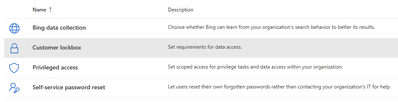
You can turn on Customer Lockbox controls in the Microsoft 365 admin center. When you turn on Customer Lockbox, Microsoft must obtain your organization’s approval before accessing any of your tenants’ content.
Using a work or school account that has the global administrator role, go to https://admin.microsoft.com/ and sign in.
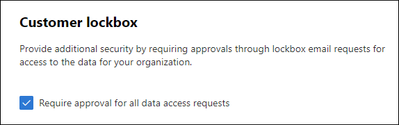
Once you select Customer Lockbox, a right-hand column will appear. Check the “Require approval for all data access request” checkbox and press the Save button on the bottom of the column to turn on the feature.
Approve or deny a Customer Lockbox request
Using a work or school account that has either the Global Administrator or the Customer Lockbox access role assigned, go to https://admin.microsoft.com/ and sign in.
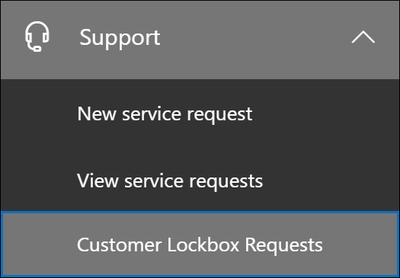
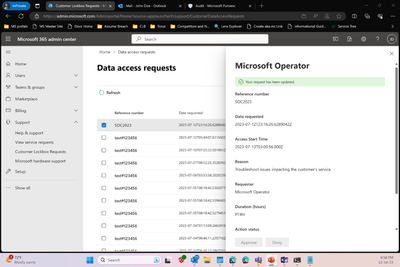
Choose Support > Customer Lockbox Requests
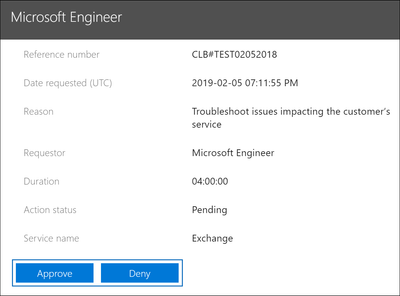
A list of Customer Lockbox requests is displayed.
Select the Customer Lockbox request, then choose Approve or Deny.
A green confirmation message about the approval of the Customer Lockbox request will be displayed.
Auditing access
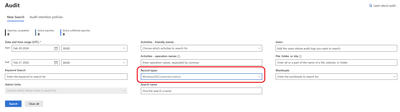
Once just-in-time (JIT) access expires, the troubleshooting ticket is marked as complete. You can then visit compliance.microsoft.com and select Audit under the Solutions category to see what was done during the session. For Windows 365 specific records, under Record types, select Windows365CustomerLockbox.
This article is contributed. See the original author and article here.
Microsoft Copilot for Security and NIST 800-171: Access Control
Microsoft Copilot for Security in Microsoft’s US Gov cloud offerings (Microsoft 365 GCC/GCC High and Azure Government) is currently unavailable and does not have an ETA for availability. Future updates will be published to the public roadmap here.
As of this writing we’ve received the Proposed Rule of the Cybersecurity Maturity Model Certification (CMMC) 2.0, and the public comment period ended on February 26. The National Institute of Standards and Technology (NIST) just released their analysis of public comments on the final draft of NIST Special Publication 800-171 Revision 3 (NIST 800-171r3) and initial draft of NIST 800-171Ar3. NIST plans to publish final versions sometime in Spring 2024. These publications are important because one of the primary requirements for CMMC is that organizations will need to implement most, if not all, of NIST 800-171r3’s controls for Level 2 certification.
In the first blog of this series, we looked at the System and Information Integrity family of requirements (3.14) in the draft of NIST 800-171r3, which covers flaw remediation, malicious code protection, security alerts via advisories and directives, and system monitoring. Also, the blog discussed how Microsoft Copilot for Security (Security Copilot) can help DIB organizations meet these requirements by identifying, reporting, and correcting system flaws more efficiently and effectively. The second blog in this series will dive into the very first requirement family – Access Control (3.1)
Early reports indicate organizations are reducing time and resource constraints by deploying Security Copilot in private preview and the early access program. Despite no public timeline on the availability of Security Copilot in Microsoft’s US-sovereign cloud offerings (Microsoft 365 GCC/GCC High and Azure Government), it’s worthwhile exploring how companies in the Defense Industrial Base (DIB) may use these AI-powered capabilities to meet NIST 800-171r3 security requirements, and ultimately defend against identity threats with finite or limited resources.
NOTE: Some requirements, such as 3.1.1 contain seven bullets (a-g) or more, and an entire blog could be written on that one requirement alone. Each section is not exhaustive of the requirement nor the applications of certain technologies. The suggested applications of Microsoft solutions do not guarantee compliance with any regulation nor prevention of an attack or compromise. All images and references are based upon preview experiences and do not guarantee identical experiences in general availability or within the U.S. Sovereign Cloud offerings.
Access Control (3.1.)
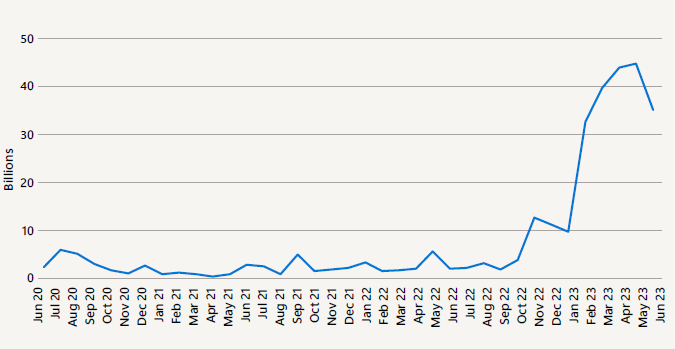
One might ask why Access Control holds the prominent first spot in the NIST 800-171 publication. It’s relatively simple – Access Control is alphabetically first. However, this requirement family is arguably one of the most paramount because of the remarkable growth in identity-based attacks and the need for identity architects or teams to work more closely with the Security Operations Center (SOC). Microsoft Entra data noted in the Microsoft Digital Defense Report shows the number of “attempted attacks increased more than tenfold compared to the same period in 2022, from around 3 billion per month to over 30 billion. This translates to an average of 4,000 password attacks per second targeting Microsoft cloud identities [2023]”.
3.1.1. Account Management
It is obviously a great starting point to “a. Define the types of system accounts allowed and prohibited” to access systems that hold Controlled Unclassified Information (CUI) or other sensitive information. Many organizations or their Managed Security Service Provider (MSSP) develop a mapping of privileged accounts and non-privileged accounts within their environment and develop policy based on principles of Least Privilege – which is a requirement to discuss later in this blog. Yet, the power of Microsoft Entra ID and Security Copilot shines most brightly after the security team “define(s)” or “c. Specify(ies) authorized users of the system(s), group(s) and role membership(s), and access authorization(s).”
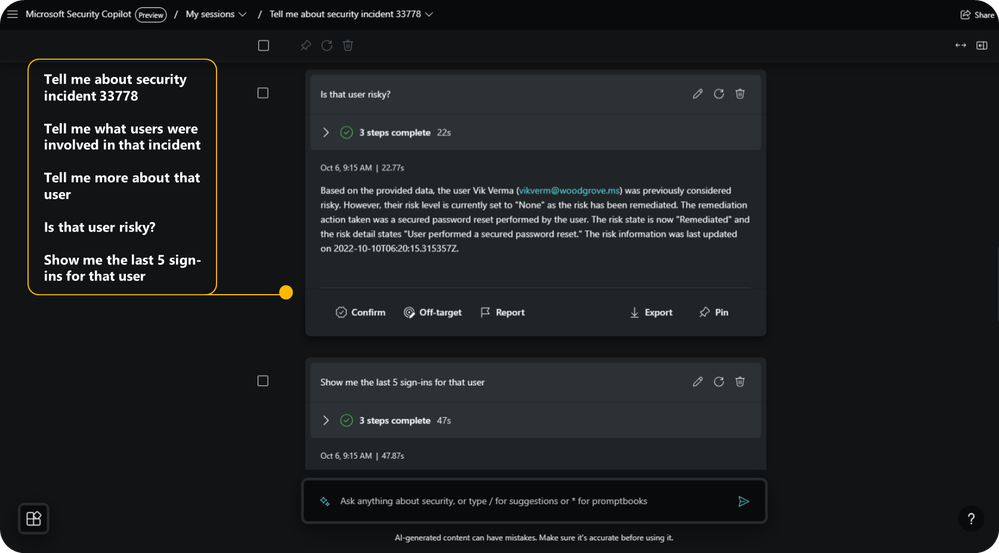
Microsoft Entra provides rich information for Microsoft Defender for Identity (MDI) and Microsoft Sentinel for “e. Monitor(ing) the use of system accounts.” Yet, Security Copilot increases the utility of this trove of incidents and events further by easily summarizing details about the totality of a user’s authentications, associations, and privileged access as shown in the figure below.
Furthermore, SOC and Identity administrators alike can quickly surface every user in the environment with expired, risky, or dormant accounts. They can also take the next steps to “f. Disable system accounts” when they meet those criteria or modify the identities and/or privileges. Much of this investigation and troubleshooting is done without the need of policy and configuration surfing, nor does the SOC or Identity administrator need to craft a KQL query or PowerShell script from scratch. Security Copilot allows these two roles to do all of this using natural language prompts.
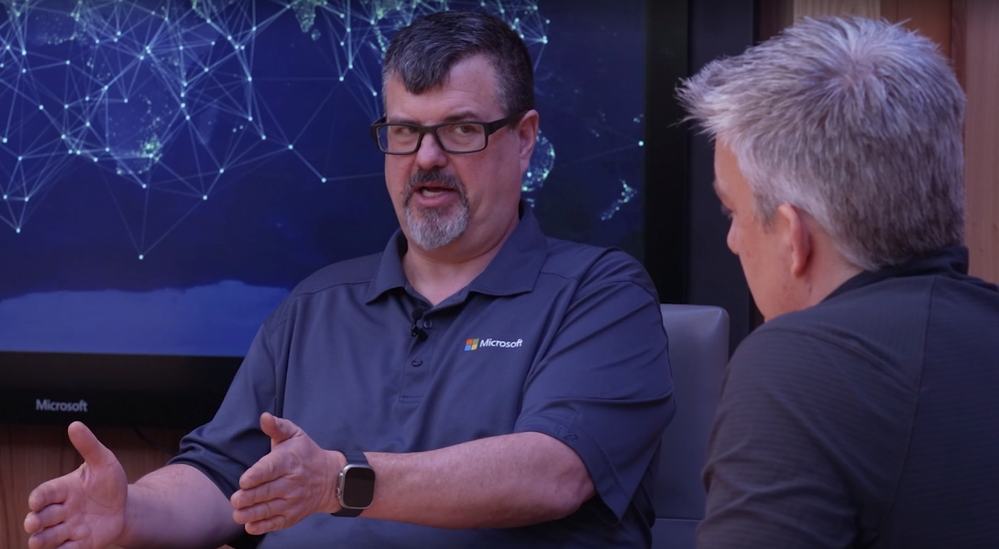
Alex Weinert, VP of Identity Security at Microsoft, recently spoke of the narrowing gap between these two types of administrators, skillsets, and their teams in Episode 2 of The Defender’s Watch. Alex explains, “it’s more nuanced than… relying on your SOC team to catch things that are happening in Identity. Not all Identities are the same. Not all your servers are the same. We want to be making sure the two teams are working together to build a map of what are those critical resources and that there’s a feedback loop… listening to the SOC on the other side understanding what’s happening in the organization and what are we going to do as administrators [given investigation to remediation of an incident can take time]”. Security Copilot can be the accelerant for incidents and intelligence to drive Account Management and identity policy change.
Alex also quipped “if you’re an Identity Architect go buy your SOC team a pizza and get to know them” as he expressed the need for collaboration across Identity and SOC teams for access control. Ironically Dominoes just rolled out unified identity with Microsoft Entra ID.
3.1.2. Access Enforcement
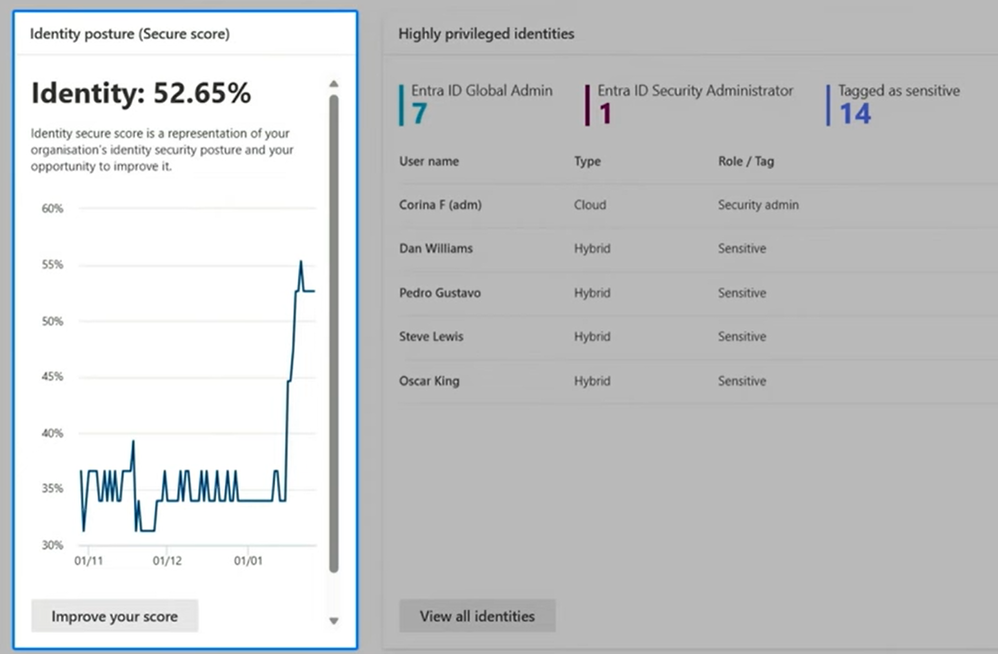
Security Copilot may help organizations day-to-day enforce Microsoft Entra ID access control policies and modify configurations to increase the identity score shown below. An Identity administrator or member of the SOC can also quickly create an audit log, for example, to detect when a new credential is added to an application registration by simply asking Security Copilot for the applicable KQL code. Also, individuals interviewed for CMMC assessments can leverage Security Copilot to quickly surface a summary of activities completed by your Entra ID (active directory) privileged users, identify when changes to Conditional Access policies were made, and more.
When going through a CMMC assessment, an assessor will be looking to determine if approved authorizations for “logical access” to CUI and system resources are enforced. Taking a step away from Security Copilot, it’s important to note the new MDI Identity Threat Detection and Response (ITDR) dashboard is one of the most elegant ways to show where and how enforcement is taking place or where your organization may not be. In a single plane, administrators can see their identity score from Microsoft Secure Score updated daily with a quick link to see access control policies and “system configuration settings”, new instances where users have exhibited risky lateral movement, and a summary of privileged identities with a quick link to view the full “list of approved authorizations”.
3.1.3. Information Flow Enforcement
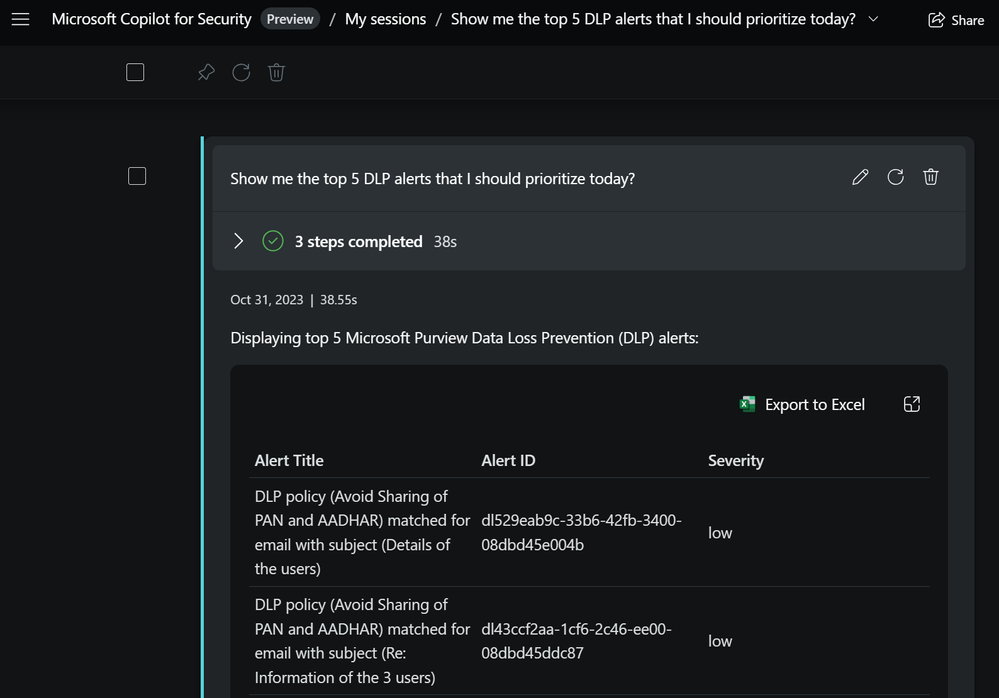
Organizations meet this requirement by managing “information flow control policies and enforcement mechanisms to control the flow of CUI between designated sources and destinations (e.g., networks, individuals, and devices) within systems and between interconnected systems.” Microsoft Purview’s Information Protection label policies along with proper configuration of Data Loss Prevention (DLP) policies can prevent the flow of sensitive information between internal and external users via email, Teams, on-premises repositories and other applications. Security Copilot can share with users the top DLP alerts shown below, give a summary or explanation of an alert, and assist in adjusting policy based upon the alert scenario.
3.1.5 Least Privilege
Applying least privilege to accounts can often be combined with managing the functions they can perform, such as executing code or granting elevated access. Once an organization turns on Microsoft Defender for Cloud and Microsoft Entra ID Privileged Identity Management (PIM) for its resources in Azure or other infrastructure, users can be granted just-in-time access to virtual machines and other resources. Conversely, those same users can lose access based upon suspicious behavior like clearing event logs or disabling antimalware capabilities. Security Copilot can be used in the Microsoft Entra admin portal to guide the administrator on creating notification policies or conduct access reviews for activities like the aforementioned.
Security Copilot may also be used to identify where users have more than ‘just enough access’, or help the administrator create lifecycle workflows where a user’s privileges need modification based on changes in their role or group. On a final note, the draft of NIST 800-171Ar3 specifies that an assessor would possibly need to examine a list of access authorizations and validate where privileges were removed or reassigned during a given period – all of which can be generated in reports aided by Security Copilot.
3.1.11 Session Termination
This requirement has some art along with science. An organization can define “conditions or trigger events that require automatic session termination” by periods of inactivity, time of day, risky behavior, and more. Microsoft Entra ID defaults reauthentication requests to a rolling 90 days but that may be too infrequent for some users whom daily access sensitive data sets, such as an Azure subscription with Windows servers holding CUI. Security Copilot can aid administrators to develop Conditional Access policies based on sign-in frequency, session type (from a managed or non-managed device), or sign-in risk. Also, Security Copilot can be prompted to help a SOC analyst reason over permission analytics to determine the impact of a user who’s exhibiting risky behavior and take subsequent action to terminate a session outside of the normal ‘conditions’.
3.1.16 Wireless Access and 3.1.18 Access Control for Mobile Devices
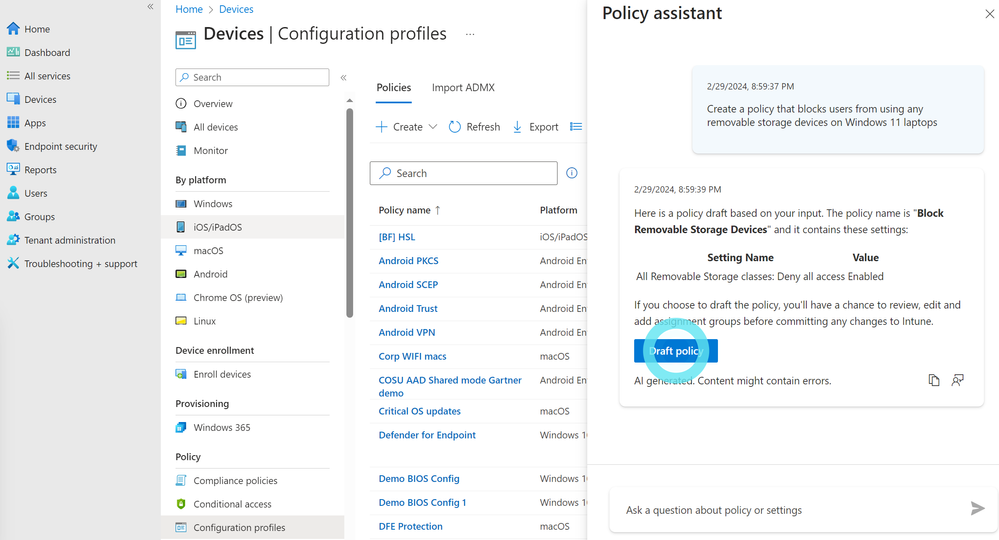
Rather an endpoint such as a laptop or various types of mobile devices, Security Copilot can aid users within the Microsoft Intune admin center to create policies for “usage restrictions, configuration requirements, and connection requirements” when wirelessly accessing systems of record. Below is an example of the embedded Security Copilot experience where we want to create a policy for Windows laptops in our environment.
Example of Security Copilot assisting with Endpoint Management Policies
Users can also ask Security Copilot to summarize an existing policy for devices in the environment, as well as generate or explore Microsoft Entra ID conditional access policies.
“Authoriz[ing] each type of wireless access” or “connection of mobile devices” will require policies that span multiple technologies. In many cases, administrators tasked with creating or managing these policies may not have the combined domain knowledge, yet Security Copilot bolsters individuals where they may possess certain skill gaps.
Meeting NIST 800-171 with Limited Resources
Joy Chik wrote in her blog, 5 ways to secure identity and access for 2024, “Identity teams can use natural language prompts in Copilot to reduce time spent on common tasks, such as troubleshooting sign-ins and minimizing gaps in identity lifecycle workflows. It can also strengthen and uplevel expertise in the team with more advanced capabilities like investigating users and sign-ins associated with security incidents while taking immediate corrective action.”
Microsoft Security Copilot is an advanced security solution that helps companies protect CUI access and prepare for CMMC assessment by elevating the skillset of almost every cybersecurity tool and professional in the organization. It’s also bringing the identity team and the SOC team closer together than ever before. DIB companies working with limited resources or MSSPs struggling to keep up with demand will, both, likely look to creatively deploy AI solutions such as Security Copilot in the near future.
What is your role and title? What are your responsibilities associated with your position?
I am an Integration Developer, and my key responsibilities consist of working with my team and alongside clients, making the transition and integration of their products and services smoother.
Can you provide some insights into your day-to-day activities and what a typical day in your role looks like?
Sure, merging a portion of my activities, what I could express as day-to-day would be: I start by checking for any issues in our clients’ production environments to ensure everything’s running smoothly, and then my main activities will be implementing cloud integration solutions with Azure Integration Services. Occasionally, I also help the team on on-premises projects using BizTalk Server.
Also, one of my big activities is going deep into Enterprise Integration features and crafting new ways to archive specific tasks. Do proof-of-concept in new features, explore existing or new services, test those solutions, and find alternatives, for example, creating Azure functions as an alternative to the Integration Account and testing inside Logic App flows to use those Azure functions.
I’m always on the hunt for new solutions to any problems we face, and in doing so, there’s a lot of documenting everything we do. This documentation is more than just busy work; it really helps by streamlining our processes and guides our team and community through troubleshooting. To ensure the importance of knowledge sharing, I actively produce informative content for our blog and YouTube Channel. This includes writing posts and creating videos that share our experiences, solutions, and insights with a broader audience.
I also contribute to enhancing our team’s productivity by creating tools tailored to address specific issues or streamline processes that are later shared with the community.
What motivates and inspires you to be an active member of the Aviators/Microsoft community?
What really drives me to engage with the Aviators/Microsoft community is my passion for tackling challenges and finding solutions. There’s something incredibly rewarding about cracking a tough problem and then being able to pass on that knowledge to others. I believe we’ve all had that moment of gratitude towards someone who’s taken the time to document and share a solution to the exact issue we were facing. That cycle of giving and receiving is what motivates me the most. It’s about contributing to a community that has been so important in my own learning and problem-solving journey, and I’m inspired to give back and assist others in the same way.
Looking back, what advice do you wish you would have been told earlier on that you would give to individuals looking to become involved in STEM/technology?
I could say something about always having a passion for new technologies and staying up to date with what you are pursuing. There would be nothing wrong with it, but those sound like already-at-hand phrases to be exchanged without considering each individual’s current state.
On a moment, and in a world where mental health is so important, let me share a simple tale that resonates with anyone at the crossroads of their career, whether they are new and confused about what to do, whether they’re just starting, or contemplating a shift in direction. It’s a gentle reminder that venturing into new territories can be daunting but immensely rewarding and that, at times, we may not even realize that our current paths could be detrimental to our well-being, professional growth, and personal relationships.
“There was once a man that went into the wilds of Africa, believing himself to be a hunter for many years. Despite his efforts, he found himself unable to catch any game. Overwhelmed by frustration and feeling lost, he sought the guidance of a Shaman from a nearby tribe.
Confessing to the Shaman, he said, “Hunting is what I live for, but I’m hitting a wall. There’s simply nothing out there for me to hunt, and I don’t know what to do.”
The Shaman, who had seen many seasons and had a kind of wisdom you don’t come across every day, simply put his arm on the hunter’s shoulder, looked him in the eyes and said, “Really? Nothing to hunt for? This land has fed us for generations. There is plenty of hunt out there and yet you cannot see it? Maybe the problem isn’t the land…allow me to ask you something very important, do you genuinely desire to be a hunter?”
This narrative goes much deeper than the act of hunting. It’s a reflection on our passions, how we confront our challenges, and the realization that our perspective might need a shift.
If our passions no longer ignite us, or if our efforts to chase them lead nowhere, it might be a sign to let go, not in defeat, but in liberation, because, in the end, I want everyone to be happy with the career path they have chosen, so that would be my advice, to read this simple tale, apply it to your current situation and ask yourself, “Do I really want to do keep doing what I am doing right now?” And if you find that your current path is not worth pursuing, if your mental health is not in shape, or if you are hitting a wall, then yes, it is time to take the step!
Imagine you had a magic wand that could create a feature in Logic Apps. What would this feature be and why?
In a world where AI is at such a fast pace, one feature that I would personally like to have on Logic Apps is prompted AI-generated Logic App flows. What that would mean is you give a prompt to the designer of what you pretend, and you would have a generated, most efficient flow for what you have described. Of course, you will still need to configure some things, but I think AI-generated flows could outline and cover many scenarios, making our processes faster and more efficient.
AI is here to stay, whether we like it or not; it just doesn’t go away, so we could take advantage of it to create better, faster, and more efficient products or stay behind while we see others do it.
What are some of the most important lessons you’ve learned throughout your career that surprised you?
One of the most surprising yet vital lessons from my career is the central role of relationships in keeping the ship sailing smoothly. Having positive communication and nurturing a positive work environment are crucial elements that empower a team to deliver top-notch results, remain driven, and maximize their daily potential. A car has four tires, and you need them all to get home safely.
Check out this customer success story on how Microsoft is helping to keep Slovenia’s lights on by improving and modernizing ELES’ operations. In 2012, ELES turned to Microsoft when they needed a new enterprise resource planning (ERP) solution. Today, ELES uses Azure Logic Apps to connect their ERP with other systems, improving collaboration between departments, streamline operations, and better manage their energy resources and infrastructure.
For those using the IBM MQ Built-in (In-App) connector available in Logic Apps Standard, check out this article explain more on Handles and how to calculate the max value to set in your IBM MQ server.
Learn about various issue scenarios related to the Azure Automation connector in both Logic App Consumption and Standard, along with its causes and resolutions.
V1 Actions/Triggers of the SQL Connector for Logic Apps will be deprecated by the end of March 2024. In this article, learn how to use a PowerShell Script to identify the Logic Apps still using the deprecated SQL Connectors so that you can change them to the V2 equivalent.
ISE’s retirement date is August 31st, 2024, so make sure you migrate any Logic Apps running on ISE to Logic Apps Standard. Check out this guide video from our FastTrack team that walks you through the whole process!
Check out this recording from the February 2024 meetup for Houston Azure User Group where Azure customers dive into their journey from on-premises Biztalk to Azure Logic Apps hosted in an Integration Service Environment (ISE).
Watch this recording from a webinar hosted by Derek and Tim as they talk about the benefits of Azure’s ecosystem and a step-by-step strategy for a smooth transition from MuleSoft to AIS.
This article is contributed. See the original author and article here.
1. SharePoint datasets and OneDrive
When I describe the SharePoint datasets in Microsoft Graph Data Connect to someone, I frequently get this question: do Sites and Sharing Permissions cover only SharePoint or do they include OneDrive? The short answer is that OneDrive is included, but there is much more to say here…
2. OneDrive is a type of SharePoint site
For most technical intents and purposes, a OneDrive in your Microsoft 365 tenant is a SharePoint site with a specific template and permissions. It is basically a SharePoint site collection for personal use that comes preconfigured with permissions for the owner and nobody else. After that, you can upload/create files and decide to keep them private or share with others from there.
This special type of site was initially called a “Personal Site”, later was referred to as a “My Site” or “MySite”, then a “OneDrive for Business” (commonly abbreviated to “ODfB” or simply “ODB”). These days, we usually just call it a OneDrive and you can figure out if we’re talking about the consumer or business variety based on context.
Along the way, the purpose has always been the same. To allow someone in a tenant to store information needed for your personal work, with the ability to share with others as necessary. As the name suggests, it’s your single drive in the cloud to store all your business-related personal files.
The personal sites for each user are typically created only when the user tries to access their OneDrive for the first time. SharePoint does offer administrators a mechanism to pre-provision accounts. You can read more about it athttps://learn.microsoft.com/en-us/sharepoint/pre-provision-accounts.
But keep in mind that, when you use the Microsoft Graph Data Connect to pull the Sites dataset, you get all types of sites in the tenant and that does include OneDrives.
3. How can you tell them apart?
In the Sites dataset, you can tell a site is a OneDrive by looking at the RootWeb.WebTemplate (which is “SPSPERS” for OneDrive) or the RootWeb.WebTemplateId (which is 21 for OneDrive). Note that these are properties of the Root Web for the site (more on this later).
For the other Microsoft Graph Data Connect for SharePoint datasets, you can use the SiteId property to join with the Sites dataset and find the Template or Template Id. This is a reliable method and the recommended one.
Some of the datasets might also have a URL property which can be used to identify a OneDrive. For the Sharing Permissions dataset, for instance, an ItemURL that starts with “personal/” indicates a permission for a OneDrive. You can read more about OneDrive URLs athttps://learn.microsoft.com/en-us/sharepoint/list-onedrive-urls.
Using the URL is probably OK for most tenants using OneDrive but might not work for other site types.
4. Root Web
It is good to clarify why the Template and TemplateId properties come from the RootWeb property and it’s not a property of the site itself.
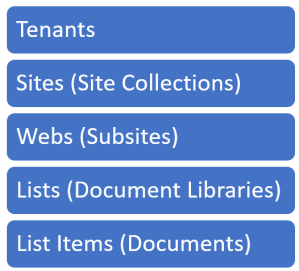
For starters, it’s important to understand the main SharePoint entities:
There are many tenants.
Tenants have Sites, also known as Site Collections.
Sites (Site Collections) have Webs, also known as Subsites.
Webs (Subsites) have Lists, some of which are called libraries or document libraries.
Lists have List Items (document libraries have folders and documents)
As you can see, there is a hierarchy.
Hierarchy
The relationship between Sites and Webs is particularly interesting. When you create a Site, you must tell SharePoint the type of Site you want. That is used to create the Site and the main Web inside, called the RootWeb.
Every Site Collection has at least one Web and most have only one (the Root Web). The Site’s name and type (template) ends up being stored in the Root Web. Most templates don’t even have an option to add more webs (subsites). I would recommend keeping things simple and having only one web per site.
Note: You will sometimes hear people refer to Webs as Sites, which is a term normally used for Site Collections. Since most Site Collections have only one Web, that is typically not a big issue. That can get a little confusing at times, so you might want to stick to using the unambiguous terms “Site Collections” and “Webs” to be extra clear.
5. Web Templates
When you create a Site Collection and its corresponding Root Web, you must choose a Web Template. Each Web Template comes with a few default lists and libraries.
Some of these Web Templates (like Team Sites and Communication Sites) help you get started with a new Site. Others are not meant to be created by end users but are used for specific scenarios (like the Compliance Policy Center, the Search Center or the Tenant Admin Site). As we mentioned before, one of these templates is the Personal Site or OneDrive.
Here’s a list of some common Web Templates used by SharePoint Online:
Web Template Id
Web Template
Description
1
STS
Classic Team Site
16
TENANTADMIN
Tenant Admin Site
18
APPCATALOG
App Catalog Site
21
SPSPERS
OneDrive (Personal Site)
54
SPSMSITEHOST
My Site Host
56
ENTERWIKI
Enterprise Wiki
64
GROUP
Office 365 group-connected Team Site
68
SITEPAGEPUBLISHING
Communication site
69
TEAMCHANNEL
Team Channel
90
SRCHCENTERLITE
Basic Search Center
301
REDIRECTSITE
Redirect Site
3500
POLICYCTR
Compliance Policy Center
Note: There are many more of these templates, not only the ones listed above. You can get a list of the templates available to you using the Get-SPOWebTemplate PowerShell cmdlet:
Name : BICenterSite#0
Title : Business Intelligence Center
Name : BLANKINTERNETCONTAINER#0
Title : Publishing Portal
Name : COMMUNITY#0
Title : Community Site
Name : COMMUNITYPORTAL#0
Title : Community Portal
Name : DEV#0
Title : Developer Site
Name : EHS#1
Title : Team Site – SharePoint Online configuration
Name : ENTERWIKI#0
Title : Enterprise Wiki
Name : OFFILE#1
Title : Records Center
Name : PRODUCTCATALOG#0
Title : Product Catalog
Name : PROJECTSITE#0
Title : Project Site
Name : SITEPAGEPUBLISHING#0
Title : Communication site
Name : SRCHCEN#0
Title : Enterprise Search Center
Name : SRCHCENTERLITE#0
Title : Basic Search Center
Name : STS#0
Title : Team site (classic experience)
Name : STS#3
Title : Team site (no Microsoft 365 group)
Name : visprus#0
Title : Visio Process Repository
6. They are all in there…
So, I hope it’s clear that the Microsoft Graph Data Connect for SharePoint datasets (like Sites, Sharing Permissions and Groups) include information for all types of sites in the tenant, regardless of the Template they use. You can use the Sites dataset to understand Team Sites, OneDrives, and Communication Sites. The Sharing Permissions dataset includes permissions for all these different types of sites.








Recent Comments