This article is contributed. See the original author and article here.
This use case was generated from an idea involving Xerox Docucentres, which enables end-users to email themselves a scanned document. Equally, this applies to regular emails with attachments that you would like Power Automate to automatically save the attachment(s) to a specific (custom/bespoke/unique) folder and/or SharePoint site and therefore Document Library. The dynamically chosen path is based on the Subject Line OR File Name. This can be achieved relatively easily and would save you a lot of routine administration time.
The Solution
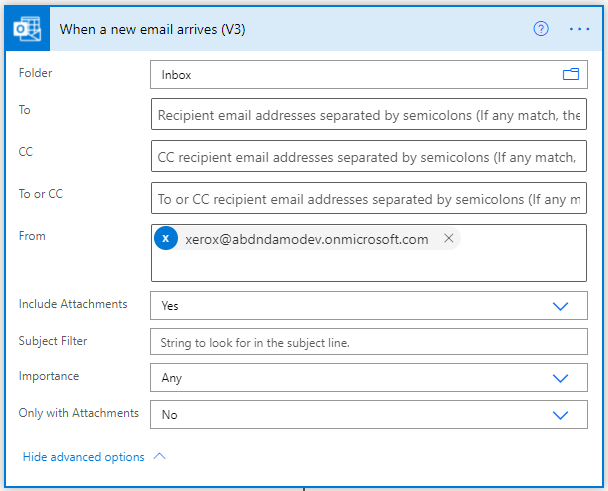
Using Power Automate,When a new email arrives (v3)trigger, we can be quite specific about the sender of the email and for this, I have assumed all emails will come fromxerox@mydomain.comand the email must contain an attachment! Ideally, you want to limit the emails that this Flow will trigger by using the available parameters for that action.
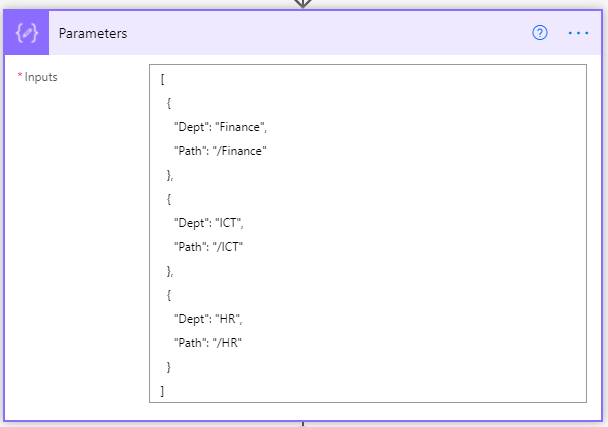
To define the locations for saving files, I have used anarrayin acompose action(but don’t panic!). You might want to use aSharePoint listas somewhere to save the specific subject or file name keywords, alongside the folder or SharePoint site path. The advantage of using an array is that only the owner(s) of the flow can define these and all of the parameters are in one place. Creating a list in SharePoint might give you and/or other colleagues the ability to easily define and visualise the locations.
The parameters for this flow are basic, a keyword for searching the Subject or Filename containing, which I have calledDept; and thePath, which can either be a folder or a Site Name. If you are looking to have a dynamic Folder and Site, you can define a third parament orkey:valuepair.
Finding our path
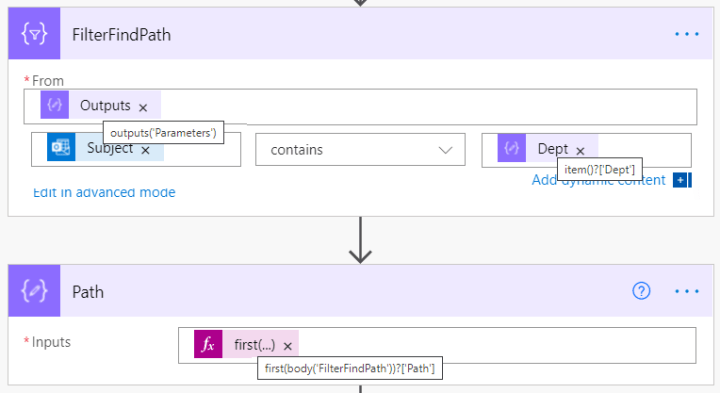
We must now use the filter array action, which will allow us to search the Subject or Attachment name to see if itcontainsone of the keywords from the Dept key. If we get a match, the array will return a value for the Path. Here I use a compose action to return the first object from the array result. Why do I use the first expression? Because the result is returned as an array, it expects multiple elements. Calling the path without either using the first expression orbody(‘FilterFindPath’)?[0]?[‘Path’]to select the first element, you will receive an error “Array elements can only be selected using an integer index“. Using First() or calling the element by using an integer will allow you to simplify your Flow if you know the result will always be the first element.
Saving the File(s) to a Custom Path
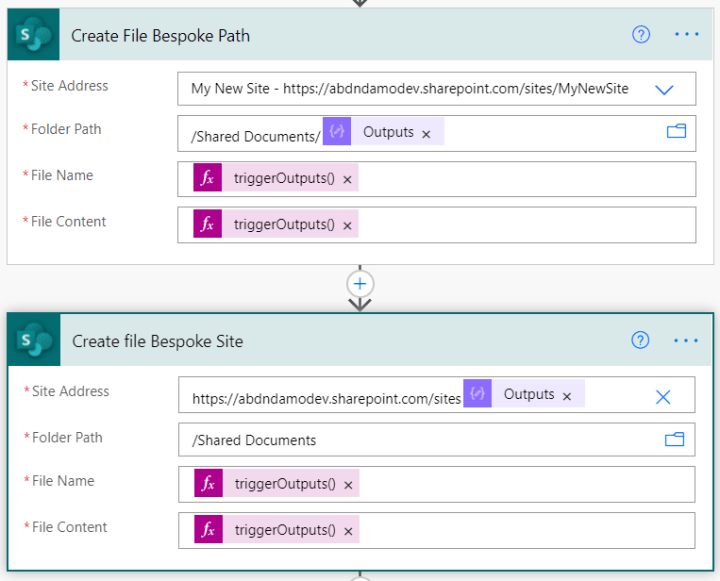
Using theCreate Fileaction for SharePoint, I am using theAttachments NameandAttachments Contentdynamic expressions from the email trigger. By default, when you select these dynamic values, Power Automate will put your actions into an Apply to Each. Why? This is because the results for the attachment name and content are returned as an array. You can accept this and your solution will handle multiple attachments. For my solution, I am a stickler for efficiency and have used the first() expression described previously as my Xerox will only ever include one file. You can accept the default Power Automate build if you would prefer.
I’ve two actions here, one to demonstrate how to save to a custom dynamic path, the other to a custom dynamic site. When manually supplying a custom path for the site or folder, you will have to selectEnter Custom Valueor Power Automate will try and resolve the address and error‘Site Address’ is requiredor the folder path with try and delete any additional text that you supply.
The expressions I have used both using the integer selection for the first array element and the first expression are as follows:
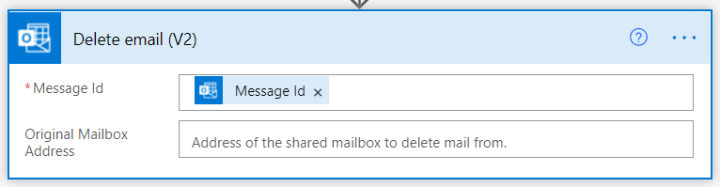
To finish off my flow and this is personal preference, I have deleted the incoming email. Why keep it? The file attachment has been saved for me.
See it in Action
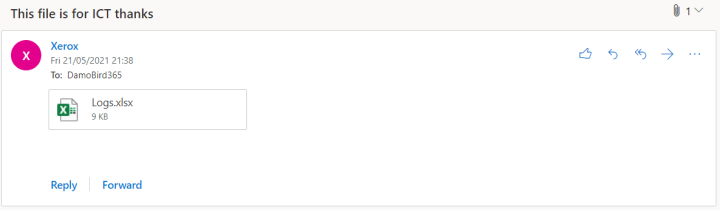
Here I have an incoming email from the Xerox mailbox. I’ve been sent me an attachment from the Xerox Mailbox. This will trigger my flow.
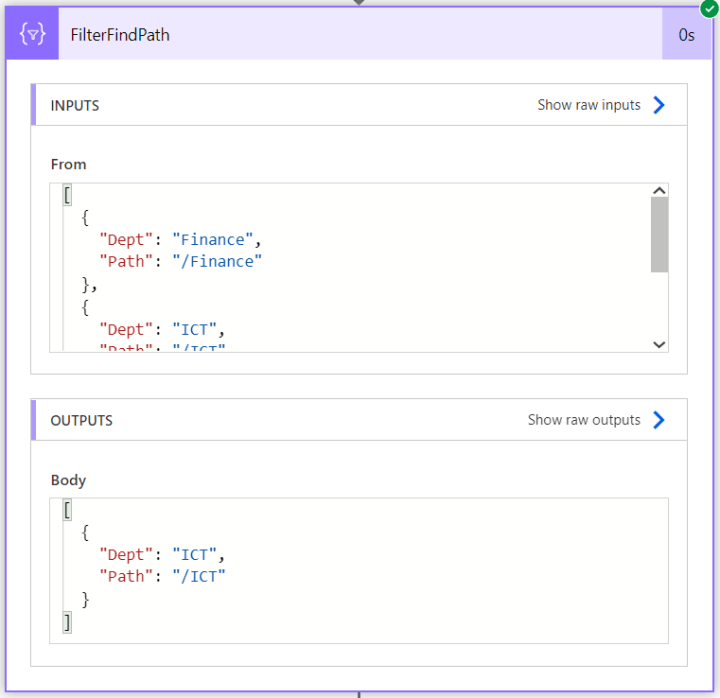
The filter action will look for each of the Dept values in the subject line and return a filtered array. In the example below, we output the ICT Path based on the subject line “This file is for ICT thanks”.
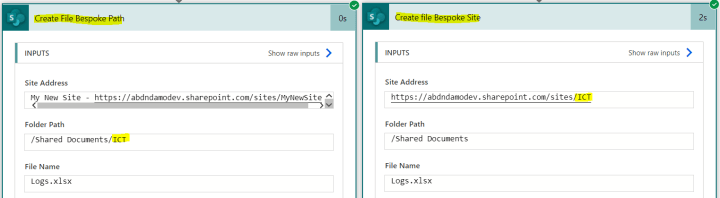
What do the two Create File Actions look like? Here you can see the custom dynamic paths for both the Folder Path or Site Address. I am obviously saving the file twice here in order to demonstrate the two options. You might want to combine the custom site and folder with an additional parameter in your Array or SharePoint List.
Summary
Quickly file away those routine attached documents received via email. Maybe this would simplify uploading documents into SharePoint? Work on a file and email it to a shared mailbox and have the Flow decide where to file the attachment based on keywords? Please let me know how you could use this.
Make sure you check out my YouTube channel for other ideas and proof of concepts.
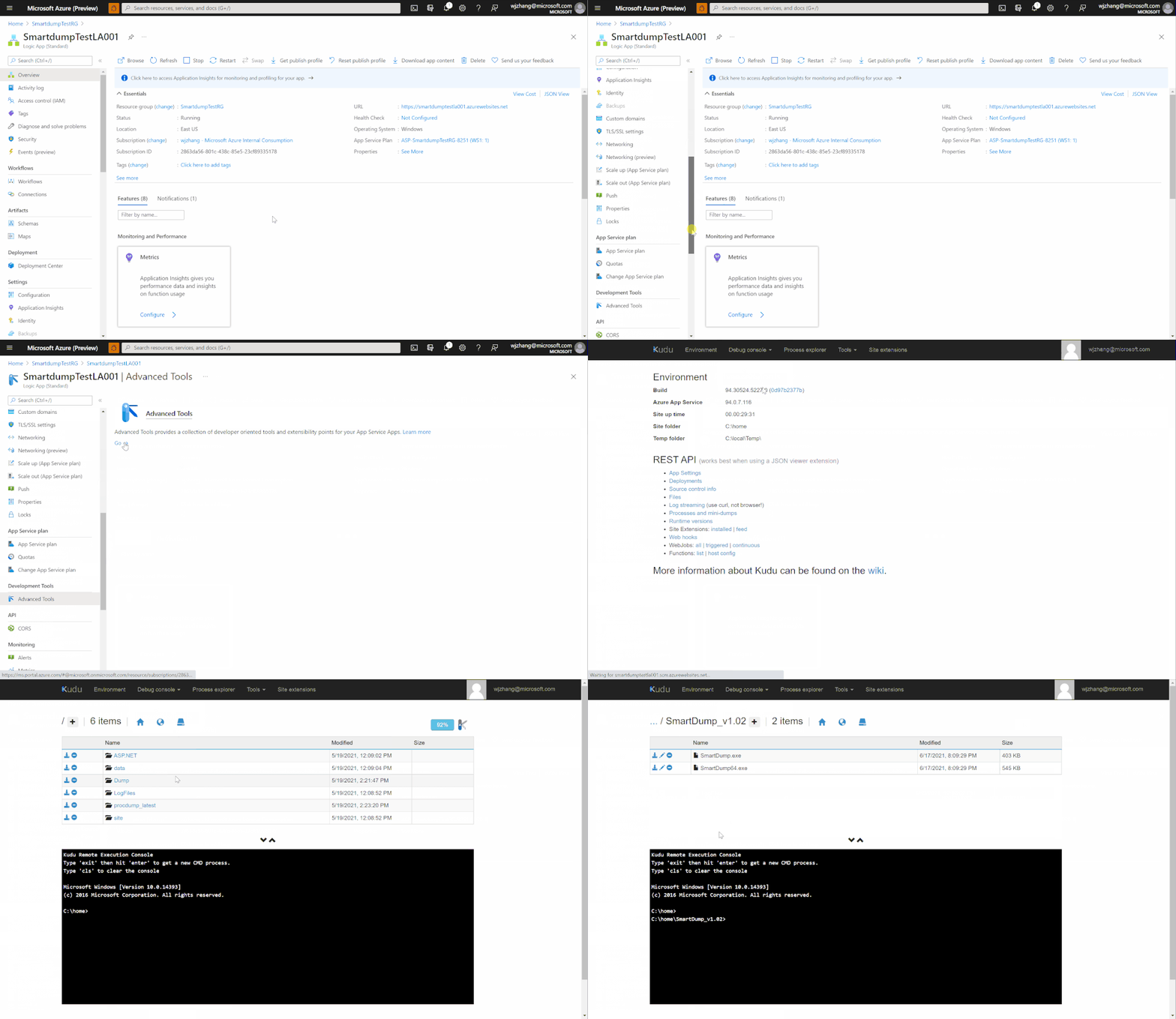
1. First of all, we need to open Kudu console and drag/upload the tool into the site folder.
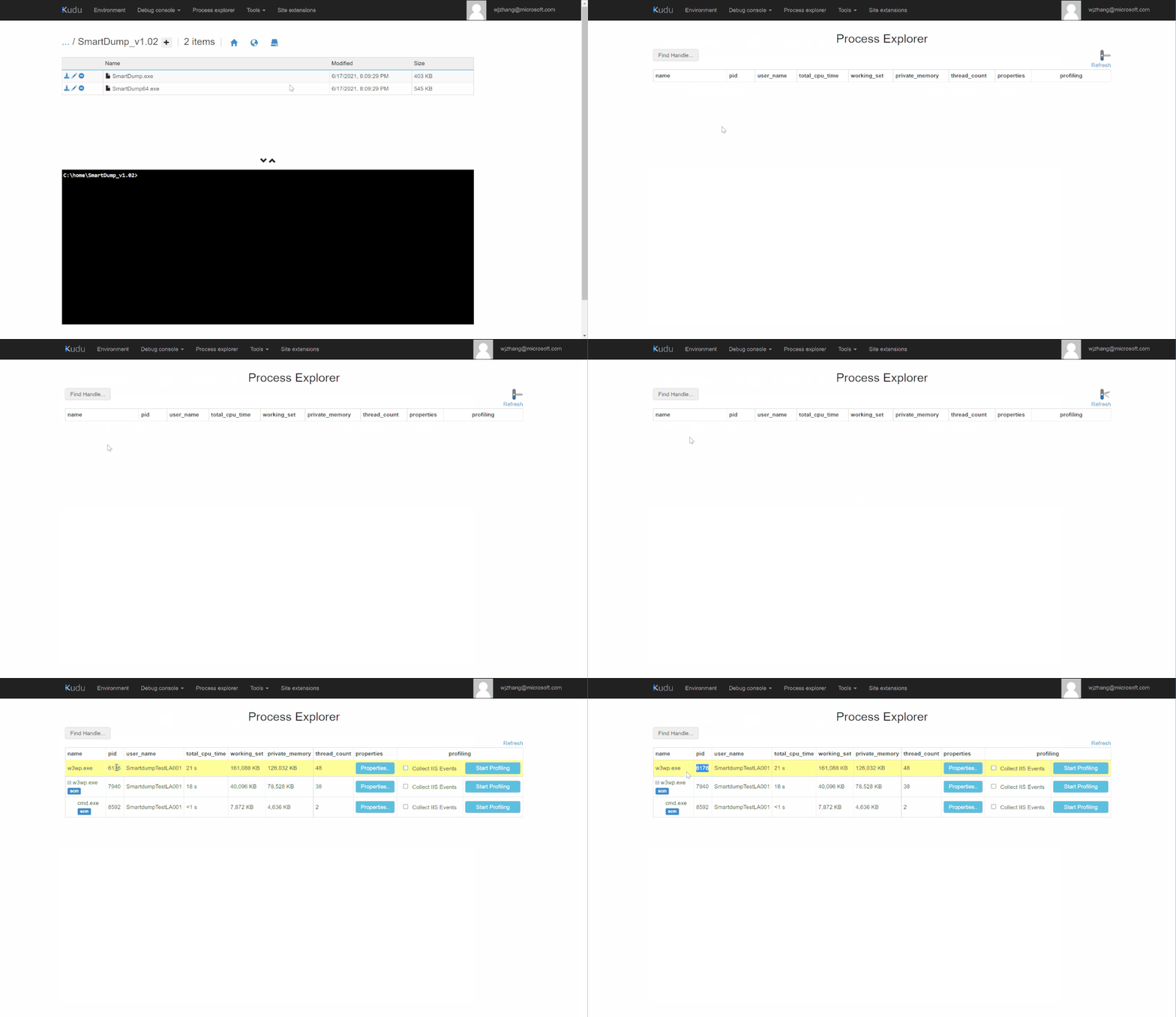
2. Next, we need to find the PID of our LogicApp site’s w3wp.exe from Process Explorer.
NOTE: the one with (scm) is for Kudu console. Hence we always have to focus on w3wp.exe without (scm).
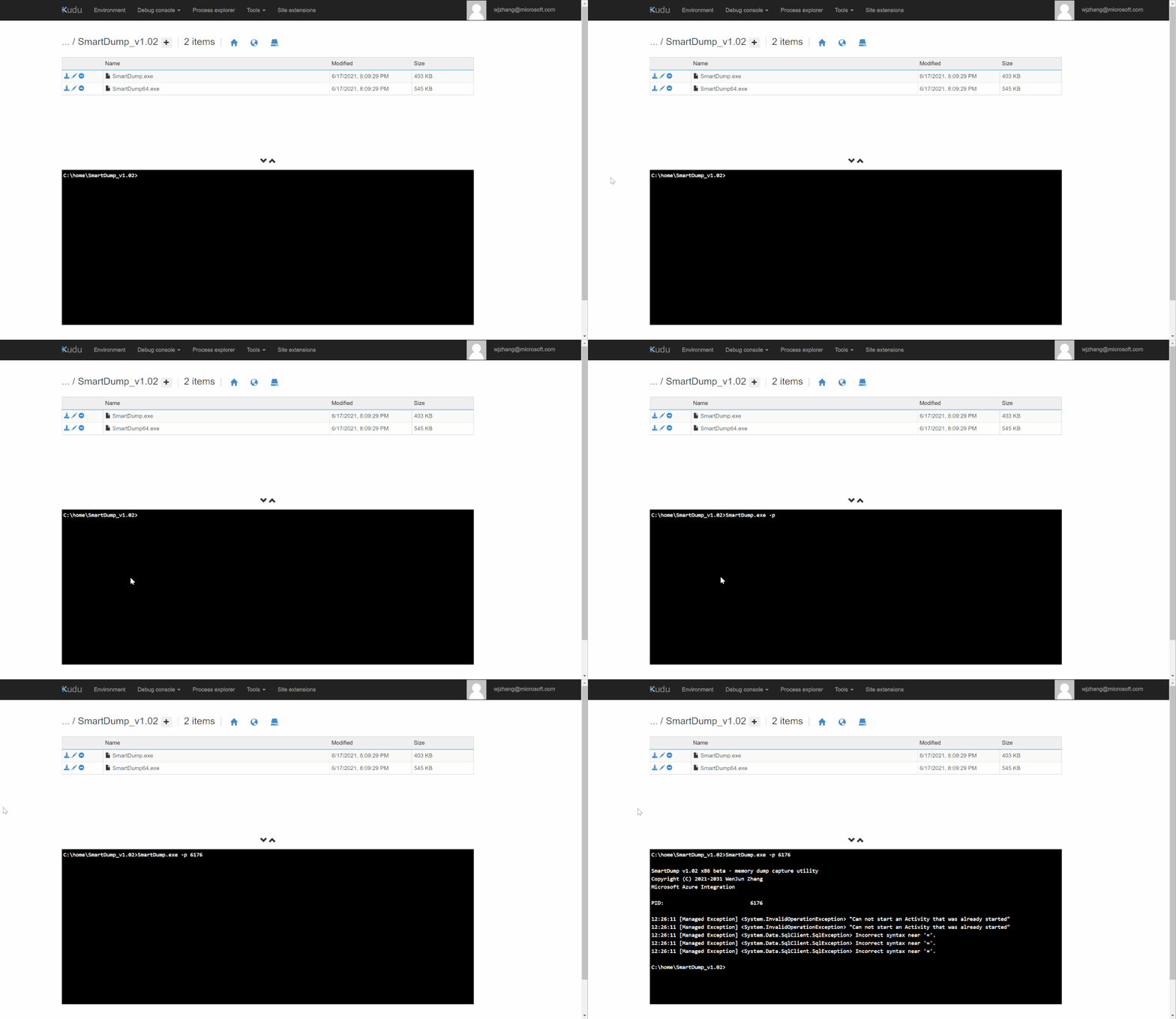
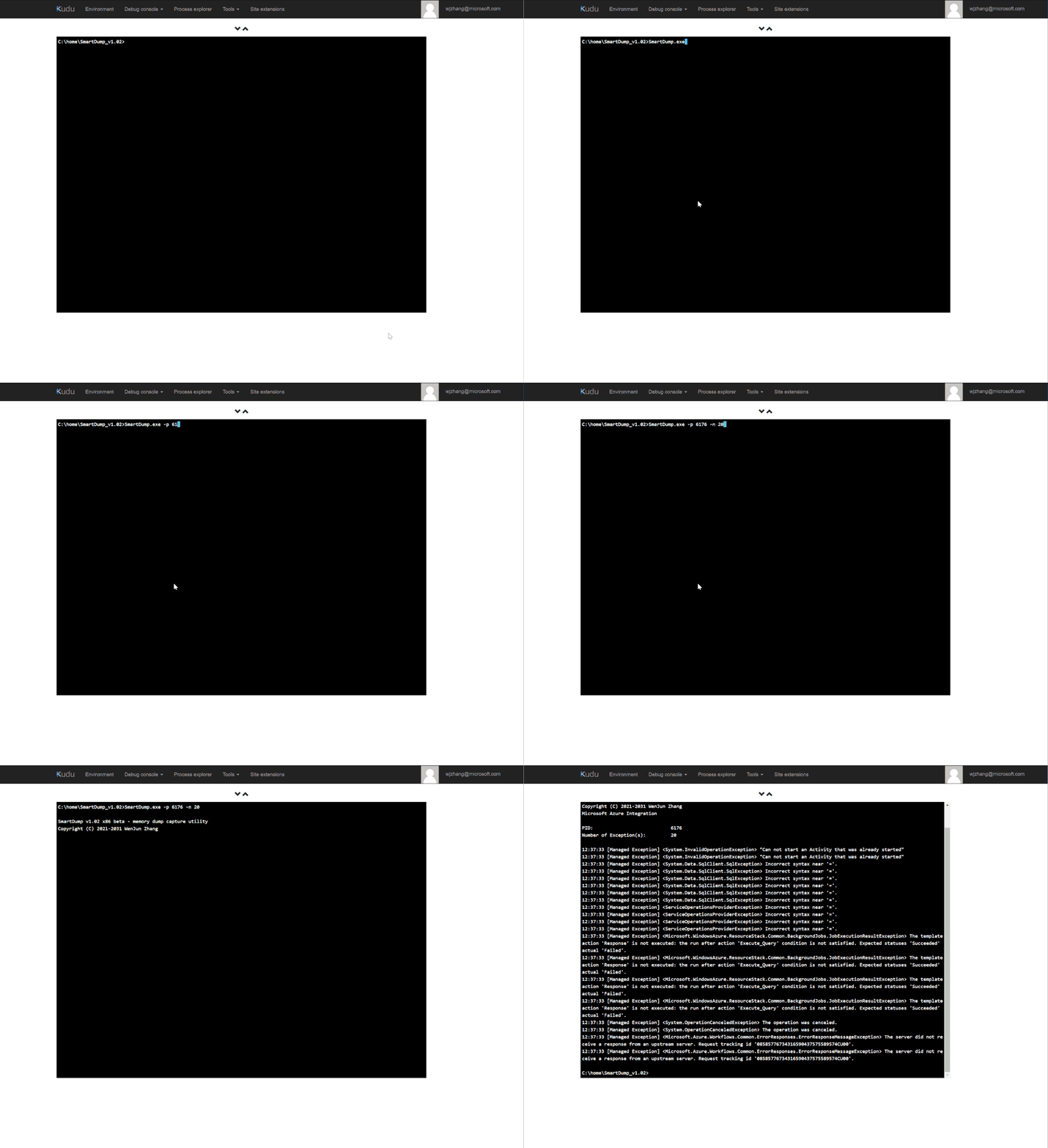
3. Then we can run SmartDump.exe and use -p option to specify the PID found in step #2.
This makes SmartDump attach to the target process and start to monitor any exception thrown in it. By default, the tool captures 5 exceptions.
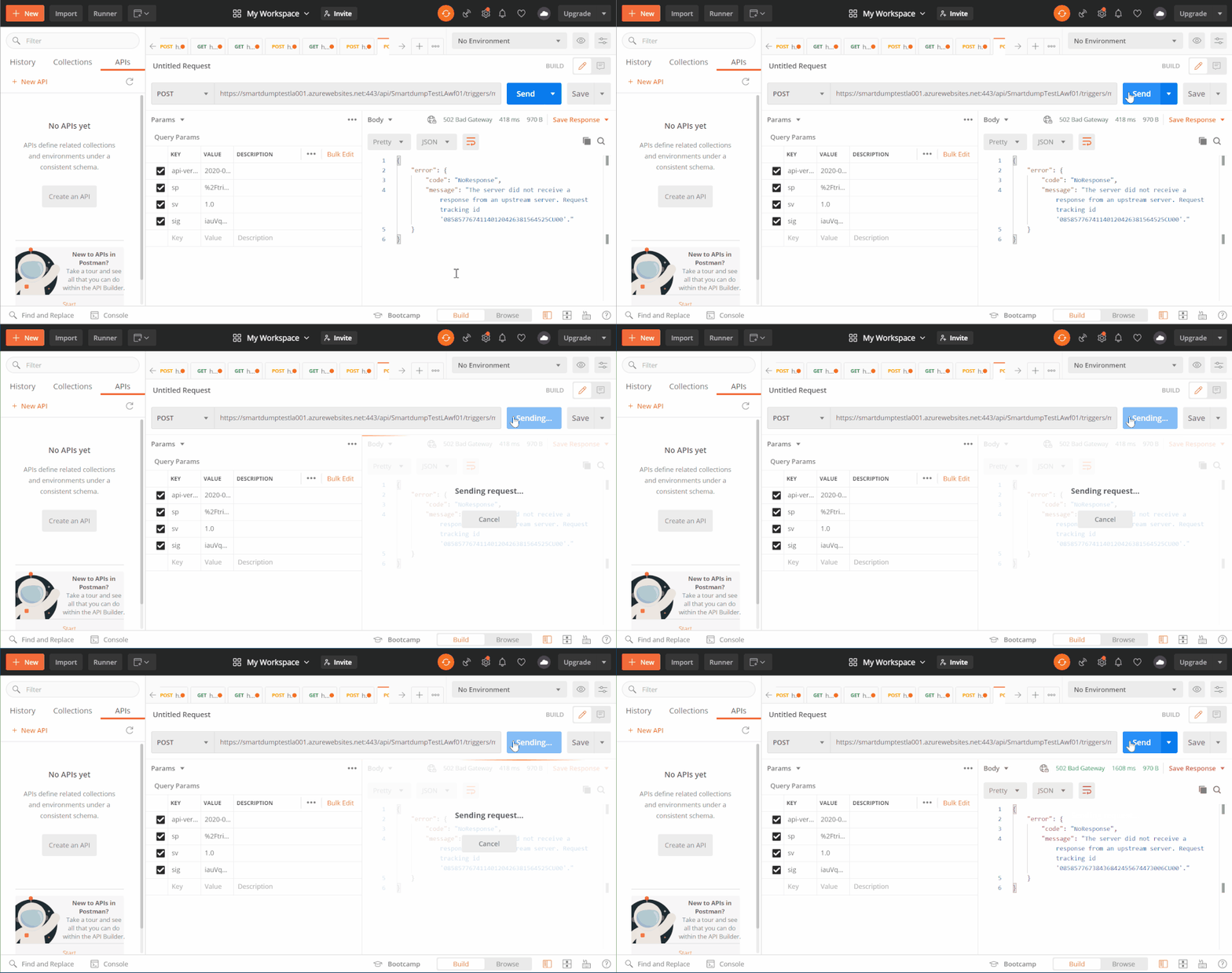
After invoke LogicApp and generate some exceptions, SmartDump will be able to capture them within the console.
4. If you want to see more exceptions, just use -n option to specify number of exceptions to be captured.
NOTE: using -n 0 to start an unlimited/endless capture. However please be careful to use this in Kudu because it doesn’t support Ctrl+C to exit a process. Run inside a common cmd.exe without such issue.
Tips: you can also add: > filename.log at the end of a command to make Kudu write output into a log file for you.
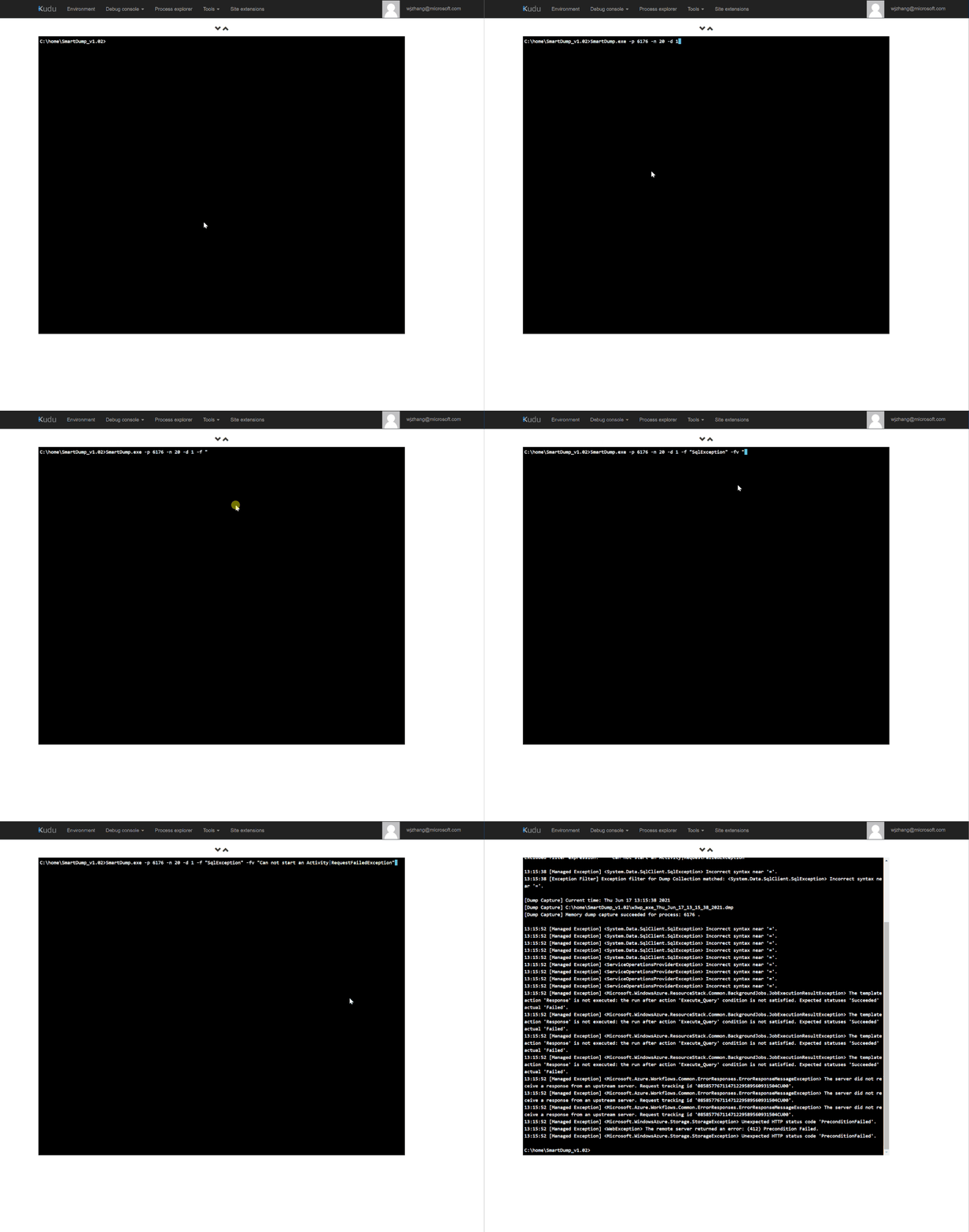
5. To generate dump, use -d option to set number of dumps to be captured. Associating it with -f(filter include) and -fv (filter exclude) options allow you to capture dumps against specific exceptions.
-f Filter exception based on specified string(s). Use ‘|’ as delimiter for multiple strings.
-fv Exclude exceptions contain specified filter. Use ‘|’ as delimiter for multiple strings.
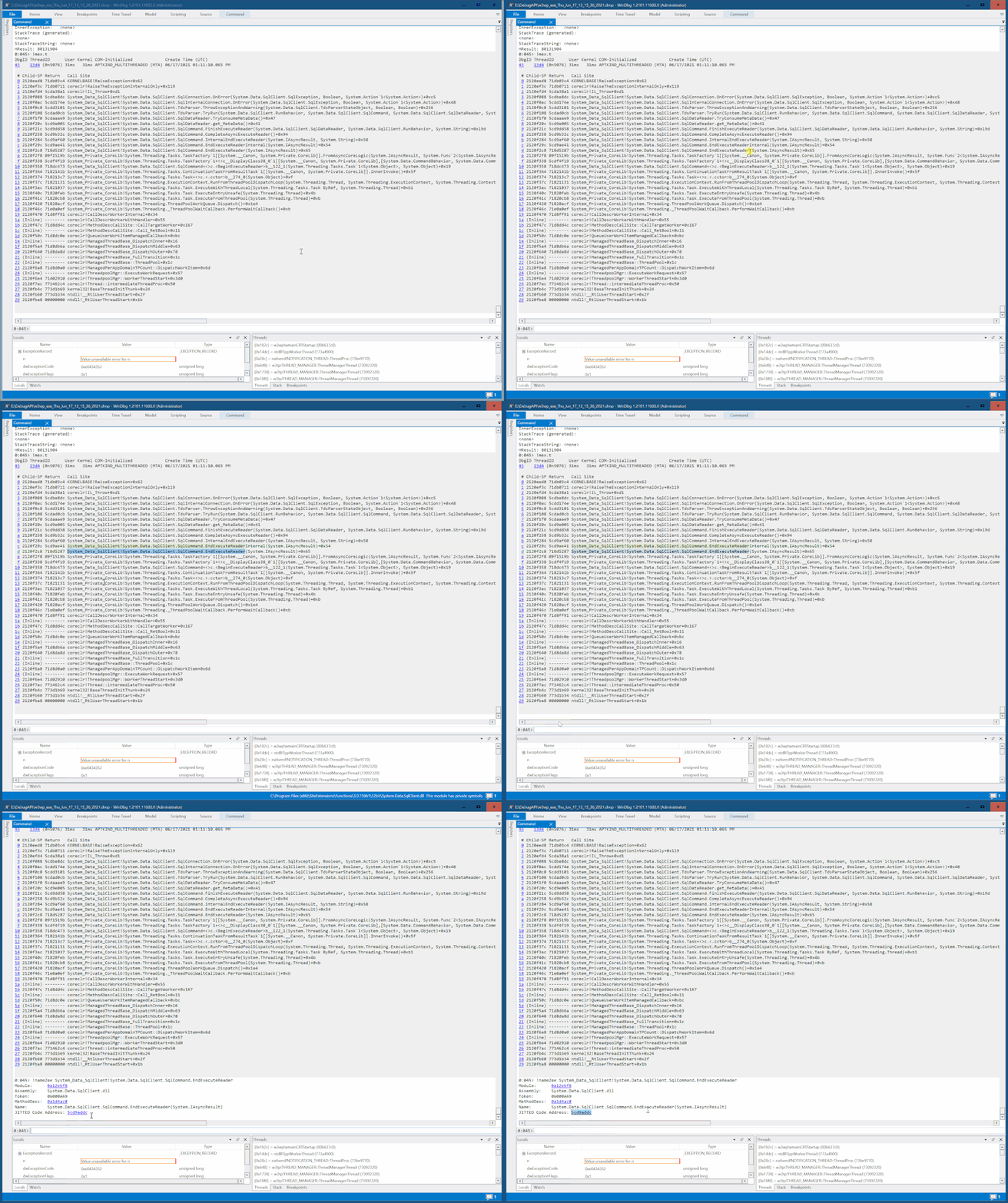
6. The tool also supports to set memory address of breakpoint to generate dump files.
You can capture a dump first and then open it in debugger to find the code entry address of a function you interest in(or code address of any line).
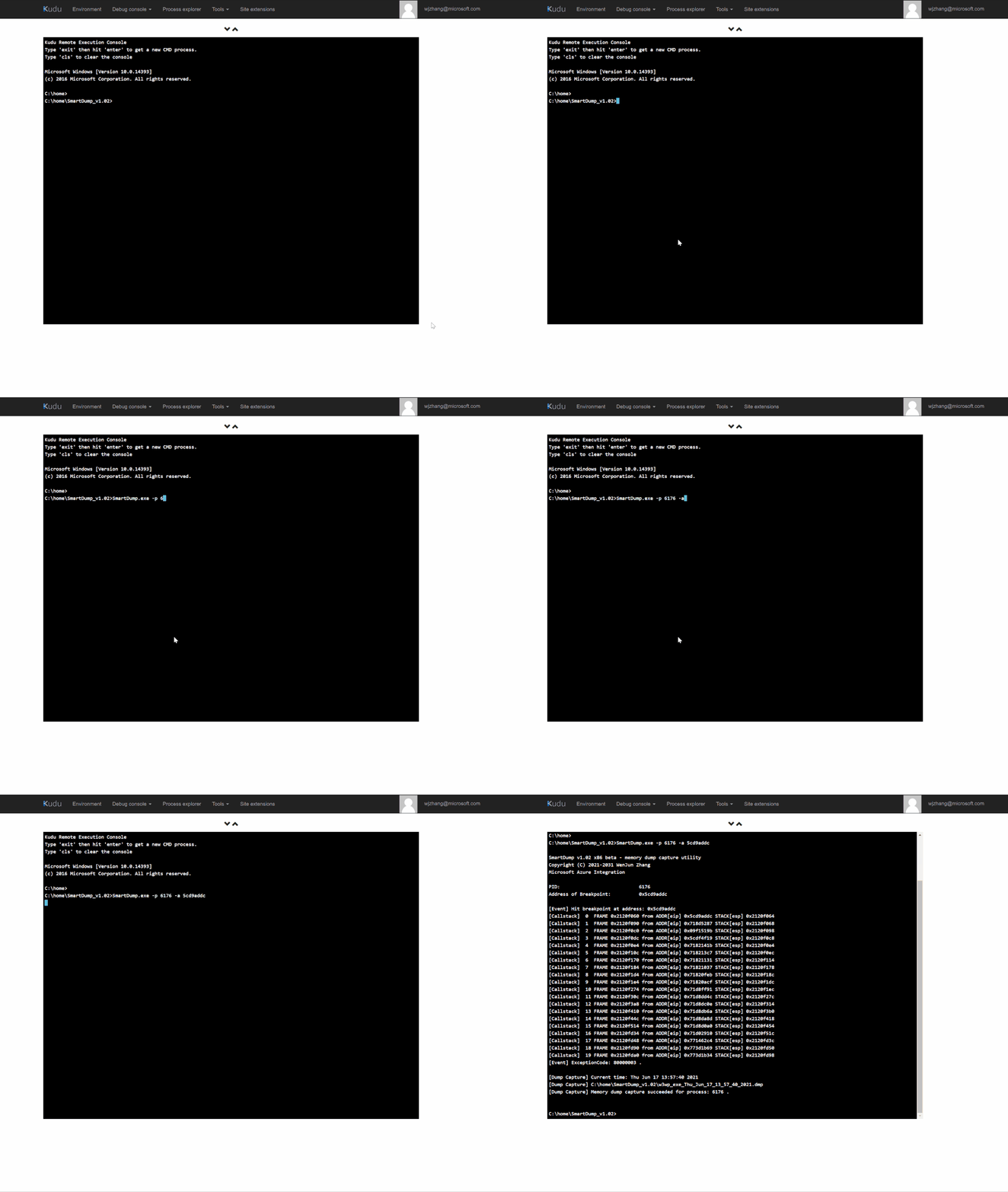
Then use -a option of SmartDump to set the address as breakpoint for capture:
There are also some other useful options and sample commands can be found in the readme of GitHub page: SmartDump
This article is contributed. See the original author and article here.
Join us for this month’s community call where we will continue with our every 4th Tuesday of the month schedule, occurring on June 22nd! Join us at either 8:00 AM or 5:00 PM PT.
This month we will be discussing Lists and To-Do as our primary topics. We will review new features for Lists and To-Do and share tips that you can use to inspire new ways for your organizations to leverage these solutions.
If you have not yet joined our champion community, signup here to get the resource links that contain access to the call calendar, invites, program assets, and previous calls!
This article is contributed. See the original author and article here.
I would contend that training helps with adoption AND it can be a powerful instrument for evangelizing and envisioning too!
Start by attending our FREE Power BI Trainings for Business Users (it’s good for managers, IT, and Admins too) – What is Power BI all about? How can business users successfully navigate Power BI reports, dashboards, and apps? Don’t try to memorize everything, just internalize it and think about where you could find value if you digitally transformed an old process. Think “modernization”. We’ll help you get there. Check out the link below for training options.
Next for you analysts, let’s get you into a FREE Power BI Dashboard in a Day workshop. See your Microsoft account team. We can help find free resources globally. Need a custom or dedicated workshop? We can help with that too!
Now build and share! Create a Center of Excellence and celebrate your impact, show-and-tell, and teach others.
Have questions? Your Microsoft account team is always a great place to start or share your comments with me and I’ll help get you the direction you need.
The result is an eclectic community where members of all skill levels bring out the best in each other. Business Applications MVP and founder Sebastian Zolg says the group is unique in the sense that it unites Microsoft’s Business Apps and Power Platform with Microsoft’s Cognitive Services and Bot Framework.
Despite launching a few years ago, Sebastian says the group has grown exponentially since the rise of the low-code and easy-to-access Power Platform. Its democratization of access has led to a wider variety of members and, as a result, ideas.
“Especially with the appearance of Power Virtual Agents and its deep integration in Microsoft Teams, the reach of our community efforts have grown considerably. Instead of pure tech experts, the community has evolved towards more business-oriented people and an evergrowing number of citizen developers,” Sebastian says.
“In that sense, my community role has transformed from tech expert to tech teacher, helping people in various job roles to understand how they can incorporate those technologies to solve their business problems.”
“For me, the community is all about learning new things and getting inspired — not just from the experts but also from people asking excellent questions on real-life usage of those technologies.”
The group hosts regular online meetups — complete with demonstrations and discussions — on an array of topics, including low-code chatbot solutions and supercomputers. Sebastian says the group follows a demo-first approach to illustrate ideas and concepts, with follow-up content available on Microsoft Learn.
“A well-structured demo removes the hesitation some people have when they are new to the technology,” Sebastian says. “Of course, showing the big picture helps people gain a good overview quickly and start a more streamlined journey on Microsoft Learn.
“I always try to remember that navigation through this vast Microsoft cosmos isn’t as easy as it seems to the experts — and that’s why a good demo also includes showing people around on Microsoft Learn because it’s the perfect follow-up!”
As the community grows from strength to strength, Sebastian says he is proud to be able to unite tech enthusiasts from all over the country.
“While we started our community efforts in the area of Bern, it has quickly spread to other regions, even covering the different language areas, such as the German- and French-speaking parts of Switzerland,” he says.
“Personally, working with the community pushes me out of my comfort zone. Networking is not in my DNA per se, but working with the community has helped me develop in this area and be more open and less hesitant.”



Recent Comments