by Contributed | Jul 1, 2021 | Technology
This article is contributed. See the original author and article here.
For Oracle 19c AWR reports for Multi-tenant DBs on Exadata reports, the %Busy, CPU, Cores, memory and other data isn’t present. These are vital data points many of us use to determine vCPU calculations in sizing.
Never fear- we still have the data provided in the AWR report we received from the customer to fill in these sections or at least calculate the value.
Memory, CPU, Cores
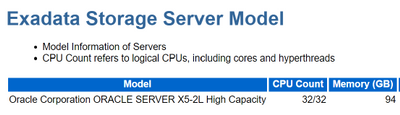
Most of the missing data is in the Exadata section of the report:
How Much CPU is Available?
Now, to create gather a % Busy for CPU usage from what we have in the AWR, we’ll need the following values:
Using this info, we can create the following calculation to discover the amount of CPU available on the RAC node in the Exadata:
CPU Count * Elapsed Time * 60 seconds = CPU_VAL
So, for this example, this was an AWR on a 32 CPU machine for 300 minutes.
32 * 300 * 60 seconds = 576000 seconds of CPU available.
Suddenly, the DB CPUs value doesn’t look so huge anymore, does it?
How Busy is the CPU for Oracle?
A disclaimer needs to be added as there are some holes in the AWR capture for CPU busy, especially around “wait for CPU”, but to come up with a % busy CPU, we have the numbers we need to create this value now that’s missing in the AWR.
(CPU_VAL – DB CPUs)/(DB CPUs) = % Busy CPU
Now we have our % Busy, which for this node of the RAC database on the Exadata was 24.65, or 25%.
If you’re lucky enough to have access to the customer’s database server, you could also just use this valuable post from my peep, Kyle Hailey and run a query to collect the info. Kyle also goes into the challenges and holes in the AWR data that if you want to dig in deep vs. the estimates we require for sizing, would require ASH data to fill in.
col metric_name for a25
col metric_unit for a25
SELECT metric_name, value,_metric_unit
FROM v$sysmetric
WHERE metric_name like ‘%Host CPU%’;
If you run into this challenge with an Oracle 19c sizing estimate, hopefully this post will help keep you from pulling your hair out!
Related: How to size an Oracle Workload in Azure.
by Contributed | Jul 1, 2021 | Technology
This article is contributed. See the original author and article here.
The Azure Sphere OS update 21.07 is now available for evaluation in the Retail Eval feed. The retail evaluation period for 21.07 provides 3 weeks for backwards compatibility testing. During this time, please verify that your applications and devices operate properly with this release before it is deployed broadly via the Retail feed. The Retail feed will continue to deliver OS version 21.06 until we publish 21.07 in July.
The evaluation release of version 21.07 includes an OS update only; it does not include an updated SDK. When 21.07 is generally available later in July, an updated SDK will be included.
Compatibility testing with version 21.07
The Linux kernel has been upgraded to version 5.10. Areas of special focus for compatibility testing with 21.07 should include apps and functionality using kernel memory allocations and OS dynamically-linked libraries.
Notes about this release
- The most recent RF tools (version 21.01) are expected to be compatible with OS version 21.07.
- Azure Sphere Public API can be accessed programmatically using Service Principal or MSI created in a customer AAD tenant.
For more information on Azure Sphere OS feeds and setting up an evaluation device group, see Azure Sphere OS feeds and Set up devices for OS evaluation.
For self-help technical inquiries, please visit Microsoft Q&A or Stack Overflow. If you require technical support and have a support plan, please submit a support ticket in Microsoft Azure Support or work with your Microsoft Technical Account Manager. If you would like to purchase a support plan, please explore the Azure support plans.

by Contributed | Jul 1, 2021 | Technology
This article is contributed. See the original author and article here.

Team members: James Kinsler-Lubienski, Anirudh Lakra, Dian Kalaydzhiev (Class COMP0016, 2020-21)
Supervised by Dr Dean Mohamedally, Dr Graham Roberts, Dr Yun Fu, Dr Atia Rafiq and Elizabeth Krymalowski
University College London IXN
Guest post by James Kinsler-Lubienski, Anirudh Lakra, Dian Kalaydzhiev
When designing an application, we need to be mindful about privacy and security concerns when customising data from an application and especially consider anything that is sensitive, personalised and shouldn’t be written to a local disk. Clinicians every day may have to use several machines, often having to have it access a local area network to retrieve their profile and settings.
Enter Microsoft Graphs API. By using this API, we can offload a lot of our login security to Microsoft. By making use of this API you can integrate a wide range of new functionality into your application such as storing data of personal relevance generated by an app, on a user’s own OneDrive account. Thus any device with the same app can be logged in via SSO and retrieve where that user left off.
This work is part of a larger project which we called Consultation-Plus that we worked on with the Royal College of General Practitioners and several NHS staff.
We will be discussing that project in a separate article but in summary, it is a native application that allows clinicians to rank the articles that they come across, store a search history that is personalised in their own OneDrive account (like bookmarks with scores), use different machines to continue their research and then elect to share articles and scores with other clinicians when ready.
In this article, we will describe specifically the steps needed to implement SSO and saving and loading of files from the logged in users’ OneDrive into a desktop C# application.
Setting up
Note that while implementing this solution you will also implement a Microsoft Live SSO. This is because Microsoft must authenticate the user and, therefore, ask the user for permission to let this application access their OneDrive resources. Another article also discusses this.
- The first thing we must do is sign up our application on the Azure Active Directory. Head over to this link and sign in. After signing go to “App registrations”.
- Click on “+ New registration” and register your application. You can enter any app name you want and in “Supported account types” select “Accounts in any organizational directory (any Azure AD directory multitenant)”. In the “Redirect URI” section select “Mobile and Desktop applications” and enter http://localhost. This is for testing purposes. When the application is deployed this URL should be changed but for this example http://localhost is sufficient.
- Once your application is created click on it in “App registrations” and select “View API permissions”. Here you should add permissions that you want your applications to have. We want to access the users’ OneDrive so we will use Files.ReadWrite.AppFolder. We could also use Files.ReadWrite but this raises privacy concerns since it gives our application full read/write access to all the files in the users OneDrive. Files.ReadWrite.AppFolder is a special permission that allows our application to only be able to access its own special folder that is created the first time a user logs in. To add permission click “+ permissions” then select “Microsoft Graph” and then “Delegated permissions”. Navigate to the “Files” tab and select “Files.ReadWrite.AppFolder” from there. Click “Add permissions”.
- Copy the “Application (client) ID” from your application page in “App registrations”. You will need this for the code example.
That is all you need to do to set up. Now we move onto showing C# code to implement SSO and saving/loading files from users OneDrive.
C# Example code
Paste your client ID and add import statements to import the following libraries (if you don’t have them installed use NuGet to install them):
- Microsoft.Graph
- Microsoft.Graph.Auth
- Microsoft.Identity.Client
The code below shows you how to implement SSO and allows the user to login.
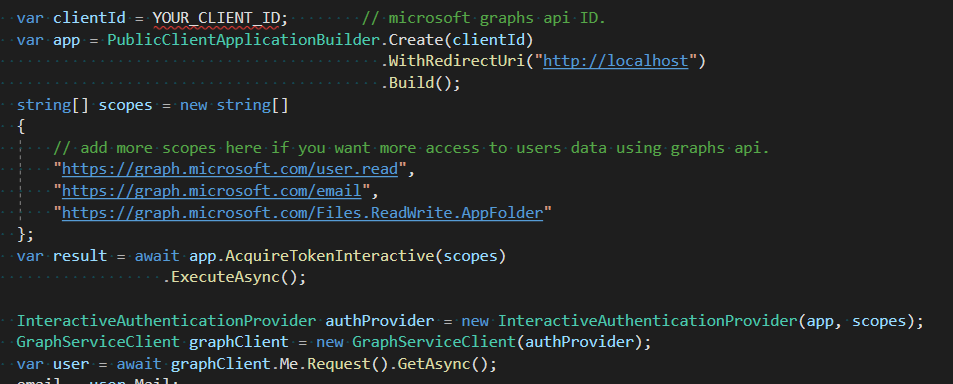
Once the user has logged in, we can access our applications folder in their OneDrive.
The following code shows you how to save or create a file in that folder. However, if the file already exists this method will overwrite its existing content. This method works with strings so if your data is not in string form you should try to convert it to json format. We can recommend using the external library Newtonsoft.Json to do this.

If you want to append new content to an existing file, you should first load that content into your application then append the new data to the loaded content and upload it using the method above. We would advise to be careful with this method because if the file content is larger than 4 MB it will not work and you will need to use the method that Microsoft has documented here instead.
The code snippet below outlines how to download the content of a file.
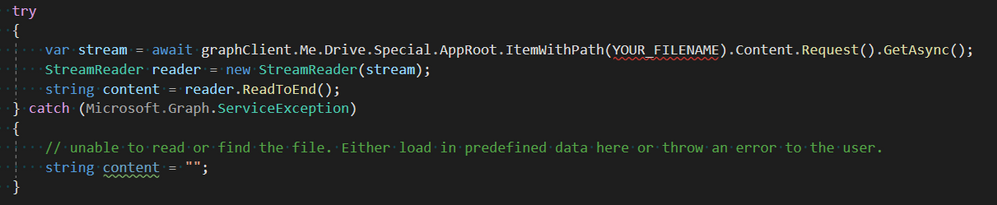
If you would like to see how our application uses Microsoft Graphs API, you can click on this link to see a class that is entirely dedicated to handling of the Graphs API.
Source Code
Github: https://github.com/jklubienski/SysEng-Team-33/blob/main/ConsultationPlus1/WindowsFormsApp2/GraphsAPIHandler.cs
Luckily, Microsoft has provided a large amount of documentation regarding the use of the Graphs API. In each of the links below you can view a lot more helpful links on the left-hand side in the Table of Contents.
Here are some helpful links:

by Contributed | Jul 1, 2021 | Technology
This article is contributed. See the original author and article here.
If you’re receiving an unexpected 401 and IIS logs show this: 401 1 2148074248, this blog could be useful if you have this setup:
- Windows Authentication enabled in IIS (specifically if NTLM is being used), and
- a load balancer with multiple web servers behind it
This is an infrequent occurrence, but I have personally troubleshooted it a few times over the past several years. It’s an odd one and can be difficult to identify especially if you cannot reproduce it on-demand or if it’s intermittent. This particular issue should not occur if you have only one server, behind a load balancer or not. So if you do have multiple web servers and remove all but one and the issue goes away, there’s a chance you could be experiencing this problem.
For this, it would be extremely helpful if internal traffic between the load balancer and web servers is unencrypted. This is to be able to find the problem more-quickly as described.
The first thought for me that comes to mind when I see this particular problem is that the NTLM messages are being split between multiple TCP connections.
The overall auth flow of NTLM is described on this page, and it wouldn’t hurt to understand it more deeply. In short, when a client is authenticating using NTLM, there are multiple roundtrips needed for the building of that authenticated user context to be complete.
Those multiple round-trips consist of three (3) NTLM messages that must be exchanged between client and server, in order, on the same socket and server, for NTLM to be successful.
By “on the same socket and server” above I mean that the client must be communicating with the same server and the client-side IP:port combination must remain the same as the NTLM messages are being passed (remember in a load-balanced situation, the direct client of the web server is typically the load balancer as that is where the TCP connections originate from in most scenarios). In other words, if the load balancer opened port 50000 to communicate with a web server and Windows Auth/NTLM is needed, the load balancer must not break the NTLM messages up between different ephemeral/dynamic ports and must remain on the same server. If those messages are broken up between different ports/TCP connections or between servers, then this is when you can see the 401 1 2148074248 issue.
401.1 == logon failure.
The 2148074248 code translates to:
SEC_E_INVALID_TOKEN: The token supplied to the function is invalid.
Here’s an example of what this would look like from network traces – these are real-world from a customer environment…
Note this is a new TCP connection.
The initial request in frame 6109 was anonymous, so the server sent back the typical 401.2 and requsted Windows Auth. This would have logged a “401 2 5” in the IIS log. This is normal.
The second request was frame 6118, and it contained the NTLM Type-1 message (not shown).
The second 401 in a default setup (Kernel-mode enabled) is actually sent from the HTTP.sys driver underneath IIS, and that 401 contains the NTLM Type-2 message, and is normal. If kernel-mode is disabled then you would see a 401 1 2148074254 in the IIS log, which would also be normal here.
The problem with the communication above is the TCP FIN sent from the client in frame 6121. This would be unexpected, as what we would expect to see here is a third HTTP request that would contain the NTLM Type-3 message to complete the auth flow.
What actually happened here is the load balancer had sent the Type-3 message to a new server, instead of sending it on the original (now-closed) socket:

Notice all the IPs are different here: the internal interface of the load balancer is different, along with the server-side IP (it was a different server).
It is on this second server where the 401 1 2148074248 is observed. And, since this 401 would be unexpected from an end-client perspective (as far as the client is concerned it was using the same sockets to communicate with the load balancer), a credential prompt appeared on the client browser. That particular error code is sent back by Local Security Authority (LSA) code and occurs because the context is only partial – since it wasn’t generated on this server (or even on the same socket since that’s what NTLM needs here) it failed.
It’s not shown here, but when digging into the NTLM messages in the HTTP requests/responses, we could see that server-2 was indeed receiving NTLM challenges sent to the client by server-1.
The problem here was the load balancer was not using session affinity/persistence/etc. What’s interesting is that the load balancer was configured with persistence based on IPs but the reasons for why it wasn’t honoring that all the time are unknown.
This particular issue was resolved when the load balancer was switched to a cookie-based persistence mechanism.
by Contributed | Jul 1, 2021 | Technology
This article is contributed. See the original author and article here.
After feedback from the community and the Data Advisory Board, we’ve made a few changes. Some great updates to the Azure Data Community Landing Page went live this week.
What’s new
- Various sections are now easier to navigate.
- Little touches like new icons and descriptions for blogs, podcasts, forums, and recordings to help you identify what kind of content you’ll see.
- An updated list of highlighted blogs to bring you fresh educational content.
- New upcoming conferences highlighted, all around the world.
Check out data community events
The biggest change is to the Community Events section. There is now a link to “Explore Upcoming Events.” Here you will find links to upcoming Data Platform Community events, both free and paid. While it’s not fancy, it can act as a single source for upcoming events. We want organizers to use this resource when scheduling their own event to avoid conflicting with an existing event. We want speakers to quickly identify events when deciding where to submit sessions. We want attendees to be able to easily answer the question “Who can I learn from next?”
Organizers for Data Platform conferences should submit their upcoming event using the “Submit Your Event” link at the top of the community event page. Feel free to bookmark https://aka.ms/DataCommunityEvents & share this with other organizers in your network. This is not for individual user group meetings. You can still find those at our Meetup listing of Azure Data Tech Groups. This is designed to be a list of single and multi-day conferences, free or paid, that cater to the Microsoft Data Platform either entirely or with dedicated track.
And since our entire initiative is Community-owned, Microsoft-empowered, we want you to take this information and share it via your blog, newsletter, user group meetings, etc. You can download the xml data of this list and share away!
Don’t forget, you can always submit your questions, suggestions and ideas to the Azure Data Community Board using our form at https://aka.ms/AzureDataCommunityBoard


Recent Comments