Lesson Learned #185: Could not find any endpoints error message using PingFederated

This article is contributed. See the original author and article here.

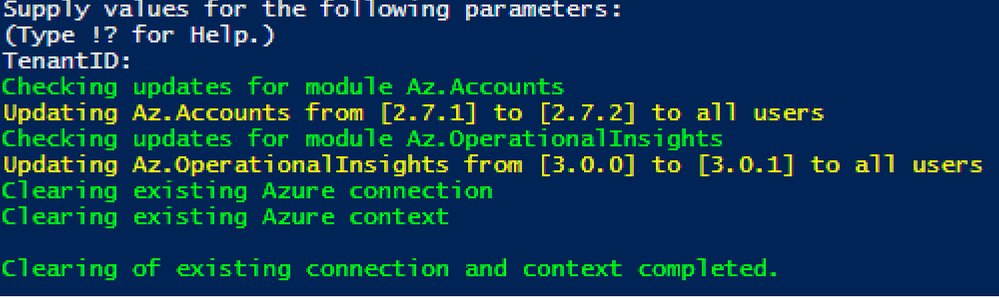
Today, I worked on an interesting service that our customer faced the following error message “Error code 0xA190; state 41360 – Could not find any endpoints.” using SqlCmd/ODBC in combination with -G to connect to Azure Active Directory.


We have the following environment:


  • ReadHat Enterprise version 7.9

  • Customer is using a 3rd party tool to validate the users called PingFederated. 


Troubleshooting done:


  • Using other driver JDBC our customer is able to connect. 

  • Using sqlcmd in Windows Operating System is able to connect. 

  • Taking a network trace with tcpdump we were able a connectivity and reset the connection due to this error.

  • Without using PingFederated in Linux using the native Azure Active Directory call the connection is success.


In this such situation, we engaged our colleagues of Azure Product Team lient Tools and they identified an issue with ODBC and Pingfederated that has been resolved in version 17.9+ as you could see in this URLList of bugs fixed – ODBC Driver for SQL Server | Microsoft Docs . Installing, for example, the version 18.0 the issue has been fixed too.


Enjoy!

Microsoft Compliance Manager (MSCM) Ninja Training:  Q1 2022

Microsoft Compliance Manager (MSCM) Ninja Training: Q1 2022

This article is contributed. See the original author and article here.

Does achieving your organization’s regulatory and compliance requirements keep you up at night?  Do you wonder how you will ever be able to adhere to all the controls and ensure your companies compliance with required regulations?  Do you want to ensure that you are on top of your compliance game and that the appropriate policies and guidance are followed and enforced?  Look no further, Microsoft Compliance Manager (MSCM) is the tool to help you achieve these goals and more.  This training is designed to help guide you from fundamental concepts on your MSCM journey to Advanced concepts.  Once completed you will have a firm understanding of the tool, its capabilities, and use.


Microsoft Compliance Manager has a ton of data, tutorials, videos etc. that can sometimes be overwhelming.  Leaving you asking questions such as “where do I start”, “how do I achieve compliance”, “how do I recognize when my organization falls out of compliance”.  We’ve sifted through the vast resources Microsoft has to offer for MSCM and developed this training to guide you – all in one location, in a simple easy to follow format!  If there is anything we can do to improve this training, please do not hesitate to leave a comment below and we will be sure to review it.


The overall structure of this training is split into 3 main knowledge levels.  They are:


garyasp_0-1645126456037.png


After each level, we will offer you a knowledge check based on the training material you have just finished! Since there’s a lot of content, the goal of the knowledge checks is to help ensure understanding of the key concepts that were covered. Lastly, there’ll be a fun certificate issued at the end of the training! Disclaimer: This is not an official Microsoft certification and only acts as a way of recognizing your participation in this training content.


We plan to update this training on a quarterly basis to ensure that you all have the latest and the greatest training materials.  Please do check back often for new training content.  The newly added training content will be tagged with “[New!]” at the end of the training title.  For those of you who have already gone through the training before, you can view those [New!] training contents directly. 


garyasp_17-1645126851107.png  Docs on Microsoft


garyasp_18-1645126851108.png Blogs on Microsoft


garyasp_19-1645126851109.png Product videos


garyasp_20-1645126851110.png Webcast recordings


garyasp_24-1645126983021.png Tech Community


garyasp_22-1645126851111.png Interactive guides


⤴ External Sites


garyasp_23-1645126851112.png GitHub


Module 1. MSCM – Fundamentals [Beginner Level]


Training Title


Description


Resources


MSCM Overview:  Introduction to Microsoft Compliance Manager


In this track we will show where MSCM fits in the overall M365 ecosystems and discuss its high-level components.


garyasp_1-1645126765534.png  MSCM Introduction Video
garyasp_2-1645126765540.png  MSCM

Getting started with MSCM


In this track we will go over best practices and pre-deployment planning considerations to include key MSCM service features and capabilities.


garyasp_3-1645126765541.png  Introduction to MSCM


garyasp_2-1645126765540.png  Compliance Manager Quick Start


garyasp_25-1645127192152.png  Deployment Acceleration Guide


Assessment Types and working with assessments (workflow and tracking)


In this track we will discuss the different assessment types in MSCM, how you can use them to help your organization succeed and use MSCM for continuous monitoring / assessment.


garyasp_2-1645126765540.png  Build and Manage Assessments in MSCM


Automated Compliance Scoring


In this track we will discuss your overall scope, setup / run automated testing, evaluate your automated score (understanding it), and gain a firm understanding of improvement actions, user history and automated testing.


garyasp_2-1645126765540.png  Compliance Score Calculation

Assigning Improvement Actions  & action types (RBAC)


In this track we will discuss how you assign remediation and score improvement tasks to different personnel within your organization.


garyasp_2-1645126765540.png  Assign and complete improvement actions in MSCM
garyasp_22-1645126851111.png  MSCM Interactive guide, review from 2 minutes 12 seconds to 38 seconds

MSCM Recommendation Wizard


In this track we will give you a good starting place to understand your organization’s regulatory and compliance requirements.  By asking a few brief questions we can show you the templates that may apply to your organization!


garyasp_9-1645126765549.png  MSCM Recommendation Wizard Tutorial

Automation with MSCM


In this track we will explore how you can automate your MSCM capability and ensure you have up to date knowledge of your current regulatory compliance status.


Material for this track is currently in development – stay tuned!


Knowledge Check – Microsoft Compliance Manager Fundamentals


Module 2. MSCM – Intermediate [Associate Level]


Training Title


Description


Resources


Introduction to Templates:  Template library, premium templates, and universal templates


In this track we will show you the various types of assessment templates are available to you whether included in your licensing or requiring an additional purchase including templates that can cover non-Microsoft services giving your broader tracking capabilities in your compliance journey.


garyasp_2-1645126765540.png  Learn about assessment templates in Compliance Manager


garyasp_0-1645148088735.png  Simply Compliance and reduce risk with our 150+ assessment templates or bring your own assessment


garyasp_29-1645128251812.png  MSCM Interactive Guide, review from 16 minutes 58 seconds


Creating an Assessment from a template


In this track we will upon the knowledge gained in the previous track to show you how to create an assessment for both Microsoft and non-Microsoft products.


garyasp_2-1645126765540.png  Create an assessment template in Microsoft Compliance Manager


garyasp_30-1645128268212.png  MSCM Interactive Guide, review from 15 minutes 40 seconds to 5 minutes 42 seconds


garyasp_0-1645148088735.png Creating an Assessment in MSCM


 Importing Templates Don’t see a regulation assessment you need to help your organization? Create your own assessment template that can be used over and over again based on your needs. garyasp_2-1645126765540.png  Create an assessment template in Microsoft Compliance Manager

garyasp_30-1645128268212.png  MSCM Interactive guide, review from 10 minutes 10 second to 3 minutes 58 seconds


Regulatory and Compliance updates


With MSCM we are constantly monitoring and evaluating regulatory and compliance requirements.  When updates occur, we update our assessment templates to account for such changes, and put you in control of when to update your in progress assessment to match.   garyasp_31-1645128594831.png  MSCM Updates to templates tutorial
Improving Compliance Score In this track we will look at improving your compliance score by looking at your current configurations in your tenant and validating them against Microsoft 365 best practices. garyasp_2-1645126765540.png   MS Compliance Configuration Analyzer for MSCM
garyasp_30-1645128268212.png  MSCM Interactive Guide go to 19 minutes, 37 seconds 


Knowledge Check – Microsoft Compliance Manager Intermediate


Module 3.  Microsoft Compliance Manager – Advanced [Expert Level]


Training Title


Description


Resources


Extending Templates


In this track we will take the knowledge on templates previously covered and expand.  We will show you how you can take templates and expand them to meet your regulatory and compliance needs.


garyasp_2-1645126765540.png  Extend assessment templates in Microsoft Compliance Manager
garyasp_0-1645146991384.png  Extend Templates in MSCM

garyasp_30-1645128268212.png  MSCM Interactive Guide review from 3 minutes 58 seconds to 2 minutes 55 seconds


Integration of Excel into MSCM and how to use it to modify templates


In this track we will discuss how you can use MS Excel to update and modify your templates.


garyasp_35-1645129297816.png  Format assessment template data in Excel for Microsoft Compliance Manager

garyasp_33-1645129219248.png  Using MS Excel to Manipulate and or Create templates in MSCM


MSCM Scenario


In this track we will create a brief scenario to show how to meet a specific regulatory compliance requirement.


MSCM Scenario


Microsoft Compliance Manager Considerations & Wrap Up


In this final track we will cover common questions asked, provide some useful tips and wrap up this training!


Material for this track is currently in development – stay tuned!


Knowledge Check – Microsoft Compliance Manager Advanced


Once you’ve finished the training and the knowledge checks, please go to our attestation portal to generate your certificate –  you’ll see it in your inbox within 3 to 5 business days.  Attestation Portal Link


We have a great lineup of updates for the next rendition (next quarter).  If you’d like anything covered, please comment below.  In addition, please reach out to us if you have any content that you would like to include as well. 


We hope you all enjoy this training! 


Feedback


Let us know if you have any feedback or relevant use cases/requirements for this portion of Microsoft Defender for Cloud Apps by emailing mipcompcxe@microsoft.com  and mention the core area of concern.


Learn More


For further information on how your organization can benefit from Microsoft Compliance Manager:  


Microsoft Compliance Manager One stop shop


Microsoft Compliance Manager One Stop Shop Resource Page


Microsoft 365 Roadmap Website


https://www.microsoft.com/en-us/microsoft-365/roadmap


Microsoft 365 Compliance Documentation


https://docs.microsoft.com/en-us/microsoft-365/compliance/


Microsoft Compliance Manager FAQ


FAQ 


Join our preview program


https://aka.ms/MIPC/JoinPreviews


https://aka.ms/MIPC/Previews


Community Resources


https://aka.ms/MIPC/CommunityResources


Webinar Series


https://aka.ms/MIPC/Webinars 


Youtube Channel


http://aka.ms/MIPC/YouTube


Read our latest blog posts


https://aka.ms/CompBlog


Ask a question on Yammer


https://aka.ms/MIPC/AskMIPTeam


Follow us on Twitter


https://twitter.com/MIPnews using the tag #MicrosoftIP


Email us


mipcompcxe@microsoft.com


Microsoft Viva and Glint will empower businesses to put their employees first

Microsoft Viva and Glint will empower businesses to put their employees first

This article is contributed. See the original author and article here.

We are excited to share that Microsoft is bringing the Glint solution into Microsoft Viva to make listening and acting on employee feedback an integral part of how businesses engage and develop their talent in the new era of hybrid work.

The post Microsoft Viva and Glint will empower businesses to put their employees first appeared first on Microsoft 365 Blog.

Brought to you by Dr. Ware, Microsoft Office 365 Silver Partner, Charleston SC.

New tools to create and customize professional looking diagrams in Visio for the web

New tools to create and customize professional looking diagrams in Visio for the web

This article is contributed. See the original author and article here.

During our Microsoft Ignite session last fall, we recapped some of the latest features in Visio for the web. In that session, we also announced several upcoming features and improvements that will help you create better looking diagrams faster and new tools to help you add some personalization. This blog post covers the details of those features, which are currently rolling out to Visio for the web users—including Visio in Microsoft 365, Visio Plan 1, and Visio Plan 2—unless otherwise noted.


New and improved diagramming tools in Visio for the web


Format Painter (currently rolling out): We are excited to introduce the Format Painter tool in Visio for the web. Using Format Painter, you can quickly copy the fill and formatting of one shape to a single shape or to multiple shapes in your diagram with a few clicks. Format Painter can be accessed from the Home tab or from the floating context menu, as you’ll read about soon, which appears when you right-click or select an object. Please note that copying the format of grouped shapes is not currently supported. Visit our support article to learn more about the Format Painter tool in Visio for the web.


 Animated demonstration of the Format Painter toolAnimated demonstration of the Format Painter tool


Shapes in the Document stencil (currently rolling out): Previously available only in the Visio desktop app, the Shapes in the Document stencil is rolling out to Visio Plan 2 subscribers in Visio for the web. With the Shapes in the Document stencil, you can now quickly access and use shapes that exist in your Visio file. The stencil will always be pinned to the shape panel—whether you start from a new blank drawing or a template. If starting new, you will need to add shapes to the canvas before they appear in the Shapes in the Document stencil.


 Example of the Shapes in the Document stencil within the Shapes panelExample of the Shapes in the Document stencil within the Shapes panel


Enhanced floating context menus (currently rolling out): We are adding common user actions and formatting options in the floating context menus, so you can quickly access the necessary tools needed to complete your diagram faster. Simply right-click or select the appropriate object in your diagram and choose the desired action from the context menu. Newly added commands enable you to quickly rotate text, change the shape outline weight and style, edit connector lines, arrows, or points, make connectors curved, angled, or straight, and—speaking of Format Painter—apply the same formatting to multiple objects in your diagram.


 Example of user options available on the floating context menu, such as copy, paste, delete and moreExample of user options available on the floating context menu, such as copy, paste, delete and more


We’ve also enhanced this experience to support the press-and-hold method on a touchscreen device.


 Example of user options on the floating context menu on a touchscreen deviceExample of user options on the floating context menu on a touchscreen device


Snap experience improvements (currently rolling out): We’ve addressed one of your topmost concerns—aggressive snapping to objects in Visio for the web—and made the snap experience more user-friendly. This means when you draw, resize, or move a shape in your diagram, you will notice a smooth experience when snapping or aligning to other shapes or objects in your diagram. You can also turn the snap-to shapes capabilities on or off by selecting or deselecting the new Dynamic Grid checkbox available from the View tab in the ribbon.


 Example of snapping to objects by selecting the Dynamic Grid checkboxExample of snapping to objects by selecting the Dynamic Grid checkbox


New customization tools in Visio for the web


Draw Shape tool (now available!): Visio for the web now supports drawing shapes, including rectangles, squares, lines, circles, and ellipses of the desired dimensions. The new Draw Shape tool can be accessed from both the Home tab and the Insert tab on the ribbon. To create a shape in your diagram from the Insert tab, go to the Draw Shape drop-down, select the shape you want, click anywhere on the canvas, and then drag the mouse pointer to draw the selected shape. Visit our support article to learn more about the Draw Shape tool in Visio for the web.


Example of the Draw Shape tool - Shapes include rectangles, squares, lines, circles, and ellipsesExample of the Draw Shape tool – Shapes include rectangles, squares, lines, circles, and ellipsesMore Colors, Recent Colors (now available!): Create flowcharts and diagrams that match your brand guidelines. Choose from a full spectrum of colors or customize the text color, shape fill, and shape outline for objects in your diagram with More Colors. If you know the HEX or RGB values, you can type them into the appropriate boxes in the Custom Colors panel. Then, quickly access recently used colors in your diagram with Recent Colors. More Colors and Recent Colors can be accessed from the Home tab, the Shape tab, or from the floating context menu, which appears when you right-click or select an object.


Example of the Custom Colors panel, including Hex and RGB valuesExample of the Custom Colors panel, including Hex and RGB values


*Bonus announcement for desktop users of Office*


Modern landing page for Visio in the Office desktop app (now available!): We have recently added Visio’s modern landing page to the Office desktop app, providing users with a familiar and collaborative start experience similar to other Office apps, like Microsoft Word, Microsoft Excel, and Microsoft PowerPoint. Visio users will now get access to a powerful set of Office features, such as improved file discovery, better template categorization, and quick access to Visio files that have been recently edited, accessed, and reviewed by colleagues directly in the Office desktop app.


Example of the modern landing page in Visio in the Office desktop app - Showing template options and a Recommended sectionExample of the modern landing page in Visio in the Office desktop app – Showing template options and a Recommended section


To try the new experience, search for and open the Office app on your Windows device. Click on the Visio icon in the side navigation bar or search for “Visio” in the Search box. This will launch the modern landing page for Visio in the Office environment where you can quickly create new diagrams, and access Visio files, including Recommended, Recently opened, Shared, and Favorites to quickly pick up where colleagues left off.


Give us your feedback! Please tell us what you think of the new diagramming and customization tools in the comments below or send feedback via the Visio Feedback portal. Follow us on Twitter and LinkedIn to stay informed with the latest updates for Visio.


Want to know what other Visio features have been released recently or what’s coming soon? Check out these Visio updates on the Microsoft 365 Roadmap to learn more!


Continue the conversation by joining us in the Microsoft 365 Tech Community! Whether you have product questions or just want to stay informed with the latest updates on new releases, tools, and blogs, Microsoft 365 Tech Community is your go-to resource to stay connected! 

Using Custom SharePoint Site Properties to Apply Microsoft 365 Retention with Adaptive Policy Scopes

Using Custom SharePoint Site Properties to Apply Microsoft 365 Retention with Adaptive Policy Scopes

This article is contributed. See the original author and article here.

Now that our new Microsoft Information Governance feature, adaptive policy scopes, has reached general availability (GA), we thought it would be helpful to dive a little deeper into SharePoint site scopes. One of the most common questions we receive regarding site scopes is how administrators can use custom properties to include or exclude SharePoint sites with them. With this post, let’s take a deeper look at what custom properties are, why you may want to use them, and how to configure them.


If you are unfamiliar with adaptive policy scopes, it is an exciting new feature for Information Governance and Records Management which provides the ultimate level of flexibility when applying retention to Microsoft 365 locations. It allows organizations to meet regulatory, legal, or business requirements that demand different retention rules to apply to various departments, locations, and roles.


For more information about adaptive policy scopes, check out the following resources:


Additionally, much of the information we’ll discuss was also presented and demonstrated in our January 2022 webinar “Building Advanced Queries for SharePoint Sites with Adaptive Policy Scopes“: https://aka.ms/AdaptivePolicyScopes-AdvancedSharePoint 


Introduction to SharePoint Site Scopes


Out of the box, adaptive policy scopes allow you to include or exclude SharePoint sites based on indexed properties such as the site’s URL or name. One common problem admins face, however, is that those properties don’t always work well for their retention requirements. Furthermore, SharePoint sites, by default, don’t have many other queryable properties that they find useful when scoping retention policies. Many times, they require more user-centric attributes, such as region or location, to align with regulatory requirements.


For that reason, we designed adaptive policy scopes to take advantage of refinable managed properties which allow administrators to inject and query whatever custom site-level information they want, enabling powerful complex scoping scenarios. For example, an administrator can create a queryable property that references the location in which the site is used, with a value such as “France”.


The most popular of these refinable managed properties – and ideal for our location example above – is the refinable string. Because it is the most commonly used refinable managed property, we added it as a selectable option in the simple query builder of the adaptive policy scope wizard when creating a site scope:


The simple query builder can be used to quickly create queries using the most common indexed site properties.The simple query builder can be used to quickly create queries using the most common indexed site properties.


However, there are more refinable managed properties that may also be useful to administrators such as date and integer. These aren’t available in the simple query builder, but for maximum flexibility, can be queried using Keyword Query Language (KQL) within the advanced query builder:


The advanced query builder can be used to create more complex queries using Keyword Query Language (KQL)The advanced query builder can be used to create more complex queries using Keyword Query Language (KQL)


As you can probably guess, deciding whether to use the simple or advanced query builder will depend on the complexity of the scope, the properties which must be queried, and the operators that are required to achieve the intended result. To help understand the differences, refer to the following chart:


The advanced query builder supports more properties, but requires knowledge and experience of KQL.The advanced query builder supports more properties, but requires knowledge and experience of KQL.


How custom properties work in SharePoint Online


Before using a custom property with an adaptive policy scope, it’s important to understand how they work. There are several components that are involved and at play when creating and querying custom properties with SharePoint sites:


  • The site property bag: a per-site dictionary of key/value pairs. This is where an admin could add any custom properties to hold custom data that they’d want to query.

  • Crawled property: when a new custom property is added to a site, a tenant-level crawled property is automatically generated during the SharePoint search and crawl process. This crawled property is not directly queryable and thus cannot be referenced in KQL queries. I like to think of it as unformatted data that has no data type.

  • Refinable managed property: a queryable property that can be mapped to the previously generated crawled property. Mapping the refinable property will define the data type for the custom property, which can then be used to query the custom information. There are several different refinable managed properties, but here are the most common – along with the available operators that type supports:


Managed Property Data Type Supported Operators
RefinableString00-199 String = : <> *
RefinableInt00-49 Integer = : <> * > >= < <=
RefinableDate00-19 ISO 8601 Date/Time = : <> * > >= < <=
reserved keywords


The following image gives an overview of the process each custom property goes through before it can be queried using KQL from within an adaptive policy scope:


Adding a custom property initiates a crawled property which then must be mapped to a managed property to become queryable.Adding a custom property initiates a crawled property which then must be mapped to a managed property to become queryable.


NOTE: Since a tenant-level crawled property is created automatically the first time a custom property is added to a site, the managed property only needs to be mapped once. After mapping, the custom property can be added to more sites and the same managed property can be used to query them all (after indexing occurs).


Adding a custom property for use in adaptive policy scopes


Now that we have a basic understanding of the various components involved under-the-hood, let’s walk through how to create custom properties that can be queried using KQL from within an adaptive policy scope.


Step 1: Adding the custom property to the site property bag


At this time, there’s no way in the UI to add a custom property to a site property bag. So, to make the process as easy as possible, we’ve worked with the open-sourced PnP.PowerShell module team to create cmdlets designed specifically for easily adding/managing custom properties for use with adaptive policy scopes:


To get started, you’ll need to make sure you have the latest version (1.9.0+) of the PnP.PowerShell module installed. Refer to their documentation for installation instructions.


Once installed – at least the first time that you connect to your tenant using PnP.PowerShell – you’ll need to give administrative consent to use the module. To do this, you must authenticate interactively. Choose a SharePoint Online site (we will use Project Wallaby), then use the following cmdlet to connect:


Connect-PnPOnline –Url <SPOSiteUrl> -Interactive


You must first connect to PnP Online interactively to consent to required permissions.You must first connect to PnP Online interactively to consent to required permissions.


Once connected, use Set-PnPAdaptiveScopeProperty to add a custom property to the site’s property bag. 


To provide a real-world example, let’s consider the following scenario:


Contoso wants to create a retention policy that applies to all project sites in the marketing department. The policy will apply indefinite retention while the project is active.


Given the above scenario, it would make sense to add three new custom properties to the property bag of all applicable sites. For our first site, we’ll use the marketing department’s Project Wallaby site:


  • customDepartment:Marketing

  • customSiteType:project

  • customProjectEndDate:2023-01-01


NOTE: You don’t need to add ‘custom’ to the property name, but it can help distinguish custom properties from other properties.


Set-PnPAdaptiveScopeProperty –key customDepartment –value Marketing
Set-PnPAdaptiveScopeProperty –key customSiteType –value project
Set-PnPAdaptiveScopeProperty –key customProjectEndDate –value 2023-01-01


We can then use Get-PnPPropertyBag to verify the properties were successfully added:


Use Get-PnPPropertyBag to verify the custom properties have been added.Use Get-PnPPropertyBag to verify the custom properties have been added.


Step 2: Mapping the refinable managed properties


As we described above, once we’ve added the custom properties to the site’s property bag, the SharePoint search crawl process will generate a new tenant-level crawled property (if one doesn’t already exist). This requires the site to be crawled, so it may take some time. Once the crawled property has been generated, it can be viewed within your tenant’s SharePoint search schema:


https://<tenant>-admin.sharepoint.com/_layouts/15/searchadmin/ta_listcrawledproperties.aspx?level=tenant


A tenant-level crawled property is created for each custom property added, but they are not mapped to any managed property.A tenant-level crawled property is created for each custom property added, but they are not mapped to any managed property.


In the above image, notice that there are not any current mappings. This is where we would need to map each crawled property to a refinable managed property which will assign a data type and enable the ability to query the data based on that type.


To do that, select one of the newly created crawled properties to open the crawled property settings. Then, within “Mappings to managed properties”, search for and choose an applicable refinable managed property. You’ll need to do this for each custom property that was created, but as mentioned before, will only need to do it once for each.


In order to make a crawled property queryable, you must map it to a managed property which gives it a data type.In order to make a crawled property queryable, you must map it to a managed property which gives it a data type.


It is important to emphasize that the refinable property is what gives the crawled property a data type that we can then query. So, when deciding which refinable managed property to use, consider how you want to query the object, then choose the type that makes the most sense. For example, a date supports more operators than a string. Given the 3 properties/values we created, we can map them to the following managed properties:


Custom Property Data Data Type Managed Property
customDepartment Marketing String RefinableString00
customSiteType Project String RefinableString01
customProjectEndDate 2023-01-01 DateTime RefinableDate00


The mappings can be viewed from the tenant-level crawled property page.The mappings can be viewed from the tenant-level crawled property page.


After creating the mappings, crawling of the site is again required before being queryable, which may take some time.


Step 3: Create the query


Finally, now that we’ve added the custom properties and mapped them to refinable managed properties so that they can be queried, we can create the query for use in an adaptive scope.


If we had chosen to use only refinable strings then the simple query builder would be fine to use – but since we chose to use a refinable date too, we must create a KQL query for use in the advanced query builder.


Remembering the example scenario outlined above – and given the custom properties we created – we could query the mapped refinable managed properties using the following KQL query:


RefinableString00=Marketing AND RefinableString01=project AND RefinableDate00>today


Once an adaptive policy scope is created, it generally takes about 24-48 hours for it to start populating with sites that match our query. Since that is a while to wait to simply confirm the query is valid, we can first test it using SharePoint search by navigating to:


https://<tenant-name>.sharepoint.com/Search


SharePoint search can be used to verify/validate KQL queries.SharePoint search can be used to verify/validate KQL queries.


Now that we’ve confirmed it works, we can confidently create a new adaptive policy scope using the same KQL query that was tested above within the advanced query builder of the new adaptive scope wizard:


Creating a SharePoint site scope using KQLCreating a SharePoint site scope using KQL


Automating the process


As you can see, this process is very manual and would be extremely time-consuming to perform over a large number of sites.


For existing sites, we have an example script that can export all existing sites and allow you to set a custom property on any number of them: https://aka.ms/BulkPropertyBagScripts


For future sites, we recommend implementing a site provisioning solution to start integrating custom properties into your workflow. PnP has a provisioning framework, as one option: https://aka.ms/PnP-ProvisioningFramework


We hope you found this blog post useful. Thank you for reading!