
by Contributed | Jun 3, 2022 | Technology
This article is contributed. See the original author and article here.
Figure 1: Example demonstration of the value of storing model inference results in Azure SQL DB. We performed a query to retrieve a video frame that shows young Fred (FI) with his mother Fifi (FF) and close family members.
Introduction
Organizations often sit on a treasure trove of unstructured data, without the ability to derive insights from the data.
We experienced this situation while working on a co-innovation project with the Jane Goodall Institute (JGI), MediaValet, and the University of Oxford. JGI had digitized and uploaded many decades of videos of chimpanzees in the wild and wanted to enable primate researchers to use this data for quantitative scientific analyses. To this end, we built a no-code active learning solution for training state-of-the-art computer vision models. This solution allows researchers at JGI to index and understand their unstructured data assets, it allows them to join them the unstructured data with other, structured data sources, eventually enabling statistical analysis for scientific enquiries. For example, how does the social network structure change over the first few months after a new chimp was born?
In this blog post, we provide an overview of the use case, challenges, and solutions. Briefly, to enable active learning at scale, we implemented PyTorch dataset classes, which load image data from Azure Blob Storage and annotations from an Azure SQL database. Model predictions are written to the same database. The Azure SQL database can then be used for gaining new insights, using quantitative analytics (see Figure 1).
Challenges
We faced several challenges while working on this project. The largest challenge was that there is only one person in the world who can reliably recognize the over 300 individual chimpanzees by name: the famous wildlife cinematographer and scientific advisor Bill Wallauer. Over the course of several years, he spent many months living in the Gombe National Park, filming chimpanzees in the wild.
The second challenge was the sheer scale of the project. We had to store annotations for over 30 million video frames in such a way that they could be used for machine learning. At the same time, the annotations needed to be accessible to primate researchers, to enable scientific inquiry.
The third challenge was to build a no-code solution that would allow JGI staff to annotate and train deep learning models without requiring expertise in computer programming and machine learning.
Minimizing data labeling costs with active learning
To address the challenge that only Bill Wallauer can reliably recognize the over 300 individual chimpanzees by name, we needed to build a no-code solution that would maximize the returns on every data label he provides. That is, the brute-force approach of crowd-sourcing data labeling, to get as much labeled data as possible couldn’t be applied here.
Active learning is a machine learning technique that tries to minimize required labeling efforts by strategically selecting those samples for annotation that are expected to benefit the model the most. In this context, the goal is to find an optimal policy of selecting samples for annotation to maximally increase model performance on a validation set. Active learning is a relatively new technique in machine learning, and we will cover this and related topics in depth in future blog posts.
Azure SQL Server and Database enable active learning at scale
Another challenge we faced was the large scale of the project. We had to find a way to efficiently store data annotations, so that they could be used for model training, inference, and allow primate researchers to perform quantitative analysis.
A common approach to training deep learning models is to store annotations in JSON format or CSV files, for the annotations to be loaded into host memory at the beginning of training. We quickly reached limitations in terms of speed and memory usage with this approach. There are several workarounds for more advanced use cases. We decided to use Azure SQL DB for this project, which immediately alleviated all concerns around increases the dataset size. There are some very real advantages to using Azure SQL DB for a project of this scale:
- Memory limitations on the training host machines used for model training and inference are no longer an issue because there is no requirement to load the annotations for the entire dataset into memory
- Speed! We found that our implementation scaled extremely well as the dataset grew, because Azure SQL DB had no issues handling a dataset of this size.
Finally, the same SQL database we are using for training and inference can also be used by primate researchers for quantitative analytics.
Azure ML enables the automation of model training and monitoring
It was our explicit goal to build a no-code solution that would empower JGI staff and volunteers, without requiring expertise in computer programming and machine learning. We were able to achieve this goal via a set of Azure ML Pipelines, with triggers for automatic execution in response to well-defined events. These pipelines automate data ingestion, model training and re-training, monitoring for model and data drift, batch inference, and active learning.
Other Applications
Here we demonstrate how to use Azure SQL database and Azure ML to enable active learning at scale for a particular use case, but the same principles can be applied to a wide variety of applications, which can be found across industries:
- Worker Safety. Supervisors have the suspicion that a particular kind of worker behavior leads to accidents. They have a very large repository of video footage and records of work accidents. They would like to investigate whether they can find evidence in these videos that certain kinds of behaviors have indeed historically led to accidents.
- Public Safety. Public employees suspect that a particular type of traffic intersection is associated with an increased number of traffic accidents. Employees have historical GIS data on traffic accidents and footage of traffic cameras. They train a model on categorizing intersections and join that data with GIS data on traffic accidents.
- Manufacturing. A manufacturer suspects that a particular kind of manufacturing defect leads to warranty claims later. The manufacturer has a large dataset of images from manufacturing pipelines. Investigators train a model to recognize the anomaly and join the data with warranty claims to test their hypothesis. Based on their findings, they can start a product recall to avoid costly warranty claims.
- Predictive Maintenance. Acoustic sensor data on manufacturing machines are hoped to provide a signal that is predictive of outages and other equipment failure. Operators would like to know whether it is possible to join this unstructured acoustic data with maintenance records to perform predictive maintenance.
Related Tools and Services
Azure ML Data Labeling. Data Labeling in Azure Machine Learning offers a powerful web interface within Azure ML Studio that allows users to create, manage, and monitor labeling projects. To increase productivity and to decrease costs for a given project, users can take advantage of the ML-assisted labeling feature, which uses Azure ML Automated ML computer vision models under the hood. However, in contrast to the approach described here, Azure ML Data Labeling does not support active learning.
Azure Custom Vision service is a mature and convenient managed service that allows customers to label data and to train and deploy computer vision models. In contrast to the approach discussed here, the focus is on developing a performant model, rather than understanding and indexing very large amounts of unstructured data. Like the Azure ML Data Labeling tool above, it does not have support for active learning.
Video Indexer is a powerful managed service for indexing large assets of video data. It currently offers only limited options for customizing models to understand the subject domain of the dataset at hand. It also does not offer a straightforward approach to use the generated index for secondary analysis.
Conclusion
This blog post represents the first of a series of blog posts on combining Azure SQL Database and Azure ML to index and understand very large repositories of unstructured data. Future blog posts will offer more depth on the topics touched upon above. For example:
- Writing a PyTorach Dataset class for SQL
- Implementing Active Learning at scale with SQL DB and Azure ML
- Optimizing SQL tables and queries to increase training and inference speed
- Ensuring AI fairness
- Gaining scientific insights after all unstructured data has been indexed
We also welcome requests in the comment section, for other topics you would like us to cover in these future blog posts.
by Contributed | Jun 2, 2022 | Technology
This article is contributed. See the original author and article here.
In September 2020, we announced that the next version of Exchange Server would be available in the second half of 2021 via a subscription model and that it would include support, product updates, security updates, and time zone updates. Unfortunately, 2021 had other plans for Exchange Server. In March 2021, we confronted a serious reality: state sponsored threat actors were targeting on-premises Exchange servers.
We quickly responded to protect our customers, releasing out-of-band security updates, along with a one-click mitigation tool that later became part of Exchange Server as the Emergency Mitigation Service. We added AMSI integration in the June 2021 Cumulative Update (CU), enabled the Hybrid Management PowerShell module to work with MFA-enabled admin accounts, and released Security Updates (SUs) in April, May, July, October, and November of 2021, and in January, March and May of this year. We also updated our SU packaging to make installing SUs easier.
We strongly believe that close partnerships with security researchers help make customers more secure, so we also launched a security vulnerability bounty program for Exchange Server and other Office Server products via the Microsoft Applications and On-Premises Servers Bounty Program. Individuals across the globe can now receive monetary rewards for submitting security vulnerabilities found in Exchange Server, as detailed on the program web site.
While we continue to focus on security, we are now also ready to share our long-term roadmap for Exchange Server.
Roadmap Update
We have made changes to our Exchange Server roadmap since our September 2020 announcement, and today we’re excited to share those updates with you. We know that customers and partners have reasons to run Exchange Server, and we are committed to supporting them.
We have moved the release date for the next version of Exchange Server to the second half of 2025. The next version will require Server and CAL licenses and will be accessible only to customers with Software Assurance, similar to the SharePoint Server and Project Server Subscription Editions. We will provide more details on naming, features, requirements, and pricing in the first half of 2024.
We will maintain the current support dates for Exchange Server 2013, Exchange Server 2016, and Exchange Server 2019; however, we plan to support the next version of Exchange Server beyond October 14, 2025. We are moving the next version of Exchange Server to our Modern Lifecycle Policy, which has no end of support dates. We plan on continuing to support Exchange Server as long as there is substantive market demand.
Two of the main challenges in previous versions of Exchange Server with respect to upgrading to the next version are that (1) the next version has historically had greater hardware requirements than the previous version, and (2) customers always had to move mailboxes from the old version to the new version. We are addressing these challenges in the next version by introducing the ability to do an in-place upgrade from Exchange Server 2019. This means that you may not have to acquire new hardware or move mailboxes, and that upgrading to the next version will—by design—be much easier than previous upgrades.
Our guidance for all Exchange Server customers is to make the move to Exchange Server 2019 as soon as possible. If you already run Exchange Server 2019, our guidance is to always keep your servers up-to-date. Exchange Server 2019 includes several features not available in previous versions, including a new and improved Outlook on the web, improved security, better performance and scalability, a modern architecture, integration with SharePoint Server and OneDrive, and new and updated message policy and compliance features.
With our H1 2022 CU release, we added some new features to Exchange Server 2019 (including one that might allow you to shut down your last Exchange server), we added the hybrid server license at no additional charge, and we’re adding even more features, as detailed below.
Investments in Exchange Server 2019
A key element of the Exchange Server roadmap is our investment plans for Exchange Server 2019, which we are excited to share with you today. Over the coming months and years, we will be adding features to Exchange Server 2019, and we’ll continue to support regulatory and data privacy requirements. Our continued investment in Exchange Server 2019 allows us to deliver improved security, deployment and management capabilities, and reliability—the attributes our customers tell us they need most from Exchange Server.
Security Investments
Exchange servers often contain the most sensitive company data, and they host the company address book, which is why it is critical to protect these servers and this data. So, we’re continuing to focus on Exchange Server security, and we’re making several security-related investments.
Modern Authentication Update
Historically, Exchange Server has used Basic authentication (also known as legacy authentication) for client/server and server/server connections. Basic authentication is an outdated industry standard, and it is imperative for organizations to transition away from it as quickly as possible, to reduce attack surfaces and needless risk.
We have been working to deprecate Basic authentication in Exchange Online, and to transition users to something more secure: OAuth 2.0-based authentication, or what we call Modern authentication. OAuth 2.0 is the industry-standard protocol for authorization.
In about 120 days, on Oct 1, 2022, we’re going to start turning off Basic authentication for specific protocols in Exchange Online for those customers still using it. If you are an Exchange Online or Exchange hybrid customer, be sure to read our latest announcement to learn what you need to do to prepare for this change.
Modern authentication enables stronger authentication features, like multi-factor authentication (MFA), smart cards, certificate-based authentication, and third-party security identity providers. Among the many benefits and improvements in modern authentication is that it helps mitigate the security issues with Basic authentication. For example, enabling Modern authentication is an important step toward protecting your organization from brute force and password spray attacks.
We’ve also enabled Modern authentication for all Exchange Server customers in hybrid environments:
- In September 2017, we shared our roadmap for adding Hybrid Modern Authentication (HMA) support to Exchange Server.
- In December 2017, we announced the availability of HMA for Exchange Server 2013 and Exchange Server 2016 hybrid deployments.
- In February 2019, we released Exchange Server 2019 CU1, which added support for HMA.
- In October 2020, we added support for Modern authentication to the Microsoft Remote Connectivity Analyzer.
- In May 2022, we announced that our public folder migration scripts now support Modern authentication.
In June 2019, we said that we would not be adding support for Modern authentication to pure on-premises Exchange environments, and that HMA would be our only solution for Exchange Server customers.
Today, we want to provide you with an update on that. We know the HMA requirement for cloud-based authentication in on-premises environments places a burden on some customers, and simply isn’t possible for others.
So, we are excited to announce that, in a reversal of our June 2019 announcement, we are working to add Modern authentication to pure on-premises Exchange Server environments (e.g., no cloud or hybrid). We expect to share our timeline for Modern auth support for each Outlook client later this year.
Support for TLS 1.3
We recently introduced support for Exchange Server 2019 on Windows Server 2022. By default, Windows Server 2022 uses Transport Layer Security (TLS) 1.3, which encrypts data to provide a secure communication channel between two endpoints. TLS 1.3 eliminates obsolete cryptographic algorithms, enhances security over older versions, and aims to encrypt as much of the handshake as possible.
While Exchange Server 2019 supports Windows Server 2022, we’re still working on adding support for TLS 1.3. We expect to support TLS 1.3 in Exchange Server 2019 next year.
Software Update Dashboards for Exchange Online and Exchange Server
Keeping Exchange Server current is a critical security practice, so we’re also making investments to help you stay current with the latest updates for Exchange Server.
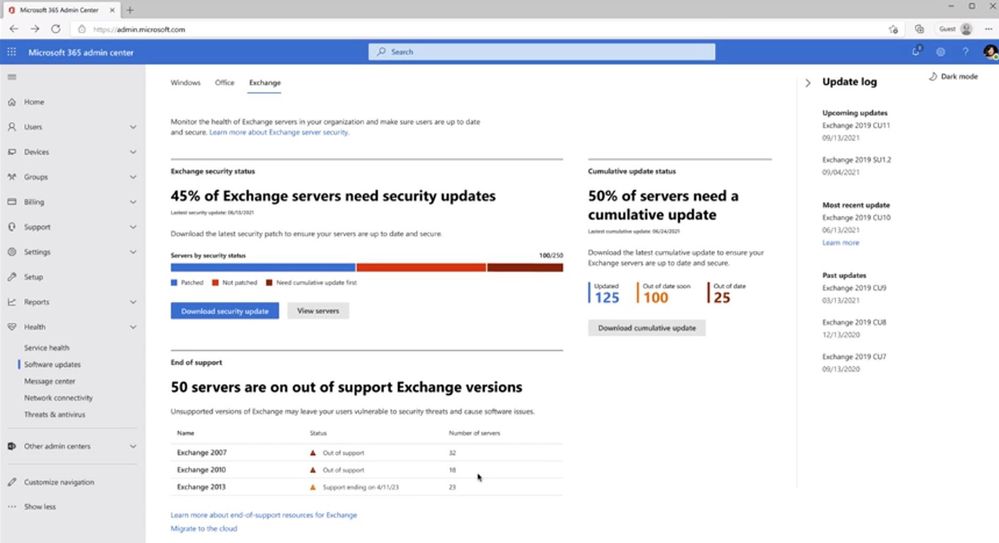
Later this year we are introducing a new experience in the Microsoft 365 admin center for viewing the update status of Exchange servers in hybrid environments. This new experience is designed to show admins which Exchange servers need updates, and which servers are approaching or at the end of support.
This experience provides a view of on-premises Exchange servers that is curated using data from multiple sources, such as data customers opt-in to sending to us, data in the Microsoft Online Services processing logs, and publicly available data, such as DNS records.
A similar experience is expected to be added to Exchange Server 2019 early next year.
Exchange Emergency Mitigation Service Rollback
The Exchange Emergency Mitigation Service (EEMS) we added to Exchange Server last year helps keep your servers secure by applying mitigations from Microsoft to address any potential threats against your servers. EEMS is a built-in version of the EOMT that provides protection against security threats that have known mitigations.
After a mitigation applied by EEMS is no longer required, an admin can manually roll back that mitigation. To simplify the process, we’re developing a PowerShell script that admins will be able to use to remove any mitigations that are no longer needed. We expect to release the script next year.
Deployment and Manageability Investments
We know that Exchange Server updates can be complex to deploy for some customers, especially in environments without dedicated Exchange admins or IT staff. We are working to ease these challenges by enhancing Setup to preserve custom config settings, and we’re continuing to work to improve the Hybrid experience by addressing common customer pain points.
Custom Configuration Preservation
We understand that it’s very common for admins to customize their Exchange server settings after Setup has successfully completed. For example, admins often configure client-specific message size limits. These customizations are made in web.config, sharedweb.config, and other files on the Exchange server. One of the challenges for admins is that each time a CU is installed, their customizations are overwritten by Setup. Today, admins need to backup these files and restore them after each CU.
To address this issue, we’re working on changing Setup to preserve these customizations after a CU is installed. We hope to release these changes in the H2 2022 CU or the H1 2023 CU.
Hybrid Experience Improvements
To help admins manage hybrid environments, we’re making even more changes to the Hybrid Configuration Wizard (HCW). Today, the HCW performs several tasks, including configuring the Federation Trust, updating connectors and email address policies, and configuring endpoints and OAuth between on-premises and Exchange Online. After the wizard has completed its tasks, admins often customize the environment.
During a re-run of the HCW, most of the first-time configuration tasks are not required. But since the HCW doesn’t allow skipping steps, custom configurations made after the first HCW run can be lost, possibly leading to a bad hybrid state.
To address this issue, we’re modifying the HCW to allow an admin to choose the steps to perform and skip unnecessary ones. We expect to release an updated HCW with these changes later this year.
MEC is Back!
Today, we are also very excited to announce the Microsoft Exchange Community (MEC) Virtual Airlift, which will take place Sept 13-14, 2022!
MEC features experts from Microsoft and the Exchange community talking about Exchange Online, Exchange Hybrid, and Exchange Server. This is a free technical airlift for IT pros that work with Exchange day-to-day, and developers who create solutions that integrate with Exchange.
You can find out more about MEC at MEC is Back!
Feedback Forums for Exchange Server and Exchange Online
Your feedback matters to Microsoft, and we have a lot of ways for you to share it with us. In the past, Exchange customers and partners used a platform called UserVoice for community driven feedback, but we moved off that platform last year.
Last year we also announced the Microsoft Feedback Portal, which provides a new community feedback experience from Microsoft. Built on Dynamics 365 Customer Service, Feedback is where users can go to provide feedback on popular Microsoft apps and services in one place.
Today, we’re excited to announce the availability of two new Feedback forums for Exchange:
We’re always striving to better serve our customers and partners. You can directly influence change at Microsoft by sharing your feedback. We look forward to hearing from you.
Exchange Server Technology Adoption Program Open Enrollment
Today, we’re also announcing open enrollment for the Exchange Server 2019 Technology Adoption Program (TAP) for customers and partners! The TAP is designed to validate Exchange Server updates by having customers and partners test deployments of pre-release builds of Exchange Server in lab, production, and development environments.
If you are interested in early (pre-release) access to Exchange Server 2019 builds, we invite you to join our TAP. You can find out how to sign up at Exchange TAP Announcement.
Call to Action for Exchange Server Customers
For many organizations, Exchange Online in Microsoft 365 delivers the best productivity, the best security and compliance features and is the most cost-effective solution and best experience. If you are an Exchange Server customer that wants to move to Exchange Online, contact your Microsoft account team today to take advantage of available offers, get help from FastTrack, and receive end-to-end guidance from Microsoft.
As we said earlier, we know that customers have reasons to run Exchange Server, and we are committed to supporting them.
Our guidance for customers who run Exchange Server is to move to Exchange Server 2019 now.
Exchange Server 2019 already includes several features not available in previous versions, including:
- Support for Windows Server 2022 and Windows Server Core
- Client/server connections use TLS 1.2 by default
- New search infrastructure based on Exchange Online
- Modern hardware support
- Improvements in calendaring, client experience, compliance (in-place archiving, retention, eDiscovery), data loss prevention, and performance and scalability
- Exchange Management Tools update that eliminates the need for Exchange Servers used only for recipient management purposes
- The latest hybrid experience updates, including support for using MFA-enabled admin credentials with Hybrid Agent cmdlets
Soon, Exchange Server 2019 will include support for TLS 1.3, Modern authentication, and more, and it will provide the smoothest and easiest path to the next version of Exchange Server in 2025.
Upgrading to Exchange Server 2019
You can use the Exchange Deployment Assistant (EDA) at https://assistants.microsoft.com/exchangedeployment to upgrade from Exchange Server 2013 and/or Exchange Server 2016 to Exchange Server 2019. The EDA is a web-based tool that asks you a few questions about your current environment and then generates a custom step-by-step checklist that will help you deploy Exchange Server 2019, the smoothest and quickest path to the future.
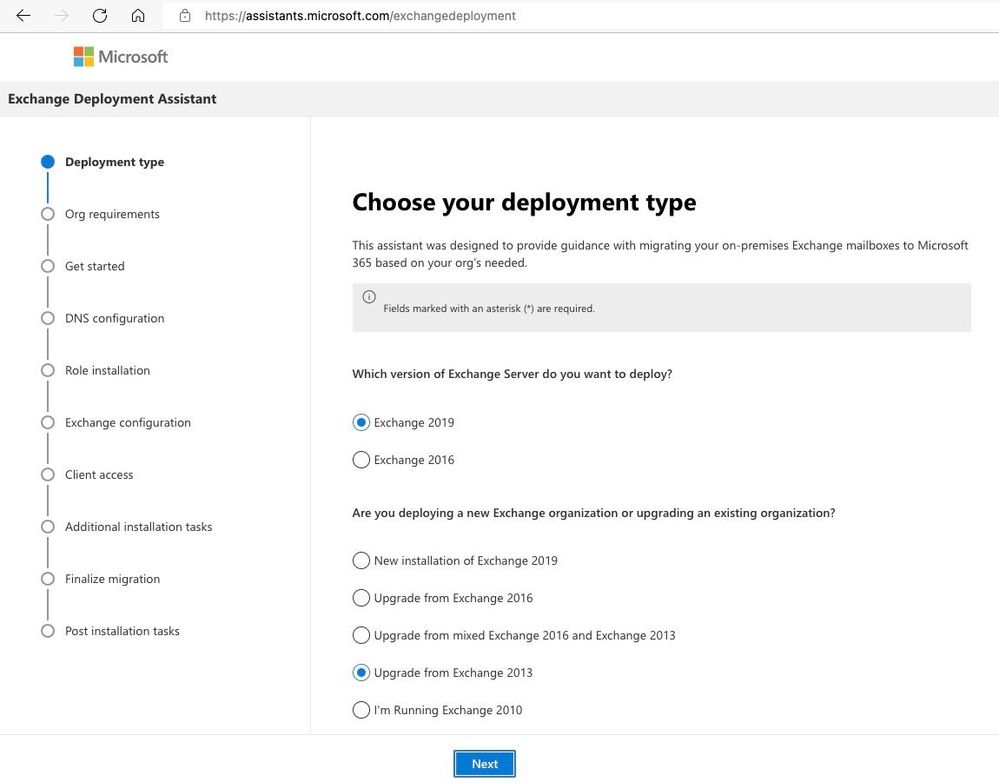
Before you deploy Exchange 2019 in your organization, you need to do some careful planning, so be sure to carefully review the information provided by the EDA.
If you are planning an Exchange hybrid environment, be sure to review Exchange Server hybrid deployments and the accompanying information.
Scott Schnoll
Senior Product Marketing Manager
Exchange Online / Exchange Server
by Contributed | Jun 1, 2022 | Technology
This article is contributed. See the original author and article here.
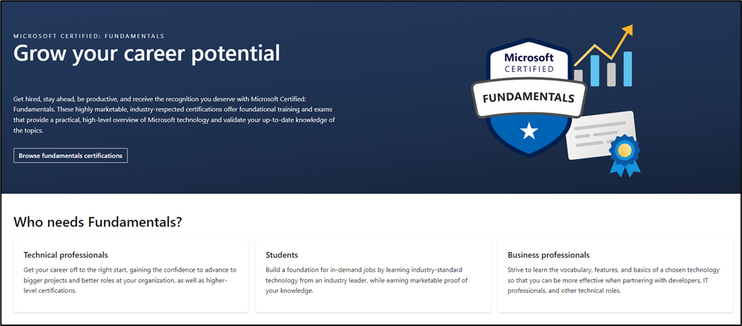
We’re pleased to announce the new Microsoft Certified: Fundamentals site, designed exclusively for the community of learners who want to pursue a Microsoft fundamentals certification. Are you looking for a way to stand out as you start on your career path? Want to switch jobs and pivot to something fresh? Or master the basics as you advance in a challenging role? Explore the Microsoft Certified: Fundamentals site to learn how certification can help you achieve your goals. Earning a fundamentals certification differentiates you as someone who’s willing to learn and takes concrete steps to make their goals a reality.
Who needs a fundamentals certification?
Whether you’re a technical professional, student, or business professional, a fundamentals certification is designed to help you accelerate your progress, boost your career, and stay current with evolving technology trends. It can be the first step on your journey for role-based or specialty certifications, but it isn’t a prerequisite for any of them.
Use Microsoft fundamentals training and certification to highlight your skills and to show prospective employers your drive and determination to learn. Take it from Chris Dinnel, a system administrator with a cybersecurity background, who wanted to move his career to cloud infrastructure. He earned a Dynamics 365 Fundamentals certification and got a job as a Dynamics 365 administrator/IT technician at SBS CyberSecurity. He comments, “Certification is a great way to show people that you can take initiative and communicate that kind of abstract concept, like self-motivation, which is otherwise hard to show on a résumé.”
Use fundamentals certifications to validate the skills that you’ve worked so hard to hone. Plus, earning fundamentals certifications can give you the confidence to pursue higher-level certifications as you move forward in your career journey. A Global Knowledge survey notes that 87 percent of IT professionals have at least one certification, while nearly 40 percent are pursuing their next certification. April Dunnam, a developer with many certifications, reports that when she learns a new technology, she often earns a fundamentals certification just to get a broad understanding. For example, when she was learning Microsoft Power Platform, she earned the fundamentals certification, recalling, “It seemed like a good starting point because it’s about the basics.”
A fundamentals certification on your résumé can make a difference as you launch your career. An IDC white paper points out that those who earned a certification prior to their first IT position were promoted 23 percent sooner than their counterparts who didn’t earn one. Use your fundamentals certification to build practical, workplace skills for in-demand jobs and to gain an edge in a competitive labor market. When you study for a fundamentals exam, you learn industry-standard technology from an industry leader, in addition to earning marketable proof of your knowledge.
If you have a passion for technology and are switching to a more technical role, earning a fundamentals certification can help ensure that you’re up to speed. According to The Nigel Frank Careers and Hiring Guide: Business Applications Edition 2022, 68 percent of respondents believe that certifications help you stand out in a competitive job market. Respondents who received a salary increase after they earned a certification said that their take-home pay rose by an average of 20 percent.
Get started
Begin by going to the new Microsoft Certified: Fundamentals site to gather information and make your learning plan. Each certification’s landing page includes a journey map that offers a visual explanation of the steps you need to take. If you want to work with an instructor, read About Microsoft Learning Partners.
Choose a certification path
Depending on your skills and interests, the new fundamentals site will help you choose the fundamentals certification that’s the best fit for you.
Find a community
Join a community to network with others who have a passion for Microsoft technology, share ideas, and ask questions. You can also find news about Microsoft events and learning opportunities.
Celebrate with the world: Post your badge on LinkedIn
Once you earn your fundamentals certification or learn a new skill, celebrate your accomplishment with your network. It often takes less than a minute to update your LinkedIn profile and share your achievements, highlight your skills, and help boost your career potential.
Explore related blogs
Turn your aspirations into opportunities
The new Microsoft Certified: Fundamentals site offers you even more support as you move ahead on your learning journey. Join the community of professionals who have earned a Microsoft Certification and get what you need to land that first job, advance your career, or shift your focus to a new and exciting technology.
Sources
IDC white paper, Impact of Certifications and Training on Career Milestones, #US45090619, June 2019



Recent Comments