This article is contributed. See the original author and article here.
Customers in our Office 365 government clouds, GCC, GCCH, and DoD, are continuing to evolve how they do business in the hybrid workplace. As Microsoft Teams is the primary tool for communication and collaboration, customers are looking to improve productivity by integrating their business processes directly into Microsoft Teams via third-party party (3P) applications or line-of-business (LOB)/homegrown application integrations.
Common business processes integrated into Microsoft Teams can range from Information Technology (IT) Service Management (ITSM), Content Approval Workflows, to Human Resources requests. Just know that your commonly used business processes and non-Microsoft software services are now surfacing inside of Microsoft Teams!
The common scenario we’ve heard from our customers is: “There are some daily-used non-Microsoft applications that we would like to incorporate into Microsoft Teams. Is it accredited to use in our O365 government cloud? Where should I check?”
With current trends, we wanted to provide a reference on where to look when you are planning for integration within Teams.
Option 1: 3P Applications in Teams for Government
Step 1: Check the Teams App Store
One of the first places most customers check is the Teams App Store for available apps suitable for their business needs. Searching the app store using keywords such as, ‘GCC’ or ‘government,’ you can find applications specifically built for the government industry. Applications in the Teams App Store have gone through the rigorous Microsoft Teams store validation process for compliance and testing.
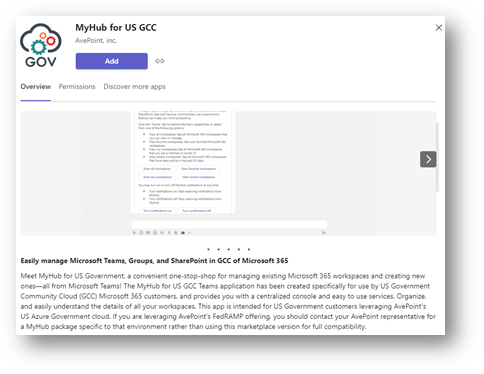
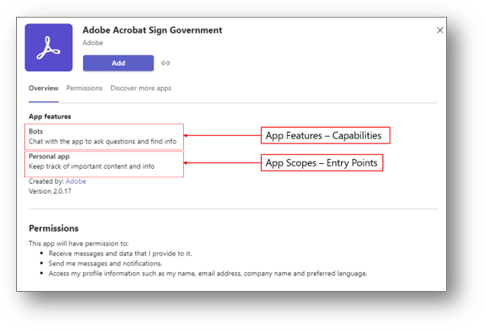
Each app has a store tile which provides an app description, included capabilities and features, plus the permissions the app requires for use.
Image above depicts MyHub for GCC and the description of the MyHub product.
Image above depicts Adobe Sign for Government and the Adobe Sign app features.
Step 2: Check Security & Compliance for the Teams App
While the information from the Teams App Store might be enough for some organizations, there may be further investigation required on how the application handles data and up to security/compliance.
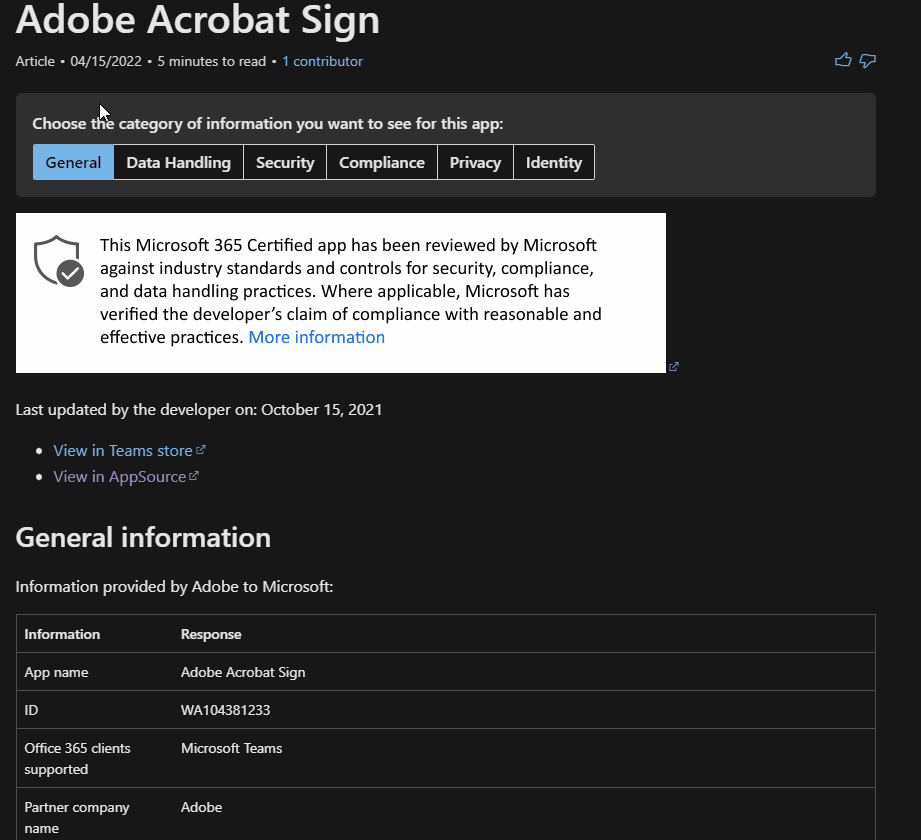
The Microsoft Teams Apps Security and Compliance Docs page provides customers key information to assess and manage risk for the Microsoft Teams 3P app under consideration. By clicking on each topic in the screenshot below, it will display the related information. Below is an example showcasing the information for Adobe Acrobat Sign.
Compliance
While all sections are important, one of the most common tabs frequently visited by government agencies is the Compliance tab where one can check if a 3P app is FedRAMP-compliant. Link to an example of a FedRAMP-compliant Teams app.
Image referencing FedRAMP compliance above.
Identity
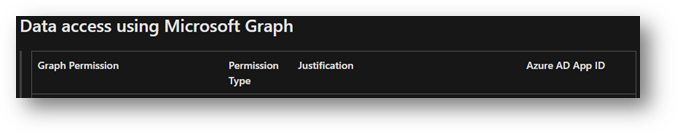
Another common tab is the Identity tab which provides information around Graph permissions.
Image showing the privileges under Identity tab above.
Step 3: Validating Product Compliance on the FedRAMP website
The Federal Risk and Authorization Management Program (FedRAMP), is a standardized approach to security assessment for cloud service offerings with the intent to deploy to Federal agencies. FedRAMP makes it possible for agencies and cloud service providers to reuse authorizations.
*Please Note: Microsoft does not own or manage the FedRAMP site or program. FedRAMP is United States federal government-wide program (owned by GSA) that provides a standardized approach to security assessment, authorization, and continuous monitoring for cloud products and services*
Using the FedRAMP Marketplace, you can look up approved products/providers for your own and other agencies.
Image depicting sorting/filtering options in FedRAMP marketplace above.
Using the FedRAMP site:
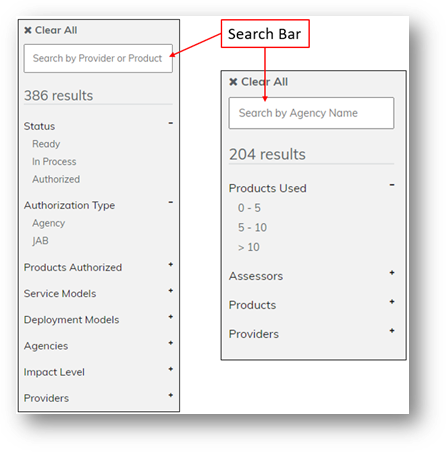
The left column in the Marketplace provides a search function to query based on your needs. For the Products tab, search based on the product name or company. For the Agencies tab, search by organization name.
Image depicting filter and search bar above.
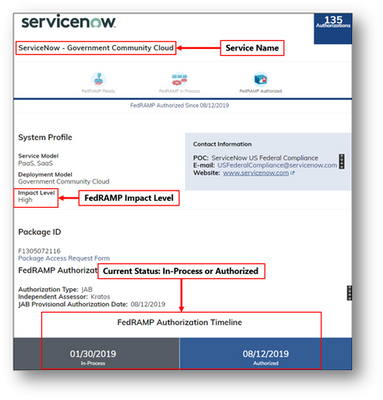
When filtering by product, key areas to consider are marked on the image below, which include, Impact Level, Current Status, etc.
Image depicting FedRAMP key focal areas above using ServiceNow as an example.
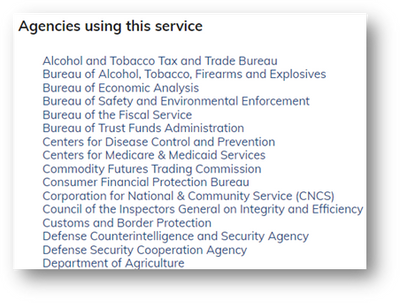
Furthermore, other agencies using specific products will be listed under the FedRAMP site, as well. This provides a Agency-to-Agency reference when looking for deployment guidance and lessons learned. The Agencies using this product will be located at the bottom of the Product offering page. Example of FedRAMP product page.
Image depicting other Agencies using a specific product above.
Option 2: Line of Business (LOB)/Homegrown Teams Apps
Microsoft Teams allows developers within your organization to build, test, and deploy custom apps for organization’s internal users. Such apps are called custom apps or Line of Business (LOB) apps. Your organization may commission the creation of custom apps for org-specific requirements. For more information, click here.
Customers in GCC High and DoD do not have access to the Teams public app store and will therefore need to get app packages directly from software vendors. For example, ServiceNow is able to provide a Teams app package that points to their FedRAMP accredited environments. In this type of scenario, customers wonder how they can validate this app package for security risks/requirements. Most of the app packages that customers are receiving from vendors point to FedRAMP accredited services and endpoints, just like the above ServiceNow example. If your agency has an existing Authority To Operate (ATO) with the vendor, sideloading that app into Teams may fall under the same ATO umbrella and may not need a separate review. Note, apps in Teams are simply connecting to an existing service endpoint that may already have been approved for use on your network.
If your organization would like to build your own custom app, learn more by visiting our new Teams App Camp!
Summary
We covered looking at 3rd party applications from the Teams App Store, reviewing Microsoft Teams Apps Security and Compliance to assess and manage risk, and finally, reviewing the FedRAMP site for accreditation for Agency-to-Agency references.
For customers that use non-Microsoft services today and would like to see those integrations brought into Teams, please contact your Product Vendor to request the application and express the desired supported cloud, as well as, your Microsoft account team for awareness and options.
If your agency wants to build their own app Teams application and/or engage with Teams Engineering, please contact your Microsoft account team for coordination.
This article is contributed. See the original author and article here.
We’re not shy about using our own products and services internally here at Microsoft, and as such, we’re already taking advantage of recently moving our internal video platform—Microsoft Stream—under the Microsoft 365 umbrella.
The transformation of our corporate video platform has made it easier for our employees to create, upload, edit, and publish enterprise videos, says Marc Mroz, a product manager for Microsoft’s Office Media group, who explained that the new, modern Microsoft Stream experience is benefitting from now being located within SharePoint specifically.
“Many people were already familiar with what they can do in SharePoint,” says Mroz, who has been showing teams at Microsoft what they can now do with internal video. “We just helped connect the dots and showed them how to make a video destination, how to organize by folder, keyword, or metadata.”
The Microsoft Digital Employee Experience team has been working with Mroz and the product group team on deploying the modern Microsoft Stream experience across the company, with the team that publishes the company’s internal employee portal among those taking the lead on trying it first.
Using video to connect with employees in more meaningful ways has become more important as companies like Microsoft adjust to a new hybrid workstyle where employees aren’t working in the office as much as they used to, says Farnaz Hafezi, a program manager with Microsoft Digital Employee Experience.
“The last few years have really shown the importance of video for hybrid work,” Hafezi says. “It helps us collaborate, communicate, and educate. We’ve seen a significant increase in video within our tenant.”
Folding Microsoft Stream directly into Microsoft 365 and SharePoint using OneDrive for storage has made it more useable and accessible within Microsoft, Mroz says, adding that it also ensures that the product stays more current.
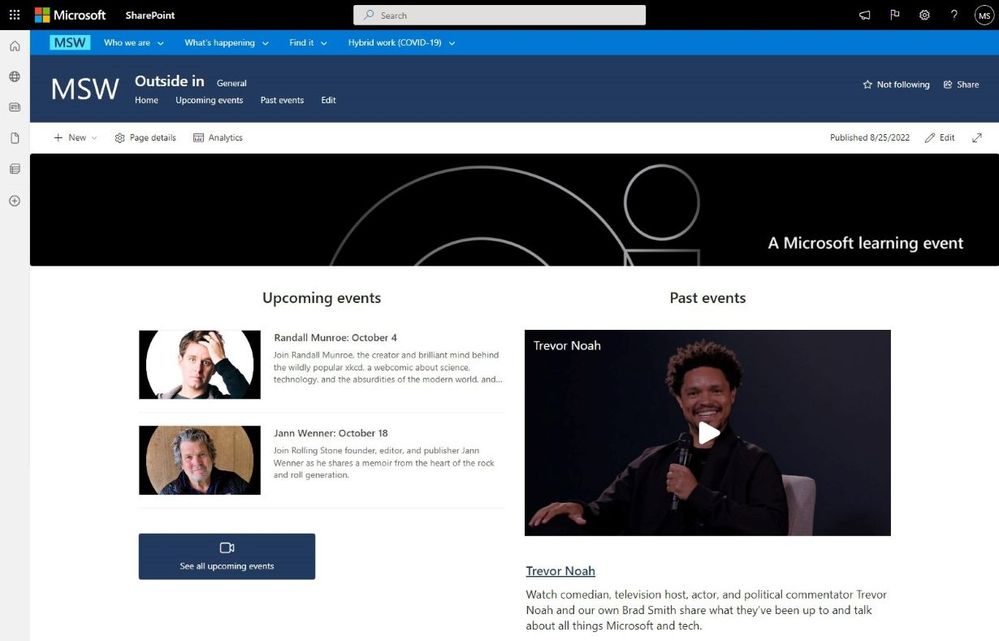
An image providing a screen capture of Microsoft’s internal site, MSW, with an embedded video from Microsoft Stream.
Microsoft’s Customer Zero
The Microsoft Digital Employee Experience team plays a significant internal role here at Microsoft as Customer Zero. What does this mean? It’s about trying out the company’s new technology offerings first—in this case, that means deploying the new Microsoft Stream internally to early adopters before it is broadly deployed to customers, listening to feedback from our early users, and then feeding those insights back to the product group. This virtuous circle gives the product group important feedback that makes the product stronger before it gets to customers.
One of the early adopters was the team that runs MSW, the company’s internal employee portal.
“There are things we can do in modern Stream that were difficult to do in classic,” says David Potts, a site administrator for MSW. “Our team is a mix of employees and vendors at any given time, but the whole team needs to be able to do authoring and manage videos. Anything you can do in SharePoint, including guest permissions, is now available to us.”
The feedback from Potts and other early users of the product has made the modern Microsoft Stream experience stronger, Mroz says.
“It’ll look better and be more purpose fit than classic could ever do,” he says. “Now we have an out-of-the-box video platform built into SharePoint, and when we show it to customers, they get it.”
If you’re thinking about upgrading to the new Microsoft Stream experience, here a few things for you to consider:
When moving from classic to the modern Microsoft Stream experience, take stock of your current inventory, especially if you have a large archive of Microsoft Teams recordings. Not every video is going to be worth the effort of bringing along.
Thanks to the way SharePoint sites populate content, you can elegantly use parent and child sites to share content to targeted audiences without having to duplicate efforts
Keep your SharePoint organized; this was true before Microsoft Stream came to Windows 365 and it’s still true after
Video is a great way to onboard new employees or offer just-in-time training. Microsoft Stream’s compatibility with Microsoft Search makes it easy for connections to be made
Visit Microsoft Inside Track to learn more about how Microsoft uses its own technology and services as well as the company’s Customer Zero journey.
Continue the conversation by joining us in the Microsoft 365 community! Want to share best practices or join community events? Become a member by “Joining” the Microsoft 365 community. For tips & tricks or to stay up to date on the latest news and announcements directly from the product teams, make sure to “Follow” or subscribe to the Microsoft 365 Blog space!
This article is contributed. See the original author and article here.
Improvements to the console
When performing a search on any node in the console, the hint text in the search bar will now indicate the scope of the search.
By default, all subfolders are searched when you perform a search in any node that contains subfolders. You can narrow down the search by selecting the “Current Node” option from the search toolbar.
If you want to expand the search to include all nodes, then select the “All Objects” button in the ribbon.
Update 2209 for Technical Preview Branch is available in the Microsoft Endpoint Configuration Manager Technical Preview console. For new installations, the 2206 baseline version of Microsoft Endpoint Configuration Manager Technical Preview Branch is available on the link: MECM2206TP-Baseline or from Eval center
Technical Preview Branch releases give you an opportunity to try out new Configuration Manager features in a test environment before they are made generally available.
We would love to hear your thoughts about the latest Technical Preview! Send us feedback directly from the console.
This article is contributed. See the original author and article here.
Hello and Happy Friday, MTC’ers!
Yesterday was the start of the Autumnal Equinox, which means the seasons are a-changin’. In the spirit of the season, let’s fall into this week’s community recap!
MTC Moments of the Week
First, we want to give a shoutout to this week’s MTC Member of the Week, @osxhone! They just joined the MTC this week and have already been given a Best Answer for their help in the OneDrive forum. Welcome, osxphone!
This week, we had our monthly Windows Office Hours, which takes place every third Thursday of each month here in the MTC. These office hours are a great opportunity to interact with and ask questions to a broad group of product experts, servicing experts, and engineers representing Windows, Microsoft Endpoint Manager (Microsoft Intune, Configuration Manager), security, public sector, FastTrack, and more. So, make sure you RSVP for the next session on October 20th!
Over on the blogs, @assafyatziv posted an article in the Security, Compliance, and Identity community showcasing the top threat protection use cases in Microsoft Defender for Cloud Apps. Check it out and let us know in the comments if you’d like to see more examples of how Microsoft Defender for Cloud Apps & Microsoft 365 Defender work together!
Unanswered Questions – Can you help them out?
Every week, users come to the MTC seeking guidance or technical support for their Microsoft solutions, and we want to help highlight a few of these each week in the hopes of getting these questions answered by our amazing community!
Lastly, to wrap things up, since it now officially Fall/Autumn in the Northern hemisphere, I’ll hit you with a fun Fall fact…
The Fall season has its own disctinct scent that can only be smelled during certain times of the year due to the decay of leaves after they fall from the trees. All I know is that it’s one of my absolute favorite scents!
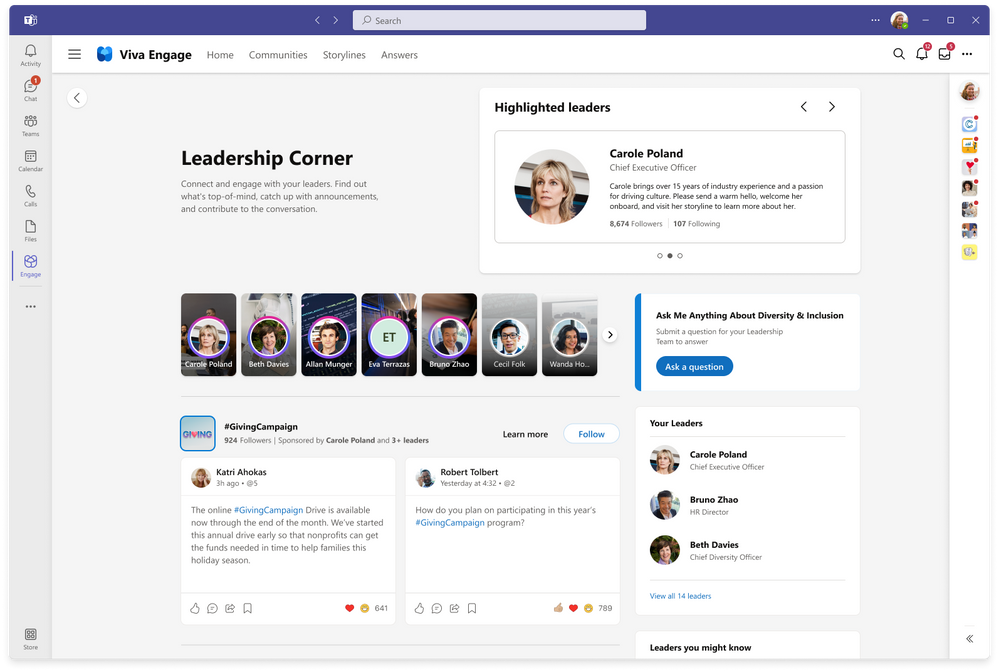
Viva Engage connects employees and leaders through communities and conversations. We’re announcing powerful new leadership capabilities to unlock the potential of your organizations.
Leadership Corner is a new experience for employees to engage directly with key leaders. Employees can:
See and participate in activities from their leaders
Take surveys and join the discussion with #Campaigns and AMAs (Ask Me Anything)
Connect with new leaders across the company
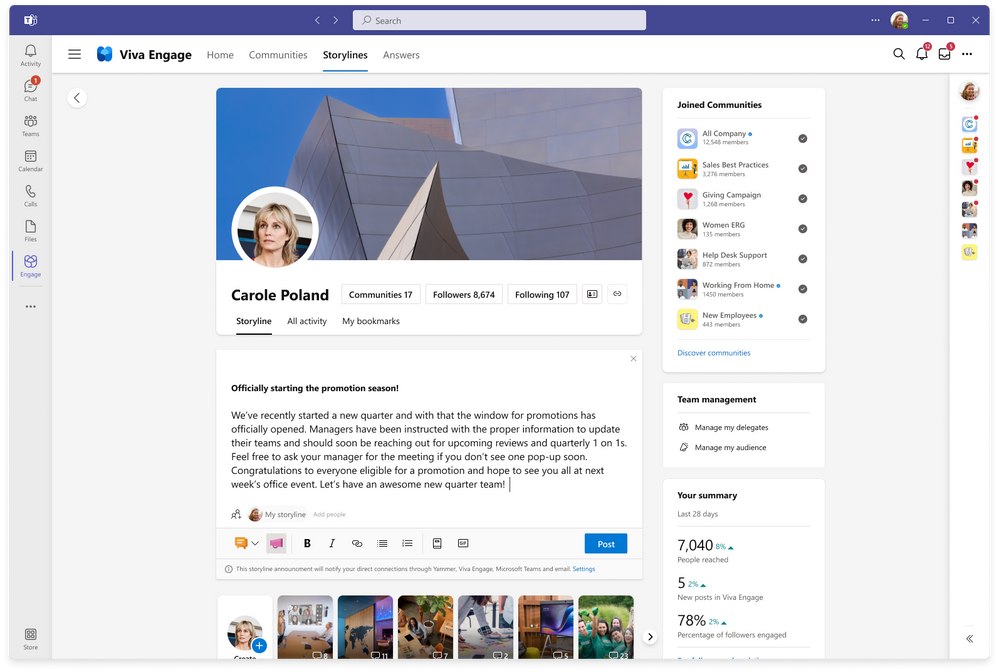
For leaders, communicators, and their delegates we’re introducing:
A new leader dashboard with organizational analytics
Storyline announcements for reaching their teams
Powerful social #Campaign experiences
New “Ask Me Anything” style events
These experiences will bring leadership to life, fostering a two-way dialogue throughout the organization, and creating an environment where employees thrive. Learn more about these experiences in the Viva Engage announcement blog.
New Microsoft Mechanics Video featuring Viva Engage
Additionally, we released a walk-through video of Viva Engage on Microsoft Mechanics. I’ll show you a deep dive into how to build communities, share experiences with storyline and stories, a demo of the new leadership corner, Ask me Anything’s and Answers within Microsoft Viva and more. Take a look and let us know how you are using Viva Engage in your organization.
Leadership Corner and Answers will be available in 2023 to licensed Viva suite users within the Viva Engage app.
Get Inspired
New to Viva Engage? Find best practices and inspiration on how to make the most of communities, conversations, and storyline in the newViva Lookbook. And find even more playbooks and resources in our Viva Engage Adoption Center.





Recent Comments