by Contributed | Jun 22, 2023 | Technology
This article is contributed. See the original author and article here.
Introduction
Azure OpenAI models provide a secure and robust solution for tasks like creating content, summarizing information, and various other applications that involve working with human language. Now you can operate these models in the context of your own data. Try Azure OpenAI Studio today to naturally interact with your data and publish it as an app from from within the studio.
Getting Started
Follow this quickstart tutorial for pre-requisites and setting up your Azure OpenAI environment.
In order to try the capabilities of the Azure OpenAI model on private data, I am uploading an ebook to the Azure OpenAI chat model. This e-book is about “Serverless Apps: Architecture, patterns and Azure Implementation” written by Jeremy Likness and Cecil Phillip. You can download the e-book here
Before uploading own data
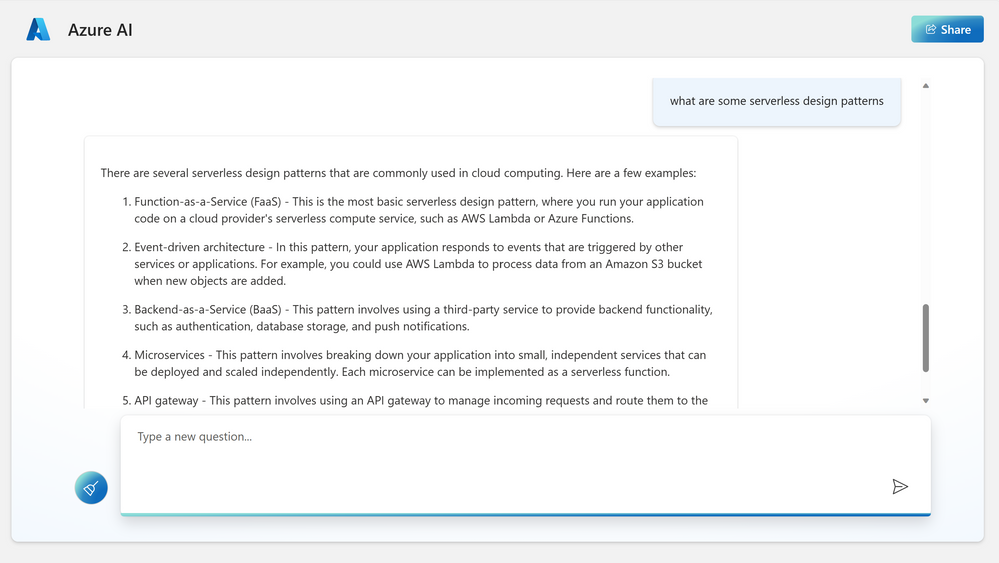
Prior to uploading this particular e-book, the model’s response to the question on serverless design patterns is depicted below. While this response is relevant, let’s examine if the model is able to pick up the e-book related content during the next iteration
After uploading own data
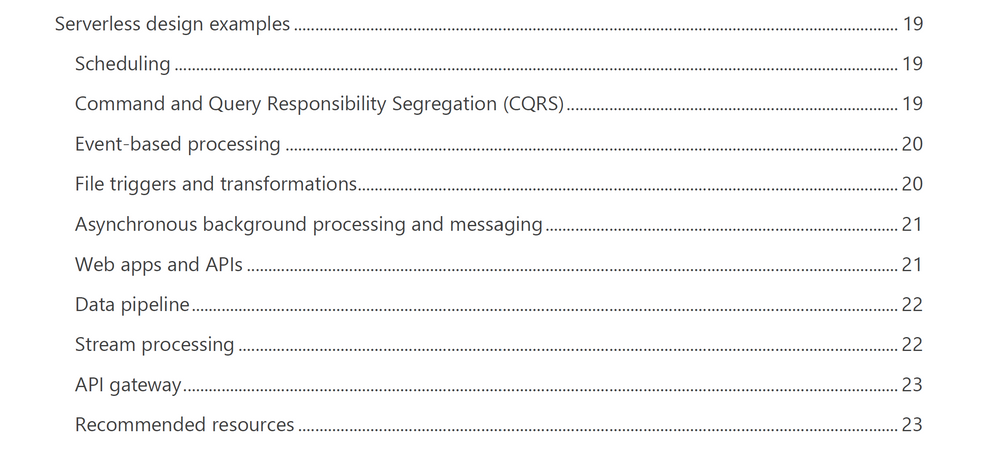
This e-book has an exclusive section that talks in detail about different design patterns like Scheduling, CQRS, Event based processing etc.
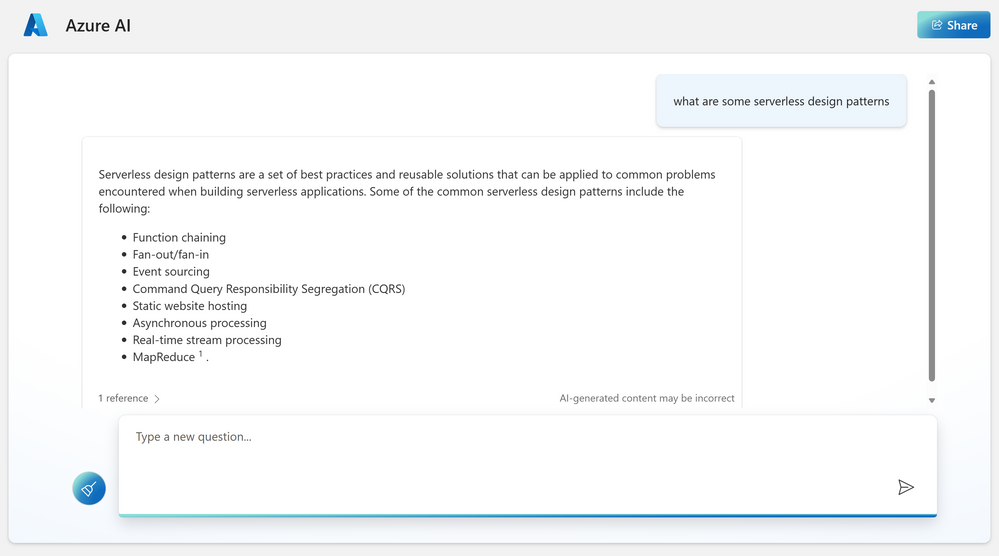
After training the model on this PDF data, I asked a few questions and the following responses were nearly accurate. I also limited the model to only supply the information from the uploaded content. Here’s what I found.
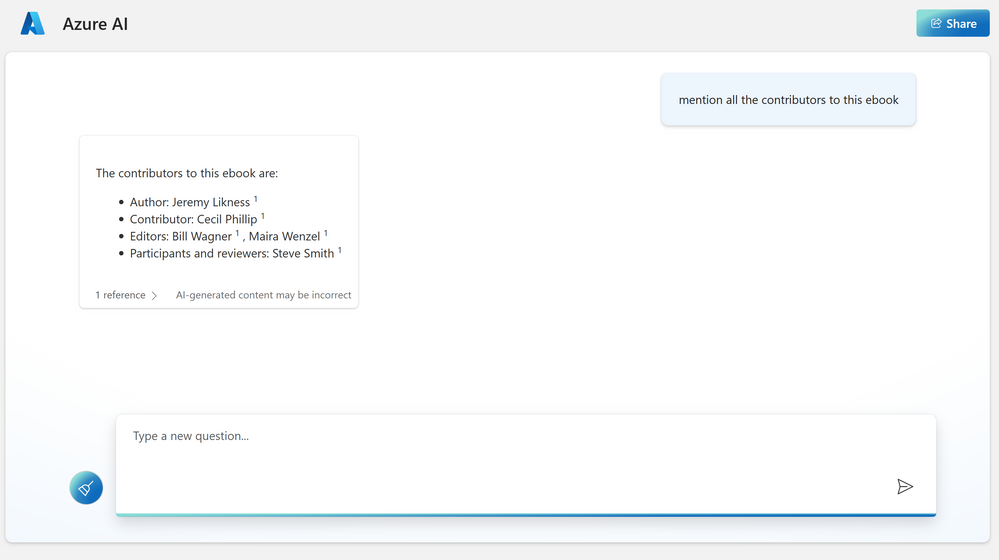
Now when I asked about the contributors to this e-book, it listed everyone right.
Read more
With enterprise data ranging to large volumes in size, it is not practical to supply them in the context of a prompt to these models. Therefore, the setup leverages Azure services to create a repository of your knowledge base and utilize Azure OpenAI models to interact naturally with them.
The Azure OpenAI Service on your own data uses Azure Cognitive Search service in the background to rank and index your custom data and utilizes a storage account to host your content (.txt, .md, .html, .pdf, .docx, .pptx). Your data source is used to help ground the model with specific data. You can select an existing Azure Cognitive Search index, Azure Storage container, or upload local files as the source we will build the grounding data from. Your data is stored securely in your Azure subscription.
We also have another Enterprise GPT demo that allows you to piece all the azure building blocks yourself. An in-depth blog written by Pablo Castro chalks the detail steps here.
Getting started directly from Azure OpenAI studio allows you to iterate on your ideas quickly. At the time of writing this blog, the completions playground allow 23 different use cases that take advantage of different models under Azure OpenAI.
- Summarize issue resolution from conversation
- Summarize key points from financial report (extractive )
- Summarize an article (abstractive)
- Generate product name ideas
- Generate an email
- Generate a product description (bullet points)
- Generate a listicle-style blog
- Generate a job description
- Generate a quiz
- Classify Text
- Classify and detect intent
- Cluster into undefined categories
- Analyze sentiment with aspects
- Extract entities from text
- Parse unstructured data
- Translate text
- Natural Language to SQL
- Natural language to Python
- Explain a SQL query
- Question answering
- Generate insights
- Chain of thought reasoning
- Chatbot
Resources
There are different resources to get you started on Azure OpenAI. Here’s a few:
by Contributed | Jun 21, 2023 | Technology
This article is contributed. See the original author and article here.
Introduction
Did you know that you can use Microsoft Fabric to copy data at scale from on-premises SQL Server to Azure SQL Database or Azure SQL Managed Instance within minutes?
It is often required to copy data from on-premises to Azure SQL database, Azure SQL Managed Instance or to any other data store for data analytics purposes. You may simply want to migrate data from on-premises data sources to Azure Database Services. You will most likely want to be able to do this data movement at scale, with minimal coding and complexity and require an automated and simple approach to handle such scenarios.
In the following example, I am copying 2 tables from an On-premises SQL Server 2019 database to Azure SQL Database using Microsoft Fabric. The entire migration is driven through a metadata table approach, so the copy pipeline is simple and easy to deploy. We have used this approach to copy hundreds of tables from one database to another efficiently. The monitoring UI provides flexibility and convenience to track the progress and rerun the data migration in case of any failures. The entire migration is driven using a database table that holds the information about the tables to copy from the source.
Architecture diagram
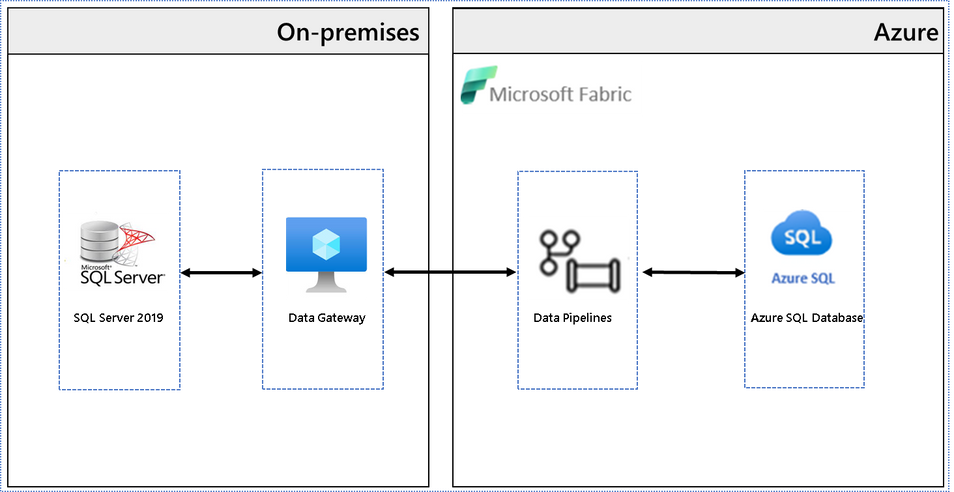
This architectural diagram shows the components of the solution from SQL Server on-premises to Microsoft Fabric.
Steps
Install data gateway:
To connect to an on-premises data source from Microsoft Fabric, a data gateway needs to be installed. Use this link to install an on-premises data gateway | Microsoft Learn
Create a table to hold metadata information:
First, let us create this table in the target Azure SQL Database.
CREATE TABLE [dbo].[Metadata](
      [Id] [int] IDENTITY(1,1) NOT NULL,
      [DataSet] [nvarchar](255) NULL,
      [SourceSchemaName] [nvarchar](255) NULL,
      [SourceTableName] [nvarchar](255) NULL,
      [TargetSchemaName] [nvarchar](255) NULL,
      [TargetTableName] [nvarchar](255) NULL,
      [IsEnabled] [bit] NULL
)
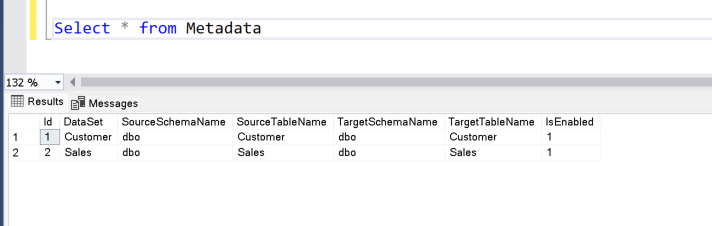
I intend to copy two tables – Customer and Sales – from the source to the target. Let us insert these entries into the metadata table. Insert one row per table.
INSERT [dbo].[Metadata] ([DataSet], [SourceSchemaName], [SourceTableName], [TargetSchemaName], [TargetTableName], [IsEnabled]) VALUES (N'Customer', N'dbo', N'Customer', N'dbo', N'Customer', 1);

INSERT [dbo].[Metadata] ([DataSet], [SourceSchemaName], [SourceTableName], [TargetSchemaName], [TargetTableName], [IsEnabled]) VALUES (N'Sales', N'dbo', N'Sales', N'dbo', N'Sales', 1);
Ensure that the table is populated. The data pipelines will use this table to drive the migration.
Create Data Pipelines:
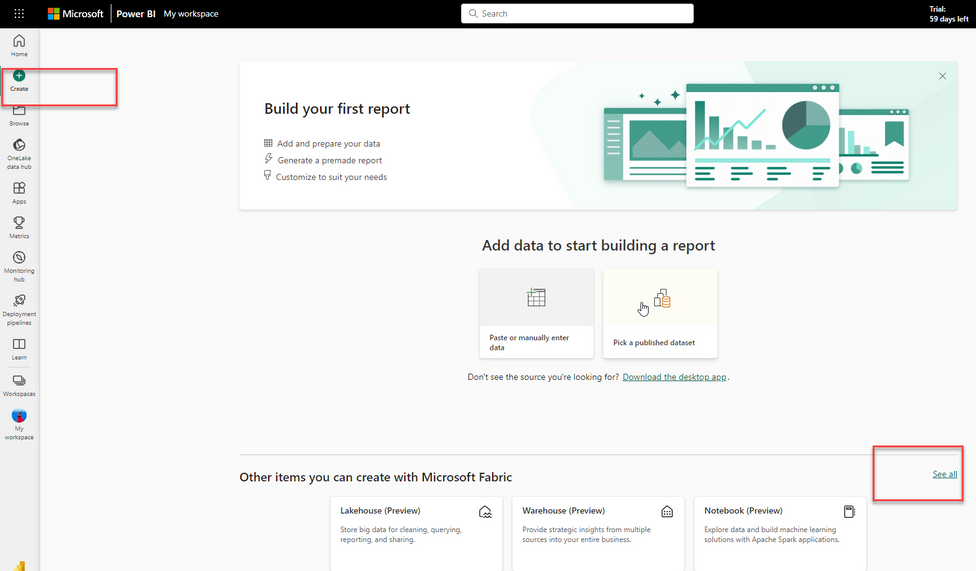
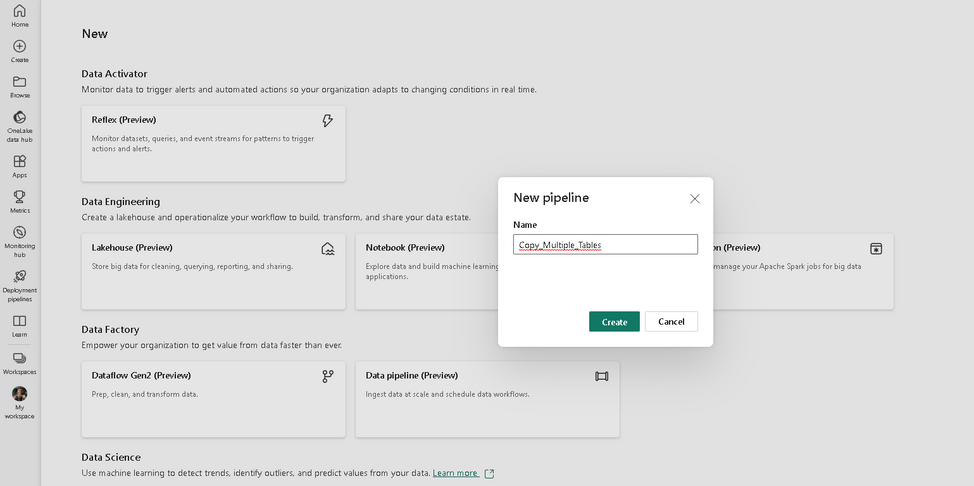
Open Microsoft Fabric and click create button to see the items you can create with Microsoft Fabric.
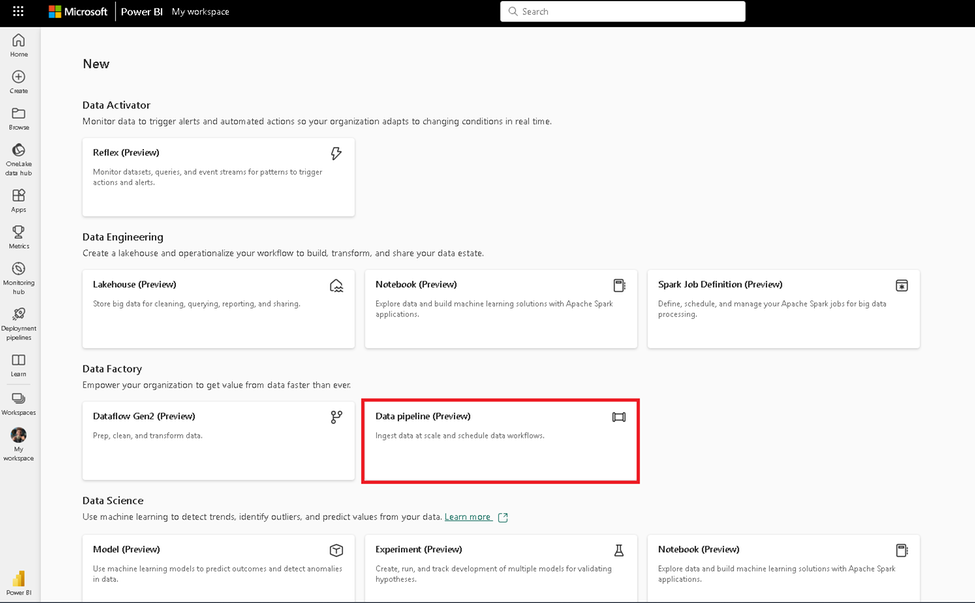
Click on “Data pipeline” to start creating a new data pipeline.
Let us name the pipeline “Copy_Multiple_Tables”.
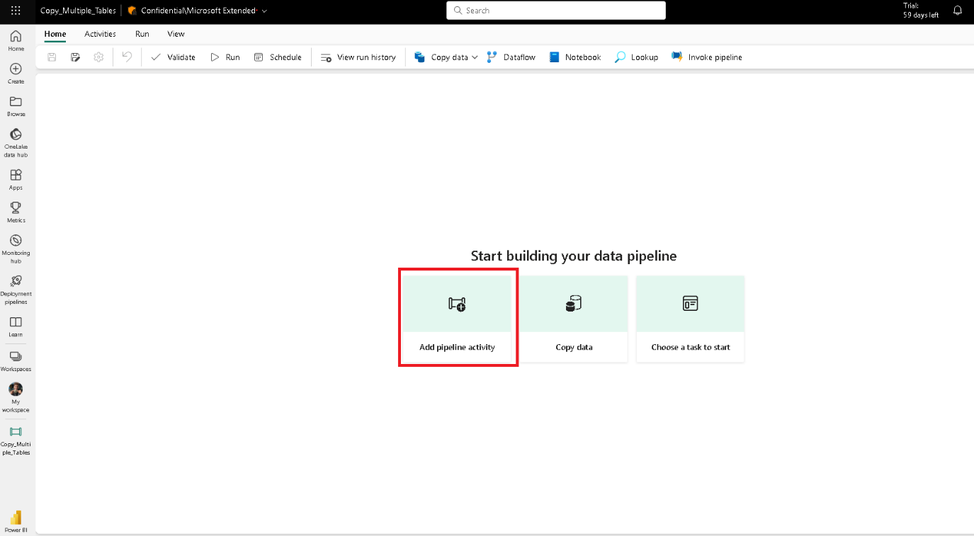
Click on “Add pipeline activity” to add a new activity.
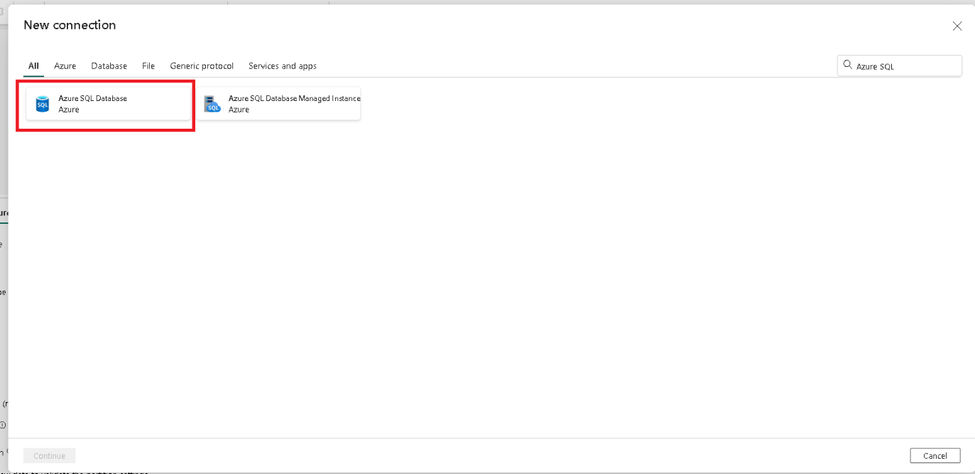
Choose Azure SQL Database from the list. We will create the table to hold metadata in the target.
Ensure that the settings are as shown in the screenshot.
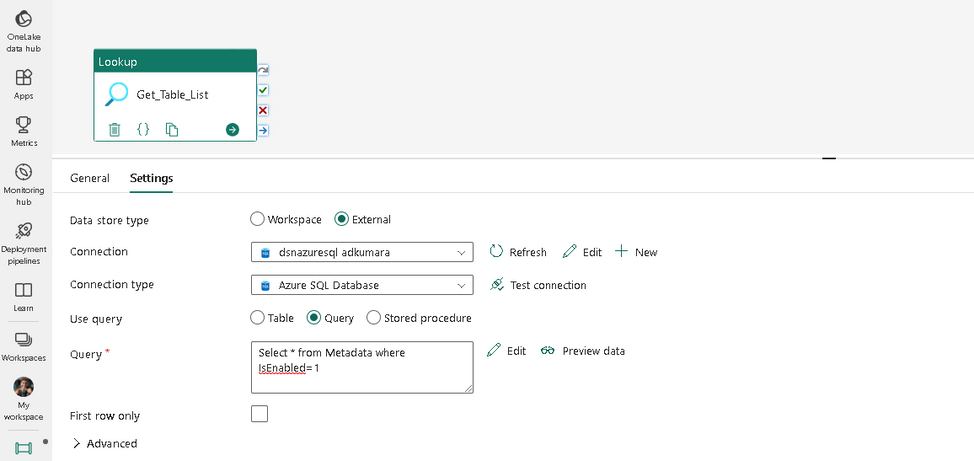
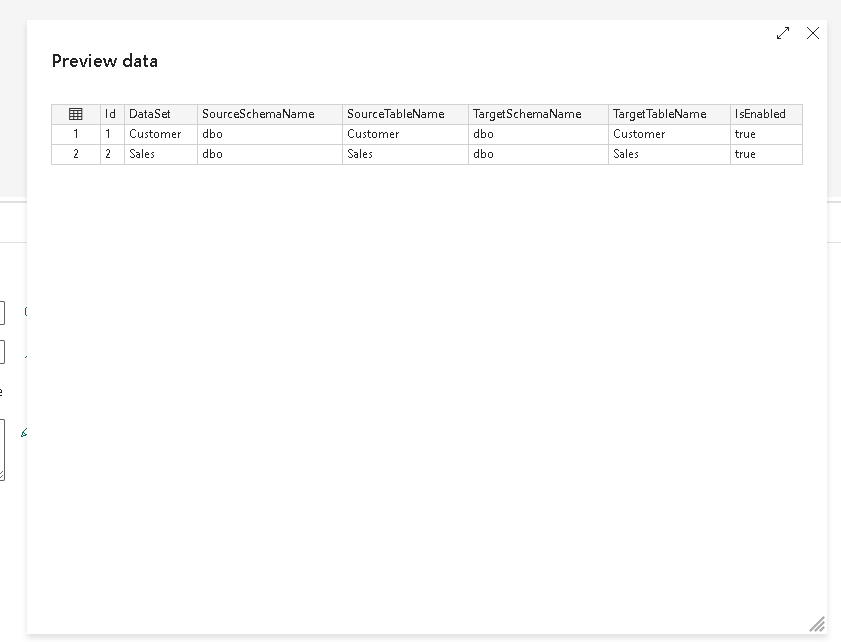
Click the preview data button and check if you can view the data from the table.
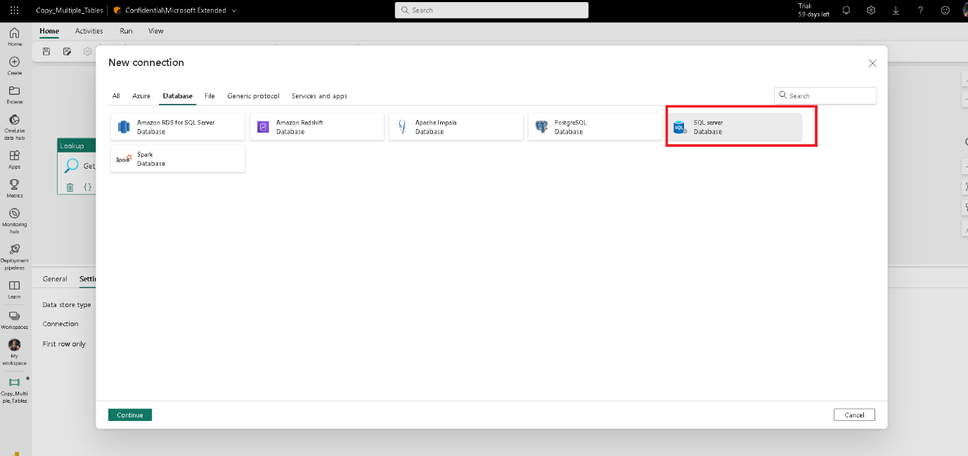
Let us now create a new connection to the source. From the list of available connections, choose SQL Server, as we intend to copy data from SQL Server 2019 on-premises. Ensure that the gateway cluster and connection are already configured and available.
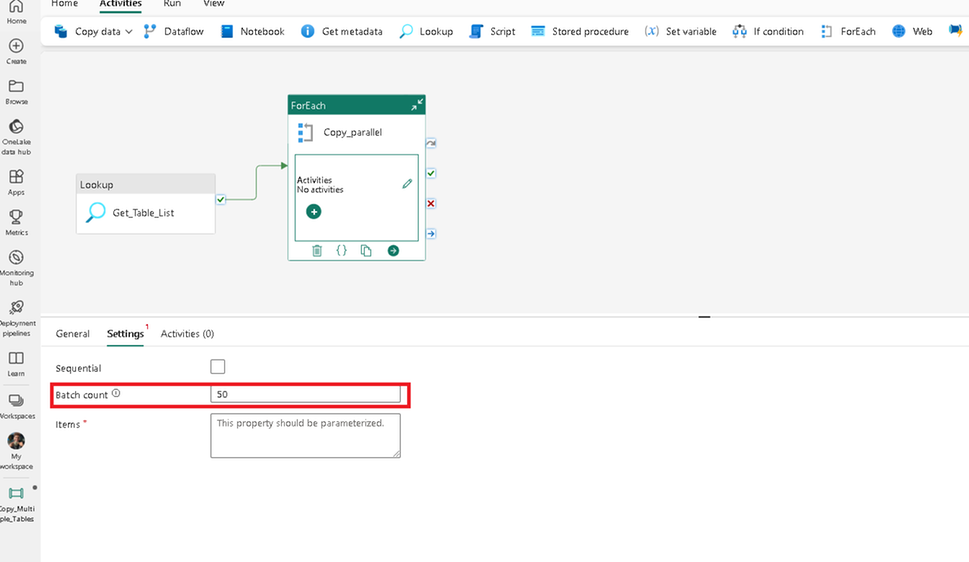
Add a new activity and set the batch count to copy tables in parallel.
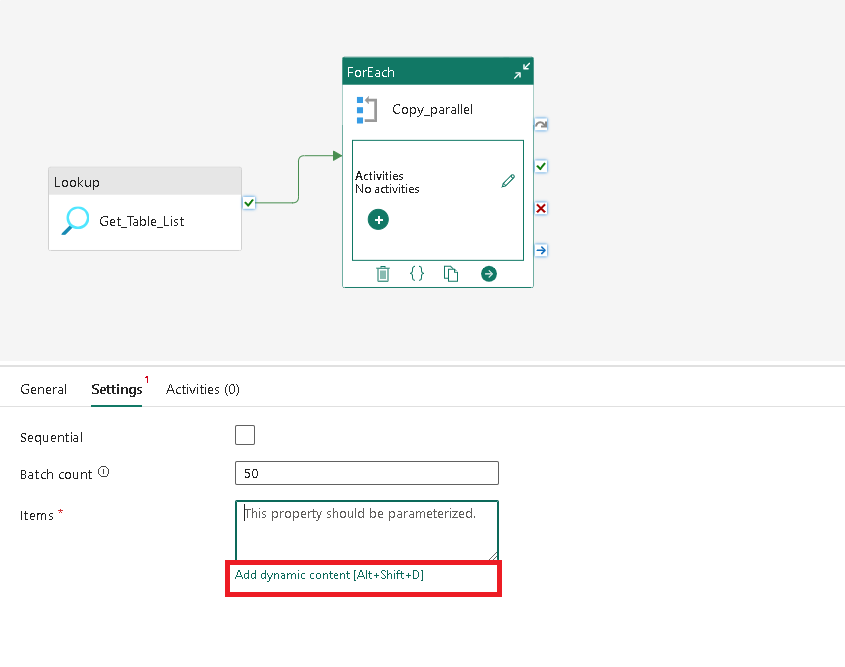
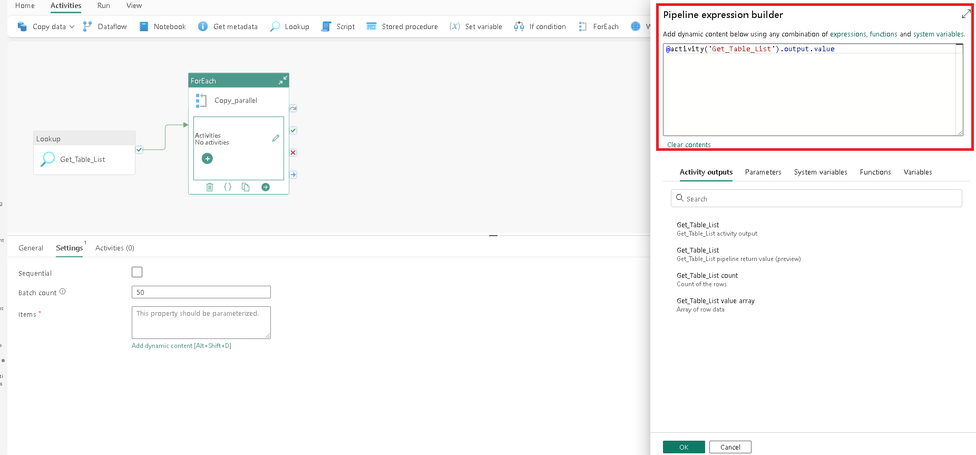
We now need to set the Items property, which is dynamically populated at runtime. To set this click on this button as shown in the screenshot and set the value as:
@activity('Get_Table_List').output.value
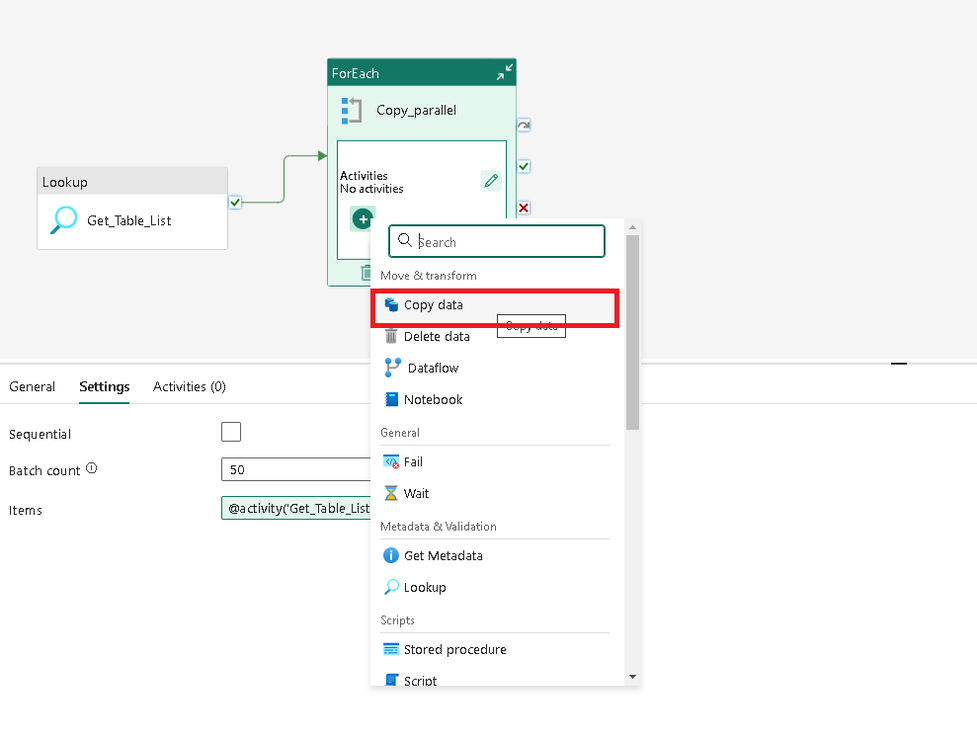
Add a copy activity to the activity container.
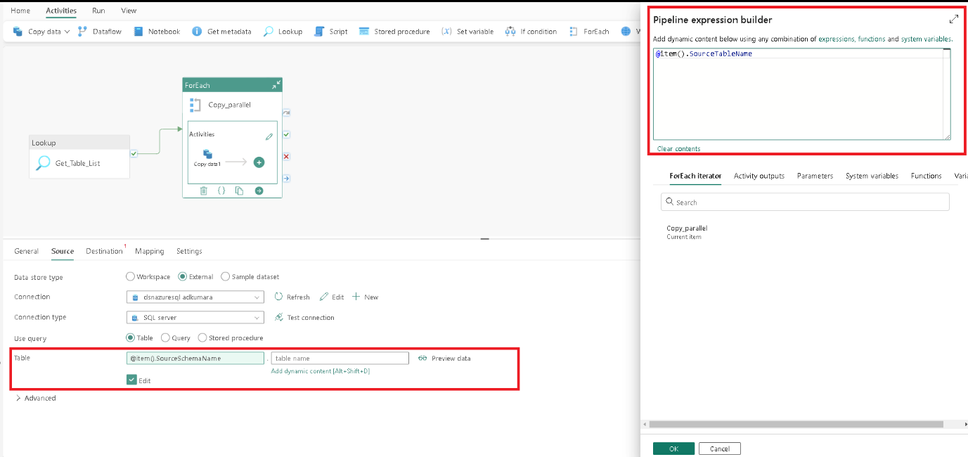
Set the source Table attributes in the copy activity as shown in the screenshot. Click on the edit button and click the “Add dynamic content” button. Ensure that you paste the text only after you click the “Add dynamic content” button, otherwise, the text will not render dynamically during runtime.
Set the Table schema name to:
@item().SourceSchemaName
Set the Table name to:
@item().SourceTableName
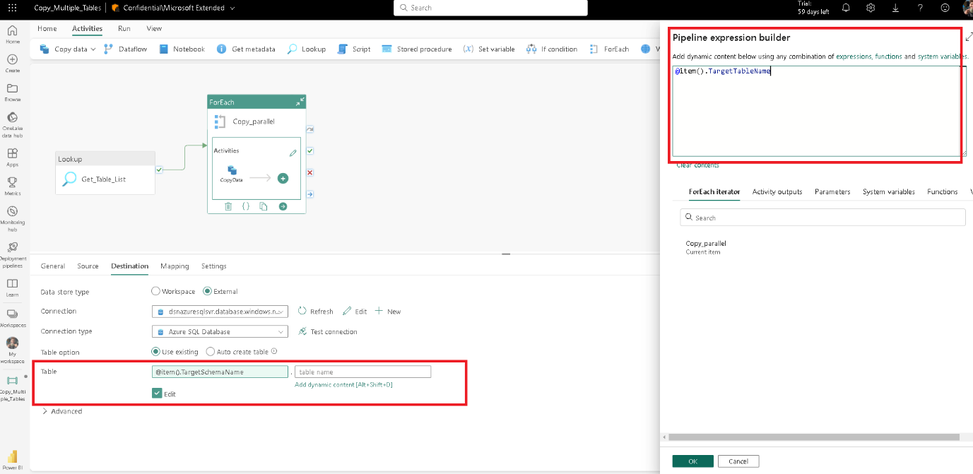
Click on the destination tab and set the destination attributes as in the screenshot.
Set the Table schema name to:
@item().TargetSchemaName
Set the Table name to:
@item().TargetTableName
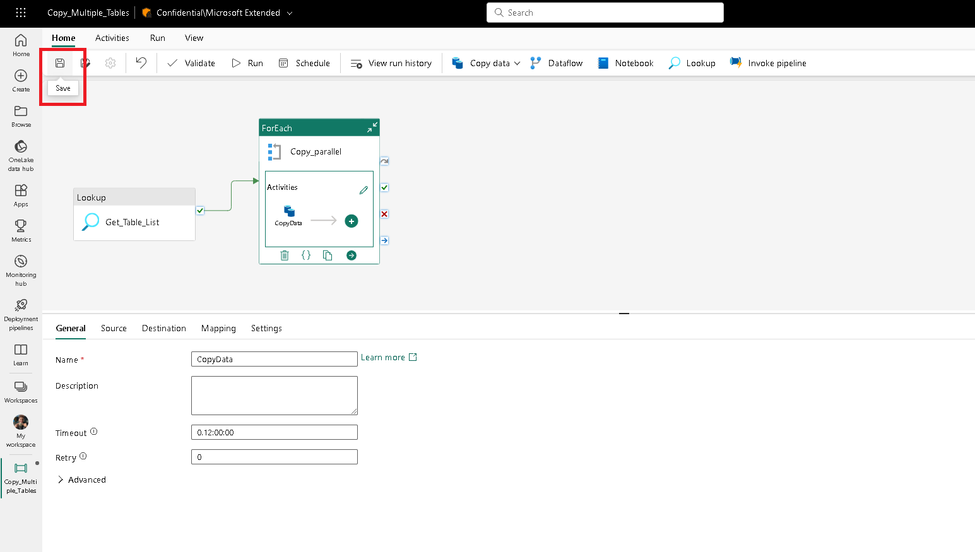
We have configured the pipeline. Now click on save to publish the pipeline.
Run pipeline:
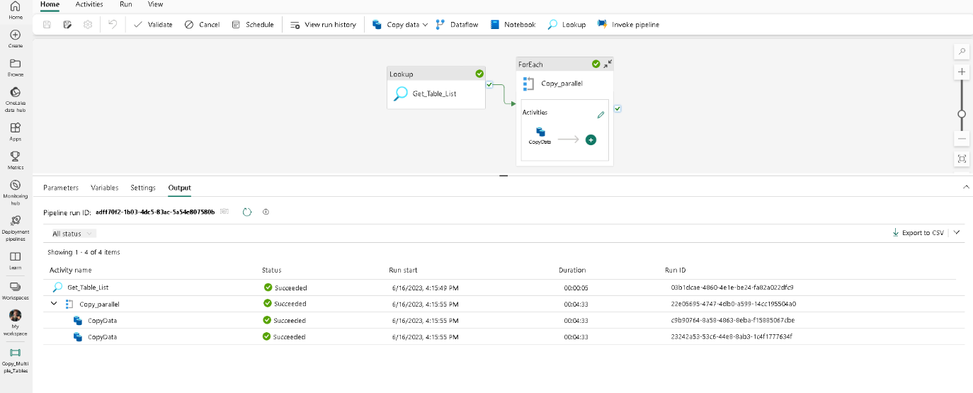
Click the Run button from the top menu to execute the pipeline. Ensure the pipeline runs successfully. This will copy both tables from source to target.
Summary:
In the above example, we have used Microsoft Fabric pipelines to copy data from an on-premises SQL Server 2019 database to Azure SQL Database. You can modify the sink/destination in this pipeline to copy to other sources such as Azure SQL Managed Instance or Azure Database for PostgreSQL. If you are interested in copying data from a mainframe z/OS database, then you will find this blog post from our team also very helpful.
Feedback and suggestions
If you have feedback or suggestions for improving this data migration asset, please contact the Azure Databases SQL Customer Success Engineering Team. Thanks for your support!
Note: For additional information about migrating various source databases to Azure, see the Azure Database Migration Guide.
by Contributed | Jun 20, 2023 | Technology
This article is contributed. See the original author and article here.
Welcome to our June Terraform on Azure bimonthly update! We hope the first update was helpful towards giving you insights on what the product team has been working on. This update is our first bimonthly update with collaboration between Microsoft and HashiCorp. We will be aiming for the next update in August!
AzureRM provider
The resources exposed by the AzureRM provider are what most customers think of and include in their configurations when managing Azure infrastructure with Terraform. Azure is always adding new features and services so we work hard to ensure that you can manage these when they are generally available (GA).
Latest Updates
A new version of the provider is released weekly that includes bug fixes, enhancements and net new resources and data sources. Here are some notable updates since our previous blogpost:
- Auth v2 support for web apps (#20449)
- Key Vault keys support auto rotation (#19113)
- AKS cluster default node pulls can now be resized. (#20628)
For a full list of updates to the AzureRM provider check out terraform-provider-azurerm/CHANGELOG.md at main · hashicorp/terraform-provider-azurerm (github.com)
Export Tool
Azure Export for Terraform is a tool that seeks to ease the translation of Terraform and Azure concepts between each other. Whether it’s exporting your code into a new environment or creating repeatable code from an existing environment, we believe the tool provides functionality that simplifies tougher processes.
Latest Updates
The Team has published comprehensive documentation for a variety of Azure Export for Terraform scenarios. We’re excited to have you test this exciting tool and provide feedback – both on the product as well as our documentation for it. Read the overview of the tool here: https://aka.ms/tf/exportdocs
We’ve also recently merged a PR that supports import blocks for Terraform 1.5 onward: https://github.com/Azure/aztfexport/pull/398. To read up on import blocks, check out the HashiCorp documentation here, and if you’re curious about the difference between Azure Export for Terraform and import blocks, we also have a pinned issue detailing this: https://github.com/Azure/aztfexport/issues/406
Last, but certainly not least, we’ve released a video for Azure Export for Terraform! Make sure to give it a watch, as it includes benefits, scenarios, and demos:
Verified Modules
Have you ever encountered below problems related to modules:
- Modules are out of date, not actively supported, and no longer functional
- Cannot override some module logic without modifying the source code
- Get confused when you see multiple modules with similar functions
- When calling various modules, inconsistencies exist that cause instability to existing infrastructure
- ……
To help tackle the above problems and more, the Azure Terraform team has established a verified module testing pipeline, and only those modules that have passed this pipeline will be marked as “verified”. This pipeline ensures consistency and best practices across verified multiple modules, reduces breaking changes, and avoids duplication to empower the “DRY” principle.
Latest Updates
We have now released nine Azure verified modules. We prioritized these modules based on customer research and telemetry analysis. Meanwhile, we have continuously updated our verified modules for bug fixes and feature enhancements. For instance, for the AKS verified module, we have added support for the linux_os_config block in default_node_pool and default node pool’s node taints. For a full list of updates to each module, please refer to the changelog: Azure/terraform-azurerm-aks: Terraform Module for deploying an AKS cluster (github.com).
For our next modules, we are planning on releasing modules for hub networking, firewalls and key vaults, with close collaboration with the broader developer community. We hope you become one of the proactive contributors to the Azure Terraform verified modules community as well!
Community
The Terraform on Azure community is a key investment for our team in bringing the latest product updates, connecting you with other Terraform on Azure users, and enabling you to engage in ongoing feedback as we aim to improve your Terraform experience on Azure. This section will consistently speak on community related feedback or engagements. As always, register to join the community at https://aka.ms/AzureTerraform!
Community Calls
Our latest community call was on April 6th! The recording of the event is at https://youtu.be/Zrr-GXN6snQ and we hope you give it a watch. Ned Bellavance talks in depth about Azure Active Directory and OIDC authentication, and we spend some time exploring GitHub Copilot with Terraform.
We also announced our new slack channel, which you can join at https://aka.ms/joinaztfslack. Not only will you get access to fellow Azure Terraform community members, but also the product team.
Our next community call is June 22nd at 9 am PT. Make sure to register here. It’ll be a time of open discussion with the team on Terraform, Azure, and the future of AI. Come with your thoughts and opinions!
We are also taking applications to co-present with us at our community calls! Our only prerequisite is that you are a member of the community. If you are interested, fill out our form at https://aka.ms/aztfccspeakers and we will reach out if we like your topic! Don’t worry if you don’t get picked for the next one; we will keep your talk on file and may reach out later.
Docs
It’s been a busy couple of months in Azure Terraform documentation!
A key goal we’re making progress on is to bring the Terraform Azure-service documentation into parity with ARM Templates and Bicep. The object is to make it easier to find and compare Azure infrastructure-provisioning solutions across the various IaC options.
To that end, we’ve published 15 new Terraform articles covering many different Azure-service topics.
Terraform at Scale
This ongoing section previously called Solution Accelerators details helpful announcements for utilizing Terraform at enterprise workflow scales.
First, an article was published on deploying securely into Azure architecture with Terraform Cloud and HCP Vault. Read this article to learn about how to use Microsoft Defender and incorporate HCP Vault cluster!
Second, Terraform Cloud has announced dynamic provider credentials, which enables OIDC with Azure in TFC. If you want a video explaining the benefits of dynamic credentials, check out a great presentation here.
Upcoming Events
Make sure to sign up for the Terraform on Azure June 22nd 9am PT community call here! We’ll be discussing in an open panel discussion with the team about the future of Terraform on Azure, especially regarding the latest developments in AI.
We’ll aim for our next blogpost in August. See you then!
by Contributed | Jun 19, 2023 | Technology
This article is contributed. See the original author and article here.
Microsoft invites you to our Microsoft Operations: Community Q&A calls for CSP Partners. These sessions are dedicated to assist CSP Direct Bill and Indirect Providers with questions related to CSP launches and upcoming changes. Our goal is to help drive a smoother business relationship with Microsoft. We offer sessions in English, Chinese, Japanese and Korean.
Register Today to join a live webinar with Subject Matter Experts or listen back to past sessions.

by Contributed | Jun 18, 2023 | Technology
This article is contributed. See the original author and article here.
Introduction
Are you eager to delve into the world of Power Platform AI Builder.
In this self-paced Microsoft Learn learning pathway Bring AI to your Business with AI Builder, and Improve business performance with AI Builder we will guide you through the fundamentals of AI Builder and demonstrate how it can revolutionize your business processes without the need for coding.
AI Builder: Enhancing Business Performance:
AI Builder is a powerful capability within the Microsoft Power Platform that enables you to automate processes and predict outcomes, improving your business performance. By harnessing AI Builder, you can seamlessly integrate AI into your applications and workflows, connecting them to your business data stored in Microsoft Dataverse or various cloud data sources like SharePoint, OneDrive, or Azure.
Building AI Models Made Easy:
One of the key advantages of AI Builder is its user-friendly approach, making AI creation accessible to individuals with varying levels of technical expertise. With AI Builder, you can create custom AI models tailored to your business requirements or choose from a range of prebuilt models. The best part is that you can leverage these models to enhance your apps and workflows without the need to write complex code. AI Builder even offers prebuilt AI models that you can immediately utilize without the hassle of data collection and model training.
Unlocking the Potential of AI Builder
Let’s explore some of the remarkable capabilities you can unlock with AI Builder:
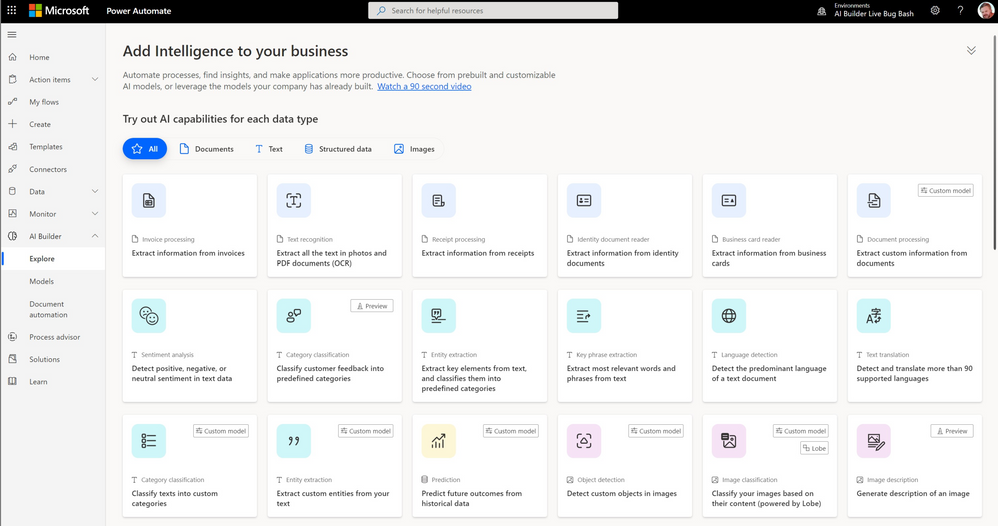
1. Text Analysis: AI Builder empowers you to analyze text for classification, key phrases, language, and sentiment. By harnessing this capability, you can gain valuable insights from customer feedback, product reviews, survey responses, and support emails. Identify negative sentiment or key phrases to take informed actions and improve your business strategies.
2. Predictive Analytics: AI Builder enables you to predict future outcomes based on historical data. By leveraging this capability, you can make data-driven decisions and anticipate trends, empowering you to stay one step ahead in various aspects of your business.
3. Business Card Processing: Say goodbye to manual data entry. With AI Builder’s business card processing feature, you can automatically extract information from business cards and streamline your contact management process. Simply capture an image of a business card, and let AI Builder handle the rest.
4. Image Text Extraction: Extracting text from images is a breeze with AI Builder. Whether you need to process text from documents, images, or any visual content, AI Builder offers the tools to quickly and accurately extract information, saving you valuable time and effort.
5. Object Detection: AI Builder’s object detection capability allows you to recognize and count items in images. This can be particularly useful in scenarios such as inventory management, quality control, or any situation where you need to identify and quantify objects within images.
Real-World Applications of AI Builder
Let’s explore a few real-world applications of AI Builder to ignite your creativity:
1. Invoice Processing: Automate the tedious task of processing invoices by leveraging AI Builder. Extract text, key/value pairs, and tables from invoices and effortlessly integrate them into your database. Create workflows that automatically handle the information, streamlining your invoice processing workflow.
2. Text Analysis for Insights: Uncover hidden insights from large volumes of text data. Whether it’s customer feedback, support emails, or product reviews, AI Builder’s text analysis capabilities can help you identify key phrases, sentiment, and trends. Use these insights to drive improvements, make informed decisions, and enhance customer satisfaction.
Where to Access AI Builder
AI Builder is conveniently accessible within Power Apps and Power Automate. In Power Apps, you can find AI Builder on the Build tab, where you can refine existing models or utilize tools like the business card reader. The Models section provides a dedicated space for your created and shared models, ensuring easy management and collaboration.
Next Steps
Now that you have gained an overview of AI Builder’s potential, it’s time to dive deeper into its available AI capabilities. Explore the Microsoft Learning Pathway for AI Builder Microsoft Learning Pathway, where you will find comprehensive resources to expand your knowledge and master the art of leveraging AI in your business.
Conclusion
AI Builder opens up a world of possibilities for students and educators alike. By harnessing the power of AI Builder, you can streamline processes, gain valuable insights, and make data-driven decisions. Whether you’re an aspiring developer or a business professional, AI Builder empowers you to integrate AI into your applications and workflows without the need for extensive coding. Embrace this powerful tool and unlock the true potential of AI in your educational journey and professional endeavors.
Stay tuned for our upcoming blogs, where we will explore AI Builder’s features and use cases in more detail.


Recent Comments