Improve Labelling processes with new enhanced capabilities

Improve Labelling processes with new enhanced capabilities

This article is contributed. See the original author and article here.

Introduction

Effective labelling processes and configuration play a crucial role in optimizing warehouse operations. There are several reasons why accurate labelling and configuration are important.

Firstly, proper labelling and configuration enhance efficiency in a warehouse. When items are labelled and organized accurately, warehouse staff can quickly locate and identify products, reducing the time spent searching for items and ultimately boosting productivity.

Furthermore, clear and accurate labelling also reduces the likelihood of picking or shipping errors, which can lead to improved customer satisfaction and decreased costs associated with returns and corrections.

Lastly, proper labelling and configuration contribute to safety and compliance in a warehouse. By adhering to regulations and ensuring that hazardous materials or items with specific storage requirements are handled and stored correctly, the risk of accidents can be reduced.

As technology continues to advance, so do the tools available to improve labelling and configuration processes in warehouses. In Wave 1 2023, Microsoft Dynamics 365 SCM released several enhancements to support more advanced scenarios and bring extra capabilities to the labelling process.

License plate label layout

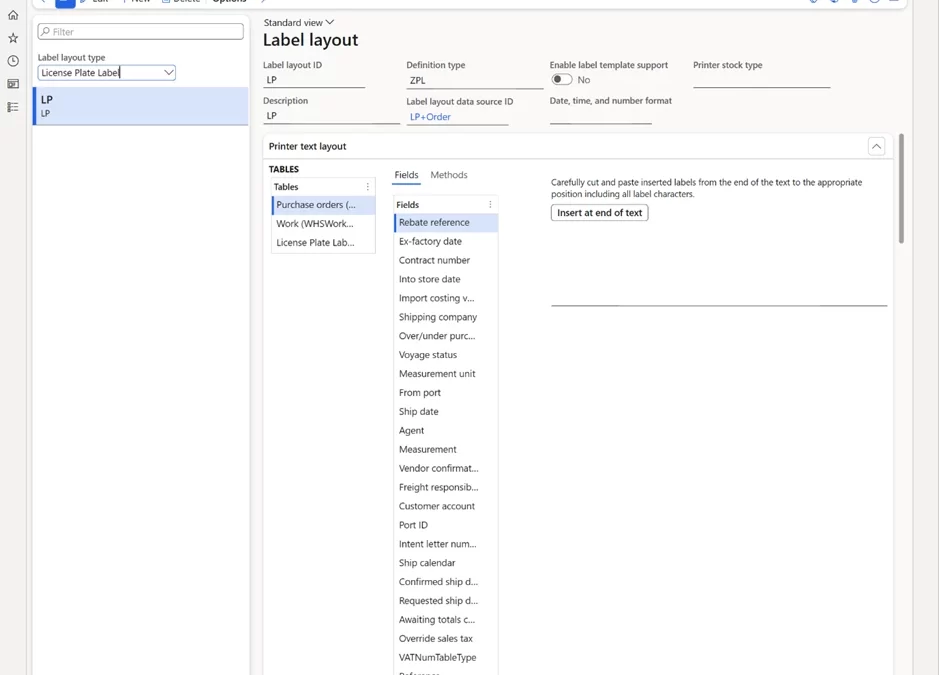
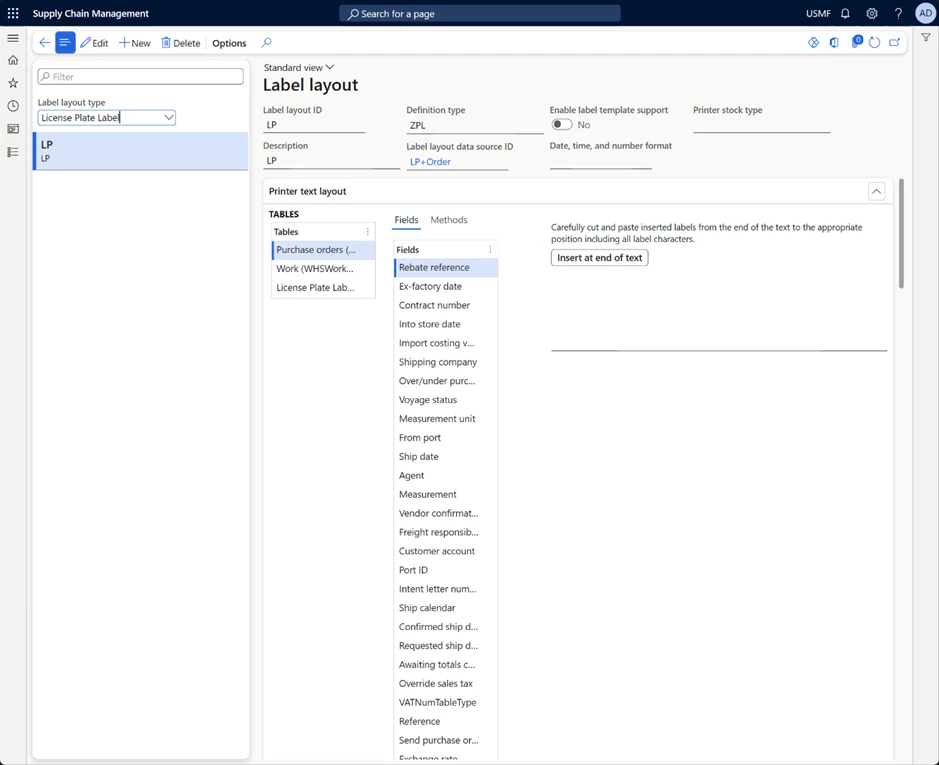
In 10.0.31 Microsoft Dynamics 365 SCM, a new License plate label layout was introduced for designing license plate labels. This feature lets you build more advanced license plate label layouts. Now LP layouts can have repeating structures and include header, body, and footer elements (for example, if you want to print item labels out of receiving or shipping work (similar to how wave labels currently work)). You can set up custom data sources with joined tables to print information from the related tables and define custom date, time, and number formats. This capability provides more flexibility in designing labels and removes some of the customization work needed to add data to the labels.
Custom label layouts

In 10.0.33 Microsoft Dynamics 365 SCM a new Custom label layout feature was released. 

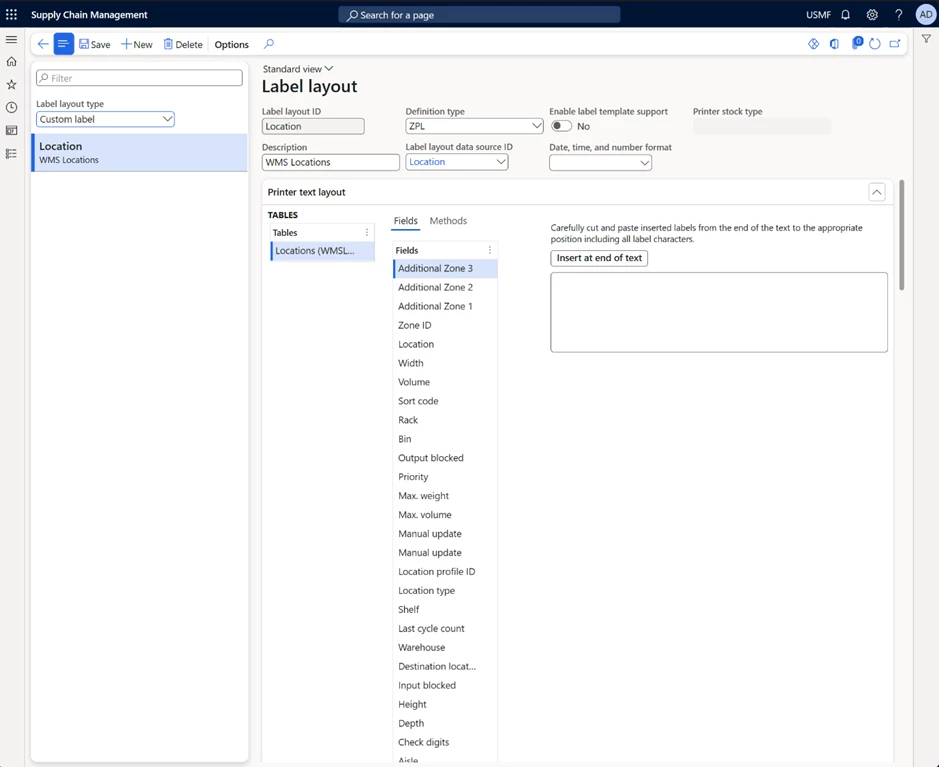
This feature introduces a new Custom label layout type that allows you to build layouts from any data sources. A new Print button will be displayed automatically when layout exists for corresponding source. Users can print labels for any data including but not limited to Product labels, Location labels, Customer labels and many more.

It gives you the tool you need to create your own labels based on the business requirements. As well as configuring and printing any labels from any source.
Print labels using an external service

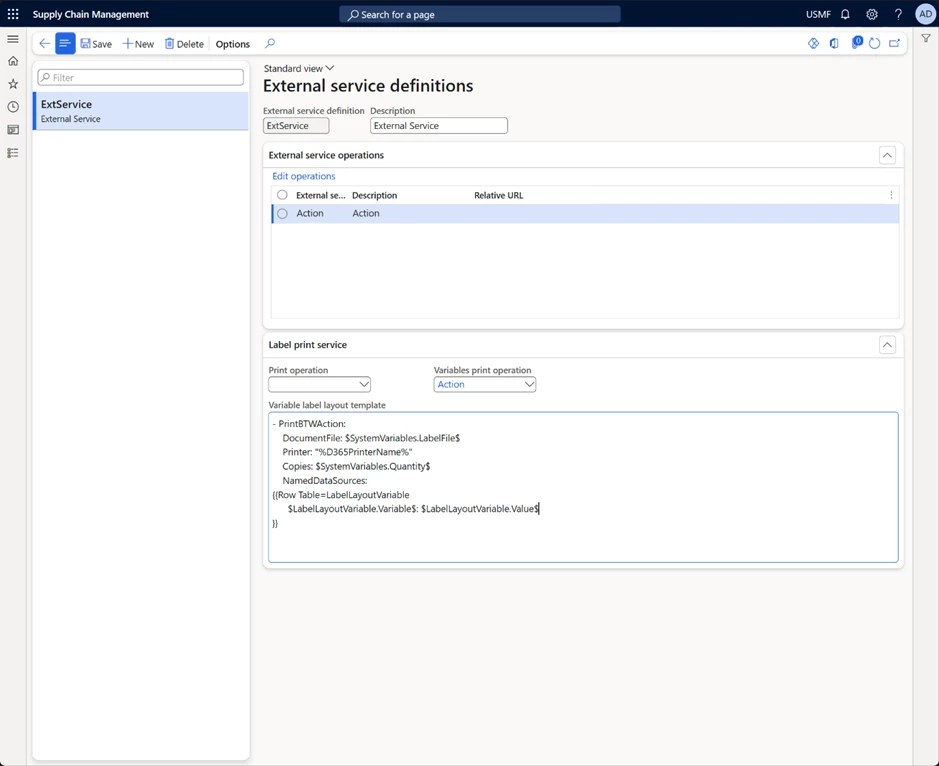
In 10.0.34 Microsoft Dynamics 365 SCM provides a quick and simple method for linking Dynamics 365 to many of the most popular enterprise labeling platforms. With Microsoft Dynamics 365 SCM’s seamless integration and flexible configuration options make for a pain-free, rapid implementation. It allows you to create a seamless flow of communication and transactions to optimize your printing workflow.

It allow you to configure the HTTP(S) request that you make, allowing for the integration with cloud native and on-premise (if the firewall is opened or an Azure API created) label printing services, including Zebra’s cloud printing service (https://developer.zebra.com/apis/sendfiletoprinter-model), Loftware NiceLabel Cloud or Seagull Scientific BarTender configured with REST APIs.
Conclusion

In conclusion, the continued evolution of technology is providing ever more sophisticated tools for improving labelling processes and configuration in warehouses. The enhancements released in Wave 1 2023 are just the latest example of how Microsoft Dynamics 365 SCM is staying at the forefront of this evolution and providing users with the tools they need to optimize their warehouse operations.


Would you like to learn more?

Print labels using an external service – Supply Chain
Management | Dynamics 365 | Microsoft Learn

Print labels using the Loftware NiceLabel label service
solution – Supply Chain Management | Dynamics 365 | Microsoft Learn

Print labels using the Seagull Scientific BarTender® label
service solution – Supply Chain Management | Dynamics 365 | Microsoft Learn

License plate label layouts and printing – Supply Chain Management | Dynamics 365 | Microsoft Learn

Custom label layouts and printing – Supply Chain Management | Dynamics 365 | Microsoft Learn

Print labels using an external service – Supply Chain Management | Dynamics 365 | Microsoft Learn

Not yet a Supply Chain Management customer? 

Take a guided tour.

The post Improve Labelling processes with new enhanced capabilities appeared first on Microsoft Dynamics 365 Blog.

Brought to you by Dr. Ware, Microsoft Office 365 Silver Partner, Charleston SC.

Empowering every developer with plugins for Microsoft 365 Copilot

Empowering every developer with plugins for Microsoft 365 Copilot

This article is contributed. See the original author and article here.

Generative AI models are ushering in the next frontier in interactions between humans and computers. Just like graphical user interfaces brought computing within reach of hundreds of millions of people three decades ago, next-generation AI will take it even further, making technology more accessible through the most universal interface—natural language.

The post Empowering every developer with plugins for Microsoft 365 Copilot appeared first on Microsoft 365 Blog.

Brought to you by Dr. Ware, Microsoft Office 365 Silver Partner, Charleston SC.

Account structure activation performance enhancement 

Account structure activation performance enhancement 

This article is contributed. See the original author and article here.

Introduction  

Account structures in Dynamics 365 Finance use a main account and financial dimensions to create a set of rules that determine the order and allowed values when entering account numbers in transactions. Once an account structure is defined, it must be activated. Historically, the account structure activation process has been time consuming. It was also difficult to view the activation progress or to view any errors with the new configuration. If an account structure configuration change caused an error, a user could not find the root error message on the account structure page, but rather needed to dig through batch job logs to find the error message to understand the problem with the new account structure configuration.  

Feature details  

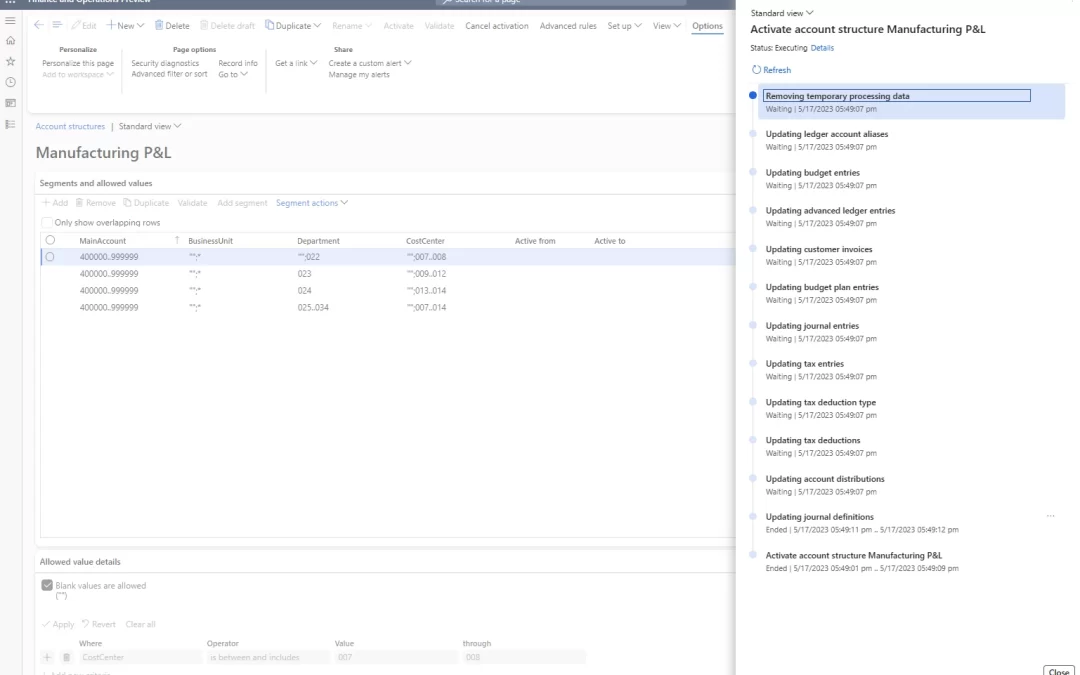
In order to solve these problems, we have recently released an enhancement to the account structure activation process in application release 10.0.31. This performance enhancement lets you activate account structures more quickly by allowing multiple transaction updates to happen at the same time. An added benefit of this new feature enhancement is allowing the structure to be marked as active immediately after it is validated and before the remaining unposted transactions are updated to the new structure configuration. This allows transaction processing to continue while the existing unposted transactions are updated to the new structure.  

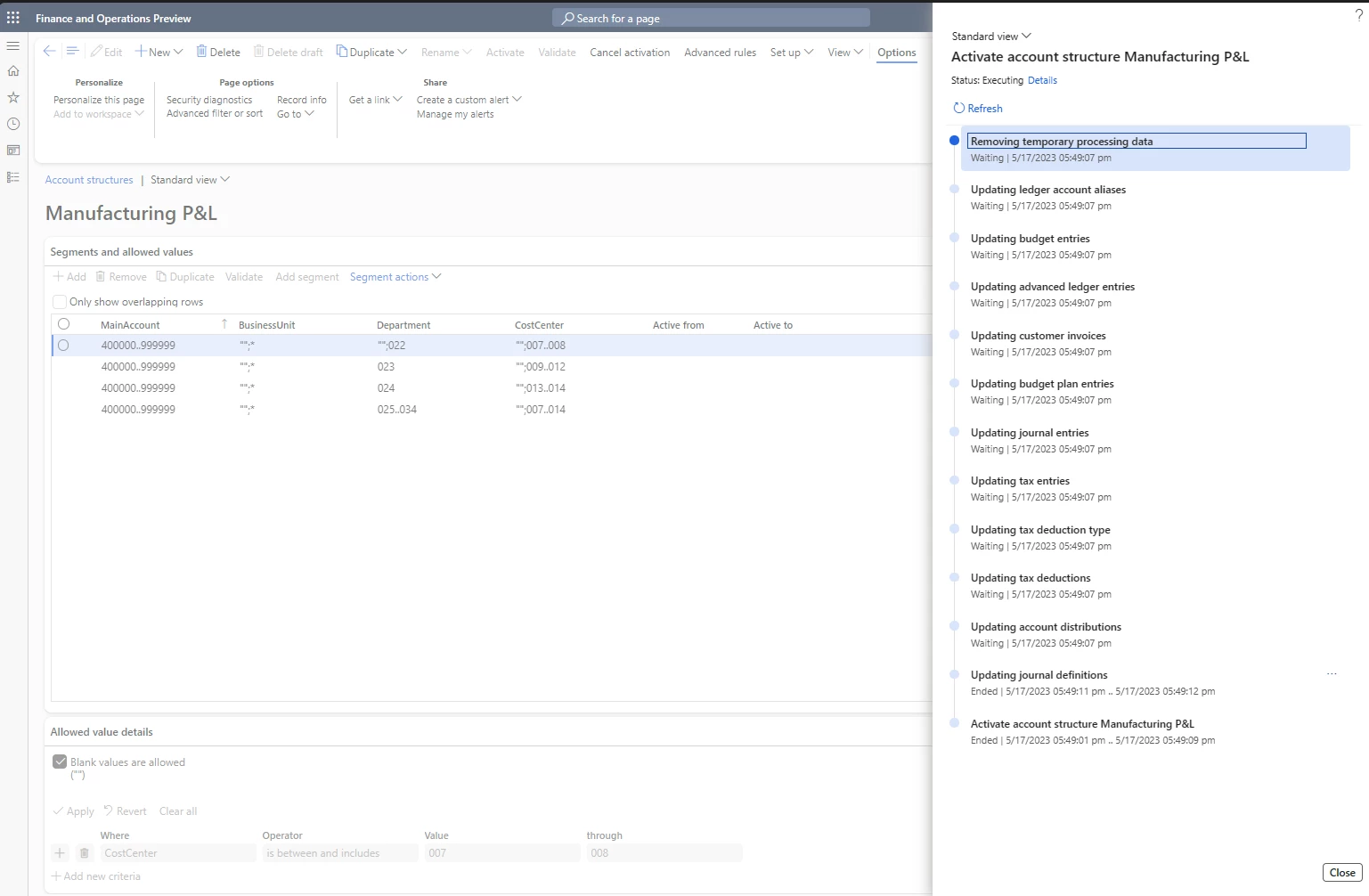
To view the status of the activation, select View activation status above the grid on the Account structures page. You can also view the activation status by selecting View on the Action Pane and then selecting Activation status on the drop-down menu. 

Enable the feature 

In order to use this new functionality, enable the feature “Account structure activation performance enhancement” from within feature management.  

Learn more

More information about this feature can be found at this location: Account structure activation performance enhancement – Finance | Dynamics 365 | Microsoft Learn 

The post Account structure activation performance enhancement  appeared first on Microsoft Dynamics 365 Blog.

Brought to you by Dr. Ware, Microsoft Office 365 Silver Partner, Charleston SC.
Split recurring contract billing across multiple customers 

Split recurring contract billing across multiple customers 

This article is contributed. See the original author and article here.

A key component of the Subscription billing feature is the Recurring contract billing module. Recurring contract billing allows customers to manage their recurring billing contracts through billing schedules which contain the financial details of a contract. Recurring billing contracts can be managed across one or many customers based on how a contract is drafted. The new feature Customer split allows Dynamics 365 Finance users to split billing schedules across multiple customers based on a percentage of the invoice. This feature reduces the risk of incorrect billing, as a single billing schedule can manage the billing for all customers that are to be billed.

What is Customer Split

Customer split allows a single billing schedule to be billed across multiple customers. For example, let’s consider a scenario where a contract should be billed to two customers: one is responsible for 60% of the bill and the other is responsible for 40%. Customer split allows users to configure a scenario such as this and reduce additional manual entry as well as reduce risk of inaccurate billing. 

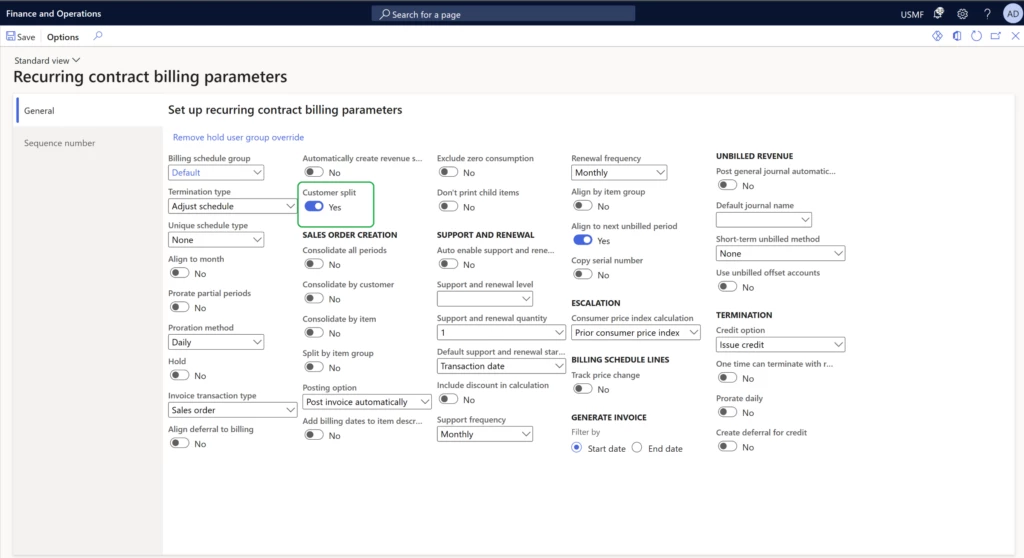
The feature is enabled by setting the Customer split parameter in Recurring contract billing parameters page to Yes. 

 
Once the Customer split feature has been enabled in the Recurring contract billing parameters, the customer split can be set up on a billing schedule. The billing schedule header contains the primary customer responsible for the invoice, including the Bill to address on the Address tab. 

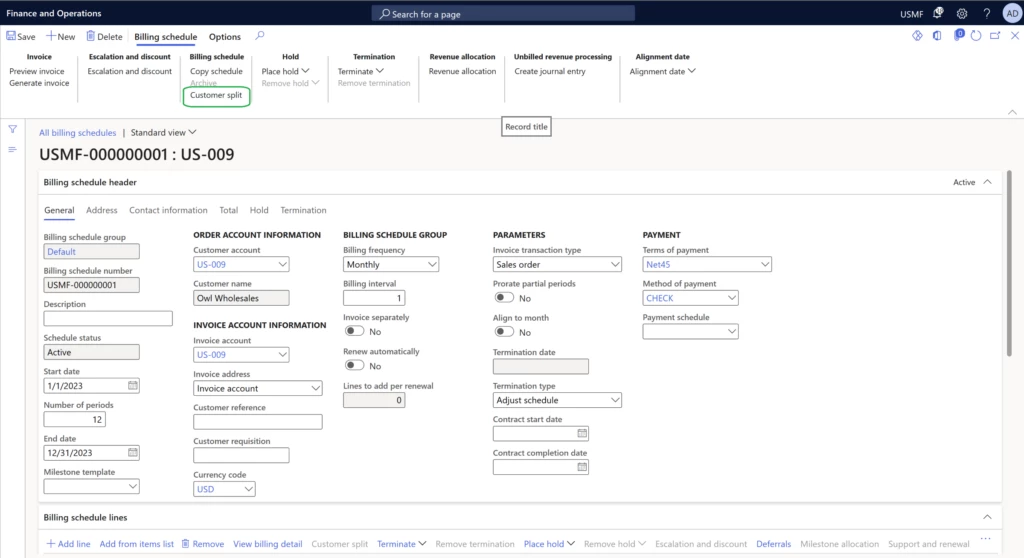
The Customer split option under Billing schedule in the action pane can be used to add additional customers and their responsibility for the bill at the header level. Customer split can also be added on a line-by-line basis.  

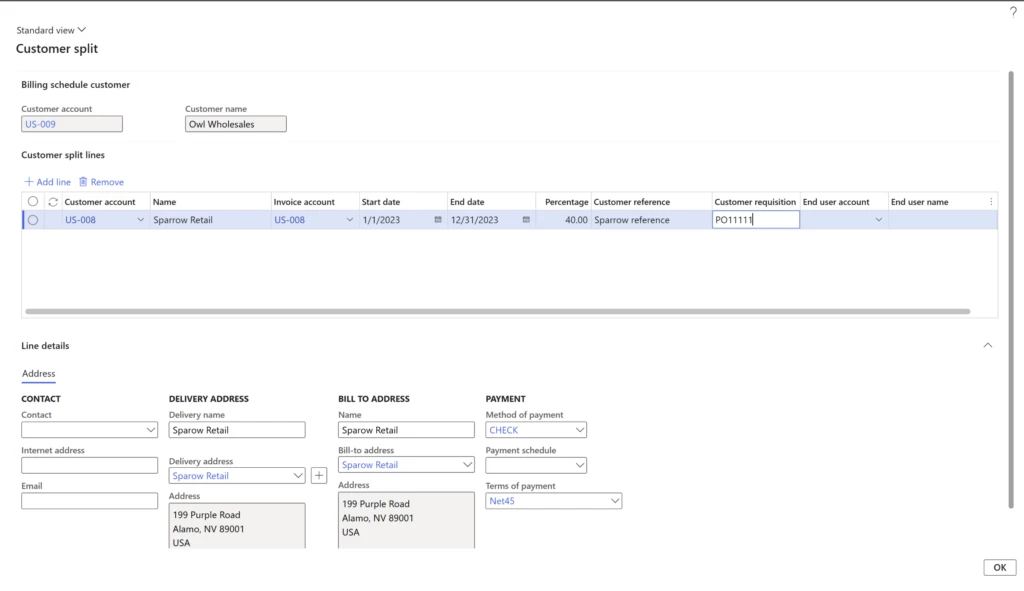
When creating the record for the customer split, the billing schedule parent customer will get billed the remainder of what is not defined. In our example, that will be 60%. When defining the customer split a start date, end date, customer reference, customer requisition, end user account, end user name, delivery address, and bill to address can be entered. 

When generating invoices for a billing schedule that has customer split defined, a sales order will be created for each customer defined in the customer split as well as the billing schedule header customer. 

Customer split is available on a billing schedule or billing schedule lines when: 

  • Billing schedules have an Invoice transaction type of Sales order
  • Billing schedule line is a service item 
  • Billing schedule is not linked to a project 
  • Billing schedule line is not configured for unbilled revenue

How to get started 

This functionality is available in 10.0.29 and later of Dynamics 365 Finance.  
Read the documentation for a more detailed look at the feature: Customer split on billing schedules.

The post Split recurring contract billing across multiple customers  appeared first on Microsoft Dynamics 365 Blog.

Brought to you by Dr. Ware, Microsoft Office 365 Silver Partner, Charleston SC.
Empowering every developer with plugins for Microsoft 365 Copilot

3 ways collaborative apps like Workday in Microsoft Teams boost engagement and productivity

This article is contributed. See the original author and article here.

Enterprises are increasingly turning to collaborative apps to enhance workplace engagement and productivity. That presents an opportunity for independent software vendors (ISVs) to earn customer loyalty by building easily accessible enterprise apps with rich features that deliver business value.

The post 3 ways collaborative apps like Workday in Microsoft Teams boost engagement and productivity appeared first on Microsoft 365 Blog.

Brought to you by Dr. Ware, Microsoft Office 365 Silver Partner, Charleston SC.
Status-Driven Success: Managing Your Work Order Lifecycle through Statuses – Part 1  

Status-Driven Success: Managing Your Work Order Lifecycle through Statuses – Part 1  

This article is contributed. See the original author and article here.

One aspect of Dynamics 365 Field Service’s adaptability lies in the flexibility of its ‘status’ functionality, driving a meaningful work order lifecycle tailored to each organization. Field Service helps manage work orders and bookings across diverse use cases. This blog series explores critical status concepts: 

  • System Status and Substatus for Work Orders 
  • Booking Status and Field Service Status for Bookings 
  • Booking Status Impact on Work Orders Across Single and Multi-Booking Scenarios 

Grasping these concepts allows organizations to leverage the solution’s functionality, optimize field service processes, and ultimately provide better customer service. 

This blog will expand upon many of the concepts discussed in the existing work order and booking status documentation: Work order life cycle and statuses – Dynamics 365 Field Service | Microsoft Learn 

Work Order Status Concepts: System Status and Substatus 

System Status 

Work orders in Dynamics 365 Field Service have a column called System Status which helps organizations manage their field service processes efficiently. There are six values available for System Status: 

  • Unscheduled: Work order has been created, but resources have not been assigned. 
  • Scheduled: Work order has resources assigned and is ready for execution. 
  • In Progress: Work order is currently being executed by the assigned resources. 
  • Completed: Work order has been executed and finished. 
  • Posted: Work order has been invoiced and is now closed. 
  • Cancelled: Work order has been cancelled and will not be executed. 

As the documentation highlights, an organization must use this field as is because these values allow the FS solution to interpret the current state of the work order record and apply appropriate behaviors and validations. If this list is changed, it could cause many issues both immediately and unanticipated, down the line. New values in this list would not be interpretable by the solution. However, the Field Service solution has a powerful related concept that provides infinite flexibility which can be mapped directly to these System Status values. 

Substatus 

In Dynamics 365 Field Service, the Substatus table plays a crucial role in providing organizations with the ability to create meaningful states that are mapped to System Statuses. One noteworthy feature of the Substatus table is the option to define a “Default” Substatus for each mapped System Status. This default Substatus will be automatically applied when a work order transitions into the corresponding System Status through the out-of-the-box (OOTB) logic.  

The Default Substatus feature within the Substatus table allows organizations to streamline their work order management process by automatically applying a predefined Substatus when a work order moves into a particular System Status using the out-of-the-box logic. This helps ensure consistency across work orders while still allowing for customization and adaptability when needed.

For example, if your organization has a default Substatus of “Pending Customer Confirmation” for the System Status “Scheduled,” any work order that moves into the “Scheduled” System Status due to the standard logic will automatically be assigned the “Pending Customer Confirmation” Substatus. This helps maintain consistency and simplify the management of work orders, especially when dealing with a high volume of work orders. 

It’s important to note that if a work order already has a different Substatus applied within the same System Status, the default Substatus will not be applied. This means that, if an organization adds custom logic to set a substatus, the default logic will not override it. The existing Substatus will remain in place, allowing organizations to maintain flexibility and customization for specific work order situations. It is also worth noting that any custom logic is still subject the allowed System Status validations (for example: the Work Order cannot be forced into a Scheduled System Status if there are no bookings). 

Further, direct updates to the Substatus field will drive updates to the work order’s System Status, within the allowable System Status changes. For example, using some of the Substatus records proposed below, if a work order is in the “Technician Assignment Pending” Substatus, which maps to the Unscheduled System Status, a user could change the Substatus directly to “Customer Canceled” which will immediately move the System Status of the work order to Canceled. It is worth noting that the default form UI should filter the available Substatus values to allowed changes, based on the current state of the work order and the mapped System Status of the Substatus. In this example, none of the Subtatuses which mapped to the Scheduled or In Progress System Statuses would have shown up in the UI. They would have been dynamically filtered out so that a user couldn’t make a choice that wouldn’t have been allowed. 

Example: Substatus Records with Mapped System Status 

The following are an example set of possible meaningful Work Order Substatuses. These Substatuses will be mapped to the appropriate System Status to help drive actions and behaviors in the system while communicating meaningful information to anyone who looks at the work order in Dynamics 365 Field Service. 

Substatus  Mapped System Status  Default Substatus  What it communicates to the user who glances at the work order 
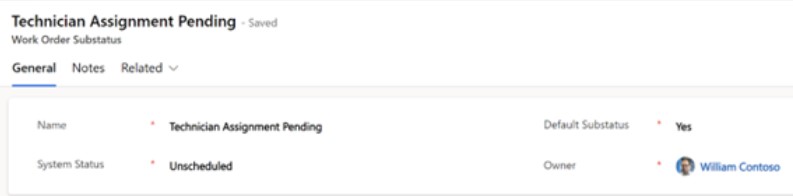
Technician Assignment Pending  Unscheduled  Yes  The work order has been created, but no technician has been assigned yet. 
Awaiting Parts  Unscheduled  No  The work order requires special parts which are on order and the required parts are pending delivery to the job site or warehouse. 
Pending Customer Confirmation  Scheduled  Yes  The work order has been tentatively scheduled and the booking is awaiting confirmation from the customer regarding their preferred appointment time or other necessary details. 
Appointment Confirmed  Scheduled  No  The work order has been scheduled and the customer has confirmed the appointment time. Every reasonable effort should be made to meet the commitment made with the customer. 
Remote Support Scheduled  Scheduled  No  What is communicates to the user who glances at the work order: The work order has been scheduled for remote support, such as a software installation or configuration. 
Service In Progress  In Progress  Yes  The technician is performing the service. 
Work Order Completed Successful  Completed  Yes  The work order has been successfully completed, and the scope of the work order has been resolved. 
Work Order Unresolved  Completed  No  The bookings have been completed, but the scope of the work order has not be resolved. Additional action may be required, such as escalating the issue to a higher-level technician or recommending alternative solutions to the customer. 
Work Order Invoiced  Posted  Yes  The work order has been invoiced, and the billing process is complete. 
Customer Cancelled  Cancelled  Yes  The work order has been cancelled by the customer. 
Resolved Remotely  Cancelled  No  The work order has been cancelled because the issue was able to be resolved remotely by customer service. 

Conclusion

While these are examples of Substatuses which may be valuable, each organization can create their own, set the defaults that make sense, and map them to relevant System Status values. 

Next up in the blog series –

Part 2 – Booking Status Concepts: Booking Status and Field Service Status
Part 3 – Booking status impact on work orders across single and multi-booking scenarios 

The post Status-Driven Success: Managing Your Work Order Lifecycle through Statuses – Part 1   appeared first on Microsoft Dynamics 365 Blog.

Brought to you by Dr. Ware, Microsoft Office 365 Silver Partner, Charleston SC.