Elevating email efficiency using Copilot in Dynamics 365 Sales and the rich text editor 

Elevating email efficiency using Copilot in Dynamics 365 Sales and the rich text editor 

This article is contributed. See the original author and article here.

In today’s digital-first environment, effective communication is crucial for maintaining strong business relationships and driving sales success. Copilot in Dynamics 365 Sales enhances this aspect by integrating with the rich text editor, revolutionizing how professionals manage their email interactions. This blog delves into how the Copilot’s capabilities can simplify and refine the email drafting process, ensuring every message is crafted to engage and convert. 

Use Copilot to draft and adjust emails 

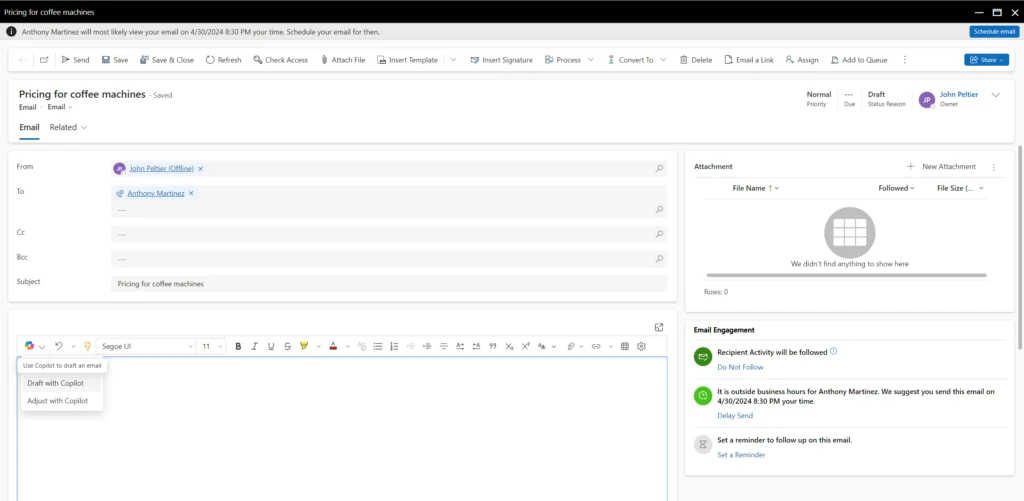
Copilot integrates seamlessly with the rich text editor, providing a sophisticated platform for composing emails. This integration facilitates the use of AI-driven suggestions during the drafting process, enabling quick creation of precise and impactful communications. The combination of the Rich Text Editor’s user-friendly interface with Copilot’s intelligent recommendations bridges the gap between rapid email drafting and maintaining content quality.

AI-Powered drafting for enhanced precision and relevance
The seller can prompt Copilot to draft an email 

Copilot transforms email drafting into a more efficient and targeted process. Leveraging AI, it offers contextual suggestions based on the customer’s interaction history and previous communications. This not only speeds up the drafting process but also ensures that each email is personalized and relevant, significantly enhancing the quality and effectiveness of outbound communications.

Dynamic adjustments for tailored email interactions
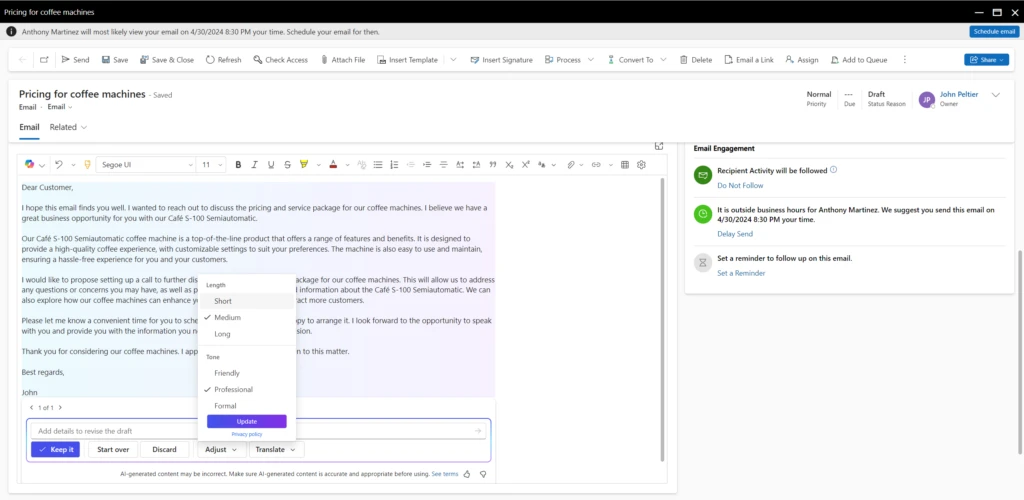
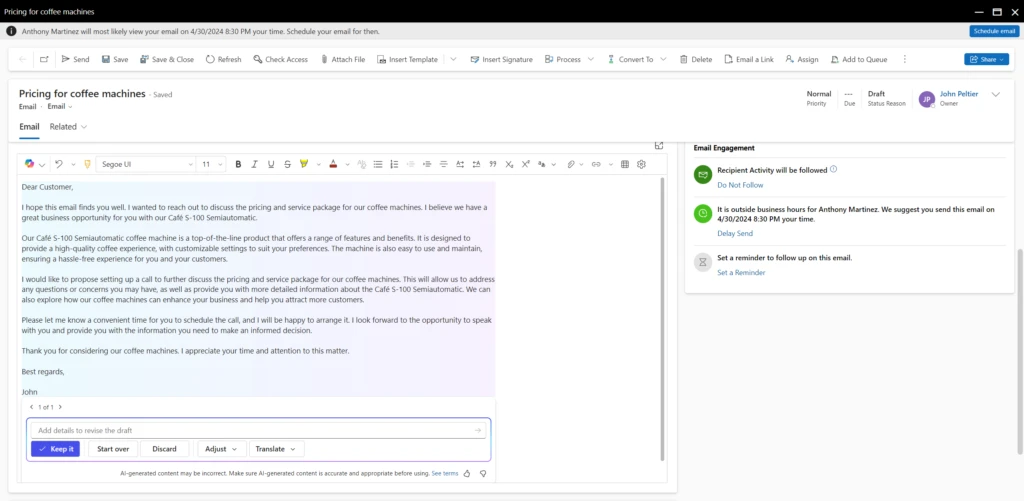
Adjust the length and the tone of the email using Copilot 

Beyond basic drafting, the rich text editor equipped with Copilot allows for dynamic adjustments to emails. For example, fine-tuning aspects like language, tone, and style to better match the recipient’s expectations and the specific sales context. This adaptive functionality ensures that each email is crafted to maximize engagement and impact, fostering stronger customer connections and driving superior business results.

Advancing email communications with Copilot

The synergy between Copilot in Dynamics 365 Sales and the rich text editor marks a significant advancement in how sales professionals handle email communications. By employing AI for both drafting and refining emails, sales teams can optimize their time on high-value sales activities. As businesses navigate the complexities of digital interactions, Copilot emerges as an indispensable tool, empowering sales organizations to achieve efficiency and effectiveness in their communication strategies.

Next steps

Read more on Copilot in D365 Sales email integration: 

Add the Copilot control to the rich text editor  

Use Copilot in the email rich text editor  

Add the rich text editor control to a model-driven app  

Manage feature settings – Power Platform   

Not a Dynamics 365 Sales customer yet? Take a guided tour and sign up for a free trial at Dynamics 365 Sales overview.   

The post Elevating email efficiency using Copilot in Dynamics 365 Sales and the rich text editor  appeared first on Microsoft Dynamics 365 Blog.

Brought to you by Dr. Ware, Microsoft Office 365 Silver Partner, Charleston SC.

New agent capabilities in Microsoft Copilot unlock business value

New agent capabilities in Microsoft Copilot unlock business value

This article is contributed. See the original author and article here.

Microsoft Copilot is already helping individual employees boost productivity, creativity and time savings. With the announcements at Microsoft Build 2024, we’re delivering an entirely new set of capabilities that unlock Copilot’s ability to drive bottom-line business results for every organization.

The post New agent capabilities in Microsoft Copilot unlock business value appeared first on Microsoft 365 Blog.

Brought to you by Dr. Ware, Microsoft Office 365 Silver Partner, Charleston SC.

Transform seller effectiveness with Dynamics 365 Sales Copilot

Transform seller effectiveness with Dynamics 365 Sales Copilot

This article is contributed. See the original author and article here.

In today’s fast-paced sales landscape, prioritizing core selling activities over low-value tasks is crucial. Time spent on tasks that don’t directly contribute to sales represents missed opportunities to connect with prospects and close deals. With Dynamics 365 Sales, we’re committed to using AI to support sellers in focusing their time on what truly matters: forging meaningful connections, establishing trust, and nurturing long-term relationships to increase their sales productivity. Copilot empowers sellers to achieve greater results with less effort, enhancing your sales organization’s effectiveness. We’re happy to share that the following features are releasing this month.

Copilot chat Q&A in Dynamics 365 Sales

Copilot chat with Q&A transforms how sellers access data in your customer relationship management (CRM) system. Instead of building complicated queries or manually searching for information, sellers can ask questions using natural language. They can access vital information immediately, allowing them to focus on high-value activities like engaging customers and closing deals. The result is more time for meaningful interactions, potentially leading to higher conversion rates and increased revenue.

Natural-language Q&A is particularly valuable in fast-paced sales environments, ensuring quick, informed actions. This feature elevates customer interactions, positioning teams for higher sales productivity. Its impact extends beyond convenience, shaping the efficiency and effectiveness of the entire sales process.

Copilot chat in Dynamics 365 Sales makes it easy to retrieve information from Dataverse and your CRM system.

Sales-specific chat experience  

One of the key features of Copilot in Dynamics 365 Sales is that the chat experience is specific to the sales process. Sellers can use common sales terms and phrases to ask questions and get answers from the CRM system, without having to navigate through complex menus or screens. This saves time and effort for sellers, allowing them to focus on their customers and prospects.

Some of the sales terms that Copilot understands are conversion rate, deal cycle, pipeline, deal size, win rate, and deal value. Sellers and managers can use these terms to query various aspects of the sales process, like the performance of individual sellers, teams, or regions, the progress of opportunities, and the trends and forecasts of sales outcomes. Copilot can also handle complex queries with multiple terms, filters, and aggregations.

For example, you can ask Copilot:

  • “Show the opportunity conversion rate for the last 4 quarters by quarter.”
  • “What’s the win rate for Kenny Smith?”
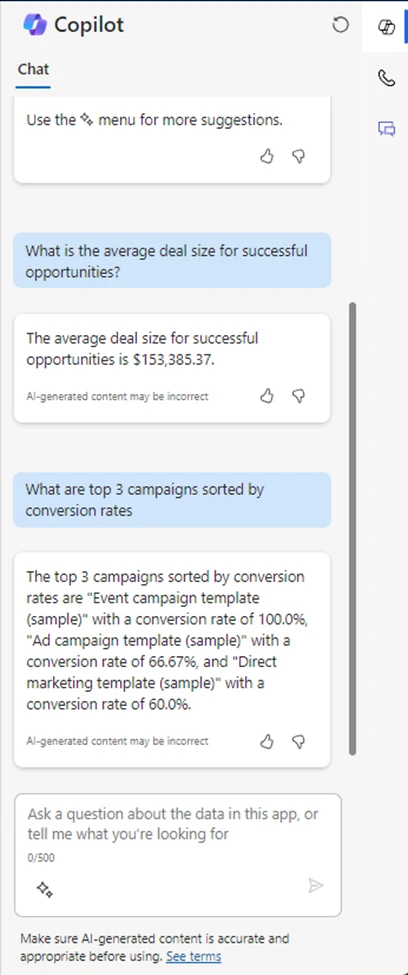
  • “What is the average deal size for successful opportunities?”
graphical user interface, text, application, chat or text message
Copilot in Dynamics 365 Sales understands sales-specific terms expressed in natural language.

These examples illustrate how Copilot can help sellers access relevant information from your CRM system in a natural and intuitive way, using sales-specific terms in a chat experience. Copilot chat Q&A enhances your sales team’s productivity and efficiency and their ability to meaningfully engage with customers and prospects.

Your CRM data is always secure

Copilot respects the security and user access privilege settings of your CRM system. This means that if a seller doesn’t have permission to view or edit certain records, those records aren’t included in Copilot’s responses. For example, if you ask Copilot about the pipeline value for a region that you aren’t assigned to, Copilot informs you that you don’t have sufficient privileges to view the requested data. This ensures that Copilot maintains the integrity and confidentiality of your CRM data while providing insights and recommendations. 

Immersive Copilot workspace

We are also launching the public preview of a new immersive Copilot experience in Dynamics 365 Sales. An expanded workspace enhances focus on productive conversations with Copilot, while real-time insights and effortless natural language chat functionality help sellers efficiently manage sales activities, nurture customer relationships, and drive sales success. Seamless access to insights from CRM data simplifies prioritizing actions and smarter decision-making. 

graphical user interface, application, website
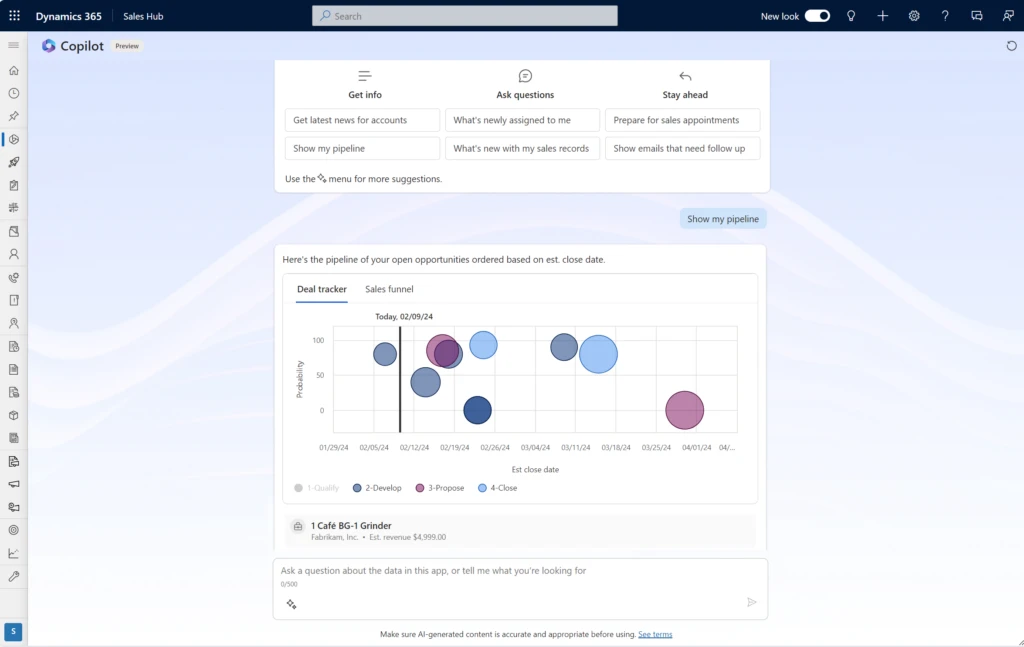
The new immersive Copilot workspace in Dynamics 365 Sales helps sellers focus on sales activities.

The immersive experience works in sync with the Copilot chat pane. Start a conversation in the immersive workspace, select a record, and continue the conversation in the Copilot chat. The coherent experience makes it easy to navigate in the app without losing context. 

Use the immersive workspace

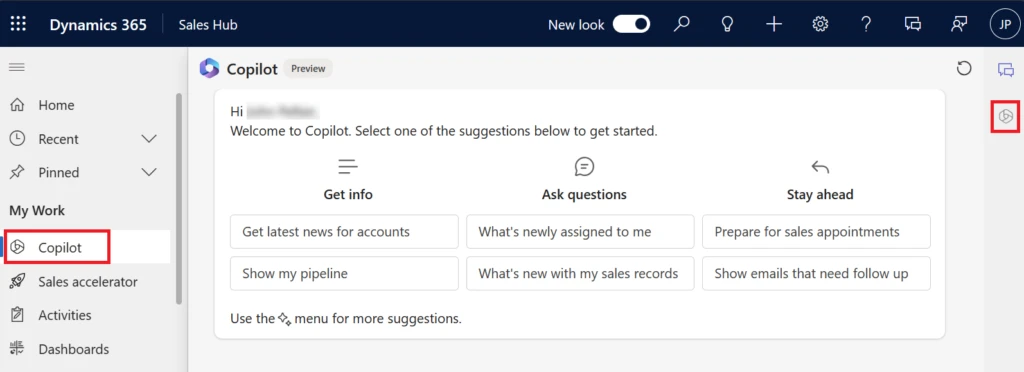
The immersive experience is in preview so that we can make improvements based on your valuable feedback. To use the immersive experience in your environment, you’ll need to turn on preview features for Copilot in Dynamics 365 Sales. In the Sales Hub app, Copilot is automatically added to the site map under My Work. If you use a custom app, add the Copilot page to your app’s site map. To enter the immersive workspace, select My Work > Copilot.

graphical user interface, application
Enter Copilot in immersive mode through the site map in Sales Hub or your custom app.

Transform your sales processes with Copilot

Copilot in Dynamics 365 Sales helps your sellers save time and stay focused on the things that really matter. They get the information they need faster with less context switching, making their day-to-day activities more efficient and boosting your team’s overall sales productivity.

Next steps

Learn more about Copilot in Dynamics 365 Sales

Turn on and set up Copilot in Dynamics 365 Sales 

Not yet a Dynamics 365 Sales user? Sign up for a free trial today.

The post Transform seller effectiveness with Dynamics 365 Sales Copilot appeared first on Microsoft Dynamics 365 Blog.

Brought to you by Dr. Ware, Microsoft Office 365 Silver Partner, Charleston SC.
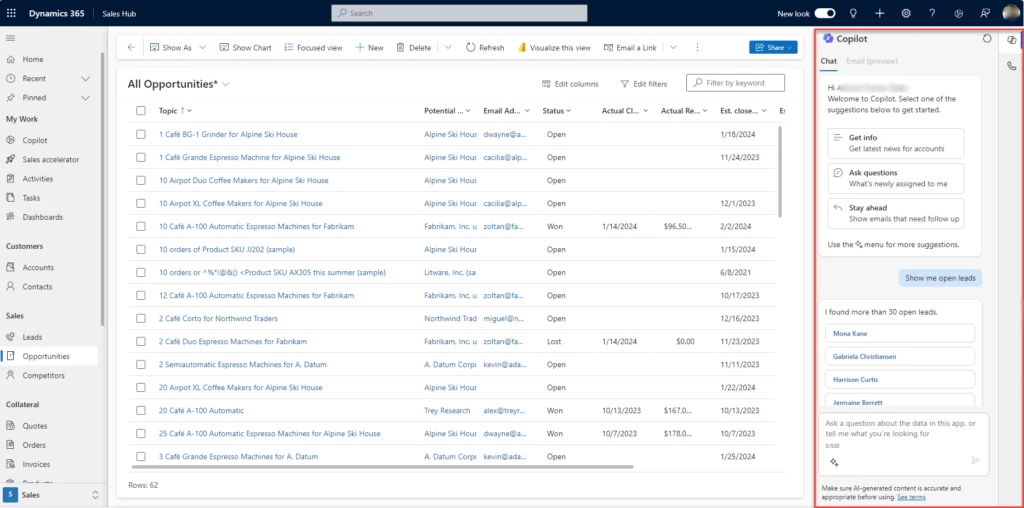
Copilot in D365 Sales boosts efficiency with content recommendations and Q&A  

Copilot in D365 Sales boosts efficiency with content recommendations and Q&A  

This article is contributed. See the original author and article here.


Sellers are often faced with situations where they need to sift through a lot of information to find the one piece they need. There are often extensive knowledge bases where sellers need to search for information, and lots of precious time is lost in the process.  

We are here to help with that! 

With our new features outlined below, sellers can access relevant sales information from SharePoint through the Copilot chat interface in Dynamics 365 Sales

By automating the extraction of critical insights from sales documents, Copilot in Dynamics 365 Sales frees up valuable time for sales teams to focus on nurturing leads, closing deals, and delivering exceptional customer experiences. With Copilot in Dynamics 365 Sales, businesses can streamline their sales processes, gain deeper customer insights, and ultimately drive greater revenue growth. Copilot in D365 Sales empowers sales teams to work smarter, not harder, and achieve unparalleled efficiency in their daily operations. 

Contextual content recommendations

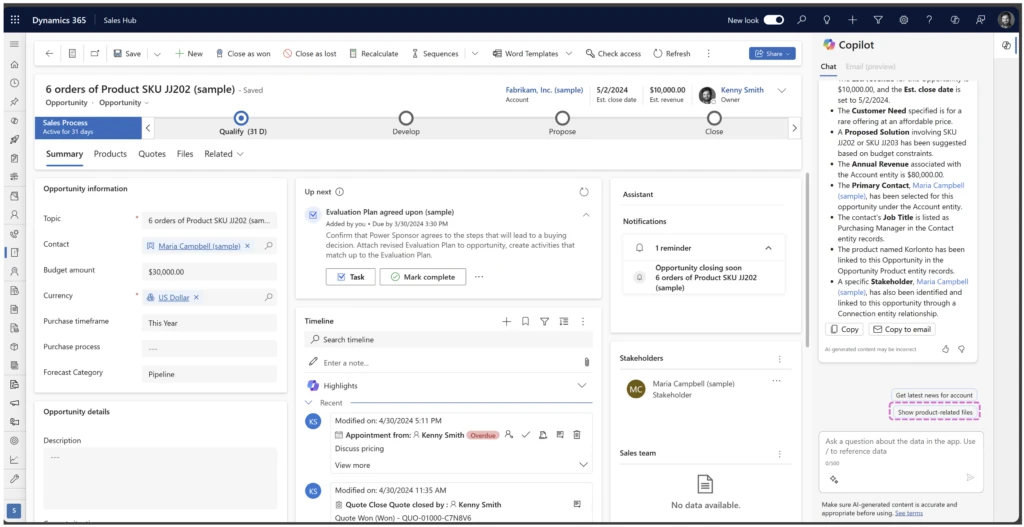
With this feature, the system seamlessly reads the CRM context, and intelligently recommends relevant product and account-related files. For example, sellers are provided with content recommendations regarding the products added to opportunities. From PDFs to Word documents and PowerPoint presentations, the Copilot pane in D365 Sales provides instant access to the most pertinent sales materials, empowering sales reps to make informed decisions and deliver personalized experiences to customers. This could include sales pitch decks, account strategy collaterals, product brochures and training materials that are made available to sellers. As a result, sales interactions are tailored and impactful, driving stronger customer engagement and business growth. 

D365 Sales Hub with Copilot sidecar open where there are insights and prompts.
“Show product-related files” appears as a trailing prompt to opportunity summary

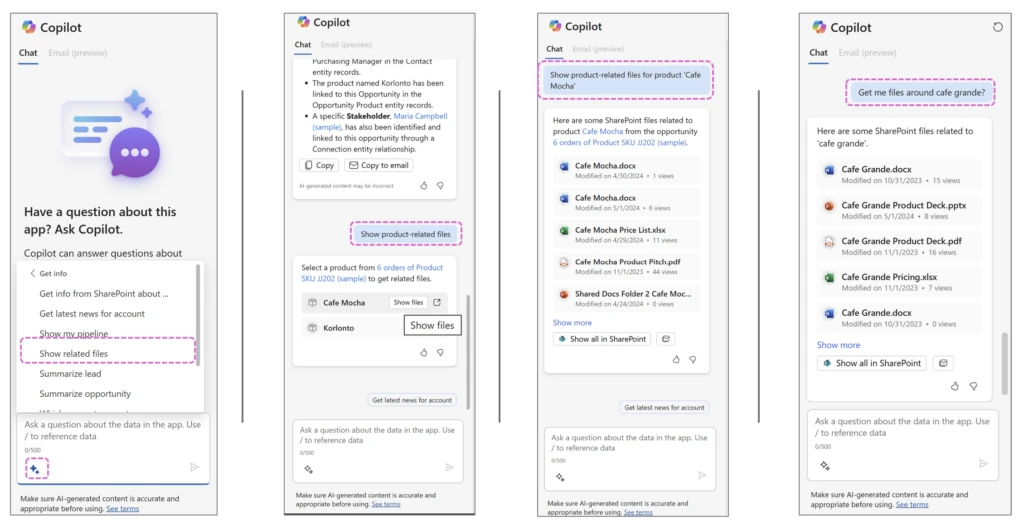
Users effortlessly access contextual file recommendations in Copilot in D365 Sales by selecting from the sparkle icon (marked in the image below) or typing queries in their preferred language. Sorted by relevance, the latest files and most popular results appear first. Files can be viewed, downloaded, or shared via email, ensuring seamless collaboration. Additionally, users can specify keywords for targeted searches, enhancing efficiency while upholding data security. Copilot in D365 Sales respects user permissions, displaying only accessible SharePoint files. 

Access related files in Copilot in D365 Sales – through sparkles menu, natural language prompts, associated products.

SharePoint Q&A

Sellers can now easily navigate through sales documents and literature by simply asking questions. Leveraging Azure OpenAI technology, Copilot in D365 Sales swiftly scans through data and literature, summarizing pertinent information from SharePoint documents. This seamless integration empowers sellers to swiftly access insights, enhancing productivity and enabling quick, informed responses to customer inquiries. 

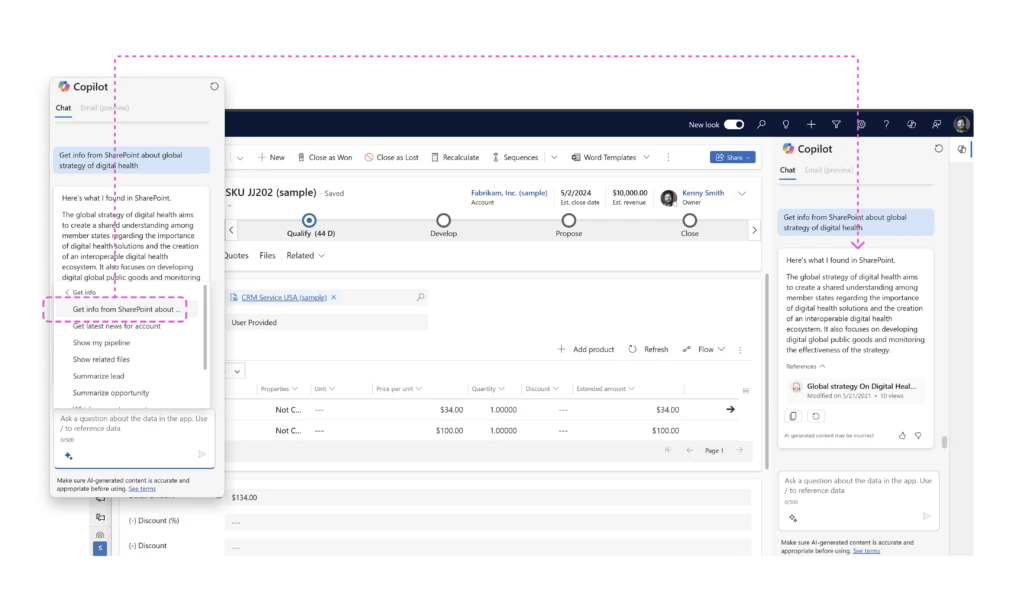
Invoke SharePoint Q&A and get summaries from relevant documents, with citations of references.

In Copilot in D365 Sales, accessing answers is seamlessly integrated with your SharePoint documents. Simply type your question in the Copilot pane using natural language and hit Enter – no need to navigate through any of your files and folders! For instance, inquire about warranty periods or prices directly. Copilot initiates a search in SharePoint. Should the answer reside in one or more files in SharePoint, Copilot offers a concise response alongside links to relevant documents, ensuring comprehensive insights are just a click away. 

Next steps

Increasing your sales team’s efficiency could be as simple as having all the information just a click away! 

To get started with this new capability: 

Use Copilot to get content recommendations and answers from SharePoint


Not a Dynamics 365 Sales customer yet? Take a guided tour and sign up for a free trial at Dynamics 365 Sales overview

AI solutions built responsibly. 

Enterprise grade data privacy at its core. Azure OpenAI offers a range of privacy features, including data encryption and secure storage. It allows users to control access to their data and provides detailed auditing and monitoring capabilities. Copilot is built on Azure OpenAI, so enterprises can rest assured that it offers the same level of data privacy and protection.  

Responsible AI by design. We are committed to creating responsible AI by design. Our work is guided by a core set of principles: fairness, reliability and safety, privacy and security, inclusiveness, transparency, and accountability. We are putting those principles into practice across the company to develop and deploy AI that will have a positive impact on society.  

The post Copilot in D365 Sales boosts efficiency with content recommendations and Q&A   appeared first on Microsoft Dynamics 365 Blog.

Brought to you by Dr. Ware, Microsoft Office 365 Silver Partner, Charleston SC.
Try skill-based agent search in Dynamics 365 Customer Service

Try skill-based agent search in Dynamics 365 Customer Service

This article is contributed. See the original author and article here.

We’re excited to announce skill-based agent search, designed to enhance agent collaboration and improve agent efficiency within Dynamics 365 Customer Service. With this latest release, agents can now search for other agents based on specific skills, facilitating seamless consultations and transfers during customer interactions. 

In today’s fast-paced customer service environment, it’s crucial for agents to have access to the right expertise at the right time. With our new skill-based search functionality, agents can now easily identify and connect with other agents who possess the necessary skills to address customer inquiries effectively.

Efficient consultations and transfers 

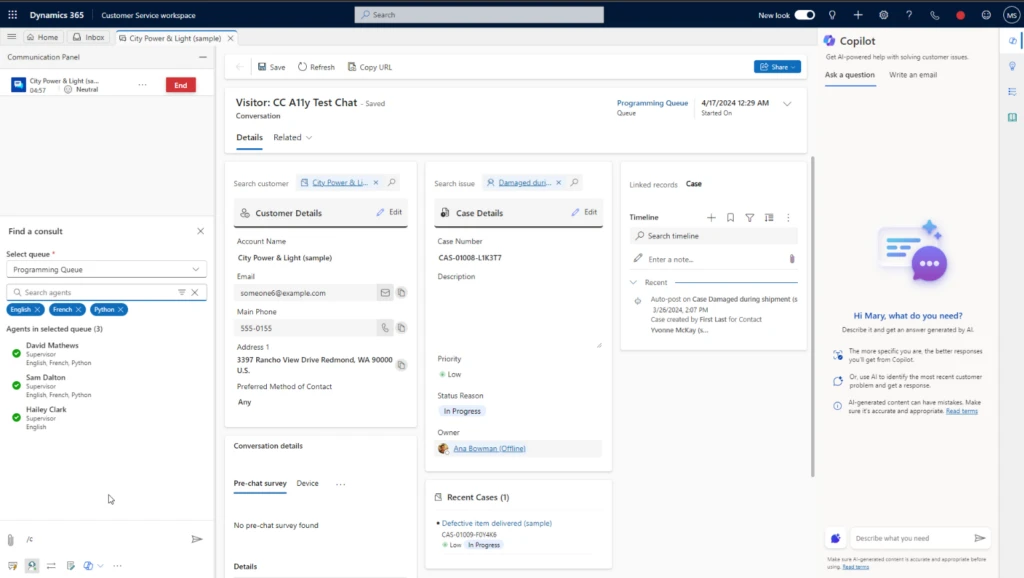
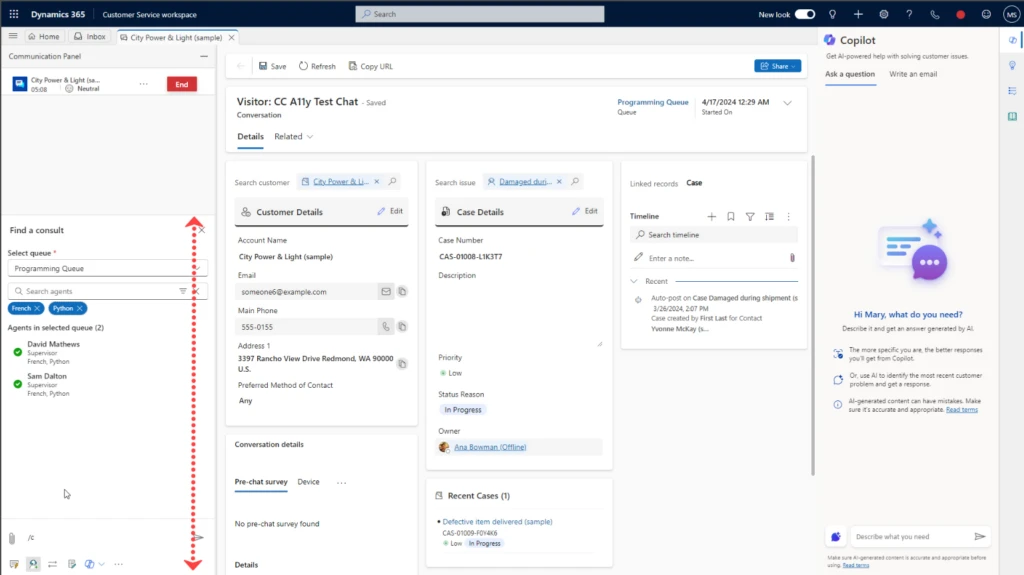
During a conversation with a customer, agents can initiate a consultation with another agent by specifying desired skills such as language proficiency or product knowledge. The system will then display a list of agents who match the specified criteria. The list includes their names, presence status, and relevant skills. 

Seamless user experience 

We’ve also redesigned the entire user interface for consult and transfer, providing agents with more modern and intuitive controls. We also made it easier to find the right agent without needing to scroll.

Optimal service delivery 

By enabling agents to search for and collaborate with other agents based on skills, organizations can provide optimal customer service. This optimization helps significantly reduce misroutes. Agents can quickly consult with experts in specific areas, ensuring that customer inquiries are addressed by the best-suited agent, ultimately enhancing customer satisfaction and loyalty. 

Enable skill-based search for your agents 

The latest release will have this default on for all customers. Administrators do not need to perform additional configuration steps to turn this on. 

We’re committed to continuously improving our platform to meet the evolving needs of our customers. Stay tuned for more updates and enhancements to come! 

Learn more 

Watch a quick video introduction.

The post Try skill-based agent search in Dynamics 365 Customer Service appeared first on Microsoft Dynamics 365 Blog.

Brought to you by Dr. Ware, Microsoft Office 365 Silver Partner, Charleston SC.
Improved Project sales tax capabilities now available

Improved Project sales tax capabilities now available

This article is contributed. See the original author and article here.

Dynamics 365 Project Operations has made significant improvements to consistently apply tax calculations and expanded support for scenarios including sales tax across the application. This new functionality standardizes behavior and establishes common rules to simplify how taxes are calculated and ensures consistency in how cost price, sales price, and taxes interact together. Read on for more information.  

Streamline cost price and sales price calculations 

With the 10.0.32 release, the Streamline cost price and sales price calculations feature is available to be enabled in your Dynamics 365 environment. With this change, improvements have been made to project-related scenarios in the following areas: 

  • Purchase orders and vendor invoices created in combination with the general ledger parameter for applying taxation rules 
  • Purchase orders and vendor invoices in combination with posting with amounts including sales tax 
  • Tax involving use tax 
  • Funding source limits 
  • Committed costs 
  • Purchase order corrections 
  • Adds support for “amount include sales tax” in the Purchase Order header 

Let’s dive into the basics of how sales and costs interact. This feature and scenarios are targeting the Dynamics 365 Project Operations for production/stocked deployment model. For any project expense type transaction, Dynamics 365 can modify the sales price dynamically based on one of several factors defined in the sales price – expense form. One of the commonly used methods is to apply a charges percentage markup, to mark up all costs by a set amount. For example, a 5% markup on all expenses which makes a $1000 expense invoiceable at $1050 by defaulting that sales price in the vendor invoice which will later transfer to our customer invoice.  

Next, we want to understand how taxes impact costs. The two scenarios below are situations where taxes should be included in the project cost.  

  • Legal entities with the sales tax parameter Sales taxation rules is enabled. Typically, this is US-based legal entities.  
  • Legal entities with non-deductible tax percentages. This non-deductible tax is always included in the project cost. 

Let’s look at some specific examples to understand how prices and taxes are calculated. For these examples, the tax percentage is set to 5% and there is a sales price 5% markup on cost price. We will follow the document flow of a purchase order through to a vendor invoice and review the financial impact in the posted project transactions form.  

Apply sales taxation rules  Amounts including Sales Tax  Non-Deductible %  Cost Price in Document  Sales Price in Document  Posted 
Project 
Cost 
Posted Project
Sales Price 
Notes 
No  No  1000  1050  1000  1000 x 1.05 markup = 1050   
Yes  No  1000  1050  1000 + 50 tax = 1050  1000 x 1.05 markup x 1.05 tax = 1102.50   
No  No  20  1000  1050  1000 + 10 tax – 1010  1000 x 1.05 markup x 1.01 tax = 1060.50  5% tax multiplied by 20% non-deductible = 1%.  20% of 50 tax amount = 10. 
This table shows a variety of configuration options where amounts do not include sales tax and the results of how taxes and prices are calculated.

Similarly, these same rules apply when determining the project cost and sales price when entering a purchase order with an amount that already includes sales tax. In the case of the purchase order or vendor invoice, there is an option in the header that prices include sales tax to indicate the amount entered should be inclusive of tax and the base amount and tax need to be calculated from the entered amount. Since the actual cost and sales price may include a markup of tax, the amounts entered for sales price and cost will be recalculated and different values will be posted in the final voucher. Consider the examples below with the same 5% tax rate and 5% markup described earlier: 

Apply sales taxation rules  Amounts including Sales Tax  Non-Deductible %  Cost Price in Document  Sales Price in Document  Posted 
Project 
Cost 
Posted Project 
Sales Price 
Notes 
No  Yes  1000  1050  1000 / 1.05 = 952.38  952.38 x 1.05 markup = 1000    Divide the original amount by 1 + tax rate for cost without tax. 
Yes  Yes  1000  1050  1000 / 1.05 = 952.38 + 47.62 tax = 1000  952.38 x 1.05 markup x 1.05 tax = 1050   Divide the original amount by 1 + tax rate for cost without tax. 
No  Yes  20  1000  1050  1000/ 1.05 = 952.38 + 9.52 tax = 961.9  952.38 * 1.05 markup x 1.01 tax = 1010  5% tax multiplied by 20% non-deductible = 1%.  20% of 47.62 tax amount = 9.52. 
This table shows a variety of configuration options where amounts do include sales tax and the results of how taxes and prices are calculated.

Check it out for yourself 

In conclusion, this new feature is available in Dynamics 365 10.0.32 and later releases. Enable the Streamline sales tax calculations with project cost and sales price feature in your test environment and look for yourself.  

Additional documentation 

For more information, see https://aka.ms/ProjEnableStreamlineCostAndSalesPriceCalcFeature.

The post Improved Project sales tax capabilities now available appeared first on Microsoft Dynamics 365 Blog.

Brought to you by Dr. Ware, Microsoft Office 365 Silver Partner, Charleston SC.