by Scott Muniz | Sep 2, 2020 | Uncategorized
This article is contributed. See the original author and article here.
Google Mobile Services (GMS) is a set of apps and APIs provided by Google that allow Android developers to provide functionality, such as Mobile Device Management (MDM), using Google’s services. In this post, we will walk you through solutions for managing Android devices with Microsoft Endpoint Manager – Intune in locations such as China, or scenarios where GMS are unavailable. If Android Enterprise and GMS are available, you can use them instead.
Management approaches
App Protection Policies (APP, also known as Mobile Application Management or MAM) are a great option for personal bring your own devices (BYOD). APP can be used without requiring device enrollment, which allows you to secure your organization’s data on personal devices without affecting end-user productivity. For example, you can deploy apps without requiring enrollment, then apply APP to require a PIN to open apps in a work context. To learn more about APP in Intune, see the App management overview and the App protection policies overview.
For corporate-owned devices where you may need stronger management controls on the device, Intune also offers support for MDM functionality. There are two MDM approaches for Android device management:
- Where Android Enterprise and GMS are available, use them as part of your Intune MDM strategy.
- In regions or countries where GMS is not available, use device administrator.
On both MDM and APP, the following areas deserve special attention when you plan for managing devices where there is no GMS:
- How end users download the Company Portal app
- Using Android device administrator for MDM
- Other considerations
How end users download the Company Portal app
To use Intune’s MDM and/or APP functionality, Android devices will need the Company Portal app installed. In many countries and regions, end users download the app from the Google Play Store. Where the store is not available, end users can obtain the Company Portal app from a number of documented app stores instead or the device manufacturer’s app store.
Some app stores are preinstalled on devices from Chinese manufacturers (e.g. the Huawei or Xiaomi stores). Others are device-agnostic. It shouldn’t matter which app store your users leverage to get the Company Portal, as long as it’s one of the stores listed in Intune’s documentation.
Be aware that some app stores may behave differently from the Google Play Store in other ways. For example:
- Some stores do not auto-update apps by default. End users should enable auto-update for the Company Portal app to receive updates and fixes.
- Some stores default permalinks to specific versions of an app, which means that links may become out-of-date as new versions of the app are uploaded. When you create end-user documentation, link to the most recent Company Portal version. If you’d like to ensure end users are on a specific version (or newer) of the Company Portal, use Conditional Launch control for Company Portal.
- Some stores allow end users to download the app and sideload it. (“Sideloading” is when you don’t use an app store to install an app.) Sideloaded apps don’t typically receive automatic updates or fixes, so users who choose to do this must regularly update and patch the app manually.
Finally, as an IT administrator, if you want to download and deploy the Company Portal, the app package (.APK file) is available in the Microsoft Download Center. Again, keep in mind that you will need to regularly keep the app up to date if you choose this installation method.
Using Android device administrator for MDM
Enabling device administrator enrollment
When you set up Intune for device management on Android, device administrator enrollment is disabled by default for new enrollments. If your management approach where Android Enterprise and GMS is not available, you will want to use these steps to enable device administrator.
To enable device administrator enrollment, follow the instructions in Set up device administrator enrollment. You can use enrollment restrictions to further customize how various types of Android devices enroll into management. For example, you can create a device type restriction that allows Android device administrator enrollment and assign it to a group that contains all users located in China. For other users in regions that support Android Enterprise, you can create another restriction that allows Android Enterprise work profile enrollment and blocks device administrator enrollment. You can read more on enrollment restrictions here.
Changes to device administrator
For full details about the settings, devices and user experiences that are changing, see Decreasing support for Android device administrator. The table below includes a summary for your reference. Devices manufactured by Samsung will not be impacted for most of these settings because extended support is provided through Intune’s integration with the Knox platform.
| Affected devices |
Affected settings |
Notes |
| Devices running Android 10 and later |
- Some password-related settings
- Ability to block camera
- Network access control for VPN*
- Marking devices as corporate-owned with IMEI or serial number*
- IMEI and serial number visibility*
- User experience of receiving a wi-fi profile
*also affects Samsung Knox devices |
For devices affected by password-related changes, use the Password complexity setting instead to configure password-related requirements. For more see In Development or What’s New. |
| Devices running Android 11 |
- Ability to deploy trusted root certificates
|
|
Other limitations
In locations where Google Mobile Services are unavailable, the following features are also unavailable:
- Google Play Protect
- SafetyNet device attestation
- Require threat scan on apps
- Deploying Android store apps from the Google Play Store
Next, some Mobile Threat Defense (MTD) vendors may not be available in China. Please reach out to your MTD vendor for details.
Finally, in environments where GMS is available, Intune relies on push notifications to speed tasks to finish. For example, if you try to remotely wipe the device, notifications generally get to the device in seconds.
For more information about these limitations, see How to use Intune in environments without Google Mobile Services.
Next steps and more resources
Managing Android devices can be complex and managing Android devices without GMS adds to the complexity. We understand you may find some of these limitations frustrating. Where GMS is available and devices can be updated to Android Enterprise, update where possible. Know that we are continuing to work on improvements to your management experience.
In the meantime, we would appreciate hearing from you how you manage Android devices where GMS is not available. How do your management needs differ from managing devices in other regions? What features are most critical to your organization? Are there any apps that you would like to see added to our list of APP partners? Use UserVoice for any feature requests, or feel free to comment back on the post below. Follow @IntuneSuppTeam on Twitter for any announcements.

by Scott Muniz | Sep 2, 2020 | Azure, Microsoft, Technology, Uncategorized
This article is contributed. See the original author and article here.
One of the most common concerns for public sector cloud adoption is secure isolation among tenants when multiple customer applications and data are stored on the same physical hardware, as described in our recent blog post on secure isolation. To provide customers with more detailed information about isolation in a multi-tenant cloud, Microsoft has published Azure guidance for secure isolation, which provides technical guidance to address common security and isolation concerns pertinent to cloud adoption. It also explores design principles and technologies available in Azure and Azure Government to help customers achieve their secure isolation objectives. The approach relies on isolation enforcement across compute, storage, and networking, as well as built-in user access control via Azure Active Directory and Microsoft’s internal use of security assurance processes and practices to correctly develop logically isolated cloud services. Read more on our Azure Gov blog here.
About the Author

As Principal Program Manager with Azure Government Engineering, @StevanVidich is focused on Azure security and compliance. He publishes and maintains Azure Government documentation and works on expanding Azure compliance coverage.
by Scott Muniz | Sep 2, 2020 | Uncategorized
This article is contributed. See the original author and article here.
In recent months Microsoft support has received a lot of questions regarding disabling RC4 for the encryption of Kerberos tickets. If I had to guess the CIS L1 Baseline and RFC 8429 guidance to disable RC4 is responsible for much of that interest. While RC4 has not been formally deprecated in Active Directory, the evolution of an attack known as Kerberoasting provides a compelling reason to upgrade given RC4 encryption uses the weak NTLM hash as the key for encryption. To date tickets encrypted with AES keys are not susceptible to Kerberoasting.
As with many hardening settings, the decision to eliminate RC4 for Kerberos ticket encryption is not entirely cut and dry. Let’s a take a look at the considerations and then you can decide how you want to move forward with improving your security posture in this area.
First a little history
When Active Directory was first introduced, DES and RC4 were all the rage. In time computational advancements made it possible to brute force attack DES encrypted tickets in a short amount of time and RFC 6649 called for the retirement of DES. Even before RFC 6649 was formally published, Microsoft disabled (by default) DES with the release of server 2008 R2 Windows 7. If you were supporting Active Directory in 2009, you most likely did not even notice DES had been disabled by your newly upgraded domain controllers because Active Directory is designed to select the highest level of encryption that is supported by the client and target of a Kerberos ticket. Support for AES ticket encryption was introduced with the release of Server 2008 / Windows 7, but it was not automatically enabled on domain accounts in order to ensure backward compatibility.
Kerberos 101 Refresher
Before we dive into the compatibility concerns, we need to make sure we are not being too generic with our terminology. Here is a quick refresher.
Authenticator – Even back with Windows for Workgroups (Where are my 3.11 people?) it was not considered cool to send a clear password over the wire. Active Directory avoids that by encrypting the system time with a derived version of the password. The output of that function produces what is called the authenticator (aka pre-auth data). When the DC receives the authenticator, it looks up the account password (aka Long-Term Key), decrypts the authenticator and compares the result to its own time. If the timestamps match within 5 minutes, it knows the correct password was used and that a replay attack is very unlikely.
Ticket Granting Ticket (TGT) – The domain controller will return a TGT to the account once the authenticator has been validated. Inside the TGT is the SID of the account, SIDs of the account’s groups and a session key, along with some other security stuff. The TGT is only read by domain controllers from the domain where it was issued. To keep it private the TGT is encrypted with the password of the KRBTGT domain account. As a result, the contents of the TGT cannot be read by the client.
Session Key – When the account receives the TGT it also receives a copy of the session key (symmetric). To keep the key safe while crossing the network it is encrypted with the account’s password. Once decrypted the session key is placed in LSA (Local Security Authority) memory along with the TGT. Going forward the account’s password is no longer required. When the client makes subsequent ticket requests it will present the TGT and creates a new authenticator using the session key and the system timestamp. The domain controller will then use the KRBTGT password to decrypt the TGT, extract the session key then decrypt the authenticator. To be clear, every ticket has a unique session key and the domain controller does not attempt to remember each session key. Once it is done with a session key it will discard it. When it needs the key again it will repeat the process of extracting it from the presented TGT.
Service Ticket – When an account wants to access a resource it will request a service ticket from the domain controller by providing the name of the resource, its copy of the TGT and an authenticator generated based on the TGT session key. Assuming the authenticator is valid, and the requested name can be matched to a security principle, the domain controller will construct the requested service ticket by copying the account’s SIDs from the TGT, a new session key and encrypt it with a derived password of the security principle. In some cases, the password will be a computer account password. In other cases, it will be the password of a service account used to host the resource. Like with the TGT, the client will not be able to read the service ticket and will be securely sent a copy of the session key for the ticket.
Referral Ticket – When a user is attempting to access a resource in another domain, a service ticket from a domain controller in the resource’s domain must be acquired. That is accomplished by submitting a referral ticket request to a domain controller of the user’s domain. The client provides its TGT, a fresh authenticator and the FQDN of the remote resource. The FQDN will let the domain controller know in which trusted domain the resource resides. It will then create the referral ticket which contains the user’s SIDs and a session key. The referral ticket is then encrypted with a key derived from the domain trust password and returned to the client. The client forwards the referral ticket to a domain controller in the remote domain and requests a service ticket for the resource. If everything is correct a service ticket is returned to the client along with a session key associated with that ticket.
Bringing it all together
Now that the Kerberos flow is fresh in our minds, we can break down the considerations for disabling RC4.
Authenticator encryption type – Sometimes a client will include an authenticator with the initial TGT request (KRB_AS_REQ) in which case it will simply declare which encryption it decided to use base on the configuration of the OS. Other times the client will ask for a TGT without providing an authenticator to which the domain controller will respond with a KDC_ERR_PREAUTH_REQUIRED message along with a list of encryption types it supports. Either way the client and domain controller must be able to agree on a supported encryption type. As documented in this article, Server 2000, Server 2003 and XP do not support either version of AES. Therefore, if you have those legacy operating systems still in your domain you are not ready to remove RC4 support from your domain controllers.
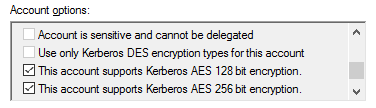
TGT encryption type – As mentioned before, a TGT is only read by domain controllers in the issuing domain. As a result, the encryption type of the TGT only needs to be supported by the domain controllers. Once your domain functional level (DFL) is 2008 or higher, you KRBTGT account will always default to AES encryption. For all other account types (user and computer) the selected encryption type is determined by the msDS-SupportedEncryptionTypes attribute on the account. You can modify the attribute directly or you can enable AES using the checkboxes in the Account tab.

The msDS-SupportedEncryptionTypes attribute uses a single HEX value to define which encryption types are supported. You could calculate the value based on this blog post or you could use the following decoder ring:
|
Decimal Value
|
Hex Value
|
Supported Encryption Types
|
|
0
|
0x0
|
Not defined – defaults to RC4_HMAC_MD5
|
|
1
|
0x1
|
DES_DES_CBC_CRC
|
|
2
|
0x2
|
DES_CBC_MD5
|
|
3
|
0x3
|
DES_CBC_CRC, DES_CBC_MD5
|
|
4
|
0x4
|
RC4
|
|
5
|
0x5
|
DES_CBC_CRC, RC4
|
|
6
|
0x6
|
DES_CBC_MD5, RC4
|
|
7
|
0x7
|
DES_CBC_CRC, DES_CBC_MD5, RC4
|
|
8
|
0x8
|
AES 128
|
|
9
|
0x9
|
DES_CBC_CRC, AES 128
|
|
10
|
0xA
|
DES_CBC_MD5, AES 128
|
|
11
|
0xB
|
DES_CBC_CRC, DES_CBC_MD5, AES 128
|
|
12
|
0xC
|
RC4, AES 128
|
|
13
|
0xD
|
DES_CBC_CRC, RC4, AES 128
|
|
14
|
0xE
|
DES_CBC_MD5, RC4, AES 128
|
|
15
|
0xF
|
DES_CBC_MD5, DES_CBC_MD5, RC4, AES 128
|
|
16
|
0x10
|
AES 256
|
|
17
|
0x11
|
DES_CBC_CRC, AES 256
|
|
18
|
0x12
|
DES_CBC_MD5, AES 256
|
|
19
|
0x13
|
DES_CBC_CRC, DES_CBC_MD5, AES 256
|
|
20
|
0x14
|
RC4, AES 256
|
|
21
|
0x15
|
DES_CBC_CRC, RC4, AES 256
|
|
22
|
0x16
|
DES_CBC_MD5, RC4, AES 256
|
|
23
|
0x17
|
DES_CBC_CRC, DES_CBC_MD5, AES 256
|
|
24
|
0x18
|
AES 128, AES 256
|
|
25
|
0x19
|
DES_CBC_CRC, AES 128, AES 256
|
|
26
|
0x1A
|
DES_CBC_MD5, AES 128, AES 256
|
|
27
|
0x1B
|
DES_CBC_MD5, DES_CBC_MD5, AES 128, AES 256
|
|
28
|
0x1C
|
RC4, AES 128, AES 256
|
|
29
|
0x1D
|
DES_CBC_CRC, RC4, AES 128, AES 256
|
|
30
|
0x1E
|
DES_CBC_MD5, RC4, AES 128, AES 256
|
|
31
|
0x1F
|
DES+A1:C33_CBC_MD5, DES_CBC_MD5, RC4, AES 128, AES 256
|
If you enable AES on the KRBTGT account and find your TGTs are still issued with RC4 encryption you may need to manually reset the password of the KRBTGT account. That is due to the fact that the KRBTGT password does not automatically rotate. As a result, the current password may have been set back in the 2003 days when AES key generation was not supported. If you need to update your password I recommend you leverage this script. In fact, it is recommended to reset it a second time after waiting a minimum of 10 hours (default TGT lifetime) so there is an AES key in the password history attribute.
Session Key encryption type – The client supported encryption type is similar to the authenticator encryption type in that it is dependent on the configuration of the client OS and is declared during the ticket request (KRB_AS_REQ). The session key selected for the TGT must be compatible with the client and the domain controllers of the issuing domain. The session key selected for a service ticket must be compatible with the client and the server hosting the resource. When selecting a compatible session key the KDC will evaluate the client request and the msDS-SupportedEncryptionTypes attribute of the target account.
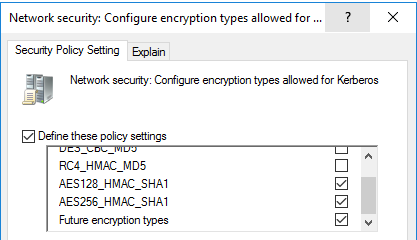
Service Ticket encryption type – When a service ticket is requested, the domain controller will select the ticket encryption type based on the msDS-SupportedEncryptionTypes attribute of the account associated with the requested SPN. As mentioned before, this may be a computer object, or it could be a service account that is being used to host the resource on the network. If the attribute has no value defined, the domain controller will encrypt the ticket with RC4 to ensure compatibility. By default, user accounts do not have a value set so unless you have manually enabled AES on them, tickets for service accounts will be encrypted with RC4. For computer objects you can directly update msDS-SupportedEncryptionTypes or you apply a GPO to define the supported encryption types. Once the computer processes that policy it will update the attribute on its own computer object.
Referral Ticket encryption type – The encryption used for a referral ticket and session key is determined by the trust properties and the encryption types supported by the client. If you select The other domain supports AES Encryption, referral tickets will be issued with AES. Otherwise the referral ticket will be encrypted with RC4. By default, trusts (including inter-forest trusts) do not have AES support enabled. When deciding to enable AES on a trust keep in mind the client does not read the contents of the referral ticket, but it does need a common session key encryption type. If you are considering disabling RC4 over a trust please first review KB4492348. As pointed out by Daniele’s blog, enabling AES with the Active Directory Domains and Trusts GUI will disable RC4 across the trust but using ksetup will allow you to add AES support without disabling RC4.
Auditing for encryption type
In my role as Sr Customer Engineer I find the fear of the unknown to be the primary reason security hardening recommendations are not embraced. Moving forward with enforcing AES for Kerberos will require analysis and one of the best inputs for that assessment are 4769 events from the domain controller security log which show the encryption type (Ticket Encryption Type field) of issued service tickets. Event 4768 will show the same information for issued TGTs. If you have the luxury of having centralized log collection and analysis tool, then getting a quick handle on your ticket encryption types will be achievable. Without such a solution you are facing a tough challenge. The table below maps the values in the events to the encryption type of the issued tickets.
|
Type Value
|
Encryption Type Used
|
|
0x1
|
DES-CBC-CRC
|
|
0x3
|
DES-CBC-MD5
|
|
0x11
|
AES128-CTS-HMAC-SHA1-96
|
|
0x12
|
AES256-CTS-HMAC-SHA1-96
|
|
0x17
|
RC4-HMAC
|
|
0x18
|
RC4-HMAC-EXP
|
Event ID 16 can also be useful when troubling scenarios where a service ticket request failed because the account did not have an AES key.
Do’s and Don’ts of RC4 disablement for Kerberos Encryption Types
That was a lot of information on a complex topic. Here is a quick summary to help you determine your next move.
- Don’t disable RC4 across your domain without performing a thorough assessment unless you have recently updated your resume.
- Don’t confuse this information with guidance and settings for disabling RC4 for TLSSSL (Schannel). See this MSRC blog if you still need to disable RC4 in TLS.
- Don’t wait for RC4 disablement to be forced on you. Start making sure AES has been fully enabled on your computers, accounts and trusts. Once that is done leverage central log collection and analyze your 4769 events to determine if RC4 tickets are still being issued
- Do enable AES on service accounts which have a SPN set. Keep in mind that a null value for msDS-SupportedEncryptionTypes will cause the DC to issue service tickets and session keys with RC4
- Do reset service account passwords twice for accounts which do not have AES keys. Passwords set before 2008 do not have AES keys. Pro Tip: The domain group Read-only Domain Controllers creation date will tell you when the first domain controller newer than 2003 was promoted in your domain. Using PowerShell, search your domain for user accounts with a SPN set that have pwdLastSet older than when your group Read-only Domain Controllers was created
- Do confirm your TGTs are encrypted with AES. If they are still being issued with RC4 check the pwdLastSet attribute on the KRBTGT account and determine if it is newer than the created date of your Read-Only Domain Controllers group.
- Do understand that Kerberoasting makes it trivial for an attacker to determine your weak service account passwords when issued a service ticket encrypted with RC4. Prioritize your privileged service accounts when setting strong passwords and enabling AES for ticket encryption. Kerberoasting can be performed offline once a service ticket has been acquired so this is not an area to rely on your EDR solution.
- Don’t forget about remediating your KeyTab files. When you enable AES on a service account used with an existing KeyTab file, it may be necessary to generate new file. Unfortunately, many organizations do not have a good inventory of issued KeyTab files so remediating them could be challenging
- Do learn how to use klist to view the encryption type used for tickets and session keys. If you have UAC enabled you will see different results depending on if you launched the command prompt with elevation. That is because technically you have two sessions running which means two different sets of tickets. If you want to the view tickets issued to the system rather than your account run klist –li 0x3e7 from an elevated prompt.
- Do remember that ticket encryption only needs to be compatible with the account opening the ticket. The session key selected needs to be compatible with both sides of the connection.
- Do retire legacy operating systems (Server 2003 and older) which are not compatible with AES encrypted tickets
- Do check out these other blogs on this topic which do a great job of explaining the encryption type negotiations you will see in a network capture
Thanks for reading. I hope this information helps you move forward with eliminating RC4 encryption without unexcepted impacts.
Jerry Devore , Sr Customer Engineer


Recent Comments