
by Scott Muniz | Sep 3, 2020 | Azure, Technology, Uncategorized
This article is contributed. See the original author and article here.
Art by Dana Moot II
The past summer has been a magical one for the game-loving members of the Azure Advocacy team, as we presented to you our three-part game series entitled the Azure Maya Mystery. If you haven’t been following along, you can read about its genesis and continuation right here on dev.to.
True to our mission as Advocates on the Academic Team, lead developers Jen and Chris wanted to sneak in a little educational content, and we hope you have enjoyed learning more about Maya glyphs this summer. Congratulations, by the time you complete Level 3, you will know the meaning of 13 ancient Maya glyphs!
The following content contains spoilers about gameplay!
Back in July, we introduced you, the intrepid explorer, to a text-based online experience where you were introduced to a mysterious pyramid you have found, deep in the jungle. As you circle its base, reading half-hidden glyphs, you discover the keys to climb its steep flight of steps to its entrance.
Using your knowledge gleaned from matching clues found in Microsoft Learn and the newly discovered glyphs, you discover a code needed to open the pyramid’s door. You use your learnings about Azure Static Web Apps to launch a chat window to discover part of the pyramid’s name, and then gain entry into the pyramid.
But suddenly, the floor collapses under your feet and you start to slide!
In August, you discovered Level 2, where you speak to a grumpy turtle, launch a web app using Node.js to gather necessary equipment, dive into a cenote, or underground spring, and salvage broken glyphs.
Fitting them back together, you are granted access to the main chamber by the turtle, who seems to be more than a simple reptilian ally.
Now, in the very last level of the Azure Maya Mystery game, you will be able to ascend to the pinnacle of the pyramid by helping complete the restoration of the pyramid and reach the summit. Along the way, you will learn the name of the pyramid and the identity of the goddess to whom it is dedicated.
Using a web app powered by a machine learning model for image recognition, you will gain insight into the full meaning of the three parts of the pyramid’s name. Discover its meaning, and unlock the entry to the summit, where you will be rewarded by the goddess presiding over the pyramid.

We hope you have enjoyed learning about our three technical foci over this summer: Azure Static Web Apps, Node.js, and Machine Learning. In addition, we hope you enjoyed the scavenger hunt we sent you on as you shuttled between Microsoft Learn and the Mystery! Finally, we hope you learned a little about Maya pyramids and glyphs and enjoyed the adventure.
Visit the third level of the Maya Mystery today, ascend to the summit, and earn your reward!
by Scott Muniz | Sep 3, 2020 | Uncategorized
This article is contributed. See the original author and article here.
Today, we are proud to announce the general availability of the Lists app in Teams for all our commercial and GCC customers. As you might already know, Microsoft Lists, which we announced at Build 2020 is a Microsoft 365 app that helps you track information and organize your work. Lists are simple, smart, and flexible, so you can stay on top of what matters most to your team. Track patients, loans, issues, assets, routines, contacts, inventory and more using customizable views and smart rules and alerts to keep everyone in sync. With ready-made templates, you can quickly create lists from directly within Teams and access them on the Teams mobile app by accessing the Lists tab you added as a channel.
Introducing the Lists app in Teams
The vision of the Lists app in Teams is to bring all the collaboration and communication modalities to lists and list items, so it is easy to get work done.
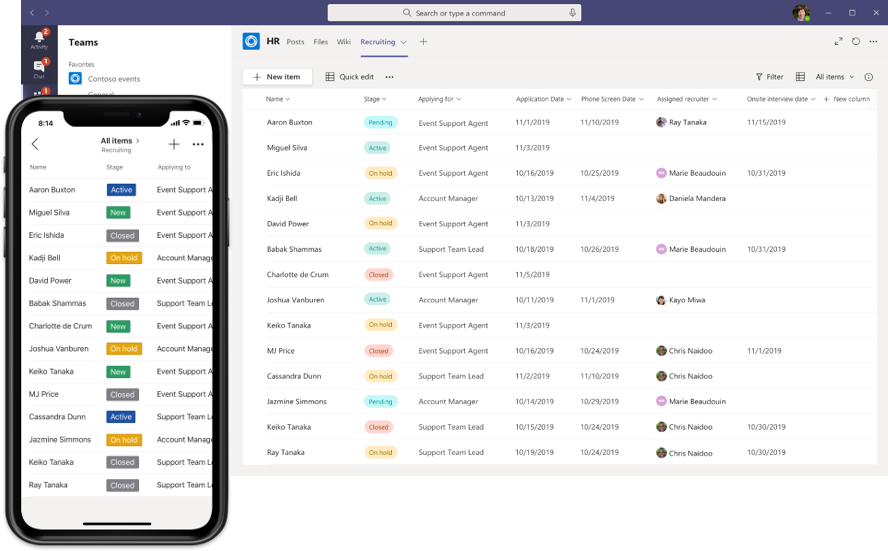
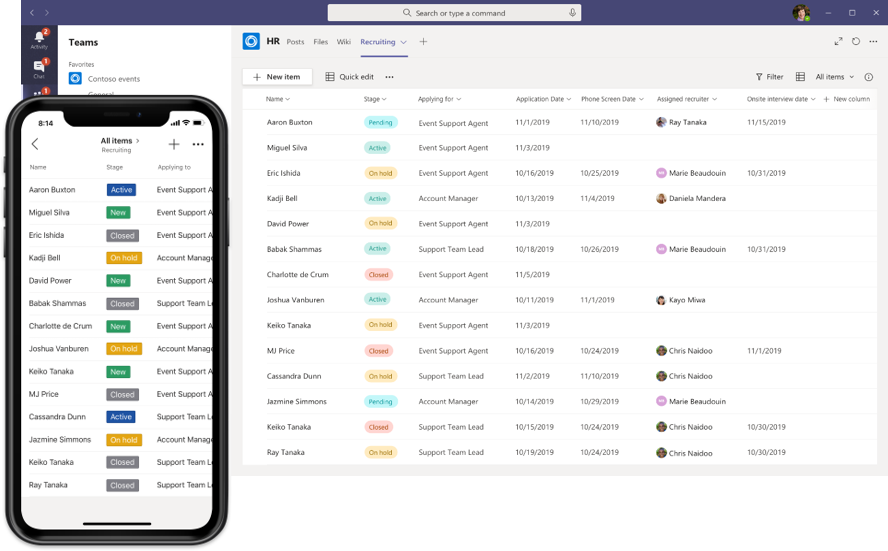
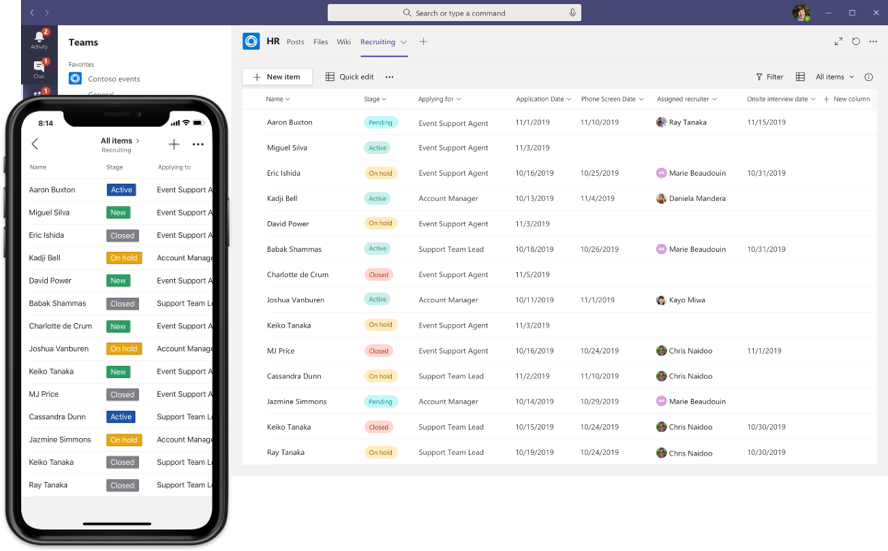
 The new Lists app experience in Microsoft Teams, for mobile on the left and for Web and desktop on the right.
Lists in Teams is supported as a team based tab app built on top of the Microsoft Teams platform and supports the following features:
- New list creation from scratch, from templates (8 standard templates and 3 industry specific ones: Patients, Loans, and Incidents), from Excel table data and from an existing list.
- Importing existing team lists as new tabs.
- All standard list features that you can access in SharePoint web: column types, view formatting, Quick Edit, exporting to Excel, sorting, filtering, etc.
- The ability to have a channel conversation about a list item (see below for more details).
- All user actions on the list are audited and available in the Security and compliance center audit logging.
How do I get started?
To get started, simply go to any channel where you would like to start tracking a list and hit the “+” button to explore the tab gallery and select the Lists app. Once the tab is added you can either create a new list or bring in an existing list (from another team or an older SharePoint site, but not a personal list from Lists home) into the channel as a new tab.
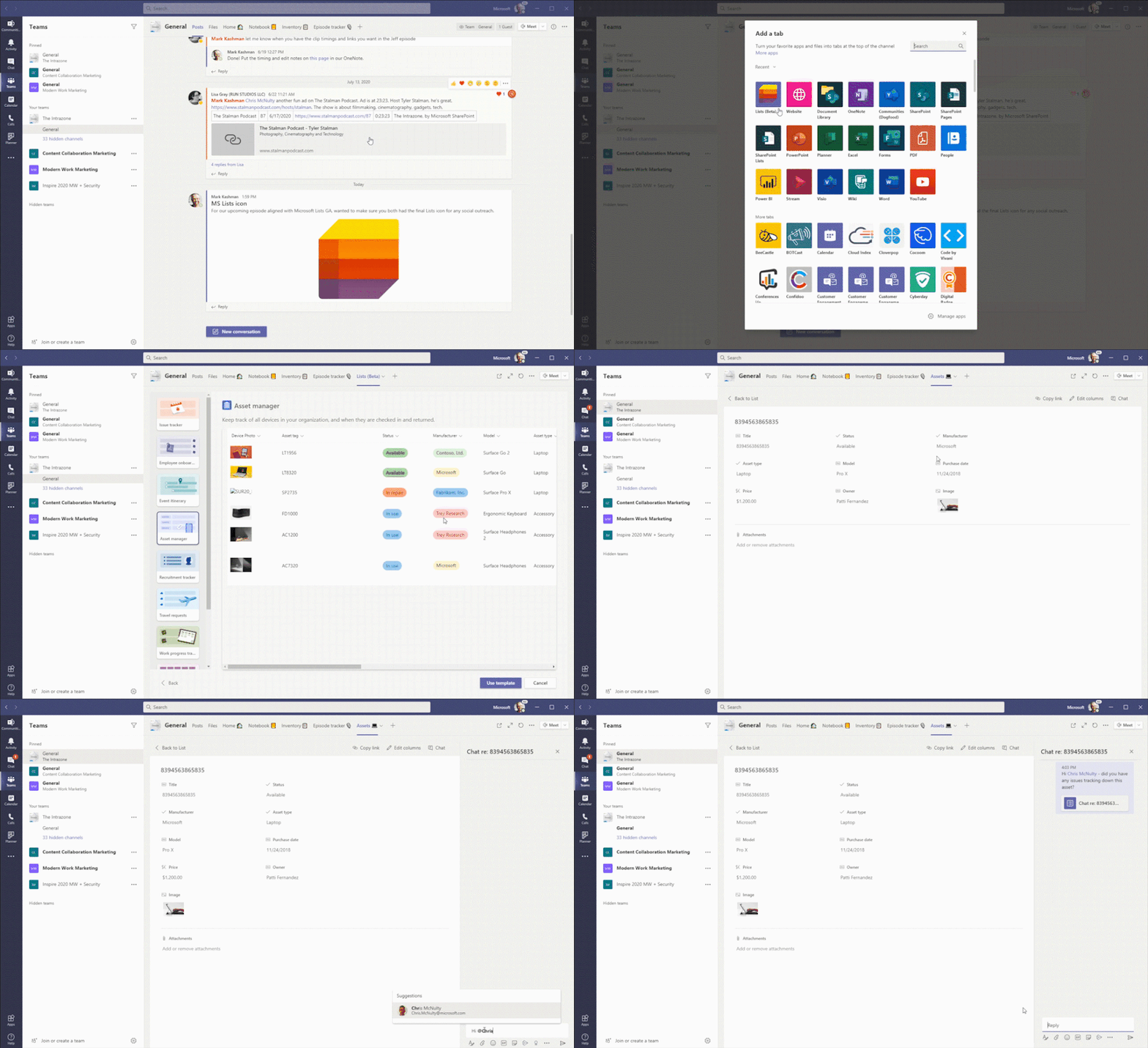 Create a new list inside Teams with conversations side-by-side. The above shows using the Asset manager template.
The Lists app in Teams includes 3 new industry-specific templates – Patients, Loans and Incidents. Team members start managing and tracking these key entities. Here are some examples of how these templates can be leveraged.
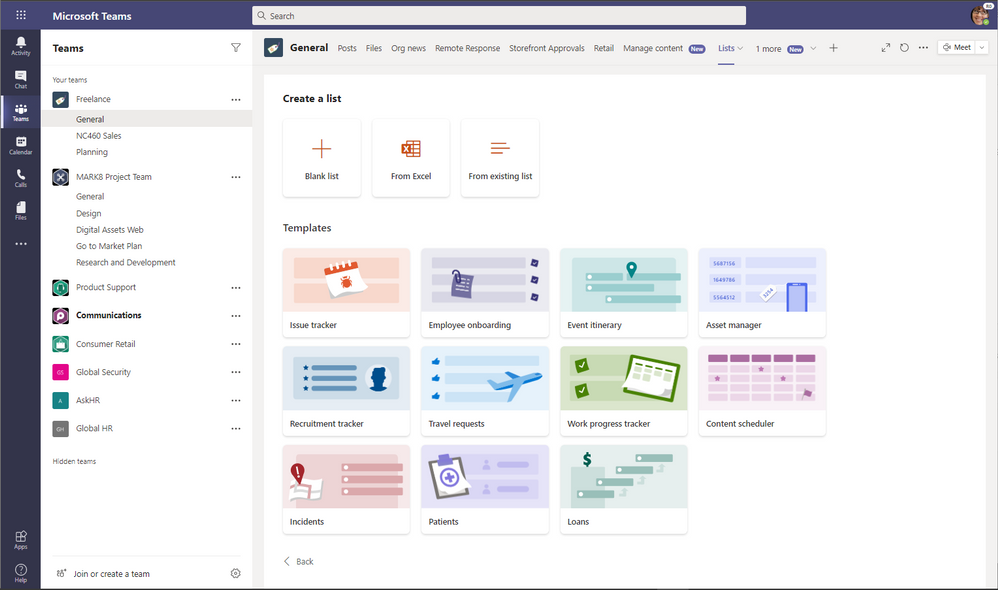 Create a new list from within Microsoft Teams and choose from numerous ready-made templates, including the new industry-specific ones.
- Healthcare organizations can use the Lists app in Teams to support patient rounding, multi-discplinary huddles and discharge planning. The Patients template is an easy way for all health teams to track patient progress and keep in touch with their peers. If you have questions about storage of PHI in Teams, Lists, or Office 365, please see more documentation here.
- Government agencies can use the Lists app in Teams to track incidents and coordinated incident response. The Incidents template helps people quickly setup a list and get started.
- Loan officers at a morgtage broker or bank can use the Lists app to track a set of loans and informally collaborate on advancing a them to approval. The Loans template helps them get started with plenty of scope for further customization.
How do I start a conversation alongside a list item?
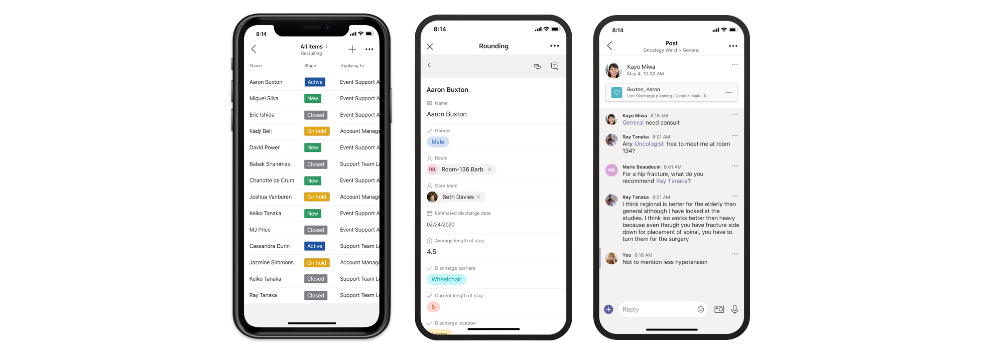
Once you have configured the tab and have a list with list items, you can start a conversation about an individual list item. Go to the details view (or form) for the list item by clicking into the title field and then click on conversation to start a conversation about the list item on the channel. With this feature, you can collaborate with your team about the list item (your key business entities) and get work done, faster.
Since the conversation is a channel message in Teams, all the messaging features like @mentions, rich text, giphies, stickers, emojis, mentions, tagging, and attachments are available for use! The conversation shows up in the right rail for the list item and also on the channel for those who might not have viewed the list as yet.
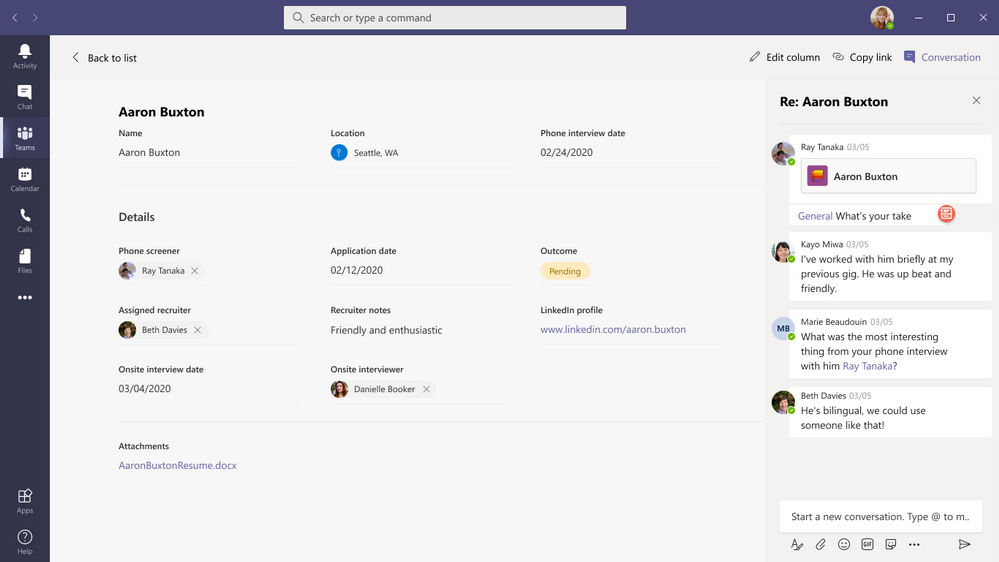 You can chat side-by-side individual list items within Teams.
See more about getting started with the Lists app in Teams “Create a list in Microsoft Teams” click-thru demo. And do not forget to try the Lists app experience in the Teams mobile app to track your lists within Teams on the go. Just go to your Teams android or iOS mobile apps and go to the channel where you have added the Lists app and click on more and tap on the tab name to open up the list.
Learn more about the Lists app in Teams
If you are unable to see the Lists app in your channel, please contact your Teams Admin because applications in the Teams app store can be disabled or enabled by app permission policies. For more information, see the Manage the Lists app in Teams article. If you are looking for more resources and guidance, please review the help article here. For general help content and resources on Microsoft Lists, check out the Microsoft Lists resource center.
Note: Users of the existing SharePoint tab app in Teams that have pinned a list will see their experience inside the tab get upgraded to the latest Lists in Teams experience. This change will be rolling out today as well.
Millions of people use SharePoint lists and libraries every month in Microsoft 365 to track issues, manage inventory, report status, onboard new hires, build out event agendas, manage FAQs, and more. With flexible columns, forms, and views, you can build your own solution to meet your specific needs without knowing how to code. All these great capabilities now come to you inside the Lists app in Teams.
As always, thanks for taking the time to read about Lists in Teams! We’d love to hear any feedback or ideas you might have. Do submit suggestions on user voice. We are listening!
by Scott Muniz | Sep 3, 2020 | Uncategorized
This article is contributed. See the original author and article here.
Today, we are proud to announce the general availability of the Lists app in Teams for all our commercial and GCC customers. As you might already know, Microsoft Lists, which we announced at Build 2020 is a Microsoft 365 app that helps you track information and organize your work. Lists are simple, smart, and flexible, so you can stay on top of what matters most to your team. Track patients, loans, issues, assets, routines, contacts, inventory and more using customizable views and smart rules and alerts to keep everyone in sync. With ready-made templates, you can quickly create lists from directly within Teams and access them on the Teams mobile app by accessing the Lists tab you added as a channel.
This feature is enabled in GCC by default. The Lists app in Teams includes 3 new industry-specific templates – Patients, Loans and Incidents which can be used by Government agencies. Find out more details in our main announcement post here.
About the Author
Ansuman Acharya
Hi All, I am Ansuman and work in the PM Team for Modern workplace Transformation. Think of me as a product manager owning the Lists in Teams experience and the application of Lists and List based solutions to industry vertical scenarios starting with healthcare. Some of you might recognize me from my previous stint in the security and compliance area for Microsoft Teams.
Follow Ansuman on Twitter | LinkedIn
by Scott Muniz | Sep 3, 2020 | Uncategorized
This article is contributed. See the original author and article here.
Microsoft Learn is continually expanding its portfolio of free, online training you can work through at your own pace to skill up in a business role, or prepare for a Microsoft Certification. Every month, we announce the latest role-based learning paths. Begin or continue your journey to build skills and earn certification with Microsoft Learn. Browse the new learning paths and modules, and start one today. Need help figuring out where to begin and which training to take when? Check out the landing pages for Microsoft Power Platform and Dynamics 365.
The following learning paths were released in August 2020.
Power Platform
WinAutomation
These modules have been migrated from the Softomotive Academy. Check Microsoft Learn for additional learning paths next month.
|
Learning path
|
Role
|
Certification
|
|
Get started with WinAutomation
Four modules
|
App maker, Developer, Functional consultant, Administrator
|
Not currently part of an exam
|
|
Work with WinAutomation
Eight modules
|
App maker, Developer, Functional consultant
|
Not currently part of an exam
|
Power Virtual Agents
Dynamics 365
Business Central
Customer Service
by Scott Muniz | Sep 3, 2020 | Uncategorized
This article is contributed. See the original author and article here.
For the pilot episode of the Power Healthcare Hour, Tail Wind Informatics previews an upcoming Sept 8th 2020 webinar “Data Strategy for Healthcare Systems.” Andy Walz and Ross McNeely review common challenges, strategic frameworks, and general advice for Healthcare industry data initiatives. For the second half of the show, opportunities to get more value out of Power BI licensing will be discussed. Learn more about Tail Wind Informatics’ webinar at this link. Follow the Power Healthcare Hour by subscribing to the YouTube channel or following the Twitter account https://twitter.com/PowerHealthcare.


Recent Comments