
by Scott Muniz | Sep 8, 2020 | Uncategorized
This article is contributed. See the original author and article here.

In this weekly discussion of latest news and topics around Microsoft 365, hosts – Vesa Juvonen (Microsoft), Waldek Mastykarz (Rencore), are joined by Tomasz Poszytek, an independent consultant and MVP from Poland.
They talk about Thomasz’s background and how we crew to be an independent consultant running his own business. Key tips from him for anyone who might be looking into doing the same. Discussions on the business automation and the different tools which we have had around these processes in past. Touching the challenge of the licensing models from Microsoft and how that has been simplified from the past… but could be further simplified in future.
Thomasz also talks about this experiences on being a project manager and how he decided to rather be a consultant. In this episode, 21 recently released articles from Microsoft and the PnP Community are highlighted.
This episode was recorded on Monday, September 7, 2020.
Did we miss your article? Please use #PnPWeekly hashtag in the Twitter for letting us know the content which you have created.
As always, if you need help on an issue, want to share a discovery, or just want to say: “Job well done”, please reach out to Vesa, to Waldek or to your PnP Community.
Sharing is caring!
by Scott Muniz | Sep 8, 2020 | Uncategorized
This article is contributed. See the original author and article here.
The Workplace Analytics team is excited to announce our feature updates for September 2020. (You can see past blog articles here). This update describes these new features:
- Inform your return to worksites plan
- Customize the definition of meeting attendance
- Teams metrics are now available
Inform your return to worksites plan
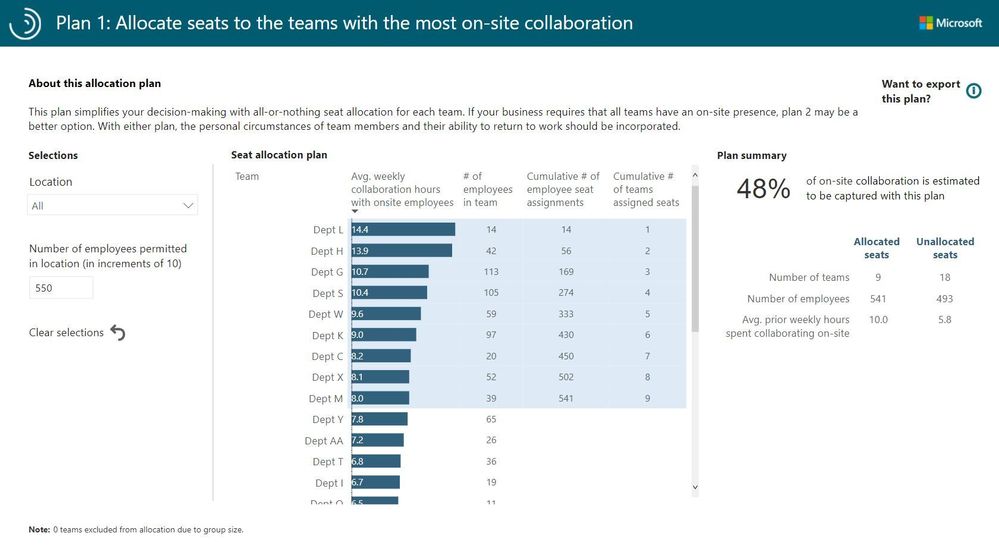
Workplace Analytics has released the Return to worksites Power BI template and supporting playbook. Inspired by recovery-planning efforts with Workplace Analytics customers, this offering provides an objective, data-driven approach to informing the limited capacity “soft opening” plan for worksite locations. It should prove especially valuable for a company’s “re-entry” coordinators – a high-visibility cross-functional team typically consisting of facilities, HR, security, legal, and strategy.
The Power BI template makes it possible to create two alternative worksite seat-allocation plans that prioritize teams that collaborate extensively with their co-located colleagues. Here is one example seat-allocation plan:
The Return to worksites playbook further guides the analyst in the who, where, when, and how of limited-capacity worksite openings for each individual worksite:
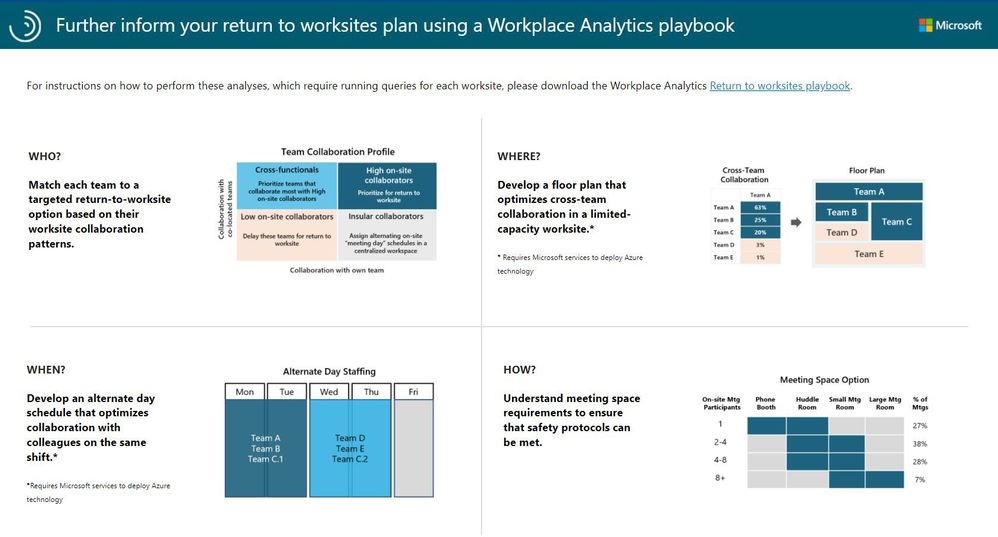
For instructions on how to get started, see Return to worksites.
Customize the definition of meeting attendance
The Workplace Analytics team has released the ability to customize the definition of meeting attendance. Until now, having accepted a meeting invitation was equivalent to attending. But what does it mean if the invitee doesn’t respond, or if they respond as “Tentative”? Now you can decide.
How does this help? In some countries, it is a cultural practice not to “decline” a meeting; rather, a “Tentative” response means “I won’t be attending but I still want to keep this meeting on my calendar.” You, the analyst, can now decide what it means for the collaboration-analysis data when an invitee tentatively accepts an invitation but does not in fact attend the meeting..
To do this, you can use an Attendee exclusion to exclude invitees who accepted the invitation as Tentative from that meeting’s attendee count. (You can do the same with meeting invitees who did not respond to the invitation.)
Analysts can choose the type of exclusion they want to create in the Analysis settings > Exclusions > New exclusions page:
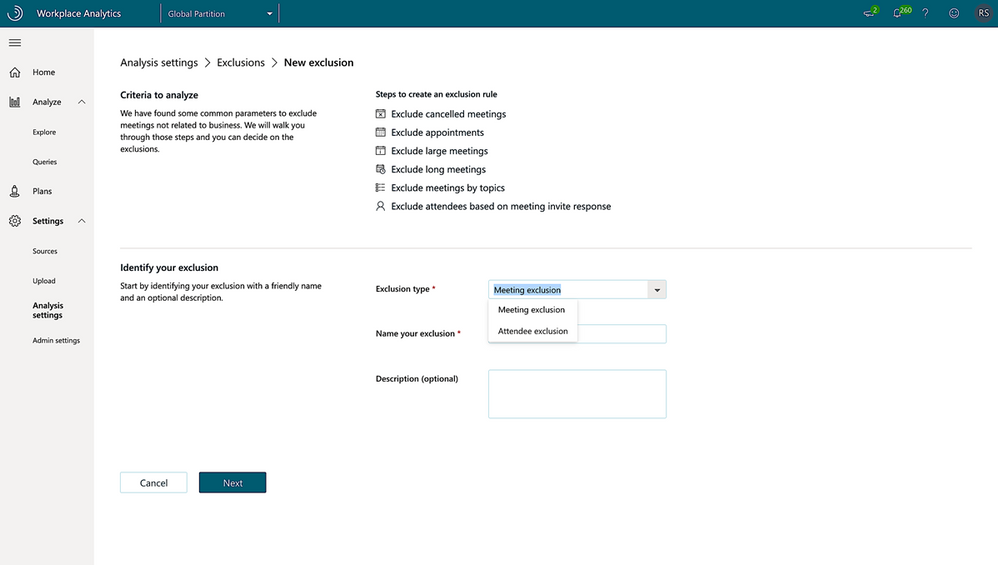
After you create an attendee exclusion, the Create exclusion page shows you the number of attendees who’ll be excluded from calculations if this exclusion is applied.
The use of an attendee exclusion will affect many metrics, including After-hours collaboration, Generated workload meeting attendees, Manager coaching hours 1:1, Meetings with manager, Peer average, Total emails sent during meetings, Attendees, and Total meeting costs.
Teams metrics are now available
Note: In last month’s Workplace Analytics blog, we previewed this feature and offered means for early access to it. We’re happy to announce that this feature is now enabled for all customers.
With the recent shift to remote work, large numbers of users are relying on Teams for much of their remote collaboration. In other words, communication over Teams is at an all-time high. To maintain the ability to produce accurate analyses when using Workplace Analytics, we have added Teams chat and call data to Workplace Analytics metrics.
Data about calls and chats will now be reflected in several metrics, including Workweek span. This will improve the quality of data that’s available to analysts by more accurately delineating the actual workweek span of users. By using these new metric values, you’ll be able to better analyze connectedness across the company, analyze changes in the workweek span, gauge the effect of Teams in improving organizational connectivity, and support Business Continuity scenarios. Here is the complete list of metrics that are being updated:
|
Metric
|
Brief description
|
|
Internal network size
|
The number of people within the company with whom the person had at least two meaningful interactions in the last four weeks.
|
|
Networking outside organization
|
The number of distinct organizational units within the company that the person had at least two meaningful interactions with in the last four weeks.
|
|
Networking outside company
|
The number of distinct external domains outside the company a person has had at least two meaningful interactions in the last four weeks.
|
|
Workweek span
|
The time between the person’s first and last sent email, IM, Teams call, or meeting attended for each day of the workweek.
|
|
Network size
|
The number of people in the collaborator group who had at least two meaningful interactions in the last four weeks with the time investor.
|
Note: For complete definitions of these metrics, see Metric descriptions for Workplace Analytics.
by Scott Muniz | Sep 8, 2020 | Uncategorized
This article is contributed. See the original author and article here.
With the September 2020 cumulative update for Windows 10, we introduced changes that help improve the security of devices that scan Windows Server Update Services (WSUS) for their updates. This post will describe those changes and offer basic recommendations to help you better secure the devices in you organization.
Secure by default
First, beginning with the September 2020 cumulative update, HTTP-based intranet servers will be secure by default. To ensure that your devices remain inherently secure, we are no longer allowing HTTP-based intranet servers to leverage user proxy by default to detect updates. If you have a WSUS environment not secured with TLS protocol/HTTPS and a device requires a proxy in order to successfully connect to intranet WSUS Servers—and that proxy is only configured for users (not devices)—then your software update scans against WSUS will start to fail after your device successfully takes the September 2020 cumulative update.
Recommendations for greater security
To help ensure the security of your WSUS infrastructure, Microsoft recommends using the TLS/SSL protocol between your devices and your WSUS servers. The Microsoft Update system (including WSUS) relies on two types of content: update payloads and update metadata. Update payloads are the data files that contain the software update components that make up the update. Update metadata is all the information that the Microsoft Update system needs to know about the updates, including which updates are available, which devices each update can be applied to, and where to retrieve the payloads for each update. Both types of content are crucial and they both need to be protected to help keep your computers secure and up to date.
Update payloads are protected against modification by multiple means, including digital signature checks and cryptographic hash verifications. HTTPS provides a proper chain of custody which the client uses to prove the data is trusted.
When a device receives updates directly from Microsoft Update, that device receives update metadata directly from Microsoft servers. This metadata is always transmitted via HTTPS to prevent tampering. When you use WSUS or Configuration Manager to manage your organization’s updates, the update metadata travels from Microsoft servers to your devices via a chain of connections. Each one of these connections needs to be protected against malicious attacks.
Your WSUS server connects with Windows Update servers and receives update metadata. This connection always uses HTTPS, and the HTTPS security features guard the metadata against tampering. If you have multiple WSUS servers arranged in a hierarchy, the downstream servers receive metadata from the upstream servers. Here, you have a choice: you can use HTTP or HTTPS for these metadata connections. Using HTTP; however, can be very dangerous as it breaks the chain of trust and can leave you vulnerable to attack. Using HTTPS enables the WSUS server to prove that it trusts the metadata it receives from the upstream WSUS server.
In order to maintain the chain of trust and prevent attacks on your client computers, you must ensure that all metadata connections within your organizations – the connections between upstream and downstream WSUS servers, and the connections between the WSUS servers and your client computers – are defended against attacks. To do so, we highly recommend that you configure your WSUS network to protect these connections using HTTPS. To learn more, see Michael Cureton’s post Security best practices for Windows Server Update Services (WSUS).
Even with HTTPS configured, it is still very important that you utilize a system-based proxy rather than a user-based proxy if a proxy is needed. When using a user-based proxy, a user, even one without elevated privileges, could intercept and manipulate the data being exchanged between the update client and the update server.
Recommendations for those who absolutely need user proxy
If you do need to leverage a user-based proxy to detect updates while using an HTTP-based intranet server, despite the vulnerabilities it presents, make sure to configure the proxy behavior to “Allow user proxy to be used as a fallback if detection using system proxy fails.”
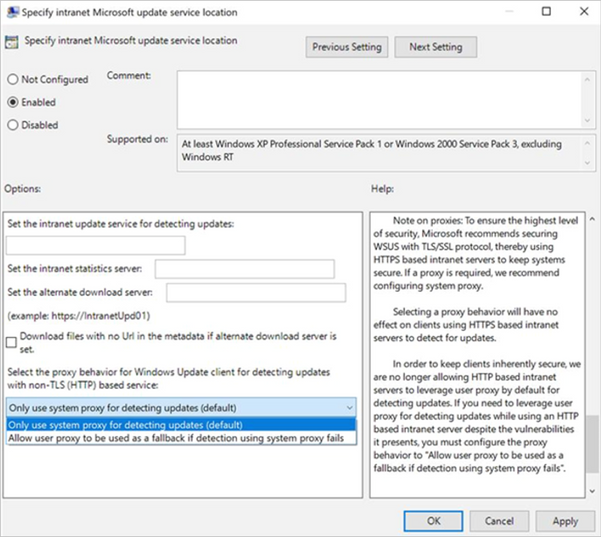
Group Policy path: Windows Components>Windows Update>Specify intranet Microsoft update service location
Configuration Service Provider path: Update/ SetProxyBehaviorForUpdateDetection
Next steps
If you are an IT administrator who currently manages an HTTP-configured WSUS environment and relies on user-based proxy for client scans, please consider taking one of the following actions as soon as possible. If none of these actions are taken your devices will stop successfully scanning for software updates after the September 2020 security update.
Options to ensure that devices in your environment can continue to successfully scan for updates:
- Secure your WSUS environment with TLS/SSL protocol (configure servers with HTTPS).
- Set up system-based proxy for detecting updates if needed.
by Scott Muniz | Sep 8, 2020 | Uncategorized
This article is contributed. See the original author and article here.
With the September 2020 cumulative update for Windows 10, we introduced changes that help improve the security of devices that scan Windows Server Update Services (WSUS) for their updates. This post will describe those changes, outline the actions you need to take to ensure your devices continue to scan for updates, and offer basic recommendations to help you better secure the devices in you organization.
Secure by default
First, beginning with the September 2020 cumulative update, HTTP-based intranet servers will be secure by default. To ensure that your devices remain inherently secure, we are no longer allowing HTTP-based intranet servers to leverage user proxy by default to detect updates. If you have a WSUS environment not secured with TLS protocol/HTTPS and a device requires a proxy in order to successfully connect to intranet WSUS Servers—and that proxy is only configured for users (not devices)—then your software update scans against WSUS will start to fail after your device successfully takes the September 2020 cumulative update.
Recommendations for greater security
To help ensure the security of your WSUS infrastructure, Microsoft recommends using the TLS/SSL protocol between your devices and your WSUS servers. The Microsoft Update system (including WSUS) relies on two types of content: update payloads and update metadata. Update payloads are the data files that contain the software update components that make up the update. Update metadata is all the information that the Microsoft Update system needs to know about the updates, including which updates are available, which devices each update can be applied to, and where to retrieve the payloads for each update. Both types of content are crucial and they both need to be protected to help keep your computers secure and up to date.
Update payloads are protected against modification by multiple means, including digital signature checks and cryptographic hash verifications. HTTPS provides a proper chain of custody which the client uses to prove the data is trusted.
When a device receives updates directly from Microsoft Update, that device receives update metadata directly from Microsoft servers. This metadata is always transmitted via HTTPS to prevent tampering. When you use WSUS or Configuration Manager to manage your organization’s updates, the update metadata travels from Microsoft servers to your devices via a chain of connections. Each one of these connections needs to be protected against malicious attacks.
Your WSUS server connects with Windows Update servers and receives update metadata. This connection always uses HTTPS, and the HTTPS security features guard the metadata against tampering. If you have multiple WSUS servers arranged in a hierarchy, the downstream servers receive metadata from the upstream servers. Here, you have a choice: you can use HTTP or HTTPS for these metadata connections. Using HTTP; however, can be very dangerous as it breaks the chain of trust and can leave you vulnerable to attack. Using HTTPS enables the WSUS server to prove that it trusts the metadata it receives from the upstream WSUS server.
In order to maintain the chain of trust and prevent attacks on your client computers, you must ensure that all metadata connections within your organizations – the connections between upstream and downstream WSUS servers, and the connections between the WSUS servers and your client computers – are defended against attacks. To do so, we highly recommend that you configure your WSUS network to protect these connections using HTTPS. To learn more, see Michael Cureton’s post Security best practices for Windows Server Update Services (WSUS).
Even with HTTPS configured, it is still very important that you utilize a system-based proxy rather than a user-based proxy if a proxy is needed. When using a user-based proxy, a user, even one without elevated privileges, could intercept and manipulate the data being exchanged between the update client and the update server.
Recommendations for those who absolutely need user proxy
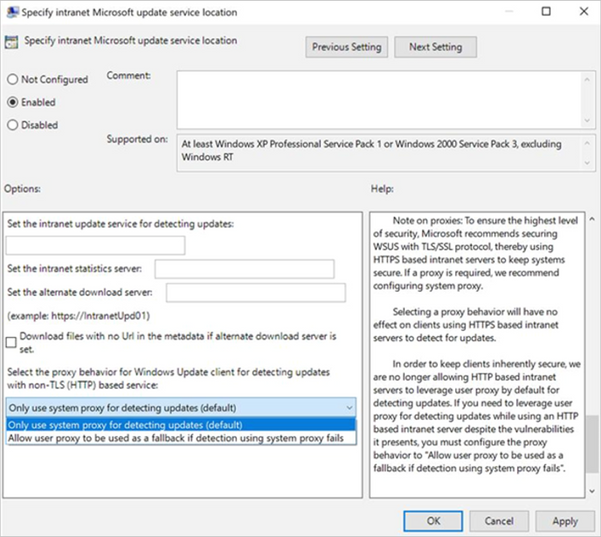
If you do need to leverage a user-based proxy to detect updates while using an HTTP-based intranet server, despite the vulnerabilities it presents, make sure to configure the proxy behavior to “Allow user proxy to be used as a fallback if detection using system proxy fails.”
Group Policy path: Windows Components>Windows Update>Specify intranet Microsoft update service location
Configuration Service Provider path: Update/ SetProxyBehaviorForUpdateDetection
Next steps
If you are an IT administrator who currently manages an HTTP-configured WSUS environment and relies on user-based proxy for client scans, please consider taking one of the following actions as soon as possible. If none of these actions are taken your devices will stop successfully scanning for software updates after the September 2020 security update.
Options to ensure that devices in your environment can continue to successfully scan for updates:
- Secure your WSUS environment with TLS/SSL protocol (configure servers with HTTPS).
- Set up system-based proxy for detecting updates if needed.
by Scott Muniz | Sep 8, 2020 | Uncategorized
This article is contributed. See the original author and article here.
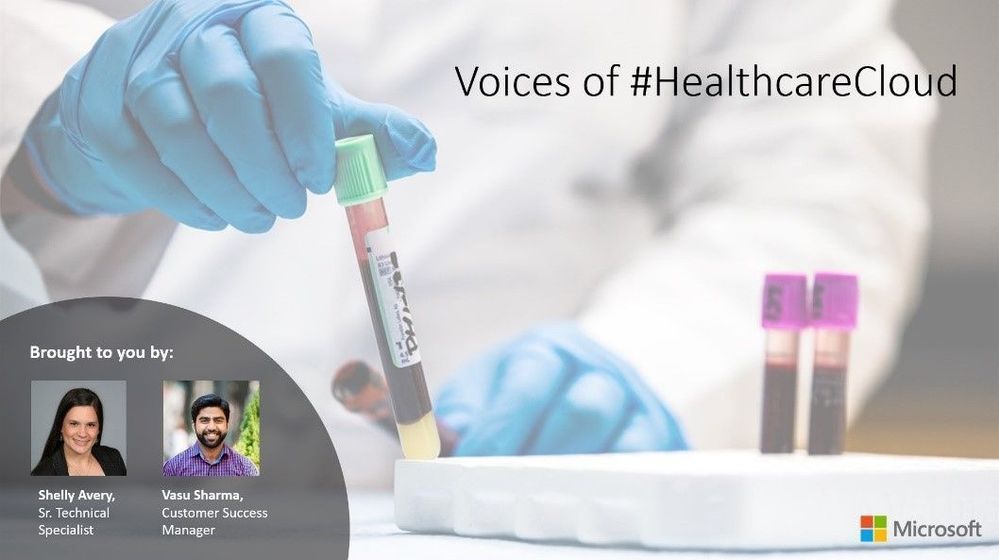
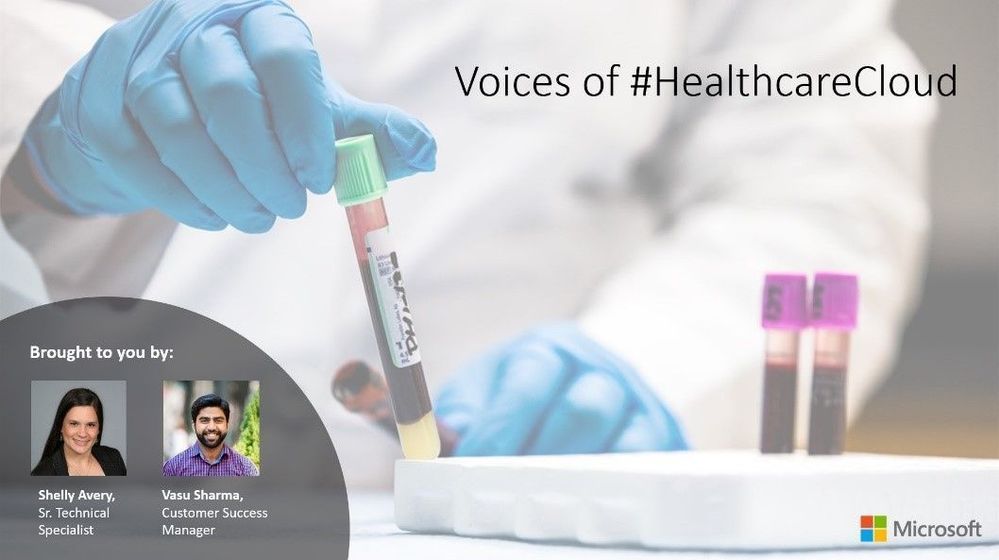 Voices of #HealthcareCloud is a new webinar series focused on how Healthcare is seeing positive business and clinical outcomes with cloud technology.
We will be bringing new and creative solutions to you at least once a month so we hope you tune in live or catch the on-demand series after the session is completed.
For the upcoming session on September 15 at 10a PST, we’ll talk about how to leverage the power of the Microsoft cloud to break down functional boundaries and improve cross functional collaboration. Learn how to set up and run multi-disciplinary huddles using the power of Microsoft Teams.
We’ll look to cover the building blocks and touch on some potential use cases including
- Tiered huddles
- Care coordination
- Situational awareness
- Discharge planning
To download the invite, click here.
To join the event, click here.


Recent Comments