by Scott Muniz | Sep 10, 2020 | Uncategorized
This article is contributed. See the original author and article here.
Last year we announced the July 31, 2021 retirement of Skype for Business Online. In addition to the discontinuation of Skype for Business Online, other “Hybrid Voice” configurations that depend on the service will require changes as well.
Organizations with hybrid Skype for Business configurations for on-premises Public Switched Telephone Network (PSTN) connectivity and online Phone System capabilitiesSome organizations have split users between homed on-premises for PSTN connectivity and homed online for Phone System capabilities. Once access to Skype for Business Online ends, organizations will need to transition online users to Microsoft Teams and connect their on-premises telephony network to Teams through
Direct Routing.
Skype for Business Online customers using Cloud Connector Edition to integrate Phone System services from the Microsoft cloud with their existing on-premises configuration (PBX, call centers, devices, etc.) and PSTN connectivityAs Skype for Business Cloud Connector Edition (CCE) was designed as a virtual on-premises deployment to bridge Skype for Business Online with a customer’s on-premises setup and PSTN connectivity, CCE will also retire July 31, 2021 along with the Skype for Business Online service. Once an organization has transitioned from Skype for Business Online to Teams Only, they can connect their on-premises telephony network to Teams through
Direct Routing. To learn more about Direct Routing in Microsoft Teams, watch this helpful
Coffee in the Clouds video.
See you on Teams!
by Scott Muniz | Sep 10, 2020 | Uncategorized
This article is contributed. See the original author and article here.
Remote work today means much more than just connecting to a meeting from your home office or sending a few emails from your phone. The tools that support remote work need to be flexible, secure, and help us work and live smarter—and that means having all our apps and files at our fingertips, whenever and wherever we want.
The Surface team at Microsoft has been hard at work building versatile devices that meet those very needs. The new Surface Duo is designed to revolutionize the way we work. Featuring two screens that are connected by a revolutionary 360-degree hinge, Surface Duo brings together the best of Microsoft 365 together with Android apps to strike the perfect balance of productivity and mobility in a single device.
The OneDrive app is a critical component of Surface Duo and is fully integrated into the Surface Duo operating system to ensure you stay connected to your files while making the most of the dual-screen and spanning capabilities. What’s more, you can manage all your multiple accounts from OneDrive—so you can use your device to switch between personal, professional, and school accounts.
Ready to reimagine productivity on the go? Take a closer look at how OneDrive delivers superior user experiences in the new Surface Duo.
Dual-screen display for anytime, anywhere access to files
With the OneDrive app for Surface Duo, you’ll have all your files at your fingertips so you can create, edit, collaborate, share, delete, and even recover files directly from your device. You can also mark files and folders for offline access and work on them whenever and wherever you need. So, if you are on a flight without internet access and need to read that financial report or a bunch of marketing research on your Surface Duo, you’re covered—just select the files for offline access and you’ll be good to go.
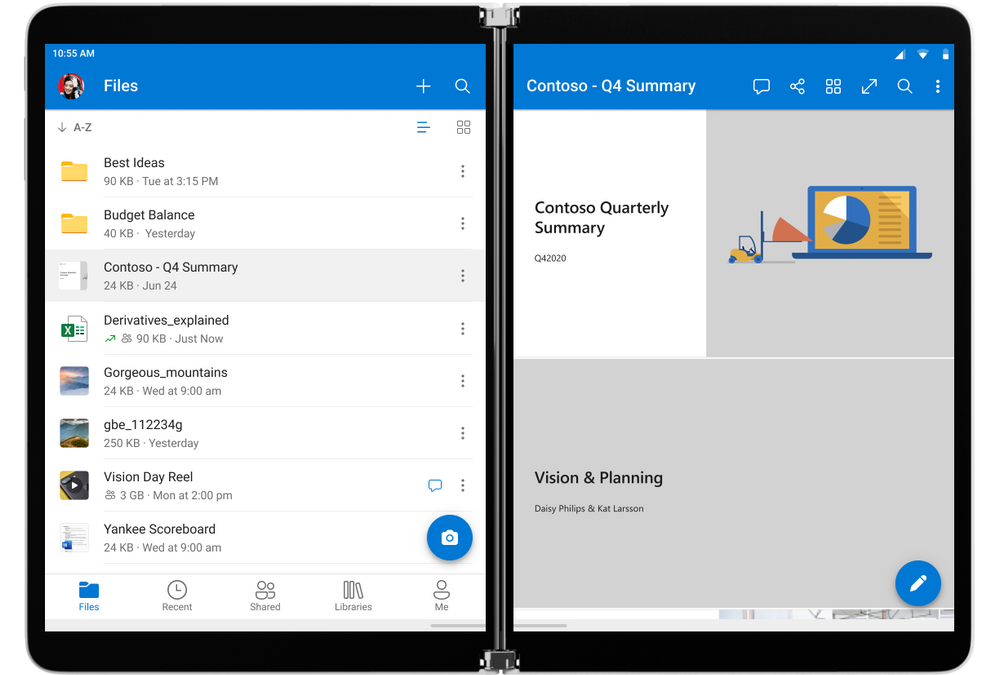
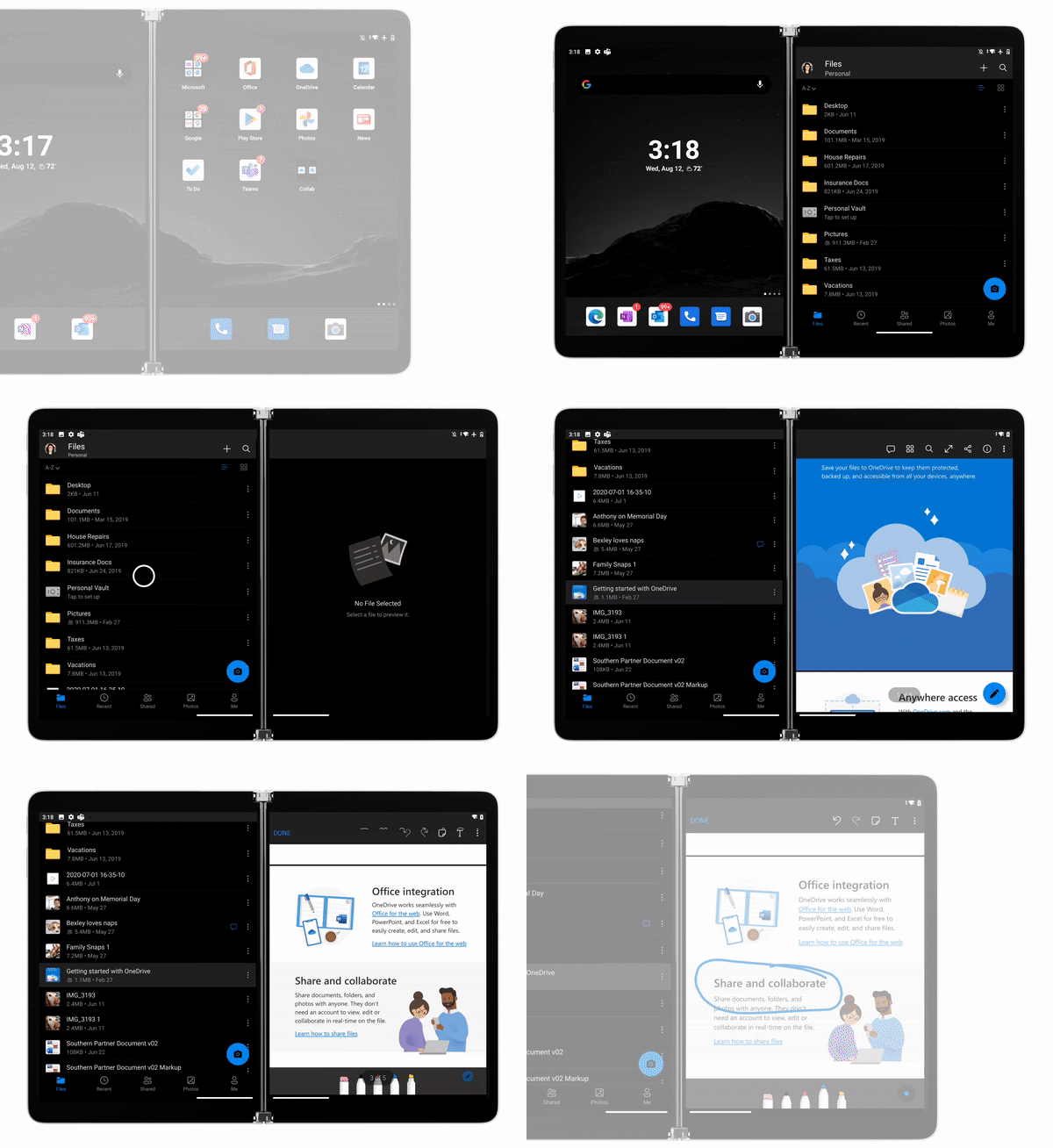
Because the OneDrive app was tailormade for Surface Duo, the display adjusts automatically according to your actions. With the dual screens, you can swiftly scroll through the OneDrive file browser on the left screen to select a file, and simultaneously view a preview of the file’s contents on the right screen.

On-the-go collaboration that drives teamwork
Need to collaborate on a sales report while travelling for work? Collaboration is the cornerstone of remote productivity, and OneDrive for Surface Duo was designed to enable fluid teamwork from anywhere.
Using OneDrive, you can securely share files with colleagues or vendors outside of your organization directly, via email or a chat in Microsoft Teams. You can also edit and coauthor documents and other files in real time with your peers—it’s easy to grab their attention by adding comments to the files with @mentions.
Note: To edit and co-auth, simply use the Office apps on Surface Duo; the file remains in OneDrive so you are working with others on the single source of truth.
And on your way back from that work trip, don’t forget to use OneDrive on your Surface Duo to share photos with your family and friends.
Easier multitasking with drag-and-drop functionality
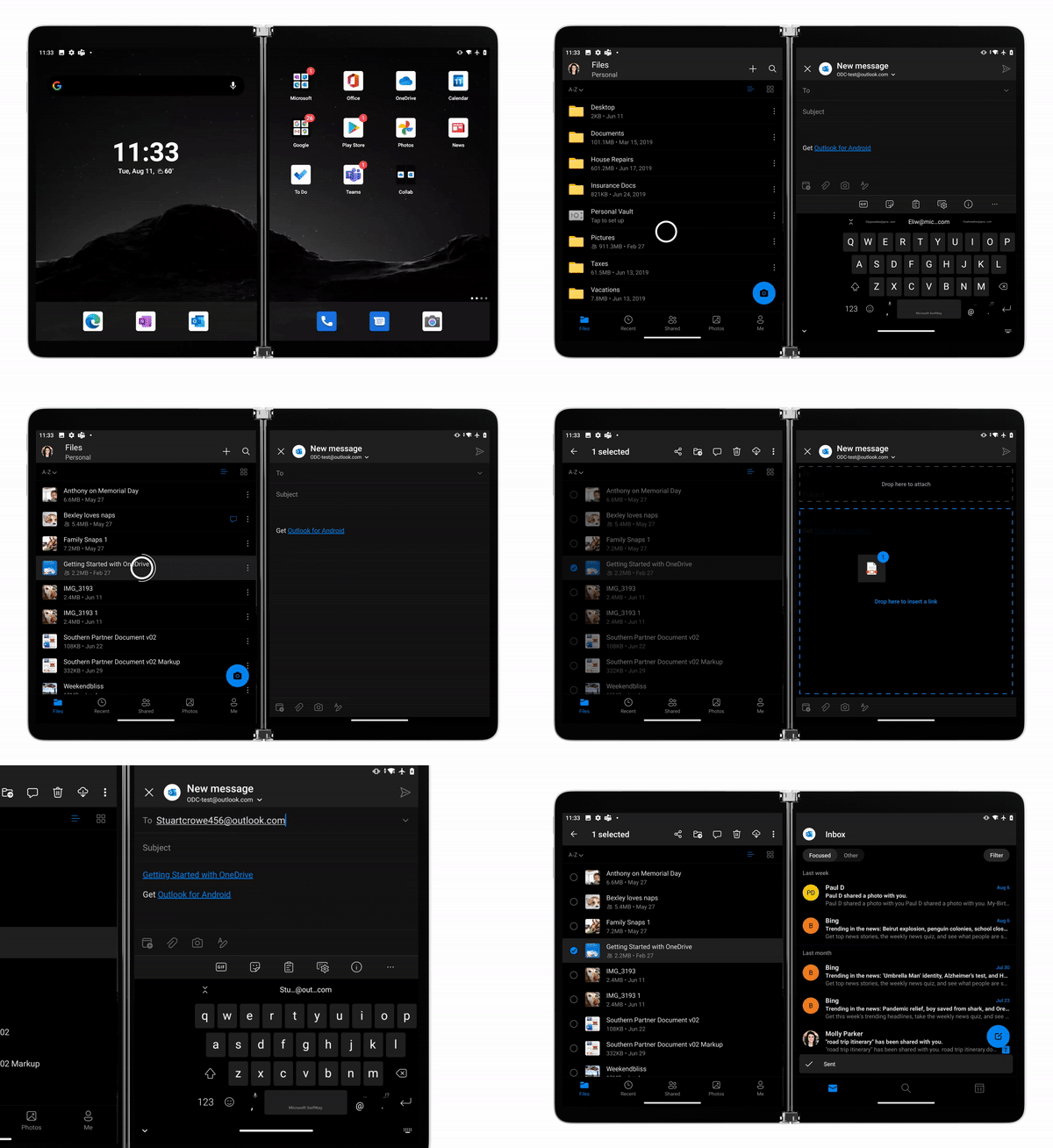
The dual-screen layout of OneDrive in Surface Duo elevates the user experience for multitasking on the go. With drag-and-drop capabilities, you can quickly move files and folders within OneDrive. Or take advantage of the dual screens to open another app alongside OneDrive to drag files where they’re needed.
Perhaps the most striking scenario is the ability to drag files from OneDrive into an Outlook email message to add as an attachment. You can also move files in the other direction—just drag the attachment from Outlook to OneDrive. This functionality extends to other apps as well, enabling remote collaboration as users move files from a OneDrive folder to a shared library in SharePoint or a chat in Microsoft Teams.
Book-like reading experiences—and a PDF editor with intuitive markup
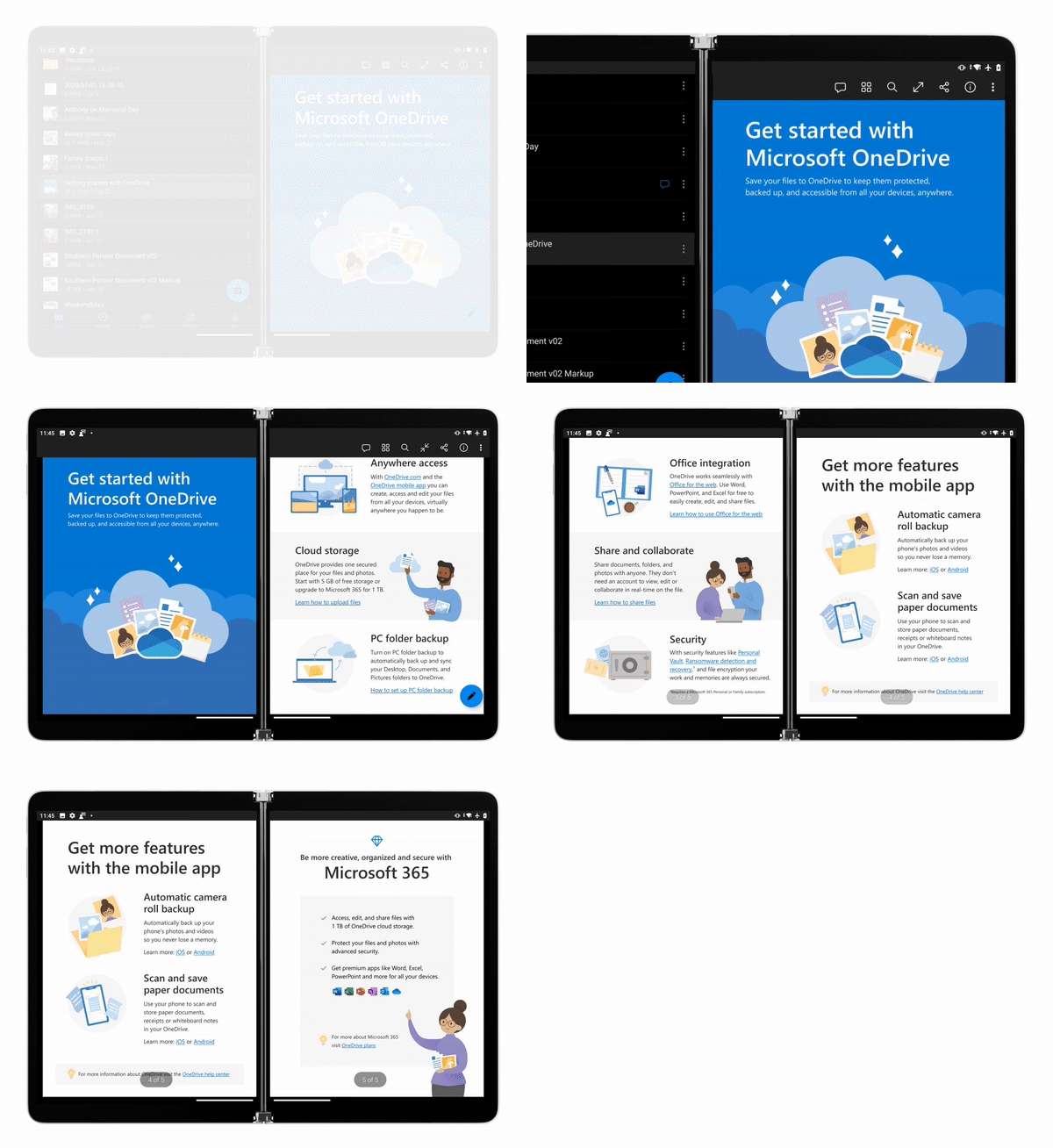
A major “wow” factor of the OneDrive app for Surface Duo is Book mode, which allows you to read files (Word, Excel, PowerPoint, and PDF) across both screens of the foldable device. Every time you swipe left, the page turns just like a book—delivering a seamless and familiar experience for reading textbooks, e-books, or long documents.
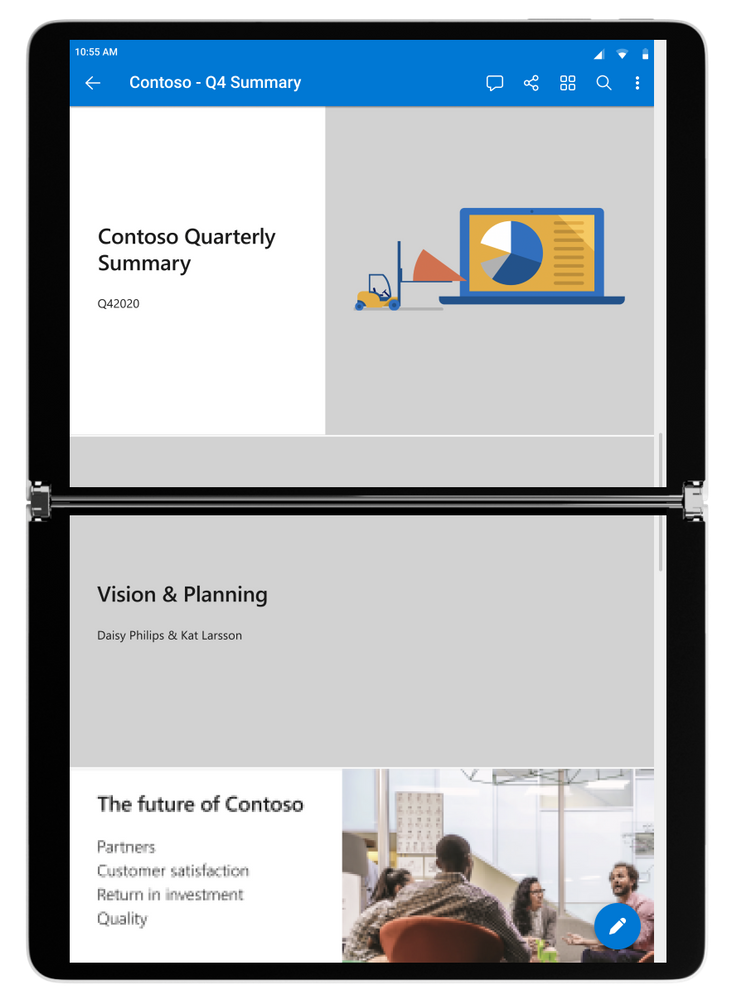
The screen for the Surface Duo adjusts whenever you rotate the device, so whether it’s in landscape mode or portrait mode, your reading experience will remain consistent.
Another enhancement is the ability to annotate a PDF file with highlights or notes. With OneDrive, you can take advantage of the built-in PDF editor that’s designed around quick actions, leading to a truly mobile-first markup experience. Markup is intuitive and touch-friendly with pens, highlighters, and an eraser—all found at the bottom of the screen. You can also connect the Surface Pen to the device and configure shortcuts for it in the Connect Devices menu. Whether you use a Surface Pen or your fingertip, you can save, sign, and share legal documents directly from the Surface Duo.
A modern approach to saving, digitizing, and sharing photos and media
Saving and sharing images while on the go is a snap with the OneDrive app for Surface Duo. Thanks to its deep integration with the Surface Duo operating system, OneDrive makes it easy for you to store photos, videos, and any business-critical media directly in the cloud. By simply turning on the camera upload in OneDrive, your content will be automatically backed up, ensuring it stays protected and available from anywhere.
Similar to the functionality for documents, sorting and viewing photos in OneDrive is unique to the dual-screen Surface Duo. Because OneDrive spans both screens, you can scroll through your photo library on the left display while viewing selected images on the right display. Once you’ve selected the image or media file, you can choose share them with your friends, family and colleagues from anywhere and anytime.
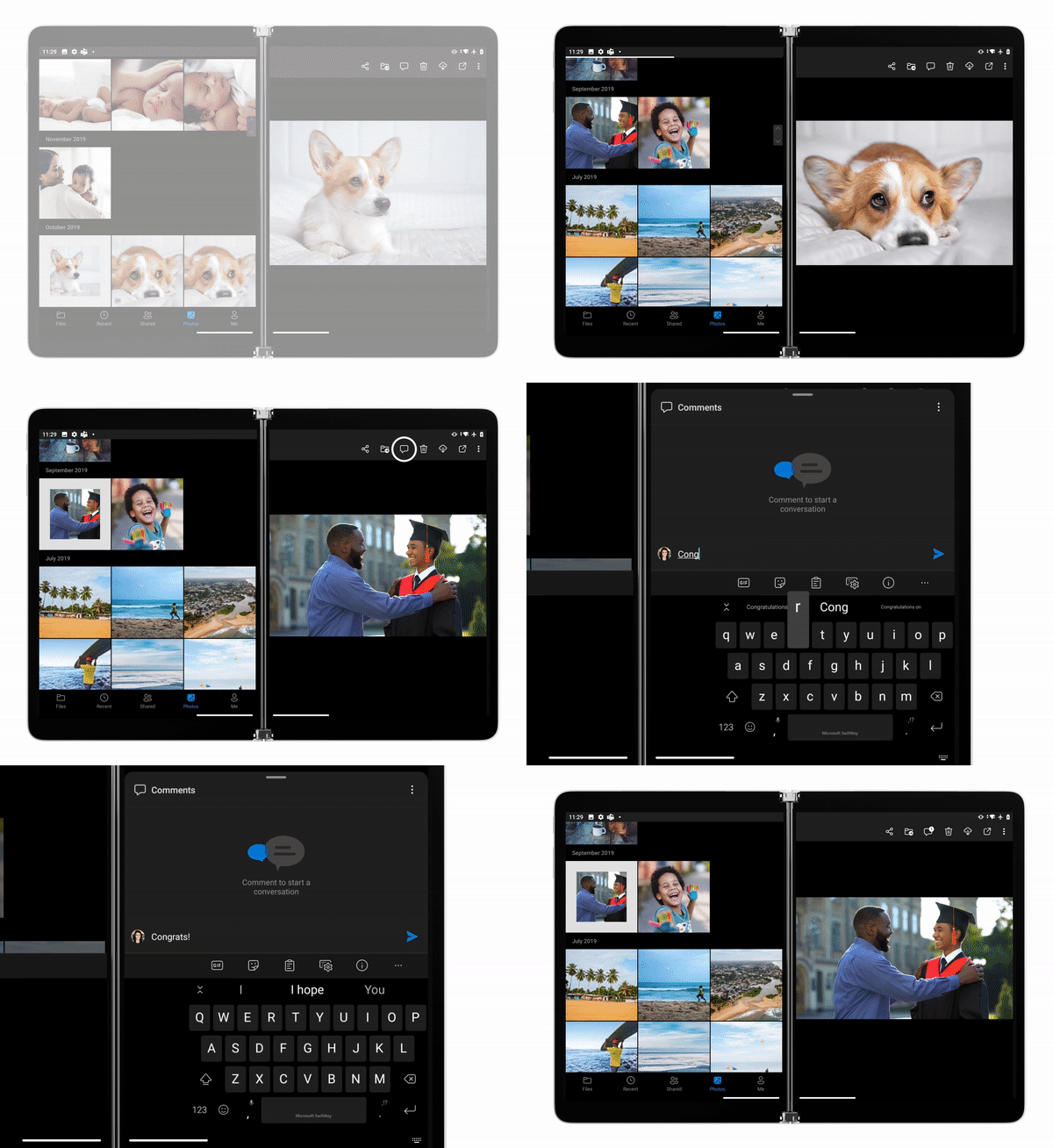
The popular “On this day” feature in OneDrive for Android has also been extended to Surface Duo. The app highlights photos taken on that specific day in past years, so you can take a stroll down memory lane and relive some of your treasured moments on your Surface Duo.
by Scott Muniz | Sep 10, 2020 | Uncategorized
This article is contributed. See the original author and article here.
Microsoft is excited to announce Day 0 management support for the Surface Duo device, available starting today! You’ll be able to use all your favorite enterprise controls for Android from the Microsoft Endpoint Manager admin center, including:
- Conditional Access
- App Protection Policies
- Android Enterprise management
You will find several improvements in the managed Duo experience including:
- Dual screen optimizations
- the Company Portal app and Microsoft Authenticator app are pre-installed
- We have made a number of Company Portal and Work Profile improvements which you’ll see reflected in the Duo experience, including:
Here’s a quick peek at the protected app experience on the Duo:
Visit the product documentation for the latest information on upcoming features and support for Surface Duo in Microsoft Endpoint Manager.
More info and feedback
Are your users already enrolling the new Duo devices? As always, we want to hear from you! If you have any suggestions, questions, or comments, please share with us on our Tech Community page.
For more information on how to deploy Microsoft Endpoint Manager, add our detailed technical documentation as a browser favorite. Don’t have Microsoft Intune? Start a free trial or buy a subscription today!
Follow @MSIntune on Twitter
(This article is co-authored with Esther Salter, Program Manager, Microsoft Endpoint Manager)
by Scott Muniz | Sep 9, 2020 | Uncategorized
This article is contributed. See the original author and article here.
One of the top requests we see in the Universal Print Tech Community is the ability to deploy printers with Microsoft Intune. We take your feedback seriously and are excited to how deliver the Universal Print printer provisioning tool, which can be used to deploy Universal Print printers with Microsoft Endpoint Manager!
Universal Print simplifies adding printers for users by:
- Allowing users to add printers to their Windows 10 devices without being a local administrator on that device.
- Allowing print administrators to add location attributes to printers. If configured, users can find the printer nearest to them based on GPS or other location attributes of the printer.
As many schools and organizations manage Windows devices with Microsoft Endpoint Manager, an integration between Microsoft Endpoint Manager and Universal Print is a natural requirement. You may, for example, need to automatically add printers to your Windows devices. A cloud-based print infrastructure does not change that need for Azure AD joined devices. Many users expect printers to come pre-configured on their Windows devices and leave it to the IT team or office manager to identify the best printer(s) for them. The ability to pre-configure printers, therefore, can reduce helpdesk calls about printer installation and give you more control. This becomes even more important when employees are working from home, but still need to send print jobs to an office printer to keep certain business processes going.
Although IT admins can, of course, control which printers a user can add, pre-configuring printers on user devices remains a useful, high-demand feature. The Universal Print printer provisioning tool allows administrators to do exactly this!
Before you begin
Before using the tool, please ensure that the following steps have been completed:
- Meet the requirements outlined in Get started documentation.
- Install the following monthly cumulative update, or later, for your Windows 10 devices:
Accessing the tool
Administrators can download the Universal Print printer provisioning tool from the Microsoft Download Center and learn how to use it by referring to the Universal Print printer provisioning tool documentation.
The download contains:
- An Intune Win32 application package.
- Samples and templates:
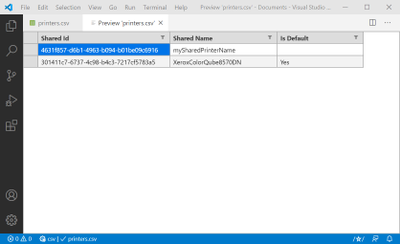
- A sample printers.csv configuration file that may be used as a reference to create printers list to be deployed on users’ devices.
- A command-line script that copies the printers.csv file to appropriate file location on users’ Windows 10 devices.
How the Universal Print printer provisioning tool works
To deploy Universal Print printers via Microsoft Endpoint Manager, the steps are as follows:
- Using Microsoft Endpoint Manager, publish the downloaded Intune Win32 application package to all Windows 10 devices where printers need to be deployed. This will install the Universal Print printer provisioning tool on all target Windows 10 client devices.
- Create a “printers.csv” configuration file with list of the printers that need to be added to the target user devices.
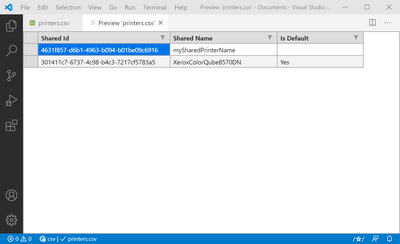
Note: Name of file cannot be localized or changed. It needs to be “printers.csv”.
If different user groups need to have a different printer list, a second “printer.csv” must be created. You will have to repeat this step for each such user group.
- Generate a new custom Intune Win32 application package that contains the printers.csv file and the command script (downloaded as sample).
- Using Microsoft Endpoint Manager, deploy the custom package to the target user group.
The Universal Print printer provisioning tool is added as a very light background service on the Windows 10 device. When users sign in to their Windows 10 device, this background service receives a user login event notification. This event triggers a workflow that looks for the “printers.csv” file. When the file is found, printers from the file are added one-by-one to the Windows 10 device
Configurating a default printer
When creating the “printers.csv” file, you can specify one printer as the default printer. If the policy to let Windows manage the default printer is turned off on the user’s Windows 10 device, then corresponding printer in “printers.csv” is set as default printer on their device.
More detailed instructions on how to use the tool can be found in the Universal Print documentation.
We want to hear from you!
We hope you will download and try the Universal Print printer provisioning tool today—and we would love to hear your feedback on how we can make this tool even better. This is just the first step and we hope it will help you evaluate the Universal Print public preview for your organization.
Please let us know what you think by leaving a comment in the Universal Print Tech Community!
by Scott Muniz | Sep 9, 2020 | Azure, Technology, Uncategorized
This article is contributed. See the original author and article here.
Recently I was working with a customer who wanted to use Azure Files to help alleviate the on-premises storage issue where they were rapidly running out of space. One of the targets to help alleviate this issue were the sizeable file shares that migrating to Azure Files would allow for a large amount of on-premises space to be freed up.
Namespaces
One of the challenges that the customer had was that there were LOB applications that would files on these shares, and the namespace they used were hard coded into the applications and could not be easily modified across the entire enterprise in a timely manner. The migration to Azure Files would definitely change those namespaces and break these LOB applications.
DFS-N
DFS Namespaces is a role service in Windows Server that enables you to group shared folders located on different servers into one or more logically structured namespaces. This makes it possible to give users a virtual view of shared folders, where a single path leads to files located on multiple server.
By installing Stand-Alone DFS-N on the current file servers they were able to keep the same namespace but map it to Azure Files endpoints without interruption to their LOB apps. This allowed for freeing up of the significant storage space that the file shares were taking up as the shares were migrated, though it did leave the file servers up until the LOB applications could be updated.


Recent Comments