by Scott Muniz | Sep 10, 2020 | Azure, Technology, Uncategorized
This article is contributed. See the original author and article here.
Azure Lab Services provides many features that help you to minimize costs while providing students lab environments that they can access from anywhere, any time of day. These features are optimized when you structure your labs so that you use one lab per class. Adopting this lab structure when you move from a physical lab will also help you select the appropriate VM size to use.
Problem
Usually a physical lab is shared by students from multiple classes. As a result, all of the classes’ software applications are installed together at once on each computer. When a class uses the lab, students only run a subset of the applications that are relevant to their class.
This type of physical computer lab often leads to increased hardware requirements:
- A large disk size may be required to install the variety of applications that are needed by the classes that are sharing the lab.
- Some applications require a larger VM size compared to others. When all of these applications are installed together in the same lab, each computer must have sufficient hardware to run the most compute-intensive applications. This level of hardware is essentially wasted for classes that only use the lab to run applications that require less memory and compute power.
Solution
Azure Lab Services is designed to use hardware more efficiently so that you only pay for what your students actually need and use.
With Azure Lab Services, labs are structured to be more granular:
- One lab is created for each class (or session of a class).
- On the lab’s image, only the software applications that are needed by that specific class are installed.
This structure helps to lessen the disk size that is needed (Azure Lab Services’ currently supports a disk size of 127 GB). Also, this helps you identify the appropriate VM size based on the workloads that students are expected to perform for each class.
In addition, the following features are designed to minimize costs when you create one lab per class:
- Schedules are used to automatically start and stop all VMs within a lab according to each class’s schedule.
- Quotas allow you to control the amount of time that each class’s students can access VMs outside of their scheduled hours.
Last but not least, access to each individual lab is controlled – students are only granted access to labs for classes that they are enrolled in.
Example
Let’s assume we’re moving a physical lab to Azure Lab Services and that the physical lab is shared by multiple classes such as:
- An engineering class that uses SolidWorks with 100 students enrolled.
- A math class that uses MATLAB that also has 100 students enrolled.
Since our physical lab is shared by the above two classes, each computer has both SolidWorks and MATLAB installed along with various other common applications, such as Word, Excel, etc. Also, it’s important to note that SolidWorks is more compute-intensive since it typically requires a GPU.
To move this physical lab to Azure Lab Services, we will:
- Create two labs; one for the engineering class and another for the math class.
- Create two images; one with SolidWorks installed and another with MATLAB.
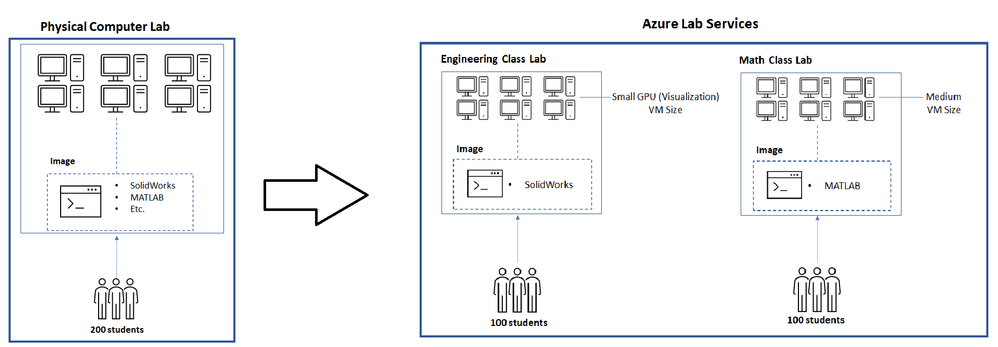
Since SolidWorks requires a GPU, the lab for this uses the Small GPU (Visualization) VM size. However, MATLAB only requires a Medium VM size.
The image below shows how the structure changes when moving this physical lab to Azure Lab Services.

Cost Analysis
An important point from the above example is that the cost per usage hour for the two VM sizes is substantially different:
- Small GPU (Visualization) provides high compute-power and as a result, the cost is $1.60 per usage hour (or 160 lab units).
- Medium provides less compute power but is suitable for many types of classes; it costs only $0.55 per usage hour (or 55 lab units).
You save costs by creating separate labs using the smallest VM size that is needed for each class.
To see the savings, let’s estimate that each student will use their VM for a total of 10 hours and compare costs for using a single lab vs. separate labs.
A single lab using the Small GPU (Visualization) size that is shared by students from both the engineering and math classes is estimated to cost the following:
- 10 hours * 200 students * $1.60 = $3200
Separate labs that use the Small GPU (Visualization) size for engineering and Medium size for math are estimated to cost the following:
- Engineering class lab
- 10 hours * 100 students * $1.60 cost per hour for Small GPU (Visualization) = $1600
- Math class lab
- 10 hours * 100 students * $0.55 cost per hour for Medium = $550
The total of both the engineering and math labs is $2150.
By structuring the labs to be more granular, this results in a cost savings of $1050! Also, keep in mind that you only pay for the number of hours that your students actually use their VMs. If students use their VMs less than this, the actual costs will be lower.
Helpful Tips
When you start using Azure Lab Services, IT and faculty should coordinate early in the planning process to:
- Identify the specific software applications that each class requires.
- Understand the workloads that students will perform using the lab.
This information is needed to choose the appropriate VM size when you create a lab and to set up the image on the template VM.
To ensure that you choose the appropriate VM size, we recommend starting with the minimum VM size that meets the hardware requirements for your applications. Then, have faculty connect to a lab VM to validate common workloads that students will perform to ensure the performance and experience is sufficient. It’s helpful to refer to the Class Types which show real-world examples of how to set up applications for classes along with the recommended VM size.
Also, Shared Image Gallery is useful for creating and storing custom images. This allows you to create an image once and reuse it to create multiple labs.
We hope that you find this post helpful as you start moving your physical labs to Azure Lab Services.
Thanks!
by Scott Muniz | Sep 10, 2020 | Uncategorized
This article is contributed. See the original author and article here.
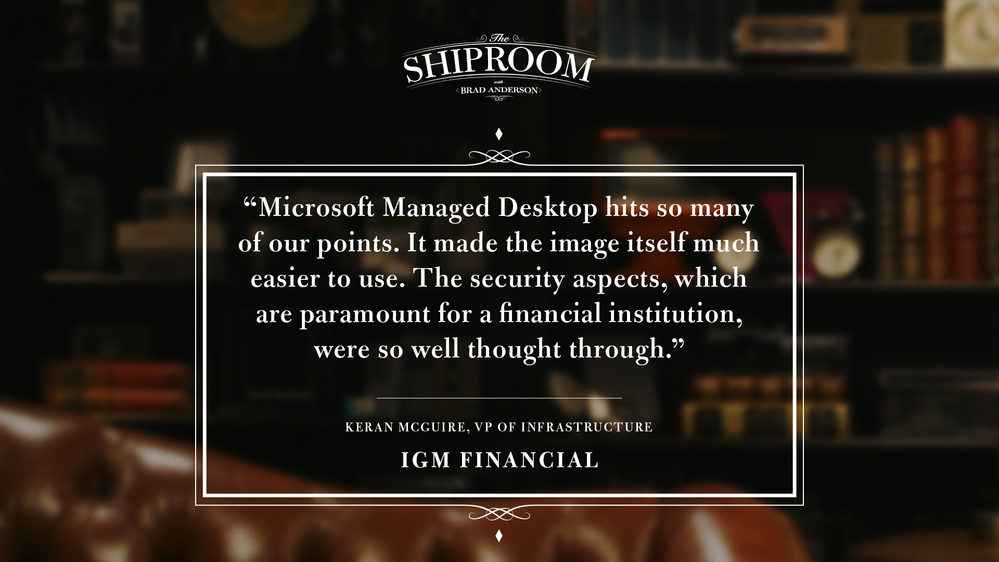
Keeping up with The Shiproom is always worthwhile, but I’m especially excited to share this episode highlighting IGM Financial and its path to modernization via Microsoft Managed Desktop.
Keran McGuire, VP of Infrastructure Services at IGM Financial, shares how the organization of 5,000 decided to outsource desktop management, and why user experience and security were essential to their vendor selection.
I helped introduce Microsoft Managed Desktop as a possible solution for IGM, so I’m biased, but any of our blog readers should make a point of watching this episode. And it’s not only because Brad Anderson interviews are both insightful and distinctly hilarious.
IGM exemplifies key market segments where the Microsoft Managed Desktop value prop resonates.
Starting fresh: We see traction among mergers, acquisitions, joint ventures, divestitures, and well-funded startups. IGM Financial was likewise divesting its IT services from a sister company, Canada Life, and had a chance to start fresh. These organizations typically have mature leadership, a desire to be modern from the start, and a strong preference to scale IT investments over time instead of incurring technical debt at the outset.
UX-obsessed: IGM’s prioritization of user experience in the managed desktop solution is a clear trend among a growing number of organizations that recognize device productivity as a driver of job satisfaction.
Security-minded: Highly-regulated market segments like financial services, healthcare, and government are rarely on the bleeding edge of technology adoption. But, as Keran describes with IGM, the unique combination of security and productivity is a game changer. I’ve been lucky to tap the expertise of my colleague, technical specialist Eric DeLorme, to help such customers evaluate Microsoft Managed Desktop against their stringent security requirements.
If your organization fits any of those trends, you owe it to yourself to learn about Keran’s experience leading IGM to Microsoft Managed Desktop.
What’s your favorite moment between Brad and Keran? Share your feedback in the comments, and be sure to subscribe to our blog for more great content about Microsoft Managed Desktop.
by Scott Muniz | Sep 10, 2020 | Uncategorized
This article is contributed. See the original author and article here.
Are you looking for work in the tech world—or do you know someone who is? If you’ve been economically displaced, laid off, or furloughed due to the COVID-19 crisis, we’re here to help.
On June 30, Microsoft announced an initiative to help people worldwide acquire new digital skills for the COVID-19 economy and beyond, using data to identify roles most in-demand, such as Software Developer, Data Analyst, and IT Administrator. Access free training content to help develop skills aligned to in-demand jobs and earn a Microsoft Certification to help you stand out to get back in the workforce. Schedule a discounted certification exam for USD15 by December 31, 2020 and take the exam by March 31, 2021.
Certification empowers workers
In a time of rapid digital transformation, getting trained and earning a Microsoft Certification can help accelerate your ability to land an in-demand role and grow your career. As business needs evolve, certification increases credibility, giving individuals a professional advantage by providing globally recognized, industry-endorsed evidence of mastering skills. It offers you the opportunity to demonstrate your technical abilities and willingness to embrace new technologies. Continue learning and earn a Microsoft Certification to achieve more business value, build a track record of increased productivity, and create a simplified way for others to identify your talent, skills, and experience.
“Microsoft role-based certifications are meaningful and relevant to people’s jobs. It doesn’t require learning all the arcane facts or bits of systems you hardly ever touch; it’s much more relevant to the role and therefore, has much more value to employers, to their managers, and to their peers.”
-Julian Sharp, Solutions Architect and Microsoft Certified Trainer
When you’ve successfully achieved your certification, you’ll be able to update your LinkedIn profile with certification information that can help you attract recruiters and potential employers.
Get started
Are you ready to skill up and prepare for in-demand tech roles? Learn about the Microsoft Certifications available through this offer, and find out how you can prepare and schedule an exam by checking out Become Microsoft certified and build your resilience for today’s and tomorrow’s digital economy.
Related announcement
by Scott Muniz | Sep 10, 2020 | Uncategorized
This article is contributed. See the original author and article here.
Microsoft System Center 2012 Configuration Manager has a support and servicing lifecycle during which we provide new features, software updates, security fixes, etc. This lifecycle lasts for a minimum of 10 years from the date of the product’s initial release. The end of the lifecycle is known as the product’s end of support.
On July 12, 2022, the following products will reach end of support.
End of support for the following platforms was previously announced:
- System Center Endpoint Protection for Mac and Linux (EOS 12/31/2018)
- System Center Configuration Manager client for Linux and UNIX (EOS 3/27/2019)
We recommend that you upgrade your Configuration Manager 2012 and Endpoint Protection 2012 infrastructure as soon as possible to the latest version of Microsoft Endpoint Configuration Manager.
What does end of support mean?
Although ConfigMgr 2012 and SCEP 2012 will continue to function after July 12, 2022, Microsoft will no longer provide:
- Technical support for problems that may occur.
- Security updates or fixes.
- Microsoft plans to discontinue definition, engine, and platform updates for SCEP 2012 once the end of support is reached. This discontinuation may occur without any notice.
What should I do to prepare?
To prepare for end of support, we recommend that you do the following:
What else should I consider?
Additional Resources
Windows Lifecycle FAQ Sheet
Upgrade options for SQL Server
Extended Security Updates and Configuration Manager
by Scott Muniz | Sep 10, 2020 | Uncategorized
This article is contributed. See the original author and article here.

Microsoft 365 & SharePoint Ecosystem (PnP) September 2020 update is out with a summary of the latest guidance, samples, and solutions from Microsoft or from the community for the community. This article is a summary of all the different areas and topics around the community work we do around Microsoft 365 and SharePoint ecosystem during the past month.
Thank you for being part of this initiative. Sharing is caring!
Got feedback, suggestions or ideas? – don’t hesitate to contact.


Recent Comments