by Scott Muniz | Sep 11, 2020 | Uncategorized
This article is contributed. See the original author and article here.
As of today, organizations with Microsoft 365 and Windows 10 Enterprise and Education subscriptions are eligible to enable the Universal Print preview.
Microsoft 365 brings together Office, Enterprise Mobility + Security, and Windows 10 Enterprise to empower people with the most innovative productivity tools. In previous weeks, we enabled the Universal Print preview for Microsoft 365 Enterprise and Education subscriptions. For Microsoft 365 Enterprise, Microsoft 365 E3 and E5 subscriptions are currently eligible for Universal Print. On the Microsoft 365 Education side of the house, Microsoft 365 A3 and A5 subscriptions are eligible.
Today, we are adding Windows 10 Enterprise E3 and E5, as well as Windows 10 Education A3 and A5 to the list of subscriptions eligible for the Universal Print preview. Enable the trial in in your tenant today!
If your organization subscribes to Office 365 and/or Enterprise Mobility + Security, but not Windows 10 E3, E5, A3 or A5, you are not eligible for Universal Print.
Microsoft 365 F3 and Microsoft 365 Business Premium will be eligible for Universal Print in the future. They are still on our “to-do” list, so stay tuned for updates!
To learn more, please read accessing the Universal Print public preview for step-by-step instructions, support links, and answers to frequently asked questions.
And don’t forget to participate in the community discussions (we are there too!) and share your ideas and feature requests as you try it out.
Try Universal Print today!
by Scott Muniz | Sep 10, 2020 | Azure, Technology, Uncategorized
This article is contributed. See the original author and article here.
My customer is having On-premises Hadoop environment with a data volume of approximately 80 Petabytes. As they started evaluating Azure to store their cognizant data which will be extracted from the On-Premises Hadoop environment and will be loaded to Azure Storage.
This cognizant data will be then further processed and analyze using Azure Synapse Analytics
We started evaluating this cognizant data which is coming close to 5 Petabytes. And this volume needs to be loaded to the Azure Data Lake Storage Gen 2 for further processing.
- As Azure Data Factory had already proved to be one of the best tools to do data migration between data lake by its performance, robustness, and cost-effective mechanism to migrate data at scale. Some of the customers have successfully migrated petabytes of data consisting of hundreds of millions of files from On-premises to Azure via ADF with a sustained throughput of 2 GBps and higher.
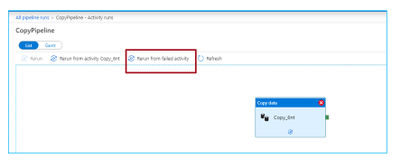
With the latest resume copy feature, customers can get benefits when they are loading very large data with control the process on data migration, and saving effort and time on data partitions or any solutions explicitly created for high resilience.
Below is the way how to resume the copy activity from the last failure point at file level:

More guidance on best practices of using ADF for data lake migration:
Use Azure Data Factory to migrate data from your data lake or data warehouse to Azure
Use Azure Data Factory to migrate data from an on-premises Hadoop cluster to Azure Storage
Azure Data Factory copy activity documentation
Data Factory offers two basic approaches for migrating data from on-premises HDFS to Azure. You can select the approach based on your scenario.
- Data Factory DistCp mode (recommended): In Data Factory, you can use DistCp (distributed copy) to copy files as-is to Azure Blob storage (including staged copy) or Azure Data Lake Store Gen2. Use Data Factory integrated with DistCp to take advantage of an existing powerful cluster to achieve the best copy throughput. You also get the benefit of flexible scheduling and a unified monitoring experience from Data Factory. Depending on your Data Factory configuration, copy activity automatically constructs a DistCp command, submits the data to your Hadoop cluster, and then monitors the copy status. We recommend Data Factory DistCp mode for migrating data from an on-premises Hadoop cluster to Azure.
- Data Factory native integration runtime mode: DistCp isn’t an option in all scenarios. For example, in an Azure Virtual Networks environment, the DistCp tool doesn’t support Azure ExpressRoute private peering with an Azure Storage virtual network endpoint. In addition, in some cases, you don’t want to use your existing Hadoop cluster as an engine for migrating data so you don’t put heavy loads on your cluster, which might affect the performance of existing ETL jobs. Instead, you can use the native capability of the Data Factory integration runtime as the engine that copies data from on-premises HDFS to Azure.
Network security- By default, Data Factory transfers data from on-premises HDFS to Blob storage or Azure Data Lake Storage Gen2 by using an encrypted connection over HTTPS protocol. HTTPS provides data encryption in transit and prevents eavesdropping and man-in-the-middle attacks.
Security recommendations for Blob storage
Azure Storage encryption for data at rest
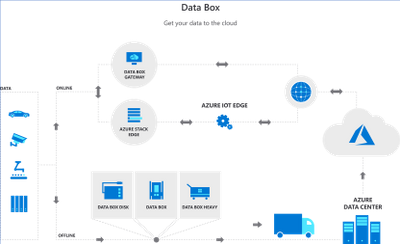
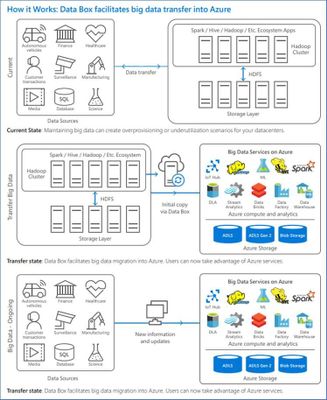
- Azure Databox: Use Data Box family of products such as Data Box, Data Box Disk, and Data Box Heavy to move large amounts of data to Azure when you’re limited by time, network availability, or costs. All data is AES-encrypted, and the devices are wiped clean after upload in accordance with NIST Special Publication 800-88 revision 1 standards
Migrate from on-prem HDFS store to Azure Storage with Azure Data Box
- Azure Import/Export service– Azure Import/Export service is used to securely import large amounts of data to Azure Blob storage and Azure Files by shipping disk drives to an Azure datacenter.
by Scott Muniz | Sep 10, 2020 | Azure, Technology, Uncategorized
This article is contributed. See the original author and article here.
The Azure Sphere OS quality update 20.09 is now available for evaluation in the Retail Eval feed. The retail evaluation period provides 14 days for backwards compatibility testing. During this time, please verify that your applications and devices operate properly with this release before it’s deployed broadly via the Retail feed. The Retail feed will continue to deliver OS version 20.08 until we publish 20.09 in two weeks.
The 20.09 release includes the following enhancements and bug fixes in the Azure Sphere OS. It does not include an updated SDK.
- Fixed a bug that caused devices with duplicate TKS images installed in the firmware partition to reboot after a software update.
- Fixed a bug that caused random reconnect issues from IoT Hub.
- Fixed a bug that caused memory leak in libcurl.
- Fixed a bug that caused an SPI read/write over 2K to fail.
- Reduced default TCP socket buffer size, and allowed users to set the buffer size to a value greater than 11K.
- Linux Kernel upgrade to 5.4.59.
For more information on Azure Sphere OS feeds and setting up an evaluation device group, see Azure Sphere OS feeds.
If you encounter problems
For self-help technical inquiries, please visit Microsoft Q&A or Stack Overflow. If you require technical support and have a support plan, please submit a support ticket in Microsoft Azure Support or work with your Microsoft Technical Account Manager. If you would like to purchase a support plan, please explore the Azure support plans.
by Scott Muniz | Sep 10, 2020 | Uncategorized
This article is contributed. See the original author and article here.
The 22nd cumulative update release for SQL Server 2017 RTM is now available for download at the Microsoft Downloads site. Please note that registration is no longer required to download Cumulative updates.
To learn more about the release or servicing model, please visit:
• CU22 KB Article: https://support.microsoft.com/en-us/help/4577467
Starting with SQL Server 2017, we adopted a new modern servicing model. Please refer to our blog for more details on Modern Servicing Model for SQL Server
• Microsoft® SQL Server® 2017 RTM Latest Cumulative Update: https://www.microsoft.com/download/details.aspx?id=56128
• Update Center for Microsoft SQL Server: https://docs.microsoft.com/en-us/sql/database-engine/install-windows/latest-updates-for-microsoft-sql-server
by Scott Muniz | Sep 10, 2020 | Uncategorized
This article is contributed. See the original author and article here.
Today, I worked on a service request that our customer needs to know how to run a bulk insert for reading CSV file using Managed Identity credential. Following I would like to share with you how I configure this.
We have to configure two elements: Azure SQL Database and Storage Account.
Storage Account:
- First of all, we need to have a blob storage of general-purpose v2 type.
- Using PowerShell, you need to register your Azure SQL server with Azure Active Directory, running the following commands:
Connect-AzAccount
Select-AzSubscription -SubscriptionId <subscriptionId>
Set-AzSqlServer -ResourceGroupName your-database-server-resourceGroup -ServerName your-SQL-servername -AssignIdentity
- Under your storage account, navigate to Access Control (IAM), and select Add role assignment. Assign Storage Blob Data Contributor Azure role to the server hosting your Azure SQL Database which you’ve registered with Azure Active Directory (AAD) previously.
Azure SQL Database:
- Open SQL Server Management Studio and connect to the database.
- Open a new query and run the following commands.
- Create the database credential:
CREATE DATABASE SCOPED CREDENTIAL MyCredential WITH IDENTITY = 'Managed Identity'
CREATE EXTERNAL DATA SOURCE [MyDataSource]
WITH (
TYPE = BLOB_STORAGE, LOCATION = 'https://storageaccountname.blob.core.windows.net/backup', CREDENTIAL = MyCredential
);
CREATE TABLE [dbo].[MyDummyTable] (ID INT)
BULK INSERT [dbo].[MyDummyTable]
FROM 'info.txt'
WITH (DATA_SOURCE = 'MyDataSource'
, FIELDTERMINATOR = 't')
It is possible that running bulk insert command you could get an Access denied issue, I saw that after adding the Identity and the RBAC of the storage account these operations take some minutos to be effective.
Enjoy!


Recent Comments