by Scott Muniz | Sep 15, 2020 | Uncategorized
This article is contributed. See the original author and article here.
While using Windows Updates for Business (WUfB) is not for everyone, its simplicity and familiar end-user experience make it quite attractive to many organizations. One thing that WUfB does not provide today is updates for third-party products. For that, you need to continue to use an on-premises solution like Microsoft Endpoint Manager Configuration Manager to complement WUfB.
Ultimately, deploying third-party updates when using WUfB is no different than deploying them using Configuration Manager by itself. Enabling third-party updates with WUfB requires the following three things:
- Enable and configure WUfB.
To enable WUfB, configure any WUfB related policy or setting using one of the following methods:
- Configure and enable software updates in Configuration Manager.
See Plan for software updates in Configuration Manager if necessary.
- Configure and enable third-party updates in Configuration Manager.
Do this using a handful of different methods, including the following:
- System Center Update Publisher (SCUP).
- The third-party updates feature set built into Configuration Manager.
- A tool from a third-party.
So, how does Configuration Manager work with WUfB to deliver third-party updates? The answer is dual-scan. Note that although dual-scan did cause some confusion in the past that resulted in the unintended installation of updates, you should not be afraid of it once you see how it works (as described in this post).
Dual-scan
Dual-scan is a feature of the Windows Update (WU) client. It enables the WU client to use WUfB and an on-premises WSUS instance to scan for update applicability and compliance. When you enable dual-scan, the WU client uses WUfB (and only WUfB) for Windows product updates and WSUS for non-Windows updates.
To enable dual-scan, enable a WUfB deferral policy on a system with a local WSUS server configured. This can be a WSUS server integrated into and automatically configured by, Configuration Manager (the scenario discussed here) or a stand-alone WSUS server. That’s all there is to it.
If you don’t want dual-scan, don’t enable any WUfB deferral policies. This is where a disconnect usually happens, as these policies are for WUfB only. They have no effect or purpose if another solution for deploying Windows updates is used, like Configuration Manager or WSUS, but they enable dual-scan.
See Using ConfigMgr With Windows 10 WUfB Deferral Policies for further details on dual-scan and explicitly stopping it.
Results
To prove out deploying third-party updates using Configuration Manager with WUfB enabled, I used one of the existing co-managed systems in my lab. The name of this system is ELKWIN2.
WUfB Configured
ELKWIN2 started life as a Windows 10 1909 system and was updated to 2004 using WUfB; it continues to receive quality updates from WUfB. You can see the Windows Update configuration in the following two screenshots from ELKWIN2, confirming the WUfB configuration.
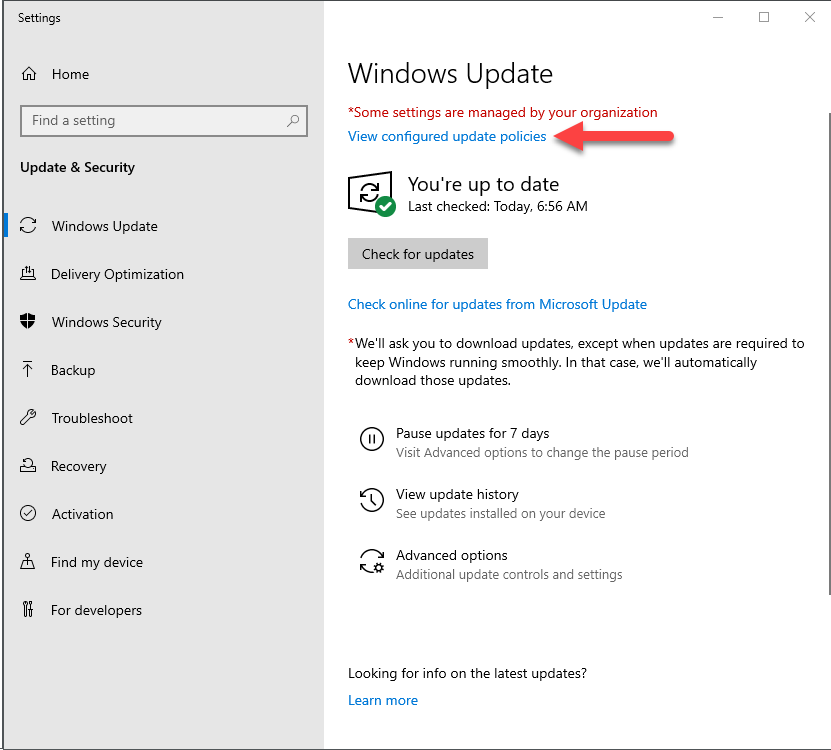 Windows Update settings
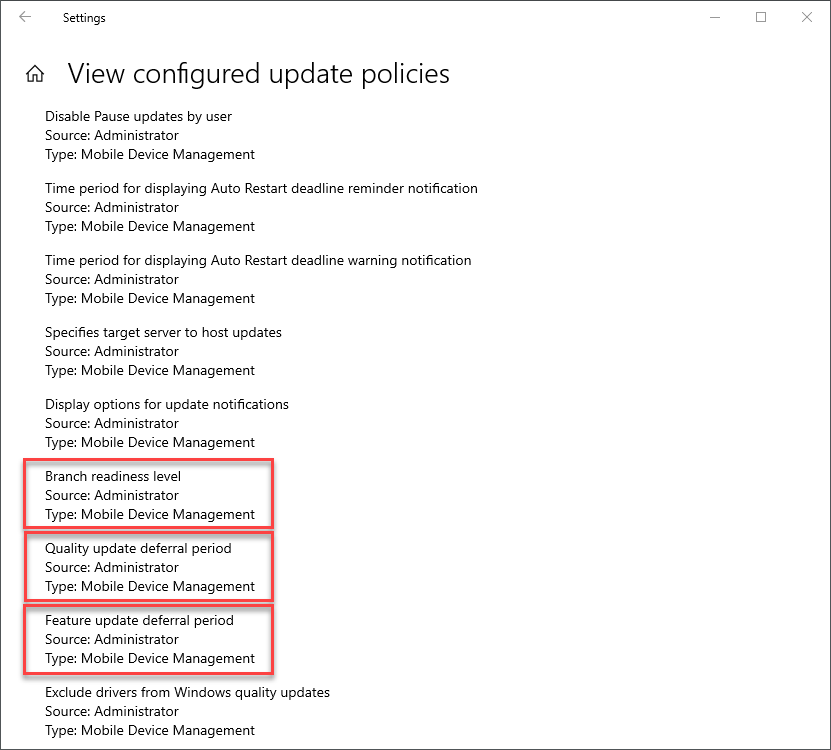 Configured update policies
Software Updates Configured
Even though WUfB is configured on ELKWIN2 using Intune, the Configuration Manager Software Updates configuration is still targeted to the system and still applies to the system. Since ELKWIN2 is configured for WUfB and has a local WSUS server configured, dual-scan is also enabled. The following two screenshots show the WSUS server configuration and local group policies configured by the Configuration Manager agent.
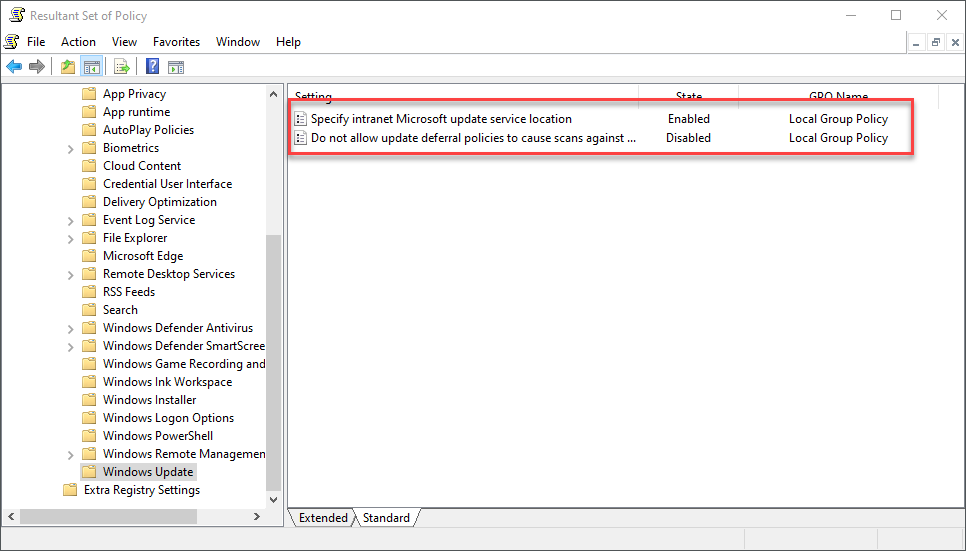 Resultant Set of Policies
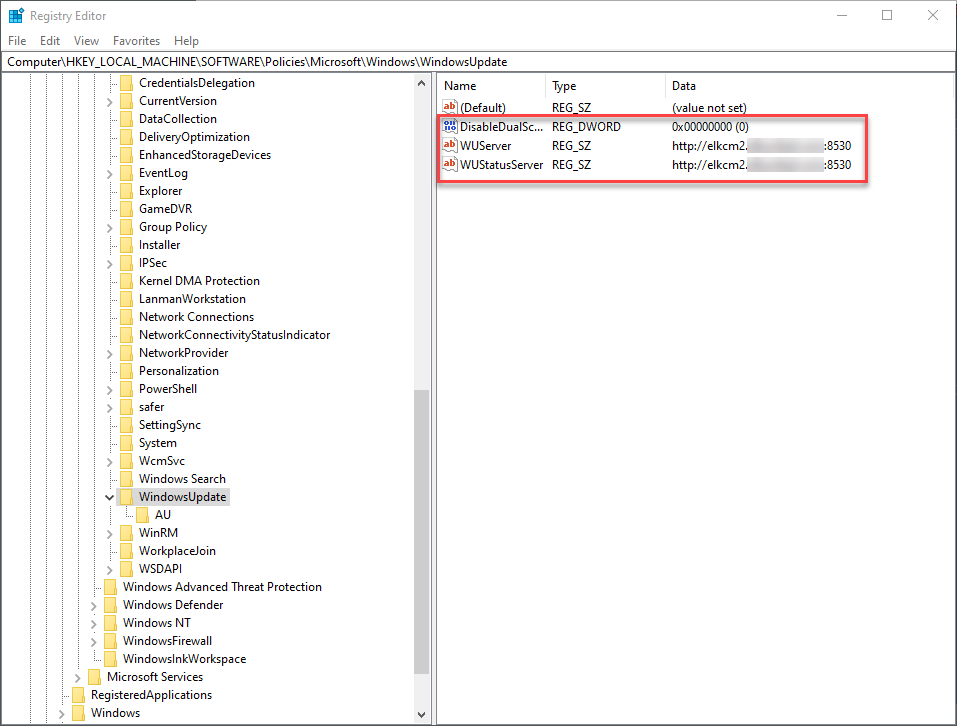 Registry
Third-party Updates Configured
For this, I created a custom update (for a custom application) in SCUP and published it to the Windows Server Update Services (WSUS) server integrated with the Configuration Manager site in my lab. After synchronizing the update catalog in Configuration Manager, the update showed up in the All Software Updates view, ready for compliance scanning and deployment.
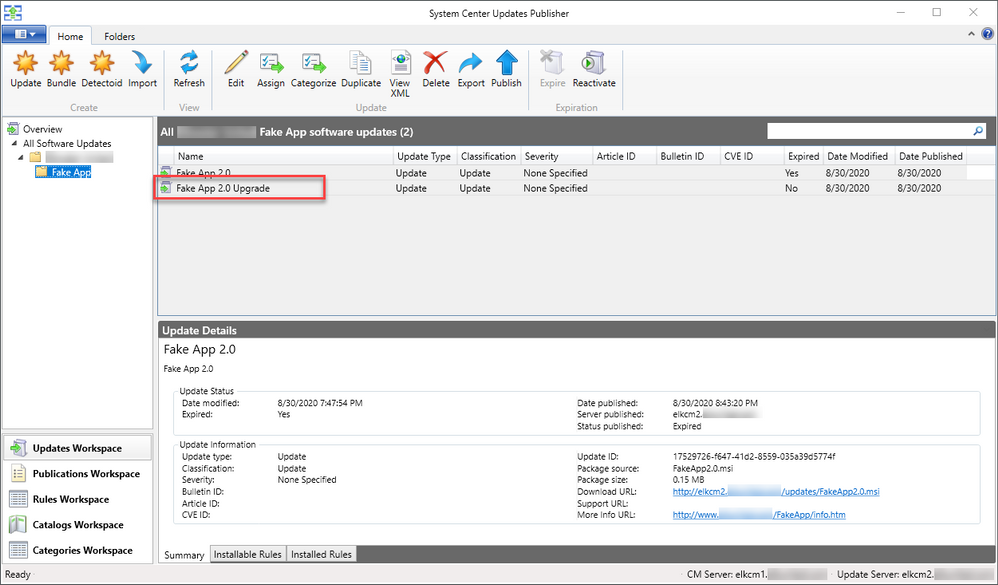 FakeApp 2.0 in System Center Updates Publisher
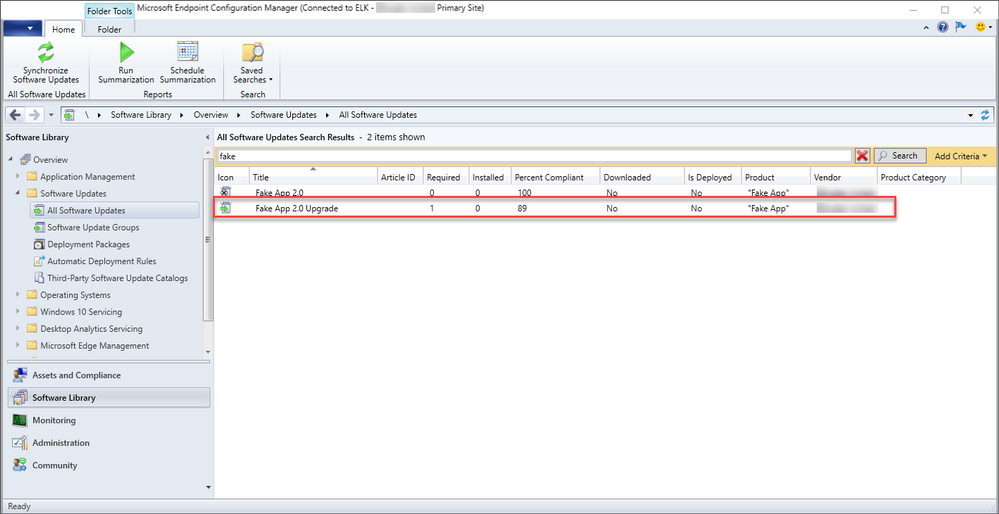 FakeApp 2.0 Upgrade in Configuration Manager
I then initiated a Software Update Scan Cycle from the Actions tab in the Configuration Manager Control Panel applet on ELKWIN2. Finally, I forced ELKWIN2 to send all queued state messages to the site and checked the reports.
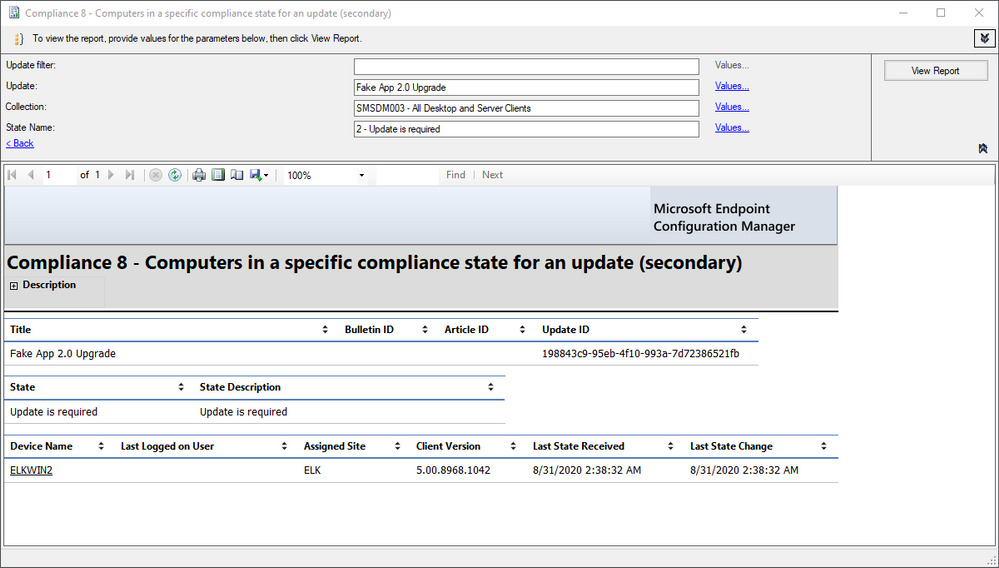 Specific compliance state for an update (FakeApp 2.0 Upgrade)
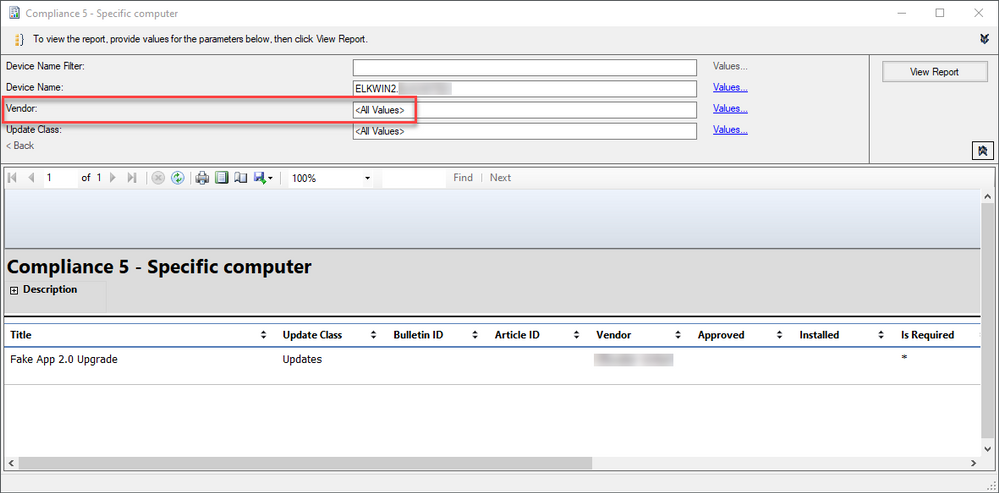 Compliance state for a specific computer (ELKWIN2)
As the reports show, ELKWIN2 requires the FakeApp 2.0 Upgrade. Also, note that no Windows updates show at all for ELKWIN2. That’s dual-scan at work. All that is necessary now is to download and deploy the update or configure an Automatic Deployment Rule to do this for us.
Conclusion
Even though WUfB doesn’t support third-party updates, it’s still possible to deploy and manage them using the ever-faithful Configuration Manager and the built-in Windows dual-scan functionality.
by Scott Muniz | Sep 15, 2020 | Azure, Technology, Uncategorized
This article is contributed. See the original author and article here.
By: Trevor Davis @tredavis and Carlos Villuendas @CarlosV
Challenge
ExpressRoute is the preferred method to connect the customer’s on-premises environment to Azure VMware Solution (AVS), but what happens if you do not have access to ExpressRoute?
Solution
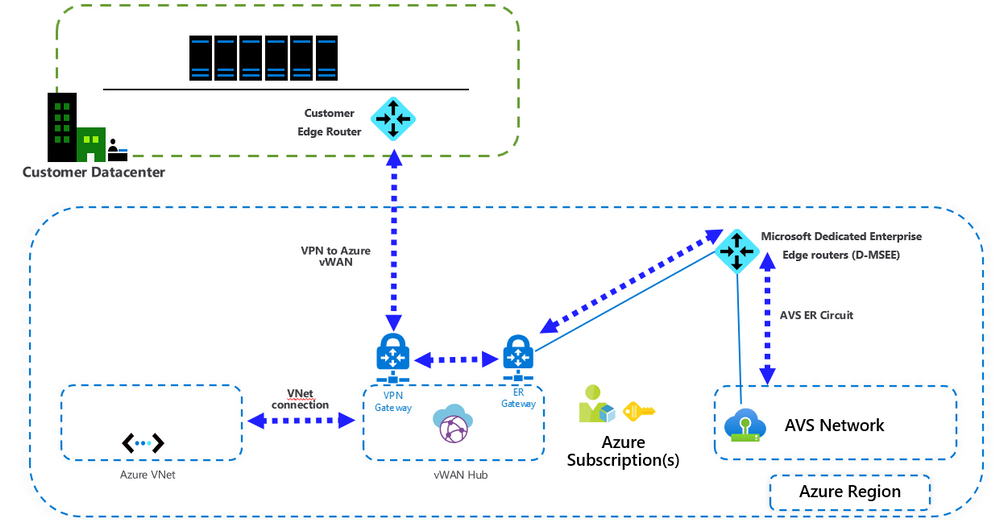
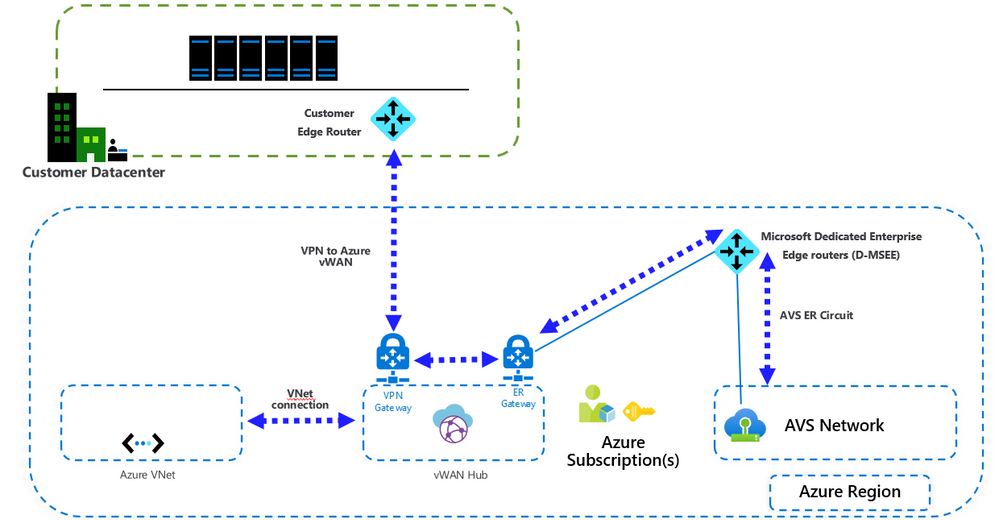
Connect your on-premises site to AVS using VPN and Azure Virtual WAN.
Azure Virtual WAN allows transit connectivity between VPN and ExpressRoute. This implies that VPN-connected sites can communicate with ExpressRoute-connected sites.
Reference: https://docs.microsoft.com/en-us/azure/virtual-wan/virtual-wan-about#transit-er
NOTE: Azure VMware Solution (AVS) is connected to the Azure backbone via an ExpressRoute.
Architecture
Important points
- VMware HCX is not supported by VMware over VPN. If the customer intends to migrate workloads from on-premises to Azure VMware Solution (AVS), another migration tool needs to be used.
- This configuration requires the standard Azure Virtual WAN type. Check this article for more details.
- When connecting Azure Virtual WAN to a virtual network, make sure that the virtual network does not have any virtual network gateways. This is very important when planning the connection to an existing Azure environment. More details here.
Installation
After Azure VMware Solution is deployed, you can connect your on-premises environment to Azure VMware Solution (AVS) using VPN and Azure Virtual WAN following these steps.
- Create an Azure Virtual WAN.
- Create a hub.
- Create a site.
- Connect a VPN site to a hub.
- Connect a Vnet to a hub (if needed)
- Connect the ExpressRoute circuit to a hub.
Steps 1 to 5 are covered in this article: Create a Site-to-Site connection using Azure Virtual WAN
Step 6 is covered in this article: Create an ExpressRoute association using Azure Virtual WAN
Installation notes:
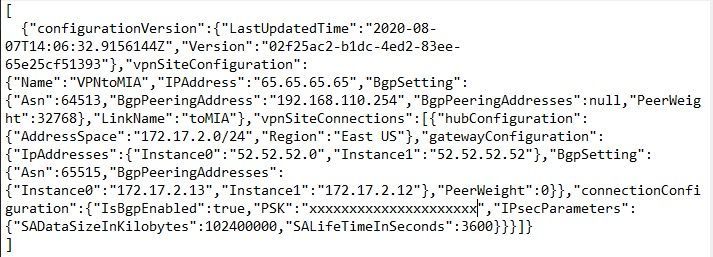
- Format the VPN configuration file to make it more readable.
To configure your on-premises VPN device, you will need to download the VPN configuration from the Azure portal, instructions here. The configuration file will look like the following image. Use VS Code to format the configuration file to look like the example in this article.
- You can connect multiple virtual networks to the virtual WAN hub, even virtual networks from different Azure subscriptions.
by Scott Muniz | Sep 15, 2020 | Uncategorized
This article is contributed. See the original author and article here.
If you are not familiar with the Microsoft 365 Network Connectivity Principles, you should be. Refer to the video Overview of Network Connectivity Principles as a prelude to this topic.
For many companies, providing remote work options was already a rapidly growing movement (+173% since 2005 according to Global Workplace Analytics). That was before the COVID-19 crisis, which has massively accelerated that trend and highlighted a number of remote work problems that require immediate remediation. The need to maintain security without sacrificing performance has generated unprecedented demands on enterprise IT to support work-from-anywhere productivity at a massive scale.
Microsoft 365 is well positioned to help customers fulfill that demand, but high concurrency of users working from home generates a large volume of Microsoft 365 traffic which, if routed through forced tunnel VPN and on-premises network perimeters, causes rapid saturation and runs VPN infrastructure out of capacity. In this new reality, using VPN to access Microsoft 365 is no longer just a performance impediment, but a hard wall that not only impacts Microsoft 365 but critical business operations that still have to rely on the VPN to operate.
For many years enterprises have been using VPNs to support remote experiences for their users. Whilst core workloads remained on-premises, a VPN from the remote client routed through a datacenter on the corporate network was the primary method for remote users to access corporate resources. VPNs, network perimeters, and associated security infrastructure were often purpose built and scaled for a defined volume of traffic, typically with the majority of connectivity being initiated from within the corporate network, and most of it staying within the internal network boundaries.
VPN models where all connections from the remote user device are routed back into the on-premises network (known as forced tunneling) were largely sustainable as long as the concurrent scale of remote users was modest and the traffic volumes traversing VPN were low. The use of forced tunneled VPNs for connecting to distributed and performance sensitive cloud applications is extremely suboptimal. This problem has been growing for a number of years, with many customers reporting a significant shift of network traffic patterns. Traffic that used to stay on premises now connects to external cloud endpoints.
For customers who connect their remote worker devices to the corporate network or cloud infrastructure over VPN, Microsoft recommends that key Microsoft 365 scenarios including Microsoft Teams, SharePoint Online, and Exchange Online are routed over a VPN split tunnel configuration. This becomes especially important as the first line strategy to facilitate continued employee productivity during large scale work-from-home events such as the COVID-19 crisis. The essence of this approach is to provide a simple method for enterprises to mitigate the risk of VPN infrastructure saturation and dramatically improve Microsoft 365 performance in the shortest timeframe possible.
This VPN split tunnel guidance is in alignment with the Microsoft 365 Network Connectivity principles, which are designed to work efficiently for remote users whilst still allowing an organization to maintain security and control over their connectivity. These connectivity principles can also be implemented for remote users very quickly with limited work yet achieve a significant positive impact on the problems outlined above.
Microsoft’s recommended strategy for optimizing remote worker’s connectivity is focused on rapidly alleviating the problems with the traditional approach and providing high performance with a few simple steps. These steps guide you to split tunnel Microsoft 365 traffic for a small number of defined endpoints to bypass bottlenecked VPN infrastructure and leverage cloud-based security services natively available within the Microsoft 365 stack.
For the latest information on how to plan network connectivity for your remote users and provide the best possible cloud experience watch the Network Connectivity for Remote Users video below. This is one video from the 7 part Microsoft 365 Network Connectivity Video Series, which you can find at aka.ms/netvideos.
by Scott Muniz | Sep 15, 2020 | Uncategorized
This article is contributed. See the original author and article here.
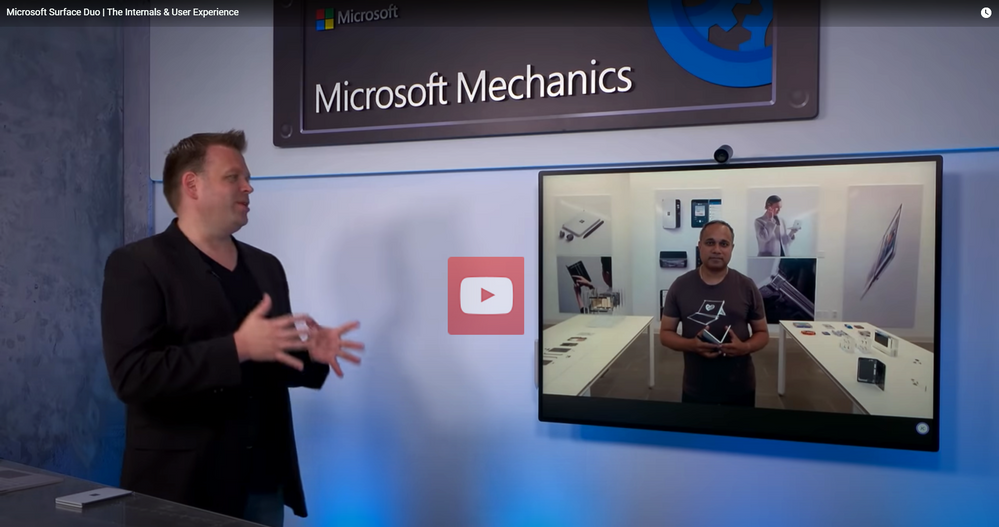
For a detailed look at the internals and user experience of the new Microsoft Surface Duo, find out what sets it apart in the latest episode of Microsoft Mechanics. Vineet Thuvara, Senior Director of Program Management for the Surface team, joins host Jeremy Chapman to discuss how the team approached numerous design challenges in creating Surface’s newest form factor.

It’s the first dual-screen foldable device for Microsoft that combines the best of Surface’s signature hardware design and Microsoft productivity experiences. It runs on top of an Android operating system, making it Microsoft’s first Android device. And it’s now available for purchase.
“As an engineering team we set out to build Duo as the ultimate intersection of hardware and software experience,” says Vineet, a key member of the global team that came together to make Duo happen. “We wanted to build a device that could offer the perfect balance of productivity and mobility roughly within the footprint of your phone.”
Multitasking comes to life
As Vineet explains, most of us multitask to get what we need done but the phone form factor with a single screen is not optimized for doing multiple things at once.
Our user research tells us what most of us already intuitively know: We can get more work done on two screens than one. And sure enough, multiple ergonomic studies confirm that it takes significantly less mental effort to multitask with the benefit of a dual screen.
To optimize multitasking, Surface engineers set out to design a dual screen device that was foldable and compact enough to fit in your pocket while being capable of doing everything a phone and a portable smart device can do and much more. The result is what you see today: All new postures that combine to deliver our signature productivity experience. Here are a few examples:
- Drag and drop content between certain apps and span apps from one display to the next.
- Join online meetings on one screen while taking notes on the other.
- Write on the Microsoft SwiftKey keyboard that spans across the screen to allow for comfortable two-hand typing or take notes across the full canvas with Surface pen on OneNote. With a combined 8.1-inch display, unfolded it is larger than the iPad mini.
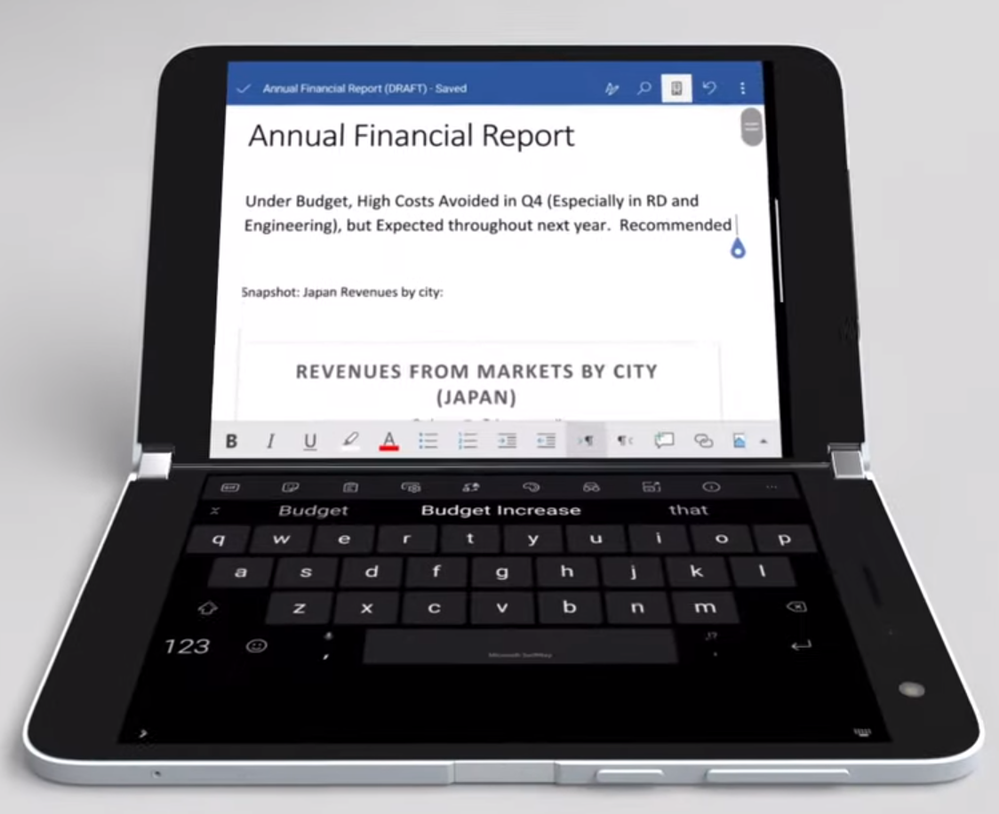
By far one of the top engineering challenges was achieving the unfolded thickness of this device, which at 4.8 millimeters leaves very little space. If you subtract the display and the cover glass only about 3.7 millimeters is left for the internal componentry.
Dual screen internals
Putting a screen on both sides of the device essentially redefines the concept of a “front” or “back” of the device posing unique design challenges. For starters, Surface needed to find a way to synchronize two visually perfect displays to work as one. To customize this dual topology architecture, engineers developed a single motherboard architecture distributed across both sides of the device that increased the density of the electronics while improving overall thermal performance.
All day battery
Dual screens require dual batteries, split into “asymmetric scales,” meaning engineers had to find a way to independently charge and “charge-balance” two cells. Surface Duo features left and right cells to independently power systems on either half while also functioning as a single battery to meet the demands of running multiple apps simultaneously. The result that sets it apart from many other mobile devices: An astounding 15.5 hours of local video playback. A fast charging 18-watt adapter lets you go from 5 to 50 percent charged in about 30 minutes.

Inside, Duo runs a Qualcomm Snapdragon 855 processor optimized for dual screen productivity with 6 GB of RAM designed to meet the needs of demanding productivity-based experiences:
- Wi-Fi connectivity supports speeds of up to 3.4 Gbps.
- 4G LTE Advanced supports up to 1.2 Gbps download.
- 150 Mbps uploads across most common frequency bands carrier connectivity.
360-degree hinge
Taking a page out of the design of other Surface devices (like Surface Book), Duo features a full friction 360-degree hinge leveraging four custom profile micros gears and 56 micro coax cables thinner than a human hair. The result is a solid and consistent experience whenever you pick up and use the device. The optimized torque profile ensures easy opening and folding while maintaining constant friction for 360 degrees. When holding the device straight, Surface Duo stays straight and does not flip-flop.

Defense in depth
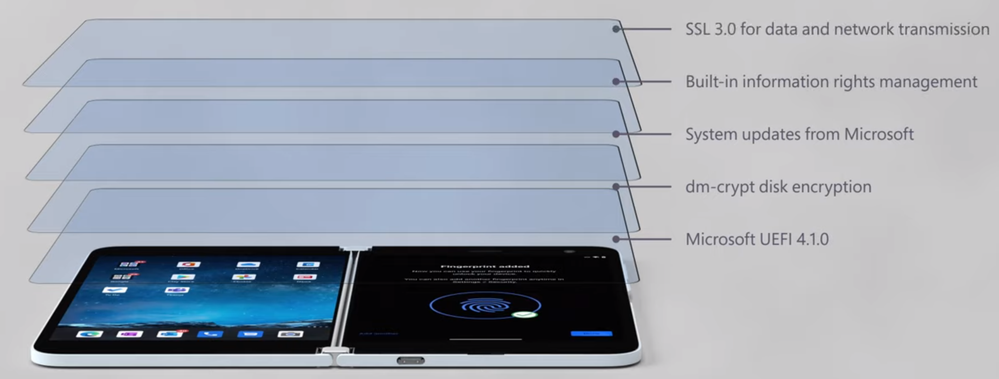
Surface Duo defense in depth is built in by design. On the edge of the Duo you will find an enterprise grade biometric fingerprint sensor for multi-factor authentication. And what sets it apart even more is what’s on the inside: A layered approach to security from the chip to the cloud.
Modern management
And of course, you can deploy and manage Surface Duo using Microsoft Endpoint Manager and Intune or your favorite MDM solution. You can take a lighter management approach by implementing app protection policies that don’t require users to enroll their own devices but still protect all your corporate data. Or choose a number of more highly managed configurations designed for company-owned devices all the way up to fully locked down, dedicated devices.
Learn more
by Scott Muniz | Sep 15, 2020 | Uncategorized
This article is contributed. See the original author and article here.
Microsoft Ignite, our yearly flagship event for Microsoft products and technologies, is a 48-hour digital event experience taking place from September 22-24, 2020. Ignite, of course, is a very different event this year. On the one hand, it is a single global event where everyone gets the same news, information, content, and experience at the same time. But on the other hand, I will miss the many personal connections that take place at our in-person events. I look forward to the day when in-person events resume, but until then, I’m thrilled to have the opportunity to share with you now an amazing collection of video content covering the incredible work being done across Microsoft 365.
Last year, the admin track at Ignite had several breakout, theater, and learning path sessions from a variety of engineering teams, including:
- the Microsoft 365 admin center team—the team that builds the Microsoft 365 admin center and admin mobile app;
- Release and Delivery Experiences—the team that builds, among other things, Office.com and Office What’s New;
- Microsoft 365 Groups—the team that builds the Microsoft 365 Groups platform, membership service, and user experiences; and
- Microsoft 365 Complex Orgs—the team that builds features and experiences to support customer mergers, acquisitions, and divestitures, and cross-tenant collaboration.
Since last Ignite, each of these teams has been immersed in customer feedback and working hard to deliver your most-wanted admin experiences. At an in-person Ignite, they’d be up on stage telling you all about what they’ve been up to for the past year. But since we can’t do that, I am thrilled to announce that we’ve done the next best thing – a digital admin track!
The Microsoft 365 Admin Tools and Experiences track has a slew of new videos that announce new features and ways to connect with Microsoft 365 engineering teams. These videos detail the new features and experiences we have delivered and are delivering to you. They talk about what we’ve done over the past year and why we’ve done it, and they give you a glimpse into what we’re doing next and why. Watch these videos not just for the content, but also for the opportunities they give you to engage directly with these feature teams and register your interest for upcoming previews, roundtables, and other product team engagements.
There are 18 across three broad themes:
This post covers our investments for organizations that, as part of their normal business routine, engage in merger, acquisition, split and divestiture activities, and for organizations, partners, and admins that manage multiple Microsoft 365 tenants. We refer to these types of customers as complex organizations. And we’re doing work across multiple engineering teams to support these complex organizations.
NOTE: The video links below will be active starting September 22.
Calling all Microsoft 365 admins and IT Pros! This Ignite session describes the slew of new learning videos that discuss new and recent improvements to the Microsoft 365 admin center, Microsoft 365 Groups, and the investments we’re making in complex organization/multiple tenant scenarios.
Supporting Mergers, Acquisitions, and Divestitures in Microsoft 365 – https://aka.ms/Admin1002
Customers undergoing mergers, acquisitions, and divestitures often need to migrate their data between Microsoft 365 tenants. When a customer acquires a company with their own tenant, they are faced with the decision around what to do with that tenant. Sometimes, it makes sense to keep the tenants separate, such as in the case of conglomerates where there is a lot of autonomy and independence between business units.
In other cases, customers need to transfer the acquired users and data to their existing tenant. This is for a variety of reasons. First, users in the same tenant have the most feature-rich collaboration experiences. In a single tenant, you automatically get a common directory, the best Teams experience, etc. because everything is in one tenant. While we are investing heavily to improve cross-tenant collaboration, users in the same tenant will always get the richest experience across the suite.
Other reasons include a size mismatch between the existing tenant and the acquired tenant. In most cases, it doesn’t make sense to keep small tenants around in a large company. Companies with large well-managed tenants with tens or hundreds of thousands of users usually don’t want to manage a bunch of very small tenants, in part because each tenant adds management overhead.
Finally, there are also scenarios in which the whole tenant is not being divested or acquired. Some acquisitions and divestitures involve “carve ups,” where only a subset of users and data are acquired and migrated. Or some users are divested to one company and other users are divested to another company. In these partial acquisitions and divestitures, migration is the only option.
In a brand-new video, Rob Lowe and Sesha Mani, members of the Microsoft 365 complex orgs team, talk about some of the challenges encountered by complex orgs around data migration, branding, and so forth. They also discuss Microsoft’s vision for mergers, acquisitions, and divestitures, where we see mergers and divestitures as two sides of the same coin, where data can be migrated seamlessly and securely between tenants, and key experiences, such as People Search, have the same experience across tenants that we have within a single tenant.
In their video, Rob and Sesha have some fantastic demos showing new experiences we have for cross-tenant mailbox migration and cross-tenant SharePoint and OneDrive migration. There’s also a great demo on domain sharing for email, and cross-tenant People Search, two of the top cross-tenant features that customers have been asking for.
Finally, Rob and Sesha talk about our plans for future improvements for complex orgs, and they talk about the preview programs for these features. Check out the video and use the links in it to indicate your interest in the preview programs.
Multi-tenant management in the Microsoft 365 admin center – https://aka.ms/Admin1004
Did you know that more than 1/3 of all Microsoft 365 tenants are managed by admins who manage multiple tenants? In fact, this applies to 2/3 of our enterprise customers, and the majority of our partners, as well. Multiple tenant scenarios arise a number of ways. For example, in the partner space, there are Cloud Solution Providers and Managed Service Providers who manage tenants on behalf of their customers. And in the enterprise space, there are merger and acquisition scenarios, separate test and production environments, and in some cases, regulatory requirements that drive multiple tenant scenarios.
Historically, the Microsoft 365 admin center was built for single tenant admins and only recently did we start supporting admins who manage multiple tenants. These admins face the same challenges as admins with single tenants, except they have the additional complexity of having to switch between tenants, and often the additional tasks of performing the same work. Our goal is to help multi-tenant admins spend less time juggling tenants and more time doing meaningful work for them.
In a brand-new video, Tim Heeney, Principal Program Manager on the Microsoft 365 admin center team, talks about the specific challenges faced by admins who manage multiple tenants. He talks about who these admins are, and where we are making investments in the multi-tenant management space. Equally important is why we are making these investments, and as Tim explains in the video, we have prioritized our work items based on direct customer feedback.
Tim also goes into detail about the most pressing issues around multi-tenant management, such as switching between multiple tenants, assessing the health and status of multiple tenants, performing repetitive tasks against multiple tenants, and understanding configuration differences between multiple tenants. He also describes Microsoft’s vision to create a unified management experience that allows for multi-tenant administration from a single pane of glass.
Finally, Tim walks you through our plans to deliver on that vision.
Multi-tenant management: Service Health and Message Center – https://aka.ms/Admin1006
We publish a lot of information about Microsoft 365 services. For example, the service health dashboard in the Microsoft 365 admin center provides a comprehensive view of the health of your services. If you are experiencing problems, you can check service health to determine if the issue you are seeing is a known issue before you call support or spend time troubleshooting. The Message Center helps you keep track of upcoming changes, including new and changed features, planned maintenance, and other important announcements. As I mentioned before, you can access both using the Microsoft 365 admin center and the Microsoft 365 admin mobile app.
The feedback from admins who manage multiple tenants is clear: service-related info and communications in the Service Health Dashboard and the Message Center are critical to multi-tenant admins to provide quality support to their users and to manage service changes.
In a brand-new video, Micky Saini, a program manager on the Release and Delivery Experiences team, talks about the investments we are making in these areas to provide multi-tenant admins with visibility into the service health of their tenants and richer, actionable insights to comprehend the impact to their tenants. We also want to improve productivity for these admins by helping them to proactively support their users by staying up to date on service incidents.
Micky talks about the admins we are serving with our multi-tenant management investments, and why we are making those investments. He talks about work we’ve already done, such as the awesome Tenant Switcher in the Microsoft 365 admin center, and gives us a glimpse of what’s coming next in this space, such as a snapshot view for admins that provides insights across service health, support requests, products & billing, and setup recommendations.
Micky also provides you with details on how you can partner with Microsoft to shape the multi-tenant experiences we are creating, and details on how you can connect directly with the engineering teams that are developing these features. Finally, in his demo, Micky walks you through the new features in Service Health that are now part of the multi-tenant admin experience.
If you manage multiple Microsoft 365 tenants, be sure to watch the video and let us know what you think of our roadmap, and if there’s anything else we should focus on that can make your life easier.
Next Steps
Now that we’ve covered our Investments in Complex Organizations, check out the great content we have for IT Efficiency and Agility, and Modern Cloud Management.
Here’s the complete list of available videos and their URLs. We hope you enjoy them!
One last takeaway: Your call to action. Please remember that we don’t just want you to watch our videos; we want you to use the new features, we want to engage with you; we want your feedback, and your help to prioritize our work. Although these teams work on different features and functionality, all of them have the same goals: to bring you features and experiences that delight you, and to make the Microsoft 365 admin experience the most-loved cloud admin experience in the industry. We can’t do that without your help, so please engage with us and let’s get to work!


Recent Comments