by Scott Muniz | Sep 21, 2020 | Azure, Technology, Uncategorized
This article is contributed. See the original author and article here.
It’s exciting to develop applications for the Internet of Things (IoT), but implementing IoT solutions is a balancing act—you need the right skills. If you have those skills, why not let the world—including current and prospective employers—know that you do?
The Azure IoT Developer Specialty certification offers you the opportunity to prove your subject matter expertise as a developer of cloud and edge components for Azure IoT solutions. To earn it, pass Exam AZ-220: Microsoft Azure IoT Developer.
Is this certification a good fit for you?
Do you manage the IoT device lifecycle—setup, configuration, and maintenance—using cloud services and other tools? If so, this could be just the right certification for you. You should also have experience implementing designs for Azure IoT solutions, including device topology, connectivity, debugging, and security, in addition to solutions to manage, monitor, and transform IoT-related data pipelines. Additionally, you need to be able to deploy Azure IoT Edge components and configure device networking on the edge. Experience working with stakeholders to ensure successful business integration is a must.
If you implement the Azure services that form an IoT solution, including data storage options, data analysis, data processing, and platform-as-a-service options, consider earning this certification. You should also be able to recognize Azure IoT service configuration settings within the code portion of an IoT solution and to perform specific IoT coding tasks in at least one Azure-supported language, such as C#, Node, C, or Python.
How can you get ready?
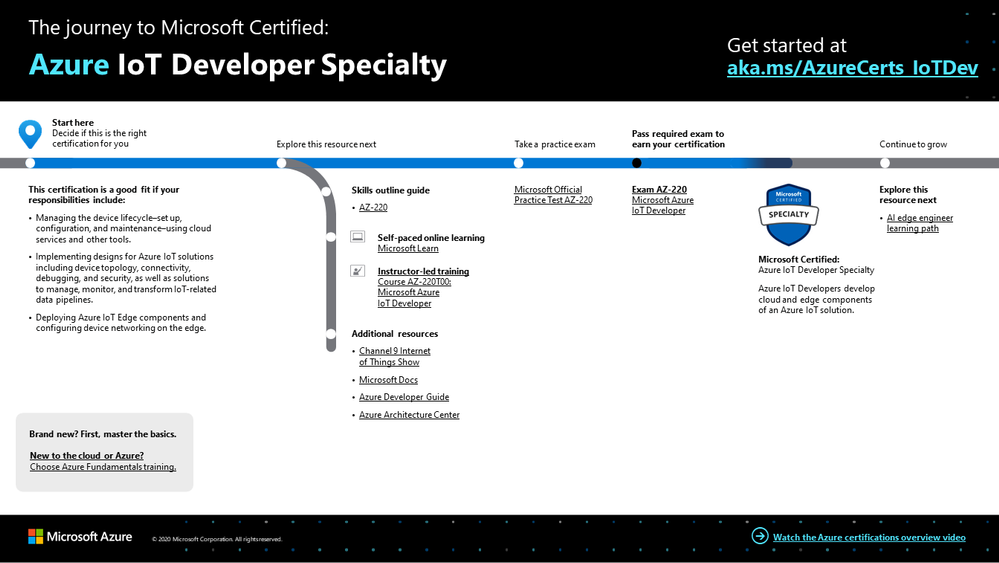
To help you plan your journey, check out our infographic, The journey to Microsoft Certified: Azure IoT Developer Specialty. You can also find it in the resources section on the certification page, which contains other valuable help for Azure IoT developers.
 Azure IoT Developer Specialty certification journey
To map out your journey, follow the sequence in the infographic. First, decide whether this is the right certification for you and be sure that you’ve mastered the basics.
Next, to understand what you’ll be measured on when taking Exam AZ-220, review the skills outline guide on the exam page.
Sign up for training that fits your learning style and experience:
Complement your training with additional resources, like Microsoft Docs, the Developer’s Guide to Azure, or the Azure Architecture Center.
And there’s more. Check out the Internet of Things Show on Channel 9, especially the episode dedicated to the Azure IoT Developer Specialty certification. In this episode, find out about the certification and additional resources to learn how to build IoT solutions with Azure.
Then, take a trial run with the Microsoft Official Practice Test for Exam AZ-220: Microsoft IoT Developer. All the objectives of the exam are covered in depth, so you’ll find what you need to be ready for any question.
After you pass the exam and earn your certification, check out the many other training and certification opportunities. Want to add to your toolkit? Look into more Microsoft Learn training to enhance your IoT solutions with artificial intelligence (AI) features. Or, to find your next certification based on your profession (or the one you aspire to)—review our blog post, Finding the right Microsoft Azure certification for you.
Note: Remember that Microsoft certifications assess how well you apply what you know to solve real business challenges. Our training resources are useful for reinforcing your knowledge, but you’ll always need experience in the role and with the platform.
It’s time to level up!
No matter where you are—or which language or framework you operate in—Azure certifications can help give you an edge with industry-recognized skills and credentials that show current and future employers that you’re keeping pace with the latest technical roles and requirements.
Related announcements
Understanding Microsoft Azure certifications
Finding the right Microsoft Azure certification for you
Master the basics with Microsoft Certified: Azure Fundamentals
by Scott Muniz | Sep 21, 2020 | Uncategorized
This article is contributed. See the original author and article here.
Raven is a Miniature Schnauzer that doesn’t like small critters in the yard unless they can fly. This gives Raven an insurmountable challenge, since my wife is such an avid gardener. We live on the side of a hill and at the top of the backyard is a manmade bog which feeds a downhill river to a to a pond with trees and flowers everywhere. Along with this are bird feeders and some birds love to scatter the feed from the feeders to the ground. So, our back yard is a perfect setting to get a lot of squirrels’, chipmunks, etc… When we go out the back door to the yard, Raven races out trying to catch up with the critters, but she just isn’t fast enough, and all the animals disperse quickly.
This chaos makes me think about some enterprise admins who are concerned about having to control the dispersion of enterprise data being stored on unapproved USB devices. The expectation that users are to only use USB data storage devices that are approved by corporate guidelines, without built-in security controls, is a task admins will never be able to achieve. This expectation is similar to the position of Raven ever catching a squirrel out back, it just won’t happen. Someone will forget a device, or they just don’t appreciate the governance definition and will plug in any storage device they have access to. Even though there are many stories on the internet that talk about attackers loading USB storage devices with malware and intentionally placing them into a location that a target victim will find. The victim then connects the USB device into their workstations and unknowingly gets compromised.
Fortunately, Microsoft has built in security controls in our modern o/s’s to assist our customers in controlling the use of defined USB devices. The explanation below covers USB storage, but it really pertains to ALL USB devices that can be controlled. So, lets walk through the device management and control of devices.
USB Device management on Windows
Once a USB device has been inserted within the windows ecosystem, the device driver(s) have been installed and the ability to prevent use is no longer available, until the driver(s) have been removed/uninstalled. The steps for uninstall/removal are defined later in this document, Revoke previously used USB storage.
NOTE Always test and refine these settings with a pilot group of users and devices first, before widely distributing to your organization!
USB device management with Group Policy
To block all removable storage
Computer Configuration > Policies > Administrative Templates > System > Removable Storage Access:
- “Set time (in seconds) to force reboot”
- 3600
- Note: If no reboot is forced, the access right does not take effect until the operating system is restarted.
- The example setting above gives the user one hour before the system reboots
- “All Removable Storage classes: Deny all Access”
Manage what type of USB devices can be used
The Group Policy controls are located at:
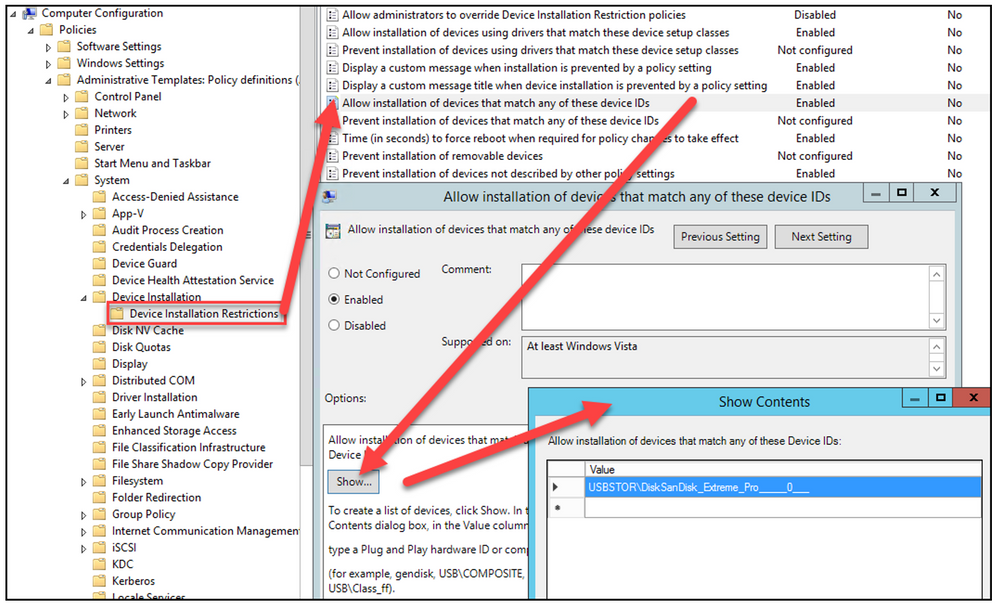
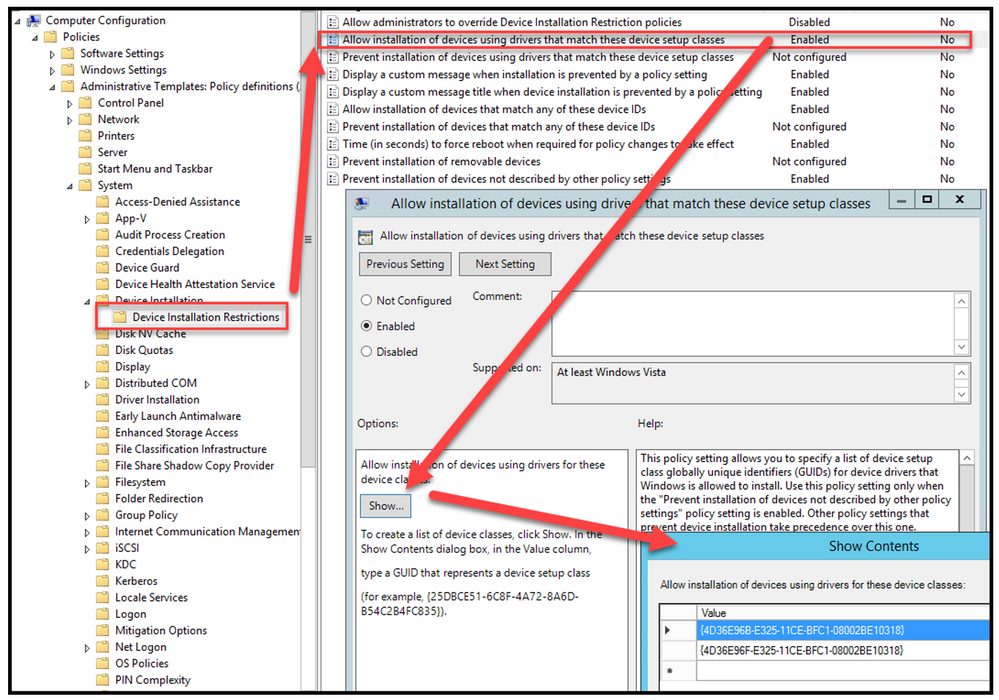
Computer Configuration > Policies > Administrative Templates > System > Device Installation > Device Installation Restrictions
To allow certain storage types
- “Set time (in seconds) to force reboot
- 3600
- Note: If no reboot is forced, the access right does not take effect until the operating system is restarted.
- The example setting above gives the user one hour before the system reboots
- Prevent installation of devices not described by other policy settings
- Enabled
- If you enable this policy setting, Windows is prevented from installing or updating the device driver for any device that is not described by either the “Allow installation of devices that match any of these device IDs” or the “Allow installation of devices for these device classes” policy setting.
To define unique devices allowed to be installed
- “Allow installation of devices that match any of these device IDs”
- Enabled
- Show
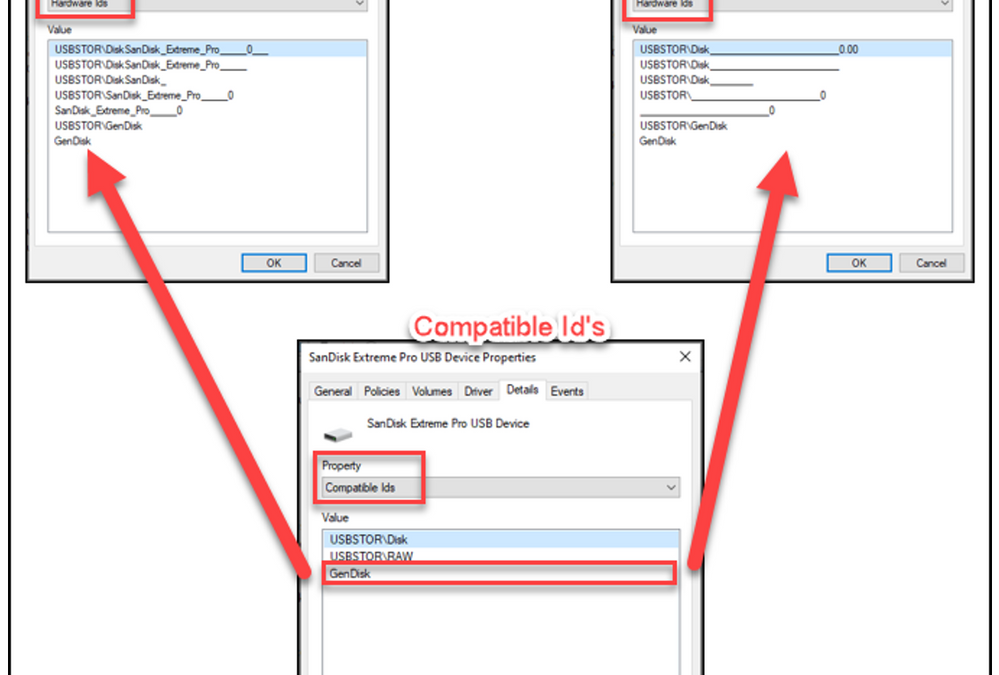
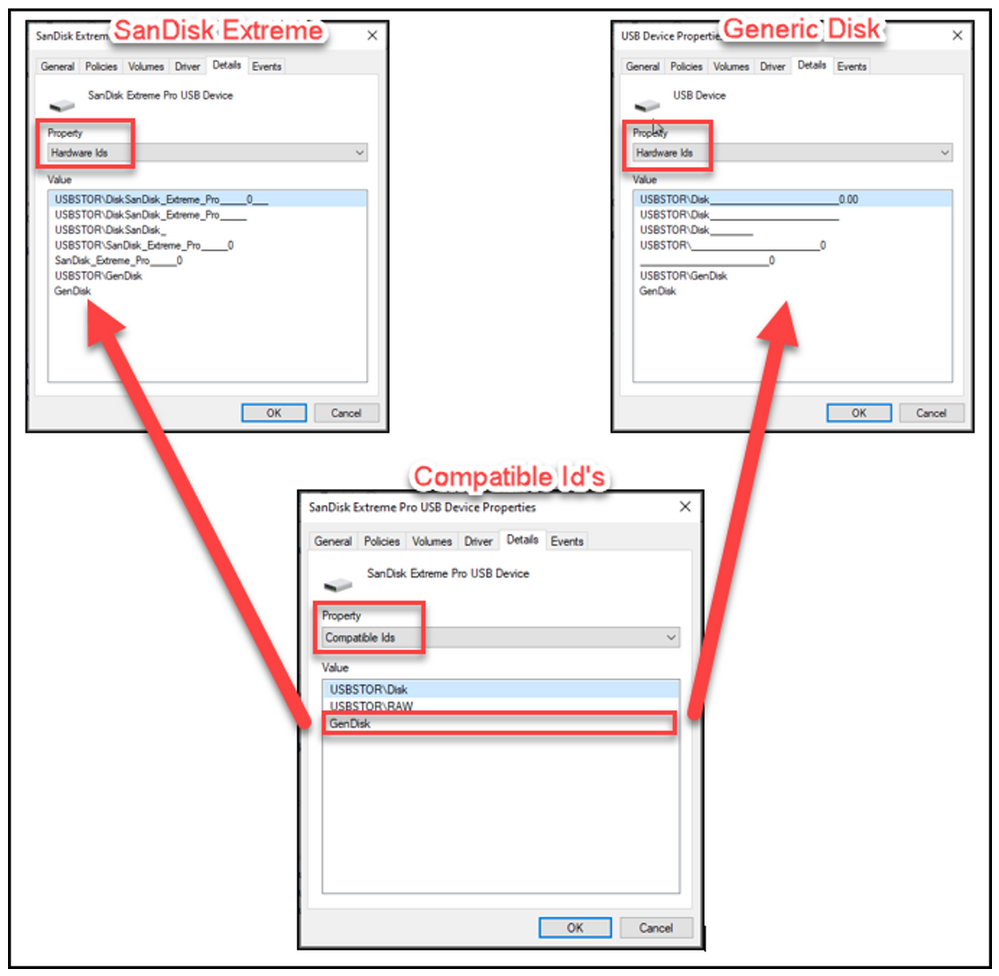
- Value = Hardware Id’s (captured from device manager)
To define unique classes of devices
- “Allow installation of devices for these device setup classes”
- Enabled
- Show
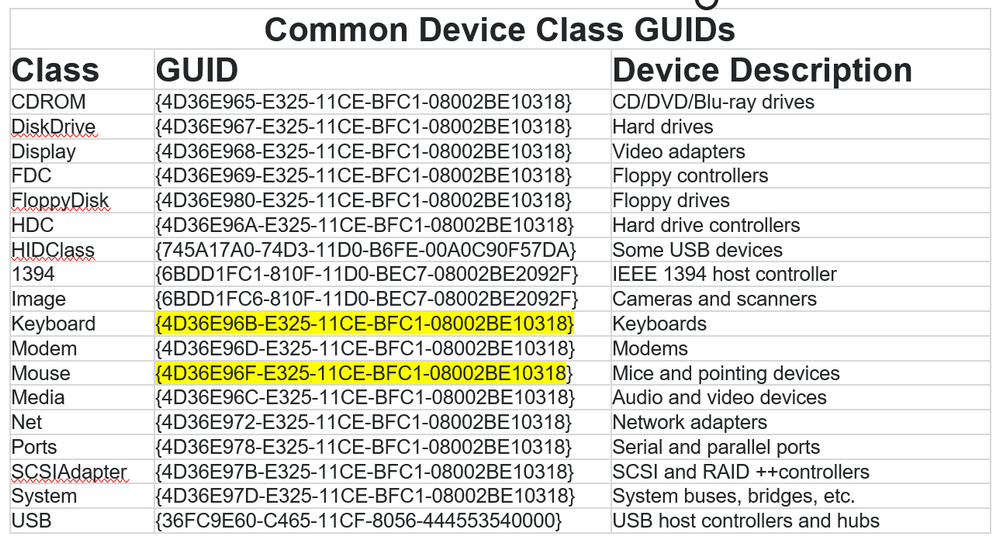
- Value – {4D36E96B-E325-11CE-BFC1-08002BE10318}
- Value – {4D36E96F-E325-11CE-BFC1-08002BE10318}
Example highlighted in yellow for keyboard and mouse classes.
Notifications to users
- “Display a custom message title when device installation is prevented by a policy setting”
- Message “Title” for a pop box when the user attempts to install an unapproved device
- “Display a custom message when installation is prevented by a policy setting”
- Message “Body” for a pop box when the user attempts to install an unapproved device
USB device management with Intune
To block all removable storage
- Ensure that the device is a Modern Managed Intune device
- Portal – https://endpoint.microsoft.com/#home
- Microsoft Modern Managed Desktop
- Select “Devices”
- Select “Configuration profiles”
- Select “+ Create profile”
- Platform = “Windows 10 and later”
- Profile = “Device Restrictions”
- Name = “Block All USB Storage”
- Description = “Optional”
- Select “General”
- “Removable storage” = “Block”
- Next
- Select “+ Select groups to include”
- Select user(s)/group(s)
- Next
- Next
- Create
Manage what type of USB devices can be used
To manage USB control from Intune, a “Configuration Profile” will need to be created.
https://endpoint.microsoft.com
- Select “Devices”
- Select “Configuration profiles”
- Select “+ Create profile”
- Platform = “Windows 10 and later”
- Profile = “Administrative Templates”
- Name = “USB Storage Control”
- Description = “Optionally enter a value”
- Computer Configuration > System > Device Installation > Device Installation Restrictions
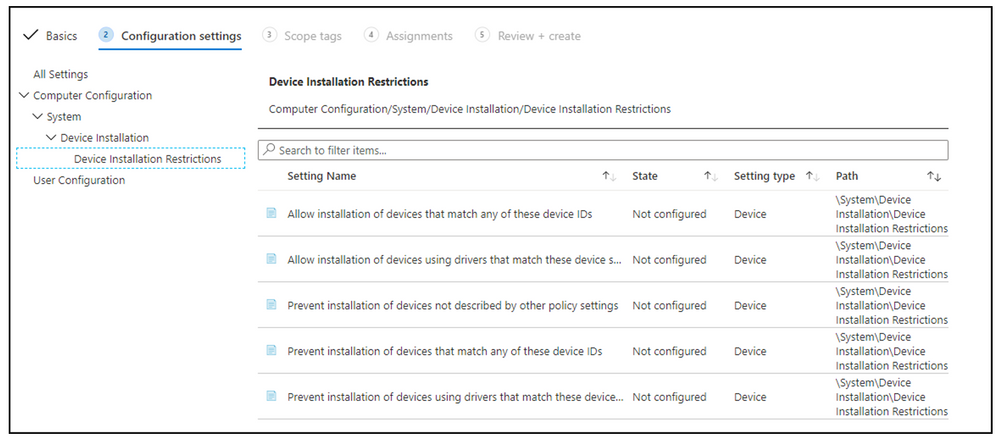
There are 5 configuration settings that will allow you to control the use of USB devices.
- Allow installation of devices that match any of these device IDs
- Define the set of Hardware devices allowed for the managed devices by this Policy
- Allow installation of devices using drivers that match these device setup classes
- Define the set of Hardware devices allowed for the managed devices by this Policy
- Prevent installation of devices not described by other policy settings
- If enabled only the policy defined settings will work or be denied
- Prevent installation of devices that match any of these device IDs
- Define the set of Hardware devices denied for the managed devices by this Policy
- Prevent installation of devices using drivers that match these device setup classes
- Define the set of Hardware devices denied for the managed devices by this Policy
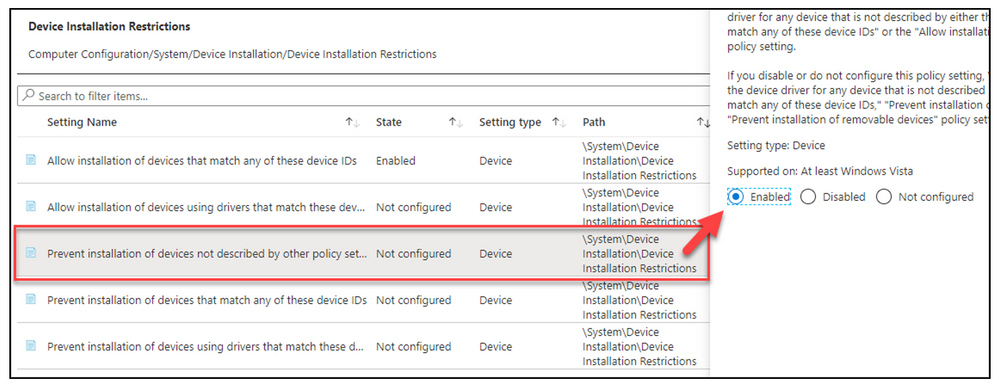
To enable the ability to restrict devices
- “Enable” – Prevent installation of devices not described by other policy settings
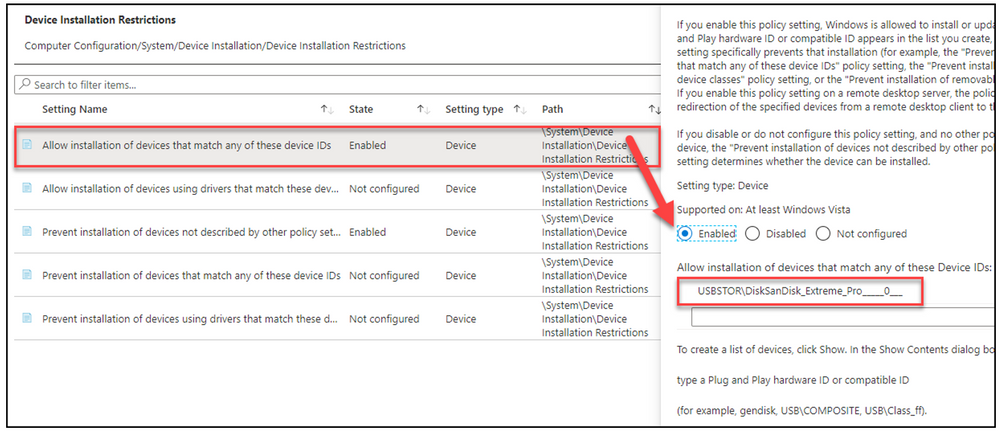
To define unique devices allowed to be installed
- Allow installation of devices that match any of these device IDs
- Enabled
- Value = Hardware Id’s (captured from device manager)
To define unique classes of devices
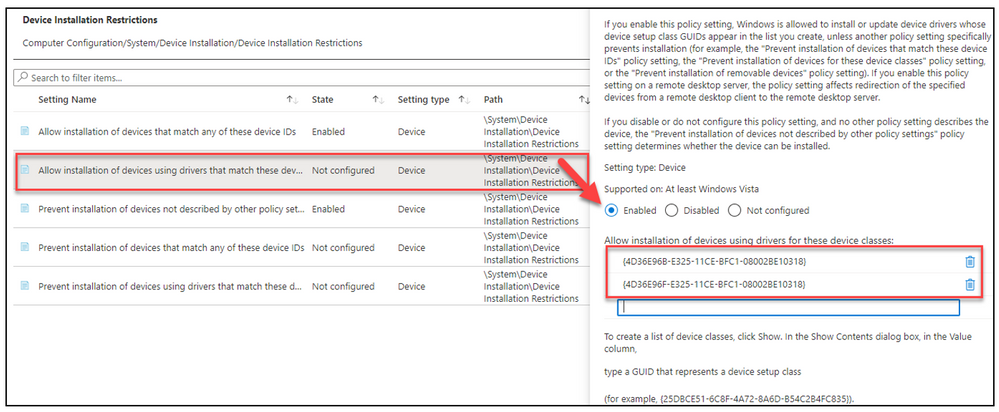
- “Allow installation of devices using drivers that match these device setup classes”
- Enabled
- Value = {4D36E96B-E325-11CE-BFC1-08002BE10318}
- Value = {4D36E96F-E325-11CE-BFC1-08002BE10318}
Example highlighted in yellow for keyboard and mouse classes.
Revoke previously used USB storage
Uninstall device driver(s) via Device Manager
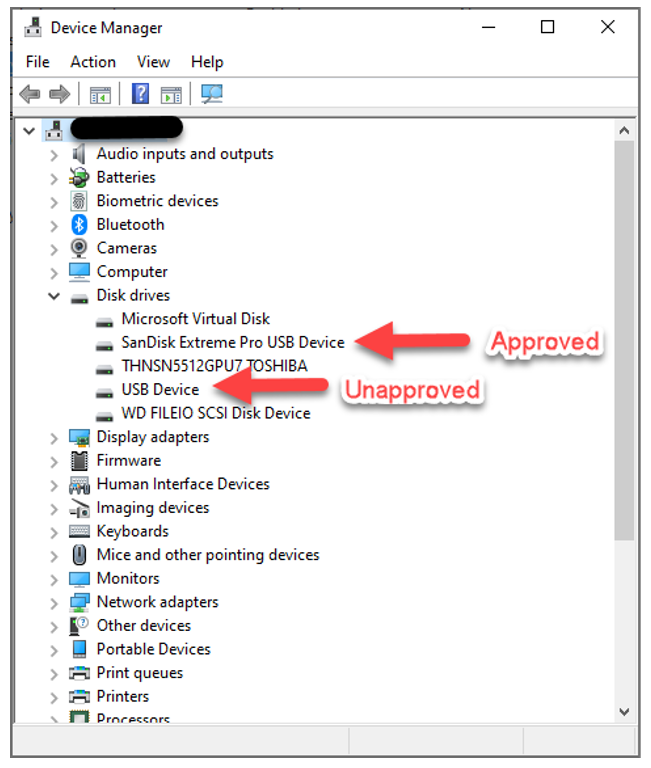
USB devices that have already been used have had the device driver installed, therefore the control of these devices won’t work until the drivers have first been uninstalled. Looking at the Device Manager console image below, there are two USB storage devices in use. An approved SanDisk and an unapproved Generic USB drive.
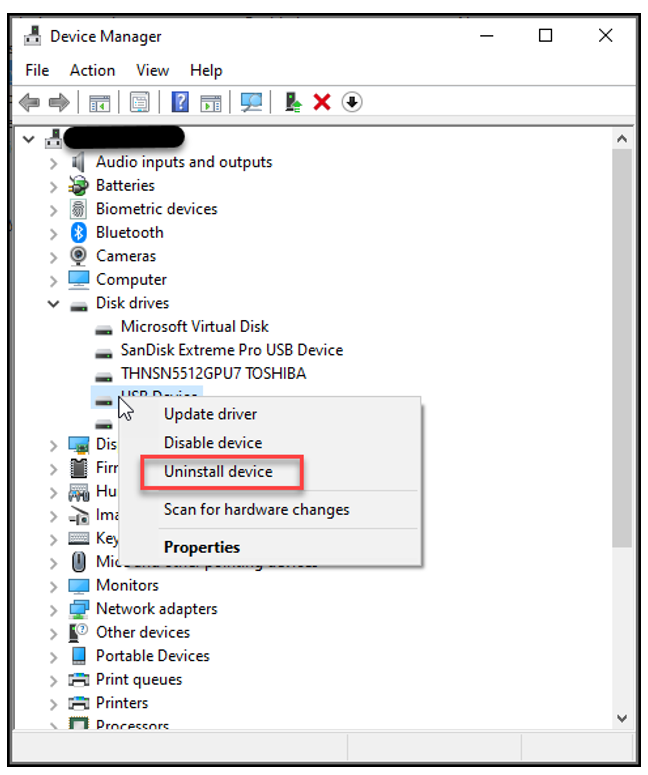
Right clicking on the device will provide the admin with the ability to select, “Uninstall”. Once the device has been uninstalled the device will no longer be able to be used on this host. Since the policy controls the installation of the driver for the USB device.
Uninstall device driver(s) via Devcon
In a large enterprise visiting individual workstations isn’t a reasonable situation, therefore processing from a command line will be necessary.
Devcon is a part of the Windows Driver Kit (WDK) so in order to gain access an instance of WDK will be required to be installed. Installing by itself won’t make the WDK fully usable since it requires Visual Studio. Since you are looking to gain access to Devcon, there is no need to install Visual Studio (VS). It would probably be best that this install be completed on a lab device to not pollute a desktop with unnecessary binaries and just copy the files needed.
Downloads:
https://docs.microsoft.com/en-us/windows-hardware/drivers/download-the-wdk
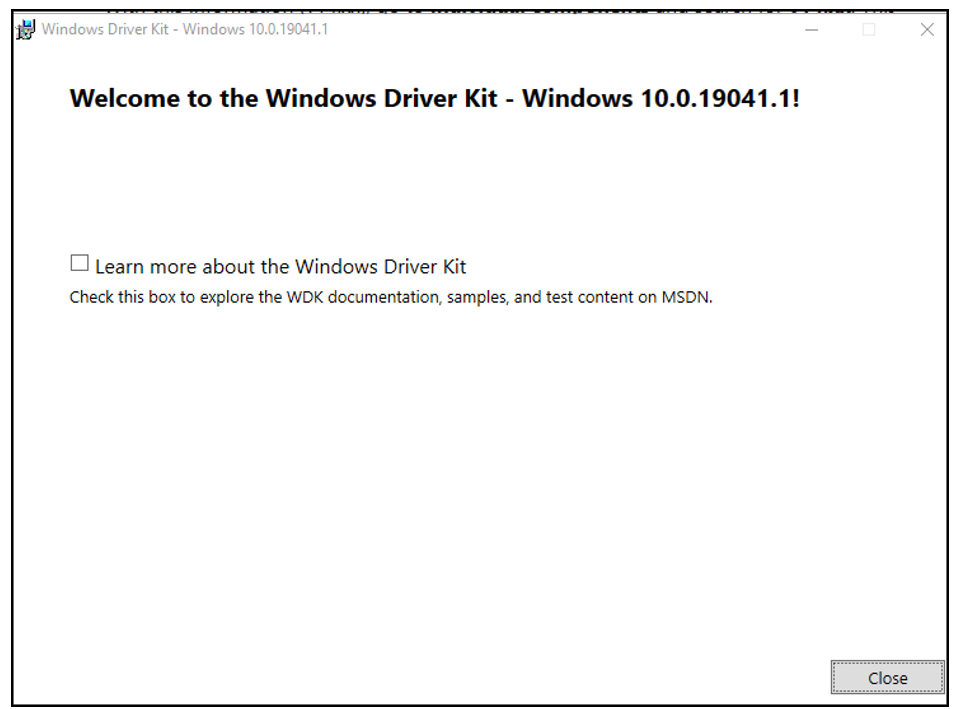
Steps required to install WDK to gain access to Devcon
- Download WDK for Windows 10, version 9999
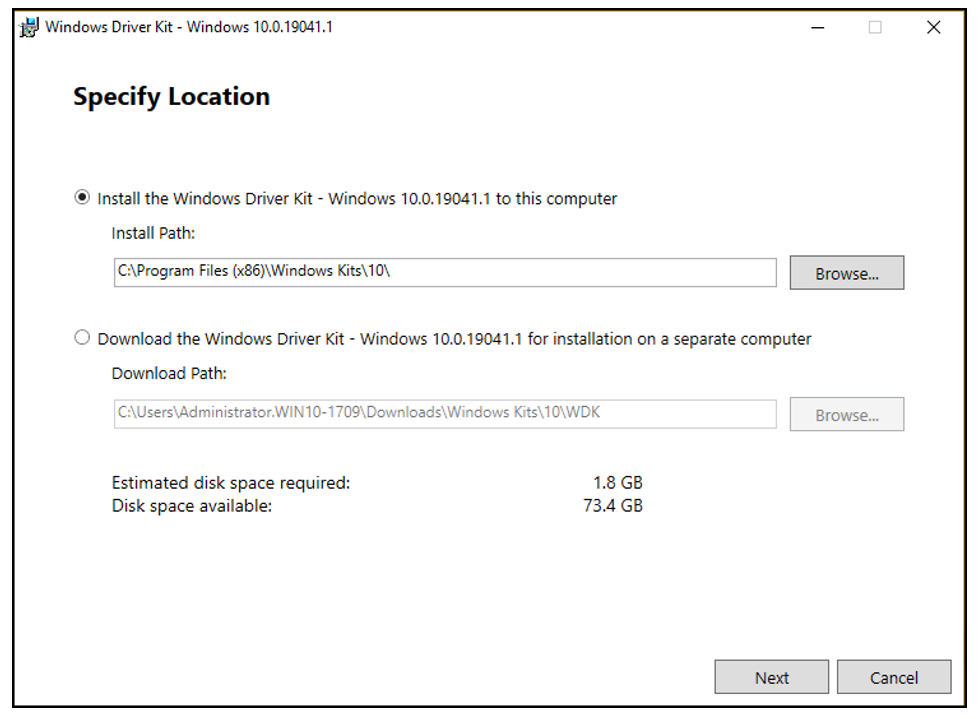
Next
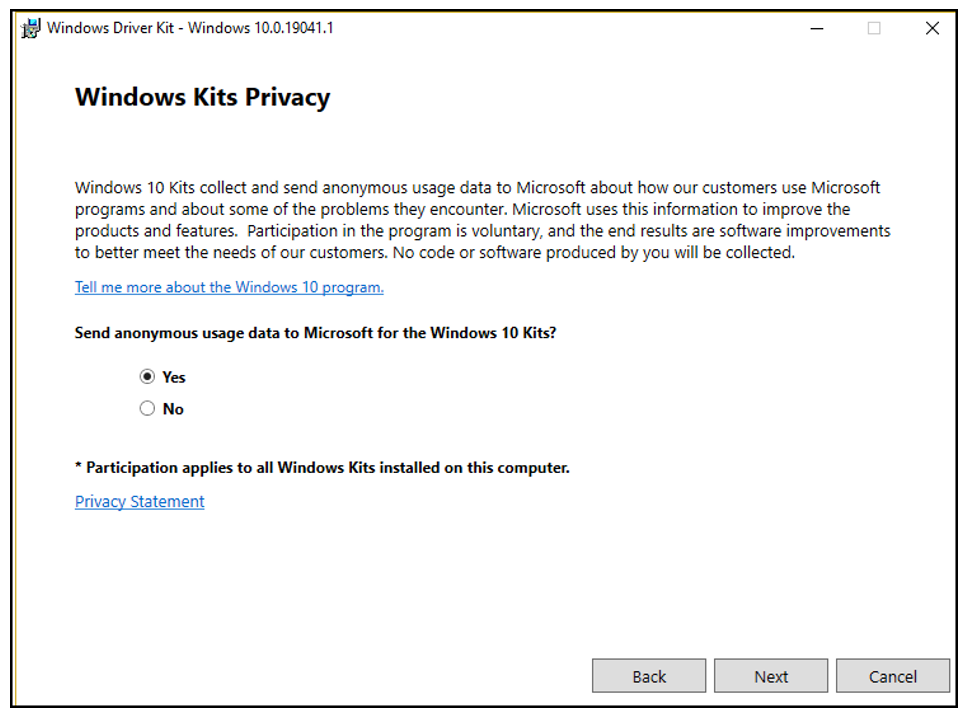
Next
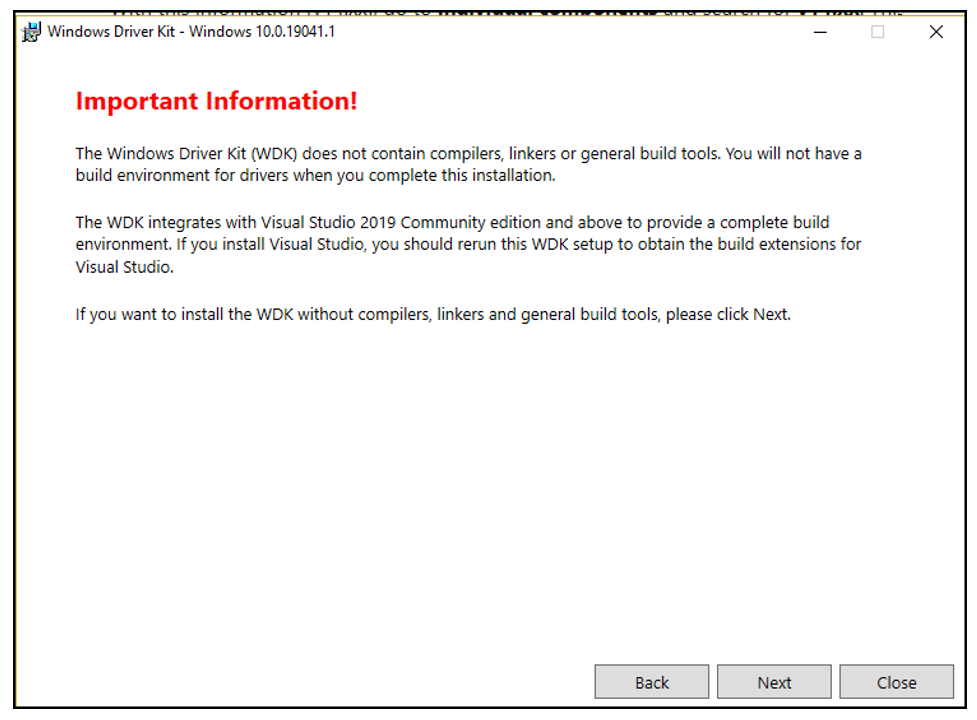
Next
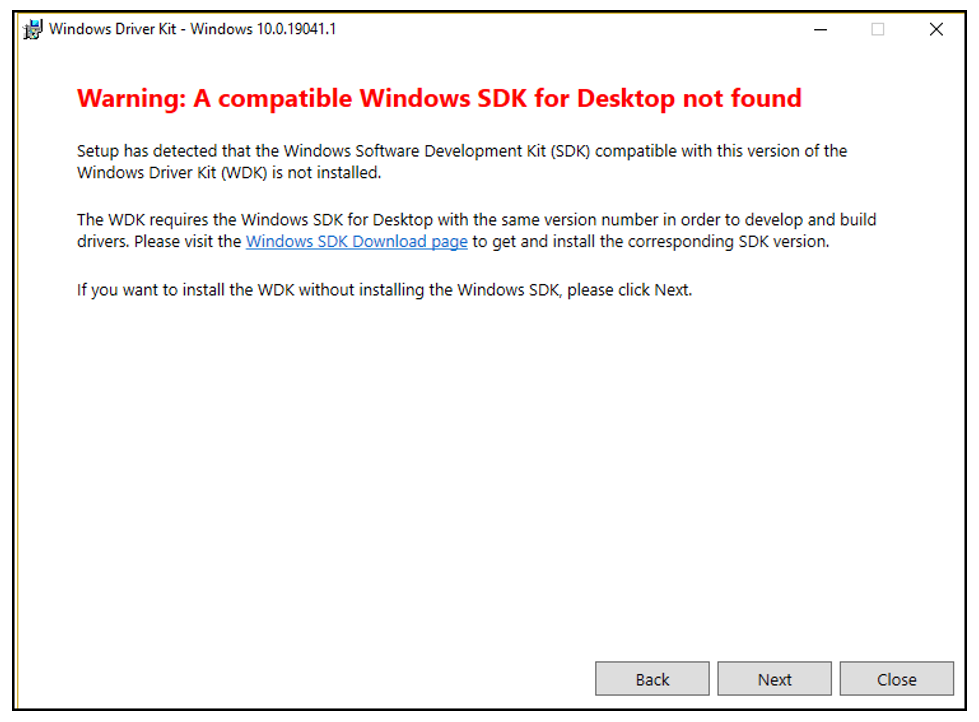
Accept
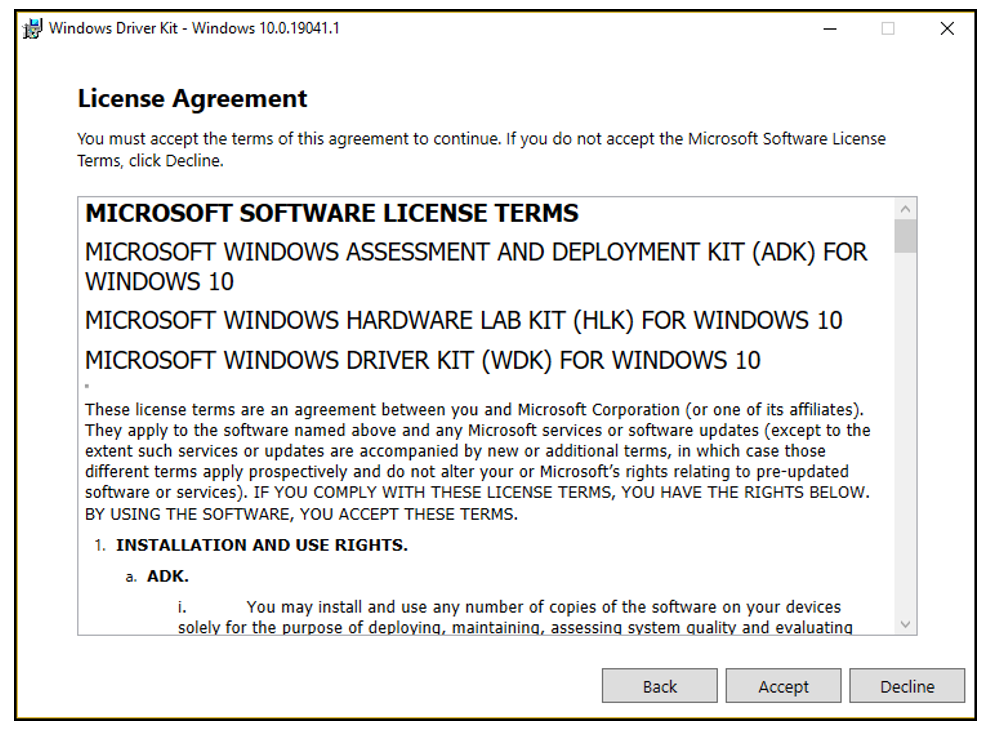
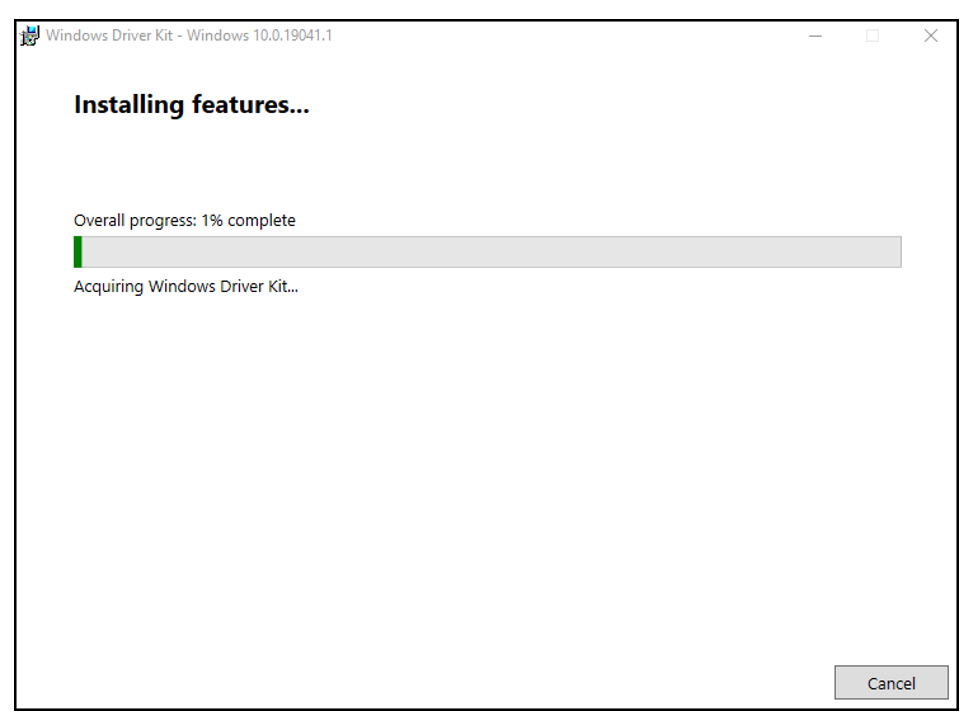
Close
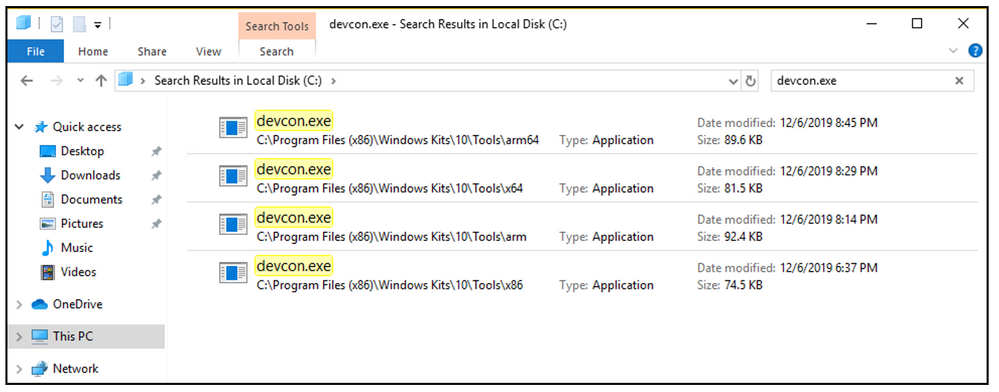
Once completed find the binaries that will be needed. Generally, it will be x64 and possibly x86 but x64, x86, arm and arm64 will all be available. Copy the files to desired host.
Subset of Devcon commands for USB storage
Note: Be extremely careful! ALL devices for the host are exposed with this utility. You could damage the host irreparably if the wrong drivers are removed.
Devcon Examples:
Change directory to the Devcon binary that will be used for the process
Example: cd C:Program Files (x86)Windows Kits10Toolsx64
List all connected disk drives
This isn’t just USB drives shown in this command
devcon hwids =diskDrive
Remove specific drivers for defined USB drives
If a drive was added prior to the policy, then the driver already exists and will allow the user to continue to use an unapproved device
devcon /r remove <HdwId>
Example: devcon /r remove USBSTORDisk________________________0.00
Devcon command line syntax
https://docs.microsoft.com/en-us/windows-hardware/drivers/devtest/devcon-examples
Find USB Storage in use with Microsoft Defender ATP
With Microsoft Defender ATP you can use the “Advanced Hunting” portal to search for USB devices that have been mounted on your users devices that are being managed by MD ATP.
Advanced Hunting
https://securitycenter.windows.com/
- Select “Advanced Hunting”
- Select the “Query” tab
- Copy and paste the one of the below into the Query window

Query for Mounted Storage
The query below will list ALL Defender clients that have mounted a USB storage device in the past day. This can extend backwards further by adjusting the Timestamp variable.
// Find all “Mounted” storage activity within the past day
DeviceEvents
| where ActionType == “UsbDriveMount” and Timestamp > ago(1d)
| extend DriveLetter = parse_json(AdditionalFields).DriveLetter
| extend BusType = parse_json(AdditionalFields).BusType
| extend ProductName = parse_json(AdditionalFields).ProductName
| extend ProductRevision = parse_json(AdditionalFields).ProductRevision
| extend SerialNumber = parse_json(AdditionalFields).SerialNumber
| extend Manufacturer = parse_json(AdditionalFields).Manufacturer
| extend Volume = parse_json(AdditionalFields).Volume
| project DeviceName, DeviceId, Timestamp, DriveLetter, Manufacturer, ProductName, BusType, ProductRevision, SerialNumber, Volume
Query for Mounted Storage that isn’t approved
The query below will list ALL Defender clients that have mounted a USB storage device in the past day but aren’t a part of a defined set of approved Manufacturer and Product Name. This can extend backwards further by adjusting the Timestamp variable.
// Find all “Mounted” storage activity that isn’t approved via “Manufacturer” and “ProductName” within the past day
DeviceEvents
| where ActionType == “UsbDriveMount” and Timestamp > ago(1d)
| extend DriveLetter = parse_json(AdditionalFields).DriveLetter
| extend BusType = parse_json(AdditionalFields).BusType
| extend ProductName = parse_json(AdditionalFields).ProductName
| extend ProductRevision = parse_json(AdditionalFields).ProductRevision
| extend SerialNumber = parse_json(AdditionalFields).SerialNumber
| extend Manufacturer = parse_json(AdditionalFields).Manufacturer
| extend Volume = parse_json(AdditionalFields).Volume
| extend ClassName = parse_json(AdditionalFields).ClassName
| where Manufacturer !startswith “SanDisk” and ProductName !startswith “Extreme Pro”
| project ClassName, DeviceName, DeviceId, Timestamp, DriveLetter, Manufacturer, ProductName, BusType, ProductRevision, SerialNumber, Volume
Query for storage connectivity attempts
The query below will list ALL Defender clients that have attempted to mount a USB storage device. This includes both successful and unsuccessful attempts This can extend backwards further by adjusting the Timestamp variable.
// Find all storage device connection activity in the past day
DeviceEvents
| where ActionType == “PnpDeviceConnected” and Timestamp > ago(1d)
| extend ClassName = parse_json(AdditionalFields).ClassName
| extend DeviceId = parse_json(AdditionalFields).DeviceId
| extend VendorIds = parse_json(AdditionalFields).VendorIds
| extend DeviceDescription = parse_json(AdditionalFields).DeviceDescription
| project ClassName, DeviceDescription, Timestamp, DeviceId, VendorIds, DeviceName
| where ClassName contains “drive” or ClassName contains “usb”
Query for storage connectivity attempts or mounts
The query below will list ALL Defender clients that have attempted to connect or mount a USB storage device. This includes both successful and unsuccessful attempts This can extend backwards further by adjusting the Timestamp variable.
// List all Disk storage connection or mount activities in the past day
DeviceEvents
| where (ActionType == “UsbDriveMount” or ActionType == “PnpDeviceConnected”) and Timestamp > ago(1d)
| extend DriveLetter = parse_json(AdditionalFields).DriveLetter
| extend BusType = parse_json(AdditionalFields).BusType
| extend ProductName = parse_json(AdditionalFields).ProductName
| extend ProductRevision = parse_json(AdditionalFields).ProductRevision
| extend SerialNumber = parse_json(AdditionalFields).SerialNumber
| extend Manufacturer = parse_json(AdditionalFields).Manufacturer
| extend ClassName = parse_json(AdditionalFields).ClassName
| extend Volume = parse_json(AdditionalFields).Volume
| extend DeviceDescription = parse_json(AdditionalFields).DeviceDescription
| project Timestamp, DeviceName, DriveLetter, Manufacturer, ProductName, BusType, ProductRevision, SerialNumber, Volume, ClassName, DeviceDescription, DeviceId
| where ClassName contains “drive” or ClassName contains “usb” or DriveLetter contains “:”
Well that covers it for this edition of USB management control. So unfortunately for Raven, there is no way for her to define “Critters allowed in the yard” but there are built-in control features available for Windows desktop and server admins to control what USB devices can be plugged into managed devices.
Reference

by Scott Muniz | Sep 21, 2020 | Azure, Technology, Uncategorized
This article is contributed. See the original author and article here.
Overview
Thanks to Ofer Shezaf, Kieran Bhardwaj and Younes Khaldi for the ideas and proof reading!
Many of the query examples you see in KQL (Kusto Query Language) Detections, Rules, Hunting and Workbooks use a time filter. In fact, the first recommendation in the best practices section is:

Source: https://docs.microsoft.com/en-us/azure/data-explorer/kusto/query/best-practices
Now I will show you some hopefully simple but useful query examples (and I’ll use the demo data we provide for free so you can try these).
Please click the links provided, all you need is a Microsoft account to grant you access to our extensive demo data.
You should also get familiar with the timespan literals: https://docs.microsoft.com/en-us/azure/data-explorer/kusto/query/scalar-data-types/timespan
Query Examples
1. This first example looks back one day in time (looking back over the last 24hrs, from the moment you run the query); you can use 24h instead of 1d if you prefer.
I prefer using 1d rather than 24hrs, typically I only use hours when I need a partial day i.e. 6h
This form of time span filter is one of the most common lines people add to a query.
Please read on for an explanation on why this may not be what you intended, and ways to improve.
Go to Log Analytics and run query
SecurityEvent
| where TimeGenerated > ago(1d)
2. You can also look between a range. Here I look back 7days from now (today at this current time).
Notice in the last line, I show the oldest record and the latest that are returned – I’ll do this for many of the examples just so you can see how the query is working, I wouldn’t normally expect you to use them in a real query – only to test or when you need to show that level of detail.
I’ll also have some more real life queries at the end of this article, but for now I’ll keep them basic and simple.
Go to Log Analytics and run query
SecurityEvent
| where TimeGenerated between (ago(7d) .. now() )
| summarize min(TimeGenerated), max(TimeGenerated)
Result:
| min_TimeGenerated |
max_TimeGenerated |
| 2020-09-08T08:23:39.887Z |
2020-09-15T08:23:29.323Z |
The above is really just a longer way of writing the example in query 1 as it went to now() anyway. It does allow you however to amend it to this, where we look between 7 and 5 days ago.
SecurityEvent
| where TimeGenerated between (ago(7d) .. ago(5d) )
| summarize min(TimeGenerated), max(TimeGenerated)
Read on, in example 4 we will make these results more accurate/predictable.
3. During investigations you may have a date and time range in mind, or you wish to reduce the data volume returned.
Tip: You can use Top or Limit to help reduce the amount of returned data. Please look at the supplied help links for examples.
You can amend the query (#2) to provide an actual date / time.
Notice, this gets data from 1st July through to 30th July, but only until 9am (I added this to show you can do both date and time in the one syntax).
This is especially useful for looking maybe at your online business day or a known period that you are particularly interested in.
Go to Log Analytics and run query
SecurityEvent
| where TimeGenerated between ( datetime(2020-07-01) .. datetime(2020-07-30, 09:00) )
| summarize min(TimeGenerated), max(TimeGenerated)
4. Here is where I see issues with many queries, just like the queries above which are using now as a point in time to pivot on. i.e. Show the data from now until 1day ago.
This will mean that the returned data will change each time you run the query, which may give unpredictable or undesirable results.
I have seen many issues in the past due to this, questions are often asked on the forums, asking where the data has gone, as it “was there when I last ran the query” – this is often due to this form of syntax being used, now() or ago().
We can solve this with a powerful function called startofday(), and don’t worry there are other functions as well, read on for those!
Go to Log Analytics and run query
SecurityEvent
| where TimeGenerated > startofday(ago(1d))
| summarize min(TimeGenerated), max(TimeGenerated)
Result:
| min_TimeGenerated |
max_TimeGenerated |
| 2020-09-14T00:00:00.103Z |
2020-09-15T08:37:10.497Z |
In this example using startofday, we are saying go from ‘the start of day’ (the first record found after mid-night) until the end time. So in this query startofday(ago(1d)) is a fixed point in time close to midnight one day ago, until now() – so you are seeing more that one days worth of data.
Tip: This can also make your charts look better, as you get a full day of data at each end of the y-axis.
5. We can now combine startofday() and with another function called endofday().
This query guarantees you have data between two fixed points. So you should always get the same results between query executions.
As you can see in the example it’s possible to mix and match hours and days, which may be useful in certain scenarios.
Go to Log Analytics and run query
SecurityEvent
| where TimeGenerated between ( startofday(ago(48hrs)) .. endofday(ago(1d)) )
| summarize min(TimeGenerated), max(TimeGenerated)
Result:
| min_TimeGenerated |
max_TimeGenerated |
| 2020-09-13T00:00:00.043Z |
2020-09-14T23:59:59.62Z |
6. You can also use startofweek, startofmonth and startofyear in a similar way to the example in query #5.
The following example uses startofmonth. In this case no matter what entry you put in the ago(), the 1st day of the month is used. Again, you get a fixed point in time, the first day of the month (more of this in the extended examples at the end of the blog)
Go to Log Analytics and run query
SecurityEvent
| where TimeGenerated > startofmonth(ago(0d))
| summarize min(TimeGenerated), max(TimeGenerated)
Startofweek and startofmonth are great functions especially for reporting, as you can show the whole week or week to date easily. Maybe you need a graph that shows this view?
Note: The first day of the week is Sunday (day 0).
To adjust to Monday please use:
| where TimeGenerated > startofweek(ago(1d))+1d
+2 for Tuesday etc…
7.
you may need the oldest or latest records, in examples #1-6 I have shown queries using min and max. You can also use arg_min and arg_max instead, please see the help link for examples.
Go to Log Analytics and run query
SecurityEvent
| where TimeGenerated > startofday(ago(1d))
| summarize arg_max(TimeGenerated, *)
In this query we get just the latest record for the time range selected. This is useful if you only need the latest (arg_max) or earliest (arg_min) records, and doesn’t retrieve a lot of unwanted data, the “*” in the second parameters returns us all the Columns, you could name a specific column(s) to return if you prefer, e.g: This example just show the Task and EventID column, rather than all available data.
SecurityEvent
| where TimeGenerated > startofday(ago(1d))
| summarize  arg_max(TimeGenerated, Task, EventID)
| TimeGenerated |
Task |
EventID |
| 2020-09-15T16:12:58.907Z |
12545 |
4634 |
8. There is no startofhour option, but we can use the bin scalar to help us with that, as this example shows.
Go to Log Analytics and run query
let searchTime = 1h;
SecurityEvent
| where TimeGenerated > ago(searchTime)
| extend startOfHour = bin(TimeGenerated,1h)
| where startOfHour > ago(searchTime)
| summarize min(TimeGenerated), max(TimeGenerated)
Result:
| min_TimeGenerated |
max_TimeGenerated |
| 2020-09-15T16:00:00.39Z |
2020-09-15T16:15:49.42Z |
9. This is a common requested example, people often wish to show data between or outside a time range – maybe ‘business hours’. I have used between to allow a certain range, but you can also use !between to exclude a time range. This example will exclude rows of data between 22pm and 6am (as we set 07 .. 22) as the allowed hours in the query.
Go to Log Analytics and run query
Heartbeat
| where TimeGenerated > ago(1d)
| extend hour = datetime_part("hour", TimeGenerated)
| where hour between (07 .. 22)
| summarize LastCall = max(TimeGenerated) by Computer, ComputerEnvironment, hour
| where LastCall < ago(10m)
| order by hour asc
10. Now lets look at certain days of the week, in this case Monday (day 1) thru Friday (day 5)
Heartbeat
| where TimeGenerated > ago(30d)
| where dayofweek(TimeGenerated) in ('1.00:00:00','2.00:00:00','3.00:00:00','4.00:00:00','5.00:00:00')
| summarize count() by Computer, bin(TimeGenerated, 1d)
| order by TimeGenerated asc
or, I think this is easier to read
Go to Log Analytics and run query
Heartbeat
| where TimeGenerated > ago(30d)
| where dayofweek(TimeGenerated) between (1d .. 5d)
| summarize count(), make_set(dayofweek(TimeGenerated)) by Computer, bin(TimeGenerated, 1d)
| order by TimeGenerated asc
11. Lets now extend Query 10, we can also add a Column with the Name of the day, Monday, Tuesday etc… to make the report easier to read.
Heartbeat
| where TimeGenerated > ago(30d)
| where dayofweek(TimeGenerated) between (1d .. 5d)
| extend theDay = case(
                        dayofweek(TimeGenerated) == '0.00:00:00', "Sunday",
                        dayofweek(TimeGenerated) == '1.00:00:00', "Monday",
                        dayofweek(TimeGenerated) == '2.00:00:00', "Tuesday",
                        dayofweek(TimeGenerated) == '3.00:00:00', "Wednesday",
                        dayofweek(TimeGenerated) == '4.00:00:00', "Thursday",
                        dayofweek(TimeGenerated) == '5.00:00:00', "Friday",
                        dayofweek(TimeGenerated) == '6.00:00:00', "Saturday",
                        strcat("error: ", dayofweek(TimeGenerated))
                       )
| summarize by theDay
Go to Log Analytics and run query
| theDay |
| Tuesday |
| Monday |
| Friday |
| Wednesday |
| Thursday |
12. A common ask would be to remove the Weekend from the returned data, like this:
Go to Log Analytics and run query
// 0 = Sunday
// 6 = Saturday etc...
Heartbeat
| where TimeGenerated > ago(7d)
| where Computer startswith "DC01"
| where dayofweek(TimeGenerated) between  (1d .. 5d)
| summarize count() by Computer, bin(TimeGenerated, 1d)
| order by TimeGenerated asc
| render columnchart
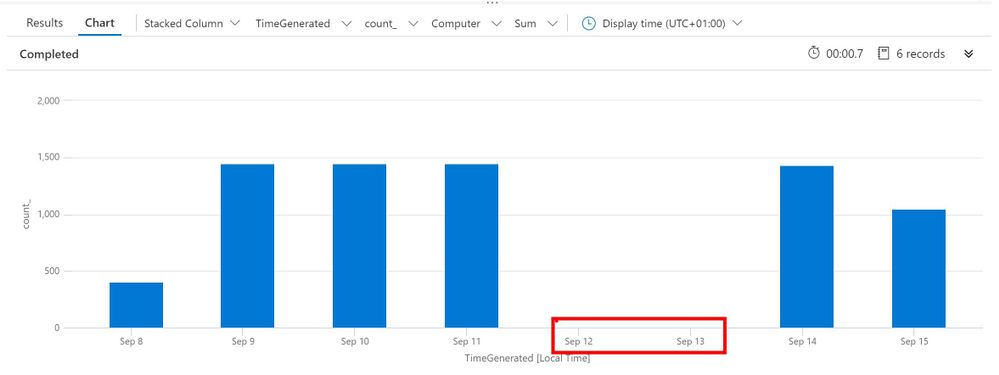
Result: You can see the gap for the Weekend we excluded (in red), this assumes your Weekend is Saturday to Sunday, please amend if it isn’t.
Note: If desired you should amend the above query, removing this line (I used it to show the gap the weekend left):
| where TimeGenerated > ago(7d)
————————————————————————
Extended examples that you might really use.
Now we will use some of the above examples, in real queries:
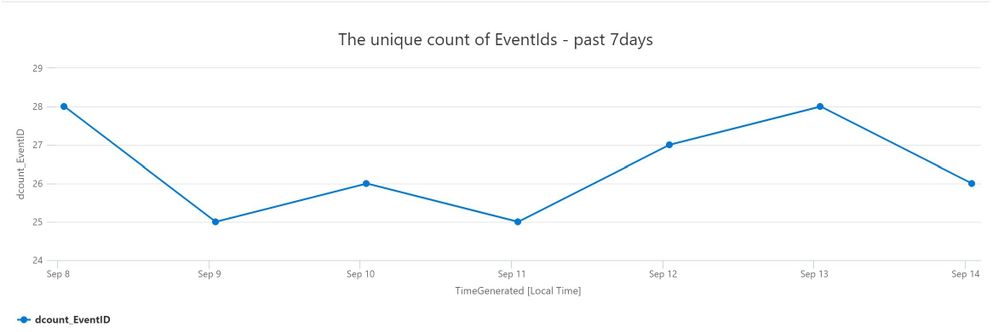
1. Show unique counts of EventIds, per day over the last Week: Go to Log Analytics and run query
SecurityEvent
| where TimeGenerated between ( startofday(ago(7d)) .. startofday(now()) )
| summarize dcount(EventID) by bin(TimeGenerated,1d)
| render timechart title = "The unique count of EventIds - past 7days"
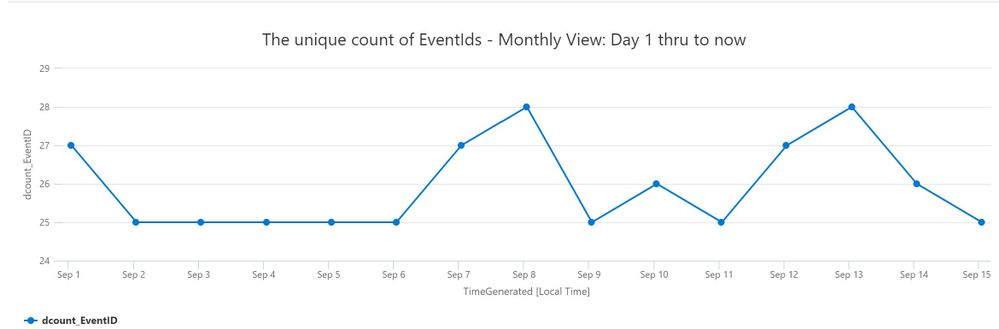
2. Show unique EventIds so far during the current month: Go to Log Analytics and run query
SecurityEvent
| where TimeGenerated between ( startofmonth(now()) .. now() )
| summarize dcount(EventID) by bin(TimeGenerated,1d)
| render timechart title = "The unique count of EventIds - Monthly View: Day 1 thru to Today"
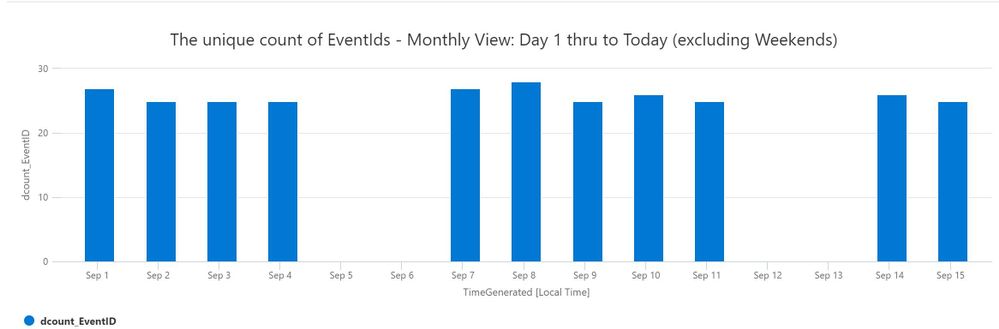
3. Show unique EventIds so far this current month, excluding weekends (Saturday & Sunday). Go to Log Analytics and run query
You can adjust for a Friday to Saturday weekend, swap 1d .. 5d to 0d .. 4d
SecurityEvent
| where TimeGenerated between ( startofmonth(now()) .. now() )
| where dayofweek(TimeGenerated) between (1d .. 5d)
| summarize dcount(EventID) by bin(TimeGenerated,1d)
| render columnchart title = "The unique count of EventIds - Monthly View: Day 1 thru to Today (excluding Weekends)"
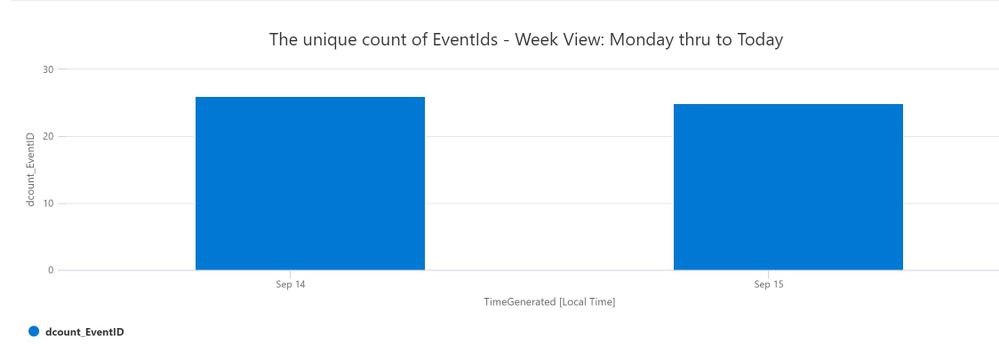
4. Show unique EventIds for the current Week, Week starting on Monday. Go to Log Analytics and run query
I used +1d to make the week start on Monday, as the default is Sunday (0d).
SecurityEvent
| where TimeGenerated > startofweek(now()) + 1d
| summarize dcount(EventID) by bin(TimeGenerated,1d)
| order by TimeGenerated asc
| render columnchart
| render columnchart title = "The unique count of EventIds - Week View: Monday thru to Today"
Summary
The above examples should give you some ideas on how to search (and visualize) your data using Time and Dates techniques. Did I miss any you use?
by Scott Muniz | Sep 21, 2020 | Uncategorized
This article is contributed. See the original author and article here.
Microsoft Endpoint Manager is now an industry leader to manage and empower your users across all their devices. One of the unique advantages it provides is that it does not matter where you are in your cloud management journey, Microsoft Endpoint Manager meets you where you are. In the last year, we saw many new IT management and security professionals discover Microsoft Endpoint Manager as part of their secure remote work initiatives and/or Zero Trust strategy.
To help your learning goals, we are excited to announce the brand-new Microsoft Endpoint Manager Evaluation Lab Kit is now available for free download! Again, it doesn’t matter what background you come from, this guide will meet you where you are.
The Microsoft Endpoint Manager Evaluation Lab Kit provides a self-deploying Configuration Manager lab environment and self-guided instructions to get hands-on with both the on-premises and cloud aspects of the unified platform. At the end of this lab, you will become familiar with using certain key features of Microsoft Intune and Microsoft Endpoint Configuration Manager to deploy Windows 10 and Microsoft 365 apps for enterprise using the Microsoft Endpoint Manager administration console.
What makes this innovation in Microsoft Endpoint Manager possible is the native integration with Configuration Manager to co-manage your Windows 10 devices. You can continue to use Configuration Manager for managing Windows 10, and seamlessly add Microsoft Intune cloud service for Zero Trust security without necessarily migrating. As a component of Microsoft Endpoint Manager, Configuration Manager becomes the intelligent edge within your organization, connected to the Microsoft 365 intelligent cloud.
The lab reuses the same environment as the Windows and Office Deployment Lab Kit. It complements the Windows and Office evaluation kit by going a bit deeper into the management and security aspects.
Lab environment
This lab guide is based on an automatically provisioned virtual lab environment, including domain controller, Internet gateway, and a fully configured ConfigMgr instance. The lab environment is free to download.
Download the lab environment here in the Evaluation Center
Then, help us improve the next revision by filling this quick survey.
Lab guide scenarios
The Microsoft Endpoint Manager Evaluation Kit lab guide provides step-by-step guidance for the following scenarios:
Directory and Network Readiness
- Optimize Windows 10
- Cloud management gateway (CMG) & cloud distribution point (CDP)
- CMPivot for real-time data in Configuration Manager
- Windows Autopilot
- Tenant Attach, co-management and switching workloads
- Outlook mobile app config and app protection
Shaping devices to corporate standards
- User file and settings migration
- Security and Compliance
- Secure and deploy business applications
- Office and Windows as a Service
Next steps
The lab environment that runs with this lab kit contains evaluation software that is designed for IT professionals interested in evaluating Microsoft Endpoint Manager and related products on behalf of their organization. We do not recommend that you install this evaluation if you are not an IT professional or are not professionally managing corporate networks or devices. Additionally, the lab environment is intended for evaluation purposes only. It is a standalone virtual environment and should not be used or connected to your production environment. To learn more, please visit the product documentation
If you enjoyed this lab kit, please help us out by filling this quick survey. It will help us innovate further in future revisions of this guide and add more scenarios that you find useful.
Follow @Msintune on Twitter
(The lab guide is co-authored with Danny Guillory, Senior Program Manager, Microsoft 365)


Recent Comments