
by Scott Muniz | Sep 21, 2020 | Azure, Technology, Uncategorized
This article is contributed. See the original author and article here.

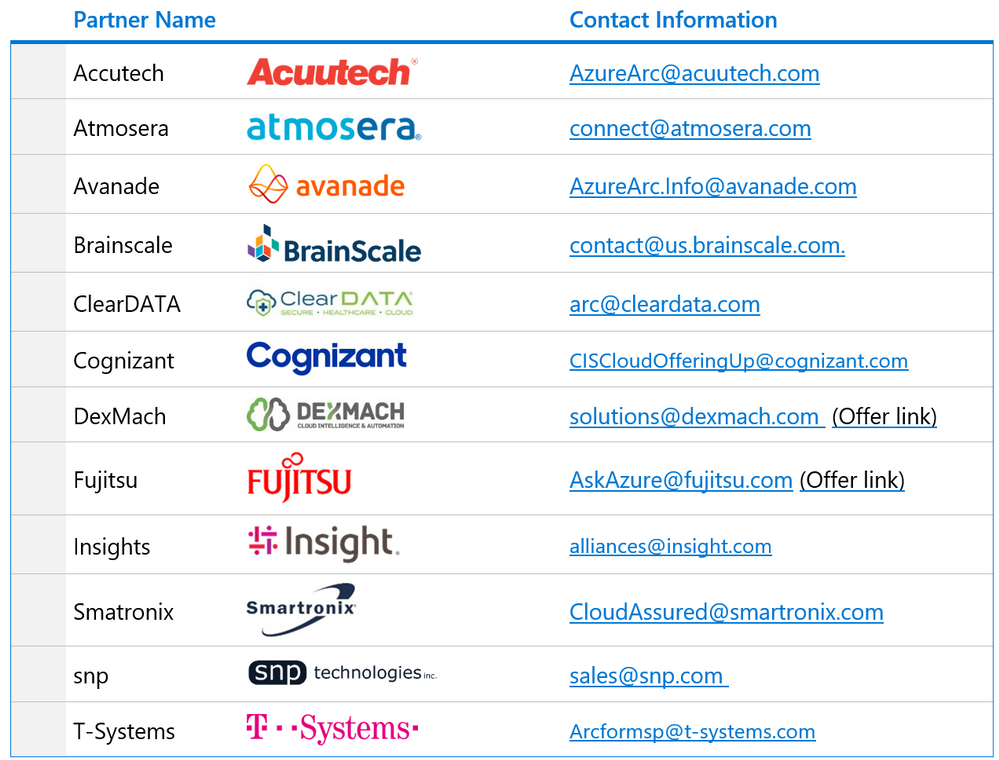
We have worked with the following partners during the preview of Azure Arc. We have trained their engineers and collaborated with them to develop unique proof of concepts. We have found that these partners demonstrate expertise with Azure Arc and are well positioned to help their customers transform their digital infrastructure leveraging Azure Arc.
Please reach out to the following partners if you need help with Azure Arc in your IT environment.
Microsoft doesn’t accept any liability on behalf of these partners.

by Scott Muniz | Sep 21, 2020 | Azure, Technology, Uncategorized
This article is contributed. See the original author and article here.
Database copy provides a way to create a transactionally consistent snapshot of the source database as a new database on the same server or different server. It also enables copy across regions, subscriptions, and Azure tenants using the same or different service level objective.
On Azure SQL Hyperscale the time taken by database copy depends on the source and destination chosen for the copy
- If the destination is the same region as the source, then the copy is created from snapshots of blobs created by database backups. This kind of copy is a fast operation regardless of database size.
- If the destination region for the copy is different from the source region, the copy is a size of data operation. Page server blobs are copied in parallel, so the copy time is not directly proportional to the size of data, yet it is a potentially long running size of data operation.
Below are some sample durations for database copy in Hyperscale:
|
Database size
|
Source region
|
Destination region
|
Elapsed time (mins)
|
|
1TB
|
West US 2
|
Central US
|
12
|
|
1 TB
|
West US 2
|
West US 2
|
180
|
|
7.2TB
|
West US 2
|
Central US
|
269
|
|
7.2TB
|
West US 2
|
West US 2
|
13
|
Creating a Database Copy
Database copy can be created started with PowerShell, Azure CLI, REST API, or T-SQL. Cross subscription and cross tenant copy is only supported using T-SQL. If you do not specify a service objective for the target database, the default service objective and configurations are used, which is HS_Gen5_2 with 1 additional replica which can be used for reads.
Azure CLI
az sql db copy --resource-group "sourceRG" --server sourceServer --name "sourceDB" --dest-resource-group destDB --dest-server destServer --dest-name destDB --service-objective HS_Gen5_2 --read-replicas 0
PowerShell
New-AzSqlDatabaseCopy -ResourceGroupName "sourceRG" -ServerName sourceServer  `-DatabaseName "sourceDB" `
-CopyResourceGroupName "destinationRG" -CopyServerName destServer -CopyDatabaseName "destDB"
TSQL
CREATE DATABASE Database2 AS COPY OF SourceServer.Database1;
Portal
Another way to copy the database is via the Azure portal.
 Portal
Monitoring database copy:
In the master database:
select * from sys.dm_operation_status
GO
 sys.dm_operation_status
Note: the progress status values are limited to 0/50/100%.
Current preview Limitations
- sys.dm_database_copies does not currently track progress of database copy, this will be addressed before GA.
- Currently portal target database allows choice of elastic pool but the copy will fail as Hyperscale does not support Elastic pools
by Scott Muniz | Sep 21, 2020 | Azure, Technology, Uncategorized
This article is contributed. See the original author and article here.
Search for training on Windows Server and you’re likely to find that the top results are about Windows Server virtual machines on Azure. But we also know that many organizations run Windows Server on-premises: in a server room in their own building or in a separate data center.
Some of our most popular sessions that our team delivered at at Microsoft Ignite the Tour 2019 were about Windows Server 2019:
Migrating to Windows Server 2019 – about upgrading services like Active Directory, DHCP, DNS and files shares to Windows Server 2019.
Top 5 (or so) Windows Server 2019 features – Windows Admin Center, Storage Migration Services, System Insights and more!
However, there’s only so much information you can fit into a conference session, even at an in-person event.
We are thrilled to tell you about three new instructor-lead courses, developed by Microsoft’s Worldwide Learning team in conjunction with our very own Windows Server expert, Orin Thomas. (He literally wrote a Microsoft Press book on it – Windows Server 2019 Inside Out).
Course WS-0011T00-A: Windows Server 2019 Administration
This 5 day instructor-lead course is designed primarily for IT professionals who have some experience with Windows Server. It is designed for professionals who will be responsible for managing identity, networking, storage and compute by using Windows Server 2019, and who need to understand the scenarios, requirements, and options that are available and applicable to Windows Server 2019.
It contains 12 modules, complete with labs:
- Windows Server Administration Overview
- Identity Services in Windows Server
- Network Infrastructure services in Windows Server
- File Servers and Storage management in Windows Server
- Hyper-V virtualization and containers in Windows Server
- High Availability in Windows Server
- Disaster recovery in Windows Server
- Windows Server security
- Remote Desktop Services in Windows Server
- Remote access and web services in Windows Server
- Monitoring, performance, and troubleshooting
- Upgrade and migration in Windows Server
Course WS-012T00-A: Windows Server 2019 Hybrid and Azure IaaS
This 3 day course is intended primarily for IT Professionals who have experience with managing an on-premises Windows Server environment. Its purpose is to prepare professionals for planning, implementing, and managing environments that include Azure IaaS-hosted Windows Server-based workloads. The course covers how to leverage the hybrid capabilities of Azure, how to migrate virtual and physical server workloads to Azure IaaS, and how to manage and secure Azure VMs running Windows Server 2019.
It contains 8 modules, complete with labs:
- Introducing Azure Hybrid IaaS with Windows Server 2019
- Implementing identity in hybrid scenarios
- Facilitating hybrid management and operational monitoring in hybrid scenarios
- Implementing security solutions in hybrid scenarios
- Implementing file services in hybrid scenarios
- Deploying and configuring Azure VMs
- Managing and maintaining Azure VMs
- Planning and implementing migration and recovery services in hybrid scenarios
Course WS-013T00-A: Azure Stack HCI
This 3 day course is intended primarily for IT Professionals who already have significant experience with managing an on-premises Windows Server environment. Its purpose is to cover advanced topics related to Windows Server software-defined datacenter, Azure Stack HCI, and other Azure Stack products. The course also describes the use of existing Microsoft System Center products to implement and manage software-defined datacenters with Windows Server 2019. This course is advanced and is designed for people that want to run their virtual workloads on Windows Server 2019 at medium-to-large scale using software-defined datacenter and hyper-converged principles.
It contains 4 modules, complete with labs:
- Introducing Azure Stack HCI
- Operating and maintaining Azure Stack HCI
- Planning for and implementing Azure Stack HCI storage
- Planning for and implementing Azure Stack HCI networking
Click on the title of each course to learn more, and click the Find a learning partner button on each page, to see course delivery options in your local area.
Learn more

by Scott Muniz | Sep 21, 2020 | Uncategorized
This article is contributed. See the original author and article here.
By: Laura Arrizza – Program Manager | Microsoft Endpoint Manager – Intune
Security baselines are one of the configuration options available in Microsoft Endpoint Manager to configure Windows 10 profiles to help you secure and protect your devices and users. Security baselines act as a template for pre-configured groups of Windows settings and values recommended by security experts. When you create a baseline profile, you are creating a template of multiple device configuration profiles.
You can expect some improvements and changes to this feature area which are highlighted in this post.
Updated baseline content
We updated the existing Windows 10 MDM and Microsoft Defender ATP security baselines to the latest available version with our 2009 September release. With the latest versions, you can see which settings have been added, removed, and/or modified so you can ensure your endpoints stay secure. Also, the baselines have been refreshed to address any conflicting setting values between the two. Now with the updated versions, there should be no out-of-the-box conflicts.
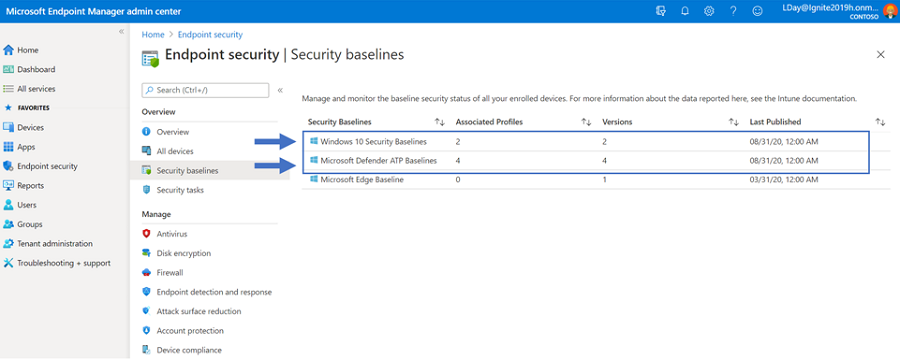
The Windows 10 MDM security baseline represent the recommendations for configuring Windows for security conscious customers using the Microsoft security stack or a 3rd party security stack. The Microsoft Defender ATP security baseline represents the recommendations for configuring MD-ATP for customers using Microsoft’s full security stack. Going forward, the two baselines are aimed to be serviced at the same cadence to ensure the content does not contain conflicting setting values so you can update your baseline versions with confidence.
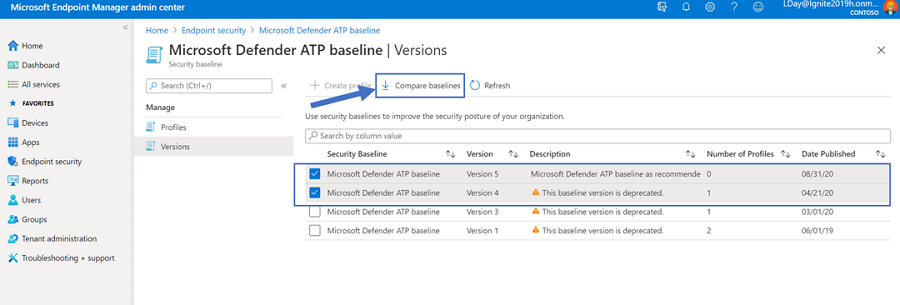
To update your baseline profiles to the latest version, go to Endpoint Security > Security baselines > **select a baseline** > Versions and see that the latest version is now available. To understand what has been changed between versions, use the checkboxes for two different versions and select “Compare baselines”. You are then prompted to download a CSV file that shows the differences before opting to update. For more information, see: Use security baselines to configure Windows 10 devices in Intune to learn more.
Improvements to baseline reporting
We have made a few enhancements to the security baselines experience to improve our reporting to make it easier to monitor your devices targeted by baseline profiles.
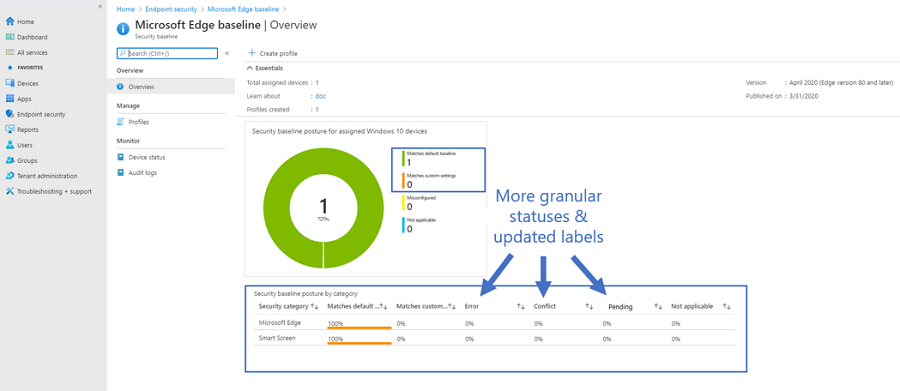
Under Endpoint Security > Security Baselines > **select a baseline** we now take you straight to the list of profiles and available versions that are in your tenant. Once you select a baseline version, you can see information on the baseline posture states across your devices with updated terminology and definitions. The common labels and definitions we use for status are more granular to help describes the intent of the status:
- “Matches baseline” will update to “Matches default settings”, which better describes the intent to identify when a devices configuration matches the default (unmodified) baseline configuration.
- “Does not match baseline” will update to “Matches custom settings”, to identify the devices that are in success against a modified baseline configuration.
- “Misconfigured” will be broken out into more specific details to help identify where things need your attention, like “Error”, “Conflict” and “Pending”.
- “Not applicable” will stay the same to call out when a setting is not applicable and not applied to the device.
The new states will bring consistency to other areas of the console. This is applicable to the security baseline posture aggregate charts on the Overview page and the “Device Status” list report found in the screenshots below:
In addition to this, you can select a device to view the list of endpoint security profiles and baselines assigned to the device. We’ve added additional information to this report to be able to see the user principal name to help you monitor your profiles against the device.
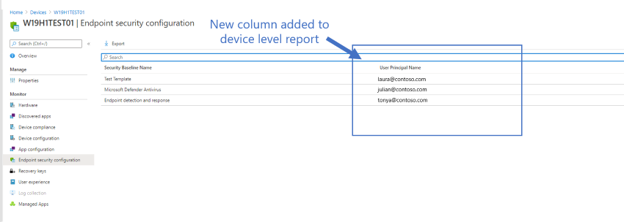
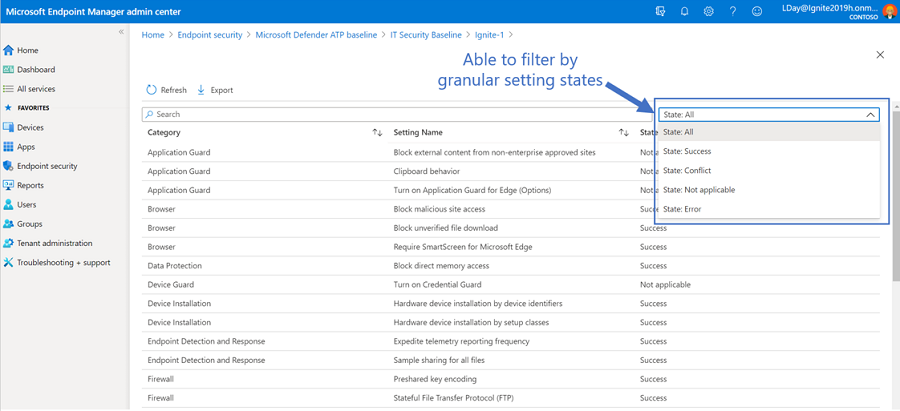
Once you select one of the profiles, you can look at the list of settings applied to the device and the category. We’ve recently flattened the list to make it easier to view. Also, the setting status is consistent with the updated posture states to help identify where errors and conflicts occur. You can use the filter dropdown to have this in your view.
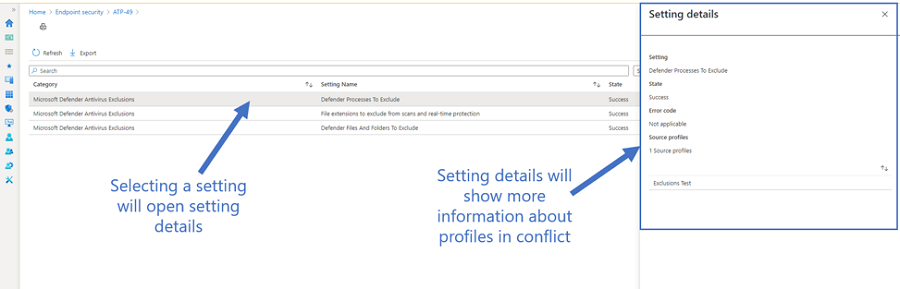
From here, you can select the setting to look at additional details and identify where any conflicts may occur from device configuration profiles, other baseline profiles or endpoint security profiles. The ones listed will navigate you to the profile resource to start troubleshooting the conflict. This is more consistent with the device configuration experience.
Overall, these improvements will help with the troubleshooting flow and bring more consistency to the device configuration experience.
More to come for baseline improvements
We plan to continue the improvements to the baselines experience by publishing new content, like the Office security baseline and Update security baseline through Intune and keep up to date with the latest versions available for our existing baselines.
In addition, more reporting improvements are in the works to help you identify conflicts, errors, and see more data to monitor your baseline profiles.
How can you reach us?
Keep up to date via Intune docs and provide feedback below on what you want to see! Let us know if you have any additional questions on this by replying back to this post or tagging @IntuneSuppTeam out on Twitter.
by Scott Muniz | Sep 21, 2020 | Uncategorized
This article is contributed. See the original author and article here.
By: Laura Arrizza – Program Manager | Microsoft Endpoint Manager – Intune
We are introducing new Microsoft Defender Antivirus reports in the Microsoft Endpoint Manager admin center to help you monitor your devices for status on malware and Antivirus states. You will be able to use two new operational reports to see which devices need your attention and two organizational reports to view general AV information.
New Operational Reports in Endpoint Security
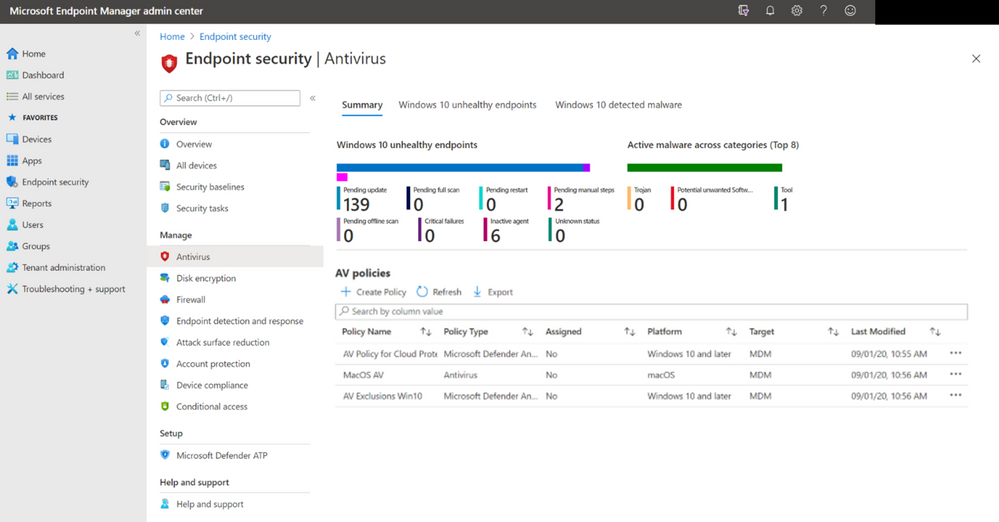
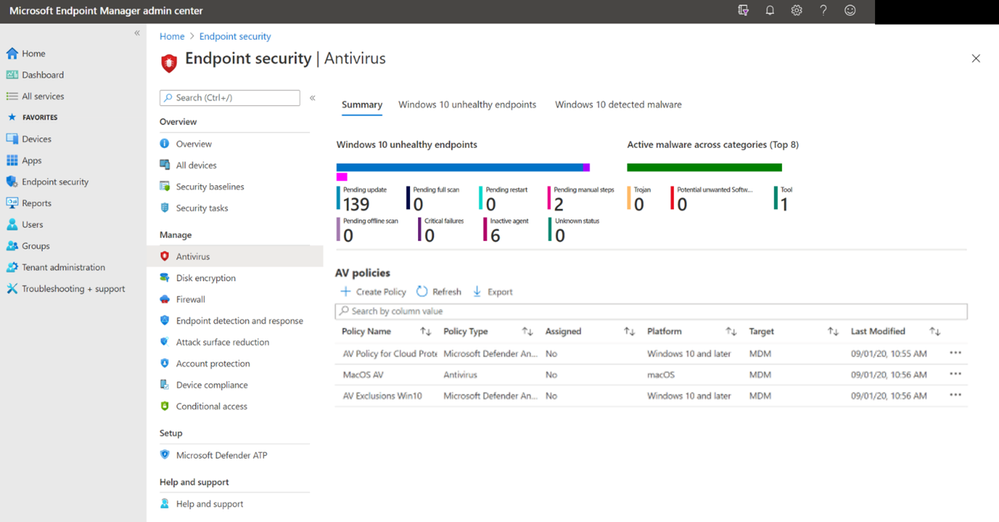
Under the “Endpoint Security” node, you can navigate to the “Antivirus” section to see summary aggregates and new operational reports to help you monitor the devices that need your attention.
On the “Summary” tab, you can see aggregate information for the count of devices with a given threat agent status and active malware category. Both aggregates show the top eight categories and correspond to the operational reports in the other tabs. If there are no devices in any of the states, you will be informed that there are no results to display.
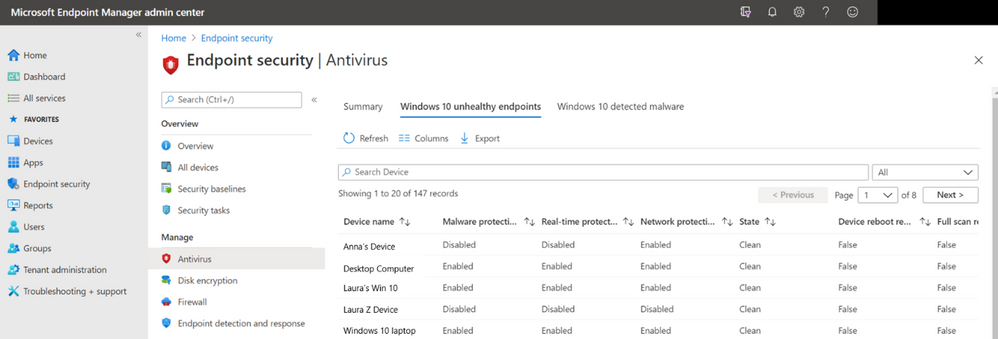
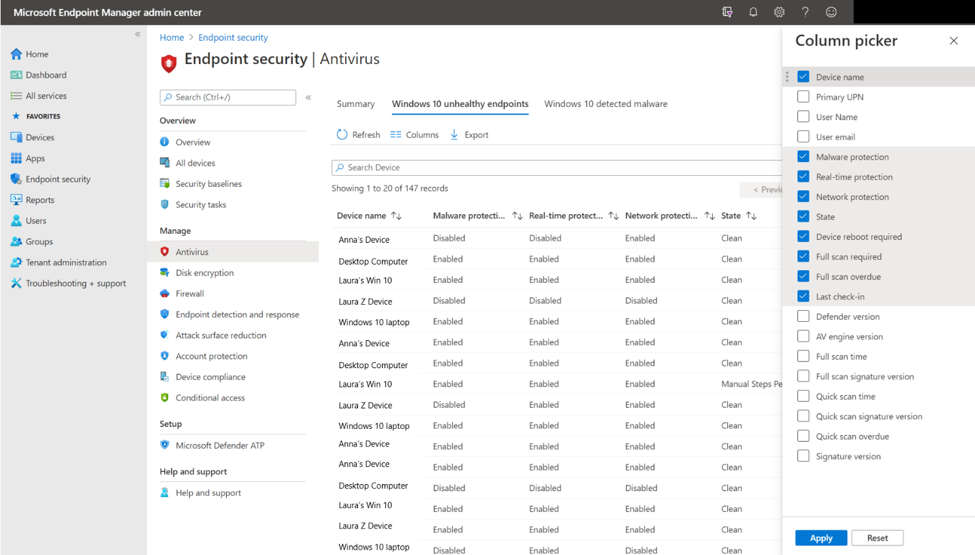
On the “Windows 10 unhealthy endpoints” tab, you can view the operational report for the threat agent status on devices and users to outline which are in a state that requires your attention. Each record will tell you if malware protection, real-time protection, and network protection are enabled or disabled. You can view the state of the device and additional information found in the extra columns to help identify next steps for troubleshooting.
As with all of the reports, you have the ability to use upgraded grid controls to search across the records, sort on every column, view the number of records in the report, use paging controls for large sets of records, and export the list of records to a .csv file to save locally. The reports will refresh the data around 20 minutes or so. show fresh data around ~20 minutes or so.
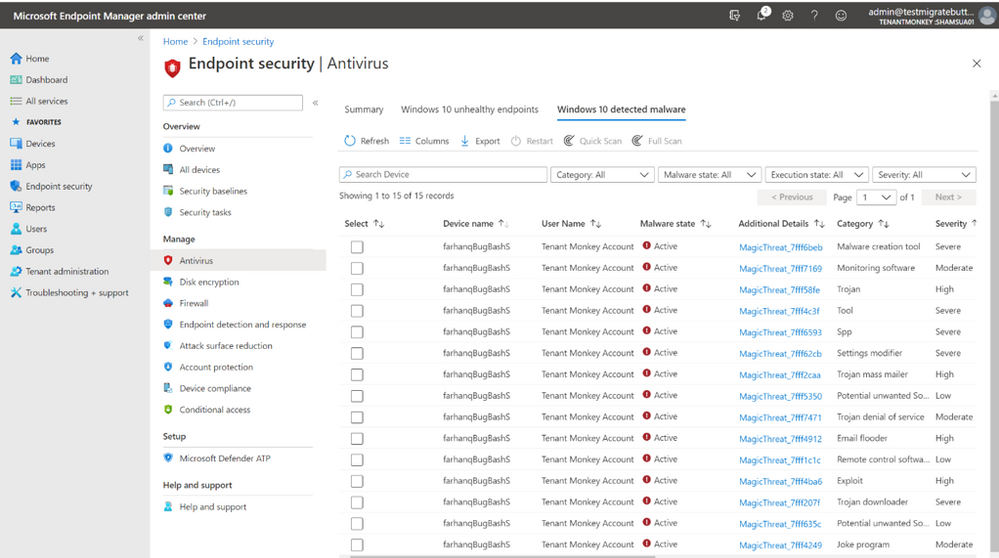
On the “Windows 10 detected malware” tab, you can view the operational report to see the list of devices and users with detected malware with details of the malware category. This will show the malware state of the device and counts of malware found on the device. You can take remote actions here including restart, quick scan, full scan, or update signatures to help remediate your devices.
Organizational Reports
Under the “Reports” node, you can navigate to the “Windows Defender Antivirus Reports (preview)” page to see links to two new organizational reports.
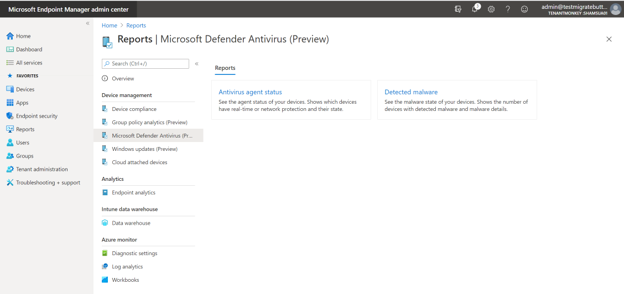
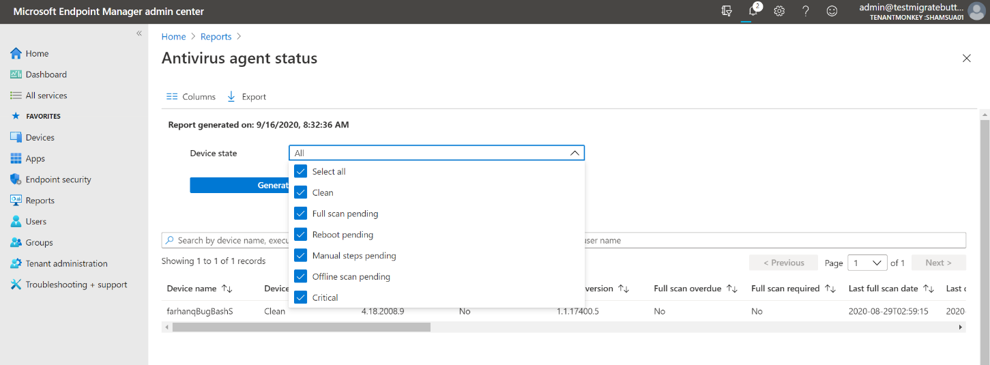
The first report, “Antivirus agent status” allows you to generate a report to view the list of devices, users and antivirus agent status information. You can start by selecting the filter for device state (i.e. clean, critical, reboot pending etc.) and select the columns you wish to have in view. Once the report has been generated, a timestamp shows how fresh the data is. You can search across the results, sort, use paging controls, see the number of records, and export to a .csv file. The data within the report will remain in your console up to 3 days before requiring you to generate again.
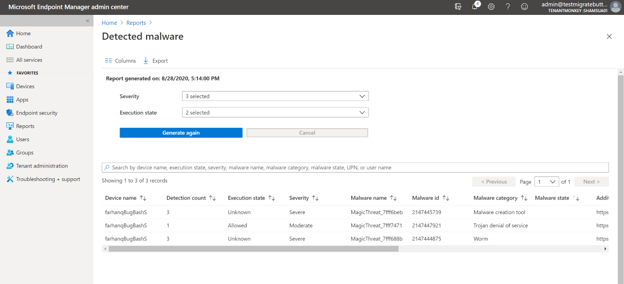
The second organizational report, “Detected malware”, works the same in such you can select the filters for severity and execution state to generate your report. This will show the list of devices and users with the count of detections found, the execution state, detection time, and malware state/category.
Existing Threat Agent Status Report
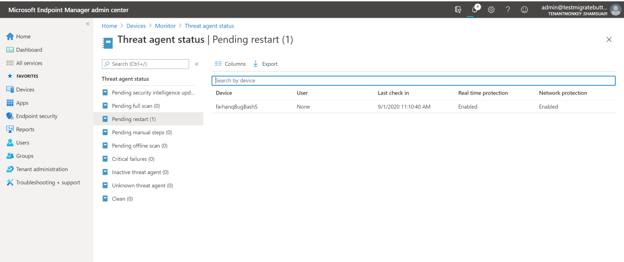
The new reports are meant to replace the existing “Threat Agent Status” report which is found under the Devices > Monitor > Threat Agent Status section of the console. The new reports provide more information, better organization, fresher data, and improved data usability. We will maintain the existing report to give you time to get used to the new reports, update any helpdesk training, and migrate any existing automation to use the new reports. Note, the existing report uses the Intune Graph API from: https://graph.microsoft.com/beta/deviceManagement/managedDevices$expand=windowsProtectionState, and the new reports reference: https://graph.microsoft.com/beta/deviceManagement/reports/getUnhealthyDefenderAgentsReport.
We encourage you to try out the new reports and provide any feedback in the comments below. We will be adding more functionality to the reports in the future too!
How can you reach us?
Let us know if you have any additional questions on this by replying back to this post or tagging @IntuneSuppTeam out on Twitter.


Recent Comments