by Scott Muniz | Sep 22, 2020 | Uncategorized
This article is contributed. See the original author and article here.
Get Help with Teams Issues Faster Using Logs
We all run into various technical issues from time. When we do, we want to get help fast! One way to help ensure your support ticket gets resolved quickly and effectively is to include the debug logs from within Microsoft Teams.
Support engineers rely on debug logs to help identify issues with significantly more speed and accuracy. Having these logs on hand to include with a support request will allow Microsoft to pinpoint where a problem may exist and troubleshoot it more effectively.
We know that student data privacy is a top priority. The information included in debug logs does not include sensitive student data. Only data related to logins, connection requests, and call quality are provided to engineers for the explicit use of troubleshooting issues within Teams.
Exporting debug logs within Teams is easy. Depending on the device you are working with, use the following keyboard combinations to download a debug log:
|
Windows
|
Mac OSX
|
Linux
|
|
Ctrl + Alt + Shift + 1
|
Option + Command + Shift+1
|
Ctrl + Alt + Shift + 1
|
The debug logs are automatically downloaded to the following folders:
|
Windows
|
Mac OSX
|
Linux
|
Browser
|
|
%userprofile%Downloads
|
Downloads
|
~/Downloads
|
Follow browser prompts for location.
|
For mobile devices, include the model of the device with your ticket and the version of Teams you are using. To find these details within teams go to More > Settings > About.
Our goal is to provide you with the quickest support possible. Providing logs with your support requests is one of the best ways to ensure tickets are handled as speedily as possible.
Happy learning!
by Scott Muniz | Sep 22, 2020 | Uncategorized
This article is contributed. See the original author and article here.
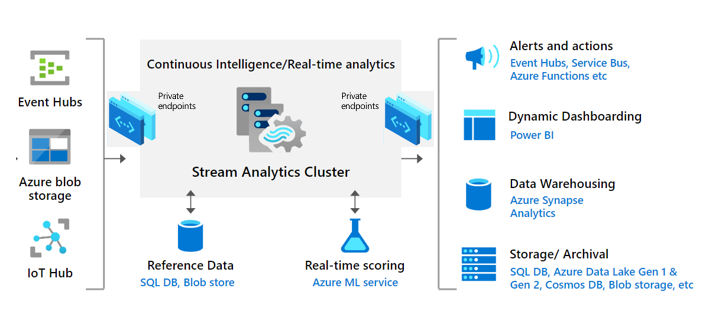
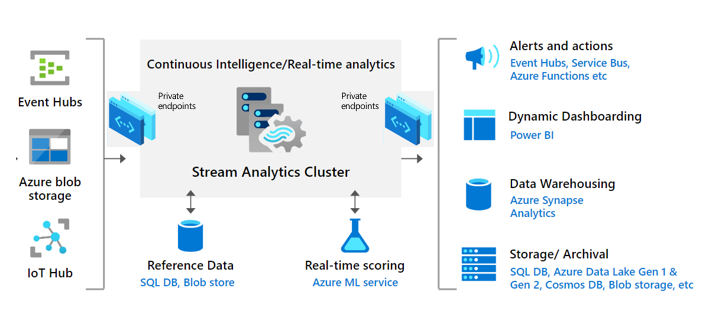
Stream Analytics allows you to easily build a real-time analytics pipeline on Azure within minutes. Our customers love the zero-code integrations with other Azure services and the ability to easily write complex analytics logic using simple SQL language. We have heard it loud and clear that our customers want to secure their streaming jobs to securely connect to their resources on Azure.
Today, we are excited to announce the public preview of Stream Analytics cluster – a new single-tenant (Dedicated) SKU with support for Azure Virtual Network (VNet). This SKU is ideal for customers with medium to large streaming workloads and strong enterprise security requirements.
Stream Analytics cluster’s capacity is measured in Streaming Units (SUs) which represents the amount of CPU and memory resources allocated to your cluster. The cost and value of a Streaming Unit is the same across existing Standard and Dedicated SKUs. The minimum size of a cluster is 36 SUs and the same cluster can be shared by various Stream Analytics jobs running across your development, test and production subscriptions within your organization.
The core of this offering is the same engine that powers Stream Analytics jobs running in a multi-tenant environment. The single tenant, dedicated cluster provides the following benefits:
- Single tenant hosting with no noise from other tenants – your resources are truly “isolated” and perform better to handle any burst in traffic.
- Scale your cluster between 36 to 216 SUs as your streaming usage increases over time. Larger sizes will be offered in the future.
- VNet support that allows your Stream Analytics jobs to connect to your resources securely using private endpoints.
- Ability to author C# user-defined functions and custom deserializers in any region of your choice.
- Zero maintenance cost allowing you to focus your effort on building real time analytics solutions.
Network isolation behind the scenes
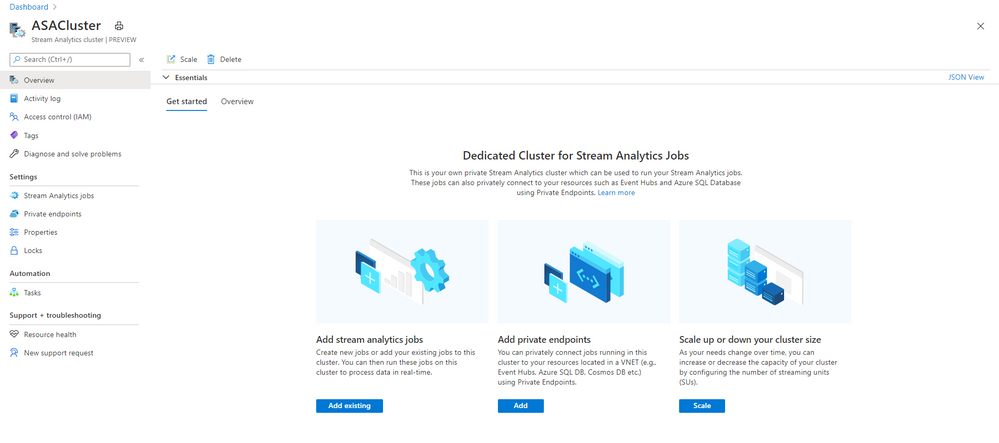
Stream Analytics provides a fully managed experience to connect ASA jobs to your resources using private link. creating a cluster, it takes 2 simple steps to securely connect streaming jobs to your resource (inputs/outputs):
- In your Stream Analytics cluster, create a private endpoint for input/output resource (e.g., Event Hubs)
- Go to the input/output resource (e.g., Event Hubs) and approve the private endpoint connection request from the cluster.
Stream Analytics clusters VNet support by taking care of all the heavy lifting behind the scenes. When you create a Stream Analytics cluster, all the necessary resources for you cluster are created inside a VNet that is dedicated to you. When you create a private endpoint in your Stream Analytics cluster, we create and manage that private endpoint resource to provide a seamless experience.
Managed Identity authentication for Event Hubs inputs and outputs
We are eager to solve the security needs of customers who may not have a large streaming workload to justify an entire Stream Analytics cluster. To address this, we will soon be rolling out support for Managed Identity authentication to Event Hub inputs/outputs. This will allow you to connect ASA jobs to Event Hubs that are behind a firewall or a VNet – as long as you have enabled “Allow trusted services” networking settings on the Event Hub side.
This does not provide blanket approval for any ASA job to access your Event Hubs as you must grant access to each of you ASA jobs individually thereby maintaining a secure link between the resources. This approach of using Managed Identity authentication along with enabling “allow trusted services” is already supported for Azure Blob stream inputs & outputs, Azure Blob reference data input, Azure Data Lake Storage Gen2 output and will be extended to support other
Getting started
Stream Analytics clusters (preview) will be rolled out to West Central US by this week and quickly followed by all other regions worldwide. We hope you take full advantage of this functionality and are excited to see what you build with Stream Analytics.
The Azure Stream Analytics team is highly committed to listening to your feedback. We welcome you to join the conversation and make your voice heard via our UserVoice. You can stay up-to-date on the latest announcements by following us on Twitter @AzureStreaming. If you have any questions or run into any issues accessing the public preview, you can also reach out to us at askasa [at] microsoft [dot] com .
by Scott Muniz | Sep 22, 2020 | Uncategorized
This article is contributed. See the original author and article here.
This installment is part of a broader series to keep you up to date with the latest features in Azure Sentinel. The installments will be bite-sized to enable you to easily digest the new content.
Threat intelligence indicators represent data describing known existing or potential threats to systems and users. Threat intelligence addresses many of the challenges Security Operation Centers (SOCs) are faced with today; as a result, successful SOCs are leveraging threat intelligence to improve efficiency in their threat detection, investigation, and response. Here is an example use case of how SOCs use threat intelligence to protect their organizations’ environment. Threat intelligence data provides alert enrichment with additional valuable context such as Severity information, associated Threat Types, and Confidence scores. With such critical information, SOC analysts can make faster and more data-backed decisions in alert validation and prioritization, which helps expedite the incident triage, reduce false positives, and improve the incident analysis.
If your organization works with threat intelligence indicators, having a centralized location to efficiently manage your threat intelligence data is crucial to the success of your threat intelligence research and integration experience. To address this need, we are delighted to announce that the threat intelligence menu item is now available in the Azure Sentinel portal! The menu item serves as a single pane of glass for your SOC personnel to view, create, edit, search, sort, and filter your threat intelligence data.
How to enable and use the new threat intelligence menu item
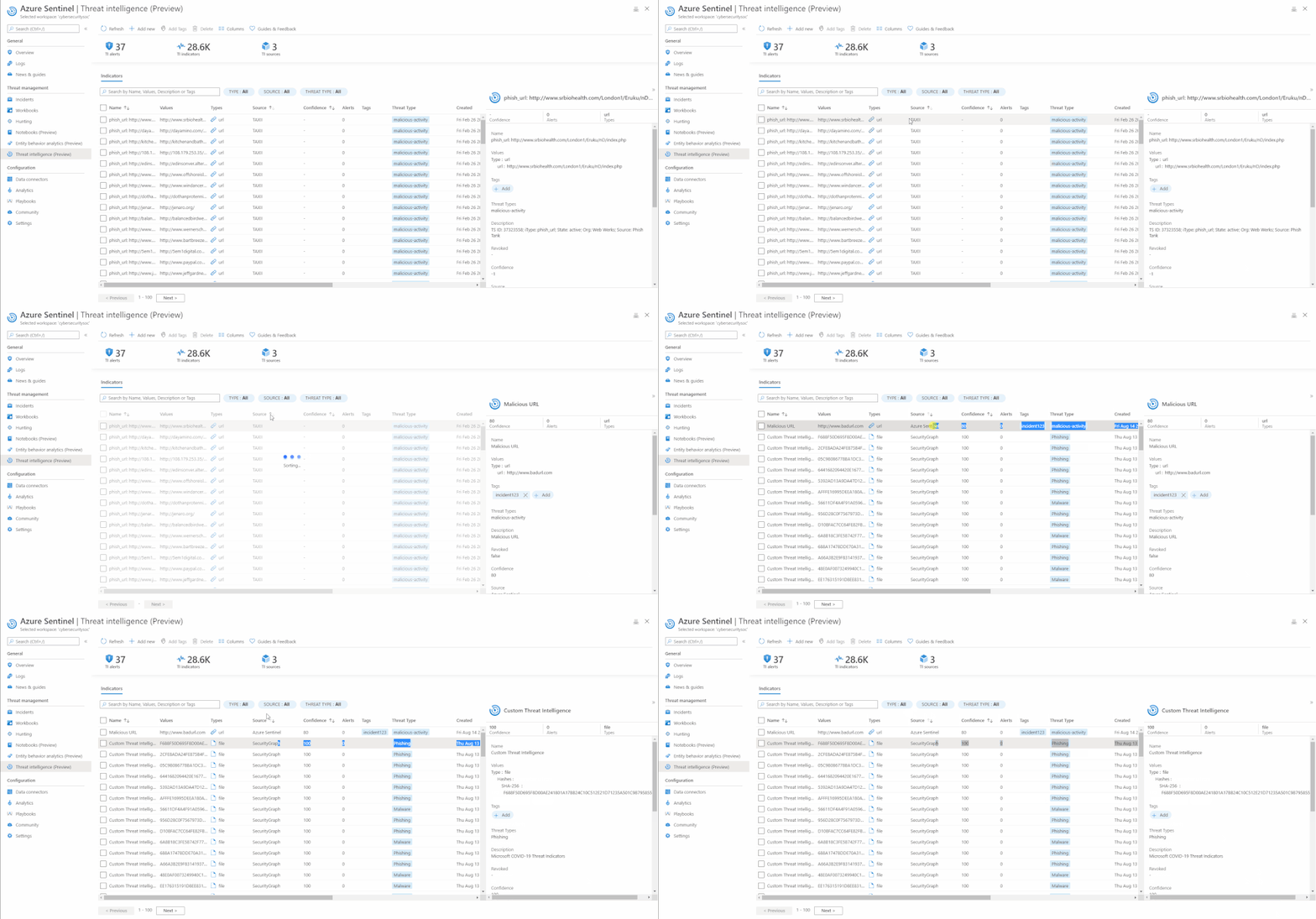
In your Azure Sentinel portal, navigate to the Threat Management menu, and select Threat Intelligence (Preview). Below are examples of some of the capabilities you can leverage the threat intelligence menu item today.
View indicators
The threat intelligence menu item enables you to conveniently view and access both your custom threat intelligence indicators that you have already created via the User Interface and imported threat intelligence data from external data sources without writing Log Analytics query.
 View indicators
Add and delete a new indicator
Previously, to send threat intelligence data into your Azure Sentinel workspace, you would need to utilize the Threat Intelligence Platform (TIP) and TAXII Server data connectors. With the new threat intelligence menu item, you can now also create your own custom threat intelligence indicators directly on the Azure Sentinel User Interface. This can be done easily using the “Add new” button on the hero banner of the threat intelligence menu item.
Deleting an indicator is just as easy as one click using the “Delete” button on the same User Interface.
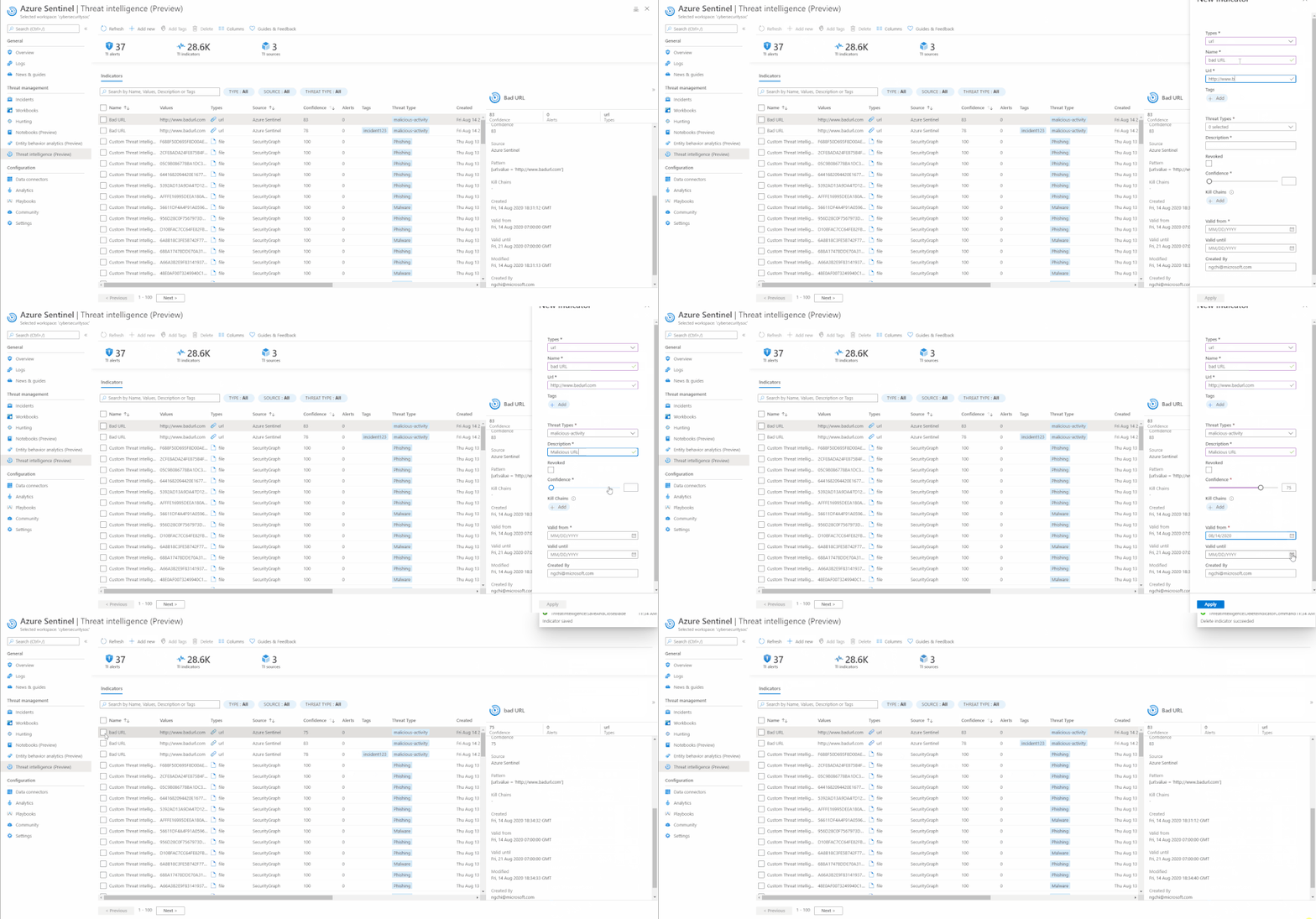 Add and delete an indicator
Tag an indicator
Tagging is used to categorize and group threat indicators together. Here is an actual example of how you can use tagging. Suppose you are investigating a potential attack and find that the indicator is part of that particular incident, then you can add the incident ID in your desired nomenclature, for example, IncidentID : 1234 to the indicator in Tags. You can later go back to search for all the indicators associated with the incident using the same tag.
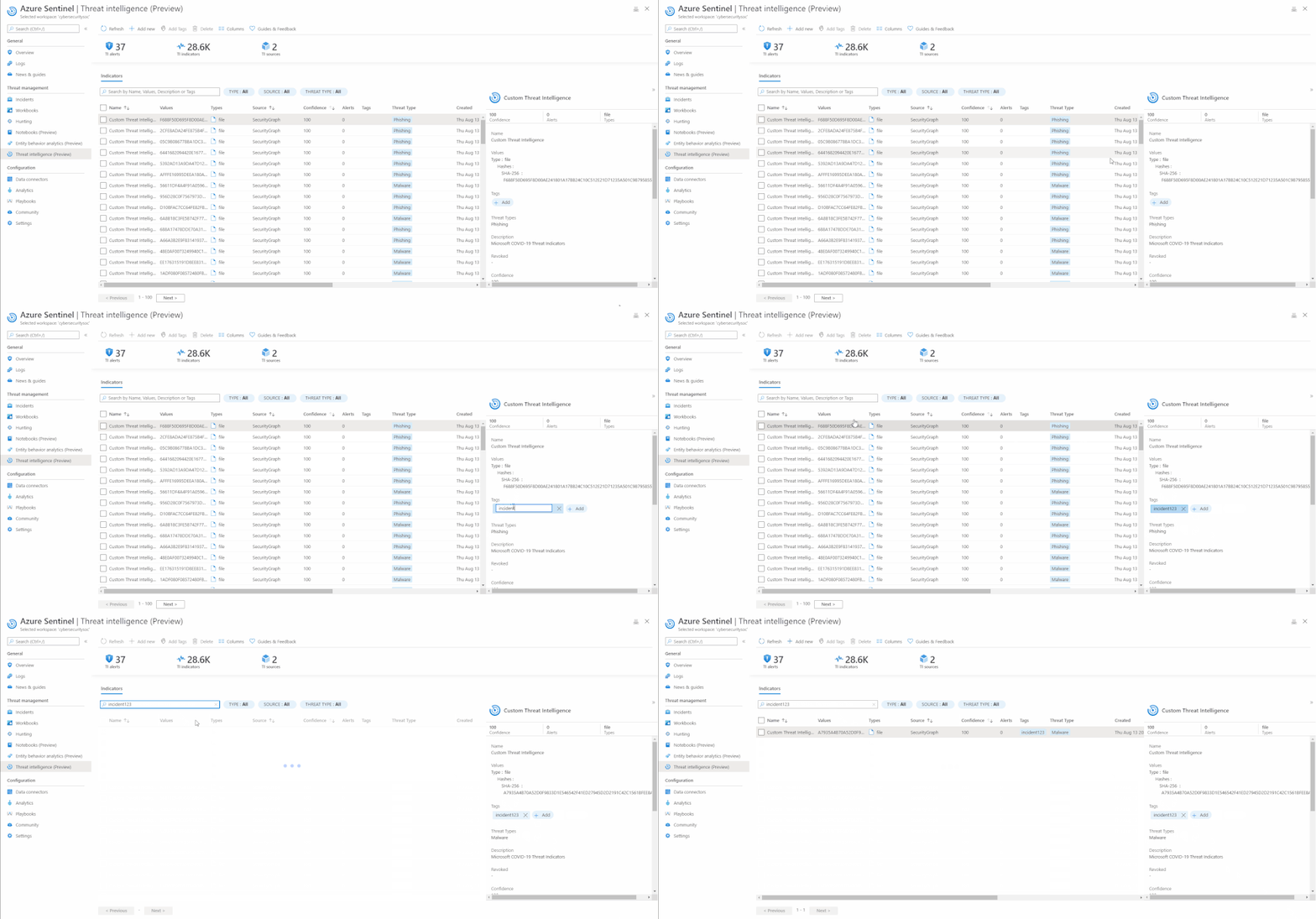 Tag an indicator
Edit an indicator
If an indicator is created on the Azure Sentinel User Interface using the “Add new” button, it can be edited at any point in time. To distinguish indicators based on where they are imported from, you can use the Source column on the threat intelligence menu item.
If a threat indicator has the Source column as SecurityGraph then it is imported using the threat intelligence – Platforms data connector.
If the Source column is Azure Sentinel then the indicator is created on the Sentinel User Interface using the “Add new” button on the threat intelligence menu item.
If the Source column is the friendly name of TAXII Server that you have connected via Sentinel, then it is imported using the threat intelligence – TAXII data connector.
Only indicators that have Source as Azure Sentinel can be edited due to security reasons.
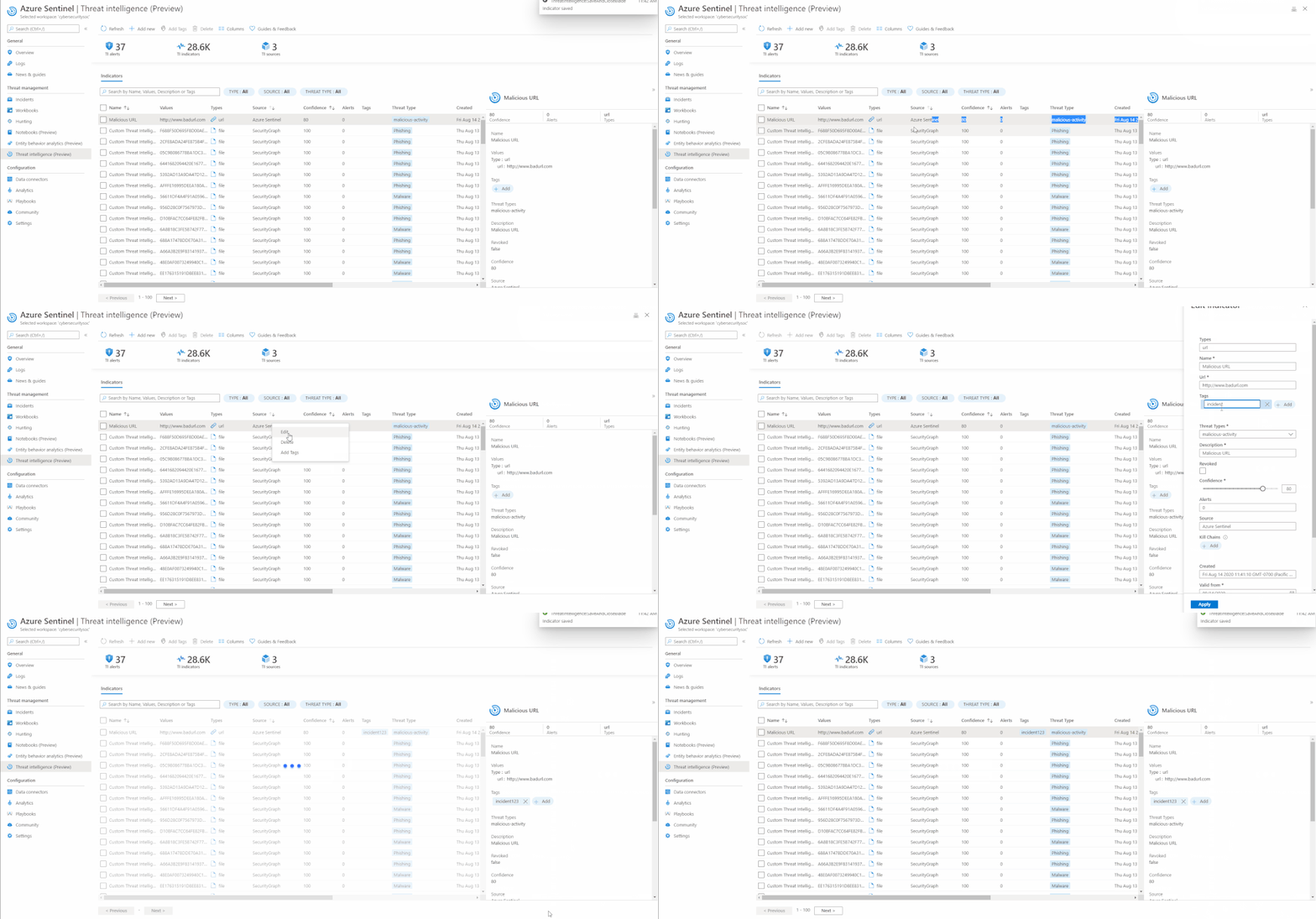 Edit an indicator
Search, Sort, and Filter indicators
With the new threat intelligence menu item, you can easily search for your specific indicators by their Name, Tags, Values, and Description.
The menu item also enables you to sort the indicators by different columns. Currently you can sort them by Name, Source, and Confidence field.
Additionally, filtering indicators can also be done on the Azure Sentinel User Interface by Type, Source, Confidence, Valid Until, and Threat Type.
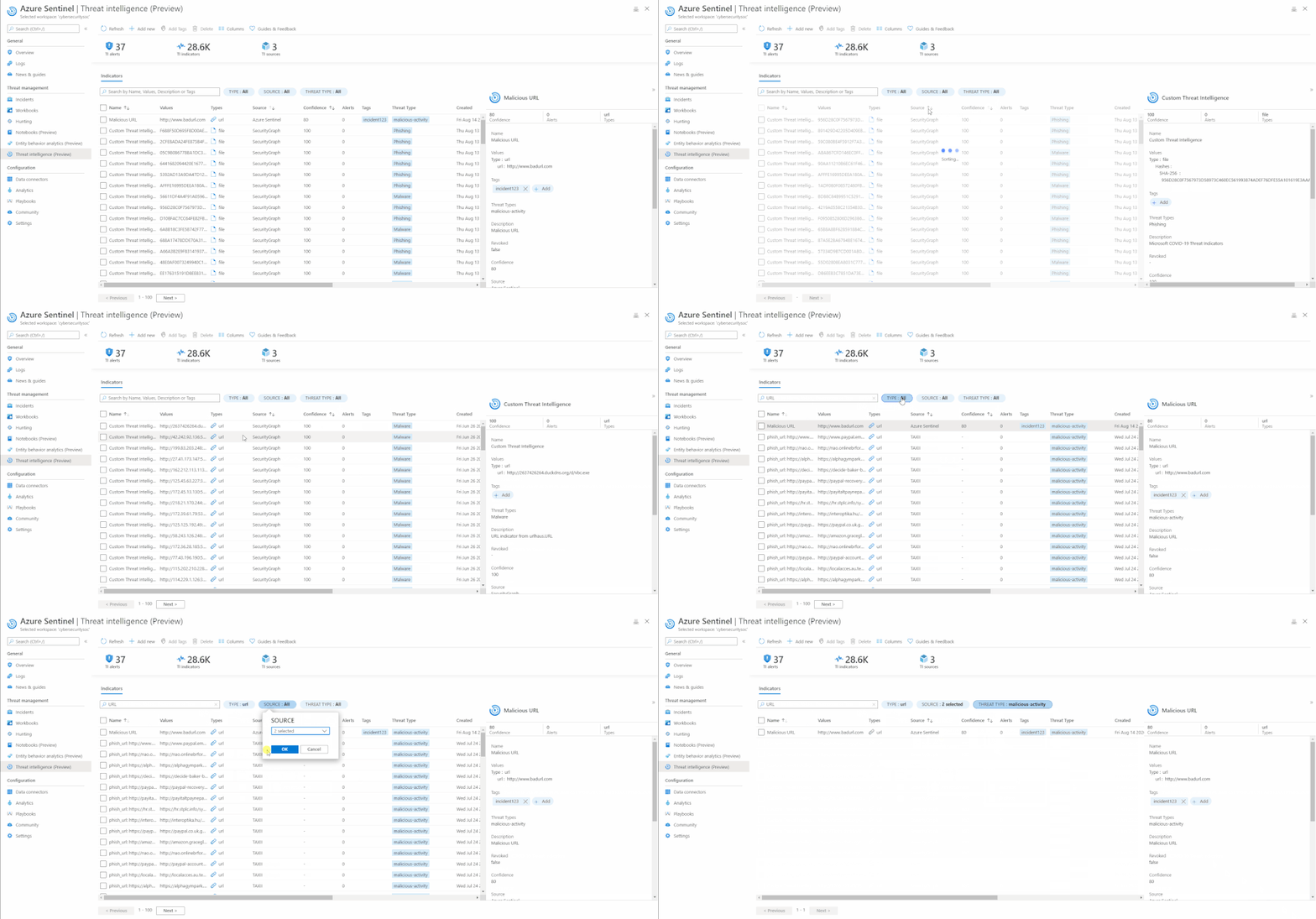 Search, sort, filter indicators
Guides and feedback
The “Guides & Feedback” panel provides guidance on how to maximize the use of the threat intelligence. It also gives you the opportunity to share your ideas and experience with our core engineering team and vote/add your ideas on the Azure Sentinel user voice platform.
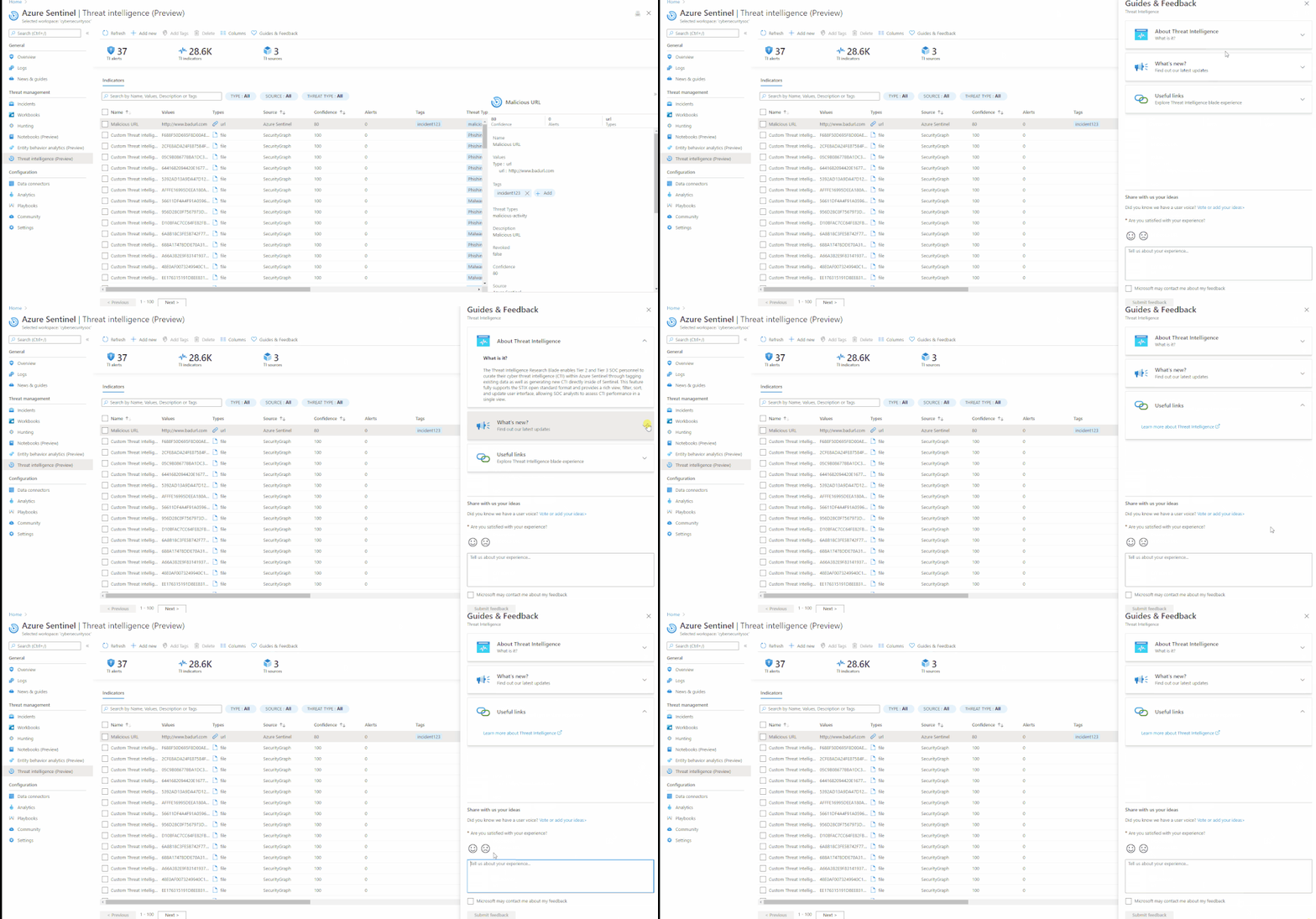 Guides & feedback
These are just a few highlights of the threat intelligence menu item. For a full list of the functionalities and the step-by-step instruction on how to use a certain feature on there, please refer to the documentation.
Get started today!
We encourage you to use the new threat intelligence menu item to improve efficiency in managing your threat intelligence data in your environment.
Try it out, and let us know what you think!
You can also contribute new connectors, workbooks, analytics and more in Azure Sentinel. Get started now by joining the Azure Sentinel Threat Hunters GitHub community.
by Scott Muniz | Sep 22, 2020 | Uncategorized
This article is contributed. See the original author and article here.
With this year’s Microsoft Ignite move to digital, hundreds of sessions across Microsoft have been made available for our IT Pro community. To make sure you can catch up on today’s Surface Hub news and other Surface content, we’re excited to announce the launch of our Microsoft Surface Virtual Hub. Here you can view all our Ignite sessions post-event.

In the Continued Learning we’ve included a series of skilling sessions to complement the topics we covered at this year’s Ignite to provide the next-level content our IT Pro community needs. Here you will also find relevant documentation and tech guides.
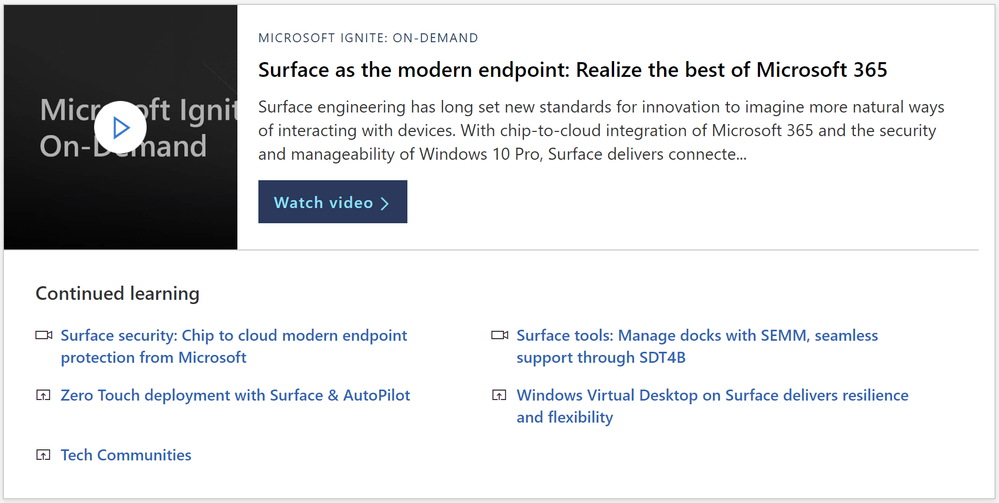
The Microsoft Surface Virtual Hub will continue to be a resource for our IT Pro community after Ignite, where you can expect content to be refreshed as new digital skilling opportunities and resource guides become available.
For a full catalog of our IT Pro Skilling, make sure to check out our Microsoft Surface page on YouTube.
by Scott Muniz | Sep 22, 2020 | Azure, Technology, Uncategorized
This article is contributed. See the original author and article here.
Today we are pleased to announce the Azure Security Benchmark v2. To accelerate the security of your cloud adoption journey, Microsoft has developed the Azure Security Benchmark (ASB). The benchmark is designed to provide clarity on security best practices and controls for configuring and operating Azure and Azure Services.
ASB v2 builds on the work of ASBv1 and includes these updates:
Vision for azure security guidance

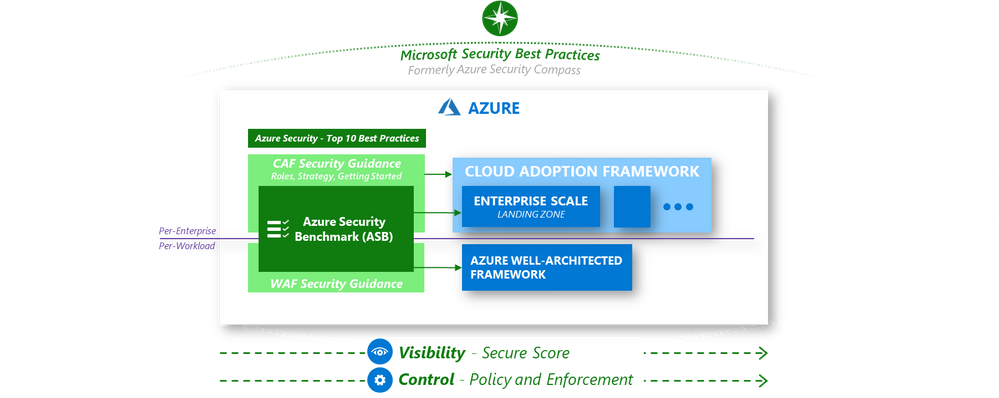
We have learned that securing Azure means different things to different roles in the organization and have built a system of integrated security guidance. Each of these are aligned together to simplify your security journey:
- Microsoft Security Best Practices – Recommendations for securing all assets in your enterprise, typically integrated into security architectures and strategies.
- Azure Well-Architected Framework – Guidance for workload owners to architect workloads that meet goals for security, performance, cost, and more.
- Cloud Adoption Framework (CAF) – Guidance for cloud adoption initiatives to plan and execute on a strategy that meets organizational goals for security, cost management, reliability, and more (includes Enterprise Scale Landing Zone reference implementation and automation)
- Azure Security Benchmark – Prescriptive best practices and controls to guide all roles in the security organizations on securing Azure and Azure Services
Over the course of the last few months, the teams working on ASB, Enterprise Scale Landing Zone in CAF, Azure Security Compass, Azure Security Top 10 Best Practices, and Microsoft Best Practices have been working to consolidate and align all this guidance together to make it simpler and easier for you to rapidly secure your Azure resources.
As with all our guidance, we would love to hear your feedback on how this is working for you and how we can improve it. You can reach us by sending us email.
What’s new in ASB v2?
In addition to mapping and aligning all the guidance together, the team focused on these improvements in ASBv2:
- Mapped to NIST SP 800-53 Controls: NIST SP 800-53 is one of the most used control frameworks in the Industry, so we updated the ASB controls to map with the NIST controls. Now you can use ASB to meet the NIST requirements in Azure and can monitor the requirements in Azure Security Center Compliance dashboard. The benchmark and mapping to NIST controls is also available in excel format for easy consumption.
- Identified Security Stakeholders: We added security stakeholders to each recommendation to help you bring in the right people in your organization to plan, approve, or implement it. The stakeholders are identified by their roles and responsibility definitions from the CAF.
- Updated and restructured the security controls to provide more clarity: We made changes to the Azure security controls to make them actionable and more effective. A few examples are:
What’s coming next?
Here is a brief overview of upcoming features:
- Monitoring of ASB v2 recommendations: Today, you can use the Azure Security Center Regulatory Compliance Dashboard to monitor your live Azure environment status with all the Azure Security Benchmark controls. In upcoming weeks, Security Center will be fully integrated with ASB v2, automatically monitoring your environment with policies implementing the complete ASB v2 control set by default.
- Implementing the Benchmark recommendations: In coming weeks, we will be publishing the ASB v2 blueprint which will help you to implement and enforce the benchmark requirements. Today you can achieve that by using Enterprise scale landing zone to get a head start and use it to implement the Benchmark recommendations.
- Security Baselines based on ASB v2: So far, we have published security baselines for 50 Azure services based on ASB v1. These baselines provide service guidance on how you can meet the Benchmark requirements for a specific service. Azure customers today use these baselines as part of their cloud service assessment process. In upcoming months, we will be updating these baselines and adding more service baselines based on the ASB v2 recommendations.
- Control framework targeted next: After CIS v7.1 and NIST SP 800-53 control mapping, we are working on adding mapping of PCI DSS control requirements in coming months. This will help you to meet PCI DSS control requirements using the Azure Security Benchmark.
Call to Action
You can get started now with planning and implementing the Azure Security Benchmark v2, automate deployment with Landing Zone, and monitor status using the Azure Security Center Regulatory Compliance Dashboard.
We want to thank the multiple teams within Microsoft, contributors from the Azure community, and NIST for the help with ASBv2 effort!
If you would like to participate in improving the benchmark or provide feedback, please send us an email. We would love to hear your success stories and feedback on how to make it better!


Recent Comments