by Contributed | Jun 1, 2021 | Technology
This article is contributed. See the original author and article here.
Everyone likes to get reliable answers from a trustworthy expert, right? Stoneridge Software is the expert that other organizations call when they need help tackling their most complex business systems. But what does it take these days to be an expert in a world that’s constantly changing—and to cultivate trust in that expertise? According to Stoneridge, it takes a love of technology, more than 200 Microsoft Certifications, and a company-wide commitment to learning.
The ever-curious team at Microsoft Learn wanted to find out more about what learning, training, and certification mean to Stoneridge Software and how these contribute to the company’s success. We talked to Principal Developer and Team Lead Nicole Gentz and her colleague, Team Manager Jessica Dunlap, and asked them about the company’s learning culture and how the experts at Stoneridge got so many Microsoft Certifications.
Staying Gold means staying on top of change
Stoneridge is a Microsoft Gold partner and an expert in Microsoft Dynamics 365—a suite of cloud-based products that bring together customer relationship management (CRM) and enterprise resource planning (ERP) functions for large and small organizations. It’s the software that companies need to run their mission-critical systems, including sales, finance, operations, service, human resources, and more.
“In tech especially, you’re only as good as what you keep up with,” Dunlap points out. “In order for us to be the best in the industry, we have to make sure we’re allowing people to invest in themselves.”
Stoneridge was founded in 2012 by former Microsoft employees who proudly call themselves “technology nerds.” It’s even on the Stoneridge website! Even longtime employees like Gentz invest in training classes. She has been with the company since its earliest days and has more than 20 years of ERP experience. “You can’t be stagnant,” she notes. “You have to constantly keep up and grow.”
Today she and Dunlap lead teams of expert consultants, solution architects, and developers who maintain their technology nerd status in a variety of ways—instructor-led programs taught by Microsoft Learning Partners, self-paced online courses, in-house lunch-and-learn events, monthly get-togethers, and tactical internet browsing.
That investment has helped Stoneridge grow into an award-winning global business that employs more than 200 people and provides guidance for a long client list that represents manufacturing, agriculture, construction, and other industries.
Certifications drive a culture that drives the certifications
To maintain Gold partner status, an organization needs to employ a certain number of employees who have current Microsoft Certifications. That’s another reason why Stoneridge promotes a culture of learning where employees are rewarded for achieving those certifications.
“It’s a big reason why we want our employees to be certified,” explains Dunlap, “but at the same time, we realize how important it is to have the knowledge and skill set to support the type of clients we have asking for our services.”
Gentz agrees, adding, “It says a lot to our clients to know, ‘Hey, these guys say they know what they’re doing!’ Certification is an extra layer.” Gentz has personally accumulated an impressive number of Microsoft Certifications in Dynamics 365 during her time at Stoneridge. “I worked in ERP for years, but the certifications helped me ensure that I knew what I knew.”
Gentz’s team supports enterprises that use Dynamics 365 Finance and other products in the suite that meet the needs of Stoneridge’s largest clients. Dunlap’s team works with small-to-medium-sized organizations with implementations of all Dynamics products, including Dynamics 365 Business Central and earlier versions of Dynamics. “Our training programs help us keep up with all the changes,” Dunlap notes. “It’s been great having the experts to show us what’s new.”
Regardless of the size of the client, the Stoneridge teams take their training seriously. This year, the company set a goal to achieve 60 new certifications by the end of the year. “We’re more than halfway there already,” Dunlap reports.
The training and certification process typically starts with a simple request, such as, “Hey, Jessica, I’d really like to get certified.” And she says, “OK! When?”
Even Stoneridge developers who’ve been at it for decades work toward Microsoft Certifications in their areas of interest. “I have guys on my team who worked at Microsoft for 25 years,” Gentz notes. “They still want to make sure their skills are up to par. The exams test you on another level.”
Gentz and Dunlap agree. When it comes to gaining the skills and knowledge for the associate and expert certifications, there’s no substitute for real-world experience. And that day-to-day, hands-on work with the technology augments the more structured training in the classroom. The result is good for Stoneridge clients, because as Gentz explains, “You really need to have a deep understanding of the products.”
Finding time for training
In addition to the Dynamics 365 certifications, such as Microsoft Certified: Dynamics 365 Finance and Operations Apps Developer Associate (candidates need to pass Exam MB-300 and Exam MB-500) and Microsoft Certified: Dynamics 365 Field Service Functional Consultant Associate (candidates need to pass Exam PL-200 and Exam MB-240), this year, the Stoneridge team is adding Microsoft Power Platform training to the list. The team is skilling up for the Microsoft Certified: Power Platform Functional Consultant Associate certification (candidates need to pass Exam PL-200) and for the Microsoft Certified: Power Platform Developer Associate certification (candidates need to pass Exam PL-400).
According to Dunlap, “The timing of these courses was great for us, since we just rolled out our five-year vision.” The company’s focus is Dynamics 365, but it recognizes the value of Microsoft Power Platform and the growing trend of low-code and no-code projects. As noted in Microsoft named a Leader in the 2021 Gartner Magic Quadrant for Analytics and BI Platforms on the Microsoft Power BI Blog, 97 percent of Fortune 500 companies are using Microsoft Power Platform. Its popular approach to app making is creating a new category of users called “citizen developers.” Other developers also appreciate how quickly they can build apps using Microsoft Power Platform tools. For Stoneridge, that means added value for their Dynamics 365 clients.
However, even the most enthusiastic learners at Stoneridge have a busy client schedule. “Developers always think they’re too busy,” Dunlap laughs. However, every developer sets certification goals, and the team managers give them the time they need. It’s a key part of the company’s core values.
Dunlap’s strategy for her busy team is to find downtime between client engagements. “Before the next project starts, I like to give my team members a change of pace, a week to wind down and invest in some learning and development.” Even in a small project that might take only half a day of client work, “I tell them to spend the other half of your day investing in yourself. Study for an exam. Write a blog.”
Not only does the company maintain a budget for its learning culture, but also it encourages team members to share what they know. Team members write blog posts with practical tips from their Dynamics 365 client engagements. Internal experts lead “confabs” where they talk about the latest industry trends.
“Last week they talked about data lakes,” Dunlap recalls. “It was really interesting, and they put it in a way that people who aren’t technical can understand. It’s super important that we’re not only investing in ourselves, but we share all the info we can to let others know, hey, this is great stuff!”
Expertise builds trust
Like any smart business, Stoneridge Software knows that fostering customer trust creates return engagements. Each individual Microsoft Certification is a building block toward creating that trust, and each team member’s commitment to training helps the company uphold its proud technology nerd status.
“Customers come to us for advice, asking, ‘How should I design my system?’” Gentz explains. “They come to us for expert knowledge. They come to us with big, long-term plans, and we have to be able to provide that. When we do, we gain their trust. And then they come back years later because of that trust.”
Learn more:
Microsoft Certifications
Microsoft Learning Partners
Dynamics 365 on Microsoft Learn
Microsoft Power Platform on Microsoft Learn

by Contributed | Jun 1, 2021 | Technology
This article is contributed. See the original author and article here.
The frontline of any industry is fast-paced and always changing, so we know that keeping frontline workers connected to the business is crucial. With platforms like Microsoft Teams, frontline workers can communicate, assign tasks, and schedule shifts whether on a factory floor or in retail store, all in one app. But what about tracking business processes and organizing work? Many organizations are still relying on paper and clipboards or a messy spreadsheet to track routine processes. As organizations continue to digitally transform their frontline workforce, we wanted to share how to make the daily flow of information more mobile and trackable.
Factory employees using a Surface tablet
Enter Microsoft Lists: your smart information tracking app, part of the Microsoft 365 suite. Microsoft Lists is a simple, smart, and flexible way to track information and routines – and it’s integrated right in Microsoft Teams so you have everything in one place. Lists works just like you’d expect any list app to work, with extensible features to customize and format your information as you see fit. Quickly create a list from scratch, a pre-made template, or an existing Excel spreadsheet, and populate rows and columns with details. Add milestone dates and progress columns, assign people to individual list items, and attach relevant files. Color formatting and automated notifications are also built-in, so nothing goes overlooked. Lists is optimized for mobile use, so you can access and update your list on-the-go from any device. We are also adding support for custom list templates, available soon, so you can customize a List template for your own organization.
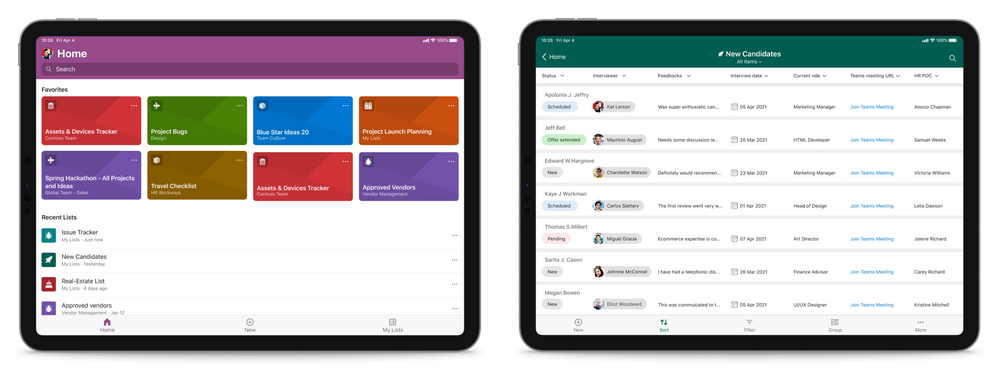 Lists home screen and sample list on tablet
Lists is already included in your Microsoft 365 business and enterprise subscriptions, so you can start tracking right away. Let’s dive into some more Lists features and use cases for frontline scenarios.
Organize and track information
With how complex teams and business are today, it can be easy for information to get lost in the weeds. Luckily, Lists provides a single source of truth for your team by organizing information in a shared location: your Microsoft Teams channel. Rather than keeping a binder of contacts or asset information and passing it around, anyone on the team can open a Lists tab in their Teams channel instantly from a phone or tablet, updated in real time. Relevant content is right at the source with links and attachments in each line item, and ownership is shared across team members so no information exists in a silo.
Scenarios where Lists help organize information:
- Keep a list of contacts for your store so you can quickly check inventory at other store locations
- Maintain a supplier list for your factory to keep track of who supplies what and relevant contact information
- Track inventory levels and format the list to notify the team when levels are low
- Manage assets by keeping a list of repair history, checkouts, and status
- Track customer reviews by connecting a customer survey form to send results directly into a list
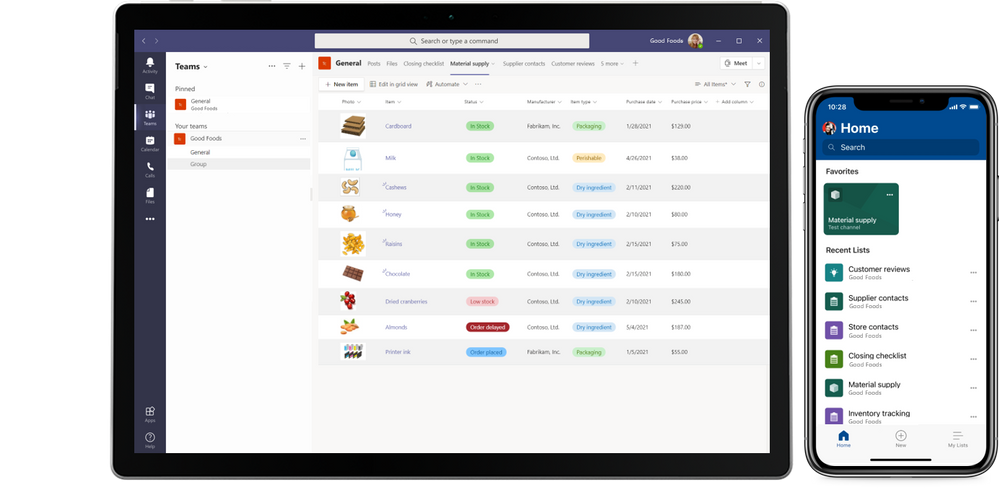 Inventory tracking list on tablet and list home screen on mobile
Manage ongoing efforts and processes
What happens when you have a more extensive business process that’s more than just tasks? You can use Lists to keep an ongoing process in one central place with records of the project, what needs to be done, who’s doing it, and relevant notes, files, and attachments. With the fast-paced environment of manufacturing, retail, and the like, automations and quick filters mean less time managing work and more time getting things done.
You can use Lists to manage a variety of processes, including:
- Managing an equipment repair or installation project with milestone dates, owners, and status
- Tracking employee onboarding or recruiting including status tracking, resume/CV attachments, adding interviewers, and candidate notes
- Maintaining a routine list like store closing procedures
- Checklist for factory clean-up or inspection
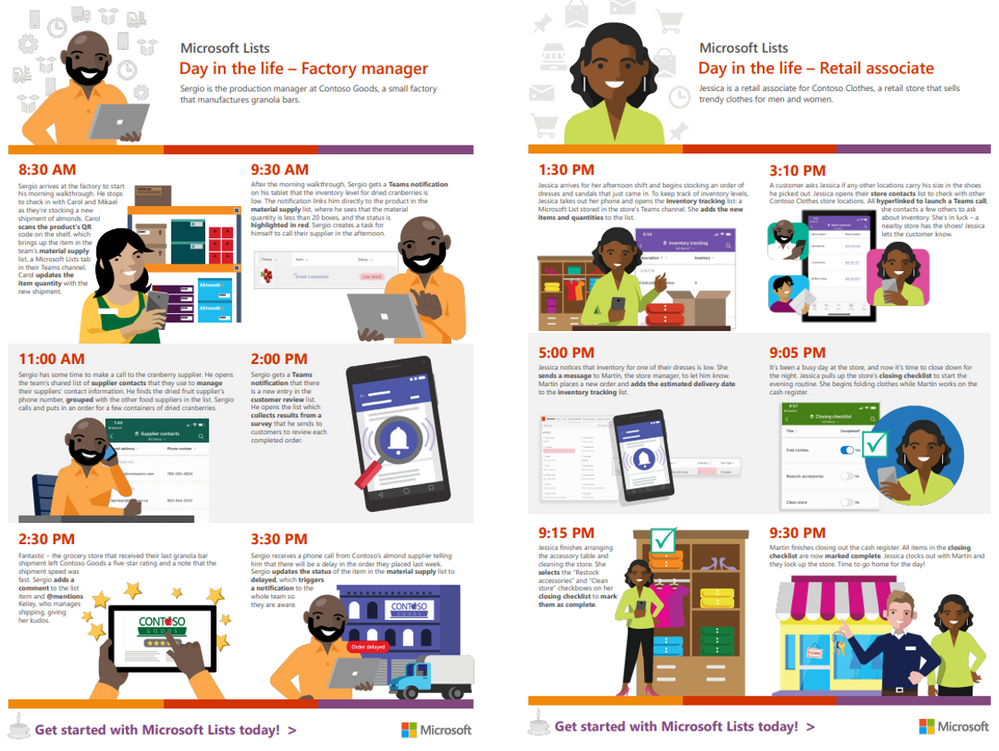 Factory manager and Store Associate Lists day in the life guides
For more on Lists scenarios for frontline organizations, check out the Lists Day in the Life – Manufacturing and Lists Day in the Life – Retail guides, or watch the Manufacturing day in the life with Microsoft Teams video to see how Lists fits in with the broader Teams picture.
Learn more about Microsoft Lists at the Microsoft Lists Resource Center including demos, adoption resources, training material, and more.
Happy tracking!
Andrea Lum, Product Manager – Microsoft
by Contributed | Jun 1, 2021 | Technology
This article is contributed. See the original author and article here.
Azure Resource Manager (ARM) Template Specs
Template Specs is a new resource type for storing ARM templates in your resource groups for faster sharing, deployment, and role-based access control (RBAC) on those Templates shared within an organization. Template Specs addresses today’s biggest challenges around ARM template management, storage, and access.
The Problem: Sharing ARM templates across an organization is challenging, requiring more management steps of the external or internal storage from which they are shared.
- Sharing: ensuring the right teams within your organization have access becomes very tedious as you cannot leverage Azure RBAC on the ARM templates you want to share.
- Management: providing teams with the latest ARM templates in a consistent and versioned way.
Why Template Specs?
As a native solution, Template Specs will enable users to bring all their ARM templates to Azure as a resource and securely store and share them within an Azure tenant.
The Solution: 1st Party secure storage and management of ARM templates within Azure.
- Sharing: Who can access a Template Spec can be defined using Azure RBAC.
- Management: Template Specs can be versioned within the same resource, ensuring users can always access the latest iterations of an ARM template (or templates) stored in a Template Spec.
What’s New Since Public Preview?
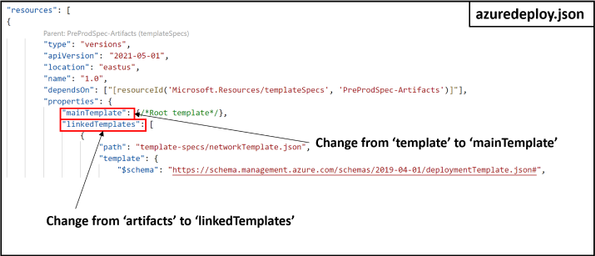
New API version 2021-05-01. Thanks to all the customer feedback during our public preview, we were able to close 3 issues, fix 5 bugs, and make the decision to change the names of the ‘template’ and ‘artifacts’ properties:
What’s Coming Soon Post-GA?
- Bicep integration: ‘az ts create’ with bicep files.
- Built-in template specs support.
- Support for
- GA version of Azure CLI and PowerShell with breaking changes being released by end of May.
- Due to the property renames highlighted above, you will see new property names when you GET a Template Spec version. This could be a breaking change if you are dependent on querying these properties in a script. This will not change how Template Specs are created or updated when using Azure Portal, Azure CLI, and PowerShell, but it will change how they are created via REST/ARM Templates/Bicep.
- If you’d like to test the latest Az PowerShell cmdlets early, they are available in PowerShell Gallery
Template Spec Reference and Docs:
Note: Template Specs can be created with an ARM template, but we strongly recommend using Portal, PowerShell or CLI for creating Template Specs. Microsoft.Resources/templateSpecs/versions – ARM template reference | Microsoft Docs
Creating and Deploying a Template Spec Resource
A Template Spec is a resource that contains an array of Template Spec versions which consists of a root template and any number of linked templates. A Template Spec can be created using the Portal, PowerShell, Azure CLI, REST API, or ARM Template. To help visualize a Template Spec create, here are some examples of what it would look like in the Azure CLI:
Creating a Template Spec using Azure CLI
To create a Template Spec, use the az ts create command to package an ARM into the Template Spec resource.
Required properties:
- –name: The name for the Template Spec resource.
- –version: The version number or name of the version being created.
- –location: The Azure region for the Template Spec resource.
- –template-file: The ARM template to be packaged into a template spec.
Creating and Deploying a Template Spec with Linked Templates using Azure CLI
To create a Template Spec with linked templates inside it, we need the following:
- Create main template (e.g. azuredeploy.json) that deploys linked templates, to be passed into the az ts create command as a template file.
- Create N number of deployment resources with linked templates referenced using the relativePath property within the templateLink object.
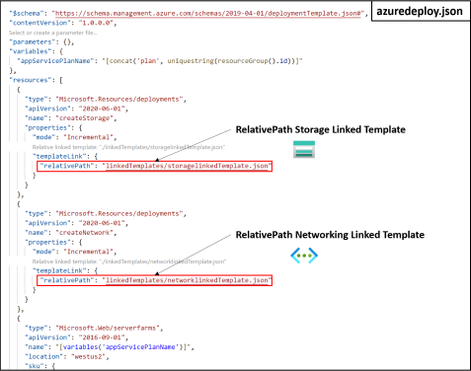
In this example the linked templates are stored in a subfolder called linkedTemplates, which is in the same path as the main template file. The relativePath property is relative to the template file where relativePath is declared. The relativePath property can take any of the following values:
- ./linkedTemplates/storagelinkedTemplate.json
- /linkedTemplates/storagelinkedTemplate.json
- linkedTemplates/storagelinkedTemplate.json
Note: relativePath can also be used deploy remote linked templates given all template files are staged together and available via remote URI, such as GitHub or Azure storage. The main template is called by using URI and all linked templates referenced as relative to that main template will have a URI constructed using the main template URI and the relativePath specified. This feature requires api version 2020-10-01 or greater. To learn more about this feature, please refer to Link templates for deployment – Azure Resource Manager | Microsoft Docs.
- Run the az ts create command to create or update a template spec version. This command packages the linked templates added via templateLink as linked templates in your Template Spec version.
This command packages the template file azuredeploy.json into the main template of the Template Spec version webAppSpec-1.0 and all linked templates specified into the linkedTemplates[] array of the Template Spec object.
- Deploy the Template Spec by passing in its resource ID using the az deployment group create command.
First, we need to get the ID of the Template Spec resource created, and this can be done easily in the Azure CLI by using the az ts show command.
Required properties:
- –name: The name for the Template Spec resource
- –version: The version number or name of the version being created.
- –resource-group: The name of the resource group to be used for deployment.
- –query: The property name to query for in the template spec object.
After storing the resource ID of the template spec into a variable, run the command az deployment group create and pass in the variable into the –template-spec parameter
Required properties:
- –resource-group: The name of the resource group to be used for deployment.
- –template-spec: The ID of the template spec resource to be deployed.
This command deploys the Template Spec and its linked templates into the specified resource group.
- Verify the contents of a Template Spec by running the az ts export command that downloads a specified Template Spec version into an –output-folder in your local file system.
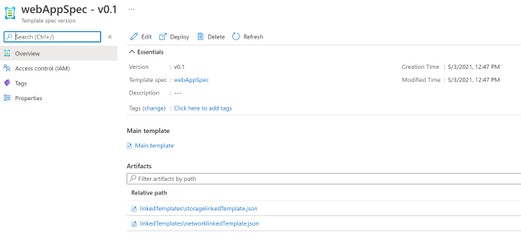
This command exports the specified Template Spec’s main template (e.g. webAppSpec.JSON) and a linked templates folder with all its corresponding linked templates. The contents of a Template Spec version can also be seen using the Azure Portal.
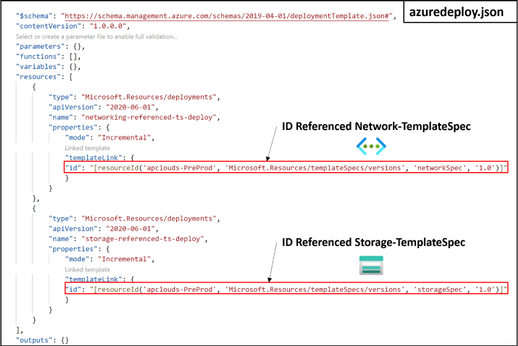
Deploying a Template Spec as Linked Template using ARM Template with ID Reference
A Template Spec resource can also be referenced using the templateLink property and specifying the id of the template spec:
References



Recent Comments