
by Contributed | Jun 1, 2021 | Technology
This article is contributed. See the original author and article here.
Microsoft partners like Datadog, Datometry, and Sycomp deliver transact-capable offers, which allow you to purchase directly from Azure Marketplace. Learn about these offers below:
|
Datadog: Datadog is a SaaS monitoring and security platform for cloud applications. It integrates and automates infrastructure monitoring, application performance monitoring, and log management to provide unified, real-time observability of your entire technology stack. Enable digital transformation, drive collaboration across teams, secure applications and infrastructure, and more.
|
 |
Datometry Hyper-Q for Azure Synapse Analytics: Datometry Hyper-Q is a virtualization platform that makes existing Teradata applications interoperate with Microsoft Azure Synapse Analytics at a fraction of the time, cost, and risk associated with a conventional migration. Gain an edge over your competition by using Hyper-Q to rapidly move to the cloud without leaving any applications or business logic behind.
|
 |
Sycomp Storage Fueled by IBM Spectrum Scale: Sycomp’s solution deploys IBM Spectrum Scale storage clusters with Red Hat Enterprise Linux 7.8 based on your business needs. The offer is intended for customers seeking a resilient, performance-oriented storage platform, such as Microsoft Azure HPC, Azure AI, and Azure Machine Learning clients, along with those moving Hadoop workloads to the cloud.
|
|
by Contributed | Jun 1, 2021 | Technology
This article is contributed. See the original author and article here.
This blog post talks about simplifying bot deployments especially in scenarios where the root bot and skill bot architecture is implemented.
Prerequisites
- Understanding of Azure Bot Framework.
- Understanding of Dapr on Kubernetes.
- A kubernetes cluster such as Minikube, Docker-Desktop with Kubernetes or Azure Kuberenetes Service with ingress configured for SSL/TLS termination.
Introduction
In this blog post we are going to focus on simplifying bot deployments especially in scenarios where the root bot and skill bot architecture is implemented. With this type of architecture, bot functionality is extended by using another bot (a skill). A skill then is a bot that can perform a set of tasks for another bot and hence a bot can be both a skill and a user-facing bot.
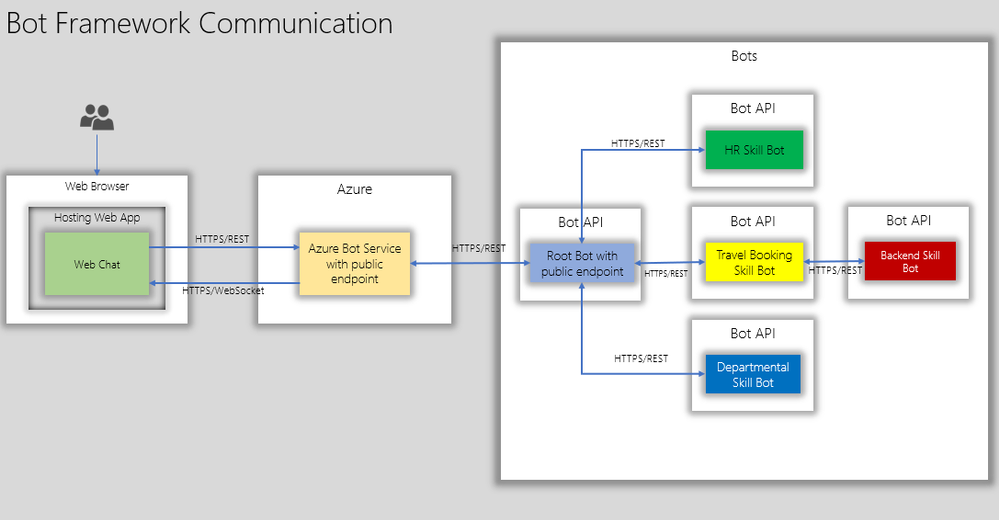
The below diagram shows how end users interact with root bot and specific skill bots such as a travel booking bot.
The root bot has a public endpoint but if it needs to be in an isolated network, it can be deployed using Direct Line App Service Extension. This is a topic for another blog post.
The skill bot can have public endpoints or private endpoints( not accessible publicly) depending on how the skill bot is consumed. But in the diagram above the skill bots do not have a public endpoint.
Here are a few considerations:
- The skills bots are typically developed by different teams and deployed at different milestones in the projects.
- Some skill bots will have to be live tested(A/B testing) in production to test usage and adoption.
- Each Skill bots can have different scale requirements. For. e.g Travel Booking bot can have higher scale requirements than an FAQ bot.
- From IT point of view, the bots will have to managed from network isolation, authentication, domain names to name a few.
With the above considerations, we shall see how Dapr helps to fast track some of the development aspects and also aide IT to manage bot deployment in a more stream lined manner.
Dapr – Distributed application runtime enables developers to build a cloud-native application that can be deployed as microservices on-premises, in the cloud or edge devices. Here we are going to treat skill bots as micro services that can be deployed, updated and managed independently just like any other micro service.
Here is what the bot APIs with Dapr can look like on Kubernetes:
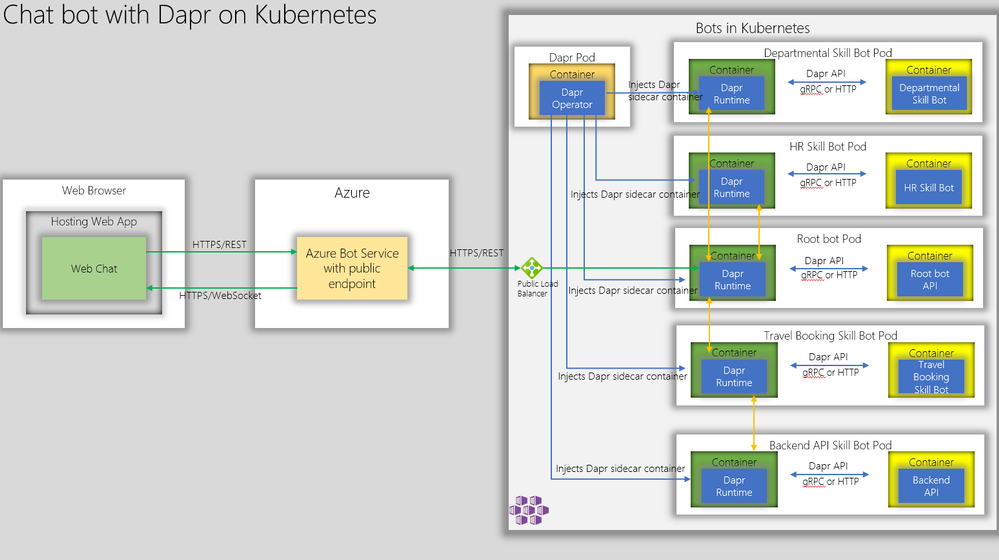
Firstly, we have Dapr operator deployed on the Kubernetes. The Dapr operator injects Dapr runtime as sidecar containers whenever a bot api container is deployed. Next, we create kubernetes deployment manifest with Dapr annotation as shown below and deploy the bot APIs as containers.
  annotations:
        dapr.io/enabled: "true"
        dapr.io/app-id: "simplerootbotapp"
        dapr.io/app-port: "3978"
This essentially instructs Dapr sidecar container to communicate with root bot API on its container port 3978.
This is a huge benefit for hosting Bot APIs as it obviates the need for determining unique ports for the Bot APIs and hence the bot ports can be standardized across the board.
Now, to communicate with the the Root Bot, the Azure Bot Services can connect to the Dapr Endpoint which is:
https://root-bot-domain-name/v1.0/invoke/simplerootbotapp/method/api/messages
Notice that we are using TLS between Azure Bot Service and bot api ensuring end-to-end TLS – from web browser to bot api hosted on kubernetes.
In order for the above endpoint to work, the kubernetes needs have the ssl termination configured using ingress controller with the backend serviceport pointing to the dapr port 3500.
An example ingress configuration is shown below.
apiVersion: extensions/v1beta1
kind: Ingress
metadata:
  name: root-bot-ingress
  namespace: root-bot
  annotations:
    kubernetes.io/tls-acme: "true"
    kubernetes.io/ingress.class: "nginx"
spec:
  tls:
  - hosts:
    - root-bot-domain.com
    secretName: root-bot-ingress-tls
  rules:
  - host: root-bot-domain.com
    http:
      paths:
      - path: /
        backend:
          serviceName: root-bot-service
          servicePort: 3500
Now, we can test the root bot with bot emulator and you should get a response as shown below. In the example below, we have a simple root bot that communicates with the end user and simple echo skill bot that echoes user input.
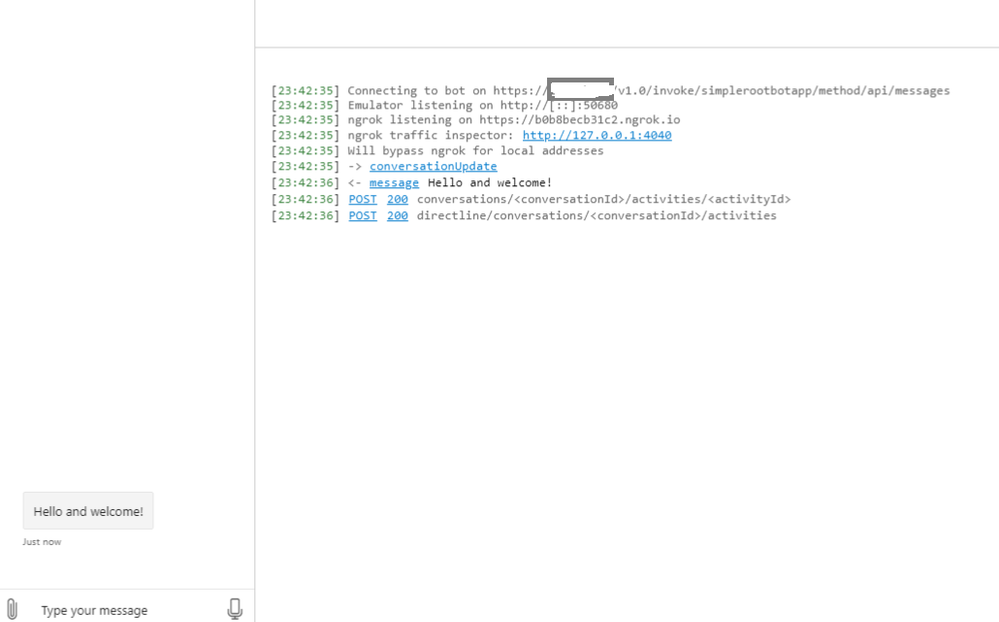
Great! Now we are able to communicate with the root bot that is configured with Dapr. Notice in the first log message above, that the bot emulator is connected to the rootbot over https.
Now, if we test a skill, we get the below response.
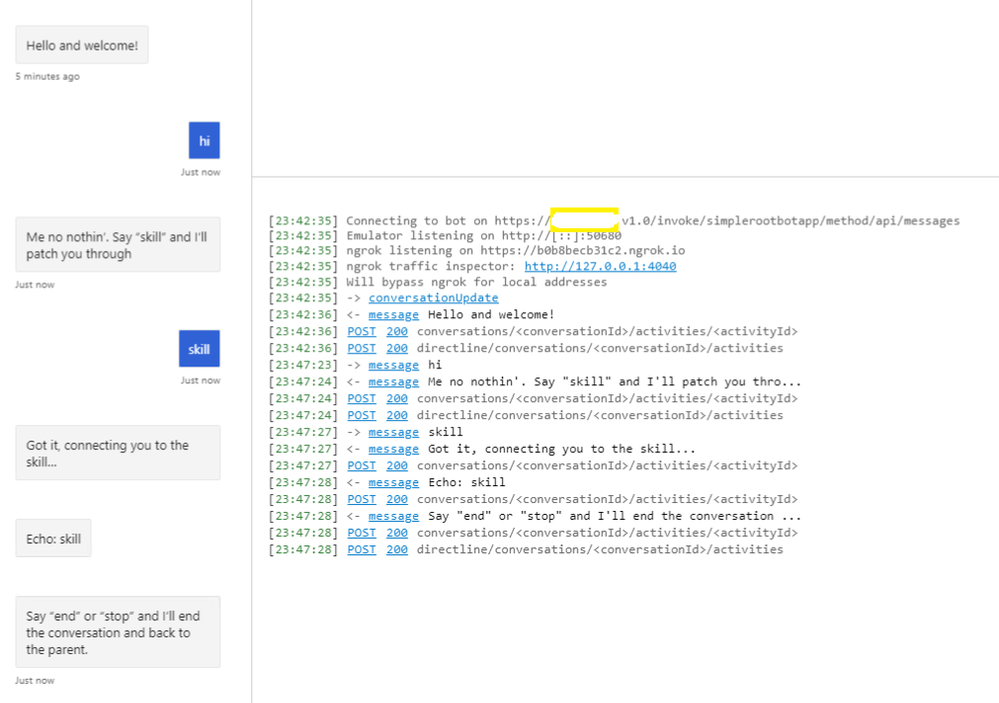
Yes. We are also able to communicate with the skill bot through the root bot.
Now, if development teams need to create a new skill bot they would just add a skill manifest configuration as shown below.
{
  "MicrosoftAppId": "",
  "MicrosoftAppPassword": "",
  "SkillHostEndpoint": "http://localhost:3500/v1.0/invoke/simplerootbotapp/method/api/skills/",
  "BotFrameworkSkills": [
    {
      "Id": "travelbot",
      "AppId": "85be21ea-3bbf-4ae6-a9bc-084718be67fb",
      "SkillEndpoint": "http://localhost:3500/v1.0/invoke/travelbot/method/api/messages"
    },
    {
      "Id": "HRSkillBot",
      "AppId": "85be21ea-3bbf-4ae6-a9bc-084718be67fb",
      "SkillEndpoint": "http://localhost:3500/v1.0/invoke/hrskillbot/method/api/messages"
    },
    {
      "Id": "DepartmentBot",
      "AppId": "85be21ea-3bbf-4ae6-a9bc-084718be67fb",
      "SkillEndpoint": "http://localhost:3500/v1.0/invoke/departmentbot/method/api/messages"
    }
  ]
}
Notice that the SkillHostEndpoint and SkillEndpoint are both pointing to localhost:3500 which is dapr runtime(sidecar container) injected by Dapr operator.
Thus for the development teams, they don’t need to worry about conflicting ports. They just need to provide a unique skill bot api url and dapr runtime would route to the correct skill endpoint.
For IT, they would expose 443/TLS on kubernetes thus making sure the communication channel is encrypted end-to-end.
In summary, dapr simplifies chatbot deployment comprising of root bot and multiple skill bots and kubernetes provides the scaling capabilities for bot APIs through node pools autoscaling and A/B testing through ingress controllers.
Getting Started
You can test this if you like to see this in action. The artifacts are available in this git repo. This repo has a simple root bot and and an echo bot configured with Dapr. You just to build the containers, publish them to container registry and deploy kubernetes manifest files that describe the bots.

by Contributed | Jun 1, 2021 | Technology
This article is contributed. See the original author and article here.
On May 27th, 2021 we released MRTK 2.7, so you know we had to be up to something special. This release brings official support for OpenXR as we move the Mixed Reality Toolkit to Unity 2020.3 LTS. In addition, we’ve packed in a bunch of new features and bug fixes to improve the developer experience for Mixed Reality Devs.
Like what you see? Download MRTK today from the Mixed Reality Feature Tool or from Github.
MRTK 2.7.0 Release Highlights
Wondering what’s new? Here’s a snapshot:
- Official support for Unity 2020.3 LTS
- A redesigned Configurator now makes it easier to create a new project in Unity
- You can now use the same profiles for both LegacyXR and XR SDK
- The eye Dwell feature graduated from experimental. This makes it easier to activate buttons with eyes.
- Ported TextToSpeech from HTK to MRTK
- Support for system-provided motion controller models on OpenXR
- Support for WinMR gestures (select, hold, manipulation, navigation) on OpenXR
- Support for HoloLens 2 articulated hand mesh on OpenXR
- And much more.
- Btw, we’ve restructured our full release notes with more notable fixes and known issues. Tell us what you think!
Legacy XR and XR SDK data providers can now be used within the same profile
Data providers will now also only be loaded when the appropriate pipeline is selected, allowing both Legacy XR and XR SDK data providers to co-exist within the same profile. To accommodate this, Legacy XR and XR SDK Data Providers are now organized under different tabs within the profile view, helping users determine whether they have the correct profile for their targeted XR pipeline. #9681
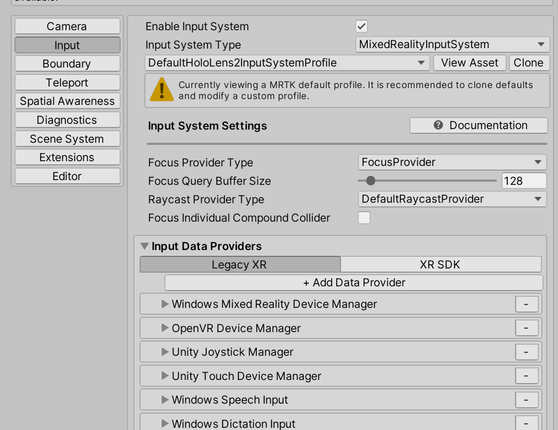
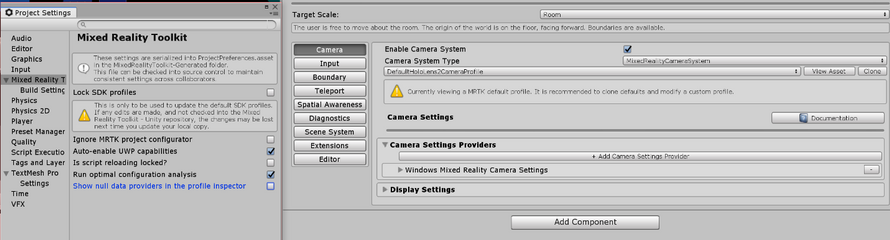
To accommodate this, null data providers will now no longer be loaded and displayed in the profile inspector. Users can toggle Show null data providers in the profile inspector under Edit -> Project Settings -> Mixed Reality Toolkit to debug unexpected behaviors with missing data providers.
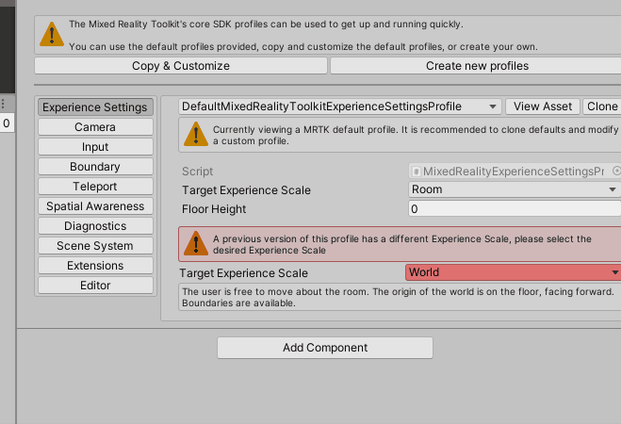
Added Experience Settings and an associated Mixed Reality Scene Content behavior
Users can now configure Experience Settings, which will allow MRTK to display Mixed Reality Scene Content appropriately based on the targeted experience.
If user’s previous Experience Scale settings do not match the new Experience Settings Profile, they will be prompted to correct it in the inspector. #9428
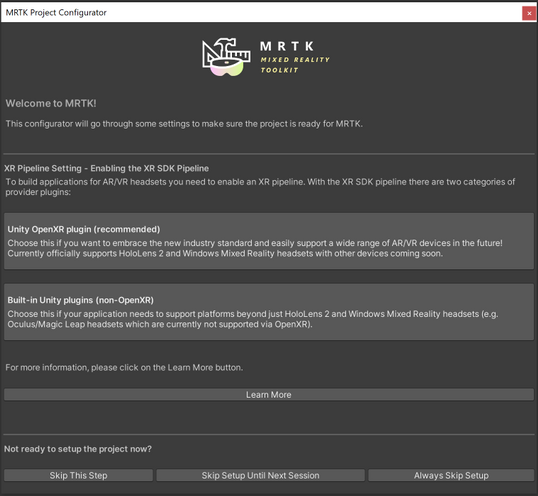
The Redesigned Configurator now guides the user through the setup process
The new MRTK configurator provides users step-by-step guidance to properly configure the project for XR development and use with MRTK. It covers the selection of XR pipeline, getting the platform specific plugins, importing TextMeshPro, displaying the examples (when using UPM) and other previously included recommended settings for the project. #9652
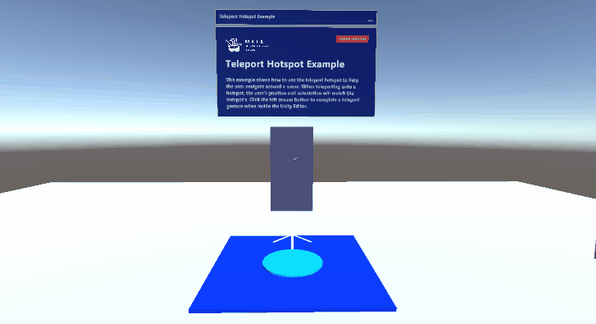
Graduated Teleport Hotspot
A new teleport hotspot component has been graduated. You can add a teleport hotspot to your gameobject to ensure that the user is in a certain position and orientation when they teleport to that location.
The Dwell Feature Graduated from Experimental
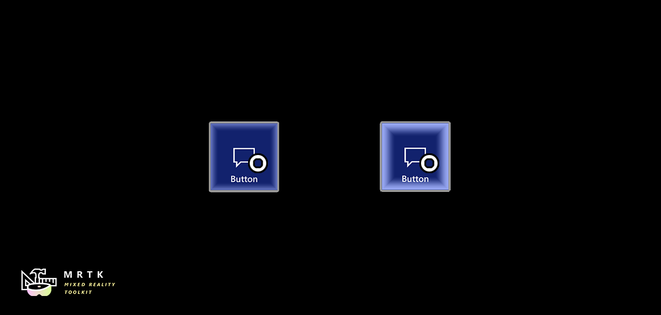
The dwell feature and example is now graduated from experimental. New examples of volumetric HoloLens 2 style buttons are included in the sample scene. #9538
Added support for Leap Motion Unity Modules version 4.6.0, 4.7.0, 4.7.1 and 4.8.0
Support for the latest versions of the Leap Motion Unity Modules is now compatible with MRTK 2.7.0. See How to Configure MRTK for Leap Motion for more information.
Big thanks to @jackyangzzh for contributing the new LeapMotionOrientationExample scene!
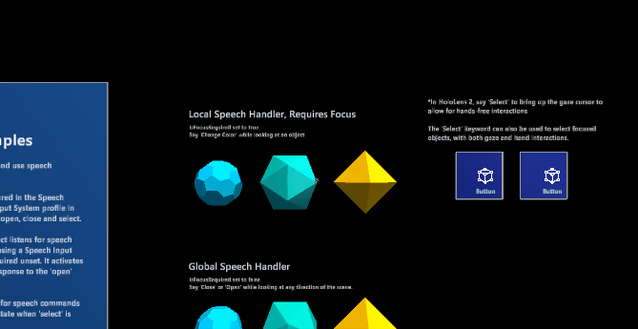
Targeted speech events raised no longer restricted to gaze pointers
Previously, targeted speech events could only be raised on objects which were focused on with the gaze pointer. Now, objects can receive speech events if they are focused by any pointer.
Ported TextToSpeech from HTK to MRTK
The beloved TextToSpeech script is now finally available in MRTK to help you generate speech from text on the UWP platform using SpeechSynthesizer. Also added a sample scene to demonstrate the feature. #9506
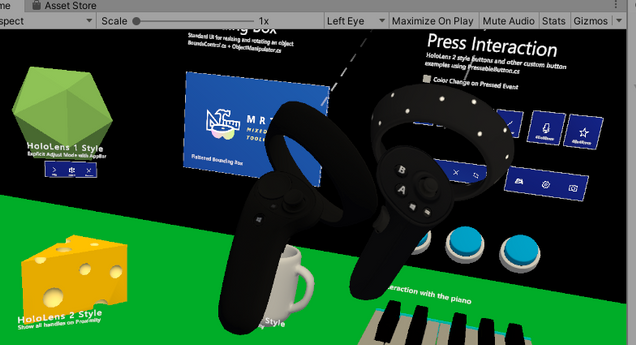
Support for the system-provided motion controller model on OpenXR
Added support, both in-editor and at runtime, for the system-provided motion controller model on OpenXR.
Support for HoloLens 2 articulated hand mesh on OpenXR
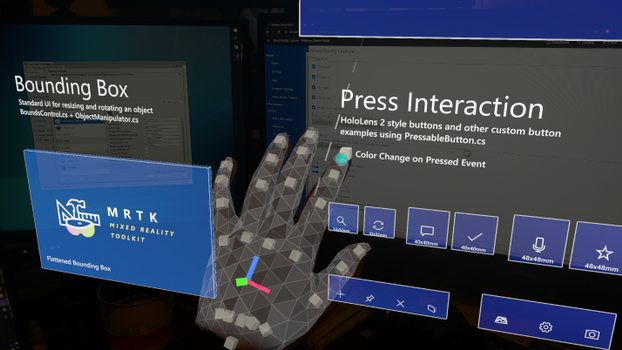
Support for controller haptics across legacy WMR, Windows XR Plugin, and OpenXR
Added support for controller haptics across legacy WMR, Windows XR Plugin, and OpenXR. #9735
Support for spatial mapping on OpenXR on HoloLens 2
Added support for spatial mesh when using OpenXR on HoloLens 2. #9567 and #9827
Support for eye tracking on Windows XR Plugin
Added support for eye gaze when using Windows XR Plugin minimum versions of 2.7.0 (Unity 2019), 4.4.2 (Unity 2020), and 5.2.2 (Unity 2021). #9609
Support for WinMR gestures (select, hold, manipulation, navigation) on OpenXR
Added support for WinMR gestures (select, hold, manipulation, navigation) on OpenXR. #9843.
——
For more information on other notable bugfixes, changes and known issues, see the full release notes.
Try it out!
Want to use the MRTK? Download MRTK with the MR Feature Tool or from the Github release page.
Don’t forget to tell us what you think. File bugs and feature requests on the MRTK Github.
Thanks,
The MRTK Team
by Contributed | Jun 1, 2021 | Technology
This article is contributed. See the original author and article here.
Collaboration is a critical part of virtual work. At Microsoft, we’ve seen firsthand that the way people work together has fundamentally changed over the past year. More people are using Microsoft 365 applications like Teams, OneDrive, and SharePoint to connect with internal team members across their organizations and with external colleagues than ever before. The Share dialog appears in more than 40 areas of Microsoft 365 and is accessed about 400 million times a month. That’s why we’ve been gathering feedback and capturing data to understand how you collaborate—and more specifically, how you share and work together with teammates on files—so we can make the right investments to make sharing options more intuitive across Microsoft 365 apps and make collaborating easier for you.
What we’ve learned
Based on our research, we discovered five key areas we wanted to address:
- You want an easier way to change link permissions for viewing, commenting on, or editing files.
- You want seamless sharing with external colleagues.
- Having a clear, at-a-glance view into who you’ve provided shared access to a file is invaluable.
- Many of you are unaware you can share files directly via Office apps. Instead, you attach files to an email or open another application like Teams to upload and share files.
- With more than 250 million monthly active users like you on Teams, you want to share Word documents, PowerPoint decks, and Excel spreadsheets directly to Teams without switching apps.
Introducing the Year of Sharing
Over the next year, we’re using an incremental, data-driven approach for rolling out updates to improve the sharing experience across all Microsoft 365 and Office applications for all platforms (desktop, web, and mobile). We’ll be making those incremental changes gradually, so we can continue to collect feedback and learn from you, improving the experience as we go to ensure we’re making it easier for you to collaborate with your colleagues in ways that work best for you.
Quick permissions & Link settings
Setting access control is critical to sharing content with people within or outside your organization. A quick and robust way to grant access to files for easier collaboration has been a top priority for us, so we’re excited to announce new functionality for
Quick permissions.
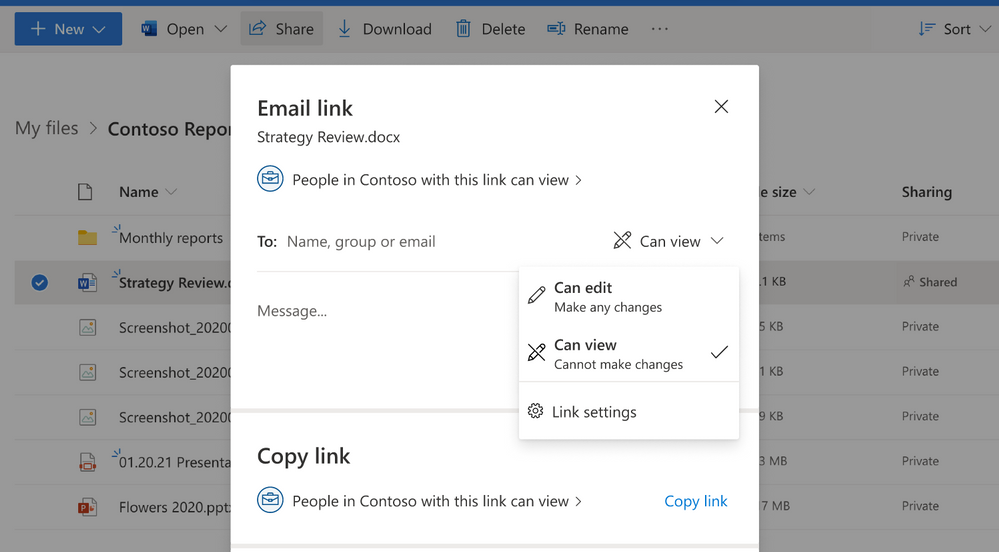
Now when you select Share and enter a recipient’s name or email address in the to field, you no longer have to go into the link settings to select their permission level. Instead, you can quickly select it from a more intuitive and discoverable drop-down menu next to their name. You can select a permission level: Can edit, or Can view (read only). When you select send, you get a confirmation showing you have shared the file.
Quick permissions
We’ve also added an additional entry point to Link settings from the Quick permissions dropdown that provide more granular sharing control, so you easily can change link types and sharing permissions.
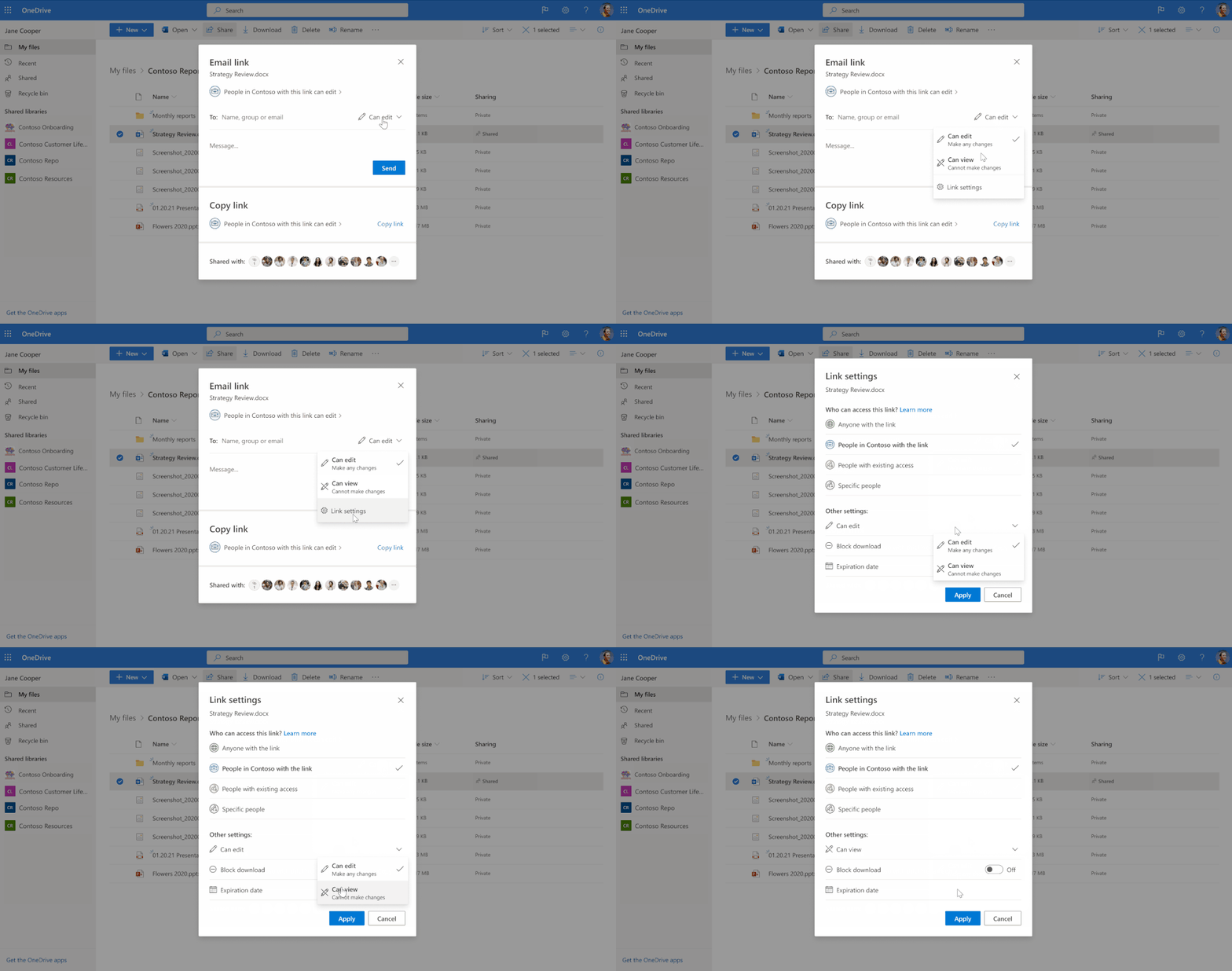 Link settings entry point to update link types and sharing permissions
Quick permissions (Roadmap ID: 70806 ) and Link settings (Roadmap ID : 81958 ) are available now.
Copy link
Currently, after setting link permissions, when you select the Copy link button, you see a confirmation window that displays an auto-generated link that you can copy and share with your team. However, to change the link permissions, you must recreate a new link. Now, we’ve changed this flow to make it more user friendly.
Instead of a Copy link button, you’ll see a footer where you can set permissions for the link and then copy it to share it with recipients. If you need to update the link permissions, you can do it directly from the Link Created dialog box as well.
Copy link will be rolling out later this year. Please follow the roadmap entry 83728 for further updates.
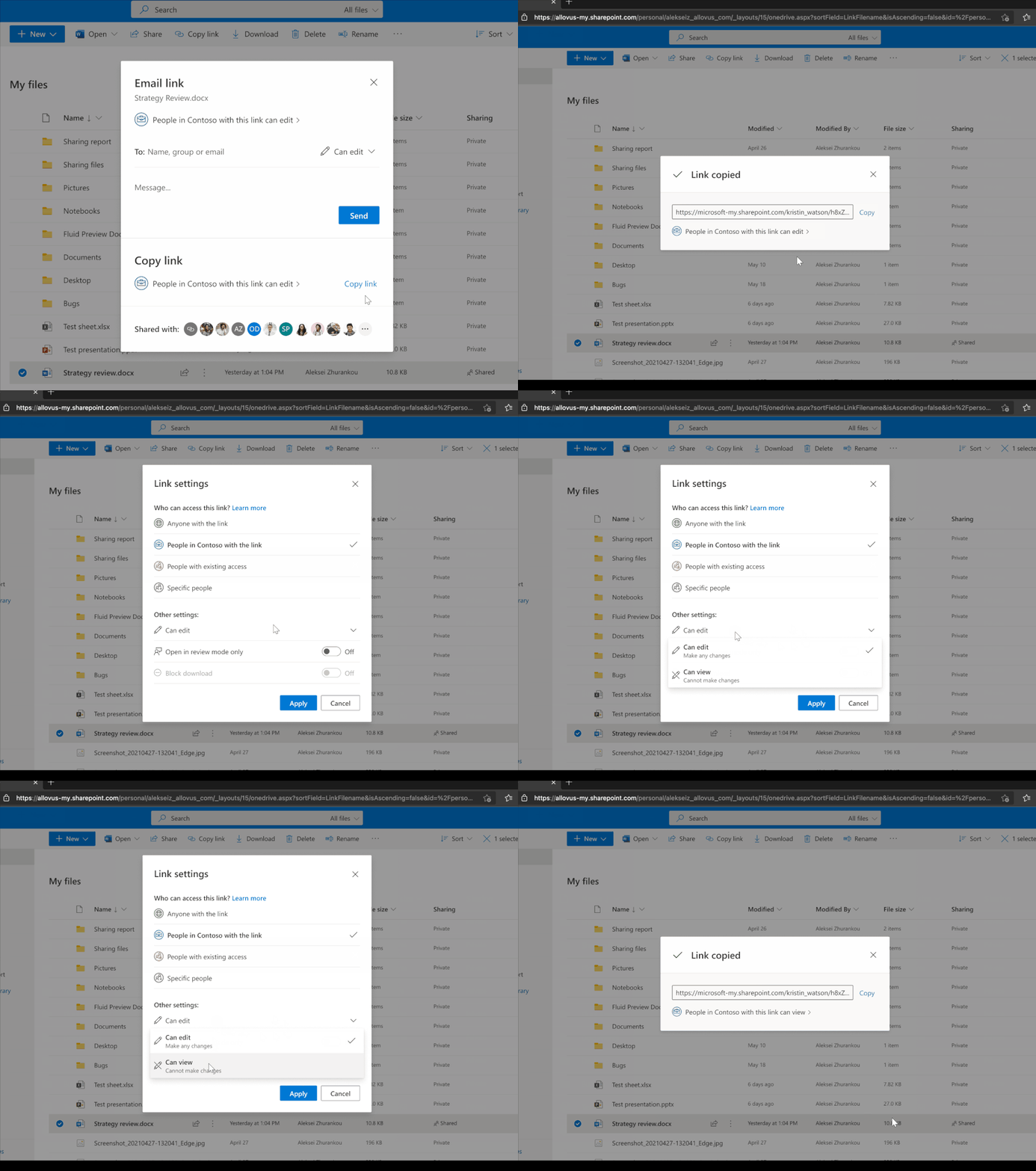 Updated Copy link experience
Shared with & Manage access
At the bottom of the Share dialog, the Shared with list gives you an at-a glance view of everyone you’ve given access to the file. You will now have the ability to see who has access and how many people have access to your shared file. Selecting that list takes you to the Manage Access settings, which offers you additional controls for how recipients access files you’ve shared. After sharing a file with someone, you will also have the ability to see visual confirmation of who you’ve just sent it to.
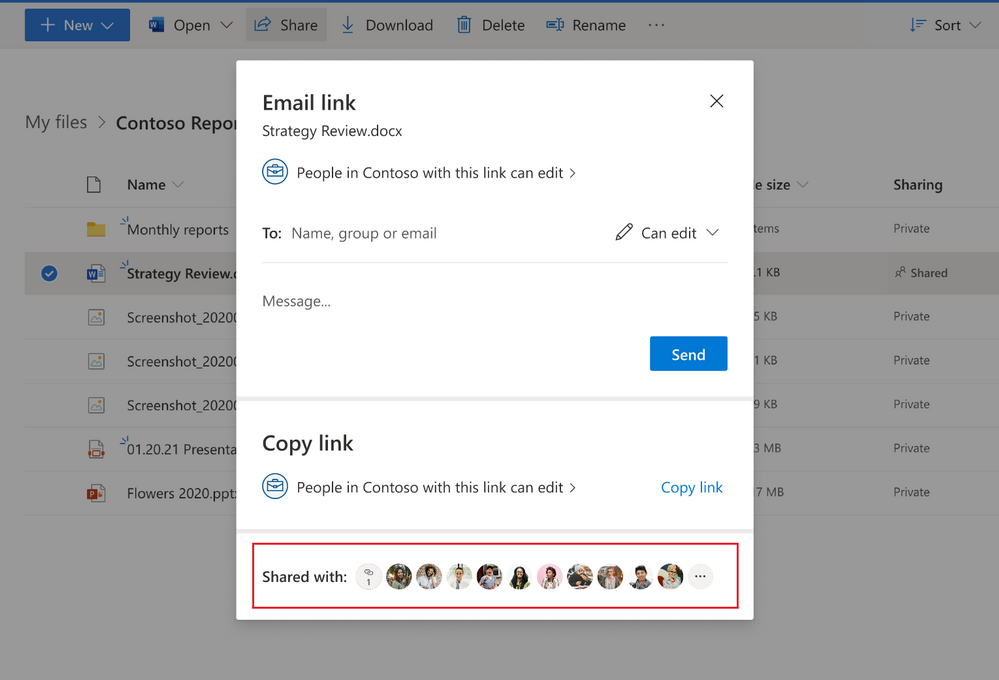 Shared with list gives you an at-a glance view of everyone you’ve given access to the file
We’ll be updating our Manage Access experience to make it more efficient and easily accessible.
By default, you can see the list of People you’ve granted access to this file. You can also view the Groups who have access, as well as the various types of Links you might have shared for this file with distinct sharing permissions and from different applications like Teams, OneDrive, SharePoint, or Office.
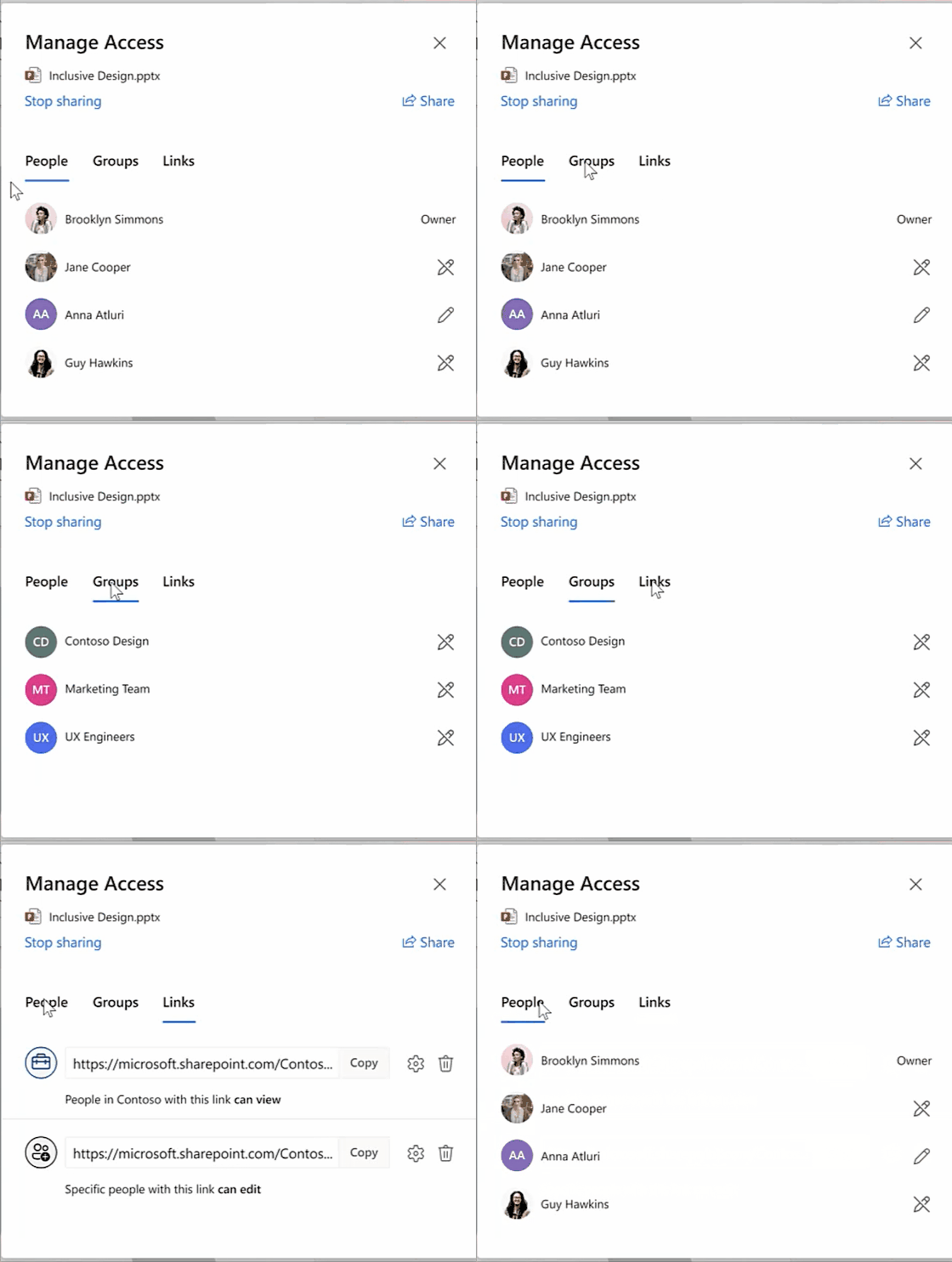 Updated manage access experience
You can view the permissions for each person directly from the People list. When you select a name, you can see the access summary describing all the way this person has been granted access: via direct access, groups, or links. You can change direct access permissions via a drop down, allowing recipients to edit the shared file or restricting it to view-only access.
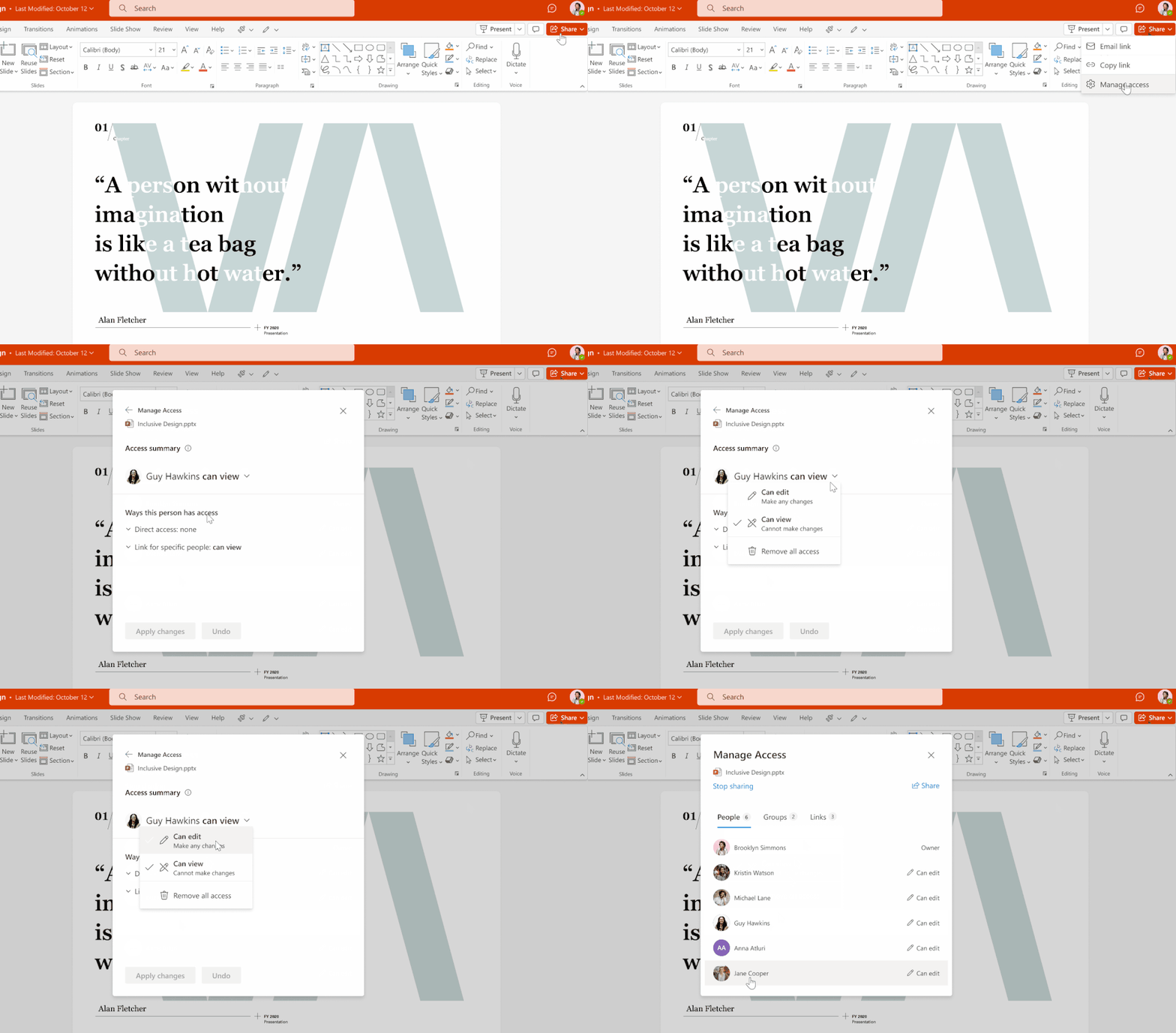 View and update the permissions for each person directly from the People list
You can also drill down into the group or link information to see exactly which group that person belongs to, or which links have been shared with them and their respective sharing permissions.
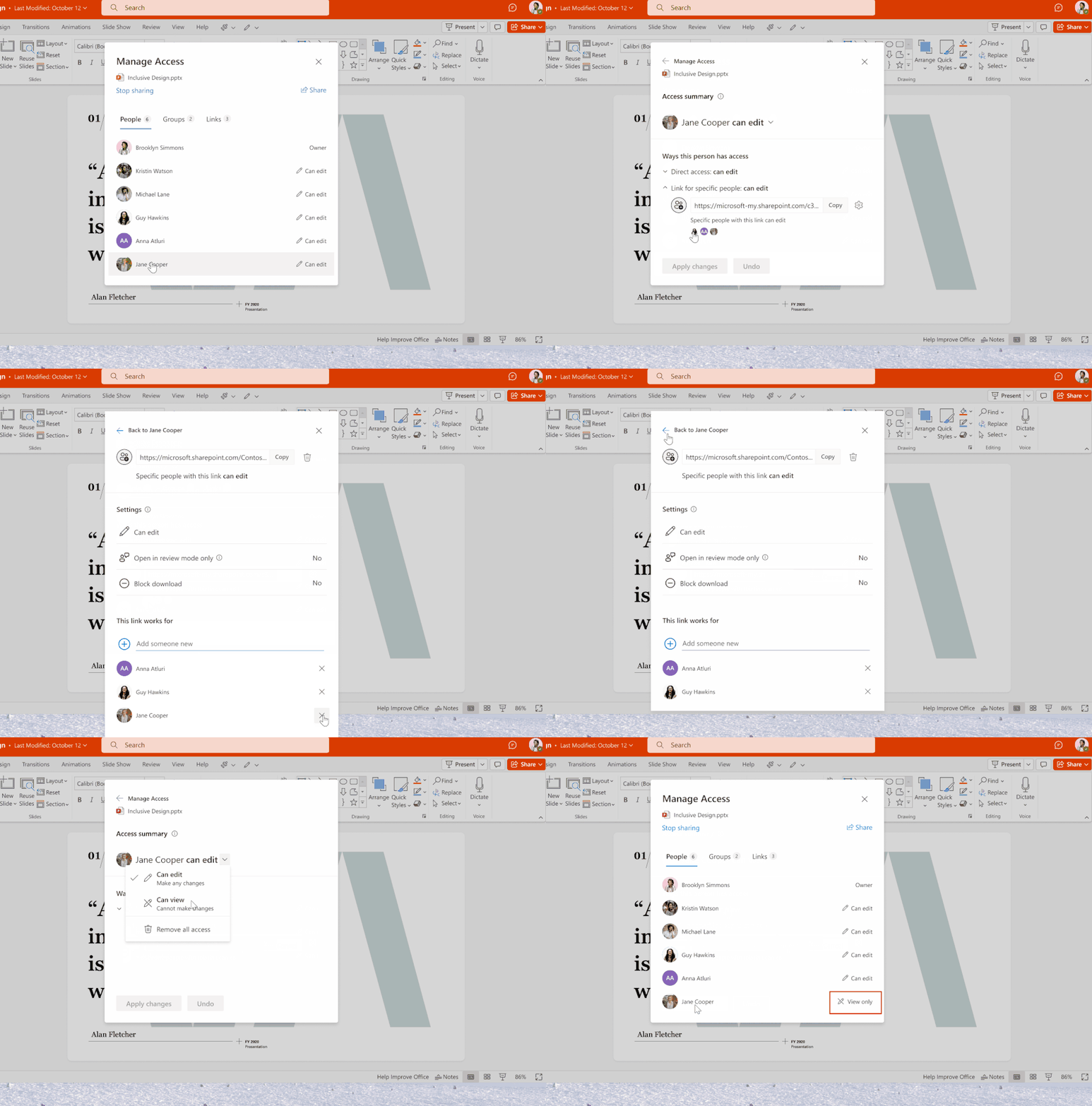 Drill down into the group or link information to view or change the sharing permissions
You can also revoke all access to the file and stop sharing entirely.
We’ve redesigned the Share dialog to give you easier access to the Manage Access view and give you more visibility into who has access to your content.
Shared With and Manage Access will be rolling out later this year. Please follow the roadmap entries 83725 and 83726 for further updates.
Share menu dropdown
We’re updating the Share button to provide easy access to additional sharing options. Soon, when you select Share in OneDrive, SharePoint, or Teams (at the top of the page) or in an Office app (top-right corner), you’ll see a contextual menu with all choices available to you for sharing files or folders with your teammates:
- Email: Email the file directly to a one or more recipients.
- Copy link: Copy a link to share with recipients directly.
- Teams: Share the file directly to Teams.
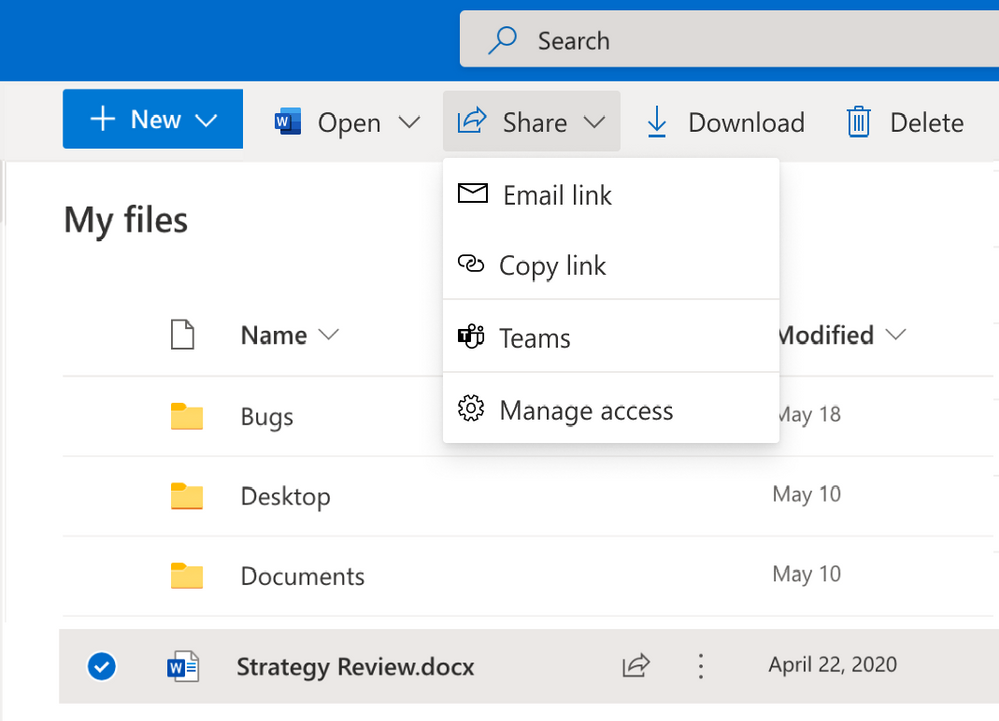 Dropdown menu for Share function in command bar
Post sharing, the contextual menu will also display an option to select the the Manage access settings for additional sharing controls as explained above.
Share menu dropdown will be rolling out later this year. Please follow the roadmap entry 83727 for further updates.
Learn more and stay engaged…
We continue to evolve OneDrive as a place to access, share, and collaborate on all your files in Office 365, keeping them protected and readily accessible on all your devices, anywhere.
Check out the documentation on how to share and collaborate with stakeholders within and outside your organization as well as how to manage internal and external sharing.
To learn more about OneDrive,
Thank you again for your support of OneDrive. We look forward to your continued feedback and hope to connect with you at another upcoming Microsoft or community-led event.
Thanks for your time reading all about OneDrive,
Ankita Kirti | OneDrive
by Contributed | Jun 1, 2021 | Technology
This article is contributed. See the original author and article here.
New Features:
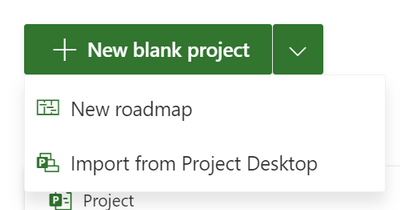
- Import Project desktop to Project for the web: This feature is rolling out now! Import your .mpp files to Project for the web through Project home.
- Collaboration Corner Presence: See who else is viewing your project in real time when you’re editing a project on Project for the web.
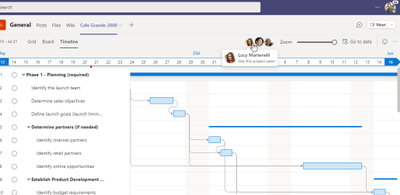
- Filtering on the Board & Timeline views: Find your tasks quickly in Board and Timeline by filtering by keyword or assignee. This is rolling out now and should be available to all users by the middle of June.
- Scheduling modes: Project Admins can now change the default scheduling mode of your projects. Users in Named environments can change the scheduling mode of specific projects to match their scheduling needs.
- Project Language Settings: Set your Project language directly by opening Settings and clicking on Change your language.
Upcoming Features:
- Dropdown types in Custom Fields: Add custom fields with drop down options so you can control the information added to those custom fields on your tasks.
- Rollup Custom Fields: Add summary, average, max, or minimum calculations to your numeric custom fields. See the rollup value of all your subtasks in your summary task field.
Licensing Updates
In Project Plan 1, Project for the web has had some recent updates to its licensing. You can learn more about the licensing updates in our blog post here.
Microsoft Project Trivia!
Last Month:
- Question: Users with Project Plan 3 or 5 can create roadmaps including all their project information. What year did Roadmap in Microsoft Project first become available to users?
- Answer: Microsoft Project released Roadmap in 2018. It has been almost three years since this product has been available to users; what is your favorite part of Roadmap?
This Month:
- Question: In project management, milestones often represent significant events that happen during the project process. How can you create milestones in Project for the web?


Recent Comments