by Contributed | Aug 29, 2023 | Technology
This article is contributed. See the original author and article here.
We are excited to announce that we are currently rolling out a new feature called SharePoint News for Email. This feature enables you to convert your SharePoint News Posts intro distributions that can be read fully in email inboxes. You can now engage your audience directly in their inbox and track their mail reads.
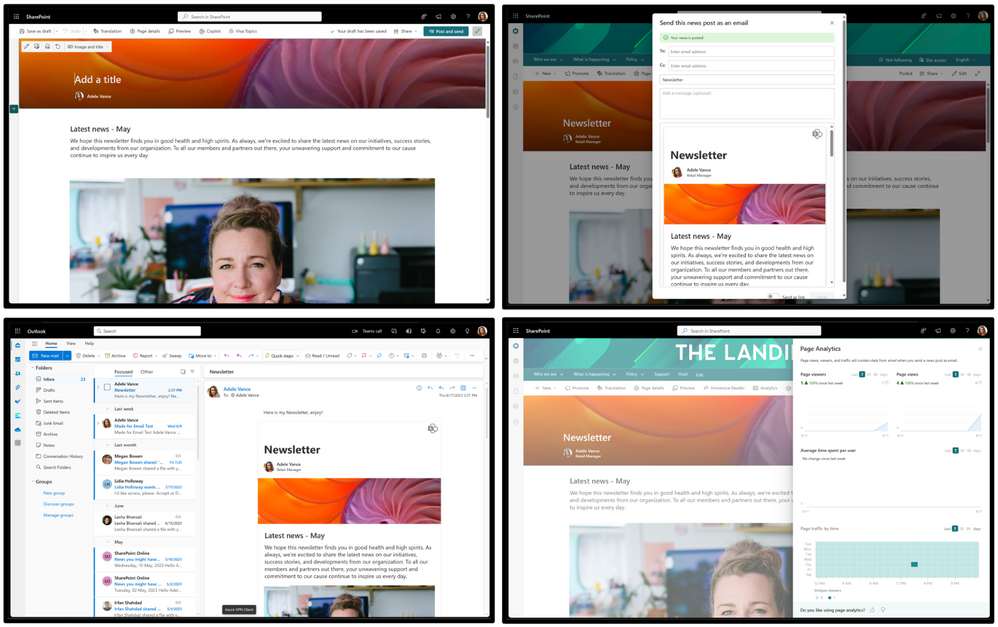 Four pictures – showing the news article in SharePoint – sending email feature – news in the email client – statistics for the view
To create a News post for email, select a “Made for email” template from the news template picker:
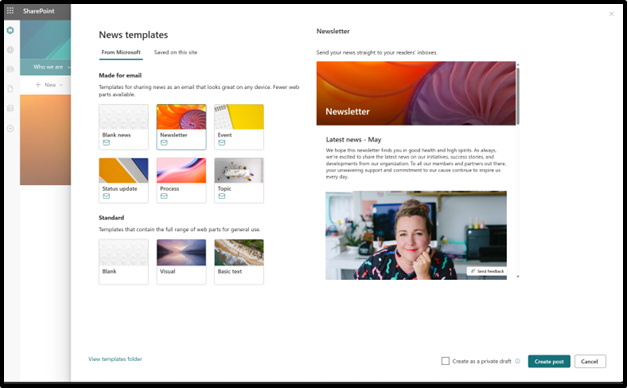 Selection of the templates for new news article – showing the email ready templates.
When you are finished authoring, you can now post your news and send it fully to email in one step.
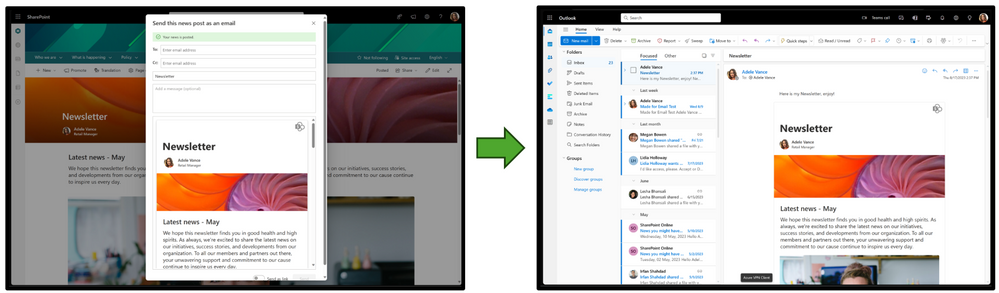 SharePoint News visible in the SharePoint portal and in the email client.
Sending a page as an email will not change existing site permissions, and sending a page as an email will not give your recipients access to the original page if they don’t already have it. You can think of sending mail by email as making someone a photocopy of a page in a book. They can read that page, but nothing else in the book.
Live video demo on the feature.
Frequently asked questions
When will this happen?
This update will roll out to Targeted Release customers starting August 2023, and to all customers by the end of September.
This message is associated with Microsoft 365 Roadmap ID 124803.
How will this impact your organization?
Authors of SharePoint News will now be able to send news posts as emails.
What you need to do to prepare?
You do not need to do anything to prepare for this update, but you may want to let your users know about this improvement.
Will the view counter for news include the email views?
Yes. View counters for your news articles will include also views of the news article through the email client.
Resources
Thanks for reading. Please let us know any feedback or questions in the comments and we’ll get back to you :thumbs_up::rocket::1st_place_medal:
by Contributed | Aug 28, 2023 | Technology
This article is contributed. See the original author and article here.
On July 11, 2023, we introduced Microsoft’s identity-centric security service edge (SSE) solution and two new services: Microsoft Entra Private Access and Microsoft Entra Internet Access, which are now in public preview. In this blog, we take a deeper look into Microsoft
Entra Private Access.
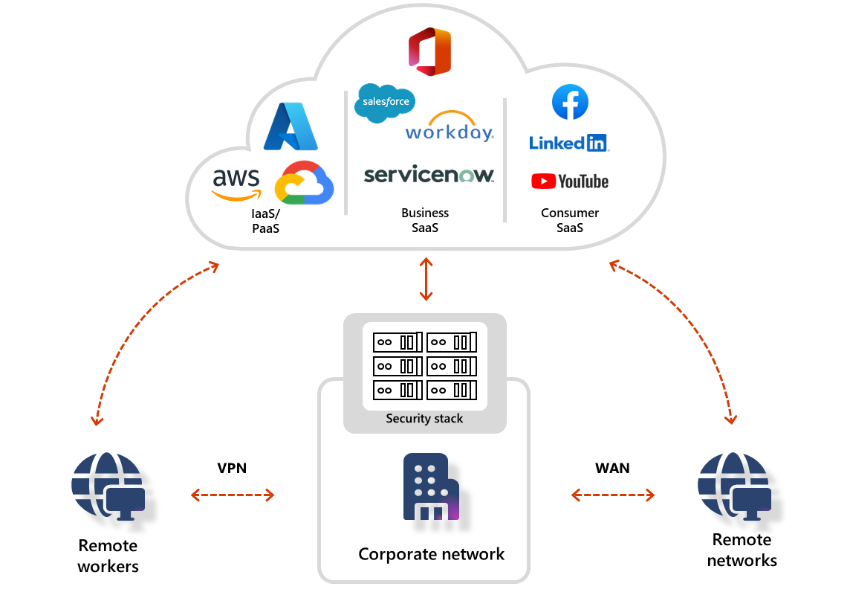
Figure 1: Traditional network security stacks and legacy VPNs are no longer sufficient
Microsoft Entra Private Access
Traditional network security approaches that use legacy VPNs simply cannot scale to modern demands. Once your remote users connect to your corporate network through VPN, they are granted excessive access to your entire network, all it takes is a single compromised user account, infected device, or open port for an attacker to gain entry, move laterally, and access your most critical assets.
Microsoft Entra Private Access, an identity-centric Zero Trust Network Access (ZTNA), reduces the operational complexity and cost of legacy VPNs, while eliminating excessive access and preventing lateral movement. It modernizes access to private applications and resources, helping users quickly and easily connect to private applications from any device and any network, whether they’re at home, remote, or in their corporate office.
What makes Private Access unique
As part of Microsoft’s SSE solution, Private Access is built on Zero Trust principles. It verifies every user and enforces least privilege, giving users access only to the private applications and resources they need. Private Access significantly expands Entra ID Application Proxy capabilities in Microsoft Entra to a complete ZTNA solution that shares the same connectors but offers so much more, it helps you simplify and secure access to any private resource on any port, and protocol. You can apply policies that enable secure, segmented, and granular access to all your private applications in your corporate network, on-premises, or in the cloud. For customers already using Application Proxy, they can seamlessly transition to Private Access – all existing use-cases and access to existing private web applications would continue to work with no disruption.
You can create and enforce per-app, least privilege access controls based on the granular Conditional Access policies that are enriched with context about users, devices, and their locations. You can also terminate ongoing sessions in response to anomalies or changes in user context or device health. For example, if a user connects from one part of the world and then immediately connects from another part of the world (what we call “impossible travel”), you can enforce re-authorization or step up to a stronger authentication method.
Private Access enables secure access to any application, on-premises or cloud-based, and it works across any port or protocol, including RDP, SSH, SMB, FTP, and anything else that uses TCP or UDP. In addition, you can enable single sign-on (SSO) using SAML or http headers or even legacy Kerberos authentication for both web and non-web applications, without making any changes to those applications.
With Private Access delivered from one of the largest global private networks, Microsoft global network, your private applications are not only more secure, but your employees can also access them faster compared to legacy VPNs. The unmatched scale and vast global network edge presence enables you to optimally connect your users and devices to private resources, especially those who work in a hybrid or remote work environment.
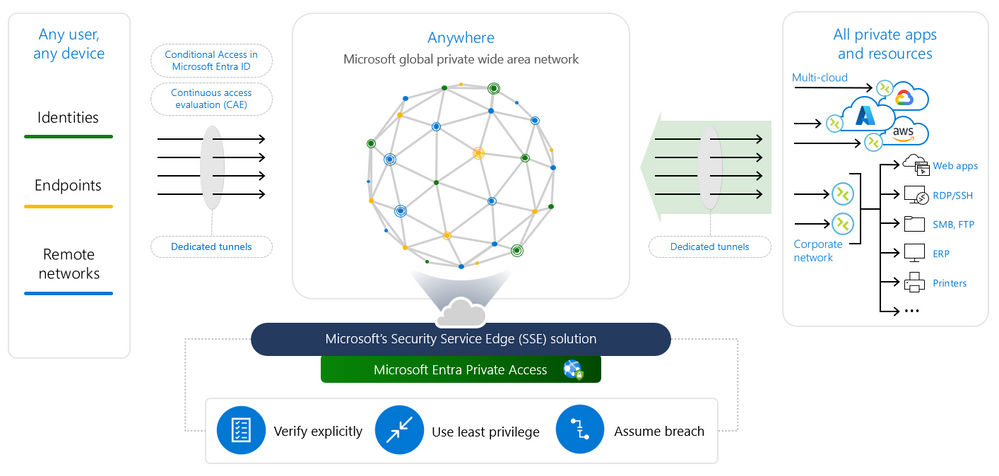 Figure 2: Secure access to all private applications, for users anywhere, with an identity-centric Zero Trust Network Access (ZTNA).
Private Access key capabilities
Microsoft Entra Private Access can help you enable secure access to all your private applications and resources. Key capabilities include:
Fast and easy migration from legacy VPNs with Quick Access. Replacing legacy VPNs with an identity-centric ZTNA minimizes the risk of implicit trust and lateral movement. Using Quick Access, you can easily configure broad private IP ranges and fully qualified domain names (FQDNs) to quickly enable identity-centric, Zero-Trust-based access to all private resources.
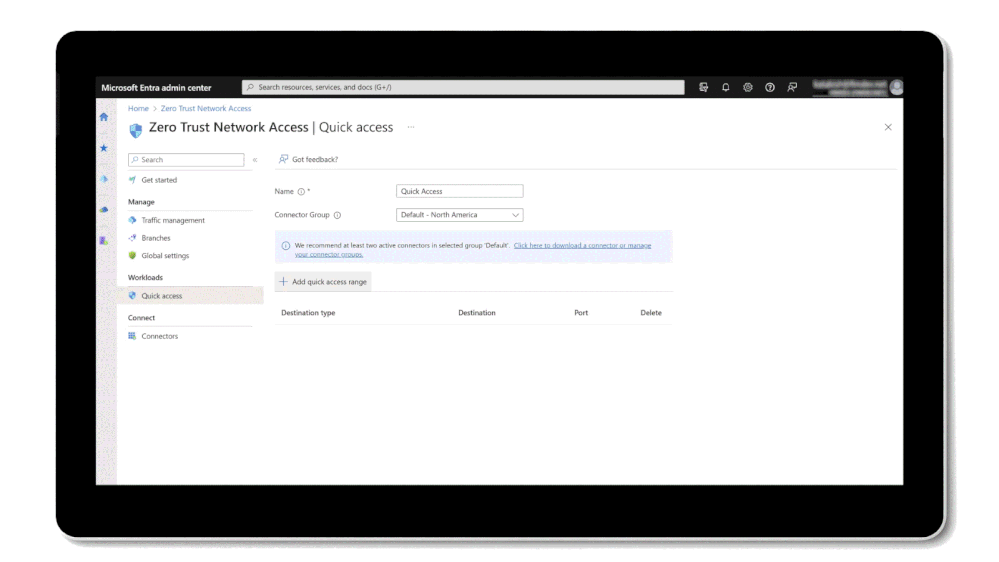 Figure 3: Fast and easy migration from legacy VPNs with Quick Access
Enhanced identity-centric security controls for all private applications. With Private Access, you can create Conditional Access policies and multi-factor authentication (MFA) that require modern authentication for accessing any private application, even those using legacy protocols such as Kerberos and NT LAN Manager (NTLM). This brings policies based on the sensitivity of the application, level of user risk, network compliance, and so forth to legacy applications. For example, you can easily require multi-factor authentication (MFA) and device compliance checks for users trying to access remote desktop (RDP), secure shell (SSH) or SMB applications.
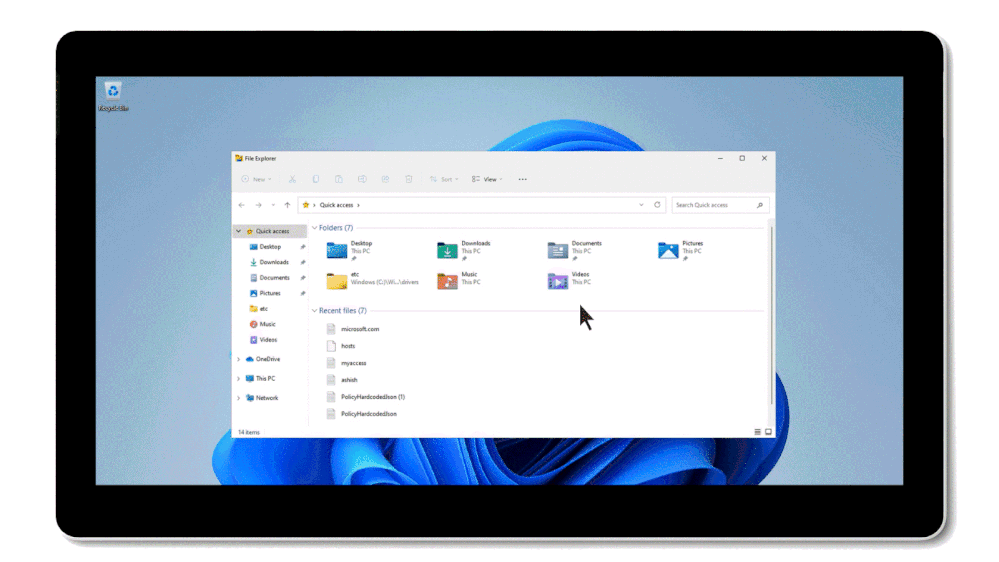 Figure 4: Enhanced identity-centric security controls for all private applications
Automatic private application discovery and onboarding. You can discover private applications, including existing App Proxy private web applications, whether the applications are hosted locally in a private network, in an on-premises data center, or in the cloud. You can then onboard them to Microsoft Entra ID, group them, and define granular access policies.
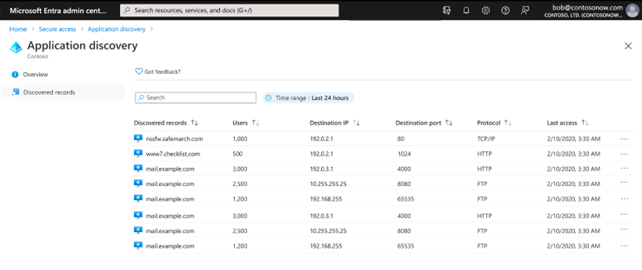 Figure 5: Automatic private application discovery and onboarding
Granular segmented application access. Instead of granting remote users access to your entire network, as traditional VPNs do, you can define granular segmented access policies for each application or group of applications based on user, device, or processes running on the endpoint.
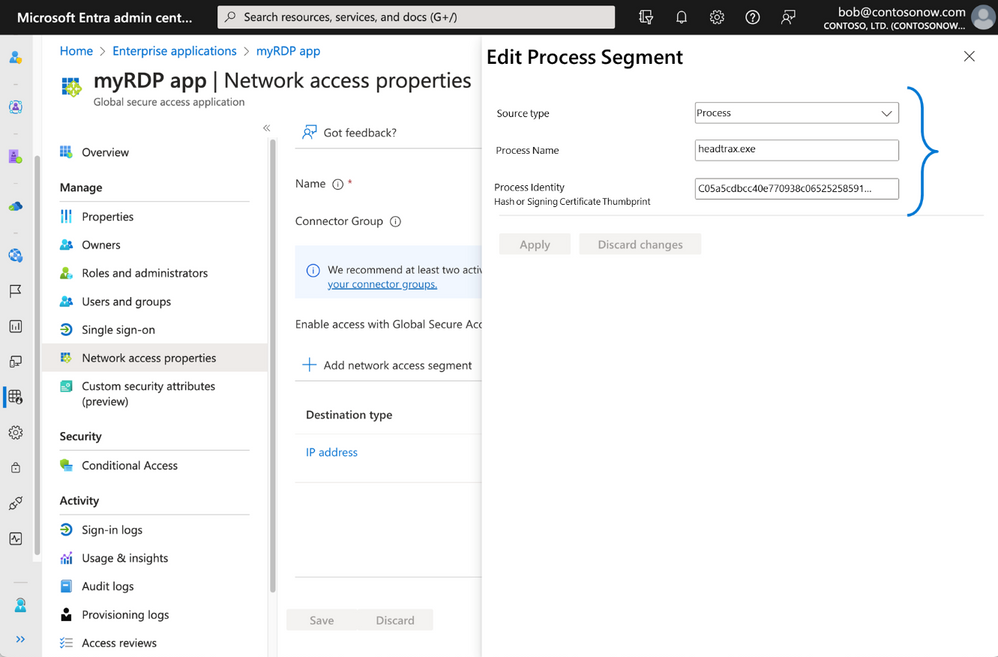 Figure 6: Granular segmented application access
Intelligent local access. Employees need a consistent security posture whether they’re accessing private applications remotely or on-premises. The intelligent local access capability enables fast and seamless ZTNA for users, whether they’re within the corporate network or connecting remotely from anywhere outside corporate network boundaries. For example, a user while on the corporate network can connect to on-premises private applications such as RDP or SMB while CA policies such as MFA are still enforced, and application traffic remains local on the corporate network.
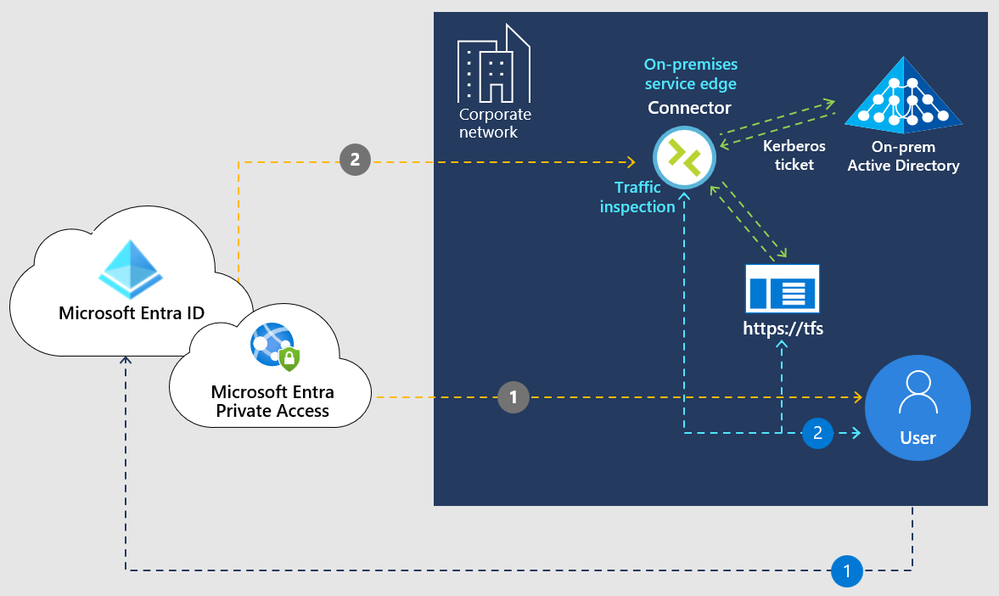 Figure 7: Intelligent local access
Getting started with Entra Private Access
Global Secure Access (preview) is the centralized location in the Microsoft Entra admin center where you can configure and manage Microsoft Entra Private Access. Remote workers don’t need to use a VPN to access these resources if they have the Global Secure Access Client installed. The client quietly and seamlessly connects them with the resources they need. The most current version of the client can be downloaded from the Microsoft Entra admin center. You can install the client interactively, silently with the /quiet switch, or use mobile device management platforms like Microsoft Intune to deploy it to their devices.
QuickAccess makes it very easy to get started with a minimum configuration for Private Access, especially when you are planning to move from legacy VPN to ZTNA. After completing initial configurations, and once you deploy a connector agent on-premises, to enable quick access all you need to do is specify the IP address, IP address range, or FQDN and port number. You can then assign specific conditional access policies, which QuickAccess applies to ALL app segments you configured. For example, you can create a “myRDP app” and assign it an IP address-based app segment. You only need to provide a name for the private app, then select the connector you wish to use with the app, and then specify the IP address/range and port number. You can then access your destination by simply launching an RDP session from your remote client machine.
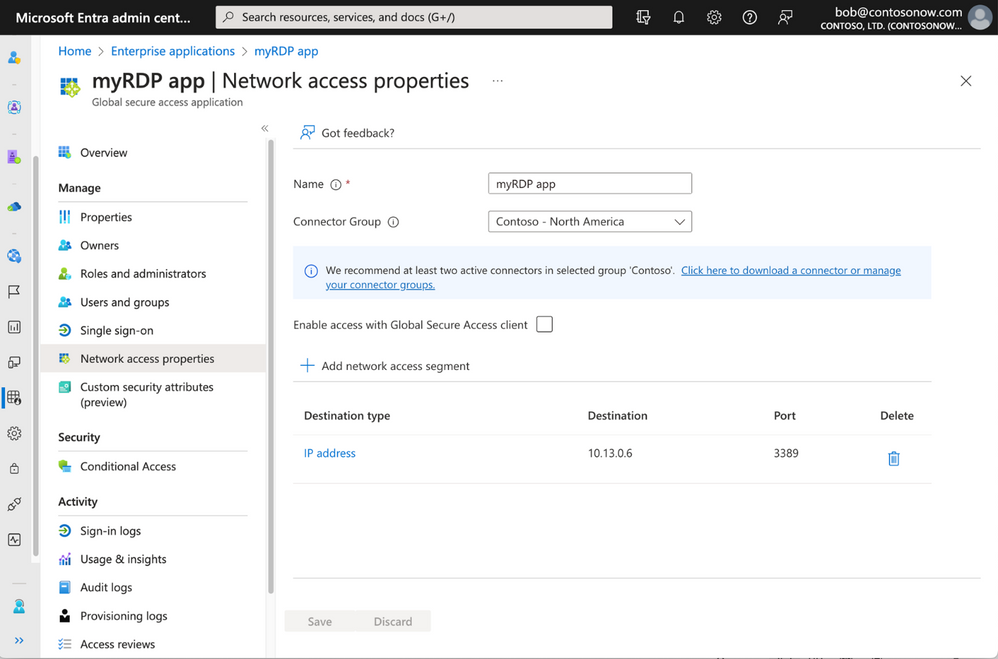 Figure 8: Configure Quick Access to an RDP application
To learn about different use cases and scenarios, configuration prerequisites and how to enable secure access to your private network resources through the client, remote network connectivity, Quick Access, and more, go to the Global Secure Access documentation page.
You can learn more about Private Access in action via our on-demand Tech Accelerator product deep dive sessions.
Learn more about Microsoft’s SSE solution:
Learn more about Microsoft Entra:

by Contributed | Aug 27, 2023 | Technology
This article is contributed. See the original author and article here.
Summary
Data in ADX (aka Kusto aka RTA in Fabric) almost always has columns that contain datetime values like 2023-08-01 16:45 and sometimes timespan values like 2 hours or 36 minutes.
In this article I’ll describe how these values are represented in ADX in Power Query and in Power BI.
Notice that I don’t just say Power BI because timespan values have different types in Power Query and in Power BI.
Dates and times in ADX
ADX have to relevant data types : datetime and timespan.
In the attached pbix file, there are two basic columns, one is a datetime and one is a timespan.
Datetime values are assumed to be in UTC. They can be converted to local time using the datetime_utc_to_local function.
Here is the query that creates the data in KQL: (You can click on the web Hyperlink to run the query)
Execute in [Web] [Desktop] [cluster(‘help.kusto.windows.net’).database(‘ContosoSales’)]
datatable(Date_and_Time:datetime, Span:timespan ,Spantext:string) [
datetime(2023-09-01), 2m,”2m”,
datetime(2023-09-01 06:00), 2h,”2h”,
datetime(2023-09-01 06:25:33),2d,”2d”,
datetime(2023-09-01 23:55:12.1234), 30s, “30s”,
datetime(2023-09-30),251ms,”251ms”
]
| extend Time_In_New_York=datetime_utc_to_local(Date_and_Time,”America/New_York”)
Table0
Date_and_Time
|
Span
|
Spantext
|
Time_In_New_York
|
2023-09-01T00:00:00Z
|
00:02:00
|
2m
|
2023-08-31T20:00:00Z
|
2023-09-01T06:00:00Z
|
02:00:00
|
2h
|
2023-09-01T02:00:00Z
|
2023-09-01T06:25:33Z
|
2.00:00:00
|
2d
|
2023-09-01T02:25:33Z
|
2023-09-01T23:55:12.1234Z
|
00:00:30
|
30s
|
2023-09-01T19:55:12.1234Z
|
2023-09-30T00:00:00Z
|
00:00:00.2510000
|
251ms
|
2023-09-29T20:00:00Z
|
Dates and time types in Power Query
The datetime columns in ADX are typed as Date/Time/Zone.
Changing the type to datetime will not change the value because the datetime is assumed to be in UTC .
The timespan column is typed as duration.
Date and Time types in the PBI data model
Power BI data types are described here.
The paragraph about Date/time types explains how Power Query types are mapped to the data model.
Some types are converted when moved from Power Query to the data model.
Date/Time/Timezone is converted to Date/Time and Duration is converted to decimal.
The behavior of timespan->duration->decimal needs some explanation.
A timespan of 12h is shown in PQ as 0.12:0:0 and in the model as 0.5.
For those of you with an Excel background, it will make perfect sense.
0.5 is half a day, the decimal is expressed as the decimal parts of a day.
For someone coming from KQL background it looks odd.
The timespan column can be converted in the query to seconds by multiplying it by 24*60*60 which is the number of seconds in 24 hours.
by Contributed | Aug 26, 2023 | Technology
This article is contributed. See the original author and article here.
When building an application, one of the things we have to work alongside with is business requirements but we mostly forget about the users, “Is this application accessible to the users?”
User’s Interaction and accessibility are many of the factors that needs to be discussed when building an application. It’s important to consider how efficient your application is to your users.
Check out this Podcast Episode on A Girl in Love with Tech Podcast where I and Microsoft Snr Program Manager Ilya Fainberg who role is researching market trends and understanding customer needs to formulate product strategy. Helping customers succeed in their journey to the Microsoft Cloud by advising on best practices and product discussed about the importance of User’s Experience in Microsoft Power Platform
In this article, we would learn about simple user’s needs we can easily work on when building a Power apps application but first, let us understand what Power Apps is
What is Microsoft Power Apps?
Microsoft Power Apps is a low-code or no- code tool in the Microsoft Power Platform ecosystem that is used in building business applications with or without the use of programming languages. Microsoft has been able to bridge that gap, where both developers and non-developers have free rays in building solutions. What this means is that, the platform can be extended by code making it a pro code platform for professional developers.
What to look at for
1. Simple icons: it is advisable to use icons in place to help increase space and avoid distractions. Make use of icons that are understandable on what it does.
2. Consistency: When building an application, especially when you have many screens in the application. It’s important to consider the consistency of the controls in your screen especially the width and height.
3. Colours: How well you use your colours is very important, especially to the users, it has to be accessible, not contrasting the other, the colour should not be too dull.
These are the few examples to consider when working with colours
- The font colour and background colour of your screen should be accessible. Check the Colour contrast checker to see which colour works best.
- When using an image in the screen the colour in the background of the image should not contradict the background colour of your screen.
- Use primary colours to point out the main objective. A good example of not working well with colors is using a green colour for the delete icon.
4. Avoiding distractions: Application should always be easy to use. A user should not need a manual to use your application.
5. Performance: Improving how users interact with your applications should be met. A few examples to consider when working in an application:
- Application should not take too long to load or respond to an action.
- When a user clicks on a button they expect that something will happen. Button controls should not be used as a text control.
Check this out to learn more about ways you can improve Performance in your application
6. Size: The font type and size should be readable and accessible. Check here and learn more about accessible fonts.
7.Responsive: Building an application, always think about the use of your application on different devices. When building an application one of the mistakes we make is not having an idea or design of how the application layout will look like on different types of screens.
Check out the learning resources
PowerApps Canvas App Accessibility Guidelines | Microsoft Power Apps
Understand the Power Apps Studio
How to build the UI in a canvas app in Power Apps
How to build a color-contrast-ratio checker for improved accessibility in Power Apps
How to use custom fonts in Power Apps
Power Apps performance optimization guidelines
by Contributed | Aug 25, 2023 | Technology
This article is contributed. See the original author and article here.
With ongoing advancements in technology, there has been a continuous shift in how we learn, network, and interact with each other. Communities in Teams experience enables students and mentors to connect and bring out a true sense of connection among them.
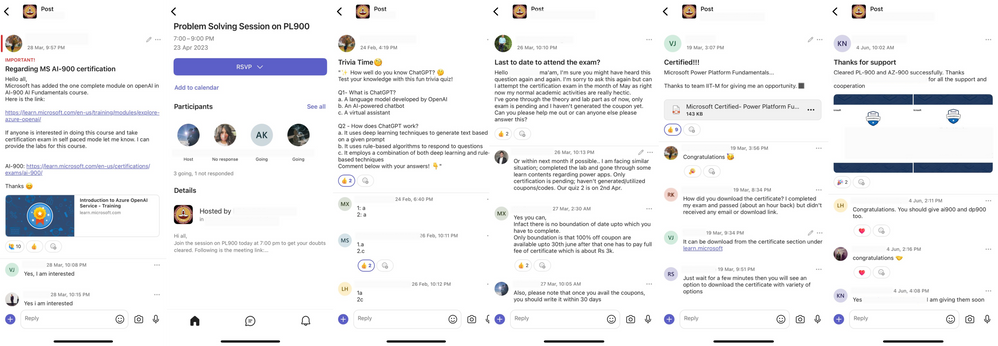
IIT Madras, one of the leading engineering institutions in India, has been using Teams to enable mentorship-led communities along with their Microsoft Learn for Educators (MSLE) effort in their data science program. Mentors connect with the students to help them with course curriculum and technical questions related to various Microsoft certification courses that they are encouraging their students to take up, both asynchronously and with live online office hours, in one place.
In this article, we will explore how IIT Madras created communities for mentorship cohorts and engaged their students to help them easily connect with one another and have a go-to space for upskilling and networking.
Why create mentorship communities on Teams?
Building a strong connection between the mentors and mentees is critical for folks to achieve goals and learn from each other. This is especially true if the students are from diverse geographical locations, ages, roles, and backgrounds. The BS Degree in Data Science and Application Program offered by IIT Madras is born out of the philosophy of democratizing education and has seen wide acceptance both inside and outside the country.
With data science being a buzzword in the industry for quite some time, the BS program aims to provide without compromising the strong academic foundations needed in this arena. Knowledge of cloud computing and use of cloud resources is a significant extracurricular component where IIT Madras is working with Microsoft (through a faculty development program – Microsoft Learn for Educator program) to enable Microsoft Cloud-related certifications, both in Data Science and Application Development, for its students. Communities in Teams provides a single platform for students to connect, engage, and build relationships with their fellow students and mentors before and after their sessions.
This community is the centralized space for students to find information related to their out-of-class mentoring sessions scheduled in the program and address all questions and concerns. Students can
- Find the program schedule
- Engage with the coordinating team
- Track important dates
- Help, interact, and collaborate with peers
- Resolve queries in real time
- One-stop access to all your reading materials
- Connect with your trainers/mentors
- Follow upcoming events
Additionally, since students could potentially use Teams in their colleges, it serves as an excellent opportunity for them to navigate on a single platform.
How is IIT Madras creating and managing mentorship cohorts in Communities in Teams?
IIT Madras has been using Communities in Teams as a platform for all its students and mentors to build relationships, expand their network, and motivate students in finishing their Microsoft certification programs.
For every mentorship session, they share the QR code/ invite link of the community to all its registered participants. Students join the community before/during the course delivery session to connect asynchronously with their peers and discuss key elements discussed during the session.
The mentors/coordinating team shares all the required details of the cloud certification including meeting details, and prerequisites, and supports students by providing them a platform to ask questions, seek guidance, and share their certificates.
These communities also act as a knowledge resource for all the students aiming to get themselves certified with other certifications as IIT Madras leverages the existing community network they have built to cross-promote the upcoming mentorship sessions and certifications.
Here is what IIT Madras has to say about Teams
In the unique context of IIT Madras BS Degree in Data Science and Programming, the mentorship communities through MS Teams help emulate the informal learning environment that is available in the regular on-campus programs for extra-curricular activities. This is a very significant activity as students aiming to get Cloud Certifications not only get guidance from their peers/seniors who have already completed their journey but also promote a strong sense of belonging. We are really happy to be part of this journey with Microsoft Teams and are looking forward to having a strong community built within this space.
Overall, these communities have been helping the students to engage proactively, find easy resolution of queries, and stay motivated to complete their programs and certifications.
Best practices to keep in mind while creating student-mentor communities on Teams
- Set Community Description, Avatar, and Guidelines: Once the community is created, ensure the community description encourages participation and delivers the goal of the community. Additionally, fill out any specific community guidelines you want to communicate to members of the community. Having a community avatar makes the community more real. Learn more about updating the community details.
- Restrict Community Join Link Sharing: To ensure the community remains secure and limited to authorized members, disable the option to share the community join link and enable requests for members to join. This step prevents the link from being shared outside the intended audience, maintaining the privacy and exclusivity of the community. Learn more about how to disable the option to share a community link
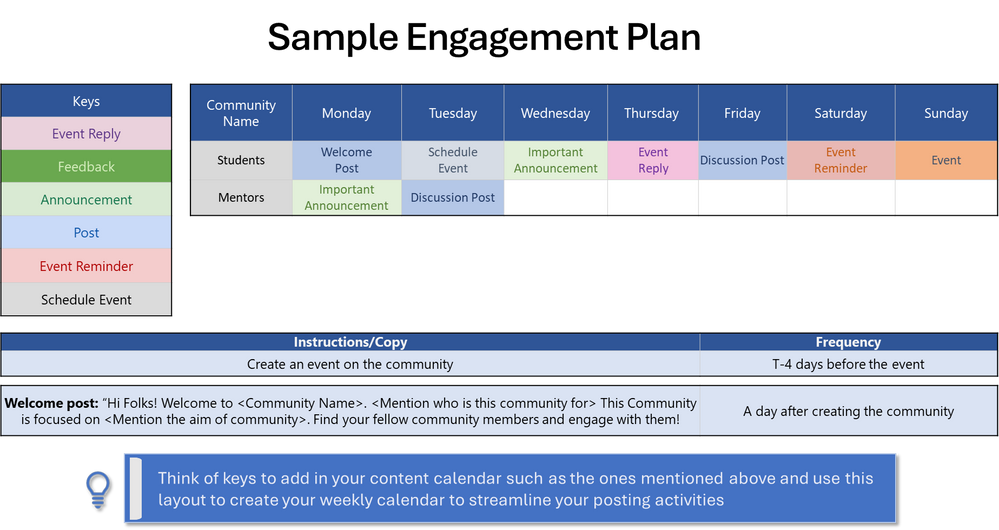
- Create an engagement plan: Plan your engagement for 2 weeks beforehand as starters to kick-start conversations in the community. You can have multiple types of posts planned with details on who will post and when.
- Change your profile name so members can uniquely identify you as the mentor. You can use titles such as Your Name – Mentor
- Diversify Communities: Consider creating separate communities for every certification/program type. This segmentation allows for more targeted discussions and networking opportunities within specific cohorts.
- Empower the community to lead: A community becomes strong and sustainable only when leaders are nurtured within the community and empowered. As part of this, there is a cognitive apprenticeship within the community through which students can move up to become Mentors and Community managers.
By following these steps, you can harness the power of Communities in Teams to create vibrant communities that foster connections, facilitate networking, and enhance the overall mentorship experience.
How to send feedback and suggestions?
We are always happy to receive feedback and suggestions to make our product even better. To participate in our feedback program and help us in our endeavor, please follow the steps below:
You can also sign up for a user panel, to get opportunities to connect directly with the product team and help make Teams (free) better. Learn more.


Recent Comments