by Contributed | Jan 23, 2024 | Technology
This article is contributed. See the original author and article here.
Introduction
Hello everyone, I am Bindusar (CSA) working with Intune. I have received multiple requests from customers asking to collect specific event IDs from internet-based client machines with either Microsoft Entra ID or Hybrid Joined and upload to Log Analytics Workspace for further use cases. There are several options available like:
- Running a local script on client machines and collecting logs. Then using “Send-OMSAPIIngestionFile” to upload required information to Log Analytics Workspace.
The biggest challenge with this API is to allow client machines to authenticate directly in Log Analytics Workspace. If needed, Brad Watts already published a techcommunity blog here.
Extending OMS with SCCM Information – Microsoft Community Hub
- Using Log analytics agent. However, it is designed to collect event logs from Azure Virtual Machines.
Collect Windows event log data sources with Log Analytics agent in Azure Monitor – Azure Monitor | Microsoft Learn
- Use of Monitoring Agent to collect certain types of events like Warning, Errors, Information etc and upload to Log Analytics Workspace. However, in monitoring agent, it was difficult to customize it to collect only certain event IDs. Also, it will be deprecated soon.
Log Analytics agent overview – Azure Monitor | Microsoft Learn
In this blog, I am trying to extend this solution to Azure Monitor Agent instead. Let’s try to take a scenario where I am trying to collect Security Event ID 4624 and upload it to Event Table of Log Analytics Workspace.
Event ID 4624 is generated when a logon session is created. It is one of the most important security events to monitor, as it can provide information about successful and failed logon attempts, account lockouts, privilege escalation, and more. Monitoring event ID 4624 can help you detect and respond to potential security incidents, such as unauthorized access, brute force attacks, or lateral movement.
In following steps, we will collect event ID 4624 from Windows client machines using Azure Monitor Agent and store this information in Log Analytics workspace. Azure Monitor Agent is a service that collects data from various sources and sends it to Azure Monitor, where you can analyse and visualize it. Log Analytics workspace is a container that stores data collected by Azure Monitor Agent and other sources. You can use Log Analytics workspace to query, alert, and report on the data.
Prerequisites
Before you start, you will need the following:
- A Windows client that you want to monitor. Machine should be Hybrid or Entra ID joined.
- An Azure subscription.
- An Azure Log Analytics workspace.
- An Azure Monitor Agent.
Steps
To collect event ID 4624 using Azure Monitor Agent, follow these steps:
If you already have a Log Analytics workspace where you want to collect the events, you can move to step #2 where we need to create a DCR. A table named “Events” (not custom) will be used to collect all the events specified.
1. Steps to create Log Analytics Workspace
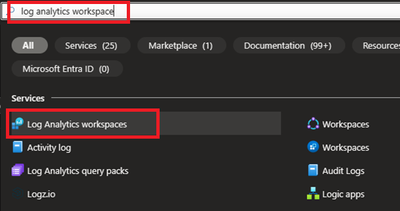
1.1 Login to Azure portal and search for Log analytics Workspace
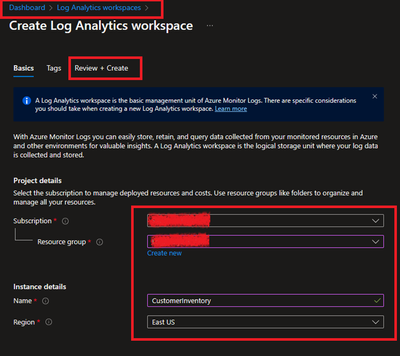
1.2 Select and Create after providing all required information.
2. Creating a Data Collection Rule (DCR)
Detailed information about data collection rule can be found at following. However, for the granularity of this blog, we will extract the required information to achieve our requirements.
Data collection rules in Azure Monitor – Azure Monitor | Microsoft Learn
2.1 Permissions
“Monitoring Contributor” on Subscription, Resource Group and DCR is required.
Reference: Create and edit data collection rules (DCRs) in Azure Monitor – Azure Monitor | Microsoft Learn
2.2 Steps to create DCR.
For PowerShell lovers, following steps can be referred.
Create and edit data collection rules (DCRs) in Azure Monitor – Azure Monitor | Microsoft Learn
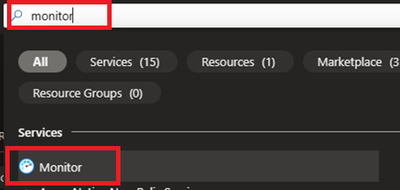
- Login to Azure portal and navigate to Monitor.
- Locate Data collection Rules on Left Blade.
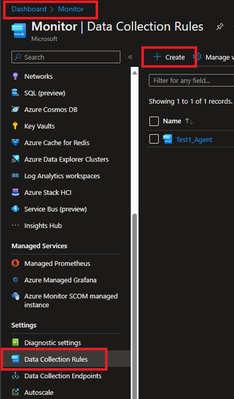
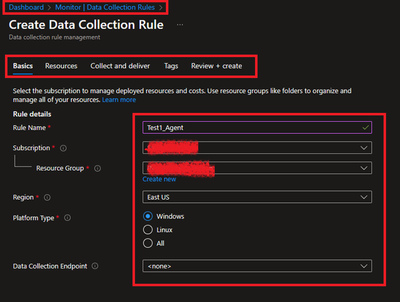
- Create a New Data Collection Rule and Provide required details. Here we are demonstrating Platform Type Windows
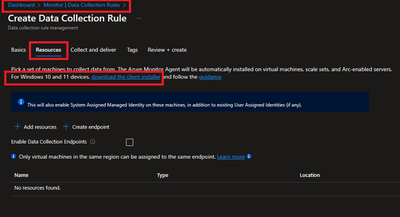
- Resources option talks about downloading an Azure Monitor Agent which we need to install on client machines. Please select link to “Download the client installer” and save it for future steps.
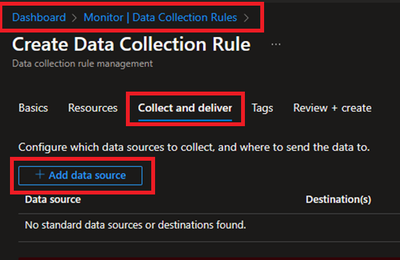
- Under Collect and deliver, collect talks about “what” needs to be collected and deliver talks about “where” collected data will be saved. Click on Add data source and select Windows Event Logs for this scenario.
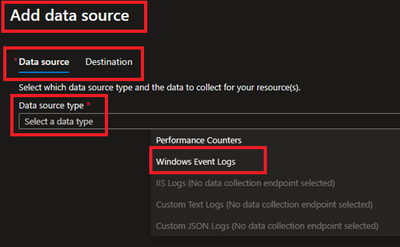
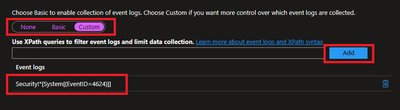
- In this scenario, we are planning to collect Event ID 4624 from Security Logs. By default, under Basic, we do not have such option and thus we will be using Custom.
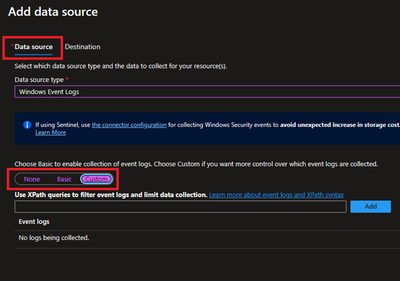
Customer uses XPath format. XPath entries are written in the form LogName!XPathQuery. For example, in our case, we want to return only events from the Security event log with an event ID of 4624. The XPathQuery for these events would be *[System[EventID=4624]]. Because you want to retrieve the events from the Security event log, the XPath is Security!*[System[EventID=4624]]. To get more information about how to consume event logs, please refer to following doc.
Consuming Events (Windows Event Log) – Win32 apps | Microsoft Learn
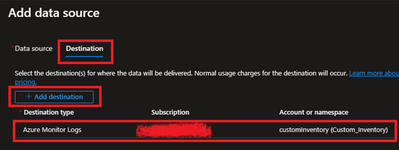
- Next is to select the Destination where logs will be stored. Here we are selecting the Log analytics workspace which we created in steps 1.2.
- Once done, Review and Create the rule.
2.3 Creating Monitoring Object and Associating it with DCR.
You need to create a ‘Monitored Object’ (MO) that creates a representation for the Microsoft Entra tenant within Azure Resource Manager (ARM). This ARM entity is what Data Collection Rules are then associated with. This Monitored Object needs to be created only once for any number of machines in a single Microsoft Entra tenant. Currently this association is only limited to the Microsoft Entra tenant scope, which means configuration applied to the Microsoft Entra tenant will be applied to all devices that are part of the tenant and running the agent installed via the client installer.
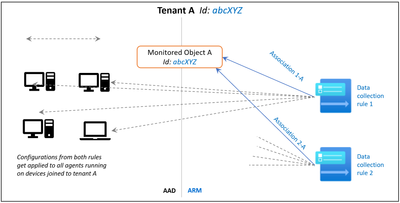
Here, we are using a PowerShell script to create and map Monitoring Object to DCR.
Reference: Set up the Azure Monitor agent on Windows client devices – Azure Monitor | Microsoft Learn
Following things to keep in mind:
- The Data Collection rules can only target the Microsoft Entra tenant scope. That is, all DCRs associated to the tenant (via Monitored Object) will apply to all Windows client machines within that tenant with the agent installed using this client installer. Granular targeting using DCRs is not supported for Windows client devices yet.
- The agent installed using the Windows client installer is designed for Windows desktops or workstations that are always connected. While the agent can be installed via this method on client machines, it is not optimized for battery consumption and network limitations.
- Action should be performed by Tenant Admin as one-time activity. Steps mentioned below gives the Microsoft Entra admin ‘owner’ permissions at the root scope.
#Make sure execution policy is allowing to run the script.
Set-ExecutionPolicy unrestricted

#Define the following information
$TenantID = ""  #Your Tenant ID
$SubscriptionID = "" #Your Subscription ID where Log analytics workspace was created.
$ResourceGroup = "Custom_Inventory" #Your resroucegroup name where Log analytics workspace was created.


$Location = "eastus" #Use your own location. “location" property value under the "body" section should be the Azure region where the Monitor object would be stored. It should be the "same region" where you created the Data Collection Rule. This is the location of the region from where agent communications would happen.


$associationName = "EventTOTest1_Agent" #You can define your custom associationname, must change the association name to a unique name, if you want to associate multiple DCR to monitored object.

$DCRName = "Test1_Agent" #Your Data collection rule name.


#Just to ensure that we have all modules required.

If(Get-module az -eq $null)
{
    Install-Module az
    Install-Module Az.Resources
    Import-Module az.accounts
}

#Connecting to Azure Tenant using Global Admin ID
Connect-AzAccount -Tenant $TenantID

#Select the subscription
Select-AzSubscription -SubscriptionId $SubscriptionID

#Grant Access to User at root scope "/"
$user = Get-AzADUser -UserPrincipalName (Get-AzContext).Account

New-AzRoleAssignment -Scope '/' -RoleDefinitionName 'Owner' -ObjectId $user.Id

#Create Auth Token
$auth = Get-AzAccessToken

$AuthenticationHeader = @{
    "Content-Type" = "application/json"
    "Authorization" = "Bearer " + $auth.Token
    }


#1. Assign ‘Monitored Object Contributor’ Role to the operator.
$newguid = (New-Guid).Guid
$UserObjectID = $user.Id

$body = @"
{
            "properties": {
                "roleDefinitionId":"/providers/Microsoft.Authorization/roleDefinitions/56be40e24db14ccf93c37e44c597135b",
                "principalId": `"$UserObjectID`"
        }
}
"@

$requestURL = "https://management.azure.com/providers/microsoft.insights/providers/microsoft.authorization/roleassignments/$newguid`?api-version=2020-10-01-preview"


Invoke-RestMethod -Uri $requestURL -Headers $AuthenticationHeader -Method PUT -Body $body


##

#2. Create Monitored Object


$requestURL = "https://management.azure.com/providers/Microsoft.Insights/monitoredObjects/$TenantID`?api-version=2021-09-01-preview"
$body = @"
{
    "properties":{
        "location":`"$Location`"
    }
}
"@

$Respond = Invoke-RestMethod -Uri $requestURL -Headers $AuthenticationHeader -Method PUT -Body $body -Verbose
$RespondID = $Respond.id

##

#3. Associate DCR to Monitored Object
#See reference documentation https://learn.microsoft.com/en-us/rest/api/monitor/data-collection-rule-associations/create?tabs=HTTP

$requestURL = "https://management.azure.com$RespondId/providers/microsoft.insights/datacollectionruleassociations/$associationName`?api-version=2021-09-01-preview"
$body = @"
        {
            "properties": {
                "dataCollectionRuleId": "/subscriptions/$SubscriptionID/resourceGroups/$ResourceGroup/providers/Microsoft.Insights/dataCollectionRules/$DCRName"
            }
        }

"@

Invoke-RestMethod -Uri $requestURL -Headers $AuthenticationHeader -Method PUT -Body $body


#IN case you want to create more than DCR, use following in comments.


#Following step is to query the created objects.
#4. (Optional) Get all the associatation.
$requestURL = "https://management.azure.com$RespondId/providers/microsoft.insights/datacollectionruleassociations?api-version=2021-09-01-preview"
(Invoke-RestMethod -Uri $requestURL -Headers $AuthenticationHeader -Method get).value
3. Client-side activity
3.1 Prerequisites:
Reference: Set up the Azure Monitor agent on Windows client devices – Azure Monitor | Microsoft Learn
- The machine must be running Windows client OS version 10 RS4 or higher.
- To download the installer, the machine should have C++ Redistributable version 2015) or higher
- The machine must be domain joined to a Microsoft Entra tenant (AADj or Hybrid AADj machines), which enables the agent to fetch Microsoft Entra device tokens used to authenticate and fetch data collection rules from Azure.
- The device must have access to the following HTTPS endpoints:
- global.handler.control.monitor.azure.com
- .handler.control.monitor.azure.com (example: westus.handler.control.azure.com)
- .ods.opinsights.azure.com (example: 12345a01-b1cd-1234-e1f2-1234567g8h99.ods.opinsights.azure.com) (If using private links on the agent, you must also add the data collection endpoints)
3.2 Installing the Azure Monitoring Agent Manually
- Use the Windows MSI installer for the agent which we downloaded in step 1.3 while creating the DCR.
- Navigate to downloaded file and run that as administrator. Follow the steps like configuring proxy etc as per your need and finish the setup.
- Following screenshots can be referred to install manually on selected client machines to test.
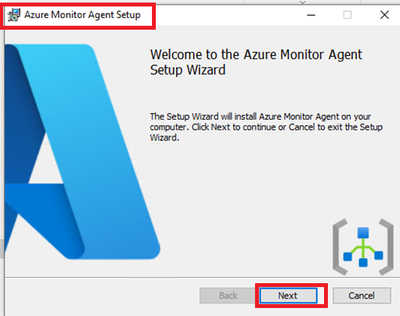
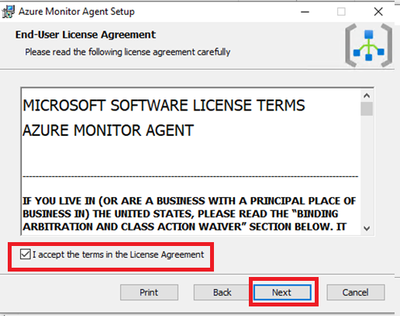
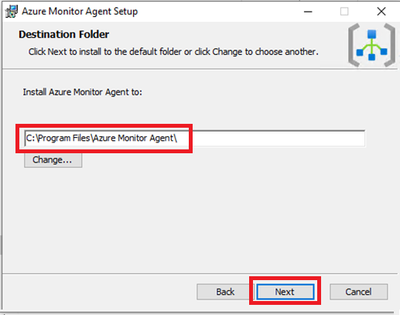
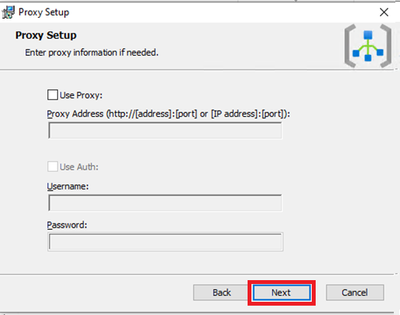
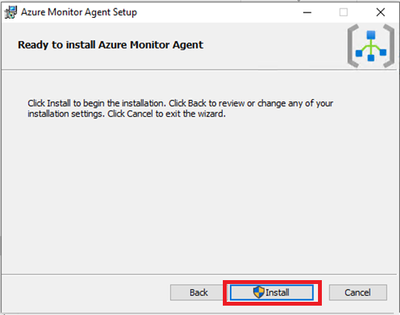
This needs Admin permissions on local machine.
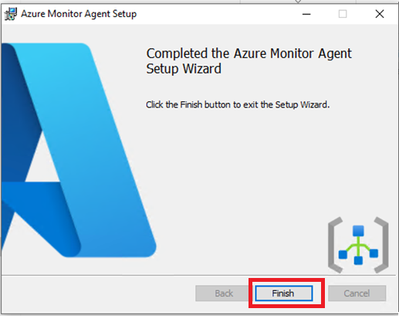
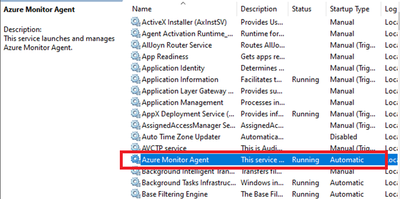
- Verify successful installation:
- Open Services and confirm ‘Azure Monitor Agent’ is listed and shows as Running.
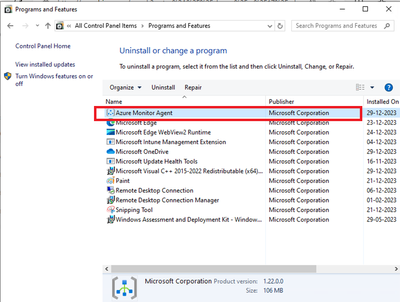
- Open Control Panel -> Programs and Features OR Settings -> Apps -> Apps & Features and ensure you see ‘Azure Monitor Agent’ listed.
3.3 Installation of Azure Monitor Agent using Intune.
- Login to Intune Portal and navigate to Apps.
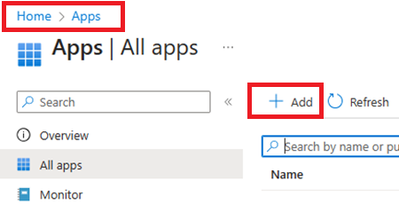
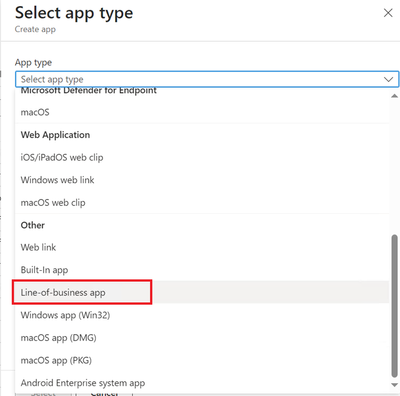
- Click on +Add to create a new app. Select Line-of-business app.
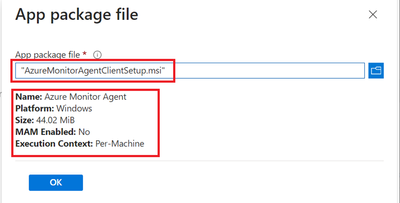
- Locate the Agent file which was downloaded in section 2.2 during DCR creation.
- Provide the required details like scope tags and groups to deploy.
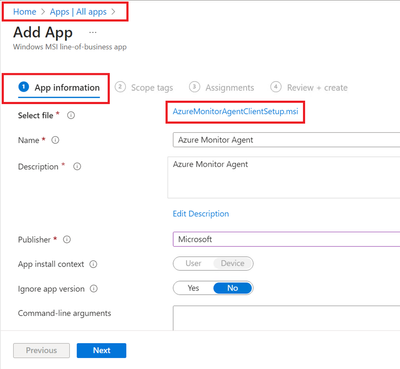
- Assign and Create.
- Ensure that machines are already installed with C++ Redistributable version 2015) or higher. If not, please create another package as dependent of this application. If you do not do that, Azure Monitoring Agent will be stuck in Install Pending State.
4. Verification of configuration.
Its time to validate the configuration and data collected.
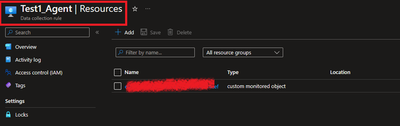
4.1 Ensure that the Monitoring Object is mapped with data collection rule.
To do this, navigate to Azure Portal > Monitor > Data collection rule > Resources. A new custom monitored object should be created.
4.2 Ensure that Azure Monitor Agents are Connected.
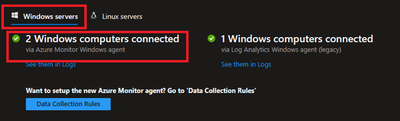
To do this, navigate to Azure Portal > Log Analytics Workspaces > Your workspace which was created at the beginning > Agents > Focus on Windows Computers Connected Via Azure Monitor Windows Agents on Left Side.
4.3 Ensure that the client machines can send required data.
To check this, navigate to Azure Portal > Log Analytics workspaces > Your workspace which was created at the beginning > Tables. Events table must be created.

4.4 Ensure that required data is captured.
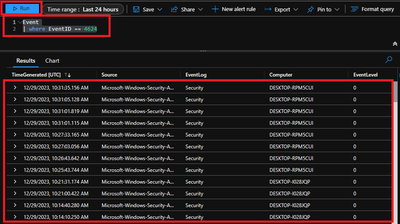
To access the event logs captured, navigate to Azure Portal > Log Analytics workspaces > Your workspace which was created at the beginning > Logs and run KQL query.
“Event
| where EventID == 4624”
Conclusion
Collecting event IDs, like Event ID 4624 from Windows clients is a useful way to track user logon activities and identify any suspicious or unauthorized actions. By using Azure Monitor Agent and Log Analytics workspace, you can easily configure, collect, store, and analyse this data in a scalable and easy way. You can also leverage the powerful features of the Log Analytics query language (KQL) and portal to create custom queries, filters, charts, and dashboards to visualize and monitor the logon events. You can further refer this data in PowerBI reports as well.
We would like to thank you for reading this article and hope you found it useful and informative.
If you want to learn more about Azure Monitor and Log Analytics, you can visit our official documentation page and follow our blog for the latest updates and news.

by Contributed | Jan 23, 2024 | Dynamics 365, Microsoft 365, Technology
This article is contributed. See the original author and article here.
In today’s rapidly evolving business environment, organizations must make fast decisions and embrace agile practices to reshape their operations while ensuring stability and continuity. Inflexible, outdated, and disconnected systems often pose risks that hinder their ability to respond promptly, seize new opportunities, and minimize disruption.
In the recent Microsoft Dynamics 365 Future of Enterprise Resource Planning (ERP) Survey, we discovered that 93% of business leaders advocate the benefits of adopting flexible and integrated ERP systems. However, only a mere 39% expressed confidence in their current ERP system’s flexibility and integration capabilities to effectively leverage resources for business model transformation.1 This insight is crucial, particularly for organizations with legacy on-premises solutions that may struggle to meet new business demands.
Businesses relying on on-premises ERP and business management systems face challenges including:
- Slow responsiveness and delayed decision making due to disconnected data and lack of real-time information.
- Greater vulnerability to security threats and challenges in meeting compliance due to a lack of advanced capabilities and resources.
- Difficulty competing with peers that embrace new AI-powered technologies dependent on cloud solutions.
In this blog post, we’ll discuss how the shift to cloud solutions empowers organizations to tackle challenges and thrive in a demanding era. We’ll also explore Microsoft’s Accelerate, Innovate, Move (AIM) program for a smooth cloud transition.
Make the cloud work for your business
Realize AI-guided productivity in the cloud
Meet new demands with cloud innovation
The importance of business agility in today’s quickly shifting economy can’t be emphasized enough. With economic volatility and swiftly changing consumer preferences, 77% of business leaders acknowledge that these conditions are the most critical factors driving the need for agile business operations.2 Prioritizing agility enables organizations to respond effectively to evolving market conditions and gain a competitive advantage.
One customer that capitalized on the opportunity to meet new business challenges by moving from on-premises to the cloud was Ullman Dynamics, a world-leading provider of highly sophisticated suspension boat seats that serves organizations in more than 70 countries, including the United States Navy.
Serving customers is Ullman’s highest priority, but as the company grew, outdated technology kept it from meeting customer demands in key markets. With a recent surge in growth, experiencing up to a 50% annual increase, Ullman required warehouse expansion every two years. Concurrently, its products had to evolve to meet customer demands. This escalating scale and complexity strained its legacy business solution.
“Our traditional, on-premises ERP solution wasn’t able to handle the complexities of our modern business. We needed to consolidate our data into a more powerful system that could provide a full overview of our operations.”
Carl Magnus, Chief Executive Officer, Ullman Dynamics
In selecting a new business solution, Ullman had exacting criteria. It sought a solution that could scale and support its expanding global enterprise while also demanding exceptional flexibility.
By implementing cloud-based Microsoft Dynamics 365 Business Central, Ullman has enabled flexibility, efficiency, and access to valuable insights needed to improve quality service to its expanding client base.
“We’re number one in the world everywhere except for the United States. Now that Dynamics 365 Business Central has removed the barriers to growth, we are fully integrated into the US market, and Ullman Dynamics USA is poised for great success.”
Carl Magnus, Chief Executive Officer, Ullman Dynamics
Improve security when moving to the cloud
Another vital benefit that organizations gain by migrating to the cloud is the rapid innovation of security and compliance capabilities. The cloud helps protect business continuity, streamline IT operations, and navigate challenging compliance obligations as businesses grow.
Microsoft invests heavily in security measures and has the resources and expertise to implement and maintain higher levels of security than an individual organization could achieve on-premises. This is particularly important for small to medium-sized businesses, which often lack the resources to keep pace with evolving security threats.
A recent Microsoft study shows that 70% of organizations with under 500 employees are susceptible to human-operated ransomware attacks3, with these attacks becoming more sophisticated and harder to detect. They often target unmanaged devices, which lack proper security controls, and 80 to 90% of successful ransomware compromises originate from such devices.3 This poses a significant security risk for on-premises organizations that lack the advanced security available in the cloud.
Microsoft customers benefit from 135 million managed devices providing security and threat landscape insights and utilize advanced threat detection with 65 trillion signals synthesized daily using AI and data analytics.4 Moving to the cloud enables organizations to rapidly innovate and simplify the implementation of essential security practices, threat detection, and device management, granting them better protection.
While cloud technologies offer enhanced cybersecurity, they also help simplify compliance with regulatory standards, which is equally important. Managing complex certifications independently is challenging, with 65% of firms struggling with General Data Protection Regulation (GDPR) compliance.5 Microsoft assists customers in assessing data protection controls and offers solutions for compliance, including GDPR, California Consumer Privacy Act (CCPA), International Organization for Standardization 27701 (ISO 27701), International Organization for Standardization 27001 (ISO 27001), Health Insurance Portability and Accountability Act (HIPAA), Federal Financial Institutions Examination Council (FFIEC), and more, enabling rapid and scalable compliance.
With Dynamics 365, organizations can confidently improve the security of their business systems when they move to the cloud. With access to advanced technology for scaling and managing security, as well as a network of thousands of specialized security experts, Microsoft provides tools and resources to ensure your migration goes as smoothly as possible.
Unlock AI and productivity with the cloud
One compelling reason for business leaders to transition from on-premises to the cloud is the potential for enhancing daily work and productivity with collaborative applications and AI. With 73% of business leaders emphasizing the importance of productivity improvements and 80% acknowledging the transformative role of AI, the cloud offers the means to establish hybrid work models, harness automation, and leverage artificial intelligence, resulting in a significant boost in overall productivity.6
With the recent introduction of Microsoft Copilot, businesses can use transformative AI technology that offers new ways to enhance workplace efficiency, automate mundane tasks, and unlock creativity. At a time when two in three people say they struggle with having the time and energy to do their job, Copilot helps to free up capacity and enables employees to focus on their most meaningful work.7
While productivity can be enhanced with Copilot and AI, the combination of these tools with other cloud capabilities, such as collaborative applications, transforms the way work is conducted. By seamlessly connecting Microsoft 365 (Microsoft Teams, Outlook, and Excel) with Dynamics 365, businesses can swiftly make strides in improving productivity through cloud adoption. This connection between employees, data, and applications reduces context switching, centralizes workflows, and promotes efficient actions.
According to Harvard Business Review, the cost of switching between applications is just over two seconds, and the average user toggles between different apps nearly 1,200 times per day.8 This translates to spending just under four hours per week reorienting themselves after switching to a new application. Annually, this adds up to five working weeks or 9% of their total work time. The opportunity to connect employees to data and collaborative tools with the cloud will save valuable time and enable organizations to achieve more.
Move to the cloud with AIM
At Microsoft, our mission is to empower organizations to embrace cloud technologies and help enable a smooth transition. To accomplish this goal, we have introduced AIM, which stands for Accelerate, Innovate, Move.
AIM is a comprehensive program designed to provide organizations with a tailored path to confidently migrate critical processes to the cloud. This initiative helps organizations optimize their systems for enhanced business agility, security, and AI technology integration. AIM offers qualified customers access to a dedicated team of migration advisors, expert assessments, investment incentives, valuable tools, and robust migration support.
With AIM, customers gain access to a range of licensing and deployment offers aimed at reducing costs and maximizing their investments. On-premises customers can take advantage of discounted pricing when transitioning to the cloud, allowing them to optimize their investments as their businesses continue to grow.
When moving from on-premises to the cloud, customers can anticipate a positive ROI. Comprehensive studies reveal that over a three-year period, Dynamics 365 ERP solutions demonstrate strong customer ROI:
With Microsoft Dynamics 365, organizations can confidently embrace cloud migration, equipping themselves with essential capabilities to excel in a rapidly changing economy.
Start your journey today.
Sources:
- 1,2: Future of ERP: Empowering businesses and people with AI-guided productivity, Microsoft 2023
- 3,4: Microsoft Digital Defense Report 2023 (MDDR) | Microsoft Security Insider, Microsoft 2023
- 5: Managing compliance in the cloud, Microsoft, 2019
- 6,7: Microsoft Work Trend Index Annual Report, May 2023, Microsoft 2023
- 8: How Much Time and Energy Do We Waste Toggling Between Applications? Harvard Business Review, 2022
- 9: Total Economic Impact™ of Business Central, Forrester, 2023
- 10: Total Economic Impact™ of Supply Chain Management, Forrester, 2021
- 11: Total Economic Impact™ of Microsoft Dynamics 365 Finance, Forrester, 2022
The post Embrace cloud migration with Microsoft Dynamics 365 appeared first on Microsoft Dynamics 365 Blog.
Brought to you by Dr. Ware, Microsoft Office 365 Silver Partner, Charleston SC.
by Contributed | Jan 22, 2024 | Technology
This article is contributed. See the original author and article here.
Troubleshooting Azure Stack HCI 23H2 Preview Deployments
With Azure Stack HCI release 23H2 preview, there are significant changes to how clusters are deployed, enabling low touch deployments in edge sites. Running these deployments in customer sites or lab environments may require some troubleshooting as kinks in the process are ironed out. This post aims to give guidance on this troubleshooting.
The following is written using a rapidly changing preview release, based on field and lab experience. We’re focused on how to start troubleshooting, rather than digging into specific issues you may encounter.
Understanding the deployment process
Deployment is completed in two steps: first, the target environment and configuration are validated, then the validated configuration is applied to the cluster nodes by a deployment. While ideally any issues with the configuration will be caught in validation, this is not always the case. Consequently, you may find yourself working through issues in validation only to also have more issues during deployment to troubleshoot. We’ll start with tips on working through validation issues then move to deployment issues.
When the validation step completes, a ‘deploymentSettings’ sub-resource is created on your HCI cluster Azure resource.
Logs Everywhere!
When you run into errors in validation or deployment the error passed through to the Portal may not have enough information or context to understand exactly what is going on. To get to the details, we frequently need to dig into the log files on the HCI nodes. The validation and deployment processes pull in components used in Azure Stack Hub, resulting in log files in various locations, but most logs are on the seed node (the first node sorted by name).
Viewing Logs on Nodes
When connected to your HCI nodes with Remote Desktop, Notepad is available for opening log files and checking contents. Another useful trick is to use the PowerShell Get-Content command with the -wait parameter to follow a log and -last parameter to show only recent lines. This is especially helpful to watch the CloudDeployment log progress. For example:
Get-Content C:CloudDeploymentLogsCloudDeployment.2024-01-20.14-29-13.0.log -wait -last 150
Log File Locations
The table below describes important log locations and when to look in each:
Path
|
Content
|
When to use…
|
C:CloudDeploymentLogsCloudDeployment*
|
Output of deployment operation
|
This is the primary log to monitor and troubleshoot deployment activity. Look here when a deployment fails or stalls
|
C:CloudDeploymentLogsEnvironmentValidatorFull*
|
Output of validation run
|
When your configuration fails a validation step
|
C:ECEStoreLCMECELiteLogsInitializeDeploymentService*
|
Logs related to the Life Cycle Manager (LCM) initial configuration
|
When you can’t start validation, the LCM service may not have been fully configured
|
C:ECEStoreMASLogs
|
PowerShell script transcript for ECE activity
|
Shows more detail on scripts executed by ECE—this is a good place to look if CloudDeployment shows an error but not enough detail
|
C:CloudDeploymentLogscluster*
C:WindowsTemp StorageClusterValidationReport*
|
Cluster validation report
|
Cluster validation runs when the cluster is created; when validation fails, these logs tell you why
|
Retrying Validations and Deployments
Retrying Validation
In the Portal, you can usually retry validation with the “Try Again…” button. If you are using an ARM template, you can redeploy the template.
In the Validation stage, your node is running a series of scripts and checks to ensure it is ready for deployment. Most of these scripts are part of the modules found here:
C:Program FilesWindowsPowerShellModulesAzStackHci.EnvironmentChecker
Sometimes it can be insightful to run the modules individually, with verbose or debug output enabled.
Retrying Deployment
The ‘deploymentSettings’ resource under your cluster contains the configuration to deploy and is used to track the status of your deployment. Sometimes it can be helpful to view this resource; an easy way to do this is to navigate to your Azure Stack HCI cluster in the Portal and append ‘deploymentsettings/default’ after your cluster name in the browser address bar.

Image 1 – the deploymentSettings Resource in the Portal
From the Portal
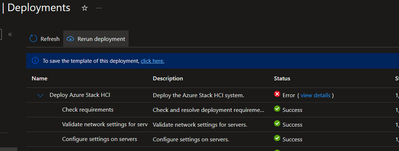
In the Portal, if your Deployment stage fails part-way through, you can usually restart the deployment by clicking the ‘Return Deployment’ button under Deployments at the cluster resource.
Image 2 – access the deployment in the Portal so you can retry
Alternatively, you can navigate to the cluster resource group deployments. Find the deployment matching the name of your cluster and initiate a redeploy using the Redeploy option.
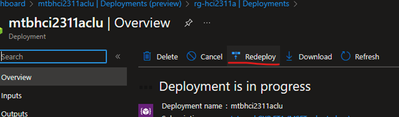
Image 3 – the ‘Redploy’ button on the deployment view in the Portal
If Azure/the Portal show your deployment as still in progress, you won’t be able to start it again until you cancel it or it fails.
From an ARM Template
To retry a deployment when you used the ARM template approach, just resubmit the deployment. With the ARM template deployment, you submit the same template twice—once with deploymentMode: “Validate” and again with deploymentMode: “Deploy”. If you’re wanting to retry validation, use “Validate” and to retry deployment, use “Deploy”.
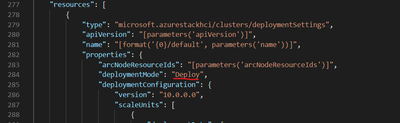
Image 4 – ARM template showing deploymentMode setting
Locally on the Seed Node
In most cases, you’ll want to initiate deployment, validation, and retries from Azure. This ensures that your deploymentSettings resource is at the same stage as the local deployment.
However, in some instances, the deployment status as Azure understands it becomes out of sync with what is going on at the node level, leaving you unable to retry a stuck deployment. For example, Azure has your deploymentSettings status as “Provisioning” but the logs in CloudDeployment show the activity has stopped and/or the ‘LCMAzureStackDeploy’ scheduled task on the seed node is stopped. In this case, you may be able to rerun the deployment by restarting the ‘LCMAzureStackDeploy’ scheduled task on the seed node:
Start-ScheduledTask -TaskName LCMAzureStackDeploy
If this does not work, you may need to delete the deploymentSettings resource and start again. See: The big hammer: full reset.
Advanced Troubleshooting
Invoking Deployment from PowerShell
Although deployment activity has lots of logging, sometimes either you can’t find the right log file or seem to be missing what is causing the failure. In this case, it is sometimes helpful to retry the deployment directly in PowerShell, executing the script which is normally called by the Scheduled Task mentioned above. For example:
C:CloudDeploymentSetupInvoke-CloudDeployment.ps1 -Rerun
Local Group Membership
In a few cases, we’ve found that the local Administrators group membership on the cluster nodes does not get populated with the necessary domain and virtual service account users. The issues this has caused have been difficult to track down through logs, and likely has a root cause which will soon be addressed.
Check group membership with: Get-LocalGroupMember Administrators
Add group membership with: Add-LocalGroupMember Administrators -Member [,…]
Here’s what we expect on a fully deployed cluster:
Type
|
Accounts
|
Comments
|
Domain Users
|
DOMAIN
|
This is the domain account created during AD Prep and specified during deployment
|
Local Users
|
AzBuiltInAdmin (renamed from Administrator)
ECEAgentService
HCIOrchestrator
|
These accounts don’t exist initially but are created at various stages during deployment. Try adding them—if they are not provisioned, you’ll get a message that they don’t exist.
|
Virtual Service Accounts
|
S-1-5-80-1219988713-3914384637-3737594822-3995804564-465921127
S-1-5-80-949177806-3234840615-1909846931-1246049756-1561060998
S-1-5-80-2317009167-4205082801-2802610810-1010696306-420449937
S-1-5-80-3388941609-3075472797-4147901968-645516609-2569184705
S-1-5-80-463755303-3006593990-2503049856-378038131-1830149429
S-1-5-80-649204155-2641226149-2469442942-1383527670-4182027938
S-1-5-80-1010727596-2478584333-3586378539-2366980476-4222230103
S-1-5-80-3588018000-3537420344-1342950521-2910154123-3958137386
|
These are the SIDs of the various virtual service accounts used to run services related to deployment and continued lifecycle management. The SIDs seem to be hard coded, so these can be added any time. When these accounts are missing, there are issues as early as the JEA deployment step.
|
ECEStore
The files in the ECEStore directory show state and status information of the ECE service, which handles some lifecycle and configuration management. The JSON files in this directory may be helpful to troubleshoot stuck states, but most events also seem to be reported in standard logs. The MASLogs directory in the ECEStore directory shows PowerShell transcripts, which can be helpful as well.
NUGET Packages
During initialization, several NuGet packages are downloaded and extracted on the seed node. We’ve seen issues where these packages are incomplete or corrupted—usually noted in the MASLogs directory. In this case, the The big hammer: full reset option seems to be required.
The Big Hammer: Full Reset
If you’ve pulled the last of your hair out, the following steps usually perform a full reset of the environment, while avoiding needing to reinstall the OS and reconfigure networking, etc (the biggest hammer). This is not usually necessary and you don’t want to go through this only to run into the same problem, so spend some time with the other troubleshooting options first.
- Uninstall the Arc agents on all nodes with the Remove-AzStackHciArcInitialization command
- Delete the deploymentSettings resource in Azure
- Delete the cluster resource in Azure
- Reboot the seed node
- Delete the following directories on the seed node:
- C:CloudContent
- C:CloudDeployment
- C:Deployment
- C:DeploymentPackage
- C:EceStore
- C:NugetStore
- Remove the LCMAzureStackStampInformation registry key on the seed node:
Get-Item -path HKLM:SOFTWAREMicrosoftLCMAzureStackStampInformation | Remove-Item -whatif
- Reinitialize Arc on each node with Invoke-AzStackHciArcInitialization and retry the complete deployment
Conclusion
Hopefully this guide has helped you troubleshoot issues with your deployment. Please feel free to comment with additional suggestions or questions and we’ll try to get those incorporated in this post.
If you’re still having issues, a Support Case is your next step!
by Contributed | Jan 20, 2024 | Technology
This article is contributed. See the original author and article here.
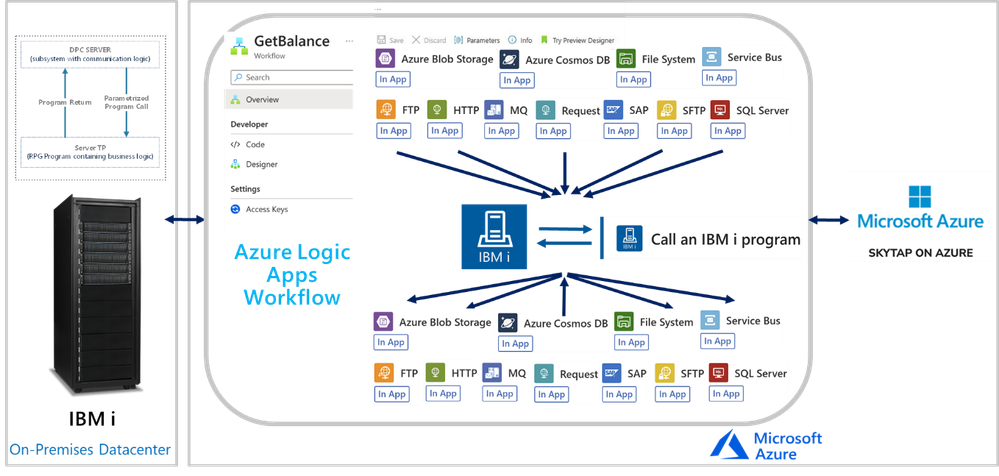
In this session, we continue with the “We Speak”, Mission Critical Series with an episode on how Azure Logic Apps can unlock scenarios where is required to integrate with IBM i (i Series or former AS/400) Applications.
The IBM i In-App Connector
The IBM i In-App connector enables connections between Logic App workflows to IBM i Applications running on IBM Power Systems.
Background:
More than 50 years ago, IBM released the first midrange systems. IBM advertised them as “Small in size, small in price and Big in performance. It is a system for now and for the future”. Over the years, the midranges evolved and became pervasive in medium size businesses or in large enterprises to extend Mainframe environments. Midranges running IBM i (typically Power systems), support TCP/IP and SNA. Host Integration Server supports connecting with midranges using both.
IBM i includes the Distributed Program Calls (DPC) server feature that allows most IBM System i applications to interact with clients such as Azure Logic Apps in request-reply fashion (client-initiated only) with minimum modifications. DPC is a documented protocol that supports program to program integration on an IBM System i, which can be accessed easily from client applications using the TCP/IP networking protocol.
IBM i Applications were typically built using the Report Program Generator (RPG) or the COBOL languages. The Azure Logic Apps connector for IBM i supports integrating with both types of programs. The following is a simple RPG program called CDRBANKRPG.
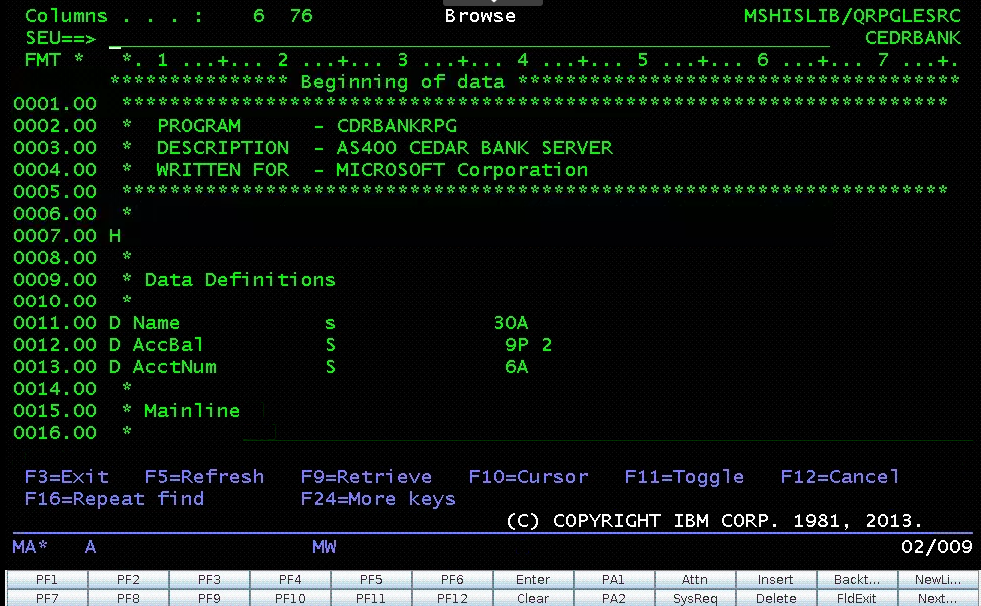
As with many of our other IBM Mainframe connectors, it is required to prepare an artifact with the metadata of the IBM i programs to call by using the HIS Designer for Logic Apps tool. The HIS Designer will help you creating a Host Integration Design XML file (HIDX) for use with the IBM i connector. The following is a view of the outcome of the HIDX file for the program above.
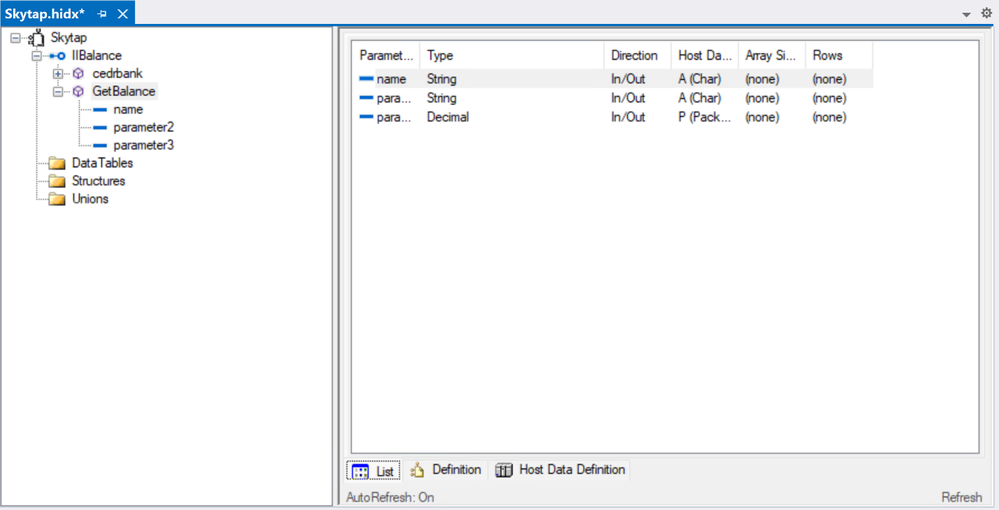
For instructions on how to create this metadata artifacts, you can watch this video:
Once you have the HIDX file ready for deployment, you will need to upload it in the Maps artifacts of your Azure Logic App and then create a workflow and add the IBM 3270 i Connector.
To set up the IBM i Connector, you will require inputs from the midrange Specialist. You will require at least the midrange IP and Port.
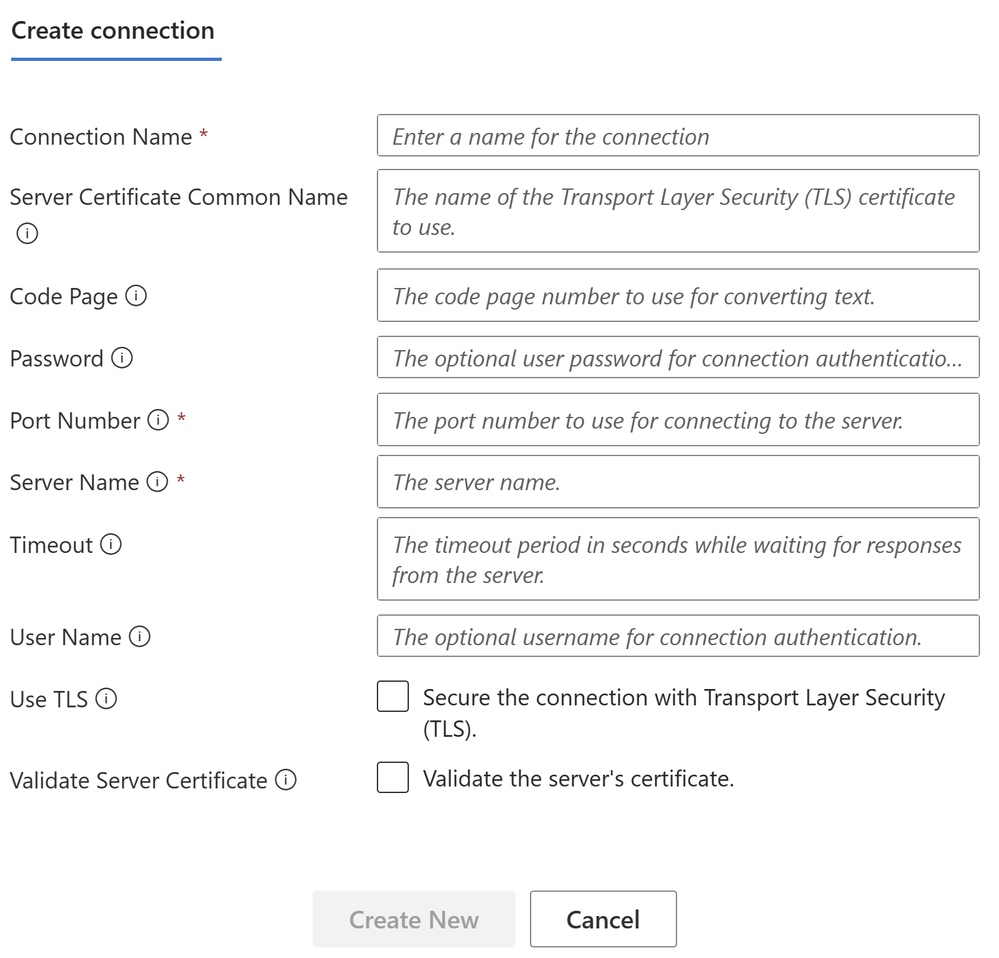
In the Parameters section, enter the name of the HIDX file. If the HIDX was uploaded to Maps, then it should appear dynamically:
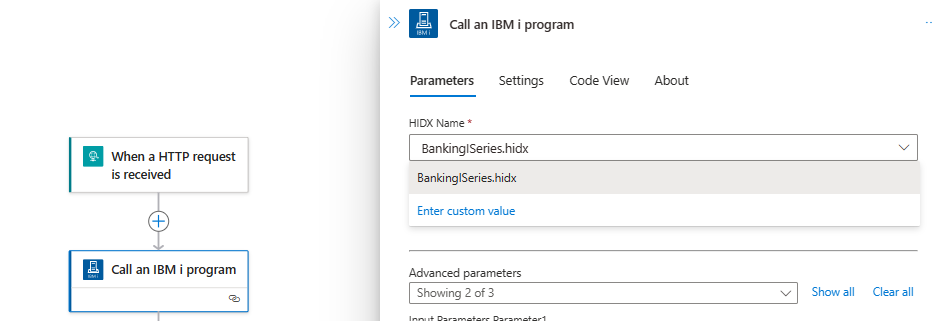
And then select the method name:

The following video include a complete demonstration of the use of the IBM i In-App connector for Azure Logic Apps:

by Contributed | Jan 20, 2024 | Technology
This article is contributed. See the original author and article here.
Below, you’ll find a treasure trove of resources to further your learning and engagement with Microsoft Fabric.
Dive Deeper into Microsoft Fabric
Microsoft Fabric Learn Together
Join us for expert-guided live sessions! These will cover all necessary modules to ace the DP-600 exam and achieve the Fabric Analytics Engineer Associate certification.
Explore Learn Together Sessions
Overview: Microsoft Fabric Learn Together is an expert-led live series that provides in-depth walk-throughs covering all the Learn modules to prepare participants for the DP-600 Fabric Analytics Engineer Associate certification. The series consists of 9 episodes delivered in both India and Americas timezones, offering a comprehensive learning experience for those looking to enhance their skills in Fabric Analytics.
Agenda:
- Introduction to Microsoft Fabric: An overview of the Fabric platform and its capabilities.
- Setting up the Environment: Guidance on preparing the necessary tools and systems for working with Fabric.
- Data Ingestion and Management: Best practices for data ingestion and management within the Fabric ecosystem.
- Analytics and Insights: Techniques for deriving insights from data using Fabric’s analytics tools.
- Security and Compliance: Ensuring data security and compliance with industry standards when using Fabric.
- Performance Tuning: Tips for optimizing the performance of Fabric applications.
- Troubleshooting: Common issues and troubleshooting techniques for Fabric.
- Certification Preparation: Focused sessions on preparing for the DP-600 certification exam.
- Q&A and Wrap-up: An interactive session to address any remaining questions and summarize key takeaways.
This series is designed to be interactive, allowing participants to ask questions and engage with experts live. It’s a valuable opportunity for those looking to specialize in Fabric Analytics and gain a recognized certification in the field.
For more detailed information and to register for the series, you can visit the page on Microsoft Learn. Enjoy your learning journey https://aka.ms/learntogether
Hands-On Learning with Fabric
Enhance your skills with over 30 interactive, on-demand learning modules tailored for Microsoft Fabric.
Start Your Learning Journey and then participate in our Hack Together: The Microsoft Fabric Global AI Hack – Microsoft Community Hub
Special Offer: Secure a 50% discount voucher for the Microsoft Fabric Exam by completing the Cloud Skills Challenge between January and June 2024.
Unlock the power of Microsoft Fabric with engaging, easy-to-understand illustrations. Perfect for all levels of expertise!
Access Fabric Notes Here
Your Path to Microsoft Fabric Certification
Get ready for DP-600: Implementing Analytics Solutions Using Microsoft Fabric. Start preparing today to become a certified Microsoft Fabric practitioner.
Join the Microsoft Fabric Community
Connect with fellow Fabric enthusiasts and experts. Your one-stop community hub: https://community.fabric.microsoft.com/. Here’s what you’ll find:
Stay Ahead: The Future of Microsoft Fabric
Be in the know with the latest developments and upcoming features. Check out the public roadmap


Recent Comments