Defender Vulnerability Management GA in government cloud

Defender Vulnerability Management GA in government cloud

This article is contributed. See the original author and article here.

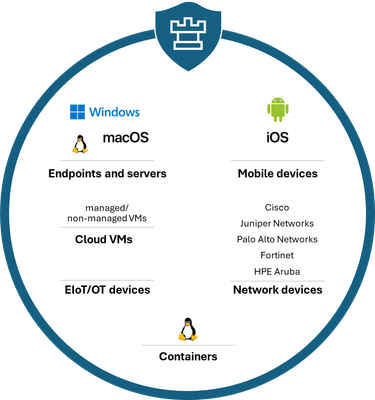
Microsoft has established itself as a leading solution for vulnerability risk management (VRM) by leveraging its industry-leading threat intelligence and security expertise. Microsoft Defender Vulnerability Management covers the end-to-end VRM lifecycle to identify, assess, prioritize, and remediate vulnerabilities across platforms and workloads.  Making it an ideal tool for an expanded attack surface taking advantage of our context-aware, risk-based prioritization breach likelihood predictions and business contexts to prioritize vulnerabilities across their portfolio of managed and unmanaged devices.  


BrjannBrekkan_0-1711946624416.png


Figure: Platform and workload coverage in Defender Vulnerability Management


We are excited to announce that on 1 April, 2024 all Microsoft Defender Vulnerability Management capabilities are available to government cloud customers.


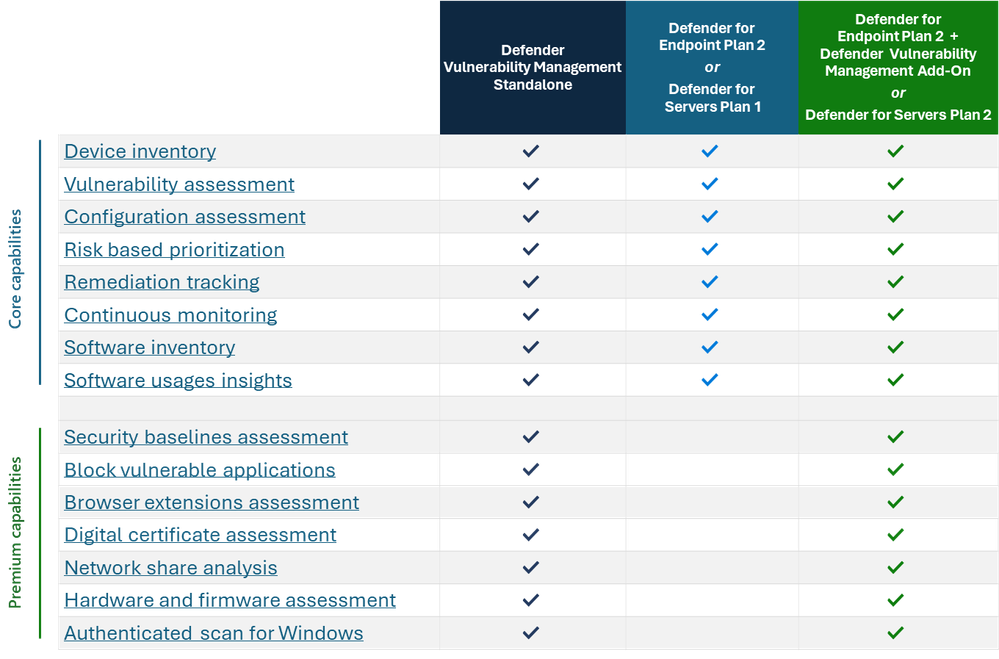
Organizations across commercial, education and government environments can now get the complete set of capabilities for their environment. Defender Vulnerability Management has both core and premium capabilities where the core capabilities are included as part of Defender for Endpoint P2 and premium capabilities available as an add-on. For organizations that are not yet on Defender for Endpoint Plan 2 we also provide a standalone offer that includes both core and premium. Organizations looking for server protection for their hybrid cloud environment the vulnerability management core capabilities are available in Defender for Servers plan 1 and premium capabilities in Defender for Servers plan 2.

BrjannBrekkan_1-1711946624426.png


Figure: Availability of core and premium capabilities across offerings that include Defender Vulnerability Management for endpoints and servers.


More information about the Defender Vulnerability Management premium capabilities now available in GCC, GCC-High and DOD in these blogs: 


Capture customer signatures with the new Signature control in Dynamics 365 Field Service Mobile

Capture customer signatures with the new Signature control in Dynamics 365 Field Service Mobile

This article is contributed. See the original author and article here.

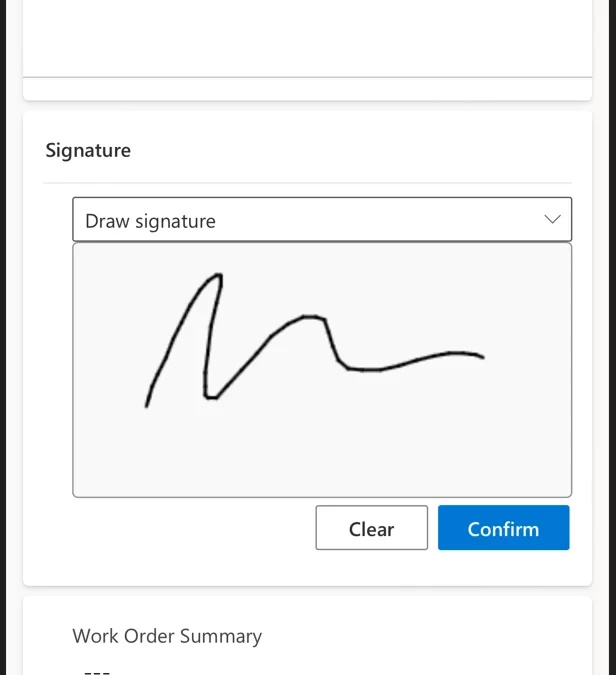
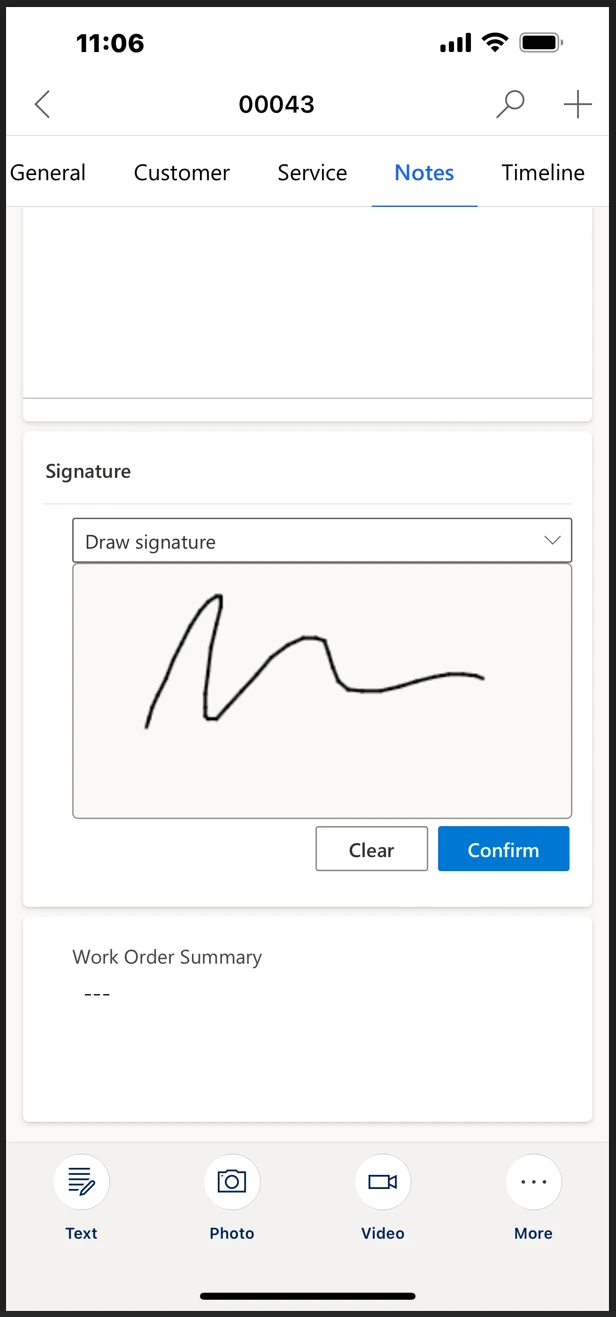
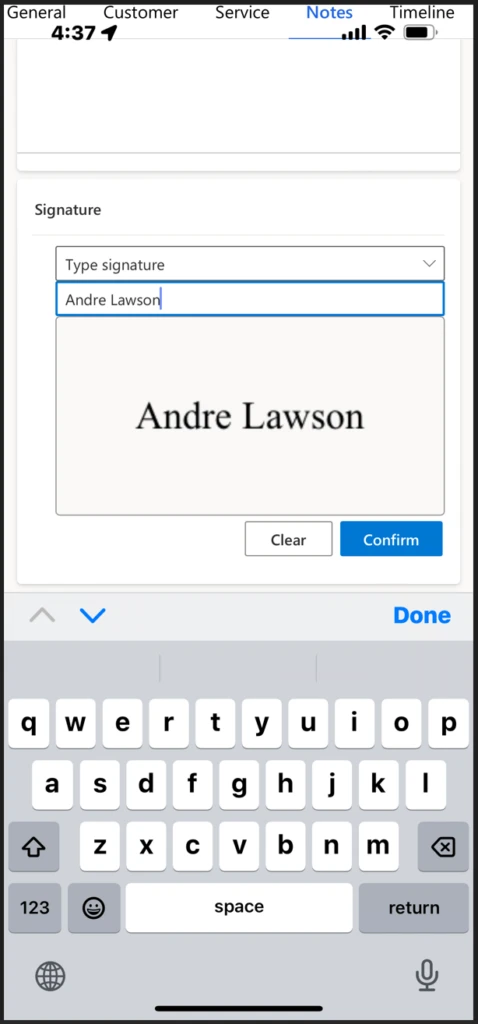
Getting customer signoff on a completed Work Order is a key job to be done for any service technician. Earlier this year, Dynamics 365 Field Service released a new and improved signature control to capture customer signatures on mobile devices. It supports drawing a signature on the screen as well as typing a name in lieu of a drawn signature. This enhancement was a key customer request, and also helps the scenario to be more accessible for our users.

How it works

Technicians in the field can open the form that has been configured to capture the customer signature on the Field Service mobile app and hand over the device to the customer.

Drawing the signature on the screen

Technicians will then be able to choose how they want to enter the signature, either drawing it on the screen with their finger or stylus pen, or by typing it on the keyboard.

Typing the signature using keyboard

How to configure a form to add the control

If you use default forms provided by Microsoft, the existing signature controls have already been updated, and there’s no action needed to configure it.

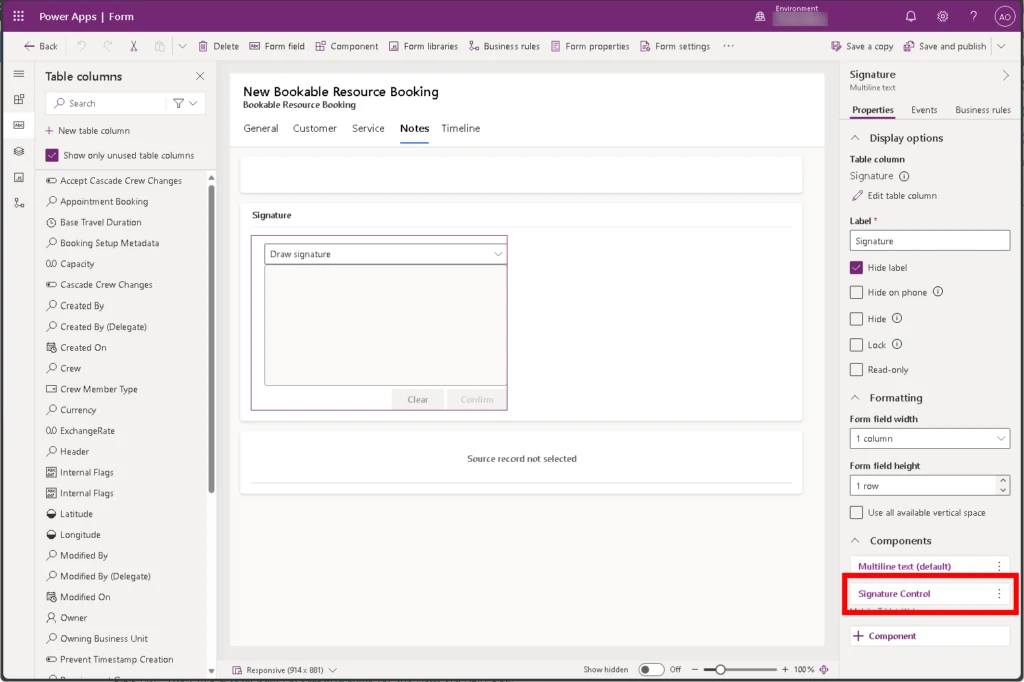
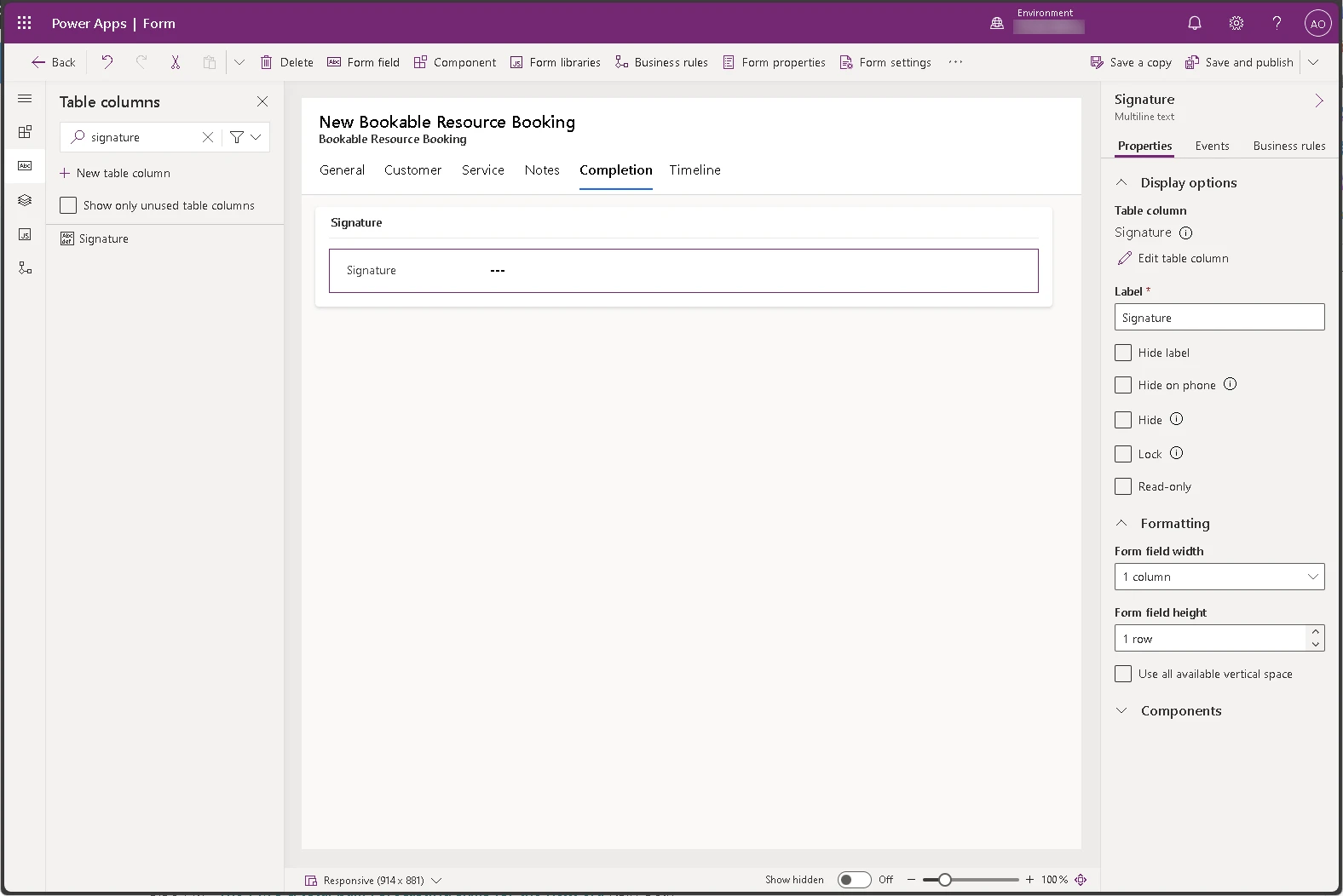
For example, the Booking and Work Order Form in the Bookable Resource Booking entity, contains the Signature field in the Notes tab. By opening this form in Power Apps, you find the associated component Signature Control

Add the signature control to a custom form

Follow these steps to add the new control to a custom form.

  • Edit a custom form and add the Signature field (or your custom Multiline text field where you store the customer signature) on your form. Optionally, hide the label, so the control can use all the available space on screen.
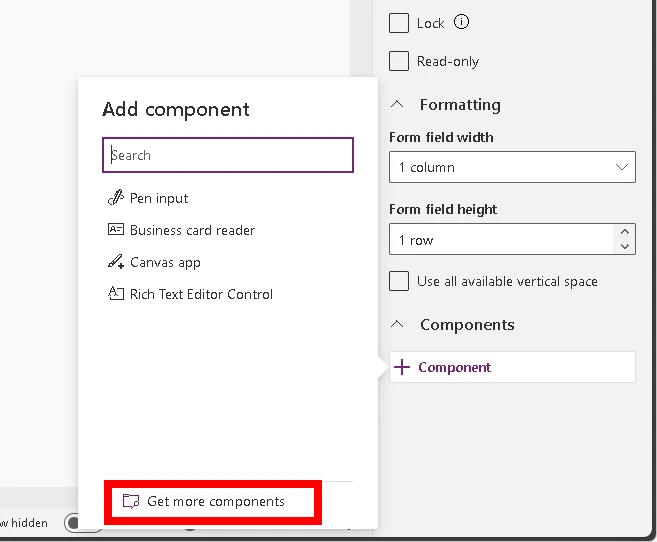
  • Expand the Components section at the bottom of the field detail pane and add the Signature Control component.
  • If the Signature Control is not in the list, select Get more components.

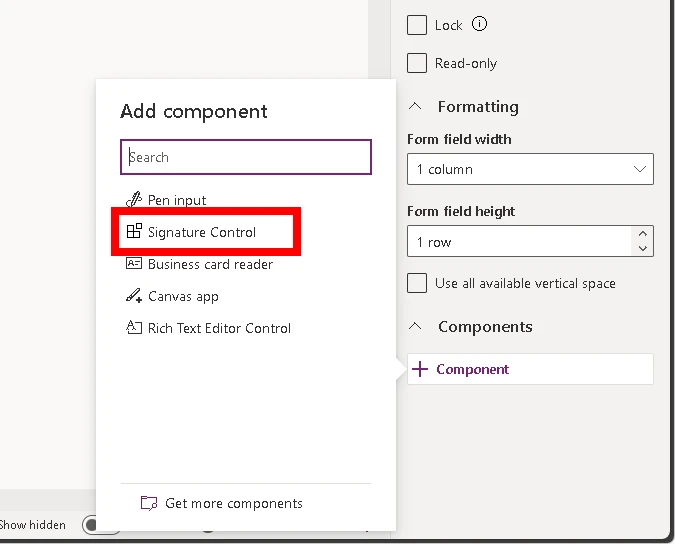
Note:  The new Signature Control replaces the Pen input control.

  • Select the Signature Control in the list of controls to add it.
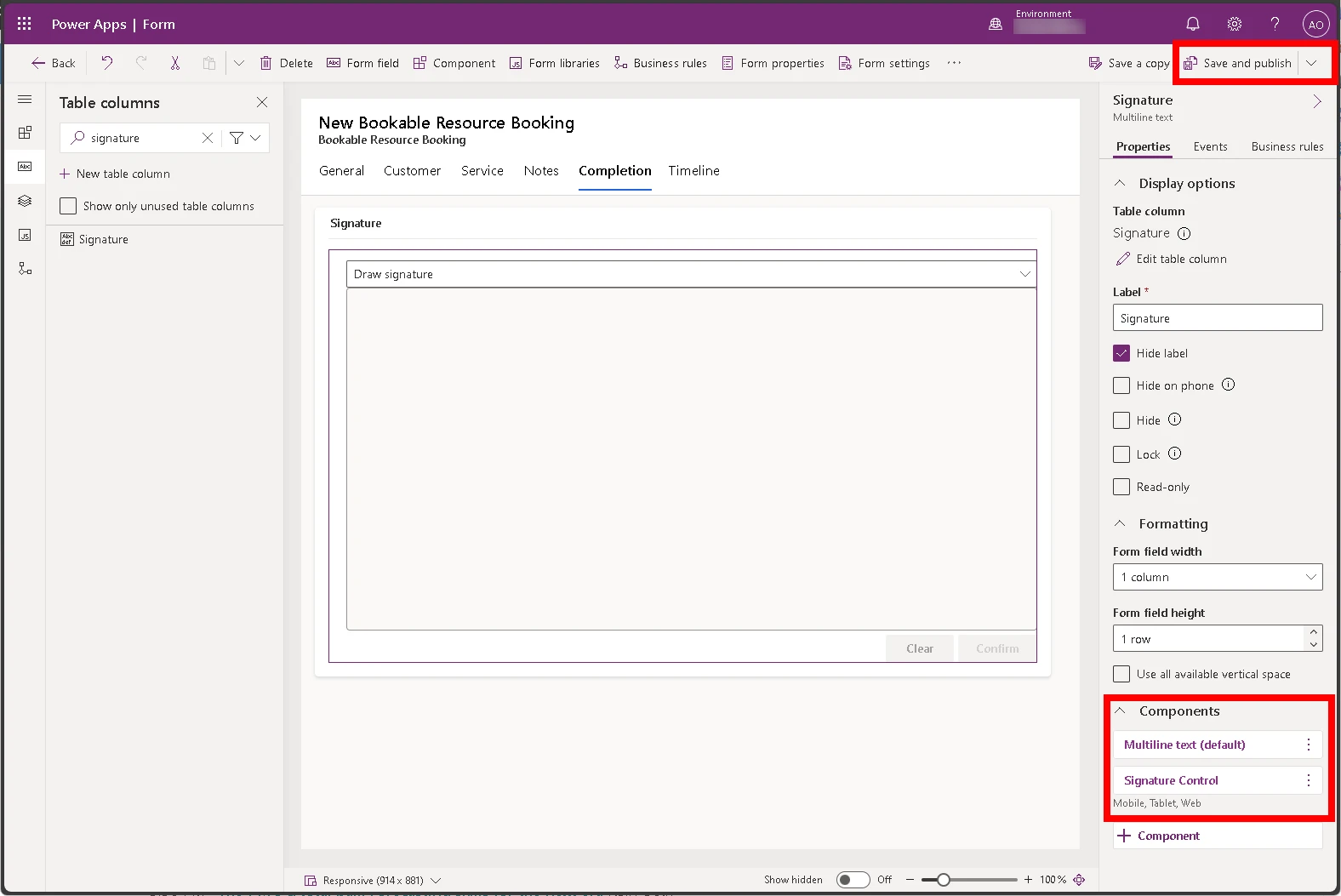
  • Save and Publish your form to make it available to your technicians.

We hope that these new enhancements in Field Service mobile will make your work even more productive. We would love to hear your feedback and suggestions on how to improve the product. Please feel free to leave comments in the Dynamics 365 Community Forum or suggest features in the Ideas portal.  

The post Capture customer signatures with the new Signature control in Dynamics 365 Field Service Mobile appeared first on Microsoft Dynamics 365 Blog.

Brought to you by Dr. Ware, Microsoft Office 365 Silver Partner, Charleston SC.