by Contributed | Apr 20, 2021 | Technology
This article is contributed. See the original author and article here.
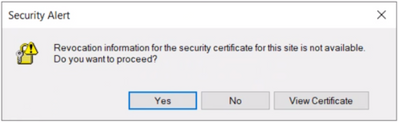
User may get the following security alert on certificate resigning SSL when trying to connect with any of the AAD options from SSMS:
“Revocation information for the security certificate for this site is not available. Do you want to proceed?”
Yes No View Certificate
This happens when a client using Internet Explorer (IE) sends a request to an Online Certificate Status Protocol (OCSP ) server to verify if the certificate has been revoked. If the IE browser is configured to expect an OCSP response and it’s not able to determine the revocation status of the certificate, the user gets prompted with the above security alert. Chrome is not affected because it disabled OCSP checks by default in 2012, due to latency and privacy issues.
Mitigation steps:
To fix Server certificate revocation failed problems, a workaround is to turn off this setting – “Check for server certification revocation” in IE options, which will disable this for all OAUTH negotiations system-wide. To disable this option, perform the following steps.
- Type gpedit.msc in windows search and click OK.
- Navigate to Computer Configuration > Administrative Templates > Windows Components > Internet Explorer > Internet Control Panel > Advanced Page or Internet Explorer > Tools > Internet options > Advanced
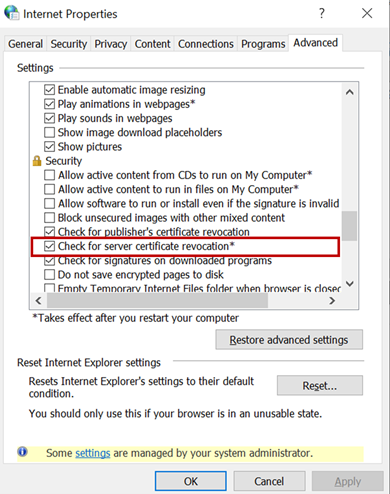 check for server certificate revocation
- Uncheck “Check for server certificate revocation”.
- Reboot the server. *IMPORTANT: It takes effect after you restart your computer.
- Remove CRL/OCSP disk cache entries on the client machine. From the Windows command line run:
> certutil -urlcache CRL delete
> certutil -urlcache OCSP delete
- Perform “Clear SSL state” in Internet Explorer > Internet Options > Content.
On the client machine run gpupdate /force in the CMD window to force update the group policy. You can apply the GPO under user configuration, so the corresponding registry change will be under HKEY_CURRENT_USER.
Open Registry Editor and go to the path HKEY_CURRENT_USERSOFTWAREPoliciesMicrosoftWindowsCurrentVersionInternet SettingsCertificateRevocation with REG_DWORD 0
Open IE and check the setting, it should be disabled.
Troubleshooting connectivity with AAD options:
Open a PowerShell with administrative rights from the troublemaking machine and run below commands.
#OPTION 1 – bypass SQL Azure DB to see if your communication works with Azure AD from your machine
> Install-Module MSOnline > Import-Module MSOnline > $Msolcred = Get-credential
# use your federated credenaials (i.e john@contoso.com + password)

> Connect-MsolService -Credential $MsolCred
and check the federated authentication group
> Get-MsolGroup -MaxResults 10 –Searchstring  mygroup@contoso.com | format-list
# displays group info as it is represented in Azure AD (i.e. mygroup or check the individual user)

> Get-MsolUser -UserPrincipalName john@contoso.com | format-list
You should see what is stored in Azure AD under a specific user or group alias/name.
#OPTION 2 – Check the minimum connectivity requirement
Check connectivity to AAD endpoint for Password and Integrated authentication:
> tnc login.windows.net -port 443
Check connectivity to AAD endpoint for Universal with MFA authentication:
> tnc login.microsoftonline.com -port 443
Note that additional endpoints might be required, depending on AAD and on-premises AD setup. Capturing and debugging network or Fiddler traces is what usually helps in those situations.
Additional points to check – Make sure the firewall configuration is correctly set up
- Check your firewall settings and make sure it allows communication with the above AAD endpoints: login.windows.net and login.microsoftonline.com.
- Ensure the AAD required ports are not blocked by the firewall.
Note: The above error is mostly triggered when using SSMS. Azure Data Studio doesn’t have this issue because it has a custom MFA implementation that doesn’t use an old embedded IE browser.
by Contributed | Apr 20, 2021 | Technology
This article is contributed. See the original author and article here.
Hello folks,
A couple weeks ago I wrote about how I leveraged PowerShell SecretManagement to generalize a demo environment. In that article I only talked about Windows virtual machines running in Azure. However, my colleague Thomas Maurer revisited the topic in his article, Stop typing PowerShell credentials in demos using PowerShell SecretManagement. Thomas really concentrated on how the local Secret Store can help when you have demos of local scripts that need secrets, versus my article that concentrated more on how the SecretManagement module paired with the Az.KeyVault module can help manage not only demo environment but help manage local accounts across production environments.
In response to both these articles we got a lot of questions, so I decided to address one of them here.
Will it work for linux?
Absolutely, you can have PowerShell on Linux, and import the modules mentioned in the articles.
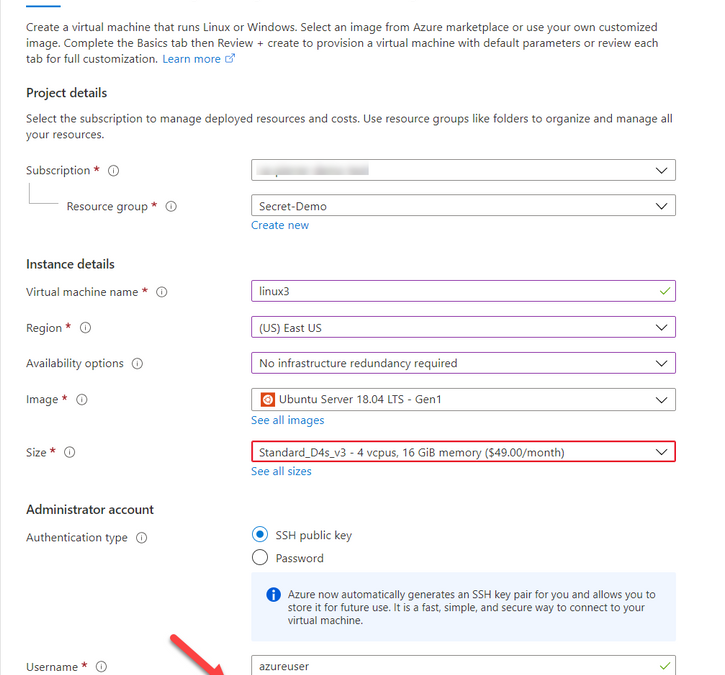
One of the differences that in most case we use SSH keys to access a VM running in Azure. And Azure has a couple ways of storing that information. When creating a VM you can Generate one at deployment, upload your own, or use an existing one already in azure.

When using “Use existing one stored in Azure” it refers to a separate repo in azure different than Azure Key Vault. It actually saves the key in a portal service SSK Keys.
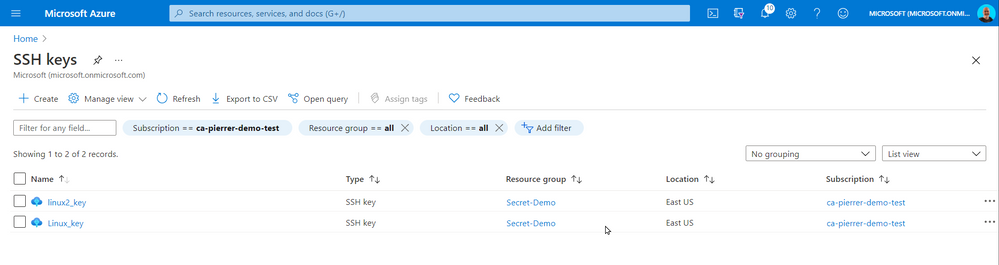
The SSH Keys portal service does give you the ability to get the public key so you can connect to the appropriate VMs.
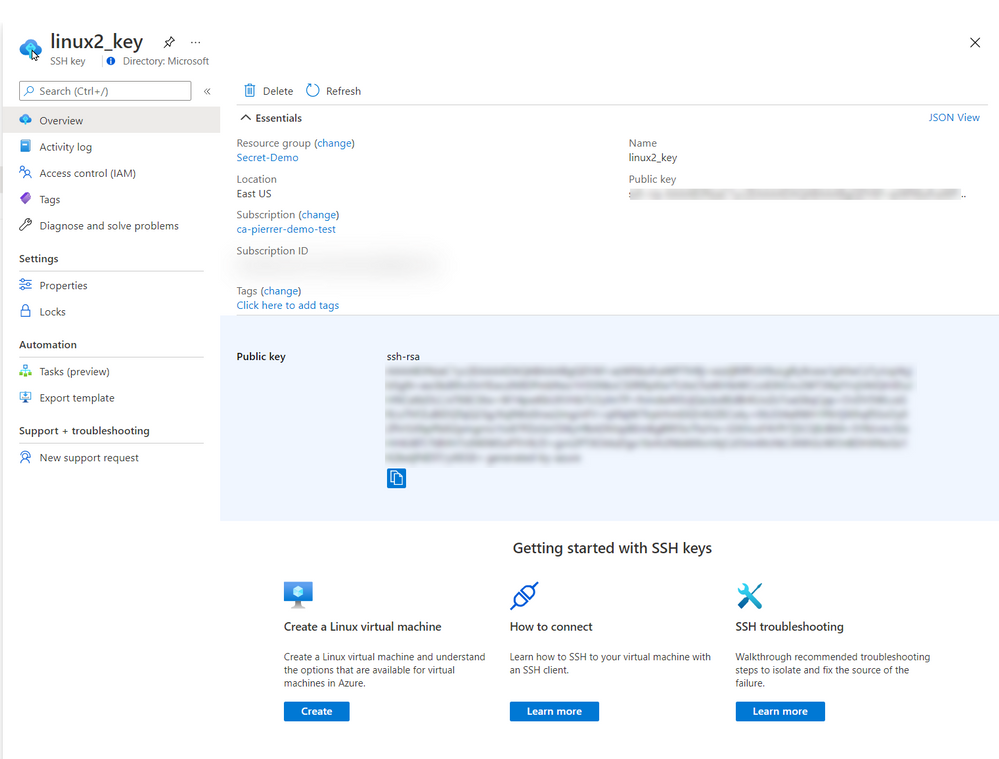
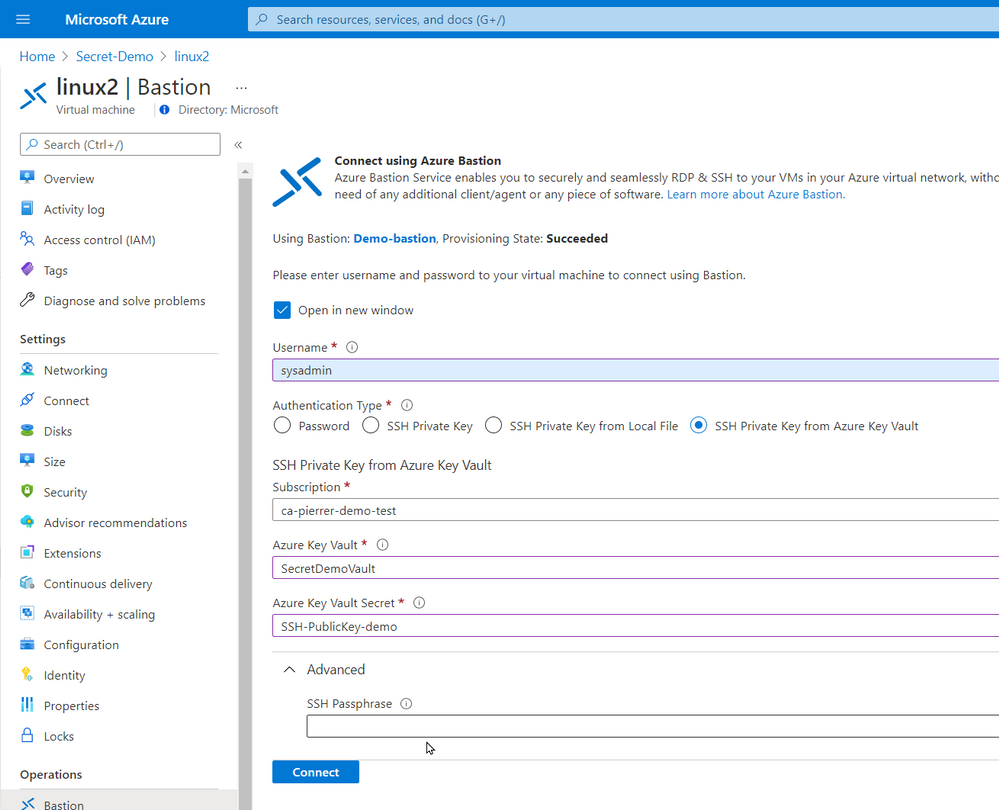
In the production environment that I’m currently involved we do not allow public IP assigned to VMs without a proper business case. I actually agree with this policy. So, we use Azure Bastion. Connecting using Azure Bastion offers the possibility to use one of several ways to authenticate to the VMs.
- Password
- SSH Private Key
- SSH Private Key from Local File
- SSH Private Key from Azure Key Vault
By using Azure Key Vault you can also manage the SSH keys by setting expiration dates, apply proper versioning, assign tags AND have them available to the Azure Bastion with the option of requesting the Passphrase.
Just like my previous article. You can even schedule an Azure Automation task, or an Azure Function to monitor the expiration dates and renewregenerate the SSH Keys for you.
I used the same Azure automation as the last article with a new runbook to create the SSH keys for my environment and store them in Azure Key Vault
param(

    [string]$ResourceGroupName = "Secret-Demo",
    [string]$vaultname = "SecretDemoVault"

)
Disable-AzContextAutosave -Scope Process

$VERSION = "1.0"
$SecretStoreName = "AzKeyVault"
$currentDay = (get-date).ToString("dMyyyyhhmmtt")
$ExpirationDate = (GET-DATE).AddMonths(2)

Write-Output "Runbook started. Version: $VERSION at $currentDay"
Write-Output "---------------------------------------------------"

# Authenticate with your Automation Account
	$connection = Get-AutomationConnection -Name AzureRunAsConnection
    # Wrap authentication in retry logic for transient network failures
    $logonAttempt = 0
    while(!($connectionResult) -and ($logonAttempt -le 10))
    {
        $LogonAttempt++
        # Logging in to Azure...
        $connectionResult = Connect-AzAccount `
                                -ServicePrincipal `
                                -Tenant $connection.TenantID `
                                -ApplicationId $connection.ApplicationID `
                                -CertificateThumbprint $connection.CertificateThumbprint

        Start-Sleep -Seconds 30
    }

# Set Azure Context

    $AzureContext = Get-AzSubscription -SubscriptionId $connection.SubscriptionID
    $SubID = $AzureContext.id
    Write-Output "Subscription ID: $SubID"
    Write-Output "Resource Group: $ResourceGroupName"
    Write-Output "VaultName: $vaultname"
    Write-Output "Local store name: $SecretStoreName"

#Create Password

    $Length = 24
    $characters = @([char[]]@(48..57),[char[]]@(65..90),[char[]]@(97..122),@('!','#','%','^','*','(',')','-','+','/','{','}','~','[',']'))
    $SSH_KEY_PASSWORD = ($Characters | Get-Random -Count $Length ) -join ''

# Register keyvault

Register-SecretVault -Name $SecretStoreName -ModuleName Az.KeyVault -VaultParameters @{ AZKVaultName = $vaultname; SubscriptionId = $SubID }

# create key and set it in Key Vault

$KeyPath = $env:TEMP
Write-Output "Key File path: $KeyPath"


New-RSAKeyPair -Length 2048 -Password $password -Path $KeyPathid_rsa -Force

$SSH_PRIVATE_KEY = Get-Content $KeyPath/id_rsa
$SSH_PUBLIC_KEY = Get-Content $KeyPath/id_rsa.pub
$SSH_PUBLIC_PEM = Get-Content $KeyPath/id_rsa.pem


Write-Output "SSH Passphrase: $SSH_KEY_PASSWORD"
Write-Output "SSH private Key: $SSH_PRIVATE_KEY"
Write-Output "SSH public Key - pub: $SSH_PUBLIC_KEY"
Write-Output "SSH public Key - pem: $SSH_PUBLIC_PEM"


Set-Secret -Name "SSH-Passphrase-demo" -Secret $SSH_KEY_PASSWORD -Vault $SecretStoreName
Set-Secret -Name "SSH-PrivateKey-demo" -Secret $SSH_PRIVATE_KEY -Vault $SecretStoreName
Set-Secret -Name "SSH-PublicKey-demo" -Secret $SSH_PUBLIC_KEY -Vault $SecretStoreName
Set-Secret -Name "SSH-PublicKeypem-demo" -Secret $SSH_PUBLIC_PEM -Vault $SecretStoreName
Please note that this runbook uses the New-RSAKeyPair cmdlet from the PEMEncrypt module imported in my Automantion environment from the PowerShell Galery.
Now, again this is a proof-of-concept piece of code. For production use a lot of changes would be required (not an exhaustive list)
- Expiration dates you be set.
- A function to validate that the afore mentioned expiration is not imminent.
- A function to update the key on each Linux VM in a set environment.
- …
So, in conclusion, yes, you can use these new module on a Linux VM of you can use these new modules to help you manage the access to these VMs.
I hope this helps.
Cheers!
by Contributed | Apr 19, 2021 | Technology
This article is contributed. See the original author and article here.
Final Update: Tuesday, 20 April 2021 00:58 UTC
We’ve confirmed that all systems are back to normal with no customer impact as of 04/20, 00:45 UTC. Our logs show that the incident started on 04/20, 00:04 UTC and that during 41 minutes that it took to resolve the issue some of the customers might have experienced data access issue and delayed or missed Log Search Alerts in Australia South East region.
- Root Cause: The failure was due to an issue in one of our backend services.
- Incident Timeline: 41 minutes – 04/20, 00:04 UTC through 04/20, 00:45 UTC
We understand that customers rely on Azure Log Analytics as a critical service and apologize for any impact this incident caused.
-Saika
by Contributed | Apr 19, 2021 | Technology
This article is contributed. See the original author and article here.
Last month at Ignite we announced the Preview of new M-series VMs and after a successful preview, we are pleased to announce the general availability (GA) of Msv2/Mdsv2 Medium Memory VMs. This offering complements the Msv2 High Memory sizes launched in Oct 2019 and now provides the high performing CPU even for medium memory workload needs. With this new GA offering, M-series customers have three options to select from based on their workload needs:
Msv2/Mdsv2 Medium Memory: Based on Cascade Lake processor providing up to 4TiB of memory and 192vCPU.
Msv2 High Memory: Based on Skylake processor providing up to 12TB of memory and 416 vCPU.
Msv1 (aka M-series) Medium Memory: Based on Haswell processor (can run on Cascade Lake as well) providing up to 4TB of memory and 128vCPU.
These Msv2/Mdsv2 Medium Memory virtual machines are targeting in memory workloads like SAP database, including SAP HANA. The virtual machines are delivering more throughput for the same price as their predecessor units and lower the TCO for CPU intensive SAP database workloads.
Key features of the new M-series VMs for memory-optimized workloads
- Runs on Intel® Xeon® Platinum 8280 (Cascade Lake) processor offering a 20% performance increase compared to the previous version.
- Available in both disk and diskless offerings, allowing customers the flexibility to choose the option that best meets their workload needs.
- New isolated VM sizes with more CPU and memory that supports up to 192 vCPU with 4TiB of memory, so customers have an intermediate option to scale up before going to a 416 vCPU VM size.
Spec
For the VM Sizes spec please take a look here.
Regional Availability and Pricing
The VMs are available in the following regions at GA
- West US 2
- West Europe
- Central US
- South Central US
- East US
For pricing details, please take a look at Mdsv2/Msv2 Medium Memory series for Windows and Linux.
by Contributed | Apr 19, 2021 | Technology
This article is contributed. See the original author and article here.
CSI: Redmond – Episode 1 “Mistaken Identity”
Episode Story Line:
A mild mannered IT administrator is doing routine patching when things go south. At first it seems like maybe just a case of the wrong patch for the wrong system but there is more to this story. Time to put our detective skills to use and find out what’s going on.
The Investigation:
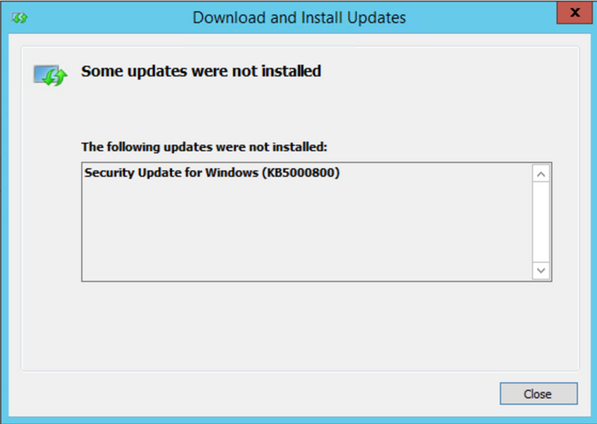
Any patch installation investigation failure should start with the basics, aka the Application/System/Security event logs. In this case, the normal logs simply re-state the error message displayed on screen so no help there…it looks like we’re already past the basics.

If you have ever performed troubleshooting on in-depth patch installation, the CBS log (c:WindowsLogsCBSCBS.log) is your go to source and contains a wealth of information on the installation process, some would say too much information. But that’s why we’re here today, to help find the clues to solve the crime.
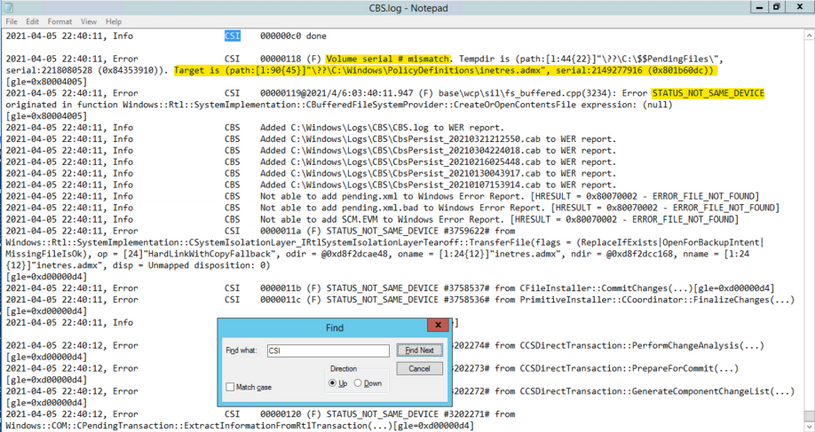
In this case, if you go directly to the end of the CBS log after attempting to install the patch, you should see the tail end of the process. We don’t have to look too far before seeing signs of a problem: ERROR_NOT_SAME_DEVICE… what’s that all about?
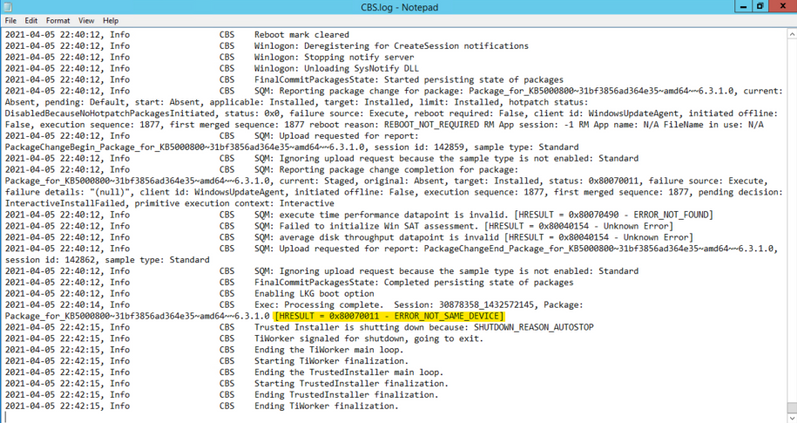
One trick I use in sifting through the large amount of data in the CBS.log is to search for key words, like “ERROR” or “FAIL”, but in the clues we are searching for can quickly be found by searching for the term “CSI” (see where the title of this post comes from?). CSI stands for Component Servicing Infrastructure and is responsible for putting the patch files on the system. If you are getting errors due to permissions or possibly from antivirus products, this is the category you want to look for. Don’t forget to search in the “Up” direction…gets me every time. Note the line below found while searching the CSI messages. The reference to Volume serial number as well as the name of the target file, which references a group policy administrative template, were instrumental fingerprints in this case.
Now, let’s go take a look at that location to see if anything looks wonky. The first thing we notice is that there is a PolicyDefinitions_old folder, which appears to be a backup of the unchanged folder…at least our suspect is cautious. Notice the “Shortcut” icon on the new PolicyDefinitions folder. Things are starting to heat up…getting warmer.

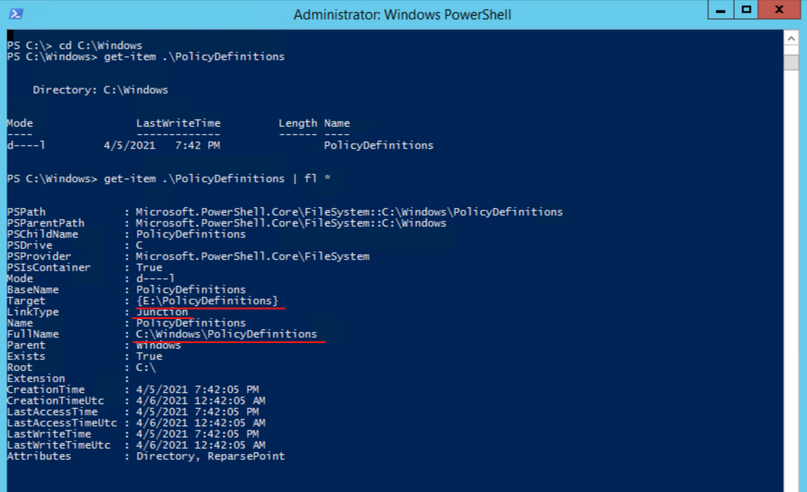
To get more information on the folder, let’s go to PowerShell and take a look at the object with Get-Item C:WindowsPolicyDefinitions | fl *. While the FullName field looks correct, the Target field references another volume entirely. This is what is causing the patch installation to fail. After talking to the server owner, it came to light that a GPO management tool was installed on the system and the link was created to assist the product manage the admin templates. The actual software had been installed on a different volume, hence the Junction point going to a different drive.
The Fix:
The fix for this situation was to remove the Junction point and re-create the PolicyDefinitions folder so that the patch could install the new templates. Since the Junction was a requirement, we had to copy the new admin templates to the target folder and then restore that junction point temporarily but are actively working to come up with a solution that does not trigger the different volume problem.
Another tough issue put to bed but I’m sure many more will follow.


Recent Comments