New transactable offers from C2L BIZ, Skytap, and INSTANDA in Azure Marketplace

New transactable offers from C2L BIZ, Skytap, and INSTANDA in Azure Marketplace

This article is contributed. See the original author and article here.


Microsoft partners like C2L BIZ, Skytap, and INSTANDA deliver transact-capable offers, which allow you to purchase directly from Azure Marketplace. Learn about these offers below:


C2L BIZ logo.png

SymbioSys Sales Illustration-as-a-Service: Designed for global insurance distribution needs, SymbioSys Sales Illustration-as-a-Service from C2L BIZ enables sales forces to generate complex and interactive illustrations. They can share these illustrations with their prospects, even when offline, using mobile devices. The no-code solution supports multiple languages and currencies.


Skytap Blue Logo.png

Skytap on Azure: Easily migrate your IBM Power workloads to the cloud without the need to rewrite or replatform. Skytap runs IBM Power and x86 traditional workloads on hardware in Microsoft Azure datacenters, allowing companies to extend the capabilities of critical business applications, ensure business continuity, and spur innovation.


INSTANDA logo.PNG

INSTANDA: The INSTANDA digital insurance policy administration platform is a no-code solution used by insurers, managing general agents, and brokers worldwide to launch products and change existing books at speed. With a comprehensive onboarding process, including introductory training, clients can start configuring new products and migrating books within 48 hours.


Build & Deploy to edge AI devices in minutes

Build & Deploy to edge AI devices in minutes

This article is contributed. See the original author and article here.

Azure Percept is a new zero-to-low-code platform that includes sensory hardware accelerators, AI models, and templates to help you build and deploy secured, intelligent AI workloads and solutions to edge IoT devices. Host Jeremy Chapman joins George Moore, Azure Edge Lead Engineer, for an introduction on how to build intelligent solutions on the Edge quickly and easily.


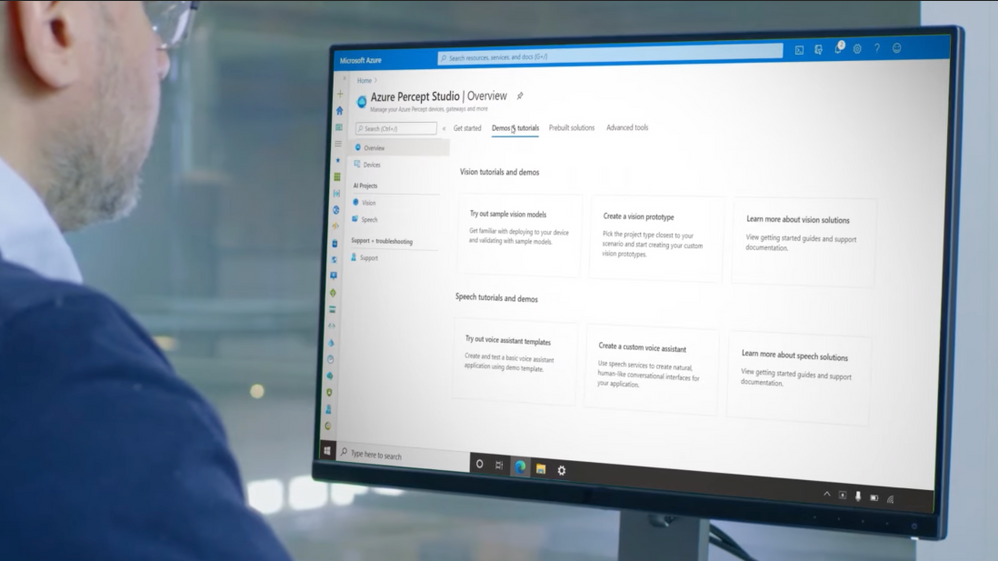
Screen Shot 2021-04-21 at 12.32.22 PM.png


Azure Percept Vision: Optically perceive an event in the real world. Sensory data from cameras perform a broad array of everyday tasks.


Azure Percept Audio: Enable custom wake words and commands, and get a response using real time analytics.


Templates and pre-built AI models: Get started with no code. Go from prototype to implementation with ease.


Custom AI models: Write your own AI models and business logic for specific scenarios. Once turned on, they’re instantly connected and ready to go.


QUICK LINKS:


01:18 — Azure Percept solutions


02:23 — AI enabled hardware accelerators


03:29 — Azure Percept Vision


05:22 — Azure Percept Audio


06:21 — Demo: Deploy models to the Edge with Percept


08:16 — How to build custom AI models


09:57 — How to deploy models at scale


10:57 — Ongoing management


11:40 — Wrap Up


Link References:


Access an example model as an open-source notebook at https://aka.ms/VolumetricAI


Get the Azure Percept DevKit to start prototyping with samples and guides at https://aka.ms/getazurepercept


Whether you’re a citizen developer or advanced developer, you can try out our tutorials at https://aka.ms/azureperceptsamples


Unfamiliar with Microsoft Mechanics?


We are Microsoft’s official video series for IT. You can watch and share valuable content and demos of current and upcoming tech from the people who build it at Microsoft.


Keep getting this insider knowledge, join us on social:


– Up next, I’m joined by lead engineer George Moore from the Azure Edge Devices Team for an introduction to Azure Percept- A new zero to low-code platform that includes new sensory hardware accelerators, AI models and templates to help you more easily build and deploy secure, intelligent AI workloads and solutions to edge IoT devices in just minutes. So George, welcome to Microsoft Mechanics.


– Thanks for having me on the show.


– And thanks for joining us today. You know, the potential for IoT and intelligence at the edge is well-recognized by nearly every industry now. We’ve featured a number of technology implementations recently on the show, things like smart buildings for safe return back to work during COVID, as well as low-latency, 5G, intelligent edge manufacturing. So, what are we solving for now with Azure Percept?


– Even though IOT is taking off, it’s not as easy as it could be today to build intelligent solutions on the edge. You need to think about everything from the Silicon on the devices, the types of AI models that can run on the edge, security, and how data’s passed the cloud, and how you enable continuous deployment in management. So you can deploy updates when you need them. Because of this complexity, a lot of IoT implementation today that do exist don’t leverage AI at all or run very basic AI models. And being able to deploy intelligence on the edge is the key to tapping into the real value of IoT.


– Okay, so how do things change now with Azure Percept?


– So we’re removing the complexity for building intelligent solutions on the edge, and giving you a golden path to be able to easily create AI models in the cloud and deploy them to your IoT devices. This comes together in a zero-code and low-code experience with Azure Percept Studio, that leverages our prebuilt-AI models and templates. You can also build your own custom models and we support all the popular AI packaging formats including ONNX and TensorFlow. These are then deployed to Azure Percept certified hardware with dedicated Silicon. This new generation of Silicon is optimized for deep neural network acceleration, enables massive gains and performance at a fraction of the wattage. These are connected to Azure and use hardware rooted trust mechanisms on the host. Importantly, the AI hardware accelerator attached to our sensor modules is also tested with the host to protect the integrity of your models. So in effect, we’re giving you an inherently secure and integrated system from the Silicon to the Azure service. This exponentially speeds up the deployment and development of your AI models to your IoT devices at the edge.


– Right, and we’re talking about a brand new genre of certified, AI-enabled hardware accelerators that will natively work with Azure.


– Yes, that’s absolutely right. This hardware is being developed by device manufacturers, who use our hardware reference designs to make sure they work out-of-the-box with Azure. Azure Percept devices integrate directly with services like Azure AI, Azure Machine Learning and IoT. One of the first dev kits has been developed by our partner ASUS, which runs our software stack for AI inferencing and performance at the edge. This includes an optimized version of Linux called CBL-Mariner, as well as Azure Percept specific extensions and the Azure IoT Edge runtime. The kit includes a host module that can connect your network wirelessly or by ethernet along with the Azure Percept Vision hardware accelerator, that connects the host over USB-C. There’s also two USB-A ports. The Azure Percept Vision is an AI camera with built-in AI accelerator for video processing. It has a pilot ready SoM, for custom integration into an array of host devices like cars, elevators, fridges, and more. Now the important part about Vision is it enables you to optically perceive an event in the real world. Let me give you an example where Azure Percept Vision would make a difference. Today, 60% of all fresh food is wasted at retail due to spoilage. In this example, with Azure Percept Vision we’re receiving the ground truth analytics of the actual purchasing and restocking patterns of bananas. Using this time series data retailers can create more efficient supply chains and even reduce CO2 emissions by reducing transportation fertilizer. And the good news is we have released this model as an open source notebook that you can access at aka.ms/VolumetricAI.


– Right, and really beyond making the fresh food supply more efficient, sensory data from cameras can also perform a broad array of everyday tasks like gauging traffic patterns and customer wait times, maybe for planning, so that you can improve customer experiences and also make sure that you’re staffed appropriately as you can see with this example.


– Right, and by the way that example is using Azure Live Video analytics connected to an Azure Media Services endpoint. So I can archive the video, or consume it from anywhere in the world at scale. For example, to further train or refine your models. Here we are showing the raw video without the AI overlay through the Azure portal. Azure Percept opens a lot of opportunities to leverage cognitive data at the edge. And we have privacy baked in by design. For example, if we look at the raw JSON packets in Visual Studio that were generated by Azure Percept in the coffee shop example that I just showed. You can see here, the bounding boxes the people as they’re moving around the frame. These are synchronized by timestamps. So all you’re really seeing are the X and Y coordinates to people. There’s no identifiable information at all. And there are many more examples, from overseeing and mitigating safety issues in the work environment to anomoly detection, like the example we showed recently for mass production, where Azure Percept Vision is being used for defect detection.


– Okay. So Azure Percept Vision then comes with the dev kit and there are other additional AI-optimized hardware modules as well, right?


– So that’s right. We’re developing a number of additional modules that you’ll see over time. This includes Azure Percept Audio, available today, which has a pre-configured four microphone linear array. It also has a 180-degree hinge with locking dial to adjust in any direction. It has pre-integrated Azure Cognitive Speech and language services so it’s easy to enable custom wake words and commands. There’s lots of things you can do here. Imagine being able to just talk to a machine on your production line, using your wake word. And because we sit on top of the award winning Azure speech stack, we support over 90 spoken languages and dialects out-of-the-box. This gives you command and control of an edge device. Here for example, we’re using speech to check on the remaining material left in this spool during mass production. And getting a response using real-time analytics. And of course, audio can also be used for anomoly detection in malfunctioning machinery and many other use cases.


– Alright, why don’t we put this to the test and start with an example of deploying models then to the edge using Azure Percept?


– Sure thing, to begin with any new IoT or intelligent edge solution starts with figuring out what’s possible and experimenting. This is where a lot of current projects get stalled. So we’ve made it easier to go from prototype to implementation. I’ll walk through an example I recorded earlier to show you how you can use our sample solution templates and prebuilt AI models to get started with no code. Here you’re seeing my home office and I set up the Percept camera sensor in the foreground using the 80/20 mounting brackets included in the dev kit. It’s pointing at my desk, so you can see my entire space. Now let’s switch to Azure Percept studio, and you can see that I’ve deployed the general object detection model that’s been trained to detect dozens of real-world objects. Now I’ll switch to camera view. You can see the camera sensors detecting many objects: a potted plant, my chair, my mouse, keyboard. And this is AI that’s been pre-configured out-of-the-box. You can use this to build an application that acts upon these objects it detects. If we switched back to Azure Percept Studio you can see all the models, including the camera here. Let me show you how simple it is to switch from one sample model to another. For example, I can try one of the sample Vision models. I’ll choose one for vehicle detection and deploy it to my new device. And you’ll see the succeeds. If we go back to Azure Percept Vision view you can see it’s able to easily detect the model car. And as I swap out different cars. It doesn’t care about anything else. And you’ll see that when my hand is in the frame it’s confidence level is low on this one, but increases to 94% once I moved my hand. The cool thing here is the model is continually re-inferencing in real time. You can easily imagine this being used in a manufacturing scenario, If you train for other object types to identify defective parts. All you need is an existing image set or one that has been captured by the Azure Percept camera stream. And you can tag and train those images in Azure Percept Studio.


– Right, but I’ve got to say as great as templates are for a starting point or maybe to reverse engineer what’s in the code, what if I need to build out custom AI models and really scale beyond proof of concept?


– Well, if you’re an advanced developer or data scientist, you can write your own AI models and business logic for specific scenarios. In this example, I have the built-in general object detection model running and you can see it does not recognize bowls. It thinks it’s a frisbee. So we can build our own AI model that is trained to specifically recognize bowls. I’m going to use the common objects in context or COCO open source dataset at COCO.org. This gives me access to thousands of tagged images of various different objects, like bicycles, dogs, baseball bats, and pizza to name a few. I’m going to select bowls and click search. As I scroll down, you’ll see tons of examples show up. Each image is tagged with corresponding objects. The overlay color highlight represents what’s called a segment. And I can hide segmentation to see the base image. And there are several thousand images in this case that have tagged bowls. So it’s a great data set to train our model. Now if I switched to Azure ML, you can see my advanced developer Notebook uploaded into Azure Machine Learning studio. If we walk through this, the first part of my Notebook is downloading the COCO dataset to my Azure ML workspace. And if I scroll the Notebook, you can see here I’m loading the images in the tensor flow training infrastructure. This thing gets converted to the OpenVINO format to be consumed by Azure Percept Vision. This is then packaged up, so it can be downloaded to the Azure Percept Vision camera via IoT hub. Now let’s see what happens when you run this new model and you can see that it clearly recognized that the object is a bowl.


– Now we have a custom and working model to automate a business process maybe if we want it to at the edge but, what does it take to deploy that model at scale?


– Typically this would involve manually provisioning each device. With Azure Percept we are introducing a first-in-market feature using WiFi Easy Connect which is based upon the WiFi Alliances DPP protocol. With this, the moment these additional devices are turned on they’re instantly connected and ready to go. During the out-of-box experience you’ll connect to the device’s WiFi SSID that will start with APD and has a device-specific password. It’ll then open this webpage, as you see here. There is an option called Zero Touch Provisioning Configurator that I choose. Now I just need to enter my WiFi, SSID and password, my device provisioning service, our DPS host name and Azure AD tenant. I click save and start, and like magic my device will be connected at the moment it is powered on. This process will also scale deployment across my fleet of IoT devices.


– Okay, so now devices are securely connected to services and rolled out but, what does the ongoing management then look like?


– So this all sits on top of Azure IoT for consistent management and security. You can manage these devices at scale using the same infrastructure we have today with Azure device twins and IoT hub. Here in IT Central for example, you can monitor and build dashboards to get insights into your operations and the health of your devices. Typically you would distribute updates to a gateway device that propagates updates to all the downstream devices. You can also deploy updates to your devices and AI models centrally from Azure, as I showed before. And of course the world’s your oyster from there. You can integrate with a broader set of Azure services to build your app front ends and back ends.


– Great stuff and great comprehensive overview. I can’t wait to see how Azure Percept gets used at the edge. But what can people do right now to learn more?


– So the best way to learn is to try out for yourself. You can get the Azure Percept dev kit to start prototyping with samples and guides at aka.ms/getazurepercept. Our hardware accelerators are also available across several regions, and you can buy them from the Microsoft store. It’s a super low barrier to get started, and whether you’re a citizen developer or an advanced developer, you can try out the tutorials at aka.ms/azureperceptsamples.


– Awesome. So thanks for joining us today, George. And of course keep watching Microsoft Mechanics for the latest updates, subscribe if you haven’t yet. And we’ll see you again soon.







  •  


Build & Deploy to edge AI devices in minutes

Build & Deploy to edge IoT devices in minutes

This article is contributed. See the original author and article here.

Azure Percept is a new zero-to-low-code platform that includes sensory hardware accelerators, AI models, and templates to help you build and deploy secured, intelligent AI workloads and solutions to edge IoT devices. Host Jeremy Chapman joins George Moore, Azure Edge Lead Engineer, for an introduction on how to build intelligent solutions on the Edge quickly and easily.


Screen Shot 2021-04-21 at 12.32.22 PM.png


Azure Percept Vision: Optically perceive an event in the real world. Sensory data from cameras perform a broad array of everyday tasks.


Azure Percept Audio: Enable custom wake words and commands, and get a response using real time analytics.


Templates and pre-built AI models: Get started with no code. Go from prototype to implementation with ease.


Custom AI models: Write your own AI models and business logic for specific scenarios. Once turned on, they’re instantly connected and ready to go.


QUICK LINKS:


01:18 — Azure Percept solutions


02:23 — AI enabled hardware accelerators


03:29 — Azure Percept Vision


05:22 — Azure Percept Audio


06:21 — Demo: Deploy models to the Edge with Percept


08:16 — How to build custom AI models


09:57 — How to deploy models at scale


10:57 — Ongoing management


11:40 — Wrap Up


Link References:


Access an example model as an open-source notebook at https://aka.ms/VolumetricAI


Get the Azure Percept DevKit to start prototyping with samples and guides at https://aka.ms/getazurepercept


Whether you’re a citizen developer or advanced developer, you can try out our tutorials at https://aka.ms/azureperceptsamples


Unfamiliar with Microsoft Mechanics?


We are Microsoft’s official video series for IT. You can watch and share valuable content and demos of current and upcoming tech from the people who build it at Microsoft.


Keep getting this insider knowledge, join us on social:


– Up next, I’m joined by lead engineer George Moore from the Azure Edge Devices Team for an introduction to Azure Percept- A new zero to low-code platform that includes new sensory hardware accelerators, AI models and templates to help you more easily build and deploy secure, intelligent AI workloads and solutions to edge IoT devices in just minutes. So George, welcome to Microsoft Mechanics.


– Thanks for having me on the show.


– And thanks for joining us today. You know, the potential for IoT and intelligence at the edge is well-recognized by nearly every industry now. We’ve featured a number of technology implementations recently on the show, things like smart buildings for safe return back to work during COVID, as well as low-latency, 5G, intelligent edge manufacturing. So, what are we solving for now with Azure Percept?


– Even though IOT is taking off, it’s not as easy as it could be today to build intelligent solutions on the edge. You need to think about everything from the Silicon on the devices, the types of AI models that can run on the edge, security, and how data’s passed the cloud, and how you enable continuous deployment in management. So you can deploy updates when you need them. Because of this complexity, a lot of IoT implementation today that do exist don’t leverage AI at all or run very basic AI models. And being able to deploy intelligence on the edge is the key to tapping into the real value of IoT.


– Okay, so how do things change now with Azure Percept?


– So we’re removing the complexity for building intelligent solutions on the edge, and giving you a golden path to be able to easily create AI models in the cloud and deploy them to your IoT devices. This comes together in a zero-code and low-code experience with Azure Percept Studio, that leverages our prebuilt-AI models and templates. You can also build your own custom models and we support all the popular AI packaging formats including ONNX and TensorFlow. These are then deployed to Azure Percept certified hardware with dedicated Silicon. This new generation of Silicon is optimized for deep neural network acceleration, enables massive gains and performance at a fraction of the wattage. These are connected to Azure and use hardware rooted trust mechanisms on the host. Importantly, the AI hardware accelerator attached to our sensor modules is also tested with the host to protect the integrity of your models. So in effect, we’re giving you an inherently secure and integrated system from the Silicon to the Azure service. This exponentially speeds up the deployment and development of your AI models to your IoT devices at the edge.


– Right, and we’re talking about a brand new genre of certified, AI-enabled hardware accelerators that will natively work with Azure.


– Yes, that’s absolutely right. This hardware is being developed by device manufacturers, who use our hardware reference designs to make sure they work out-of-the-box with Azure. Azure Percept devices integrate directly with services like Azure AI, Azure Machine Learning and IoT. One of the first dev kits has been developed by our partner ASUS, which runs our software stack for AI inferencing and performance at the edge. This includes an optimized version of Linux called CBL-Mariner, as well as Azure Percept specific extensions and the Azure IoT Edge runtime. The kit includes a host module that can connect your network wirelessly or by ethernet along with the Azure Percept Vision hardware accelerator, that connects the host over USB-C. There’s also two USB-A ports. The Azure Percept Vision is an AI camera with built-in AI accelerator for video processing. It has a pilot ready SoM, for custom integration into an array of host devices like cars, elevators, fridges, and more. Now the important part about Vision is it enables you to optically perceive an event in the real world. Let me give you an example where Azure Percept Vision would make a difference. Today, 60% of all fresh food is wasted at retail due to spoilage. In this example, with Azure Percept Vision we’re receiving the ground truth analytics of the actual purchasing and restocking patterns of bananas. Using this time series data retailers can create more efficient supply chains and even reduce CO2 emissions by reducing transportation fertilizer. And the good news is we have released this model as an open source notebook that you can access at aka.ms/VolumetricAI.


– Right, and really beyond making the fresh food supply more efficient, sensory data from cameras can also perform a broad array of everyday tasks like gauging traffic patterns and customer wait times, maybe for planning, so that you can improve customer experiences and also make sure that you’re staffed appropriately as you can see with this example.


– Right, and by the way that example is using Azure Live Video analytics connected to an Azure Media Services endpoint. So I can archive the video, or consume it from anywhere in the world at scale. For example, to further train or refine your models. Here we are showing the raw video without the AI overlay through the Azure portal. Azure Percept opens a lot of opportunities to leverage cognitive data at the edge. And we have privacy baked in by design. For example, if we look at the raw JSON packets in Visual Studio that were generated by Azure Percept in the coffee shop example that I just showed. You can see here, the bounding boxes the people as they’re moving around the frame. These are synchronized by timestamps. So all you’re really seeing are the X and Y coordinates to people. There’s no identifiable information at all. And there are many more examples, from overseeing and mitigating safety issues in the work environment to anomoly detection, like the example we showed recently for mass production, where Azure Percept Vision is being used for defect detection.


– Okay. So Azure Percept Vision then comes with the dev kit and there are other additional AI-optimized hardware modules as well, right?


– So that’s right. We’re developing a number of additional modules that you’ll see over time. This includes Azure Percept Audio, available today, which has a pre-configured four microphone linear array. It also has a 180-degree hinge with locking dial to adjust in any direction. It has pre-integrated Azure Cognitive Speech and language services so it’s easy to enable custom wake words and commands. There’s lots of things you can do here. Imagine being able to just talk to a machine on your production line, using your wake word. And because we sit on top of the award winning Azure speech stack, we support over 90 spoken languages and dialects out-of-the-box. This gives you command and control of an edge device. Here for example, we’re using speech to check on the remaining material left in this spool during mass production. And getting a response using real-time analytics. And of course, audio can also be used for anomoly detection in malfunctioning machinery and many other use cases.


– Alright, why don’t we put this to the test and start with an example of deploying models then to the edge using Azure Percept?


– Sure thing, to begin with any new IoT or intelligent edge solution starts with figuring out what’s possible and experimenting. This is where a lot of current projects get stalled. So we’ve made it easier to go from prototype to implementation. I’ll walk through an example I recorded earlier to show you how you can use our sample solution templates and prebuilt AI models to get started with no code. Here you’re seeing my home office and I set up the Percept camera sensor in the foreground using the 80/20 mounting brackets included in the dev kit. It’s pointing at my desk, so you can see my entire space. Now let’s switch to Azure Percept studio, and you can see that I’ve deployed the general object detection model that’s been trained to detect dozens of real-world objects. Now I’ll switch to camera view. You can see the camera sensors detecting many objects: a potted plant, my chair, my mouse, keyboard. And this is AI that’s been pre-configured out-of-the-box. You can use this to build an application that acts upon these objects it detects. If we switched back to Azure Percept Studio you can see all the models, including the camera here. Let me show you how simple it is to switch from one sample model to another. For example, I can try one of the sample Vision models. I’ll choose one for vehicle detection and deploy it to my new device. And you’ll see the succeeds. If we go back to Azure Percept Vision view you can see it’s able to easily detect the model car. And as I swap out different cars. It doesn’t care about anything else. And you’ll see that when my hand is in the frame it’s confidence level is low on this one, but increases to 94% once I moved my hand. The cool thing here is the model is continually re-inferencing in real time. You can easily imagine this being used in a manufacturing scenario, If you train for other object types to identify defective parts. All you need is an existing image set or one that has been captured by the Azure Percept camera stream. And you can tag and train those images in Azure Percept Studio.


– Right, but I’ve got to say as great as templates are for a starting point or maybe to reverse engineer what’s in the code, what if I need to build out custom AI models and really scale beyond proof of concept?


– Well, if you’re an advanced developer or data scientist, you can write your own AI models and business logic for specific scenarios. In this example, I have the built-in general object detection model running and you can see it does not recognize bowls. It thinks it’s a frisbee. So we can build our own AI model that is trained to specifically recognize bowls. I’m going to use the common objects in context or COCO open source dataset at COCO.org. This gives me access to thousands of tagged images of various different objects, like bicycles, dogs, baseball bats, and pizza to name a few. I’m going to select bowls and click search. As I scroll down, you’ll see tons of examples show up. Each image is tagged with corresponding objects. The overlay color highlight represents what’s called a segment. And I can hide segmentation to see the base image. And there are several thousand images in this case that have tagged bowls. So it’s a great data set to train our model. Now if I switched to Azure ML, you can see my advanced developer Notebook uploaded into Azure Machine Learning studio. If we walk through this, the first part of my Notebook is downloading the COCO dataset to my Azure ML workspace. And if I scroll the Notebook, you can see here I’m loading the images in the tensor flow training infrastructure. This thing gets converted to the OpenVINO format to be consumed by Azure Percept Vision. This is then packaged up, so it can be downloaded to the Azure Percept Vision camera via IoT hub. Now let’s see what happens when you run this new model and you can see that it clearly recognized that the object is a bowl.


– Now we have a custom and working model to automate a business process maybe if we want it to at the edge but, what does it take to deploy that model at scale?


– Typically this would involve manually provisioning each device. With Azure Percept we are introducing a first-in-market feature using WiFi Easy Connect which is based upon the WiFi Alliances DPP protocol. With this, the moment these additional devices are turned on they’re instantly connected and ready to go. During the out-of-box experience you’ll connect to the device’s WiFi SSID that will start with APD and has a device-specific password. It’ll then open this webpage, as you see here. There is an option called Zero Touch Provisioning Configurator that I choose. Now I just need to enter my WiFi, SSID and password, my device provisioning service, our DPS host name and Azure AD tenant. I click save and start, and like magic my device will be connected at the moment it is powered on. This process will also scale deployment across my fleet of IoT devices.


– Okay, so now devices are securely connected to services and rolled out but, what does the ongoing management then look like?


– So this all sits on top of Azure IoT for consistent management and security. You can manage these devices at scale using the same infrastructure we have today with Azure device twins and IoT hub. Here in IT Central for example, you can monitor and build dashboards to get insights into your operations and the health of your devices. Typically you would distribute updates to a gateway device that propagates updates to all the downstream devices. You can also deploy updates to your devices and AI models centrally from Azure, as I showed before. And of course the world’s your oyster from there. You can integrate with a broader set of Azure services to build your app front ends and back ends.


– Great stuff and great comprehensive overview. I can’t wait to see how Azure Percept gets used at the edge. But what can people do right now to learn more?


– So the best way to learn is to try out for yourself. You can get the Azure Percept dev kit to start prototyping with samples and guides at aka.ms/getazurepercept. Our hardware accelerators are also available across several regions, and you can buy them from the Microsoft store. It’s a super low barrier to get started, and whether you’re a citizen developer or an advanced developer, you can try out the tutorials at aka.ms/azureperceptsamples.


– Awesome. So thanks for joining us today, George. And of course keep watching Microsoft Mechanics for the latest updates, subscribe if you haven’t yet. And we’ll see you again soon.


  •  


5 tips for implementing the Field Service (Dynamics 365) mobile app

5 tips for implementing the Field Service (Dynamics 365) mobile app

This article is contributed. See the original author and article here.

The Field Service (Dynamics 365) mobile app helps your frontline workers manage and complete their service tasks while onsite at a job. The mobile app enables them to view their daily schedule, complete inspections, bill for products and services, send reports to customers, and submit their time-off requests.

The Field Service (Dynamics 365) mobile app is built on Microsoft Power Platform. If your organization is using the mobile app built on the Xamarin platform, you’ll need a plan to move workers to the Power Platform mobile app by June 2022.

As you transition your organization to the Field Service (Dynamics 365) mobile app, follow these best practices and tips for setup and deployment.

Tip 1: Assign the Field Service-Resource security role or equivalent permissions

To make sure that frontline workers have access to the right tables (entities) and columns (fields) on the mobile app, you might need to edit the security role assigned to them.

Assign each frontline worker, or resource, the Field Service-Resource security role and field security profile because many processes check for users with that security role. For more information, check out the frontline worker setup instructions.

For example, the Booking and Work Order form is visible to users with the Field Service-Resource security role by default, but users with other security roles need to be given access explicitly.

Augmenting the Field Service-Resource role

If you want to augment the security privileges of the Field Service-Resource security role, you need to create a new role with the permissions you want to add, and then assign the new security role to users in addition to the Field Service-Resource security role. The same principle applies for field security profiles.

Removing privileges from the Field Service-Resource role

If you intend to remove or lower security privileges, then we recommend that you copy the Field Service-Resource security role, make your changes to the copy, and then assign the copied security role to the frontline worker users. Then, give your newly created copy of the security role access to the Booking and Work Order form included with Dynamics 365 Field Service. This form is used to view scheduled jobs (see the next tip).

Read about Field Service security roles for more information and steps to copy security roles.

Performance considerations

Using the mobile application with a role that has broad access to data, like an admin role, might result in larger data downloads and longer sync times of offline data. Test your application with the security role applicable to end users.

For more information about security roles, check out Install and set up the Field Service (Dynamics 365) mobile app.

Tip 2: Use forms and controls included with the Field Service (Dynamics 365) mobile app

It’s important to use the forms that come with Field Service rather than creating new ones, because the default forms and controls are optimized for performance and usability on mobile devices.

For example, use the Booking and Work Order form to show frontline workers their schedules and job information. The Booking and Work Order form has custom code that is purpose-built for field service scenarios. Add your organization’s schedule and job information into the form.

The same is true for controls. Use the controls that are included with Field Service where possible. Examples include the booking map for job locations and the calendar control for schedules.

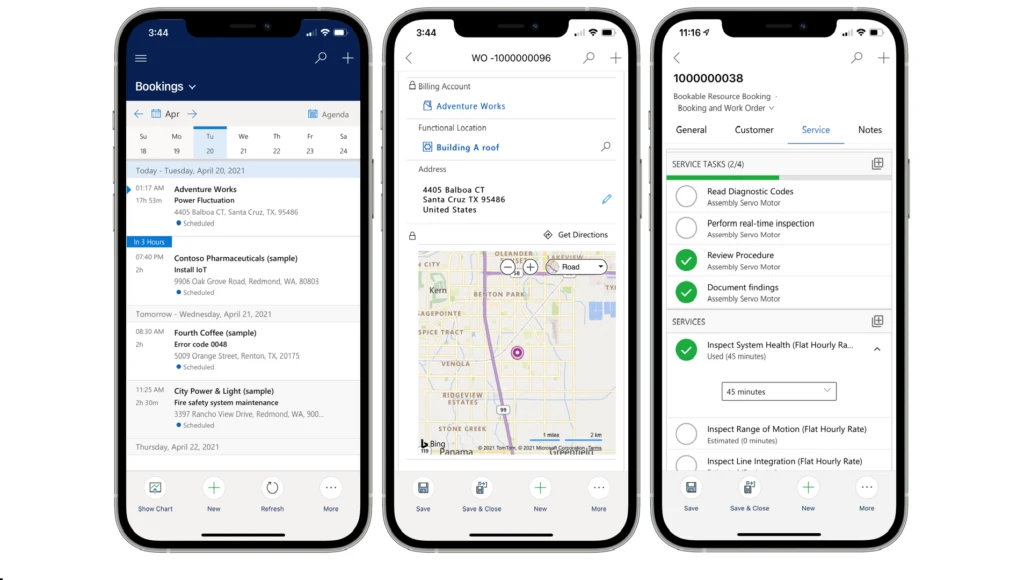
Here is an example of some of the mobile optimized forms and controls included with the Field Service (Dynamics 365) mobile app, such as at-a-glance agenda view, customer information with address and maps, and an intuitive experience to track the services performed and parts consumed:

Forms in Field Service (Dynamics 365) mobile app

Performance considerations

Surface the most relevant fields and information to technicians up front. Overloading the form with less-used fields and controls will impact app performance, so consider creating new sections or tabs to host custom content. Take feedback from users to determine what content is necessary and what can be removed or hidden from forms.

For more information, go to Edit the sitemap (home screen), forms, and views.

Tip 3: Follow best practices when using offline profiles

Offline profiles control which data is downloaded to the device. We strongly recommend that you use the offline feature, even if your frontline workers always have internet access.

Using downloaded data is much faster than using data on the server that is accessed over the internet, thus improving overall performance. Set up an offline profile, and then add users and teams to the offline profile.

Here are a few more pro tips for using offline profiles:

  • Use the offline profile included with Field Service – The Field Service Mobile Offline Profile provides an ideal starting point for offline configuration, with defaults for out-of-the-box entities and sync intervals. Use this profile and build upon it by including your custom entities. By working within the provided profile, default entities can still receive updates over time.
  • Avoid removing default entities from the offline profile – These default entities are purposefully added to ensure the right data is available to the frontline worker. Focus on adding the entities you need to the offline profile rather than removing ones you do not need.
  • Avoid using “All records” as an offline filter – The offline profile is the gate that controls the amount of data downloaded to the frontline workers’ devices. To keep sync times fast and efficient, avoid including “All records” as an entity filter and avoid wide date ranges. As an example, rather than downloading all customer asset records, download only the records related to scheduled work orders. This will reduce the number of customer asset records without impacting work that needs to be done.
  • Use offline JavaScript Organizations often need to run workflows on mobile devices to execute business processes. However, Power Automate flows only run when the device is connected to the internet or on the next sync. Use offline JavaScript to run workflows on the device quickly and without internet access. For more information, go to Workflows and scripts for the Field Service (Dynamics 365) mobile app.
  • Understand how the app works offline. Lastly, it is important to know that once you set up an offline profile, the mobile app prioritizes offline operations. This means the app will use downloaded data when there is no internet access, and even when there is internet access. The only difference is that, when there is internet access, data will be synced back to the server every few minutes or when the frontline worker manually syncs the app. When there is no Internet access, the sync runs later, when a connection is restored.

Performance considerations

By using offline profiles, data will be downloaded to the device. With offline data, in-app performance such as displaying forms will be much better. Limiting the amount of data in the offline profile to what is needed by the user will improve sync performance.

For more information, go to Configure offline data and sync filters for the Field Service (Dynamics 365) mobile app.

Tip 4: Use up-to-date devices that meet recommended requirements

Many organizations follow a “bring your own device” (BYOD) policy where frontline workers use their personal phones or other devices for business. The Field Service (Dynamics 365) mobile app works on many devices running iOS or Android software, and support for Windows 10 devices is planned.

For the best performance, make sure your team has newer devices that run the latest operating system versions. Review the supported mobile platforms for recommendations about operating system versions, RAM, and storage.

Tip 5: Take advantage of Microsoft Power Platform

The Field Service (Dynamics 365) mobile app is built on Microsoft Power Platform, so the mobile app can take advantage of several capabilities of Microsoft Power Platform.

Here are just two common examples:

  • Use Power Automate to send push notifications to frontline worker devices based on predefined triggers and events. For more information, go to Enable push notifications.

Planning for your deployment

In addition to these Field Service best practices, here are a few more planning tips that can be helpful for your project:

  • Do user acceptance training. Ensure buy-in across your organization by bringing the people who will be using the application into the release process early. Select a diverse set of users across geographies or business units. Set up feedback channels to understand pain points and address problems before going live.
  • Do a phased roll out. Reduce risk by segmenting your release over phases; commonly this is done by geography, or by business group. Take feedback from users and expand the deployment once stable.
  • Pilot the mobile apps side-by-side. If you are a current customer of Field Service, you can pilot the new Field Service (Dynamics 365) mobile app alongside the Field Service Mobile (Xamarin) app, as well as other Field Service apps your organization might be using. This will help you assess how your frontline workers are currently using the apps: what data is most important and what information is most commonly viewed and edited. In this way, you will better understand what functionality to include in the new Field Service (Dynamics 365) mobile app.
  • Measure performance. How the mobile app performs is a big factor in how much frontline workers enjoy using the app. Add performance measures to the deployment plan and test how editing forms, the mobile offline profile, and workflows affect app performance. Take feedback from users to determine what is necessary and what can be removed or hidden from forms.

Next steps

We’ve put together some resources to help you before and during your mobile deployment.

The post 5 tips for implementing the Field Service (Dynamics 365) mobile app appeared first on Microsoft Dynamics 365 Blog.

Brought to you by Dr. Ware, Microsoft Office 365 Silver Partner, Charleston SC.

Microsoft Project15 & University College London Red Panda Project

Microsoft Project15 & University College London Red Panda Project

This article is contributed. See the original author and article here.

Guest post by Farid El-Aouadi Computer Science Student, Microsoft Project 15 Capstone Project with Farid El-Aouadi at University College London 


pic 

http://faridelaouadi.tech/


Introduction


Founded in 2007, Red Panda Network has become a world leader in efforts to protect Red Pandas and their habitat. Using a variety of techniques such as community based conservation and developing anti poaching networks, they are committed to saving every last panda that is currently living in the Himalayan mountains.

Since my first meeting with Sonam Lama, Red Panda Network it was evident that their current workflow lacked any sophistication and revolved heavily around human labour. From manually classifying and retrieving images to making in-field observations using pen and paper, it was clear that the workflow needed a flair of innovation to allow the organisation to work smarter and not harder. 


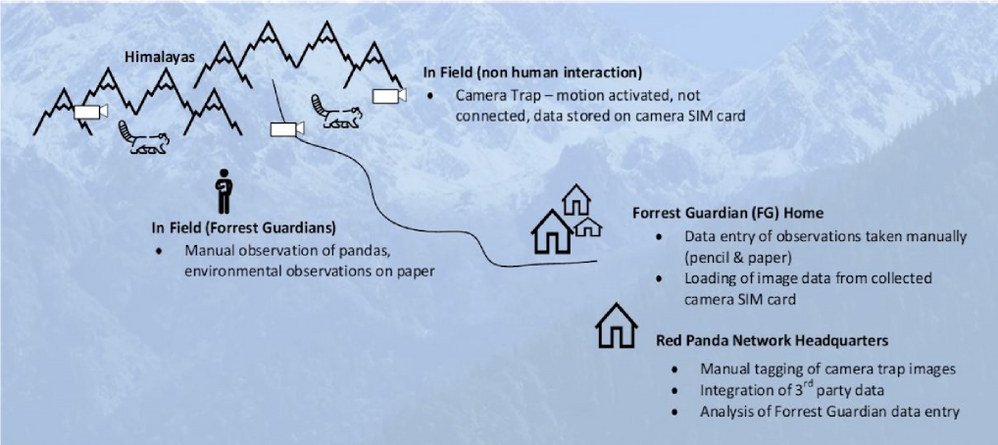
The Red Panda Network’s current workflow to track red panda’s in the mountains is illustrated in the diagram below. The process can be decomposed into two main sub processes : image retrieval from camera traps + classification and data entry + analysis. 


RedPanda.png


Process Analysis


Image retrieval and classification


Currently, the organisation has several camera traps in the mountains. These motion activated cameras take pictures when motion is detected in their vicinity and saves the images to the local SD card. As you can imagine, these camera traps can capture several false positive images ( when the motion is thought to be a red panda when it is not ) . Periodically, a member of the red panda network team has to go to the mountains, download the SD card data then classify these images as being red panda or not.


To put things into perspective, the Red Panda Network currently has around 20 cameras that took a total of 55,000 images over approximately 2 months – that is a lot of manual classifying! The images then get sent to the red panda headquarters where a spreadsheet is updated for further analysis later on.


Data Entry


The Red Panda network has a team of volunteers called the forest guardians. Forest Guardians are local people who are paid to monitor and protect red panda habitat, as well as educate communities. They currently do all their data gathering on paper and manually relay the information to the RPN HQ. The data entry of the manual observations is from pencil and paper which is prone to errors, inaccuracies and can unnecessarily take a long time. 


As you can probably see, both processes can benefit greatly from a technological solution. I will primarily be focusing my efforts on the first problem for two main reasons. The first is that this problem can make use of an elegant solution that incorporates AI, IoT as well as cloud computing all using the azure platform. The second reason is that by tackling this problem, I will be saving the employees a lot of time which would allow them to focus their time in other conservation efforts that the red panda network is involved in. 


Proposed solution and workflow


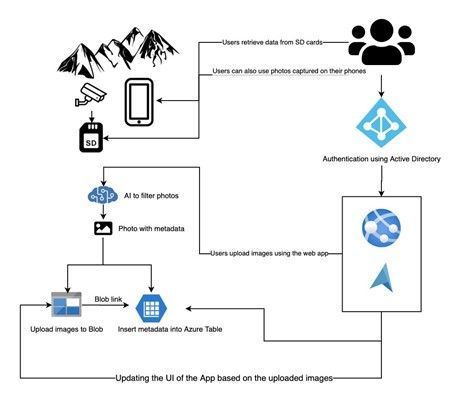
RedPandaArchitecture.jpg


My proposed solution leverages the following Azure services:


In the proposed workflow, users will first be authenticated using Active directory. Once authenticated, users will be able to upload images associated with a specific camera trap and view them on an azure map. The web app will be responsive which will also allow for forest guardians to upload images straight from their phone. Once they have uploaded the images, they will be stored in azure blob storage with the relevant metadata stored in an azure table. When the user uploads an image, they will be classified as being “panda” or “not panda” using a pre-trained classifier and display them on the azure map to reflect their classification. 


Tech stack


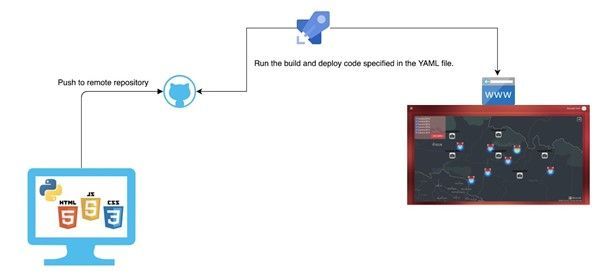
RedPandaTechStack.jpg


From an application development perspective, I will be creating the server using python flask and writing any frontend logic using Javascript. Flask is a lightweight WSGI web application framework and chosen for this project as I have experience using it for smaller projects and found it to be well documented and supported. Javascript was chosen ( as opposed to a Javascript library like React or Angular ) as I felt that I was comfortable enough using Javascript and that learning a library would be time consuming and not provide any extra value to the end user. Jinja is a web template engine for the Python programming language that I will be using to build HTML pages on the server. This allows me to reuse HTML code to make the templates more readable for future developers.


For ease of development and deployment, I will be using a CI/CD pipeline. Using Azure pipelines, it will be extremely easy for me to make changes to the source code, push it to my repository on GitHub then deploy it so that users can see these changes within a few minutes. I can also define tests that need to pass before the production code gets changed which will uphold code correctness and platform availability. 


To ensure the design of the app adheres to Don Norman’s “10 usability heuristics for user interface design”, I will be using bootstrap for the styling of all my components. This will ensure the UI is consistent, learnable and promotes recognition rather than recall. 


Final platform


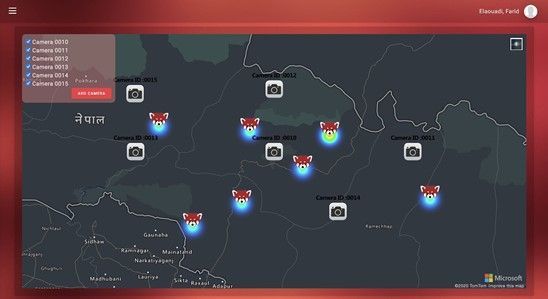
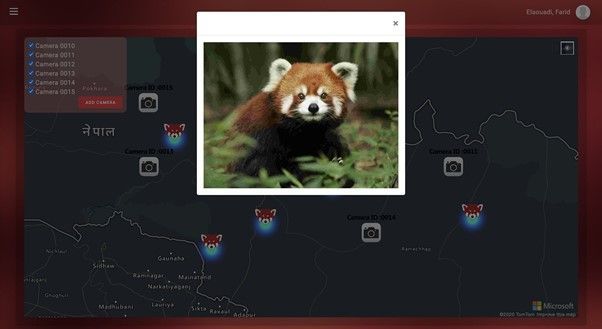
Main dashboard


RedPandaMainDash.jpg


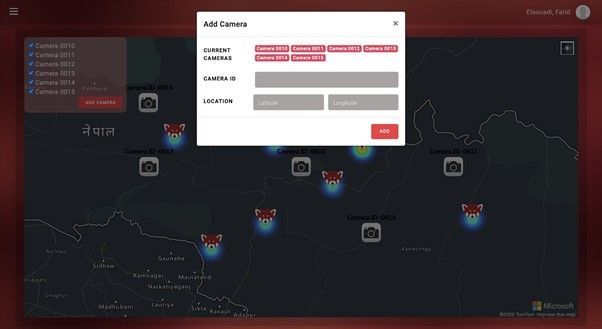
Add a camera


RedPandaCamera.jpg


View Individual panda (Click on panda icon)


RedPandaCamera1.jpg


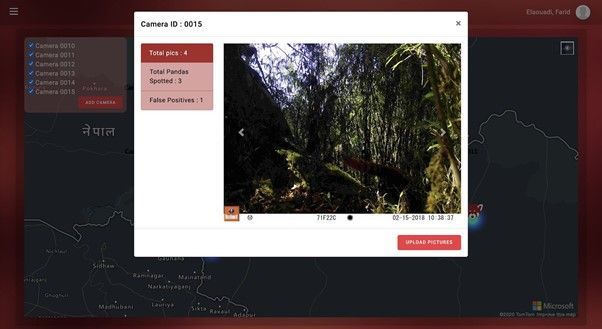
View images from a camera trap


RedPandaCameraTrap.jpg


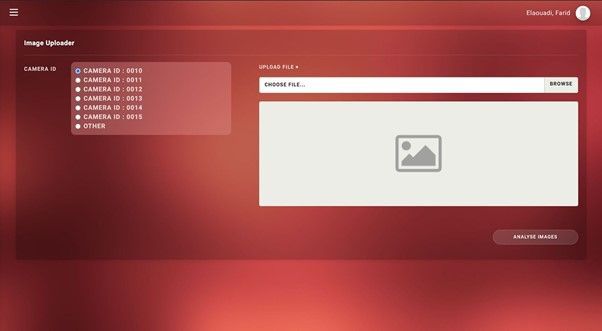
Upload New Images


RedPandaUploadNew.jpg


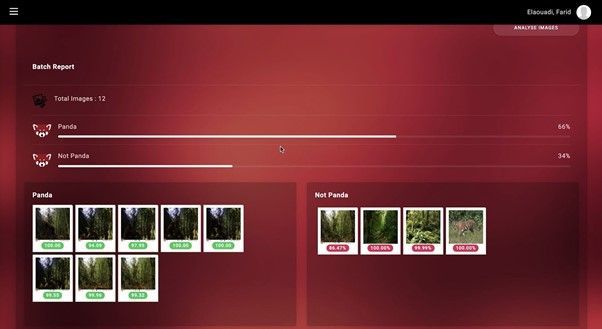
Classification report after model inference


RedPandaClassification.jpg


Full Video demo 


Source Code


faridelaouadi/RedPandaNetwork: A web app created for the red panda network in collab with Microsoft’s Project 15 (github.com)


Technical challenges


Online classifier limit 


Initially, to classify user uploaded images I was using the customvision.ai API to make HTTP requests that returned the classification. This worked fine for a few images however during my testing, I decided to upload a batch of images that consisted of 15 images. Each image took around 3 seconds to get classified which meant that the user would be stuck on the loading screen for far too long. The logical next step would be to make asynchronous calls to this API to drastically reduce the wait time. The wait time was indeed reduced however this optimization exposed another problem about the API and its rate limit – users could make a maximum of 10 calls per second. To try and work around this, I simulated a pause in my code after every 10 asynchronous calls. This seemed like a crude solution whose runtime was still linear. 


To improve upon this, I decided that the best way to tackle this problem would be to download the model locally and classify the images on the server. However this brought about its own challenges as I now had to do image preprocessing to ensure that the user uploaded images were compatible with the trained model. To preprocess the images I made use of the “OpenCV” and “Numpy” modules in python which provided a simple API to scale, crop, resize and update orientation of images of any format. I then made asynchronous calls to this local model which yielded excellent results! 


Azure maps 


Azure maps provided a steep learning curve especially when trying to add custom features such as filtering and onclick functionality to pandas and cameras that acted differently. When tackling the filtering, I had to add unique attributes to each of the cameras that were being displayed on the map. I then created a filter list that was then set to act on the camera symbol layer of the map. For the onclick functionality, I wanted to constantly reuse the same bootstrap modal for each of the cameras. To do this, I had to once again add further attributes to the camera features on the map and run a  Javascript function that built the modal on the fly by extracting the attributes from the selected camera to hence make an ajax request to the server to retrieve the relevant data. 


Future plan


Online learning


The next challenge I am working on is making the classifier improve itself as the user uploads more images ( and corrects misclassifications ) using the system. To do this I will make use of Azure functions that would get triggered when new images have been uploaded to the blob storage. This azure function would then retrain the classifier with these new images as additional training data.
There will also be logic in the azure function that prevents the classifier being re-trained for every new image as this would get costly and tedious. There would also need to be logic to prevent overfitting so if your interested in learning more about the project join me at the following webinar.


Webinar 22nd April 2021


Project 15: Empowering all to preserve endangered species & habitats.


Date: April 22, 2021


Time: 08:00 AM – 09:00 AM (Pacific)


Format: Livestream


Topic: DevOps and Developer Tools


Join Microsoft Project 15 and students from University College London live on Earth Day (April 22) at 8 am PT to explore some of the ways the tech community is using IoT solutions to further preservation efforts. Get involved – register for the event now.