by Contributed | Apr 22, 2021 | Technology
This article is contributed. See the original author and article here.
Today we’re pleased to announce the commercial preview of Microsoft Office Long Term Servicing Channel (LTSC) for Windows and Office 2021 for Mac. The next perpetual version of Office for commercial customers is built specifically for organizations running regulated devices that cannot accept feature updates for years at a time, process control devices that are not connected to the internet in manufacturing facilities, and specialty systems that must stay locked in time and require a long-term servicing channel. Office LTSC will provide the familiar productivity tools you have experienced with Office 2019, now with faster performance and expanded accessibility. You can preview Office LTSC and Office 2021 for Mac starting today.
Office LTSC will include features from past Office releases as well as a subset of new features already available in Microsoft 365 Apps for enterprise. As we announced in February, Office LTSC, like Windows 10 LTSC, will be supported for five years and continue being governed by the Fixed Lifecycle Policy. To learn more about other changes for Office LTSC read our February announcement.
Office LTSC will be deployed using Click-to-Run exclusively, just like Office 2019, so IT admins can take advantage of modern deployment technology to help reduce costs. Office 2021 for Mac will use the standard Apple Package format (pkg) – the same technology that we have used for previous perpetual releases, including Office 2019 for Mac and Office 2016 for Mac. To understand additional system requirements for Office LTSC and Office 2021 for Mac, read the FAQ.
Microsoft 365 Apps continues to deliver the most productive and most secure Office experience, offering the lowest Total Cost of Ownership (TCO) for deployment and management. In another recent announcement, we shared how Microsoft 365 Apps can also be used in organizations with employees going offline for longer periods of time or using shared devices or workstations. However, Office LTSC will be a valuable upgrade for customers who need to keep their Office Apps on-premises.
This is the first in a series of preview announcements for the on-premises wave, and in the coming months we’ll also announce commercial previews for SharePoint and Project Server. For instructions on how to install the Office LTSC and Office 2021 for Mac preview, go here.
Continue the conversation by joining us in the Microsoft 365 Tech Community! Whether you have product questions or just want to stay informed with the latest updates on new releases, tools, and blogs, Microsoft 365 Tech Community is your go-to resource to stay connected!
by Contributed | Apr 22, 2021 | Technology
This article is contributed. See the original author and article here.
News and interests on the taskbar will begin rolling out to Windows 10 users today. We are taking a measured approach starting with the April 2021 Cumulative Update Preview for Windows 10, and broad availability will occur in phases. Devices running Windows 10, version 1909 (and later) who have installed the May 2021 Windows monthly update (or later) will be included in this phased rollout.
Today, on the Windows Experience blog, we announced that news and interests will be available on the Windows taskbar in the coming weeks. Designed to help Windows users stay up to date, at a glance, with weather, news, and more, this experience was first introduced to Windows Insiders in the Dev Channel in January and we have since been optimizing the experience based on Insider feedback.
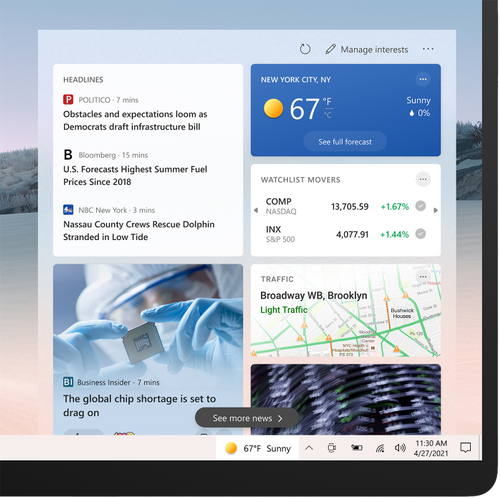
When the experience rolls out to their devices, users will see a personalized weather forecast based on their location on the taskbar. To quickly check in on the latest headlines, weather, sports, and more, they can simply open news and interests, get caught up, and get back to what they were doing.
News and interests on the Windows taskbar offers personalized content at a glance
The information shown in news and interests is personalized for individual users. Users can customize the content they see, enabling scenarios like the following:
- Keep an eye on nearby weather and traffic that may impact a commute.
To change the location shown for weather and traffic updates, select More options (…) on the Weather or Traffic card, and select Edit Location.
- Follow a topic related to professional or personal interests.
Follow a specific topic related to an industry, job role, or subject to learn more about. To follow a specific topic, select Manage Interests and select or search for a topic.
- Get personalized updates on stocks.
Keep an eye on major market indicators, see top gainers or losers, or create a watch list of stocks to see updates throughout the day.
- Share, save or see more stories.
Select More options (…) on headlines and articles in news and interests on the taskbar to share them with others or save them to read later. Users can also request to see more or fewer stories like the ones shown.
In addition, the appearance of news and interests on the taskbar can be customized. Users can choose to right click or long press a blank space on the taskbar and select News and interests to customize. They can choose Show icon and text or, to save taskbar space, select Show icon only. Users can also select Turn off to unpin news and interests. For more information on customizing news and interests, see the Support page
Manage news and interests on the taskbar with policy
In addition to personalization for individual users, Windows and Microsoft 365 IT admins can easily manage the way news and interests on the taskbar is configured for the devices they manage.
To manage news and interests on the taskbar with Group Policy, locate:
Computer Configuration > Administrative Templates > Windows Components > News and interests > Enable news and interests on the taskbar
 The news and interests setting in Group Policy
Through this policy, you can disable or enable the news and interests experience on the taskbar. If you leave the setting as “Not configured” the experience will be enabled by default.
- Enabled – News and interests will be allowed on the taskbar. The settings UI will be present in the Taskbar context menu, and users will be able to turn it off or switch modes.
- Disabled – News and interests will be turned off completely, and the settings UI in the Taskbar context menu will be removed.
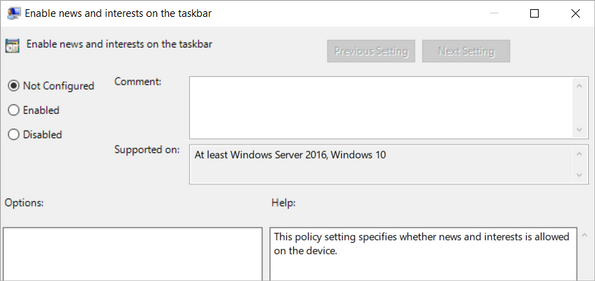 Configuring news and interests via Group Policy
Microsoft Endpoint Manager offers the same policy configuration options:
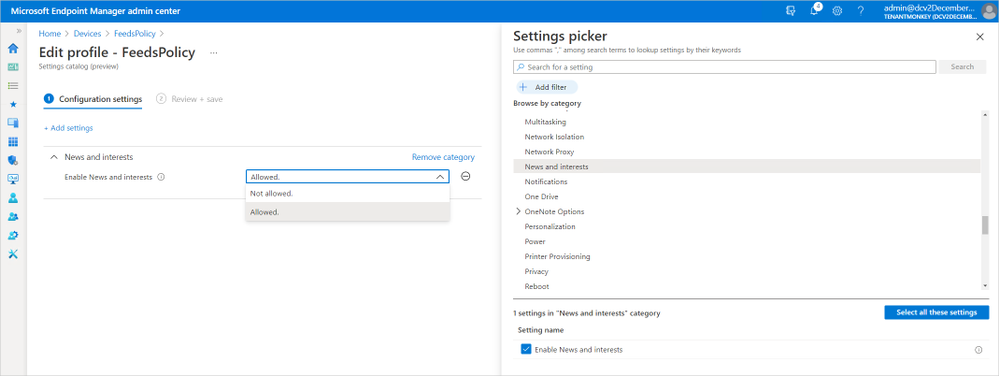 Configuring news and interests policy in Microsoft Endpoint Manager
Learn more
For more information on configuring the news and interests experience for your users, please see the Policy CSP – Experience article in Windows client mobile device management documentation.
by Contributed | Apr 22, 2021 | Technology
This article is contributed. See the original author and article here.
We are excited to announce Azure Storage Day, a free digital event on April 29, 2021, where you can explore cloud storage solutions for all your enterprise workloads. Join us to:
- Understand cloud storage trends and innovations—and plan for the future.
- Map Azure Storage solutions to your different enterprise workloads.
- See demos of Azure disk, object, and file storage services.
- Learn how to optimize your migration with best practices.
- Find out how real customers are accelerating their cloud adoption with Azure Storage.
- Get answers to your storage questions from product experts.
This digital event is your opportunity to engage with the cloud storage community, see Azure Storage solutions in action, and discover how to build a foundation for all of your enterprise workloads at every stage of your digital transformation.
The need for reliable cloud storage has never been greater. More companies are investing in digital transformation to become more resilient and agile in order to better serve their customers. The rapid pace of digital transformation has resulted in exponential data growth, driving up demand for dependable and scalable cloud data storage services.
Register here.
Hope to see you there!
– Azure Storage Marketing Team
by Contributed | Apr 22, 2021 | Technology
This article is contributed. See the original author and article here.
ConfigMgr admins love extending hardware inventory and collecting data from Windows devices.
Did you know Intune can do the same?!
The answer is Intune PowerShell scripts! Also known as SideCar… IME… Intune Management Extensions…
Well, IME is just another channel that runs parallel to MDM that sort of acts like the ConfigMgr client. We deliver different features over this channel: PowerShell scripts, Win32 apps, Proactive Remediation scripts, Win32 app log collection…
Can you give us an example?
Maybe you are interested to know more about Win32_BIOS.
Run the following PowerShell one-liner on a device
Get-WmiObject -Class Win32_BIOS |
select CurrentLanguage,
Description,
EmbeddedControllerMajorVersion,
EmbeddedControllerMinorVersion,
Manufacturer,
ReleaseDate,
SerialNumber | ConvertTo-Json -Compress
Script outputs the following:

Beautified:
{
"CurrentLanguage": "en-US",
"Description": "N2EET43W (1.25 )",
"EmbeddedControllerMajorVersion": 1,
"EmbeddedControllerMinorVersion": 13,
"Manufacturer": "LENOVO",
"ReleaseDate": "20191028000000.000000+000",
"SerialNumber": "12345678"
}
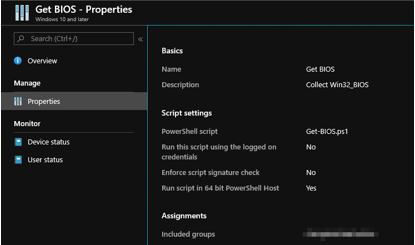
Let’s create an Intune PowerShell script and deploy it to some users/devices to demonstrate Win32_BIOS data as an example.
Tip: <scriptId> is stored in the URL

You can access the data via the following Graph endpoint in graph explorer
https://graph.microsoft.com/beta/deviceManagement/deviceManagementScripts/<scriptID>/deviceRunStates?$expand=managedDevice
It turns out that we store the above-mentioned script output in a property on the service side. If you are familiar with Graph Explorer, then you can take a look at the results
In the property “resultMessage”:

How do I see the data from all devices?
Prerequisites:
Install-Module -Name Microsoft.Graph.Intune
You need one more script to retrieve your results from Graph…
Update-MSGraphEnvironment -SchemaVersion 'beta'
Connect-MSGraph

$result = Invoke-MSGraphRequest -HttpMethod GET -Url 'deviceManagement/deviceManagementScripts/b113448a-528a-4beb-b7d5-381a117d5184/deviceRunStates?$expand=managedDevice' | Get-MSGraphAllPages
$success = $result| Where-Object -Property errorCode -EQ 0
$resultMessage = $success.resultMessage
$objResultMessage = $resultMessage | ConvertFrom-Json
$objResultMessage | Out-GridView
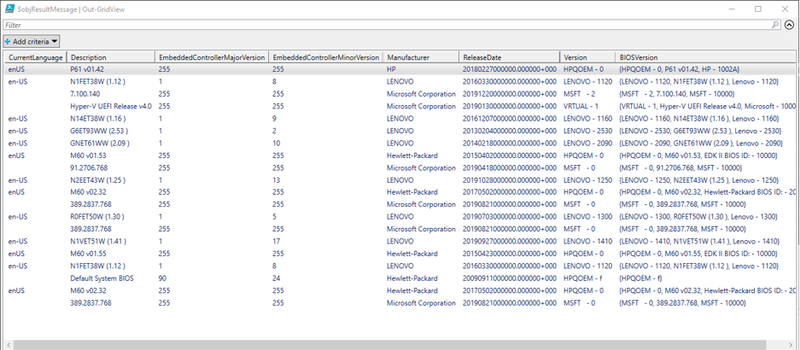
You can store the data in Log Analytics, SQL etc and visualize the way you want.
Enjoy!
by Contributed | Apr 22, 2021 | Technology
This article is contributed. See the original author and article here.
Jupyter Notebooks bring a wonderful capability to hand someone a single file that contains both code, and instructions on how to run that code. This is great and can be used in many different ways, one of which is to help new team members get up to speed. But what happens when you need to do the same thing as one of your existing Notebooks, but now you need to do it at scale? What if you could take your existing Notebook and add parameters for things like Server name & Database? In this episode with Aaron Nelson, take a look at how new features in Azure Data Studio can help you take your Notebooks to the next level of re-usability.
Watch on Data Exposed
Resources:
View/share our latest episodes on Channel 9 and YouTube!


Recent Comments