by Contributed | Dec 4, 2020 | Azure, Microsoft, Technology
This article is contributed. See the original author and article here.
Most of the developers may want to stop their MySQL instance over the weekend or by end of business day after development or testing to stop billing and save cost.
Azure Database for MySQL Single Server & Flexible Server (in Preview) supports stop/start of standalone mysql server. These operations are not supported for servers which are involved in replication using read replica feature. Once you stop the server, you will not be able to run any other management operation by design.
In this blog post, I will share how can you use PowerShell Automation runbook to stop or start your Azure Database for MySQL Single Server automatically based on time-based schedule. While the example below is for Single Server, the concept can be easily be extended to Flexible Server deployment option too when PowerShell support is available.
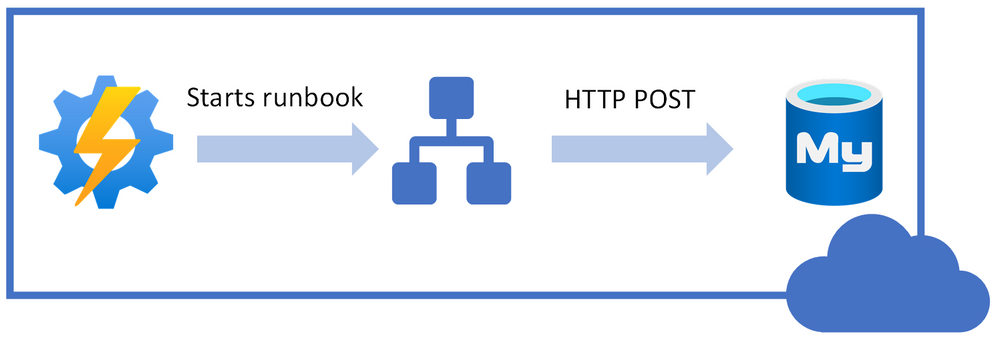
Following is high-level idea of performing stop/start on Azure Database for MySQL Single Server using REST API call from PowerShell runbook.
I will be using Azure Automation account to schedule the runbook to stop/start our Azure Database MySQL Single Server.
You can use the steps below to achieve this task:
1. Navigate to the Azure Automation Account and make sure that you have Az.Accounts module imported. If it’s not available in modules, then import the module first:
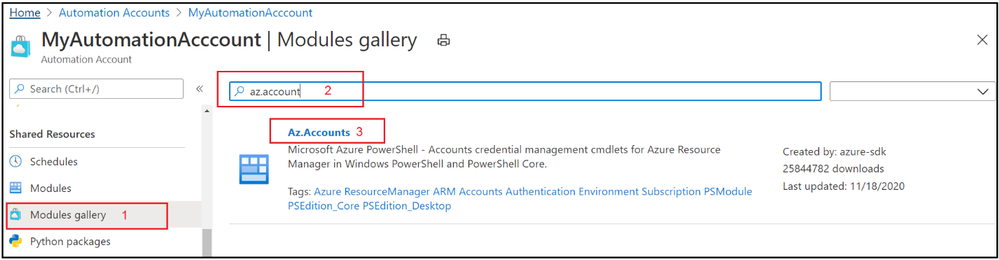
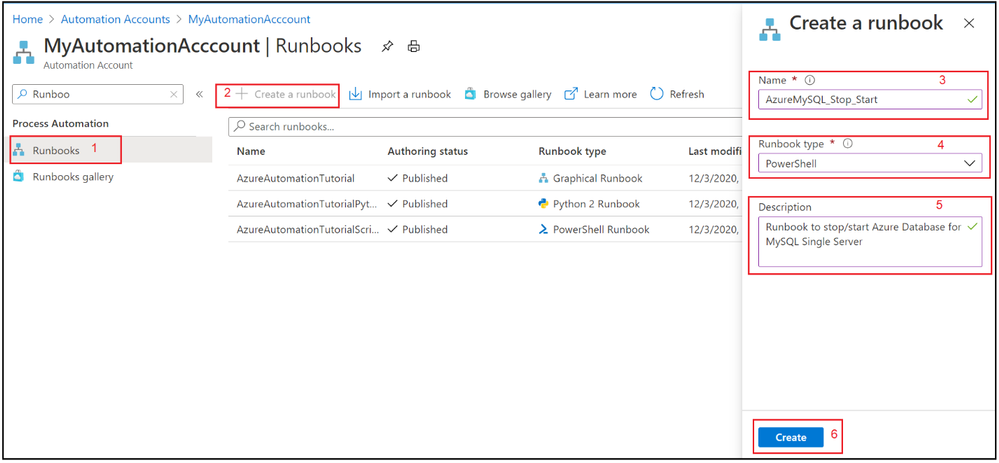
2. Select Runbooks blade and create a new PowerShell runbook.
3. Copy & Paste the following PowerShell code to newly created runbook.
#Envrionment parameters
param(

[parameter(Mandatory=$true)]
[string] $resourceGroupName,

[parameter(Mandatory=$true)]
[string] $serverName,


[parameter(Mandatory=$true)]
[string] $action
)

filter timestamp {"[$(Get-Date -Format G)]: $_"}

Write-Output "Script started." | timestamp

#$VerbosePreference = "Continue" ##enable this for verbose logging
$ErrorActionPreference = "Stop"

#Authenticate with Azure Automation Run As account (service principal)
$connectionName = "AzureRunAsConnection"
try
{
    # Get the connection "AzureRunAsConnection "
    $servicePrincipalConnection=Get-AutomationConnection -Name $connectionName

    "Logging in to Azure..."
    Add-AzAccount `
        -ServicePrincipal `
        -TenantId $servicePrincipalConnection.TenantId `
        -ApplicationId $servicePrincipalConnection.ApplicationId `
        -CertificateThumbprint $servicePrincipalConnection.CertificateThumbprint | Out-Null
}
catch {
    if (!$servicePrincipalConnection)
    {
        $ErrorMessage = "Connection $connectionName not found."
        throw $ErrorMessage
    } else{
        Write-Error -Message $_.Exception
        throw $_.Exception
    }
}
Write-Output "Authenticated with Automation Run As Account."  | timestamp

$startTime = Get-Date
Write-Output "Azure Automation local time: $startTime." | timestamp


# Get the authentication token
$azContext = Get-AzContext
$azProfile = [Microsoft.Azure.Commands.Common.Authentication.Abstractions.AzureRmProfileProvider]::Instance.Profile
$profileClient = New-Object -TypeName Microsoft.Azure.Commands.ResourceManager.Common.RMProfileClient -ArgumentList ($azProfile)
$token = $profileClient.AcquireAccessToken($azContext.Subscription.TenantId)
$authHeader = @{
    'Content-Type'='application/json'
    'Authorization'='Bearer ' + $token.AccessToken
}
Write-Output "Authentication Token acquired." | timestamp

##Invoke REST API Call based on specified action

if($action -eq 'stop')
{

        # Invoke the REST API
        $restUri='https://management.azure.com/subscriptions/6ff855b5-ee6d-4bc2-a901-adf5569842e1/resourceGroups/'+$resourceGroupName+'/providers/Microsoft.DBForMySQL/servers/'+$serverName+'/'+$action+'?api-version=2020-01-01'
        $response = Invoke-RestMethod -Uri $restUri -Method POST -Headers $authHeader
        Write-Output "$servername is getting stopped." | timestamp
}
else
{
        # Invoke the REST API
        $restUri='https://management.azure.com/subscriptions/6ff855b5-ee6d-4bc2-a901-adf5569842e1/resourceGroups/'+$resourceGroupName+'/providers/Microsoft.DBForMySQL/servers/'+$serverName+'/'+$action+'?api-version=2020-01-01'
        $response = Invoke-RestMethod -Uri $restUri -Method POST -Headers $authHeader
        Write-Output "$servername is Starting." | timestamp
 }

Write-Output "Script finished." | timestamp
4. Save the runbook
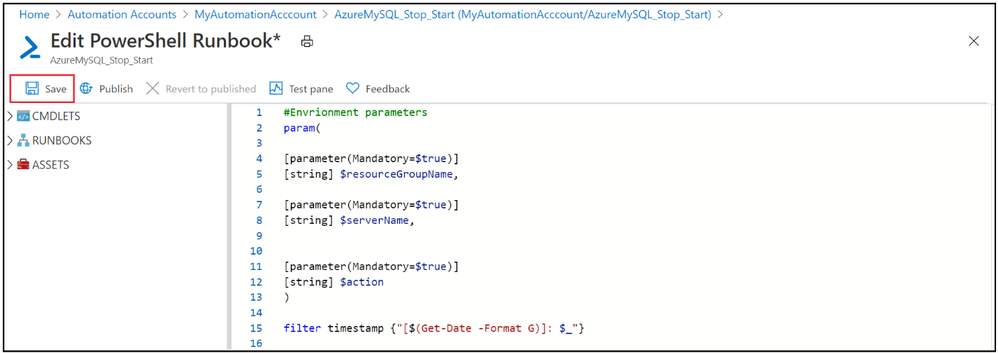
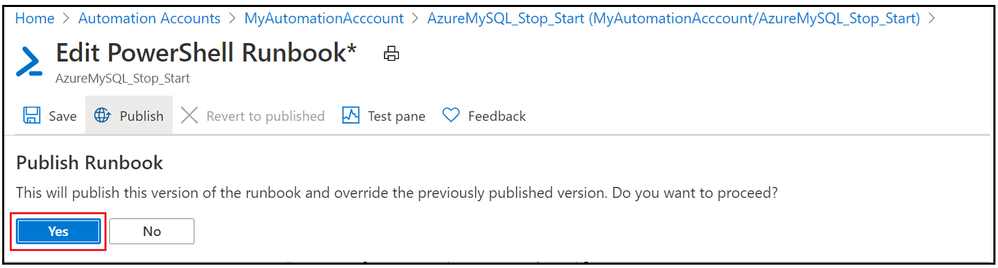
5. Publish the PowerShell runbook
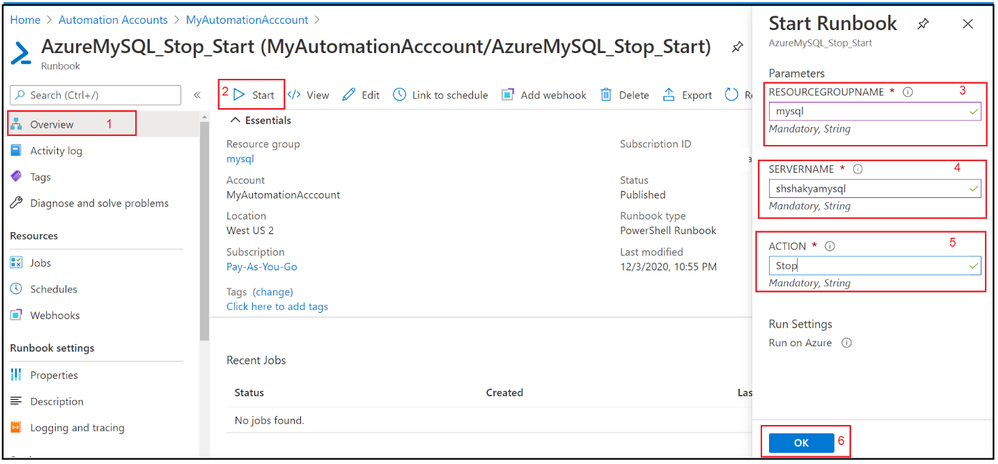
6. Test the PowerShell runbook by entering mandatory field.
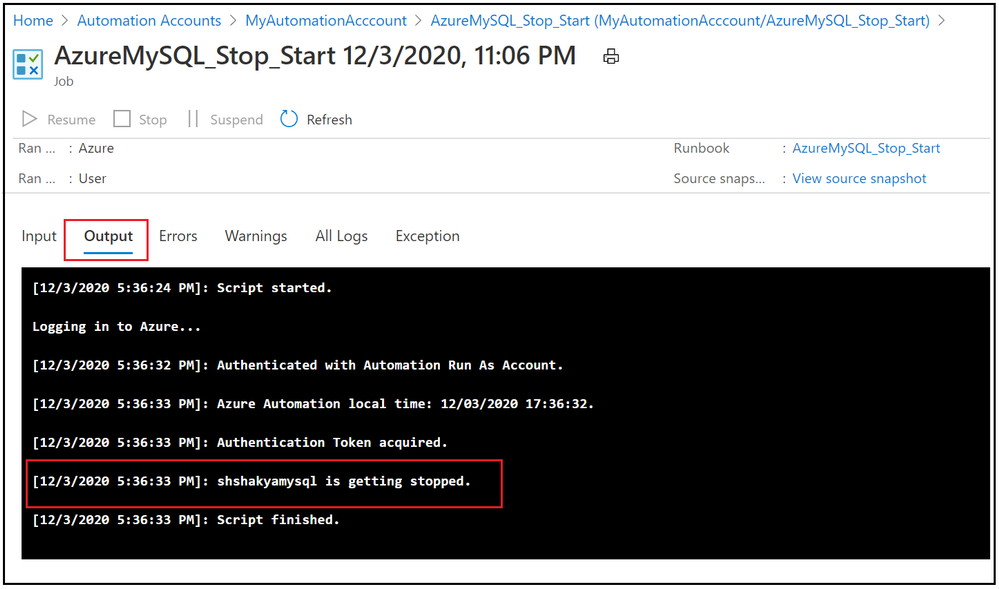
7. Verify the job output:
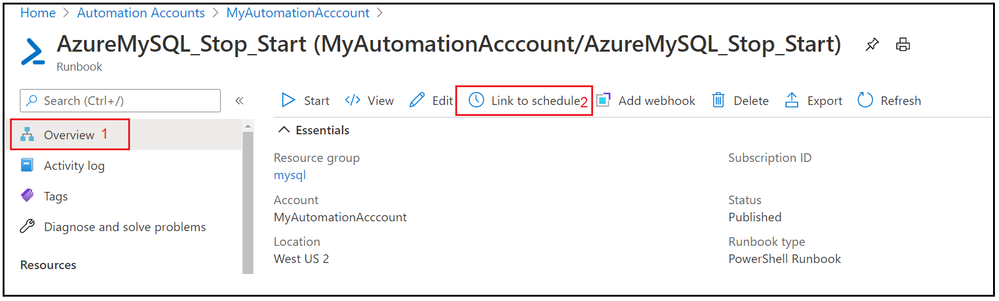
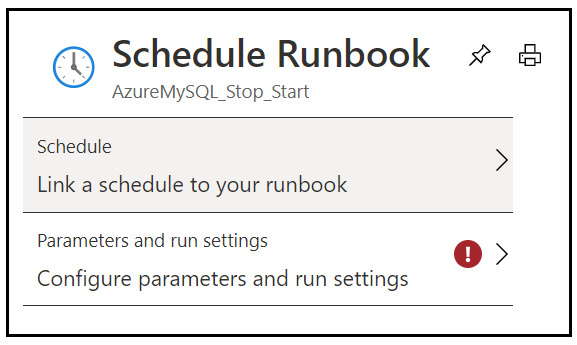
8. Now we have seen that Runbook worked as expected, lets add the schedule to stop and start Azure Database for MySQL Single Server over the weekend. Go to Overview tab and click on Link to schedule
9. Add schedule and runbook parameters.
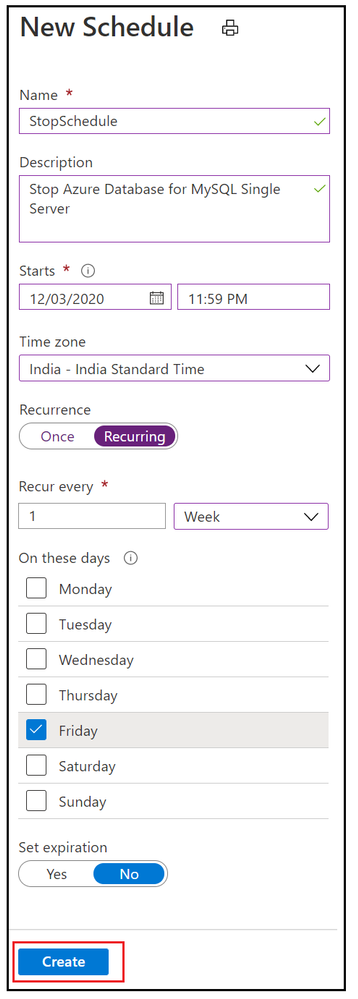
10. Add weekly stop schedule on every Friday night.
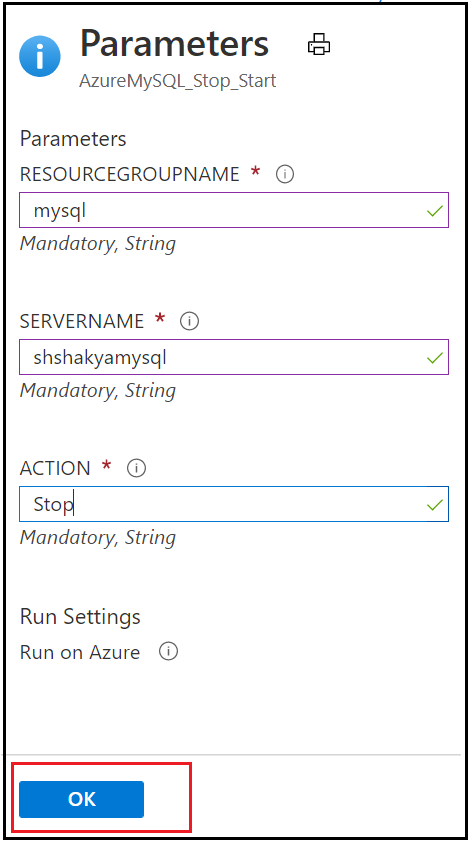
11. Add the parameters to stop Azure Database for MySQL Single Server.
12. Similarly add a weekly schedule for Starting Azure Database for MySQL Single Server on every Monday morning and verify these stop/start schedule by navigating to Runbook’s Schedules blade.
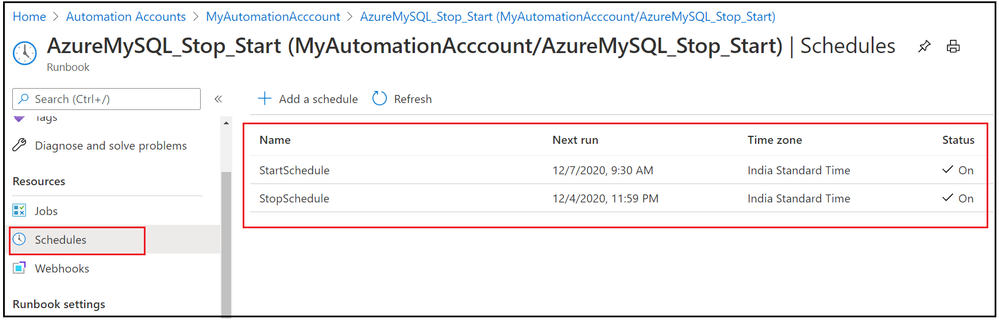
In this activity, we have added two schedules to stop and start Azure Database for MySQL Single Server based on given action.
I hope this will be helpful to you to save cost and hope you enjoyed this learning !!!
by Contributed | Dec 4, 2020 | Technology
This article is contributed. See the original author and article here.
Microsoft To Do is a task management tool that helps you stay productive, manage your day, and collaborate with your colleagues. We are pleased to announce that it’s now available for use by customers in GCC tenants via the web app, as well as integration in Outlook on the web. Other platforms (desktop, mobile) are not available yet in GCC.
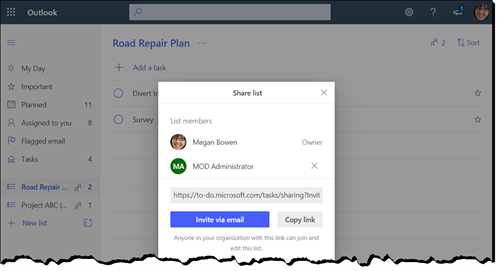
The web app provides access to My Day and all the other familiar task list types, including Shared Lists to help you collaborate with other people in your organization:
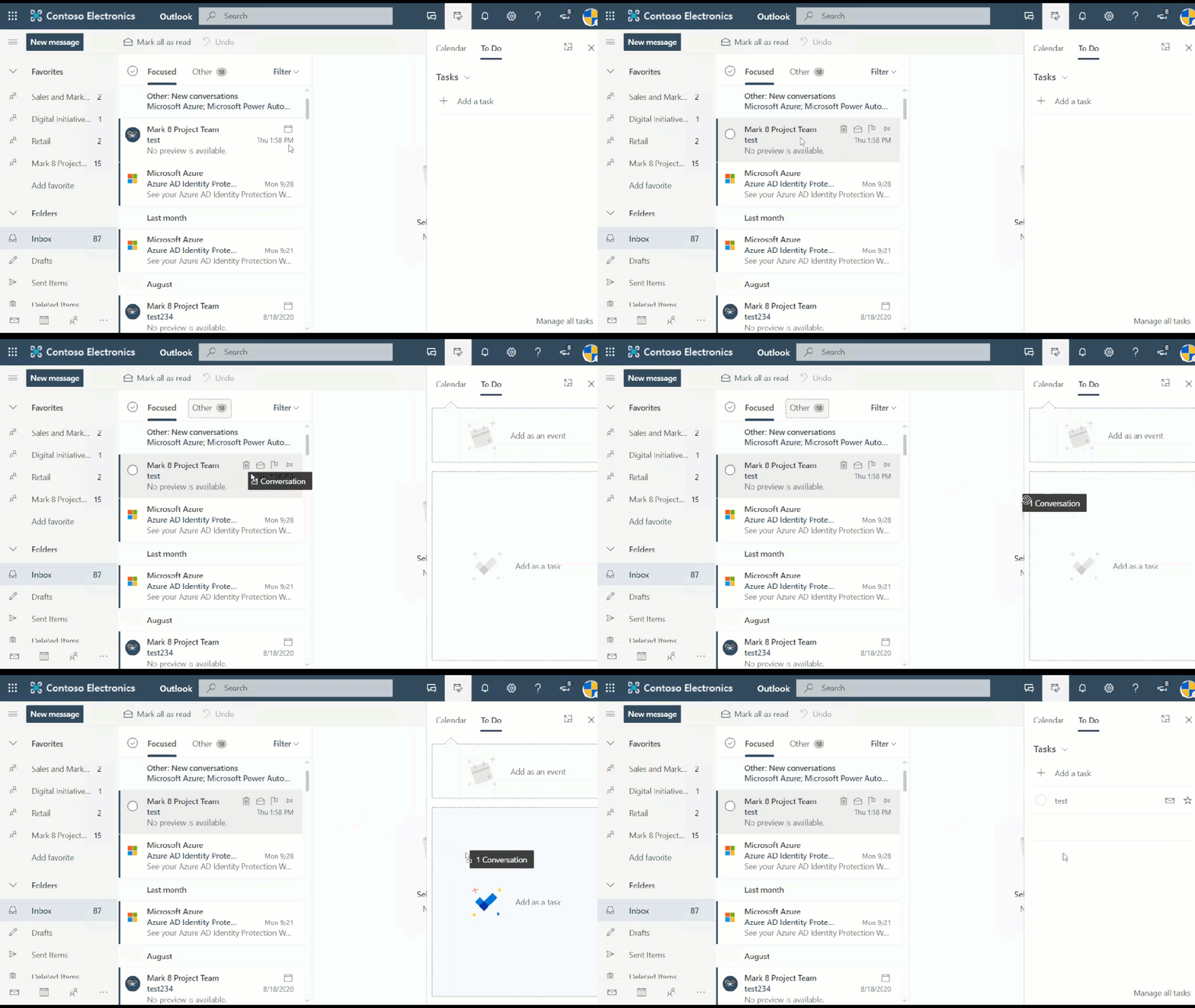
In Outlook on the web, you have the convenience of having your tasks alongside your email messages, including the ability to drag messages and convert them into To Do tasks:
 To do
To do
No admin action is needed to enable To Do for GCC tenants. Features that are not yet available in GCC at this time include push notifications for reminders, and the ability to share task lists outside your organization.
For more information, check out the support page.

by Contributed | Dec 4, 2020 | Technology
This article is contributed. See the original author and article here.
In this inaugural episode of Dr. Device I take a look at my daily, go to, workhorse, the Logitech BRIO. The BRIO provides me with a Microsoft Teams certified device experience and delivers exceptional quality video and microphone capabilities that help light up work meetings and media capture. Watch my video below then check out the description and links below.
Thanks for tuning in – Dr. Device
BRIO ULTRA HD PRO WEBCAM
“Stream crystal-clear video with superb resolution, frame rate, color, and detail. Logitech BRIO delivers 4K Ultra HD at 30 fps or 1080p at either 30 or an ultra-smooth 60 fps for outstanding clarity, smoothness, and detail. Get a closer look with 5x zoom.” – BRIO ULTRA HD PRO WEBCAM
TECHNICAL SPECIFICATIONS – from the BRIO ULTRA HD PRO WEBCAM web page
- 4K Ultra HD video calling (up to 4096 x 2160 pixels @ 30 fps)
1080p Full HD video calling (up to 1920 x 1080 pixels @ 30 or 60 fps)
720p HD video calling (up to 1280 x 720 pixels @ 30, 60, or 90 fps)
Plug-and-play USB connectivity
Field of View:
- Diagonal: 90°
- Horizontal: 82.1°
- Vertical: 52.2°
5x digital zoom in Full HD
Autofocus
Rightlight™ 3 with HDR for clear image in various lighting environments ranging from low light to direct sunlight.
Image controls with optional Camera Settings application for control of pan, tilt, and zoom
Built-in dual omni-directional mics with noise cancellation
Infrared sensor technology for Windows (SDK available for application integration)
External privacy shutter
Multiple mounting options, including clip and tripod mount
Supports multiple connection types, including USB 2.0 Type A and USB 3.0 Type A and C connections
Custom carrying case
To check out the BRIO ULTRA HD PRO WEBCAM head over to Logitech.com
Thanks for visiting – Michael Gannotti LinkedIn | Twitter
 Michael Gannotti
by Contributed | Dec 4, 2020 | Microsoft 365, Office 365, Technology, Tips and Tricks
This article is contributed. See the original author and article here.
Whether your team is working hybrid or working around the world, it’s always great to stay connected personally and professionally with members of your team. Many teams use scheduled get-together meetings in Teams to hold book clubs, celebrate a special moment, or just gather together and catch up on weekend plans. Conversations are always central in these meet ups – but we also know that every get together can be more fun and connecting with quizzes and games. Within Microsoft Teams, there are several good options for hosting these events, virtually.
Running Kahoot! Quizzes and Trivia in your meeting
Who doesn’t love great trivia or a friendly competitive quiz? For hosting these for your team, a good option is to use Kahoot! – which is available as a standalone app and with an associated integration directly within Microsoft Teams. Kahoots are engaging quizzes and challenges you can create and re-use within your team. These quizzes can be questions for learning or adding interactivity to presentation experiences, and in addition, you can also use Kahoot! to create team trivia challenges for your next team gathering.
With the Kahoot integration inside of Microsoft Teams, you can see a dashboard of your designed Kahoots, and use them during meetings to spur friendly competition. Before the meeting, design your Kahoots and add questions and answers. In addition to exploring and using questions from popular Kahoots via the Discover option, consider mixing in various forms of general trivia, trivia specific to topics for your team, or maybe trivia about your team specifically.
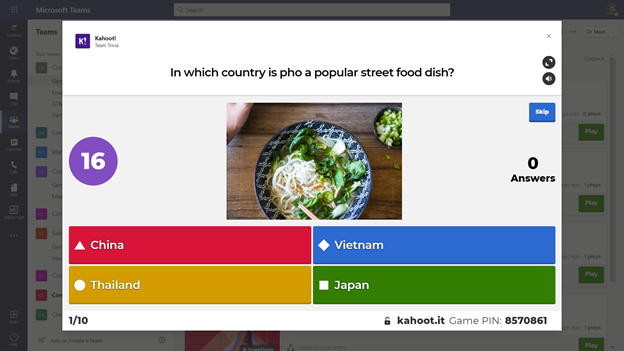
When it is time for the meeting itself, you can launch a Kahoot from the Kahoot app tab within Teams. Expand the Kahoot! gameplay window, and then share that during a meeting by sharing your screen. Make sure to use the Include computer sound option when you share. Once the Kahoot! gameplay screen is shared, attendees can join in and answer questions from their own devices. Answering question quickly matters, and you’ll soon see a friendly competition bloom. You can find out more about Kahoot! on kahoot.com, and you can add the Kahoot! integration for Microsoft Teams from AppSource.
Using Jackbox Games with Microsoft Teams screen sharing
Jackbox Games are the makers of several party games that are great to play together in person or virtually. From speech games like Talking Points to drawing games like Drawful and witty quip games like Quiplash – there are a wide variety of games and styles to suit every taste. Most games run for about 15-25 minutes with straightforward rules and quick tutorials, so they are easy to pick up and play. Most games support up to 8-10 players, and some have additional audience viewing options if you have extra visitors.
Jackbox Games are available for a wide variety of devices and consoles, but if you want to use Jackbox within a virtual Microsoft Teams streaming session, we’d recommend getting Jackbox on your PC or Mac. The host of the virtual get-together will need a copy; the attendees in the meeting can follow along on their devices. Every player will join the meeting and then connect to the Jackbox game with a room code – which they can do in a web browser or on a separate device, like their phone. It is easy and takes seconds to get everyone started on a game.
You’ll likely want to use Steam – a service for purchasing and installing games – to get Jackbox games. These games come in Party Packs of 5 games each – so each Party Pack provides a lot of choices for different gameplay styles. No one will be bored, and any party pack will work well – the most recent Jackbox Party Pack 7 features both Quiplash 3 and Blather ‘Round which work well in virtual game settings.
As you host your virtual get-together, you’ll want to start up the Jackbox Party pack of your choice. Use the screen sharing option in Teams, and make sure you check the “Include computer sound” option.
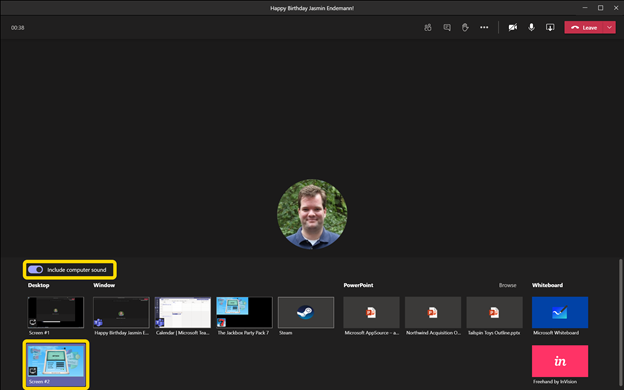
From there, start up a game and your room code will be visible, and attendees can join in.
Tips for using Jackbox Games in a Teams meeting
As you start your Jackbox Games, we recommend a couple of options:
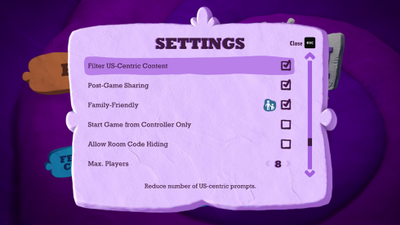
In almost every Jackbox Game, there is a “Family Friendly” checkbox – you may want to consider checking that for your work conversations.
In a few Jackbox Games, there is also an option to filter out US-centric content, if you want to have questions or prompts that are more broadly relevant to teammates around the world.
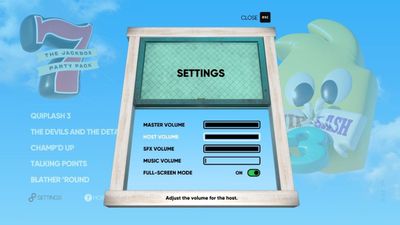
Also, to keep the sound of the game from potentially drowning out your virtual guests and conversation while attending, in some cases you may want to consider turning down the background music.
Also, some more advanced tips can help your virtual party even more:
- If you have it, hosting a game with two screens (e.g., your laptop screen plus a plugged-in monitor) can work better, as you can place Teams on one screen and Jackbox on the other. That way, it is always easy to see your teammates and the game at the same time.
- Using headphones can also help with isolating the sound of the game from the conversation.
We hope you get to explore the wide variety of games and quiz options for having fun, virtually, with your teammates. While the centerpiece of any virtual gathering is the conversations that you’ll have virtual activities through Kahoot! and Jackbox Games, you can help to break the ice, provide some memorable experiences, and heck – have some fun! – in almost any meeting you run.
![[Guest Blog] How community is greater than the sum of its parts, and my journey into it](https://www.drware.com/wp-content/uploads/2020/12/medium-31)
by Contributed | Dec 4, 2020 | Technology
This article is contributed. See the original author and article here.
This blog is written by EY Kalman who shares his journey as a part of the community.
My journey from an individual using online Microsoft technology forums, to attending a community conference, to becoming an active member of the commuting and user groups. Community enables us all and empowers us beyond imagination
Community. It’s such a simple word, but as I’ve learnt over the last few years, it can mean SO much in so many different ways.
Let’s travel a few years…
I’ve been immersed in IT for coming up to two decades. Starting off with simple troubleshooting for friends and family in my local community and building computers by hand. With my IT experience, I ended up building a small business over a few years, which ended up taking off!
Obviously the first step that us, as IT professionals, do when trying to find out an answer to an issue is to look online. Through this, I came across the various Microsoft forums, such as TechNet and many other websites. It was amazing that people would freely contribute of their time to help others with answers to problems, troubleshoot, and guide them to solutions. At the time, I wasn’t cognizant of the time and effort that this could take, but I was appreciative. I even tried to help out a few times myself!
Over the years, various online forums became my ‘go to’ places when trying to troubleshoot. It’s clear in the forums who spends a lot of time in answering questions – it’s not quite gamified, but usually people advance through different ‘levels’ as they post more and more answers. Some people were in the tens of thousands of responses. I just couldn’t understand how they could find the time.
But it was still just online engagement for me. I hadn’t done anything in person. I knew that community events ran at times, but hadn’t really looked any of them up, nor thought about attending in person. I’ve always been more comfortable behind a keyboard than engaging in person, so this suited me.
In fact, I even met my wife through a dating website and all of our initial interactions were through messages. We then moved to Skype calls (ah, those were the days), and finally started meeting up in person.
In-person community events
That all changed in 2018. I had started to think about attending something locally to me (being based in the UK), and just the right thing came up on my radar. It was the Dynamics User Group event for Summit EMEA 2018, based in Dublin. I confirmed with my employer that they’d cover me going, and off I went.
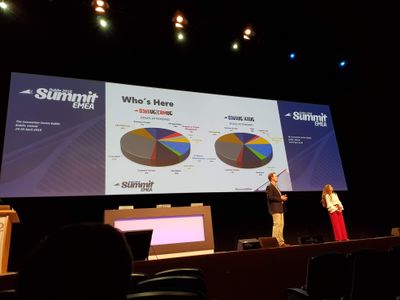
It was incredible. That’s really the only way, thinking back, that I can describe it. Several thousand people, all coming together with a shared goal – to learn, discuss, and further knowledge. Being the first time I had attended such an event, I was a bit overwhelmed, but tried to involve myself as best as I could. I made a few friends there, who I still keep in touch with.
Amusingly, I’ve since found out that many people who I know now were also there! It’s quite amusing to think back and wonder how things might be different if I had known them then.
Post Summit, I decided to start attending my local D365 User Group chapter (based in London). Again, it was stepping into something that I was new to, and took some time in getting used to it. At the first one that I attended in summer 2018, I met amazing people, such as Mark Smith and Chris Huntingford. They drew me into conversations that were going on, enabling me to meet and chat with others as well.
It was also there that I met Microsoft MVPs. Sitting along the side of the room, they seemed all-knowledgeable on the platform and I wondered how they had gotten to such an incredible level, mastering the technology. It was only later that I started to find out what actually caused someone to be an MVP!
I continued attending the User Group sessions every few months and slowly got to know others who were regular attendees as well. Faces started to become familiar and I always looked forward to catching up at the next session.
Compared with people who had been involved in the community for years, I felt an absolute newbie with little to share. I still tried to though, bringing my own experience to some conversations, and sharing tips & tricks that I had discovered. However, I definitely didn’t think I had anything worth volunteering to be a speaker on, leaving aside that I was terrified of standing up in front of others and delivering a session!
Then in summer 2019, something happened. Looking back, it’s what gave me the impetus to the path that I’m on and what I’ve done to date.
I was at the User Group event, having attended all of them for almost 1.5 years. Whilst there, I saw someone who I had worked with quite a few years previously, but hadn’t seen in a while. I went over to say hello and we chatted for a bit. They asked what I was doing, where I was working, etc. On telling them, they seemed quite surprised that I was at the level that I was, and that I was actually directly working with clients. They turned around and told me that they never thought I’d have amounted to anything more than a basic support role. The conversation ended shortly after, leaving me feeling very uncomfortable and somewhat shocked.
Chris Huntingford was there that day as well, and on seeing me a bit later in the day, realised that something wasn’t quite right. We had struck up a good friendship since the first time we met, and had kept in touch. He’s someone I definitely looked up to (though we’re around the same height!), and would ask for guidance on matters.
We went out for drinks after the day ended (I always am of the opinion that buying someone a drink to spend some time with them is a great ROI!), and I shared the events of the day.

I still treasure the words Chris told me that day. He said ‘dude, you should totally ignore that person. You may not be many years in the community, but you have valuable experience, are doing well professionally, and have so much to offer that you can, and should, share with others’.
Building my own community
I took his words to heart, and looked into what I could do to start things off. I started a blog (personally branded as The CRM Ninja), talking around technology. I did one article, then another, starting from a high level view of technology to ease myself into writing. I found it starting to flow, and continued posting articles in a weekly basis.
I also decided to do two other things. I applied to speak at a User Group (admittedly a smaller one than my usual one) around a topic that I had come up with. Keith Whatling was SO helpful in this, and became another good friend and mentor.
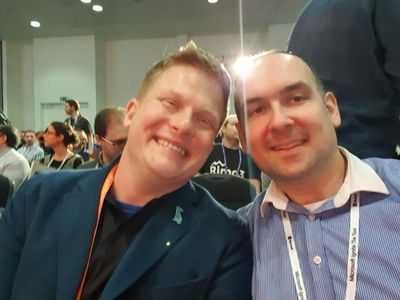
And I started a recorded interview series (called The Oops Factor), to feature other people & bring their stories to light. Both of these pushed me out of my usual comfort zone, but I was wanting to push myself as well as look to see how I could help others.
If I now take a look back, I can’t believe how much I’ve accomplished since that summer. I’ve published over 175 blog post articles, with over 35,000 page views! Quite a few have also been featured in various technology weekly roundups, as well as other places. I’ve received feedback from people as to how my articles have helped them solve a problem, or assisted them with studying for an exam.
My interview series, aired on a weekly basis, is now over a year old. I have a waitlist of people who want to come on it, to share their own experiences & stories. Only this week I found out from someone who was recently looking for a new position that the recruiter had watched their episode, which helped them land the job!
And the ‘cherry on the cake’? I got awarded Microsoft MVP for Business Applications late this year, which was a massive surprise. It’s never been the goal, but I’m looking on it as a milestone of achievement along the way!
Though I definitely have come far in the last 1.5 years, I still feel so much at the beginning of this journey. I’m excited to see how the next few chapters will pan out. My personal slogan throughout all of this is that ‘through community, we enable each other, as well as ourselves. What results is that community is so much greater than the sum of its parts’.
#CommunityBuzz
#HumansofIT
#PowerAddicts


Recent Comments