Ingest and Transform Data with Azure Synapse Analytics With Ease

Ingest and Transform Data with Azure Synapse Analytics With Ease

This article is contributed. See the original author and article here.

The Integrate Hub within Azure Synapse Analytics workspace helps to manage, creating data integration pipelines for data movement and transformation. In this article, we will use the knowledge center inside the Synapse Studio to immediately ingest some sample data, US population by gender and race for each US ZIP code sourced from 2010 Decennial Census. Once we have access to the data, we will use a data flow to filter out what we don’t need and transform the data to create a final CSV file stored in the Azure Data Lake Storage Gen2.


Using Sample Data From Azure Synapse Knowledge Center


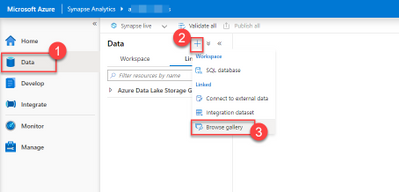
Our first step will be to get access to the data we need. Inside the Synapse workspace, choose the Data option from the left menu to open the Data Hub.


Shirley_Wang_0-1607598567224.png


Data Hub is open. The plus button to add new artifacts is selected. Browser Gallery from the list of linked data source options is highlighted.


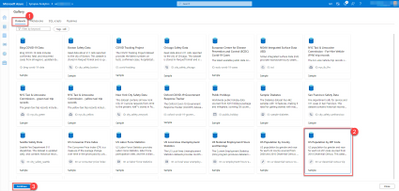
Once in the gallery, make sure Datasets page is selected. From the list of available sample datasets, choose US Population by ZIP Code and select Continue.

Shirley_Wang_1-1607598567243.png


Knowledge Center dataset gallery is open. US Population by ZIP Code dataset is selected. Continue button is highlighted.


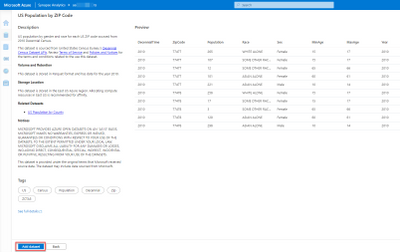
On the next screen, you can see the dataset’s details and observe a preview of the data. Select Add dataset to include the dataset into your Synapse workspace as a linked service.

Shirley_Wang_2-1607598567255.png


US Population by ZIP Code dataset details are shown. Add dataset button is highlighted.


Data Exploration With the Serverless SQL Pool


Once the external dataset is included to your workspace as a linked service, it will show up under the Data hub as under Azure Blog Storage / Sample Datasets section. Select the Actions button for us-decennial-census-zip represented as “…” to see a list of available actions for the linked data source.


Shirley_Wang_3-1607598567259.png


us-decennial-census-zip sample dataset is selected. The actions button is highlighted.


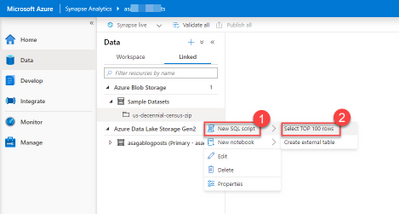
We will now query the remote data source using our serverless SQL pool to test our access to the data source. From the Actions menu Select New SQL Script / Select Top 100 rows. This will bring an auto-generated SQL script.

Shirley_Wang_4-1607598567264.png


The actions menu for us-decennial-census-zip is shown. New SQL script is selected, and Select Top 100 rows command is highlighted.


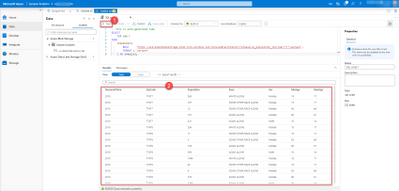
Select Run and see the data presented in Results tab.

Shirley_Wang_5-1607598567277.png


The actions menu for us-decennial-census-zip is shown. New SQL script is selected, and Select Top 100 rows command is highlighted.


Creating Integration Datasets for Ingest and Egress


Now that we proved our access to the data source, we can create integration datasets that will be our source and sink datasets. Feel free to close the current SQL Script window and discard all changes.

Shirley_Wang_6-1607598567282.png


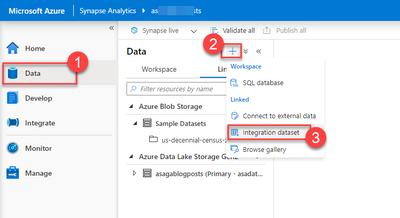
The Data hub is on screen. Add new resource button is selected. From the list of resources integration dataset is highlighted.


Select the “+” Add new resource button to open the list of available resources we can add to our Synapse workspace. We will create two integration datasets for our example. The first one will help us integrate our newly added remote data source into a data flow. The second one will be an integration point for the sink CSV file we will create in our Azure Data Lake Storage Gen2 location.


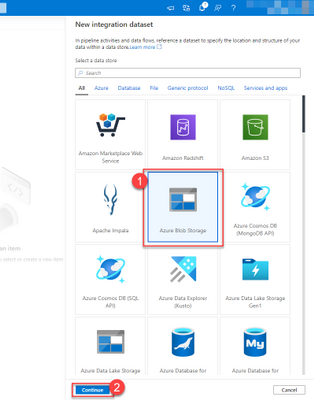
Select Integration dataset to see a list of all data sources you can include. From the list, pick Azure Blob Storage and select Continue.

Shirley_Wang_7-1607598567290.png


New integration dataset window is open. Azure Blob Storage option is selected. Continue button is highlighted.


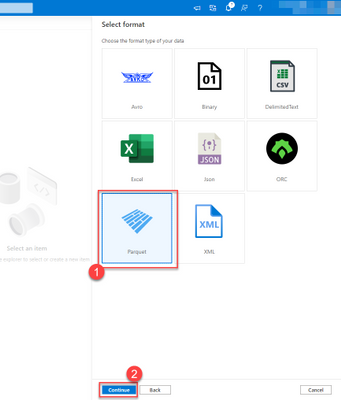
Our source files are in the Parquet format. Pick Parquet as the file format type and select Continue.

Shirley_Wang_8-1607598567294.png


File format options window is open. Parquet is selected. Continue button is highlighted.


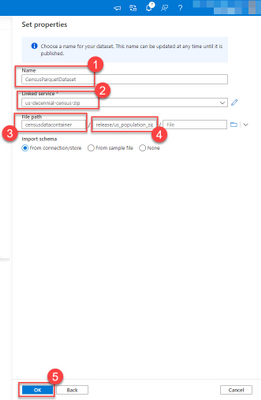
On the next screen set the dataset name to CensusParquetDataset. Select us-decennial-census-zip as the Linked service. Finally, for the file path set censusdatacontainer for Container, and release/us_population_zip/year=2010 for Directory. Select OK to continue.

Shirley_Wang_9-1607598567298.png


Dataset properties window is open. The dataset name is set to CensusParquetDataset. Linked Service is set to us-decennial-census-zip. File path is set to censusdatacontainer. File Path folder is set to release/us_population_zip/year=2010. Finally, the OK button is highlighted.


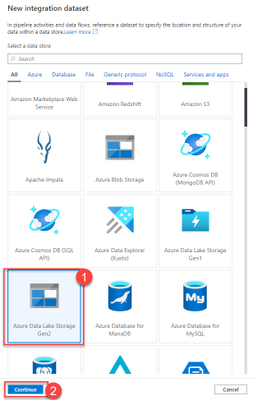
Select the “+” Add new resource button and pick Integration dataset again to create our sink dataset. For this round, choose Azure Data Lake Storage Gen2 for the data store.

Shirley_Wang_10-1607598567305.png


New integration dataset window is open. Azure Data Lake Storage Gen2 option is selected. Continue button is highlighted.


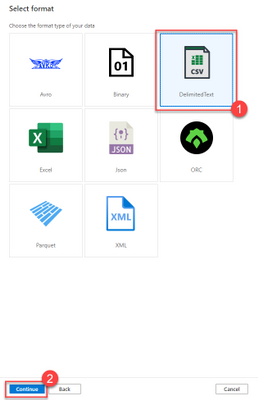
Our target file will be a CSV file. Pick DelimitedText as the file format type and select Continue.

Shirley_Wang_11-1607598567309.png


File format options window is open. DelimitedText is selected. Continue button is highlighted.


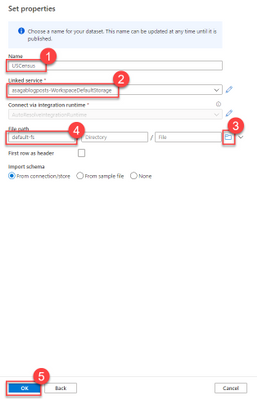
On the next screen, set the dataset name to USCensus. Select Synapse workspace default storage as the Linked service. Finally, for the file path, select the Browse button and pick a location to save the CSV file. Select OK to continue. In our case, we selected default-fs as the file system and will be saving the file to the root folder.

Shirley_Wang_12-1607598567313.png


Dataset properties window is open. The dataset name is set to USCensus. Linked Service is set to the default workspace storage. File path is set to default-fs. Finally, the OK button is highlighted.


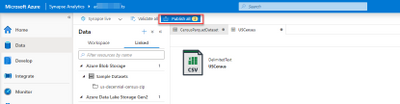
Now that we have both our source and sink datasets ready. It is time to select Publish all and save all the changes we implemented.

Shirley_Wang_13-1607598567317.png


CensusParquetDataset and USCensus datasets are open. Publish All button is highlighted.


Data Transformation With a Pipeline and a Dataflow


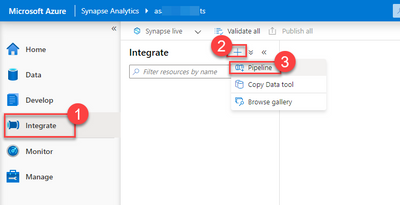
Switch to the Integrate Hub from the left menu. Select the “+” Add new resource button and select Pipeline to create a new Synapse Pipeline.

Shirley_Wang_14-1607598567321.png


Integrate Hub is open. Add Resource is selected. Pipeline command is highlighted.


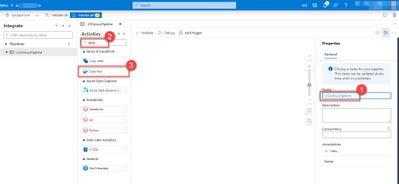
Name the new pipeline USCensusPipeline and search for data in the Activities panel. Select Data flow activity and drag and drop one onto the screen.

Shirley_Wang_15-1607598567328.png


New pipeline window is open. Pipeline’s name is set to USCensusPipeline. The activities search box is searched for data. Data flow activity is highlighted.


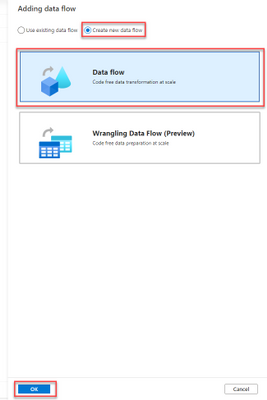
Pick Create new data flow and select Data flow. Select Continue.

Shirley_Wang_16-1607598567331.png


New data flow window is open. Create new data flow option is selected. Data flow is selected. The OK button is highlighted.


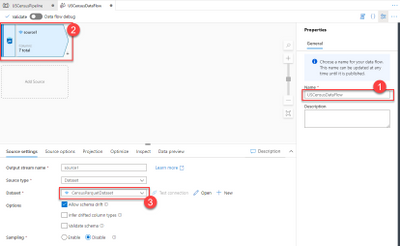
Once you are in the Dataflow designer give your Dataflow a name. In our case, it is USCensusDataFlow. Select CensusParquetDataset as the Dataset in the Source settings window.

Shirley_Wang_17-1607598567338.png


Dataflow name is set to USCensusDataFlow. The source dataset is set to CensusParquetDataset.


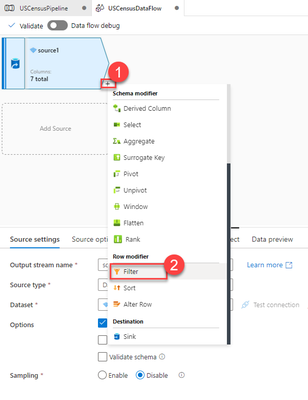
Select the “+” button on the right of the source in the designer panel. This will open the list of transformation you can do. We will filter out the data to only include the ZIP Code 98101. Select Filter Row Modifier to add the activitiy into the data flow.

Shirley_Wang_18-1607598567343.png


Data transformations menu is open. Filter row modifier is highlighted.


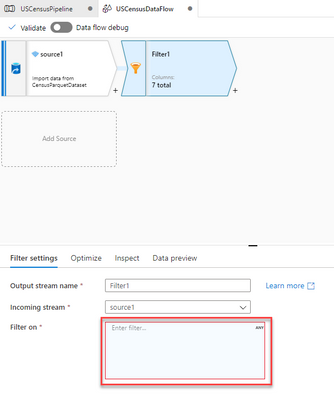
On the Filter settings tab you can define your filtering expression in the Filter on field. Select the field box to navigate to the Visual expression builder.

Shirley_Wang_19-1607598567347.png


Filter settings tab is open. Filter on field is highlighted.


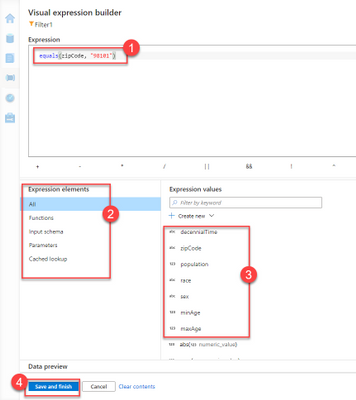
The data flow expression builder lets you interactively build expressions to use in various transformations. In our case, we will use equals(zipCode, “98101”) to make sure we only return records with the 98101 ZIP code. Before selecting Save and finish make sure you take a look at the Expression elements list and the Expression values that includes the fields extracted from the source data schema.

Shirley_Wang_20-1607598567352.png


Visual expression builder is open. Expression is set to equals(zipCode, “98101”). Expression elements, expression values are highlighted. Save and finish button is selected.


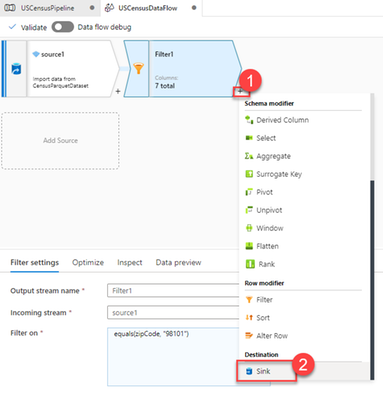
Our data flow’s final step is to create the CSV file in Azure Data Lake Storage Gen2 for further use. We will add another step to our data flow. This time, it will be a sink as our output destination.

Shirley_Wang_21-1607598567357.png


Data transformations menu is open. Sink is highlighted.


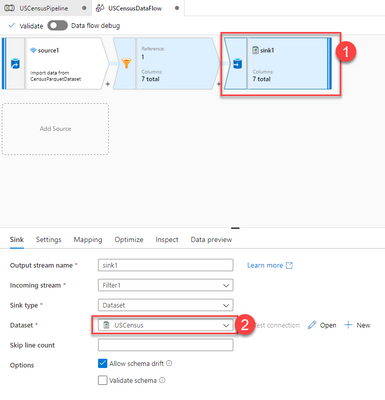
Once the sink is in place, set the dataset to USCensus. This is the dataset targeting our Azure Data Lake Storage Gen2.

Shirley_Wang_22-1607598567362.png


Sink dataset is set to USCensus.


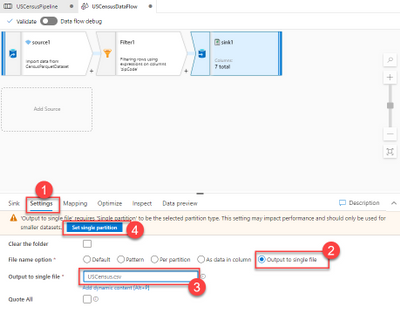
Switch to the Settings tab for the sink. Set the File name option to Output to single file. Output to single file combines all the data into a single partition. This leads to long write times, especially for large datasets. In our case, the final dataset will be very small. Finally, set the Output to single file value to USCensus.csv.

Shirley_Wang_23-1607598567368.png


Sink settings panel is open. Output to single file is selected and it’s value is set to USCensus.csv. Set Single partition button is highlighted.


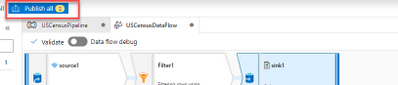
Now, it’s time to hit Publish All and save all the changes.

Shirley_Wang_24-1607598567370.png


Publish all button is highlighted.


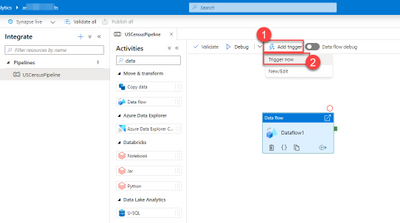
Close the data flow editor. Go back to our USCensusPipeline. Select Add Trigger and Trigger now to kick start the pipeline for the first time.

Shirley_Wang_25-1607598567376.png


USCensusPipeline is open. Add trigger is selected and Trigger now command is highlighted.


Results Are In


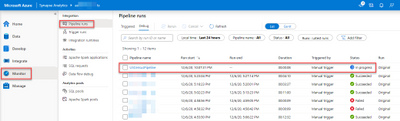
To monitor the pipeline execution go to the Monitor Hub. Select Pipeline runs and observe your pipeline executing.

Shirley_Wang_26-1607598567384.png


Monitor Hub is open. Pipeline runs is selected. USCensusPipeline pipeline row is highlighted showing status as in progress.


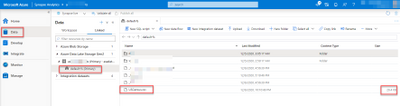
Once the pipeline is successfully executed, you can go back to the Data hub to see the final result. Select the workspace’s default Azure Data Lake Storage Gen2 location that you selected as your sink and find the resulting USCensus.csv file that is only 26.4KB with census data for the ZIP code used as the filter.

Shirley_Wang_27-1607598567390.png


Data Hub is open. Workspace’s default ADLS Gen2 storage is open. USCensus.csv file and its 26.5KB size is highlighted.


Keeping Things Clean and Tidy


We created a list of artifacts in our Synapse workspace. Let’s do some cleaning before we go.
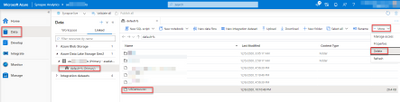
First of all, delete the CSV file our pipeline created. Go to the Data hub, select the workspace’s default Azure Data Lake Storage Gen2 location that you selected as your sink and find the resulting USCensus.csv file. Select Delete from the command bar to delete the file.

Shirley_Wang_28-1607598567408.png


Data Hub is open. Workspace’s default ADLS Gen2 storage is open. USCensus.csv file is selected. Delete command is highlighted.


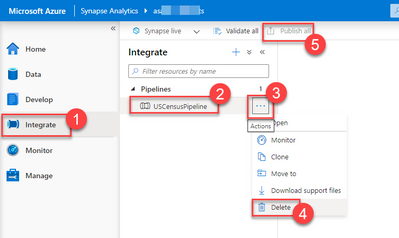
Go to the Integrate hub and select the USCensusPipeline we created. Select the Actions command and select Delete to remove the pipeline. Don’t forget to hit Publish All to execute the delete operation on the Synapse workspace.

Shirley_Wang_29-1607598567413.png


Integrate Hub is open. USCensusPipeline is selected. Actions menu is open and delete command is highlighted.


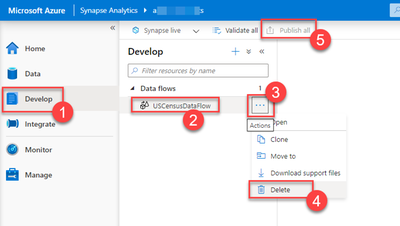
Go to the Develop hub and select the USCensusDataFlow we created. Select the Actions command and select Delete to remove the dataflow. Don’t forget to hit Publish All to execute the delete operation on the Synapse workspace.

Shirley_Wang_30-1607598567418.png


Develop Hub is open. USCensusDataFlow is selected. Actions menu is open and delete command is highlighted.


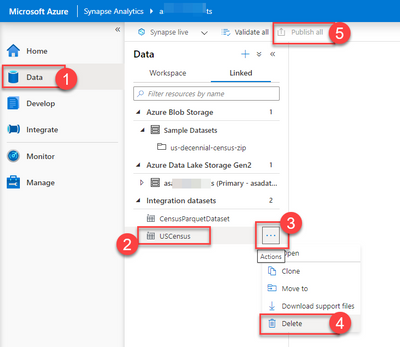
Go to the Data hub and select the USCensus we created. Select the Actions command and select Delete to remove the dataset. Repeat the same steps for the CensusParquetDataset as well. Don’t forget to hit Publish All to execute the delete operation on the Synapse workspace.

Shirley_Wang_31-1607598567427.png


Develop Hub is open. USCensus is selected. Actions menu is open and delete command is highlighted.


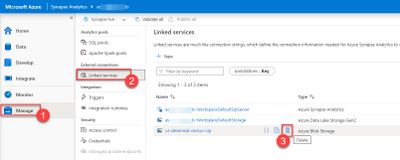
Go to the Manage hub and select Linked services. From the list, select the us-decennial-census-zip. Select Delete to remove the linked service.

Shirley_Wang_32-1607598567435.png


Manage Hub is open. The Linked services section is selected. The delete button for us-decennial-census-zip linked service is highlighted.


We are done. Our environment is the same as it was before.


Conclusion


We connected to a third-party data storage service that has parquet files in it. We looked into the files with the serverless SQL Pool. We created a pipeline with a data flow connecting to the outside source, filtering data out and putting the result in a CSV file in our data lake. While going through these steps, we have met with linked services, datasets, pipelines, dataflows, and a beautiful expression builder.


Go ahead, try out this tutorial yourself today by creating an Azure Synapse workspace.


Migrating Azure AD B2C integration going from .NET Core 3.1 to .NET 5

Migrating Azure AD B2C integration going from .NET Core 3.1 to .NET 5

This article is contributed. See the original author and article here.

This year’s release of .NET happened a few weeks ago with .NET 5. (Core is gone from the name now.) I have some sample code that works as sort of a boilerplate to verify basic functionality without containing anything fancy. One of those is a web app where one can sign in through Azure AD B2C. Logically I went ahead and updated from .NET Core 3.1 to .NET 5 to see if everything still works.


It works, but there are recommendations that you should put in some extra effort as the current NuGet packages are on their way to deprecation. Not like “will stop working in two weeks”, but might as well tackle it now.


The Microsoft Identity platform has received an overhaul in parallel to .NET and a little while before the .NET 5 release the Identity team released Microsoft.Identity.Web packages for handling auth in web apps. (Not just for Azure AD B2C, but identity in general.)


Why is this upgrade necessary? Well, the old libraries were based on the Azure AD v1 endpoints, but these new libraries fully support the v2 endpoints. Which is great when going for full compliance with the OAuth and OpenID Connect protocols.


Using my sample at https://github.com/ahelland/Identity-CodeSamples-v2/tree/master/aad-b2c-custom_policies-dotnet-core  I wanted to do a test run from old to new.


The current code is using Microsoft.AspNetCore.Authentication.AzureADB2C.UI. (You can take a look at the code for the Upgraded to .NET 5 checkpoint for reference.)


You can start by using NuGet to download the latest version of Microsoft.Identity.Web and Microsoft.Identity.Web.UI. (1.4.0 when I’m typing this.) You can also remove Microsoft.AspNetCore.Authentication.AzureADB2C.UI while you’re at it.


In Startup.cs you should make the following changes:

Replace


services.AddAuthentication(AzureADB2CDefaults.AuthenticationScheme)
  .AddAzureADB2C(options => Configuration.Bind("AzureADB2C", options)).AddCookie();


With


services.AddAuthentication(OpenIdConnectDefaults.AuthenticationScheme)
  .AddMicrosoftIdentityWebApp(Configuration.GetSection("AzureADB2C"));


And change


services.AddRazorPages(); 


To


services.AddRazorPages().AddMicrosoftIdentityUI();


If you have been doing “classic” Azure AD apps you will notice how B2E and B2C are now almost identical. Seeing how they both follow the same set of standards this makes sense. As well as making it easier for .NET devs to support both internal and external facing authentication.


B2C has some extra logic in the sense that the different policies drive you to different endpoints, so the UI has to have awareness of this. And you need to modify a few things in the views.


In LoginPartial.cshtml:

Change


@using Microsoft.AspNetCore.Authentication.AzureADB2C.UI
@using Microsoft.Extensions.Options
@inject IOptionsMonitor<AzureADB2COptions> AzureADB2COptions

@{
  var options = AzureADB2COptions.Get(AzureADB2CDefaults.AuthenticationScheme);   
}


To


@using Microsoft.Extensions.Options
@using Microsoft.Identity.Web
@inject IOptions<MicrosoftIdentityOptions> AzureADB2COptions

@{
  var options = AzureADB2COptions.Value;
}


And change the asp-area in links from using AzureADB2C:


<a class="nav-link text-dark" asp-area="AzureADB2C" asp-controller="Account" asp-action="SignOut">Sign out</a>


To using MicrosoftIdentity:


<a class="nav-link text-dark" asp-area="MicrosoftIdentity" asp-controller="Account" asp-action="SignOut">Sign out</a>


And that’s all there is to it :)

Azure AD B2C SignUpAzure AD B2C SignUp


Now this is a fairly stripped down sample app without the complexity of a real world app, but this was a rather pain free procedure for changing the identity engine in a web app.


MSMQ and Windows Containers

This article is contributed. See the original author and article here.

Ever since we introduced Windows Containers in Windows Server 2016, we’ve seen customers do amazing things with it – either with new applications that leverage the latest and greatest of .Net Core and all other cloud technologies, but also with existing applications that were migrated to run on Windows Containers. MSMQ falls into this second scenario.


MSMQ was an extremely popular messaging queue manager launched in 1997 that became extremely popular in the 2000’s with enterprises using .Net and WCF applications. Today, as companies look to modernize existing applications with Windows Containers, many customers have been trying to run these MSMQ dependent applications on containers “as is” – which means no code changes or any adjustments to the application. However, MSMQ has different deployment options and not all are currently supported on Windows Containers.


In the past year, our team of developers have tested and validated some of the scenarios for MSMQ and we have made amazing progress on this. This blog post will focus on the scenarios that work today on Windows Containers and some details on these scenarios. In the future we’ll publish more information on how to properly set up and configure MSMQ for these scenarios using Windows Containers.


Supported Scenarios


MSMQ can be deployed on different modes to support different needs from customers. Between private and public queues, transactional or not, and anonymous or with authentication, MSMQ can fit different scenarios – but not all can be easily moved to Windows Containers. The table below lists the currently supported scenarios:


Scope


Transactional


Queue location


Authentication


Send and receive


Private


Yes


Same container (single container)


Anonymous


Yes


Private


Yes


Persistent volume


Anonymous


Yes


Private


Yes


Domain Controller


Anonymous


Yes


Private


Yes


Single host (two containers)


Anonymous


Yes


Public


No


Two hosts


Anonymous


Yes


Public


Yes


Two hosts


Anonymous


Yes


The scenarios above have been tested and validated by our internal teams. In fact, here are some other important information on the results of these tests:


  • Isolation mode: All tests worked fine with both isolation modes for Windows containers, process and hyper-v isolation.

  • Minimal OS and container image: We validated the scenarios above with Windows Server 2019 (or Windows Server, version 1809 for SAC), so that is the minimal version recommended for using with MSMQ.

  • Persistent volume: Our testing with persistent volume worked fine. In fact, we were able to run MSMQ on Azure Kubernetes Service (AKS) using Azure files.


Authentication with gMSA


From the table above, you can deduce that the only scenario we don’t support is for queues that require authentication with Active Directory. The integration of gMSA with MSMQ is currently not supported as MSMQ has dependencies on Active Directory that are not in place at this point. Our team will continue to listen to customer feedback, so let us know if this is a scenario you and your company are interested in. You can file a request/issue on our GitHub repo and we’ll track customer feedback there.


Let us know how the validation of MSMQ goes with your applications. We’re looking forward to hear back from you as you continue to modernize your applications with Windows containers.

Additional email data in advanced hunting

This article is contributed. See the original author and article here.

We’re thrilled to share new enhancements to the advanced hunting data for Office 365 in Microsoft 365 Defender. Following your feedback we’ve added new columns and optimized existing columns to provide more email attributes you can hunt across. These additions are now available in public preview.


We’ve made the following changes to the EmailEvents and EmailAttachmentInfo tables:


  • Detailed sender info through the following new columns:


    • SenderDisplayName – Name of the sender displayed in the address book, typically a combination of a given or first name, a middle initial, and a last name or surname

    • SenderObjectIdUnique identifier for the sender’s account in Azure AD


  • We’ve also optimized and organized threat detection information, replacing four separate columns for malware and phishing verdict information with three new columns that can accommodate spam and other threat types.


New column


Mapping to previous columns


Description


ThreatTypes


MalwareFilterVerdict


Verdicts from the email filtering stack on whether the email contains malware, phishing, or other threats


PhishFilterVerdict


DetectionMethods


MalwareDetectionMethod


Technologies used to threats. This column will cover spam detection technologies in addition to the previous phishing and malware coverage.


As part of this change, we have updated the set of technologies for Phish/Malware threats, as well as introduced detection tech targeted for Spam verdicts.


(NOTE: This is available in EmailEvents only, but will eventually be added to EmailAttachmentInfo.)


PhishDetectionMethod


ThreatNames


N/A – New


Json of technology used to malware, phishing, or other threats found in the email.


If you want to look for a specific threat, you can use the ThreatTypes column. These new columns will be empty if there are no threats—they will no longer be populated with values like with “Null”, “Not phish”, or “Not malware”.


Here is an example comparing the values in the old columns and the new columns:


Columns


Values


Old columns


PhishDetectionMethod


[“Anti-spoof: external domain”]


PhishFilterVerdict


Phish


MalwareFilterVerdict


Not malware


MalwareDetectionMethod


null


New columns


ThreatTypes


Phish, Spam


ThreatNames


DetectionMethods


{“Phish”:[“Anti-spoof: external domain”],”Spam”:[“DomainList”]}


  • Connectors—this new column in the EmailEvents table provides information about custom instructions that define organizational mail flow and how the email was routed.

  • Additional information on organizational-level policies and user-level policies that were applied on emails during the delivery. This information can help you identify any unintentional delivery of malicious messages (or blocking of benign messages) due to configuration gaps or overrides, such as very broad Safe Sender policies. This information is provided through the following new columns:

    • OrgLevelAction – Action taken on the email in response to matches to a policy defined at the organizational level

    • OrgLevelPolicy – Organizational policy that triggered the action taken on the email

    • UserLevelAction – Action taken on the email in response to matches to a mailbox policy defined by the recipient

    • UserLevelPolicy  – End user mailbox policy that triggered the action taken on the email


As always, we’d love to know what you think. Leave us feedback directly on Microsoft 365 security center or contact us at AHfeedback@microsoft.com. 

Explore data in basketball; inspired by SPACE JAM: A NEW LEGACY

Explore data in basketball; inspired by SPACE JAM: A NEW LEGACY

This article is contributed. See the original author and article here.

Basketball and coding share more than you think. They both require creativity, curiosity, and the ability to look at the big picture while strategizing your next move. Space Jam: A New Legacy is the perfect inspiration to learn computer and data science, and we’ve teamed up to create unique learning paths for data science and machine learning.


Space Jam LearnCard.png


The new learning path, Use machine learning to coach Looney Tunes basketball players, inspired by SPACE JAM: A NEW LEGACY, is inspired by real basketball players and the stats that guide the game of basketball.


In the first module of this learning path, you will learn how to use machine learning to impute missing data and discover bimodality in data separating human basketball players from Tune Squad players to create a complete dataset of player statistics, including their Player Efficiency Rating.


The second module is where you get the opportunity to take your data into the game. You will use machine learning to create a realistic simulated dataset of player stats throughout one game. Using this dataset, you will learn how to create and deploy a basic web app to support a coach’s decision making on which players to give a water break to, and which to put in the game.


With the power of Visual Studio Code, Azure, and GitHub, you will level up your coding skills while solving real-world challenges, with a little extra pizzazz from your favorite Tune Squad players. And, if you’re someone who also likes to watch walkthroughs of code, Dr. G is launching a short series of video tutorials guiding you through the learning path.


Welcome to the Jam!  Basketball champion and global icon LeBron James goes on an epic adventure alongside timeless Tune Bugs Bunny in the animated/live-action event “Space Jam: A New Legacy,” from director Malcolm D. Lee and an innovative filmmaking team including Ryan Coogler and Maverick Carter.  This transformational journey is a manic mashup of two worlds that reveals just how far some parents will go to connect with their kids. When LeBron and his young son Dom are trapped in a digital space by a rogue A.I., LeBron must get them home safely by leading Bugs, Lola Bunny, and the whole gang of notoriously undisciplined Looney Tunes to victory over the A.I.’s digitized champions on the court: a powered-up roster of basketball stars as you’ve never seen them before.  It’s Tunes versus Goons in the highest-stakes challenge of his life, that will redefine LeBron’s bond with his son and shine a light on the power of being yourself. The ready-for-action Tunes destroy convention, supercharge their unique talents and surprise even “King” James by playing the game their own way.


We’re excited to partner with this film because learning to code doesn’t have to be a series of the same sample project, together we can explore new tech skills paired with our love for basketball with an added flare of fun Looney Tunes characters. If you’re interested in other learning opportunities for younger students and educators, check out our post on the Microsoft Education Blog. Be sure to check out the new learning path today and don’t forget to catch the film, coming 2021!